
SharePoint and OneDrive offer two main ways to access files: syncing and adding shortcuts. Syncing downloads files to your computer, letting you work offline. Adding shortcuts keeps files in the cloud, saving space on your device.
Syncing SharePoint libraries creates a local copy of files on your computer, while adding shortcuts to OneDrive provides quick access without taking up storage space. This key difference impacts how users work with their files and collaborate with others.
Each method has its benefits. Syncing works well for people who need offline access or prefer working from their desktop. Adding shortcuts is great for those who want to save hard drive space and always have the latest version of files. Understanding these options helps teams choose the best way to manage their SharePoint and OneDrive files.
SharePoint Sync vs Add Shortcut to OneDrive [Understand the Basics]
OneDrive and SharePoint are key tools for file storage and collaboration in Microsoft 365. They offer different features for managing documents and working with teams.
What Is OneDrive?
OneDrive is Microsoft’s cloud storage service. It lets users save files online and access them from any device.
OneDrive comes in two versions:
- Personal OneDrive for individual use
- OneDrive for Business for work accounts
With OneDrive, users can:
- Store files in the cloud
- Share files with others
- Sync files across devices
- Access files offline
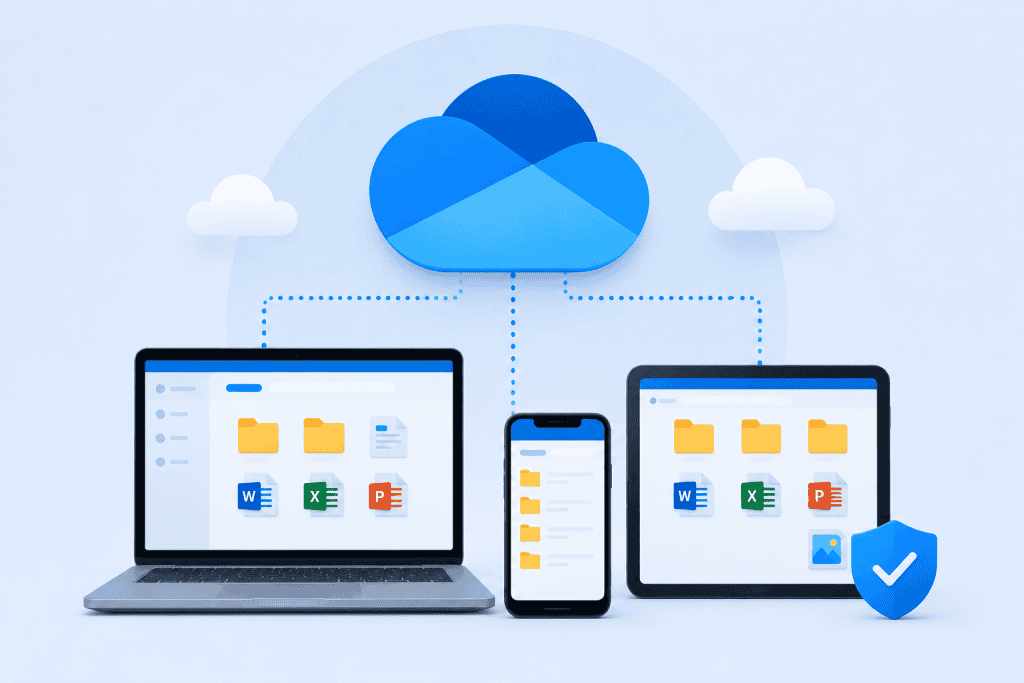
OneDrive integrates with other Microsoft 365 apps like Word and Excel. This makes it easy to save and edit files directly in the cloud.
Exploring SharePoint
SharePoint is a web-based platform for team collaboration. It helps organizations create websites to share information and collaborate on projects.
Key features of SharePoint include:
- Team sites for group work
- Communication sites for sharing news
- Lists for tracking data
- Document libraries for file storage
SharePoint allows teams to:
- Store and manage files
- Set up workflows
- Create custom web pages
- Control access to information
It’s a flexible tool that can be customized to fit an organization’s needs.
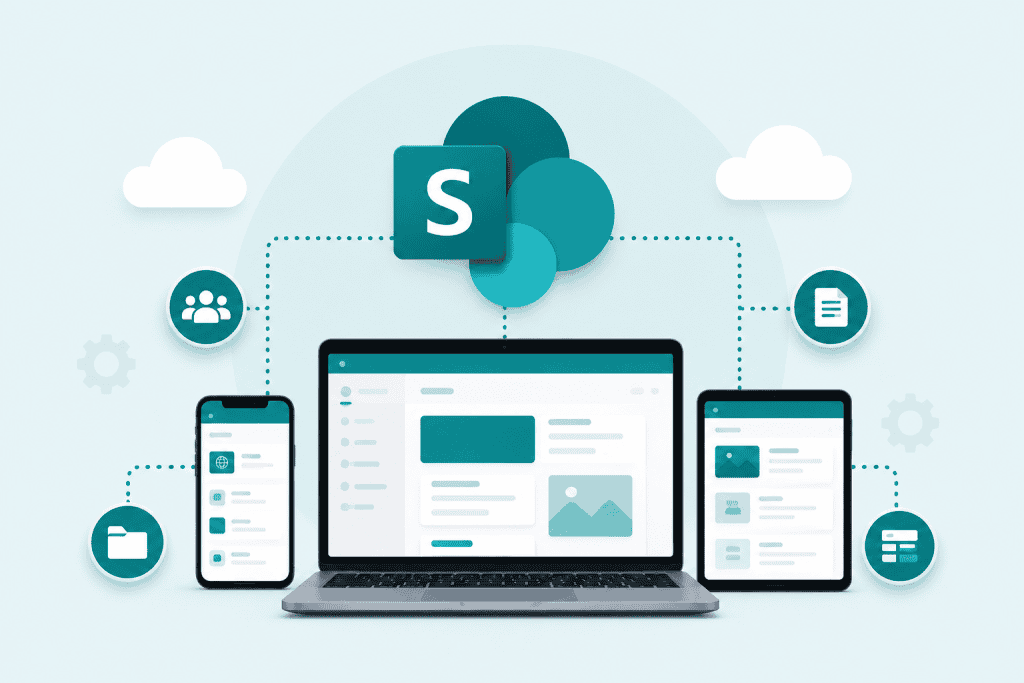
The Role of Document Libraries in SharePoint
Document libraries are a core part of SharePoint. They act as secure places to store, organize, and share files.
In a document library, users can:
- Upload files
- Create folders
- Set permissions
- Add metadata to files
- Check files in and out
- Track version history
Document libraries support team collaboration by:
- Allowing multiple people to work on files at once
- Providing a central place for project documents
- Enabling easy file sharing within the organization
They also offer features like co-authoring and content approval to improve teamwork and maintain quality.
Sync vs Shortcut
SharePoint sync and OneDrive shortcuts offer different ways to access files. Sync creates local copies, while shortcuts provide quick online access. Each has unique features and use cases.
Syncing with SharePoint
SharePoint sync lets users work with files offline. It copies SharePoint documents to a local device. This allows editing without an internet connection. Changes sync when back online.
The sync button in SharePoint starts this process. It creates a folder on the user’s computer. This folder mirrors the SharePoint library. Users can then open, edit, and save files as normal.
Syncing works well for frequent file access. It’s helpful when internet access is spotty. But it can use a lot of storage space on the device.
Adding Shortcuts to OneDrive
OneDrive shortcuts provide quick access to shared files. They don’t take up space on the local device. Instead, they link to online SharePoint folders.
To add a shortcut, users click “Add shortcut to OneDrive” in SharePoint. This creates a link in their OneDrive. Clicking the shortcut opens the SharePoint folder online.
Shortcuts are great for accessing many shared folders. They don’t use local storage. But they require an internet connection to use.
Comparison: Sync vs Add Shortcut
Sync and shortcuts serve different needs. Sync is best for offline work and frequent file access. Shortcuts work well for online-only access to many folders.
| Feature | Sync | Shortcut |
|---|---|---|
| Offline access | Yes | No |
| Local storage used | Yes | No |
| Internet required | No | Yes |
| Best for | Frequent use, offline work | Many shared folders, online work |
Sync can slow down devices with many files. Shortcuts don’t affect device performance. Sync offers better integration with desktop apps. Shortcuts work best with web apps.
Users should pick based on their work style. Those who travel a lot might prefer sync. Office workers with good internet might like shortcuts better.
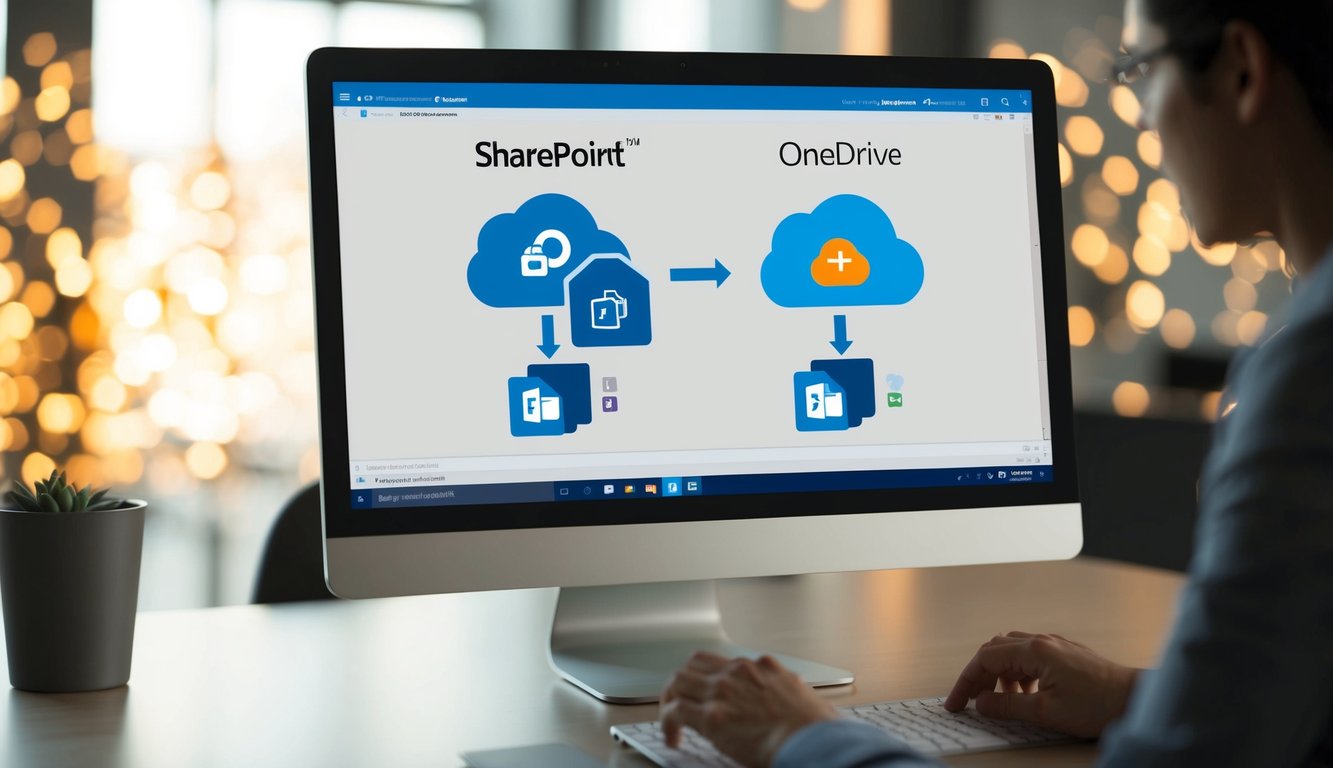
Setting Up and Using Features
SharePoint Sync and Add Shortcut to OneDrive offer different ways to access files. Each has a simple setup process with its own benefits for users.
How to Sync SharePoint Libraries
To sync SharePoint libraries, start by opening the library in a web browser. Click the “Sync” button at the top of the page. This launches the OneDrive Sync App if it’s not already running.
Choose the folders you want to sync. The app will create a local folder on your computer. This folder will show up in File Explorer on Windows or Finder on Mac.
The sync process begins right away. Files start downloading to your device. You can now work on these files offline.
Any changes you make sync back to SharePoint when you’re online. This works both ways – updates made by others also sync to your local folder.
- Pros: Offline access, automatic syncing
- Cons: Uses local storage space
How to Add Shortcuts to OneDrive
Adding shortcuts is quick and doesn’t use local storage. Go to the SharePoint library you want to access. Click the “Add shortcut to OneDrive” button.
This creates a link in your OneDrive. You can see this shortcut in the OneDrive web view and mobile app. It also shows up in File Explorer if you have the OneDrive Sync Client installed.
Shortcuts don’t download files to your device. They’re just links to the online content. This saves space but requires an internet connection to use.
You can organize shortcuts like regular folders in OneDrive. Move them, rename them, or remove them without affecting the original SharePoint library.
- Best for: Easy access across devices
- Drawback: No offline access
Managing Files and Performance
SharePoint sync and OneDrive shortcuts offer different ways to access and manage files. These methods impact performance and file handling in distinct ways.
File Management with Syncing and Shortcuts
SharePoint sync copies files to your device. This lets you work offline but uses local storage. Files sync automatically when you’re online.
OneDrive shortcuts don’t take up space on your device. They point to files in the cloud. You need the internet to use them. Shortcuts show up in File Explorer or Finder like regular folders.
Sync works well for frequently used files. Shortcuts are good for large libraries you don’t need offline. Both methods let you open and edit files from your desktop.
Optimizing Performance
Syncing can slow down your device, especially with large libraries. It may cause conflicts if many people edit offline at once. Using Files On-Demand can help. It only downloads files when you open them.
Shortcuts are faster to set up and don’t use local space. They work best with a good internet connection. Shortcut performance depends on your network speed.
For best results, sync small, important libraries. Use shortcuts for big libraries you don’t need offline. This balance helps manage storage and keeps your device running smoothly.
Frequently Asked Questions
SharePoint sync and OneDrive shortcuts have key differences in how they work. Users often have questions about which option to use and how they affect file access. Let’s address some common inquiries.
What are the main differences between syncing SharePoint libraries and adding a shortcut to OneDrive?
SharePoint sync downloads files to your device. It creates local copies you can work on offline. OneDrive shortcuts don’t take up space on your computer. They’re just links to online files.
Sync keeps files updated between your device and SharePoint. Shortcuts always show the latest online version when you’re connected to the internet.
How does adding a shortcut to OneDrive affect my file access compared to syncing with SharePoint?
Shortcuts let you see SharePoint files in your OneDrive folder. You can open them quickly without going to the SharePoint site. But you need internet access to use shortcut files.
Synced files work offline. You can edit them without internet and they’ll update later. This is good for remote work or travel.
Are there any limitations to be aware of when adding shortcuts to OneDrive for SharePoint libraries?
Shortcuts don’t work offline. You can’t access or edit files without an internet connection. There’s also a limit to how many shortcuts you can add.
Some file types might not work well with shortcuts. Large files or certain programs could have issues opening through OneDrive.
Why might the ‘Add shortcut to OneDrive’ option be missing or not working in SharePoint?
Your admin might have turned off this feature. Check with your IT department if you can’t see the option. Sometimes, browser issues can also hide the shortcut button.
Make sure you have the latest OneDrive app. Old versions might not support shortcuts. Try signing out and back in to SharePoint if the feature isn’t working.
In what scenarios is it more advantageous to use SharePoint for sharing files instead of OneDrive?
SharePoint is better for team projects. It offers more collaboration tools and permissions settings. Use it when many people need to work on files together.
SharePoint also works well for organizing department files. It has features like content approval and versioning that OneDrive lacks.
Can you pin SharePoint library folders to Quick Access similarly to adding shortcuts to OneDrive?
Yes, you can pin SharePoint folders to Quick Access in File Explorer. This works if you’ve synced the library to your computer.
Right-click the synced folder and choose “Pin to Quick access.” It’s a fast way to open SharePoint files, but it only works on that device.
Conclusion
SharePoint Sync and Add Shortcut to OneDrive are two ways to access SharePoint files. SharePoint Sync creates a local copy of files on your device. This lets you work offline.
Add Shortcut to OneDrive puts a link in your OneDrive. It doesn’t take up space on your device. You need an internet connection to use it.
SharePoint Sync is good for frequent offline work. Add Shortcut works well for quick online access. Pick the option that fits your needs best.
Both choices make it easier to find and use SharePoint files. They help teams work together more smoothly. Consider your work style and internet access when deciding.
Remember to keep your synced files up to date. With shortcuts, always check for the latest version online. Using these tools can boost your productivity when working with SharePoint.
Also, you may like some more SharePoint tutorials:
- Stop Creating SharePoint Site Columns Manually
- SharePoint Online List View
- Sensitivity Label For a SharePoint Document Library
- SharePoint Online List Permissions

I have worked with Microsoft technologies for more than 18 years, including SharePoint, Microsoft 365 and the Power Platform (Power Apps, Power Automate and Power BI), at companies like HP, TCS and KPIT. I started EnjoySharePoint in 2011 to share the solutions I build in real projects with readers in the United States, Canada, the United Kingdom, Australia, New Zealand and beyond. Microsoft has recognized this work with the Microsoft MVP award 13 times since 2014.