
When building Canvas Apps in Power Apps, there are certain controls we use repeatedly across multiple applications.
For example:
- Header sections
- Navigation menus
- Footer layouts
- Custom buttons
- Loading screens
- Search boxes
Now imagine creating the same design manually in every single app. It takes time, and maintaining consistency becomes difficult.
This is where the Power Apps Component Library becomes very useful.
A Component Library allows you to create reusable components once and use them across multiple Canvas Apps within the same environment.
In this Power Apps tutorial, I will explain everything step-by-step, including:
- How to enable Component Library in Power Apps
- How to create a Component Library
- How to create reusable components
- How to use those components in another Canvas App
- How to update or delete components
- Important things you should know about Component Libraries
Let’s get started.
Component Library in Power Apps
A Component Library is a centralized place where you can create reusable UI components and share them across multiple Power Apps applications.
Instead of recreating controls every time, you can simply build them once and reuse them wherever needed.
This helps in:
- Maintaining a consistent app design
- Reducing development time
- Easier maintenance
- Reusing common UI controls
For example, if your organization uses the same header design in all apps, you can create that header as a reusable component inside a Component Library.
Then you can import it into any Canvas App whenever needed.
Enable Component Library in Power Apps
Before creating a Component Library, first make sure the feature is enabled in Power Apps Studio.
- Open Power Apps Studio. Now, in the left-side navigation pane, click More, then Discover all.
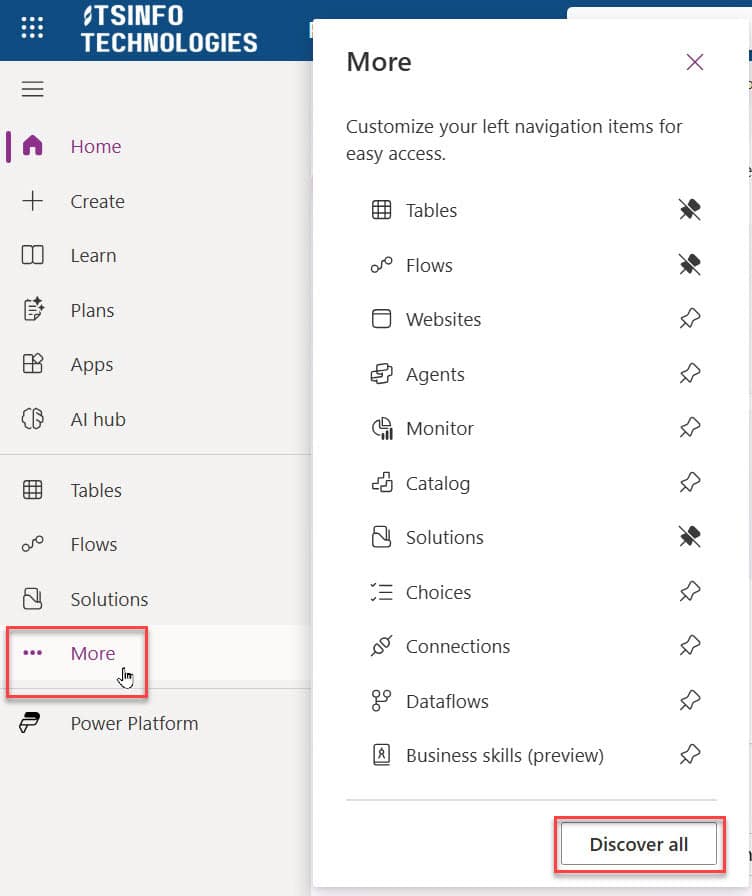
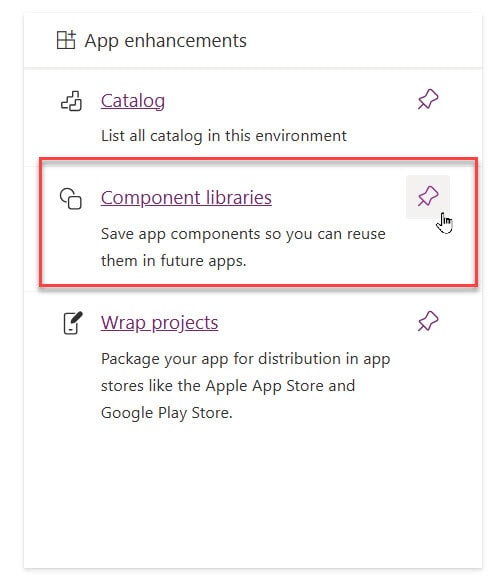
- Then scroll down until you find the App enhancements; there, you will find the Component libraries. Select it, or pin it, so it will be available in the left navigation all the time.
How to Create a Component Library in Power Apps
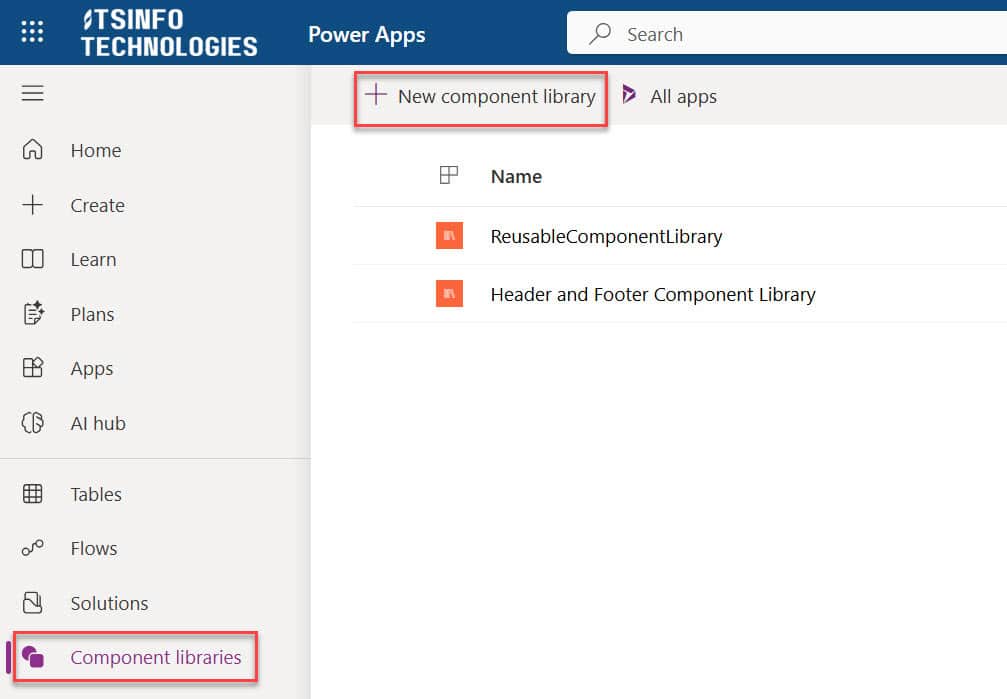
4. Now, let’s create a new Component Library. If this is your first time opening the component library, it will be blank.
Since I already created two component libraries, they are shown here. To create a new component library, click on +New component library.
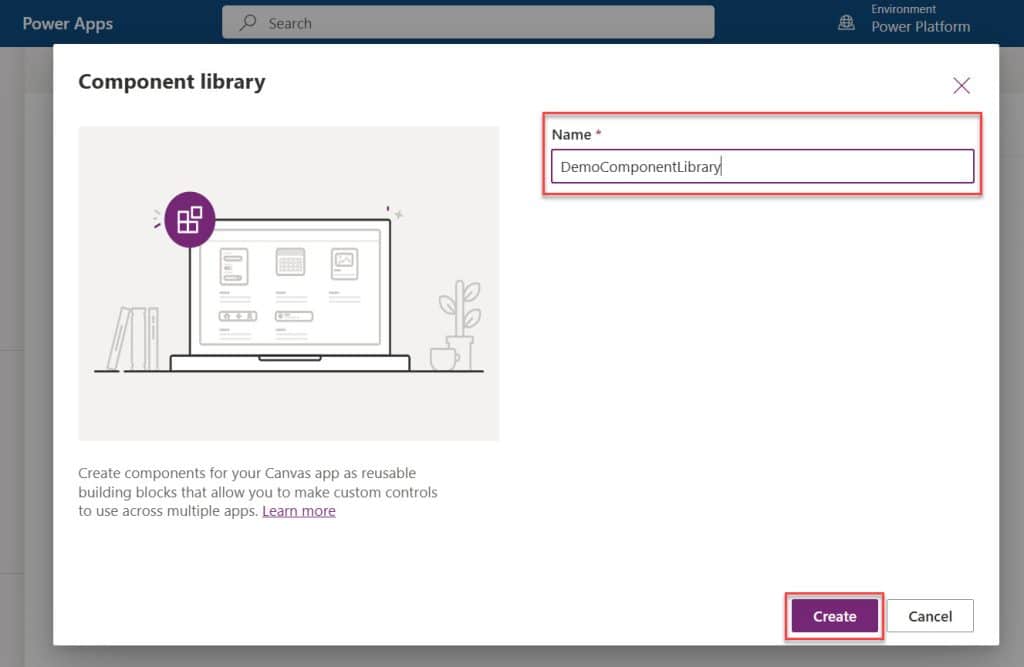
5. Then it will open a panel, provide the component library name, and click Create.
How to Create a Component in the Component Library
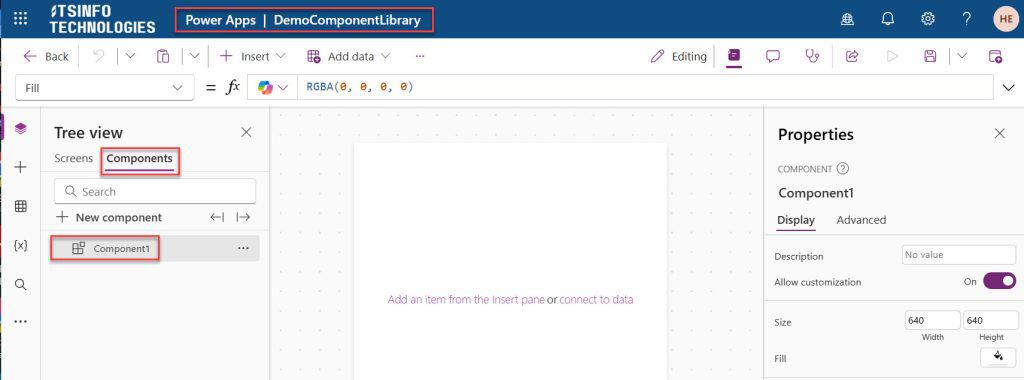
Then, it will automatically open the component library. It will look like a canvas app, as shown in the image. The only difference is that it opens the Components tab with a default component named Component1.
6. By default, it creates a component; if you want to create another, click +New component.
7. Now, you can customize the component. Let’s build a sample header component. For this, update the following properties of Component 1.
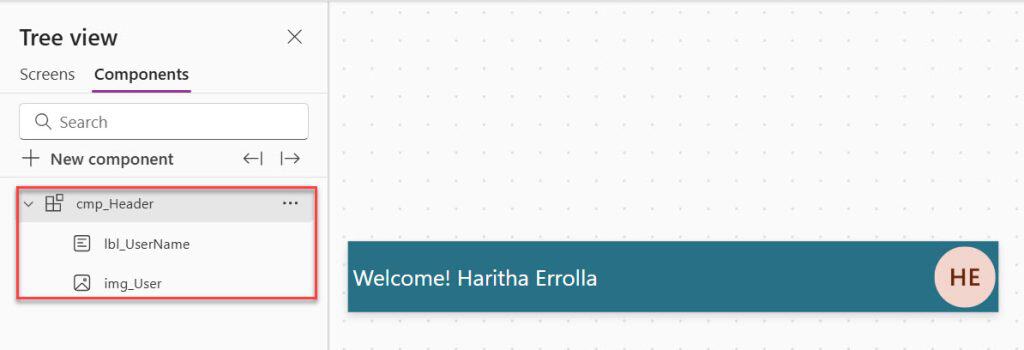
- Rename it as cmp_Header.
- Width = App.Width
- Height =70
- Fill = RGBA(40, 112, 134, 1)
- Add an Image Control into it, and then set its properties:
- Image = User().Image
- X=App.Width-Self.Width-3
- Y= 0
- Width, Height = 60
- Border Radius = 50
- Add a text label to display the logged-in user name. set its properties:
- Text =“Welcome! “&User().FullName
Finally, it will look like this!
8. Let’s understand some basics in this component library.
- Under the Components tab, we have a + New component. Clicking this will add a new component to this library.
- Next to that are two icons: the left and right arrows.
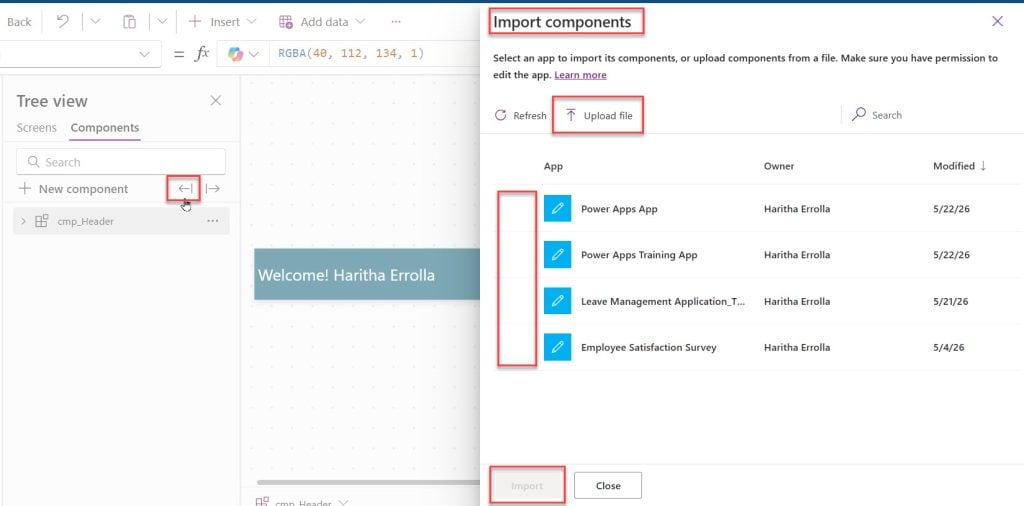
- Left arrow = Indicates Import components. It opens a panel on the right side, where you can select any app that contains components. Or you can upload a component file, then click the Import button at the bottom.
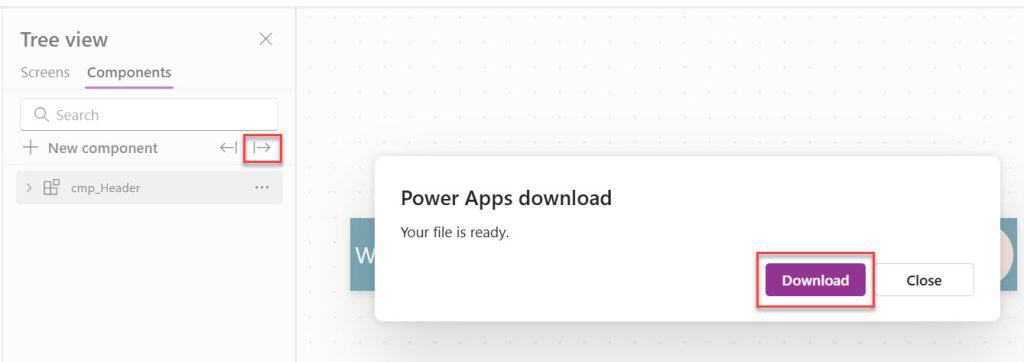
- Right arrow = Clicking this will allow you to download the component.
9. You can even create a custom property for the component by clicking the + New custom property button. It will open a panel on the left side, prompting you to enter the property name and its data type.
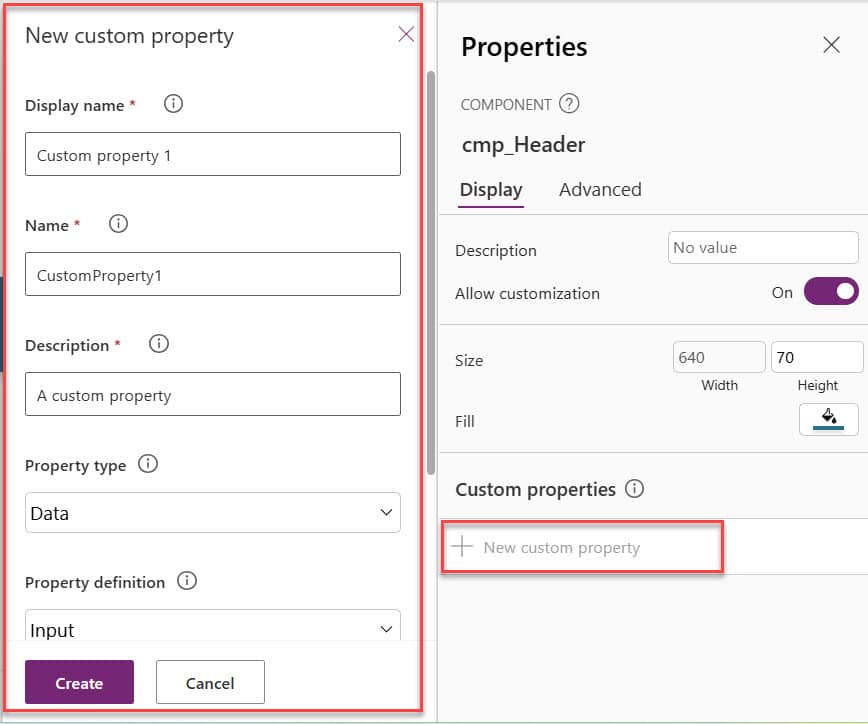
10. That’s it, save the changes, and publish the component library. Publishing is important because other apps can only access the published version of the Component Library.
To publish:
- Click on Publish
- Select Publish this version
Now your reusable components are ready to use in other Canvas Apps.
How to Use Component Library Components in Another Canvas App
Now let’s see how to use these reusable components in another app.
Open the Power Apps application, where you want to add components. Then, on the left side, there is a + icon representing the Insert pane; click on it. Under the search bar, you can see a folder search icon; click on it.
Then, on the right side, a panel will open, displaying all the component libraries present in the current environment. You can choose which component to add to this application, then click Import.
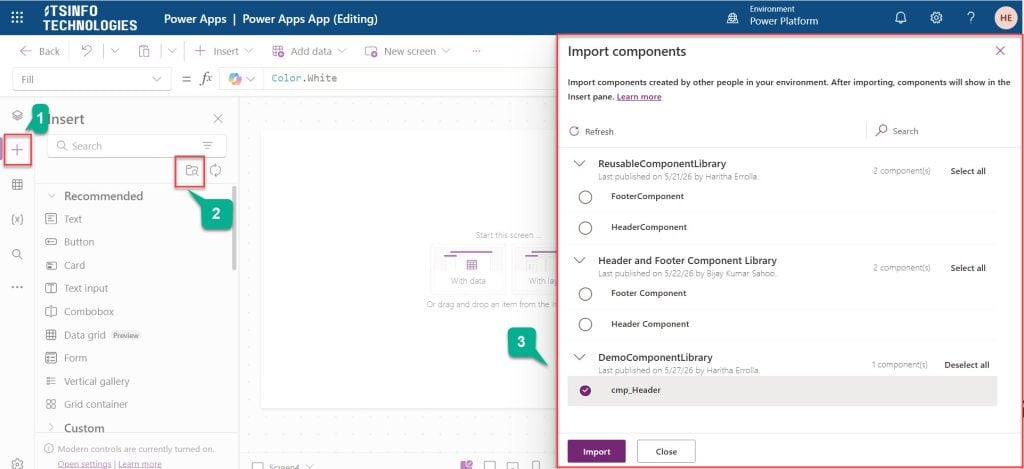
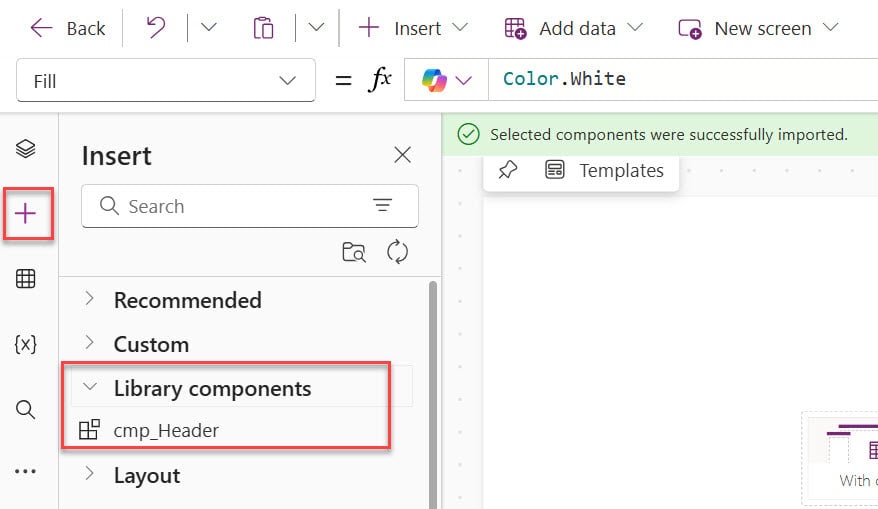
Once you import, you can see the Library components section and within this, the newly imported component on the Insert pane.
Now, just click on that cmp_Heder, it will be added to the screen, as shown in the image below. If you want to edit this component or want to remove it from the app. Click on the … next to it.
Note: The edit component will prompt you to open a copy in the local app for editing. Not at the component library level.
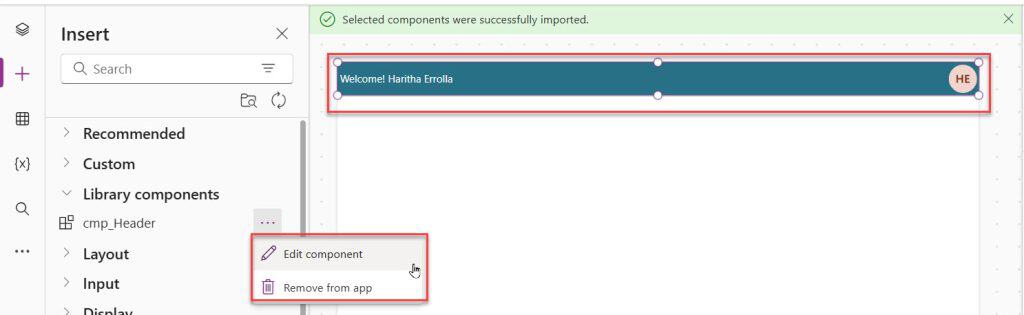
This way, you can add, edit, or remove the component from the component library in a Power Apps application.
How to Update Components in the Component Library
One of the biggest advantages of using a component library is centralized updates.
Suppose you update the header design inside the component library.
For example:
- Change the logo
- Update colors
- Add a new button
- Modify fonts
After publishing the updated version, apps that use that component can automatically receive the latest updates.
Inside the Canvas App, Power Apps may show a notification saying component updates are available. You can then refresh or update the imported component version.
This makes maintenance much easier compared to manually editing every app.
Edit, Delete, Rename, and Share a Power Apps Component Library
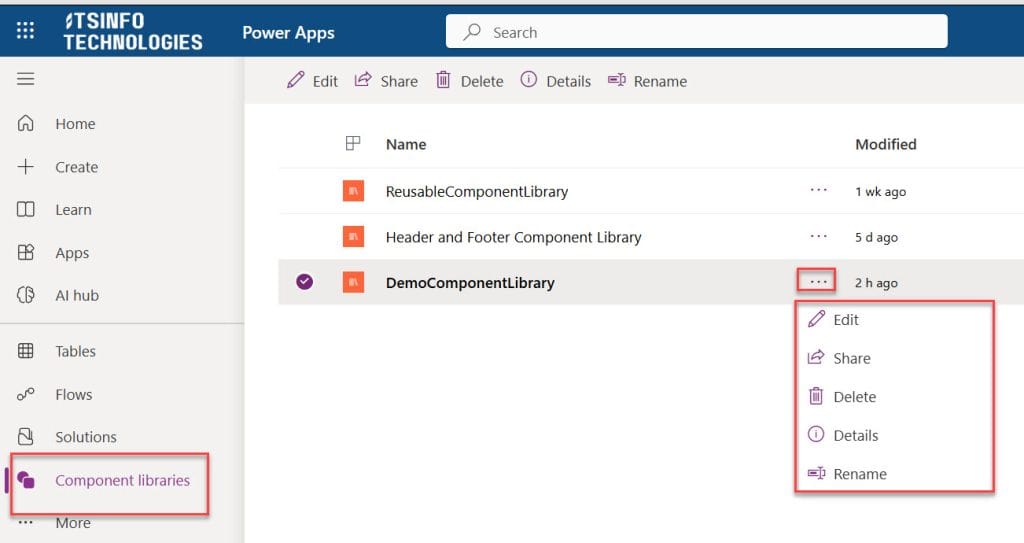
If you want to perform an action on a component library, such as editing it, sharing it with someone, deleting it, or renaming it.
Open the component libraries, select the specific component library, then click the three dots (…). It will show all these options as shown below. Then perform the action that you wanted to do.
Important: If the deleted component is already used inside another app, those apps may show errors or missing controls.
So always check dependencies before deleting components.
Important Things to Know About Component Libraries
Before using component libraries in real projects, here are a few important things you should remember:
- Component libraries work within the same environment.
- Always publish the latest version after making changes.
- Use meaningful component names for easier management.
- Test components properly before sharing them across apps.
- Avoid deleting components already used in production apps.
Using proper naming conventions and organized libraries can save a lot of development time later.
Conclusion
I hope you found this Power Apps component library tutorial helpful and easy to follow. In this article, I explained how to enable the component library feature, create reusable components, use those components in another Canvas App, and update or delete them as needed.
If you are building Power Apps applications that contain common controls such as headers, footers, navigation menus, custom buttons, or reusable sections across multiple screens, Components can make your work much easier. Instead of creating the same design repeatedly, you can build it once and reuse it anywhere in the same environment.
Feel free to leave a comment below if you have any questions or doubts regarding Power Apps Component Libraries.
Also, you may like:
- Power Apps Component Event Property
- SharePoint List Calendar View
- Power Apps Set Choice Field Value Based On Another Field
- Power Apps Date and Time Functions
- Power Apps Nested IF Examples

Preeti Sahu is an expert in Power Apps and has over six years of experience working with SharePoint Online and the Power Platform. She is the co-author of Microsoft Power Platform: A Deep Dive book. As a Power Platform developer, she has worked on developing various tools using Power Apps and Power Automate. She also makes Microsoft 365 videos and shares them on YouTube.

