
Building a Canvas App in Power Apps is only half the job. Once the app is ready, the next step is making it available to the right people in your organization.
For example, you may want to share:
- an HR app with the HR team,
- a leave request app with employees,
- or an approval app with managers.
The good thing is, Power Apps makes the sharing process quite simple.
In this Power Apps tutorial, I’ll show you how to share a Canvas App with users, Microsoft 365 groups, or even your entire organization. Along the way, we’ll also discuss permissions, co-owner access, and a few important things you should know before sharing the app.
Before You Share the Canvas App
Before sharing the app, there are a couple of important things you should check.
- First, make sure the app is saved and published properly. If the latest changes are not published, users may still see the older version of the app.
- Second, remember that sharing the app alone is not always enough.
If your app is connected to a SharePoint list, Dataverse table, SQL Server, or any other data source, users must also have permission to access that data source. Otherwise, the app may open, but users could see permission errors while using it.
Also, ensure the users have the required Power Apps license.
Share a Canvas App in Power Apps
Let’s start with the most common scenario, sharing the app with users inside your organization.
- Open the Power Apps studio and sign in with your Microsoft account.
- From the left navigation, click on Apps. Here, you’ll see all the apps you have access to.
- Now select the Canvas App that you want to share. Click the three dots (…) next to the app, then select Share. Even in the top header, it is also available, as you can see in the image below.
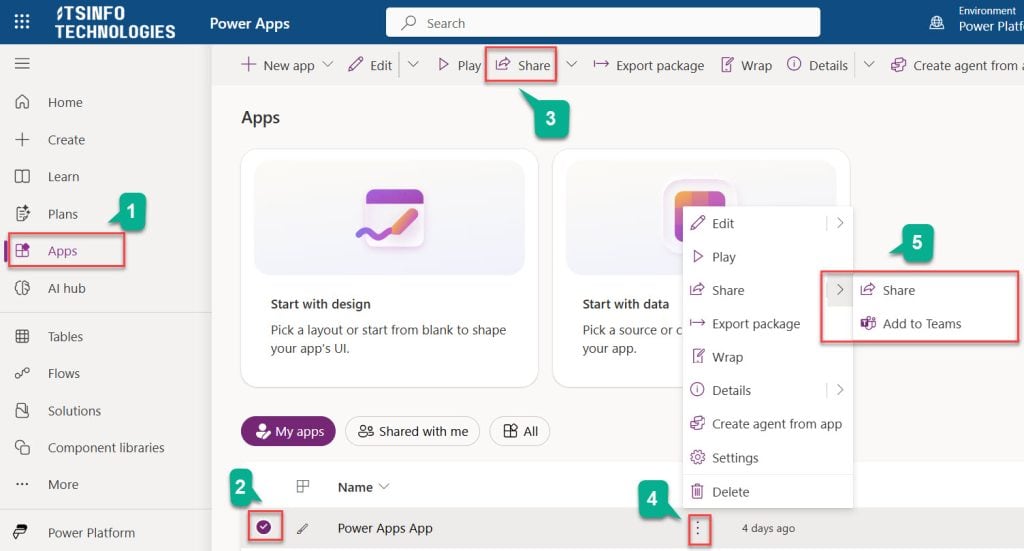
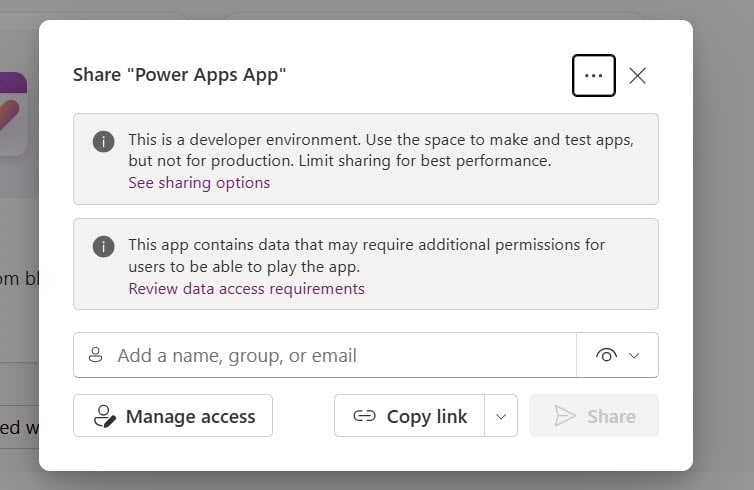
- Once you click on it, the Share App panel will open.
- This is where you can add users, groups, and assign permissions.
Share the Power Apps App with Individual Users
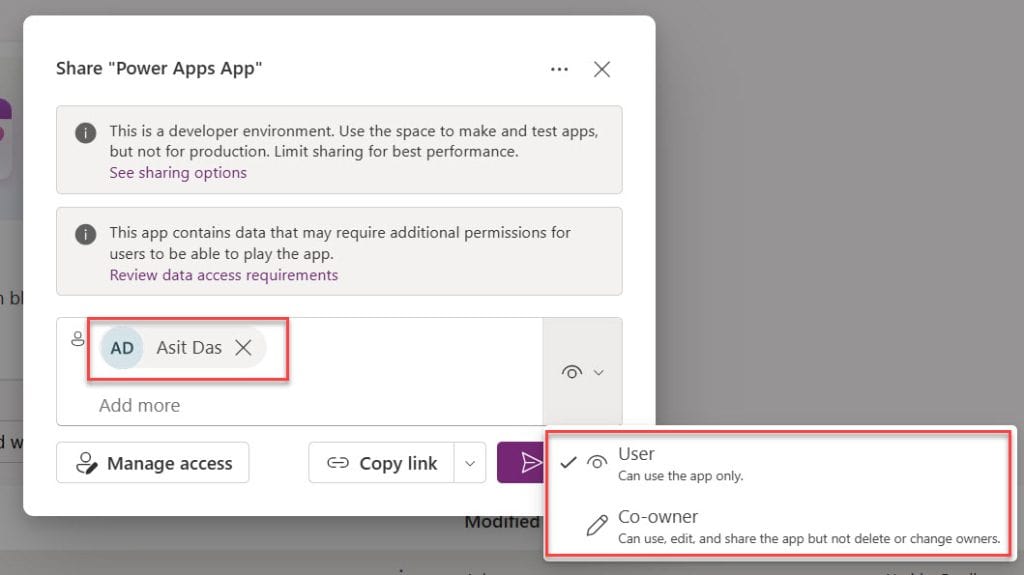
If you want to share the app with specific users only, simply enter their name or email address in the sharing panel.
As you type, Power Apps will automatically show matching users from your organization. After selecting the user, you’ll notice two permission options:
User Permission
This is the default permission.
- Users can open and use the app, but they cannot edit or modify anything in the app design.
- This option is best for regular end users.
Co-owner Permission
Sometimes, you may not want to manage the app alone. In such cases, you can assign co-owner access to another person. A co-owner can:
- edit the app,
- publish updates,
- share the app with others,
- and manage permissions.
This is especially useful when multiple developers are working on the same Power Apps project.
Once you select the required permission, click on the Share button. Power Apps will immediately share the app with that user.
Share the Canvas App with a Microsoft 365 Group
If your app needs to be used by an entire department or team, sharing it one user at a time can become difficult to manage.
In such cases, using a Microsoft 365 group or security group is a much better option.
For example, suppose you have:
- an HR Team group,
- an IT Support group,
- or a Sales Department group.
You can simply share the app with that group, and everyone inside the group will automatically get access.
To do this, open the Share panel and enter the group name instead of a user name. Select the group and click on Share.
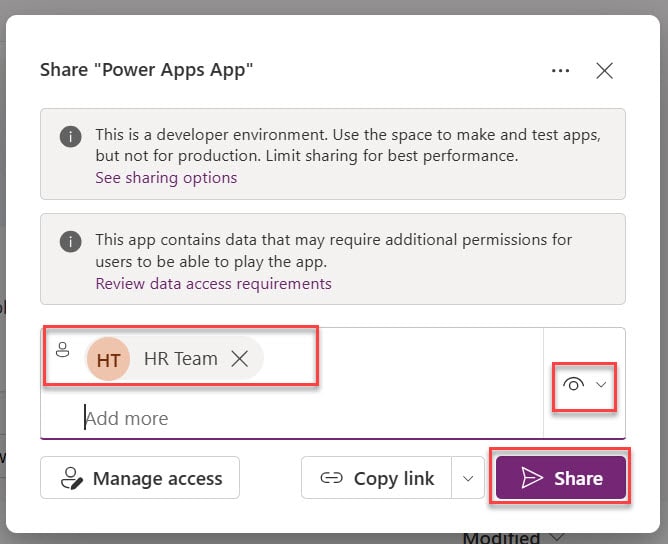
One big advantage of this approach is that you don’t need to update app permissions every time a new employee joins the team. Once they are added to the group, they automatically get app access.
Share the Canvas App with Everyone in the Organization
Sometimes, you may create apps that should be accessible to all employees in the company.
For example:
- Employee Directory App
- Company News App
- Helpdesk Ticketing App
- Visitor Management App
In such cases, Power Apps allows you to share the app organization-wide. Inside the Share panel, type:
EveryoneYou’ll see an option called Everyone in your organization. Select it and click on Share.
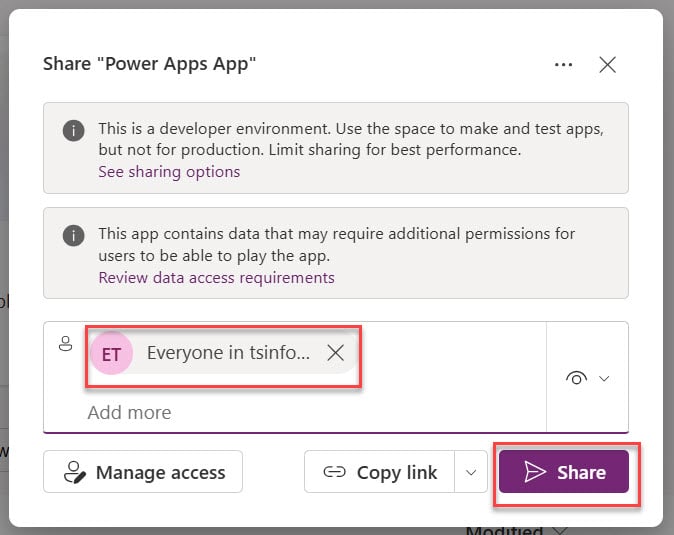
Now the app will be accessible to all users in your organization.
However, be careful while using this option. You should only use organization-wide sharing when the app is intended for all employees.
Don’t Forget About Data Source Permissions
This is one of the most common mistakes beginners make while sharing Power Apps applications.
Even if users can open the app successfully, they still need permission to access the underlying data source.
For example, suppose your Canvas App is connected to a SharePoint list.
If users do not have permission to that SharePoint list, they may see errors like:
- Access Denied
- You do not have permission
- Unable to retrieve data
So after sharing the app, always verify the permissions of the connected data source as well.
Example with SharePoint List
If your app uses a SharePoint list, follow these steps:
- Open the SharePoint list
- Click on Settings
- Open List Permissions
- Grant users or groups the required access
Once the data source permissions are configured properly, users should be able to use the app without issues.
How Users Can Access the Shared Power Apps App
After the app is shared, users can access it in different ways.
From the Power Apps Portal:
- Users can log in to the Power Apps portal, open the app from the Apps section, and find it under the Shared with me tab.
Using the Direct App Link:
- When you share the app, users may also receive an email with the direct app link.
- Clicking the link will open the app directly.
A Few Important Things to Remember
Before you finish sharing your app, keep these points in mind:
- Users must have access to the app’s data source.
- Publish the latest version before sharing.
- Use security groups whenever possible for easier management.
- Give co-owner access only to trusted users.
- Test the app using another user account before releasing it organization-wide.
These small checks can save a lot of troubleshooting later.
Conclusion
I hope this Power Apps tutorial helped you understand how to share a Canvas App within your organization. Sharing a Canvas App in Power Apps is simple, but understanding permissions is crucial.
You can share the app with individual users, groups, or your entire organization, depending on your business requirements. At the same time, you should ensure users have access to the connected data sources, such as SharePoint or Dataverse.
If you have any questions, feel free to leave them in the comments section below.
Also, you may like:
- Create Cascading Dropdown in Power Apps
- Power Apps Component Library
- Get Power Apps App ID, Tenant ID, and Environment ID Using Power Automate
- Power Apps ForAll Function
- Environment Variables in Power Apps

Preeti Sahu is an expert in Power Apps and has over six years of experience working with SharePoint Online and the Power Platform. She is the co-author of Microsoft Power Platform: A Deep Dive book. As a Power Platform developer, she has worked on developing various tools using Power Apps and Power Automate. She also makes Microsoft 365 videos and shares them on YouTube.

