
If you’ve developed Power Apps applications, you’ve probably used buttons such as New, Edit, Delete, View, Approve, and Reject. These actions are common in almost every business application.
In one of my projects, I found myself creating the same set of buttons on multiple screens. Although the button design remained the same, the action behind each button was different. Maintaining those buttons across the application became difficult.
To solve this, I created a Reusable Command Bar component. The component displays only the buttons, while the parent screen determines which action to perform when a button is clicked.
This is where the Event custom property comes in. It allows the component to notify the parent app when a button is clicked, making the component reusable across different screens and applications.
In this article, I’ll show you how to use the Power Apps Component Event Property by building a reusable Command Bar component from scratch.
What is an Event Custom Property in Power Apps?
Power Apps allows you to create four types of custom properties on a component. Each property serves a different purpose.
- Data – Used to pass values like text, colors, records, or tables between the app and the component.
- Function – Used to execute a formula and return a value.
- Action – Used to expose an action that the app can call on the component.
- Event – Used to notify the app when something happens inside the component, such as a button click.
The Event property is useful when you want the component to inform the app that a particular action has occurred.
Power Apps Component Event Property [Real-World Business Scenario]
In Power Apps business applications, we will encounter many scenarios where we can use a component with a custom Event property, such as a
- Dynamic popup,
- Navigation component,
- Reusable Command Bar,
- Pagination controls (Next, Previous, First, Last), etc.
Now, we will see one of those dynamic components, “Reusable Command Bar”, as shown in the image below. Here im using the same component for different use cases.
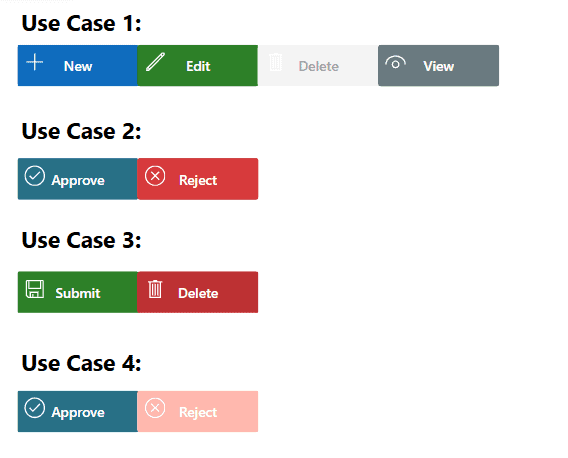
This component will allow us to:
- Display any number of buttons.
- Change button names dynamically.
- Display different icons.
- Apply different colors.
- Show tooltips.
- Enable or disable buttons.
- Hide buttons whenever required.
Now we will see step by step how to create this reusable command bar component.
Step 1: Create the Power Apps Reusable Command Bar Component
Open the Power Apps application, go to the Components section, which is present next to the Screens.
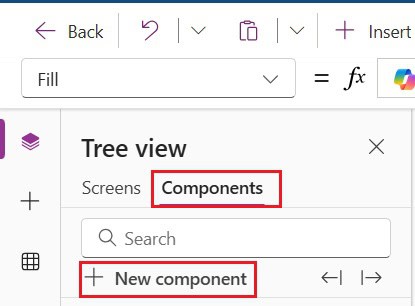
Click + New component and rename it as:
cmp_ReusableCommandBarAdjust the component height according to your application’s design.
Step 2: Create the CommandItems Custom Property
Our first requirement is to make the component dynamic. Instead of hardcoding the buttons in the component, we’ll let the parent app decide which buttons to display.
To achieve this, we’ll create a custom Input property that accepts a table containing all the button information.
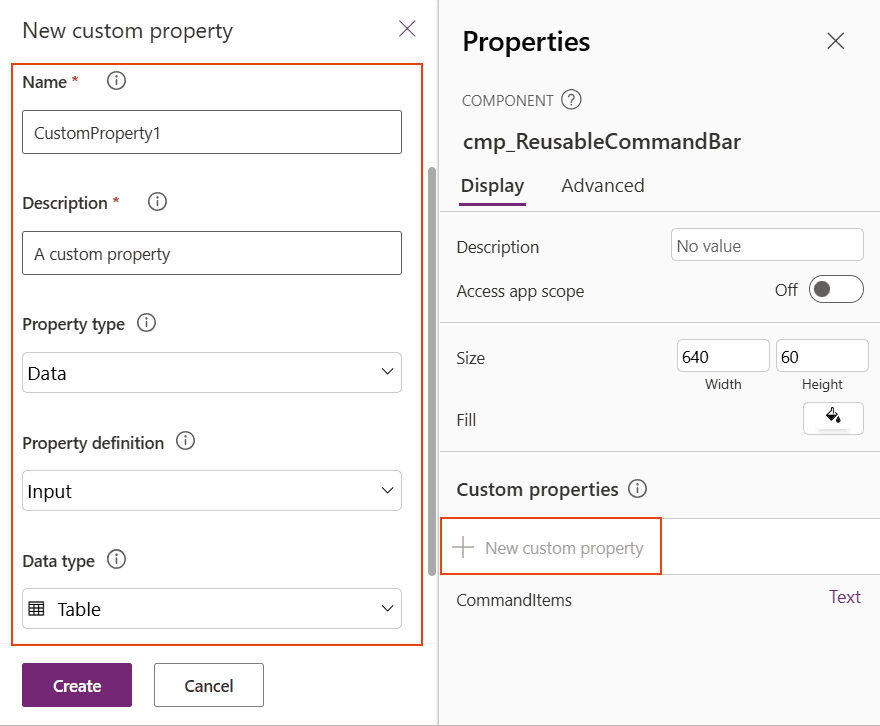
- Select the component and click + New custom property.
- Configure the property as shown below.
| Property | Value |
|---|---|
| Property Name | CommandItems |
| Property Type | Data |
| Definition | Input |
| Data Type | Table |
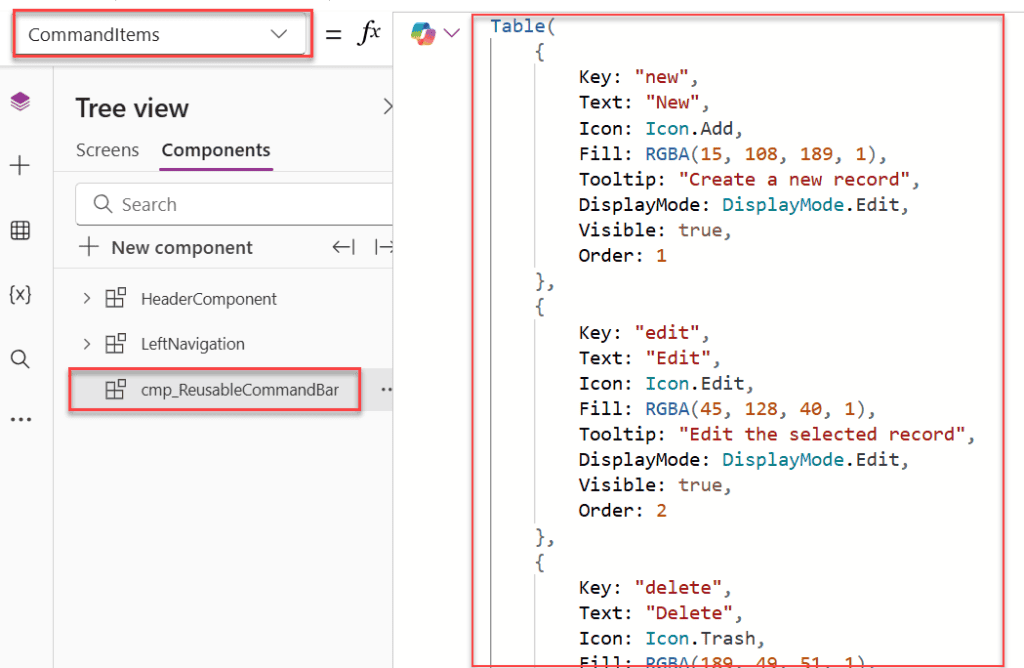
- Once the property is created, we’ll pass a table containing the button details whenever we use the component.
Table(
    {
        Key: "new",
        Text: "New",
        Icon: Icon.Add,
        Fill: RGBA(0,120,212,1),
        Tooltip: "Create a new record",
        DisplayMode: DisplayMode.Edit,
        Visible: true,
        Order: 1
    },
    {
        Key: "edit",
        Text: "Edit",
        Icon: Icon.Edit,
        Fill: RGBA(96,94,92,1),
        Tooltip: "Edit selected record",
        DisplayMode: DisplayMode.Edit,
        Visible: true,
        Order: 2
    },
    {
        Key: "delete",
        Text: "Delete",
        Icon: Icon.Trash,
        Fill: RGBA(196,43,28,1),
        Tooltip: "Delete selected record",
        DisplayMode: DisplayMode.Disabled,
        Visible: true,
        Order: 3
    },
    {
        Key: "view",
        Text: "View",
        Icon: Icon.View,
        Fill: RGBA(16,124,16,1),
        Tooltip: "View record details",
        DisplayMode: DisplayMode.Edit,
        Visible: true,
        Order: 4
    }
)
You can modify this code to suit your requirements.
Step 3: Display the Power Apps Buttons Dynamically
Now that the component has received the button information, the next step is to display the buttons.
- Insert a Horizontal Gallery inside the component.
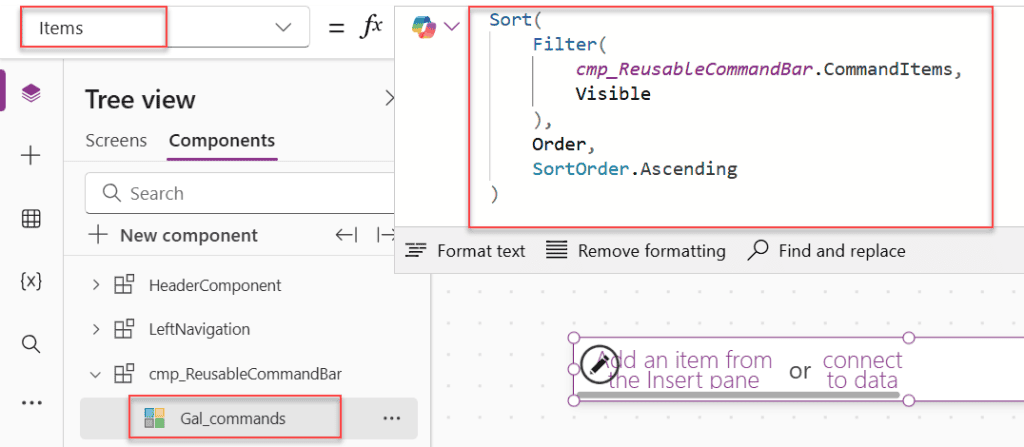
- Set the Items property of the gallery to:
Sort(
    Filter(
        cmp_ReusableCommandBar.CommandItems,
        Visible
    ),
    Order,
    SortOrder.Ascending
)- The Filter() function returns only those buttons whose Visible property is set to true.
- Next, the Sort() function sorts the buttons by the Order column.
- As a result, if you want to change the order of the buttons tomorrow, you only need to update the Order value in the table. No changes are required inside the component.
- Then, update the remaining properties, like:
| Gallery Property | Formula |
|---|---|
| Height | Parent.Height |
| Width | Parent.Width |
| Template size | 175 |
| Template padding | 0 |
| X | 0 |
| Y | 0 |
- Inside the gallery, insert a Button control. Bind its properties like this.
| Button Property | Formula |
|---|---|
| Text | ThisItem.Text |
| Fill | ThisItem.Fill |
| DisplayMode | ThisItem.DisplayMode |
| Tooltip | ThisItem.Tooltip |
| Visible | ThisItem.Visible |
| Width | Parent.TemplateWidth |
| Height | Parent.TemplateHeight |
| X | 0 |
| Y | 0 |
- Next, insert an Icon control. Set its Icon property to:
ThisItem.IconSince every control is bound to ThisItem, the gallery automatically creates the required buttons.
- Now, if you add five records to the table, five buttons will appear.
- If you remove one record, that button automatically disappears.
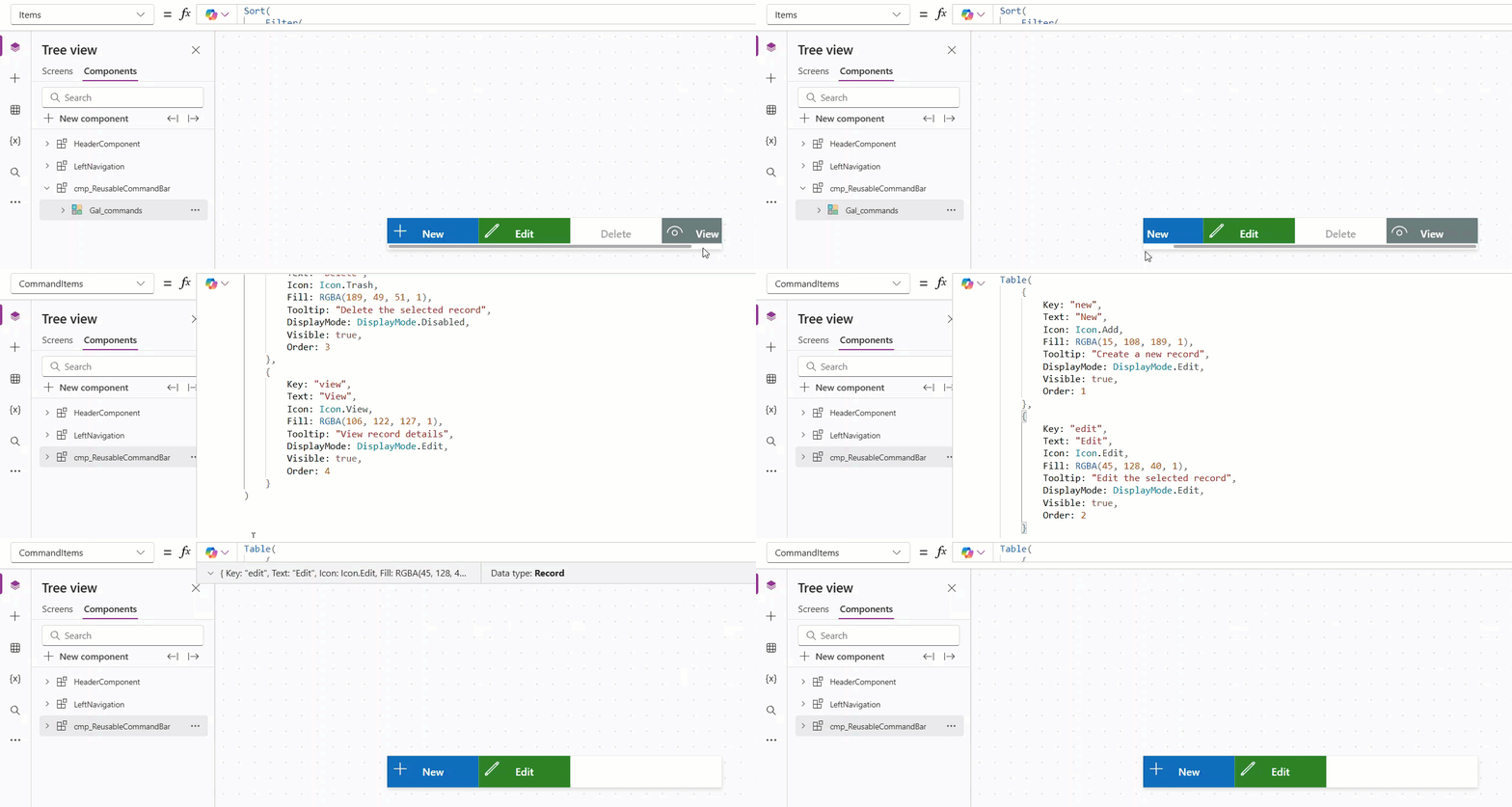
Step 4: Adjust the Component Width Dynamically
One small improvement I like to make is to automatically adjust the component width.
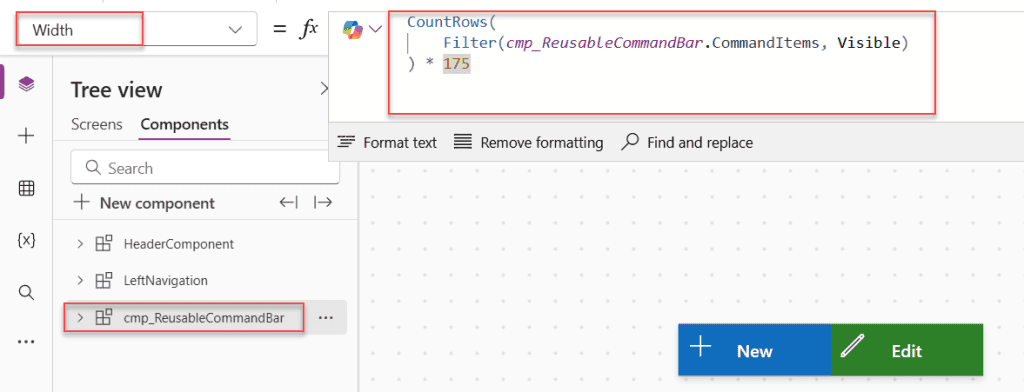
If only two buttons are visible, the component shouldn’t occupy the entire screen. Similarly, if six buttons are displayed, the component should expand automatically.
Set the Width property of the component to:
CountRows(
    Filter(
        CommandItems,
        Visible
    )
) * 175
This formula counts the number of visible buttons and multiplies that value by the width of each gallery template.
Step 5: Create the SelectedCommandKey Output Property
So far, our component only displays buttons. Now we need to know which button the user clicked. To achieve this, we’ll create a custom Output property.
- Create a new custom property with the following configuration.
| Property | Value |
|---|---|
| Property Name | SelectedCommandKey |
| Property Type | Data |
| Definition | Output |
| Data Type | Text |
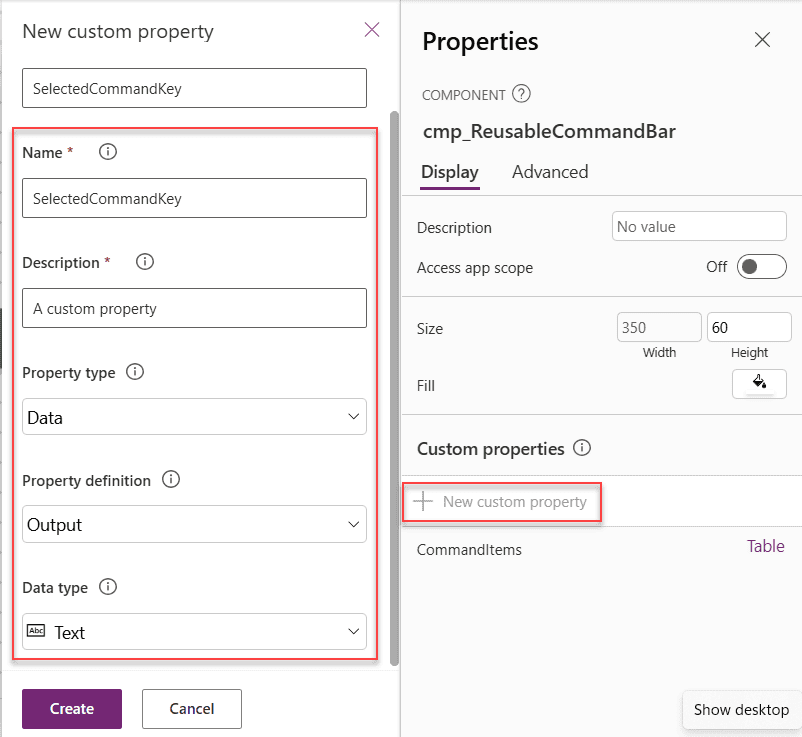
Whenever a user clicks a button, this property returns the corresponding Key value. For that, we need to set up a few things.
- In the gallery, we have a button right; on the property, add the following formula.
Set(varSelectedCommandKey, ThisItem.Key);Here ThisItem.Key contains the key of the button we clicked, and that is stored in this varSelectedCommandKey global variable.
- Next, we need to add this global variable to the newly created custom property on the component
SelectedCommandKey.
varSelectedCommandKey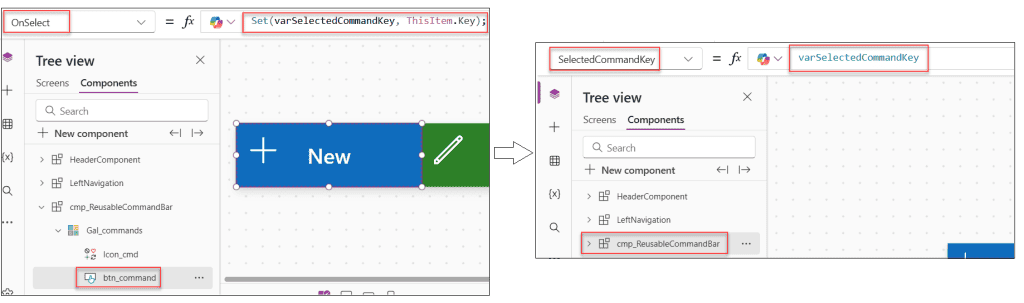
Now, when a user clicks a button, this property returns the corresponding Key value. For example,
- If the user clicks New, it returns:
new- If the user clicks Delete, it returns:
delete- If the user clicks Approve, it returns:
approveNotice that we’re returning the Key instead of the button text. This makes the component independent of the display language.
Step 6: Create the OnCommand Event Property For Power Apps Component
At this point, our component displays the buttons correctly, and we can determine which button the user clicked using the SelectedCommandKey output property.
The only thing left is notifying the parent app whenever a button is clicked. This is exactly why the Event custom property exists.
- Select the component and create another custom property with the following configuration.
| Property | Value |
|---|---|
| Property Name | OnCommand |
| Property Type | Event |
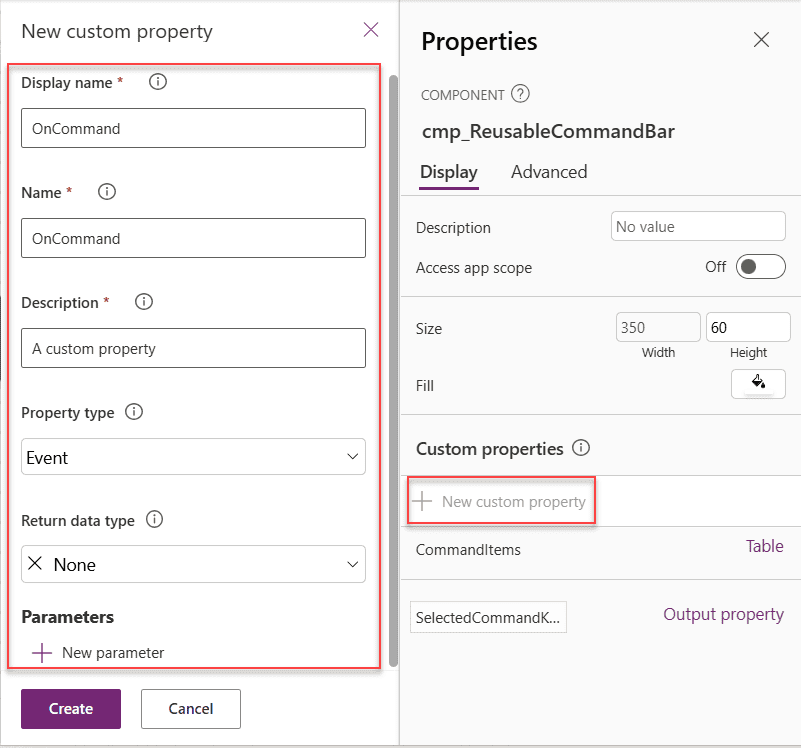
- After creating the property, you’ll notice a new OnCommand property whenever you add this component to a screen.
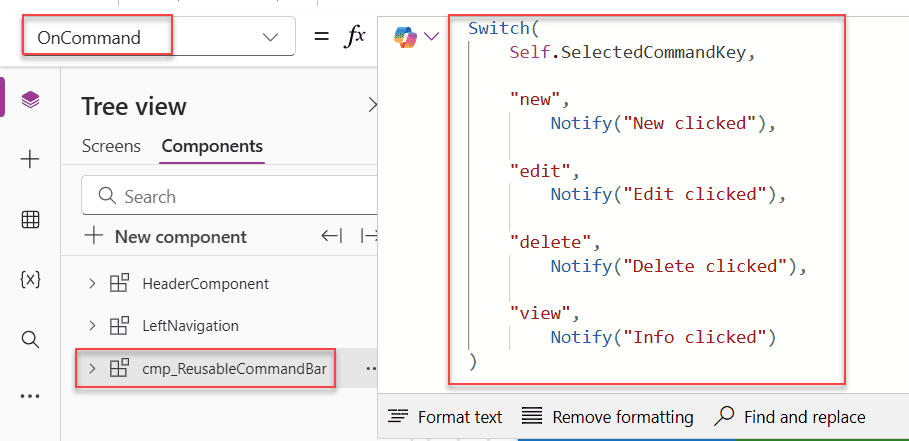
- We’ll write all our business logic there instead of writing it inside the component.
Switch(
    Self.SelectedCommandKey,

    "new",
        Notify("New clicked"),

    "edit",
        Notify("Edit clicked"),

    "delete",
        Notify("Delete clicked"),

    "view",
        Notify("Info clicked")
)
Here, the Self.SelectedCommandKey contains the selected button key, and we are matching that with the following button keys; if it matches, the corresponding Notify() will trigger, so here you can write your own logic: on this button click, what action you need to perform.
Step 7: Raise the Event from the Component
Now we need to trigger the event whenever the user clicks a button.
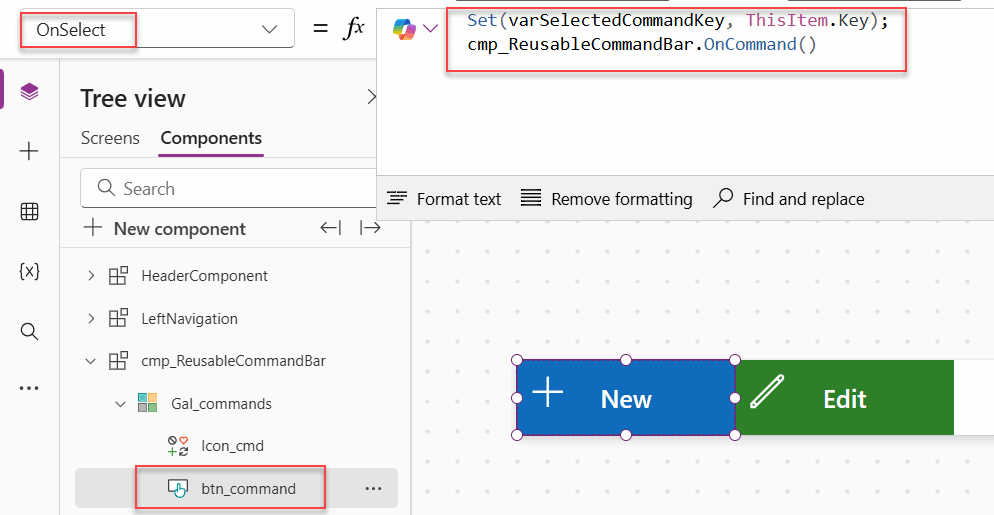
- Select the button inside the gallery. Set its OnSelect property to:
Set(varSelectedCommandKey, ThisItem.Key);
cmp_ReusableCommandBar.OnCommand()- Here, we first collect the selected button key, then immediately call the event property below.
cmp_ReusableCommandBar.OnCommand()This line raises the custom Event property.
Step 8: Handle the Event in the Parent Screen
Now comes the interesting part.
Go back to your screen and insert the Reusable Command Bar component. You’ll notice a new property called OnCommand. This is where we’ll write our business logic.
- Since our component already returns the selected button key through the SelectedCommandKey output property, we can simply use a Switch() function.
Switch(
    Self.SelectedCommandKey,
    "new",
    NewForm(Form_Project);
    Navigate(ProjectDetails_Screen),
    "edit",
    EditForm(Form_Project);
    Navigate(ProjectDetails_Screen),
    "delete",
    If(
        Confirm(
        "Are you sure you want to delete this record?",
        {
            Title: "Delete confirmation",
            Subtitle: "This action can't be undone.",
            ConfirmButton: "Delete",
            CancelButton: "Cancel"
        }
    ),
        RemoveIf(
            'Project Details',
            ID = Gal_Projects.Selected.ID
        )
    ),
    "view",
    ViewForm(Form_Project);
    Navigate(ProjectDetails_Screen)
)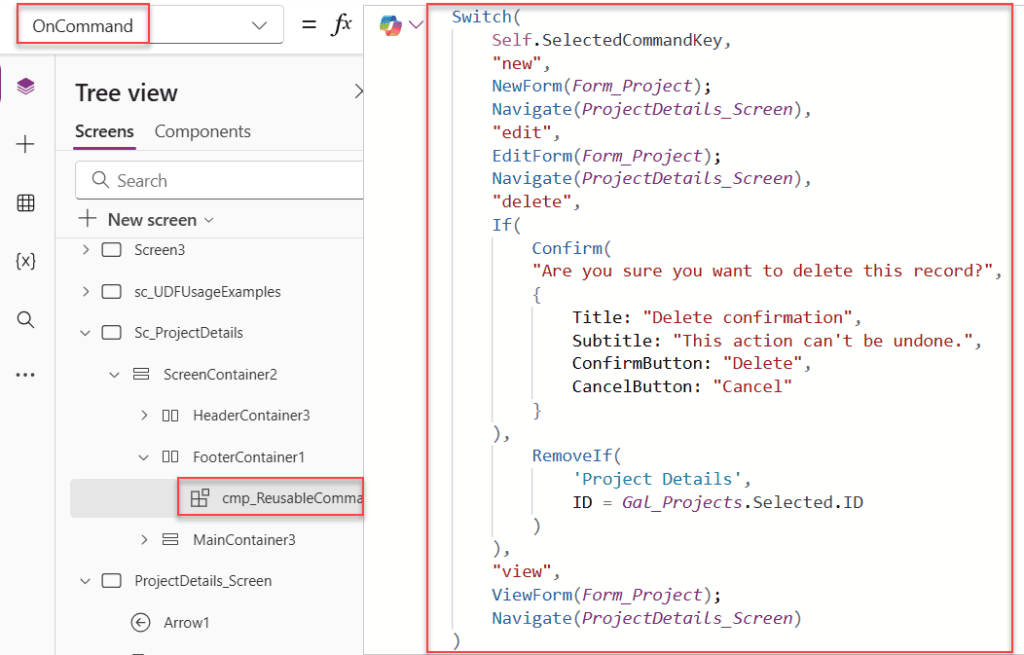
This formula checks which button was clicked.
- If the selected key is new, it opens the form in New mode.
- If it’s edit, it opens the selected record in Edit mode.
- If it’s delete, it first displays a confirmation dialog and then deletes the selected record.
- If it’s view, it opens the form in View mode.
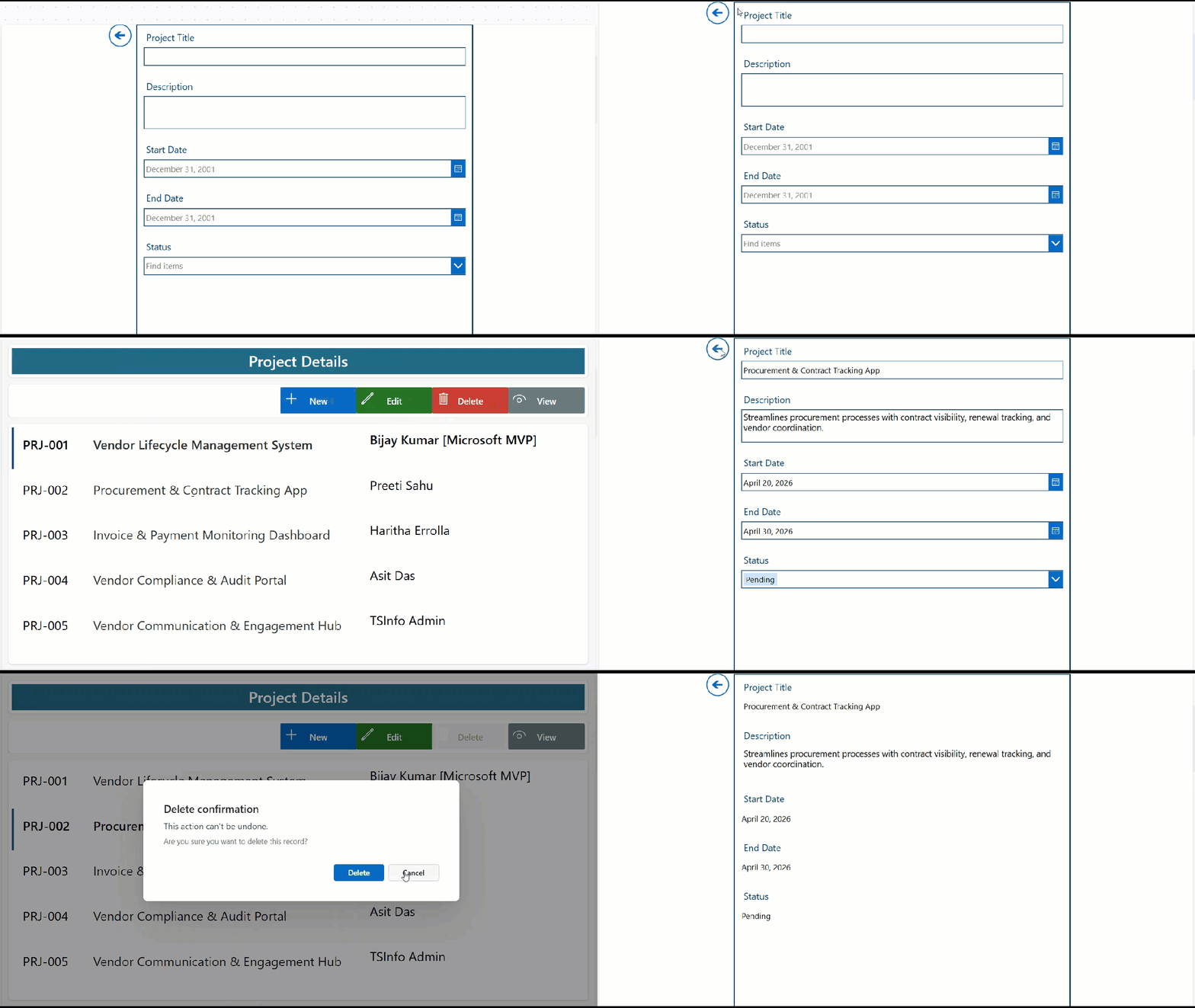
Notice that none of this logic exists inside the component. The component simply raises an event. The parent app decides what should happen. This is one of the biggest advantages of using Event properties.
Step 9: Reuse the Same Component on Another Screen
The best part about this approach is that the same component can now be used anywhere.
- For example, imagine you have another screen where managers approve employee requests. Instead of creating another set of buttons, simply pass a different CommandItems table.
Table(
    {
        Key: "approve",
        Text: "Approve",
        Icon: Icon.Check,
        Fill: RGBA(16,124,16,1),
        Visible: true,
        Order: 1
    },
    {
        Key: "reject",
        Text: "Reject",
        Icon: Icon.Cancel,
        Fill: RGBA(196,43,28,1),
        Visible: true,
        Order: 2
    }
)- Now update the OnCommand property.
Switch(
    Self.SelectedCommandKey,
    "approve",
    If(
        Confirm(
            "Are you sure you want to approve this request?",
            {
                Title: "Approve Request",
                Subtitle: "The request status will be updated to Approved.",
                ConfirmButton: "Approve",
                CancelButton: "Cancel"
            }
        ),
        Patch(
            'Project Details',
            Gal_Projects.Selected,
            {Status: {Value: "Approved"}}
        )
    ),
    "reject",
    If(
        Confirm(
            "Are you sure you want to reject this request?",
            {
                Title: "Reject Request",
                Subtitle: "The request status will be updated to Rejected.",
                ConfirmButton: "Reject",
                CancelButton: "Cancel"
            }
        ),
        Patch(
            'Project Details',
            Gal_Projects.Selected,
            {Status: {Value: "Rejected"}}
        )
    )
)
Did you notice something? We didn’t change the component.
We only changed the data we passed into it and the logic we wrote in the OnCommand property. That’s exactly how reusable components should be designed.
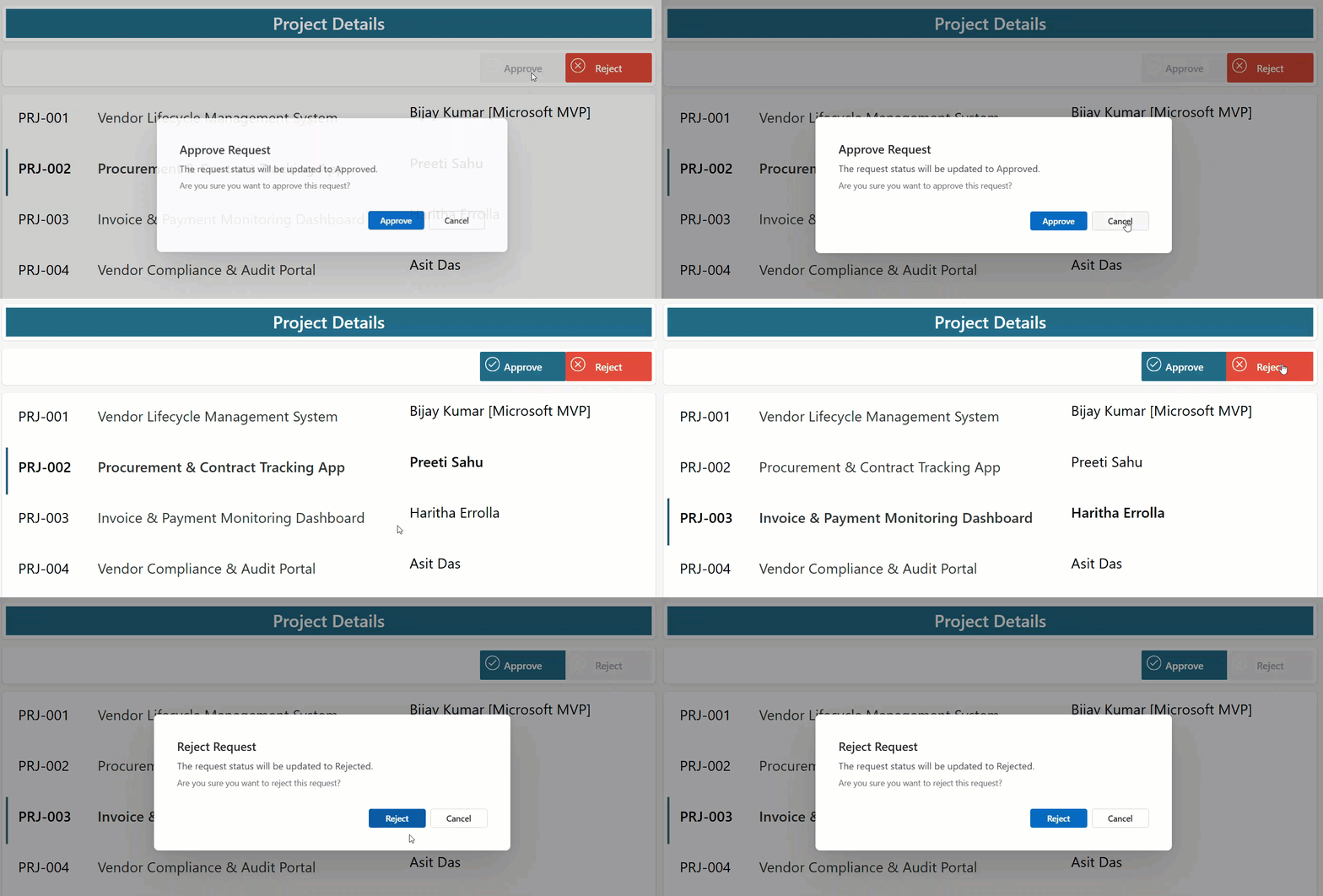
At the end of this implementation, we’ve created a fully reusable Command Bar component.
Depending on the screen, we can display different buttons by simply changing the CommandItems table.
Whenever a user clicks a button, the component raises an Event, and the parent screen performs the appropriate business action.
Things to Remember
- Keep business logic outside the component. A reusable component should only handle the user interface. Write your CRUD operations, navigation, and Patch formulas inside the OnCommand property.
- Use meaningful keys. Instead of relying on button text, use values like new, edit, delete, approve, and reject. This makes your logic independent of the displayed text.
- Return only what’s needed. Use the SelectedCommandKey output property to identify the selected button. Avoid exposing unnecessary information.
- Pass buttons dynamically. Using a table as an Input property makes the component flexible enough to support different screens without modification.
- Keep the layout dynamic. Adjust the component width based on the number of visible buttons to avoid unnecessary blank space.
Conclusion
I hope you found this article helpful! In this article, we built a reusable Command Bar component that dynamically displays buttons and raises an Event when a user clicks one. The parent app then handles the required action using a simple Switch() statement, keeping the component clean and maintainable.
If you are also looking for how to use the Power Apps Component custom property Event, follow this article and implement it in your applications. If you are facing any issues or have doubts regarding this topic, feel free to comment below.
Also, you may like:
- Navigate Function in Power Apps
- Power Apps IsMatch() Function
- Power Apps Gallery Conditional Formatting
- Create a Navigation Menu in Power Apps Canvas App

Preeti Sahu is a Microsoft MVP for Power Apps with over six years of experience working with SharePoint Online and the Power Platform. She is the co-author of the book Microsoft Power Platform: A Deep Dive. As a Power Platform developer, she has built various tools with Power Apps and Power Automate, and she makes Microsoft 365 videos for YouTube.