
If you’ve ever worked with SharePoint document libraries, you’ve probably come across the “Check Out” and “Check In” options and wondered what they’re all about. Or maybe you’ve accidentally checked out a document and couldn’t figure out how to undo it (we’ve all been there!).
Today, I’m going to walk you through everything you need to know about SharePoint’s Check In/Check Out feature. By the end of this tutorial, you’ll understand exactly how it works, why you should use it, and how to avoid common pitfalls.
Let’s dive in!
What is Check In/Check Out in SharePoint?
Think of SharePoint’s Check In/Check Out feature like borrowing a book from a library. When you check out a book, no one else can borrow it until you return it. Similarly, when you check out a document in SharePoint, you’re essentially saying, “I’m working on this file right now, so nobody else can edit it.”
This prevents the dreaded scenario where two people edit the same document simultaneously and overwrite each other’s changes. Trust me, that’s a nightmare you want to avoid!
Here’s the basic flow:
- You check out a document (like taking it off the shelf)
- You make your edits (while others can only view it)
- You check it back in (returning it to the shelf for others to use)
Simple, right? But there’s more to it than just these three steps.
Check out Create Shortcuts in a SharePoint Document Library
Why Should You Use Check In/Check Out in SharePoint?
Before we get into the how, let’s talk about the why. Understanding the benefits will help you appreciate this feature:
1. Prevents Version Conflicts
Imagine you’re working on a quarterly budget spreadsheet. You spend two hours updating formulas and entering data. Meanwhile, your colleague Sarah is doing the same thing on her computer. You both save your changes, and boom – one version overwrites the other. Two hours of work gone!
Check Out prevents this by locking the file while it’s being edited.
2. Keeps Track of Who’s Editing What
When a document is checked out, SharePoint shows who has it checked out. This transparency helps teams coordinate better. Instead of wondering why you can’t edit a file, you can see that John has it checked out and maybe shoot him a quick message.
3. Maintains Document Integrity
For critical documents – like contracts, policies, or financial reports – you want to ensure that changes are made deliberately and trackably. Check In/Check Out adds a layer of control over these important files.
4. Allows You to Work Offline
Here’s a cool benefit: when you check out a document, you can download it, work on it offline (like on a plane or at home with spotty internet), and then check it back in later. SharePoint will hold that “reserved” status for you.
Read How to Lock a File in SharePoint Document Library?
How to Enable Check Out Feature in a SharePoint Document Library
By default, SharePoint allows check out as an option, but doesn’t require it. However, you can make it mandatory for a document library. Here’s how:
Step 1: Navigate to your SharePoint document library
Step 2: Click on the gear icon (Settings) in the top right corner
Step 3: Select “Library settings” and then “More Library Settings“.
Step 4: Under “General Settings,” click “Versioning settings“
Step 5: Scroll down to “Require Check Out” and select “Yes“. Below is a screenshot for your reference.

Step 6: Click “OK” at the bottom
Now, every time someone wants to edit a document in this library, they’ll be forced to check it out first. This is particularly useful for libraries containing sensitive or critical documents.
If you want to turn off check-in/check-out in the SharePoint document library, then keep this option as No.
Check out Pin to Quick Access in a SharePoint Document Library
How to Check Out a Document in a Document Library
Alright, let’s get practical. Here’s how you actually check out a document in a SharePoint document library:
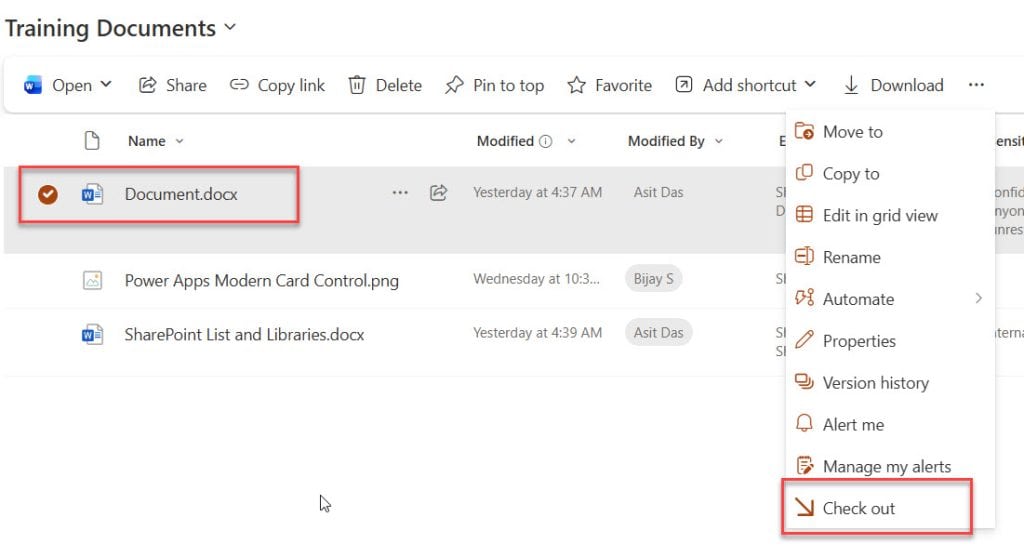
Method 1: Through the Context Menu
- Navigate to your document library
- Hover over the document name until you see the three dots (…) appear
- Click on those three dots to open the context menu
- Select “Check out” as shown in the screenshot below.
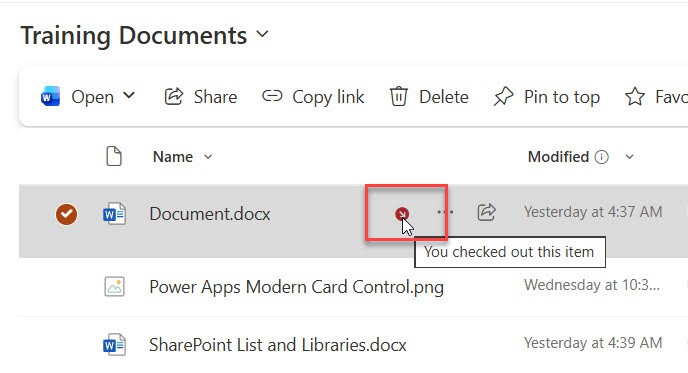
You’ll see a small icon (usually looks like a red arrow) appear next to the document, indicating it’s checked out to you. Here is a screenshot for your reference.
Method 2: From the Document Itself
- Open the document in its native application (Word, Excel, etc.)
- Look for the “Check Out” option in the ribbon or under the File menu
- Click “Check Out”
That’s it! The document is now checked out to you, and others can only view it (not edit it) until you check it back in.
Check out Content Approval in SharePoint Document Library
How to Check In a Document in the SharePoint Document Library
Once you’ve finished making your changes, it’s time to check the document back in. Here’s how:
Step 1: Save all your changes to the document
Step 2: Go back to the SharePoint library
Step 3: Find your document (it should still show the checked-out icon)
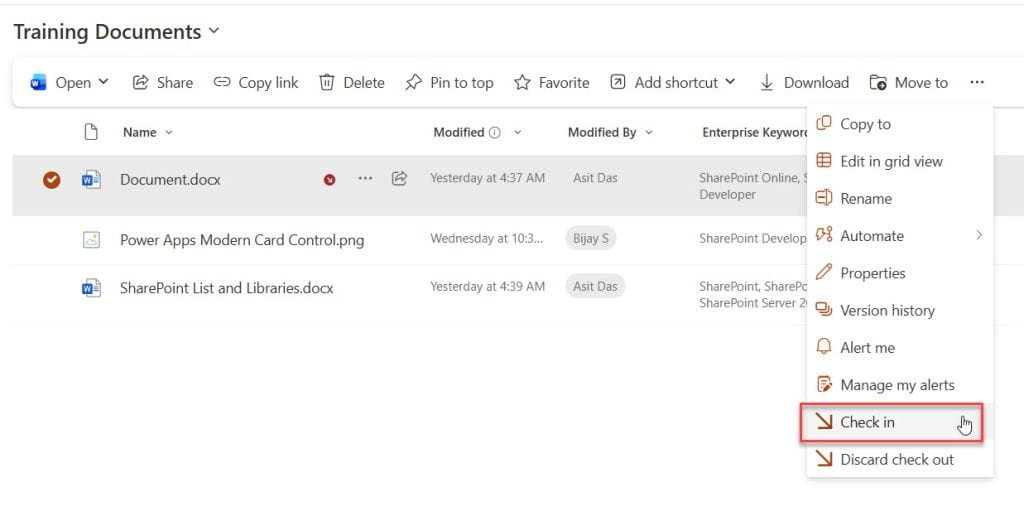
Step 4: Click the three dots (…) next to the document
Step 5: Select “Check in” like in the screenshot below:
Step 6: You’ll see a dialog box with a few options:
- Version type: Choose between Minor version (draft) or Major version (published) (If versioning is enabled.
- Comments: Add notes about what you changed (highly recommended!)
- Retain Check Out: Keep the document checked out even after checking in (rarely used)
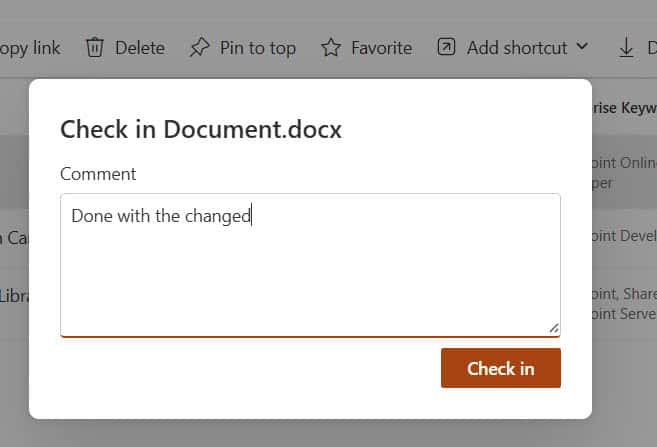
If versioning is not enabled in the SharePoint document library, then you will only see an option to add a comment and check in like in the screenshot below:
Step 7: Click “OK”
Your document is now checked back in, and others can check it out and edit it.
A Quick Example
Let’s say you’re working on a marketing proposal document. Here’s what your comments might look like:
- First check-in: “Added executive summary and initial budget estimates”
- Second check-in: “Updated pricing based on client feedback”
- Third check-in: “Final version – ready for client presentation”
These comments create a helpful audit trail that shows the document’s evolution over time.
Check out Give Unique Permissions For a SharePoint Library
How to Discard Check Out a SharePoint Document
Uh oh – you checked out a document but didn’t actually make any changes, or you made changes you want to abandon. What do you do? You can discard check out the SharePoint document.
Here’s the solution:
- Navigate to your SharePoint document library
- Find the checked-out document
- Click the three dots (…)
- Select “Discard check out”
- Confirm your action
This will undo the check-out and abandon any changes you made since checking it out. It’s like a “never mind” button – super handy!
Important note: Only use “Discard Check Out” when you truly want to abandon your changes. If you want to keep your changes, use “Check In” instead.
Check out How to Merge Word Documents in Power Automate?
Checking In/Out a SharePoint Document on Someone Else’s Behalf
Here’s a scenario that happens all the time: Mark checked out a document before going on vacation, and now the whole team is blocked from editing it. What can you do?
If you’re a site administrator or have appropriate permissions, you can override someone else’s check-out:
- Go to the SharePoint document library
- Select the checked-out document
- Click the three dots (…)
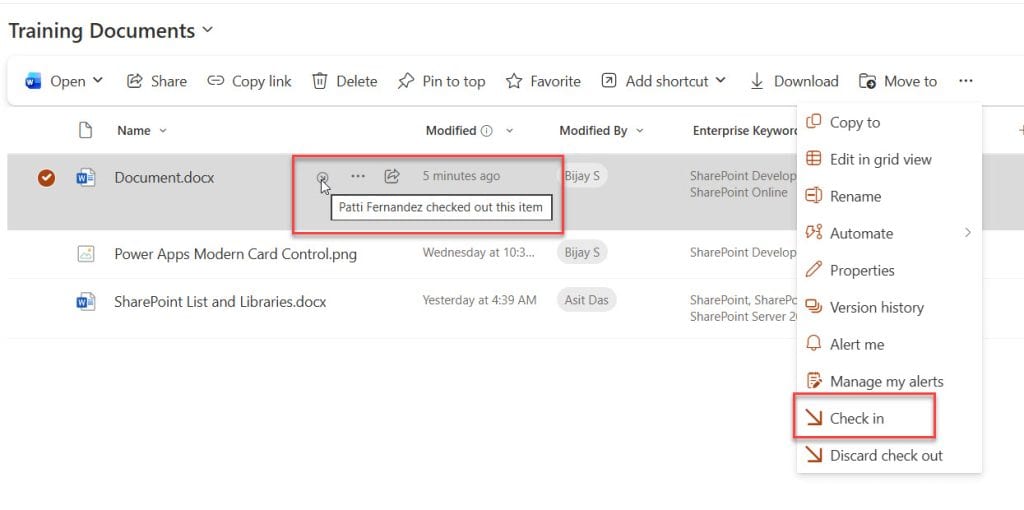
- Select “Check in” (as an admin, you’ll see this option even for others’ check-outs)
- Add a comment explaining why you’re checking in on someone else’s behalf
You can see in the screenshot below. The document is checked out by Patti, but I can check in the document as a SharePoint site owner.
Pro tip: Before overriding someone’s check-out, try to contact them first. They might have important unsaved work!
Read SharePoint Online Rating Column
Understanding Version History with Check In/Check Out
Every time you check in a document, SharePoint can create a new version. This is incredibly powerful for tracking changes over time.
Here’s how it works:
- Minor versions (0.1, 0.2, 0.3, etc.): Draft versions, typically only visible to those with edit permissions
- Major versions (1.0, 2.0, 3.0, etc.): Published versions, visible to everyone with read access
When checking in, you choose which type of version to create. For work-in-progress updates, use minor versions. For significant milestones or final versions, use major versions.
To view version history:
- Click the three dots next to your document
- Select “Version history”
- You’ll see a complete list of all versions, who created them, when, and their comments
You can even restore a previous version if needed – it’s like having an undo button for your entire document!
Check out Access Requests in SharePoint Online
Common Mistakes (And How to Avoid Them)
Mistake #1: Forgetting to Check In
This is the most common issue. You check out a document, make your changes, save it, and then… forget to check it back in. Your colleagues can’t edit it, and they’re wondering what’s going on.
Solution: Make checking in part of your workflow. When you finish editing, immediately check the document back in.
Mistake #2: Not Adding Comments
Checking in without comments is a missed opportunity. Future you (or your colleagues) will thank you for descriptive notes about what changed.
Solution: Always add meaningful comments when checking in. Make it a habit!
Mistake #3: Keeping Documents Checked Out Too Long
Sometimes people check out a document “just in case” and leave it checked out for days or weeks.
Solution: Only check out documents when you’re actively working on them. If you need to step away, check it back in and check it out again later.
Mistake #4: Working Directly Without Checking Out
If check-out isn’t required, some people edit documents directly. This defeats the purpose and can lead to conflicts.
Solution: Even if it’s not required, make checking out a personal habit for any significant edits.
Wrapping Up
SharePoint’s Check In/Check Out feature might seem like a small thing, but it’s actually one of the most powerful document management features in SharePoint Online. It prevents conflicts, maintains document integrity, and keeps your team coordinated.
Here’s a quick recap:
- Check Out locks a document for your exclusive editing
- Check In releases the document and optionally creates a new version
- Always add comments when checking in
- Use Discard Check Out to abandon unwanted changes
- Admins can override check-outs when necessary
- Version history tracks all changes over time
Start using Check In/Check Out consistently, and you’ll notice fewer version conflicts, better collaboration, and a clearer audit trail for your documents.
Do let me know in the comments below if you still have any questions related to the SharePoint check-out and check-in feature.
You may also like the following tutorials:

After working for more than 18 years in Microsoft technologies like SharePoint, Microsoft 365, and Power Platform (Power Apps, Power Automate, and Power BI), I thought will share my SharePoint expertise knowledge with the world. Our audiences are from the United States, Canada, the United Kingdom, Australia, New Zealand, etc. For my expertise knowledge and SharePoint tutorials, Microsoft has been awarded a Microsoft SharePoint MVP (12 times). I have also worked in companies like HP, TCS, KPIT, etc.

