
File Explorer is full of old SharePoint libraries you no longer need. Or you own a site and want people to stop syncing it.
In this tutorial, I’ll show you how to disable sync SharePoint OneDrive connections at three levels: your own computer, a single library, and the whole organization.
Quick answer: To stop syncing on your PC, open OneDrive Settings > Account and select Stop sync next to the library. To stop everyone from syncing a library, set Offline and sync to No in the library’s Advanced settings. Admins can hide the Sync button tenant-wide.
What You Need Before You Start
- For your own PC: the OneDrive app signed in with your work account.
- For one library or site: Full Control (site owner).
- For the whole organization: the SharePoint Administrator role.
First, check how the library got to your PC. Sync and Add shortcut to OneDrive both put it in File Explorer but are removed differently, as I explain in SharePoint Sync vs Add Shortcut to OneDrive.
Step 1: Stop Syncing a Library on Your Computer
This only affects your device:
- Select the OneDrive cloud icon in the taskbar (menu bar on a Mac).
- Select Help & Settings (the gear), then Settings.
- Open the Account tab.
- Select Stop sync next to the library, then confirm.
Copies of the files stay on your computer, but edits you make there no longer reach SharePoint.
To drop only a few folders, select Choose folders instead.
Step 2: Remove the Leftover Folder From File Explorer
Only after Step 1 finishes, delete the old local folder. Deleting it while sync is on deletes the files in SharePoint, too.
If the folder came from a shortcut instead, there’s no Stop sync entry. Right-click the folder in File Explorer, select OneDrive > Remove shortcut. That only removes it from your OneDrive; the files in the SharePoint document library stay put.
Step 3: Hide the Sync Button on One Library
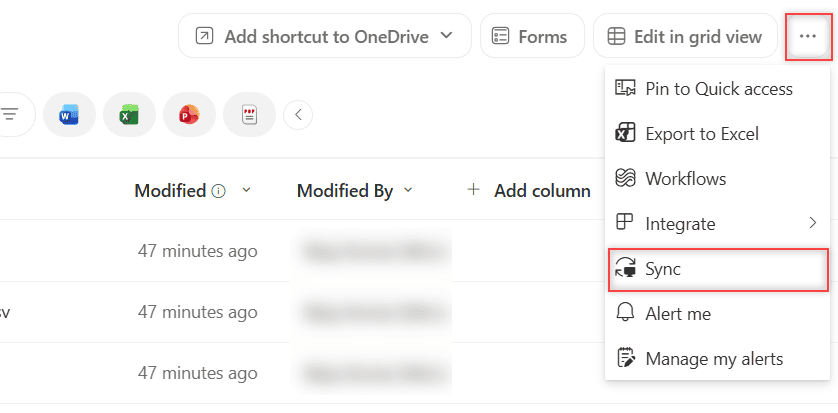
In my demo library, ESP Sync Demo, Sync sits in the … (More) menu on the toolbar:
- In the library, select Settings (gear) > Library settings > More library settings.
- Select Advanced settings.
- In Offline and sync, set “Allow people to sync this document library to their computers with Microsoft OneDrive and access it offline?” to No.
- Select OK.
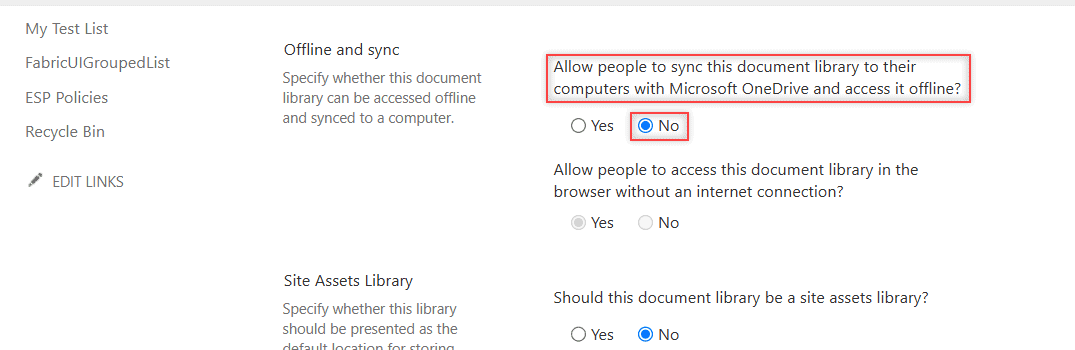
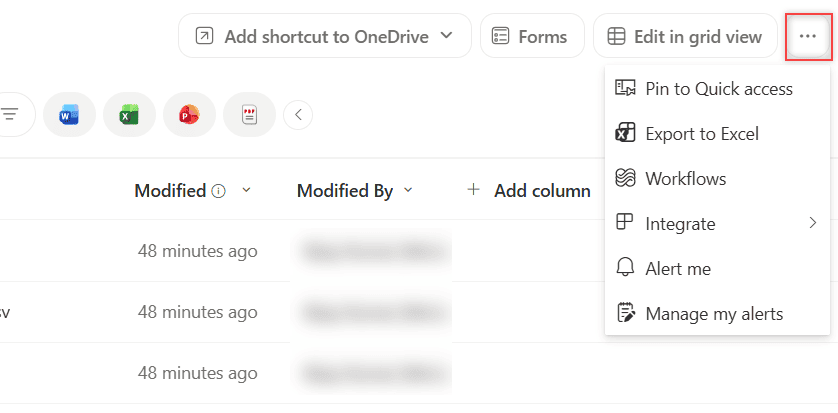
Choosing No also grays out the browser offline question. Back in the library, Sync is gone from the menu:
To keep people out of the files entirely, use unique permissions for that library instead. To block every library on a site, open Site settings > Search and offline availability and set Offline Client Availability to No.
Step 4: Block Sync for the Whole Organization
Microsoft Learn documents a SharePoint Online Management Shell command that hides Sync on every team site library:
Connect-SPOService -Url https://<tenant>-admin.sharepoint.com
Set-SPOTenant -HideSyncButtonOnTeamSite $true
It blocks new syncs but doesn’t affect existing ones. For one confidential library, a sensitivity label on the library is often the better control.
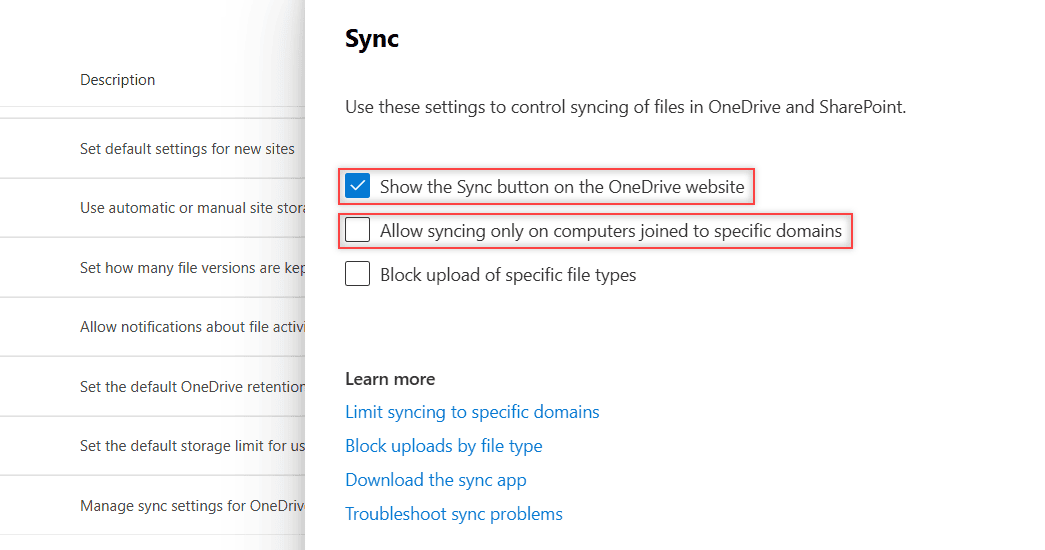
In the SharePoint admin center, Settings > Sync has more options:
- Show the Sync button on the OneDrive website: clear it to hide Sync in OneDrive on the web.
- Allow syncing only on computers joined to specific domains: Active Directory domain GUIDs.
For personal devices, Access control > Unmanaged devices > Allow limited, web-only access allows the browser only, with no download, print or sync.
Cheat Sheet: Which Setting Stops Which Sync
| Goal | Where | Who |
|---|---|---|
| Stop syncing on my PC | OneDrive Settings > Account > Stop sync | Any user |
| No Sync on one library | Advanced settings > Offline and sync = No | Site owner |
| No Sync in team sites | Set-SPOTenant -HideSyncButtonOnTeamSite | SharePoint admin |
| No Sync in OneDrive web | Admin center Settings > Sync | SharePoint admin |
Common Mistakes to Avoid
- Deleting the folder first. Always stop sync, then delete the local copy.
- Unlinking the whole PC. Unlink this PC disconnects every library at once.
- Deleting an expanded shortcut. Collapse it in the navigation pane first, or you can delete the folder for everyone.
Does Stopping Sync Delete My SharePoint Files?
No. Stop sync and Remove shortcut only disconnect your computer.
Online-only files were never stored locally, so open those in the browser. If old files linger in Office’s recent list, clear the SharePoint cache.
Next Steps
Deciding where files should live instead? Start with OneDrive vs SharePoint vs Teams, then the difference between OneDrive and SharePoint.
If you’re cleaning up how your team gets to SharePoint files, I’d read these next:
Frequently Asked Questions
Can I stop syncing just one folder inside a SharePoint library?
Yes. In OneDrive Settings > Account, select Choose folders next to the library and clear the ones you don’t want.
Why don’t I see Stop sync for a library in File Explorer?
It was probably added with Add shortcut to OneDrive, not Sync. Right-click it in File Explorer, select OneDrive, then Remove shortcut.
Can a site owner turn off sync without an admin?
Yes. A site owner can set the library or the whole site to No for offline availability. Microsoft lists both settings in its guide to limiting sync for a SharePoint site.

I have worked with Microsoft technologies for more than 18 years, including SharePoint, Microsoft 365 and the Power Platform (Power Apps, Power Automate and Power BI), at companies like HP, TCS and KPIT. I started EnjoySharePoint in 2011 to share the solutions I build in real projects with readers in the United States, Canada, the United Kingdom, Australia, New Zealand and beyond. Microsoft has recognized this work with the Microsoft MVP award 13 times since 2014.