
You open a new SharePoint list, select Add column, and get a menu of a dozen types. Pick the wrong one and your sorting, filtering and Power Automate flows fight you for months.
In this tutorial, I’ll walk you through all the SharePoint column types you can add in modern lists and libraries, what each one is for, the settings that matter, and the choices you can’t easily undo.
Quick answer: Use Single line of text for short text, Number or Currency for anything you add up, Date and time for dates, Choice for a fixed set of values, Person for people, Lookup to reuse another list’s values, and Calculated for values built from other columns.
What You Need Before You Start
- Edit or Design permission on the list or library. Site owners have it by default.
- A list to practice on. I used a customer list called ESP Column Types Demo; if you’re new to lists, start with what a SharePoint list is.
- For Managed metadata: a term set in the term store, set up by your admin.
Step 1: Open the Full List of Column Types
Open the list and select + Add column to the right of the last column heading. A Create a column panel opens with a scrollable list of types. Pick one, select Next, name the column and select Save.
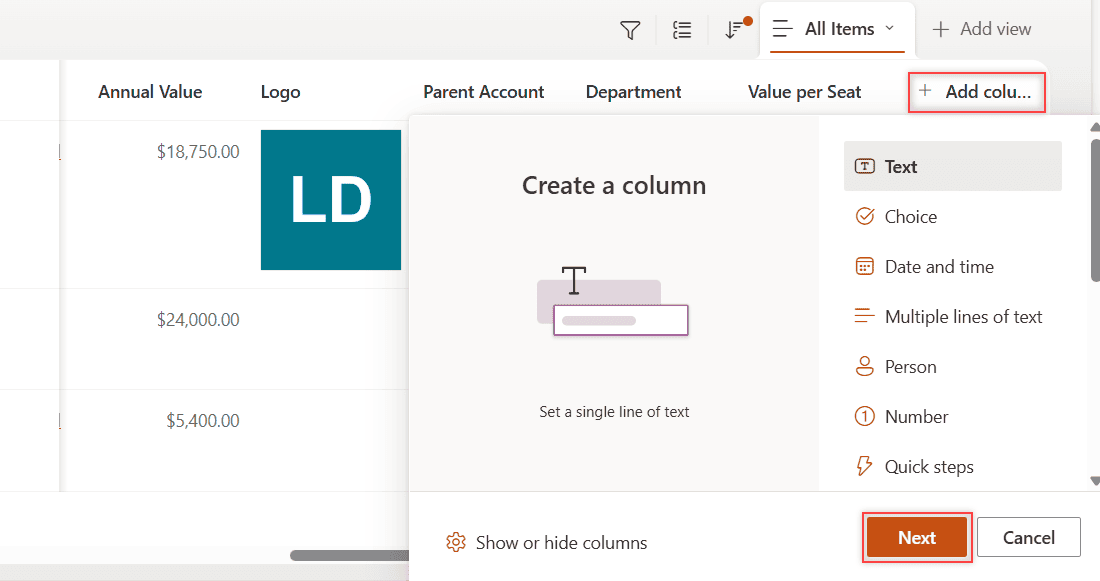
In my tenant, the panel lists 15 types, including two newer ones: Quick steps (action buttons) and Average Rating. At the bottom sits See all column types.
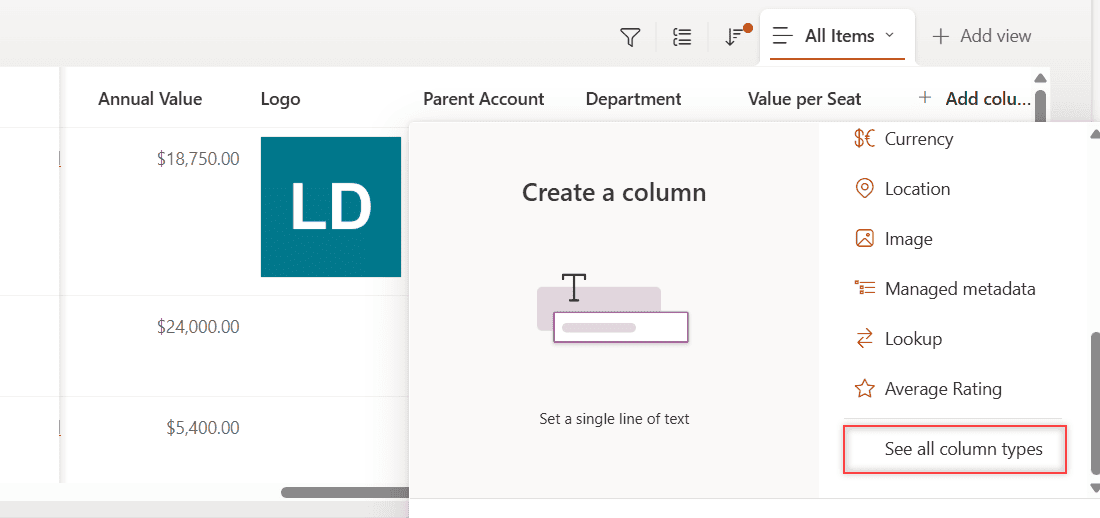
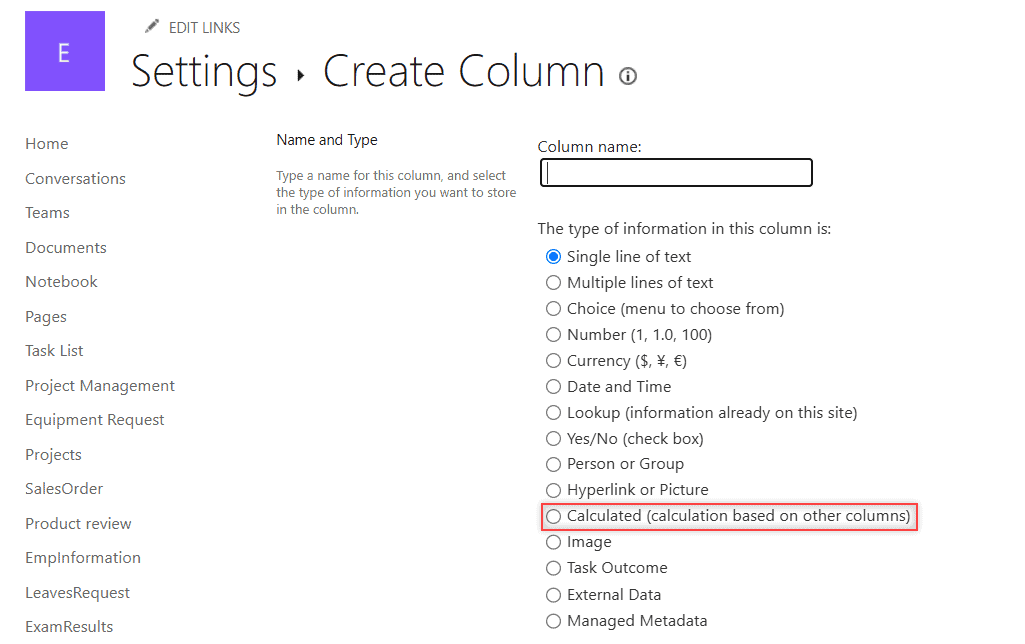
That option opens the classic Create Column page. It is the only place to add Calculated, Hyperlink or Picture, Task Outcome and External Data columns.
Libraries offer the same types. The main differences between the two are in SharePoint list vs library.
Step 2: Match Each Column Type to Your Data
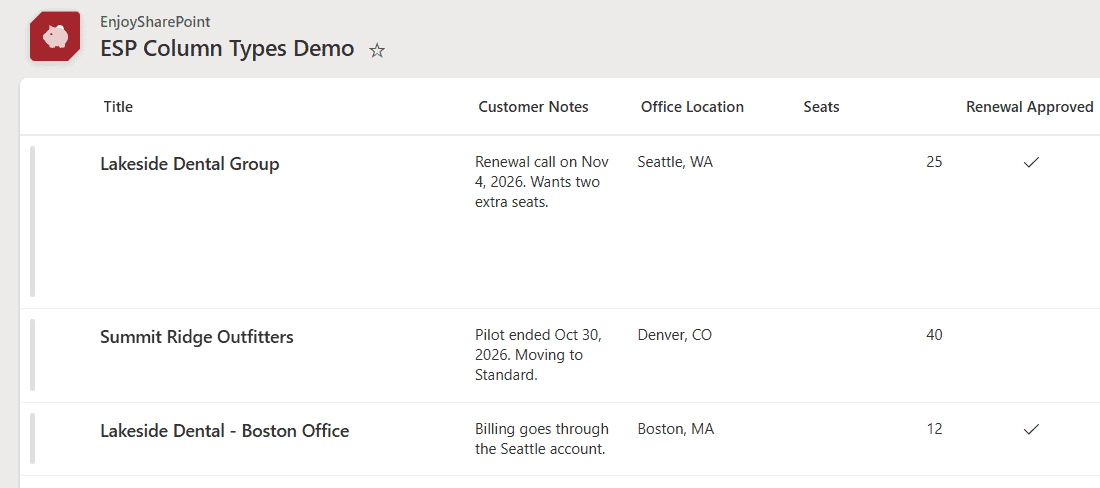
Here’s every type in my demo list. My finished list has 14 columns and three customer accounts; List settings shows each column’s type.
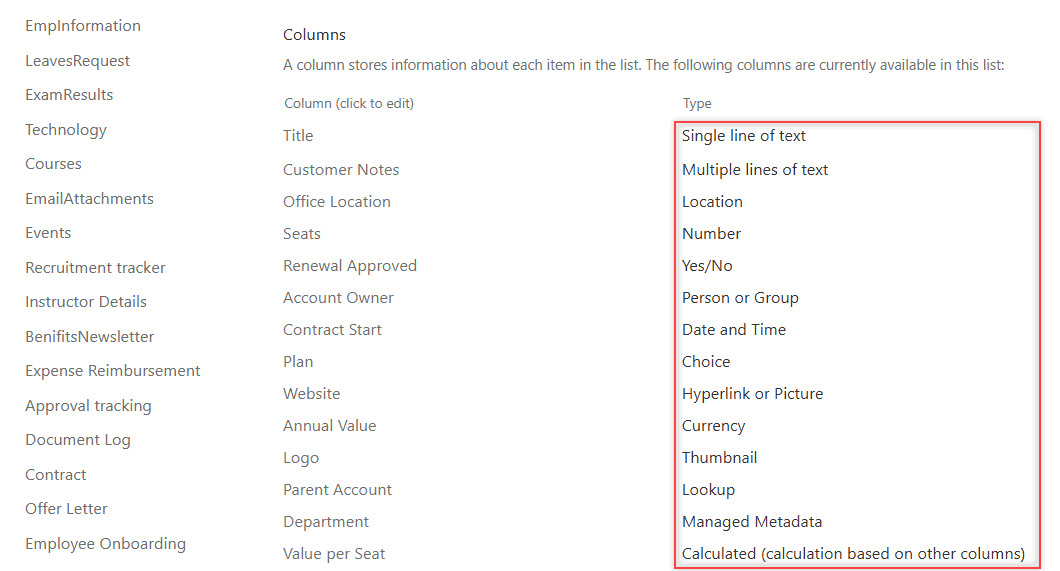
Text: Single line and Multiple lines
Single line of text holds up to 255 characters, so it suits names, codes and phone numbers. Every list starts with one, the Title column, which you can rename or hide as shown in the SharePoint list Title column guide.
Multiple lines of text holds up to 63,999 characters, with plain or rich text. Turn on Append changes to existing text (needs versioning) when you want a running history of notes.
Number and Currency
Number is for counts and measures, with minimum and maximum values, 0 to 5 decimal places, and a number symbol such as % or $. My Seats column uses 0 decimals and a minimum of 1.
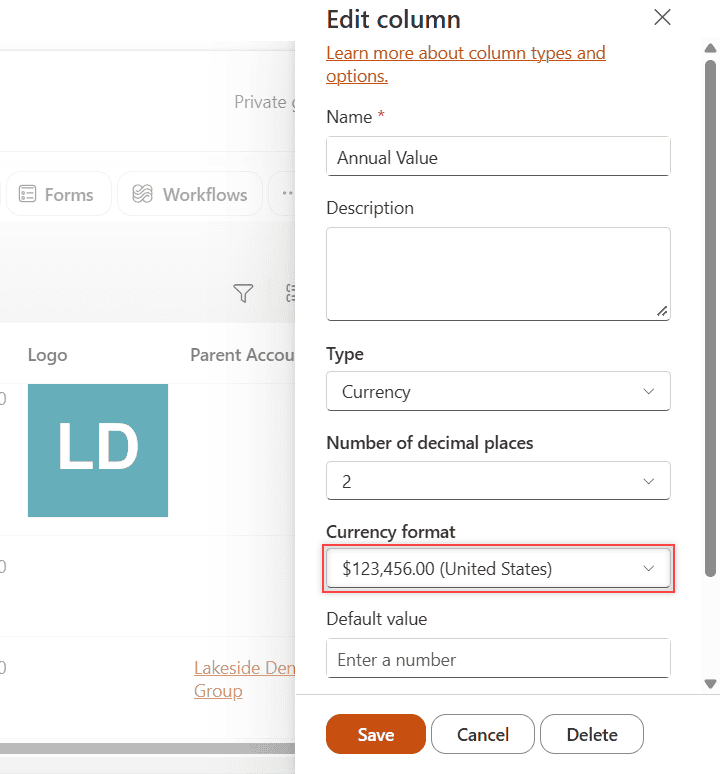
Currency is for money. Pick the format once, such as $123,456.00 (United States), and every value shows the dollar sign. It’s accurate to 15 digits before the decimal point and 4 after.
Date and time, Yes/No and Choice
Date and time stores a date only or a date with a time, and can default to today. How it looks depends on the site’s regional settings, which you can adjust with the SharePoint date format settings.
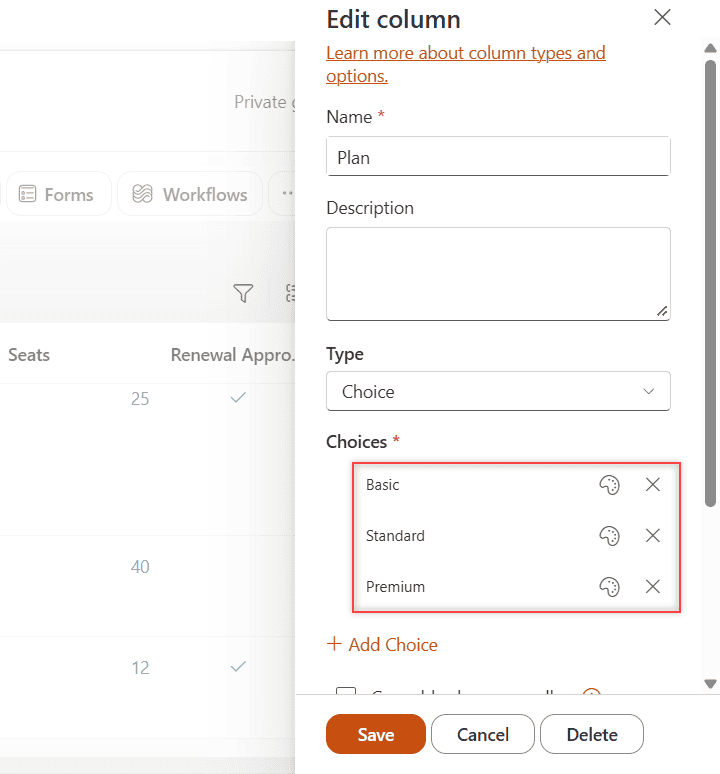
Yes/No is a single toggle, perfect for flags like Renewal Approved. Choice gives a drop-down of fixed values; my Plan column offers Basic, Standard and Premium.
Person, Hyperlink, Location and Image
Person lets users pick people (and optionally groups) from your directory, so flows can email them. Hyperlink stores a URL with display text.
Location looks up an address from Bing Maps and splits it into city, state and postal code. It isn’t available in US Government plans. Image stores one picture per item (List settings calls it Thumbnail), which works well with column formatting with JSON.
Lookup, Managed metadata and Calculated
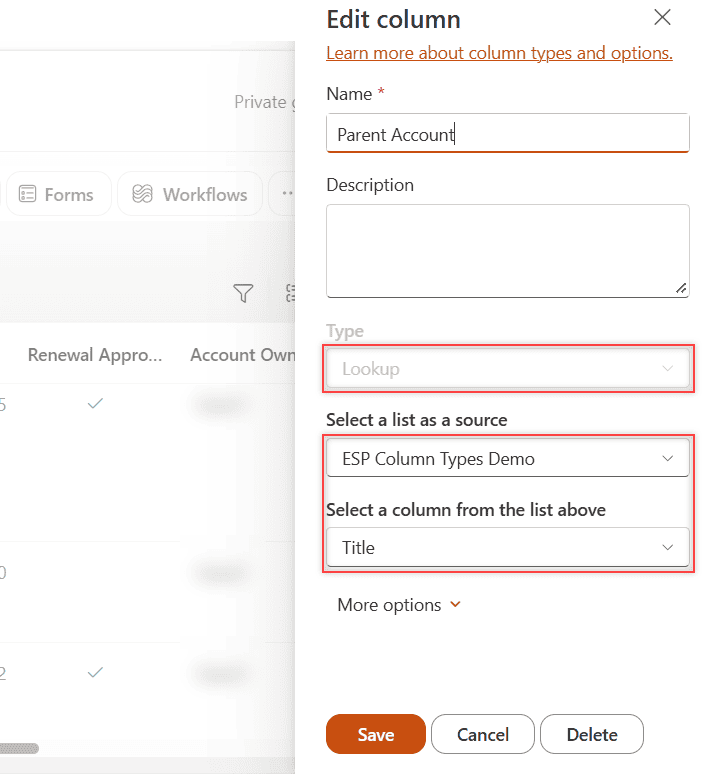
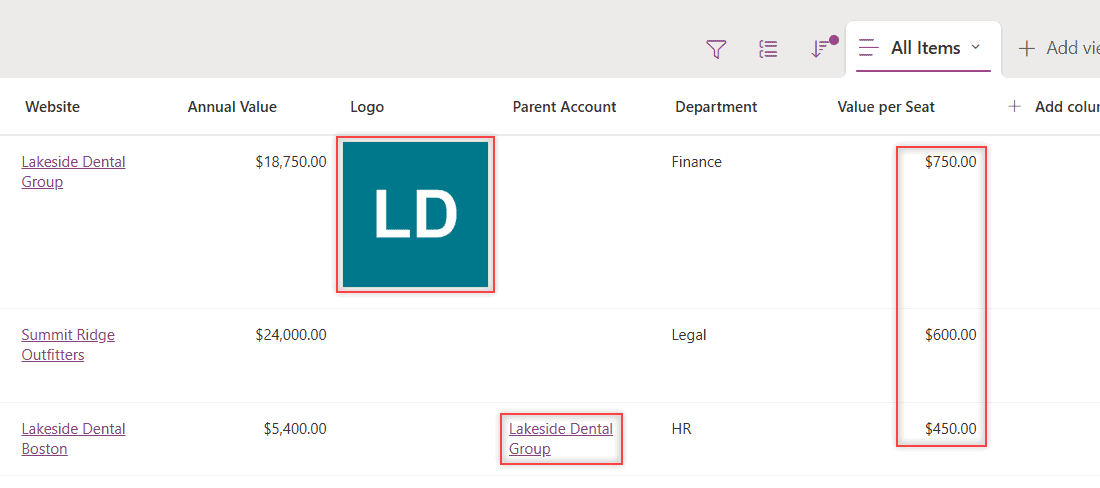
Lookup pulls values from another list on the same site. My Parent Account column looks up the Title of another account; the full walkthrough is in how to create a SharePoint lookup column.
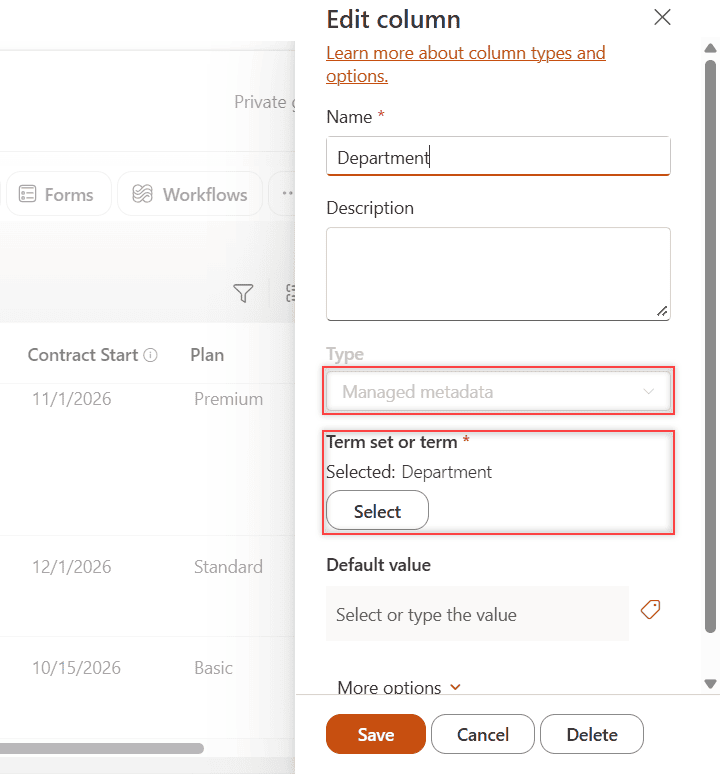
Managed metadata lets users pick terms from a central term set, so every list in your organization tags “Finance” the same way. My Department column uses a term set with Finance, HR and Legal.
Calculated builds a value from other columns in the same list. My Value per Seat column divides Annual Value by Seats and returns currency: $750.00 for Lakeside Dental Group. You edit it from List settings, not the column menu. More formulas are in how to create a calculated column.
=[Annual Value]/Seats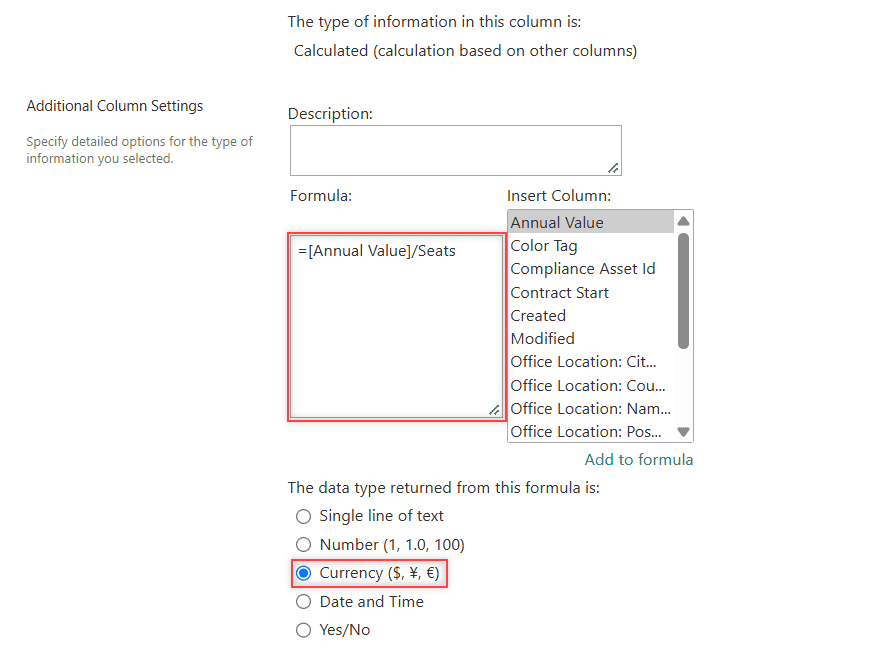
Step 3: Lock In the Settings You Can’t Change Later
A few decisions are hard to undo once the list has data, so I set them before anyone adds items:
- The first column name becomes the internal name that flows and the REST API use. Renaming changes only the display name, so skip spaces and symbols at first.
- The type itself. Microsoft warns that changing a type can corrupt stored data. Single line to Multiple lines is safe.
- Person, Lookup, Managed metadata, Hyperlink, Location, Image and Calculated columns are locked: the Type box is grayed out, so you create a new column and copy the data.
- Append changes: turning it off later deletes every note except the latest.
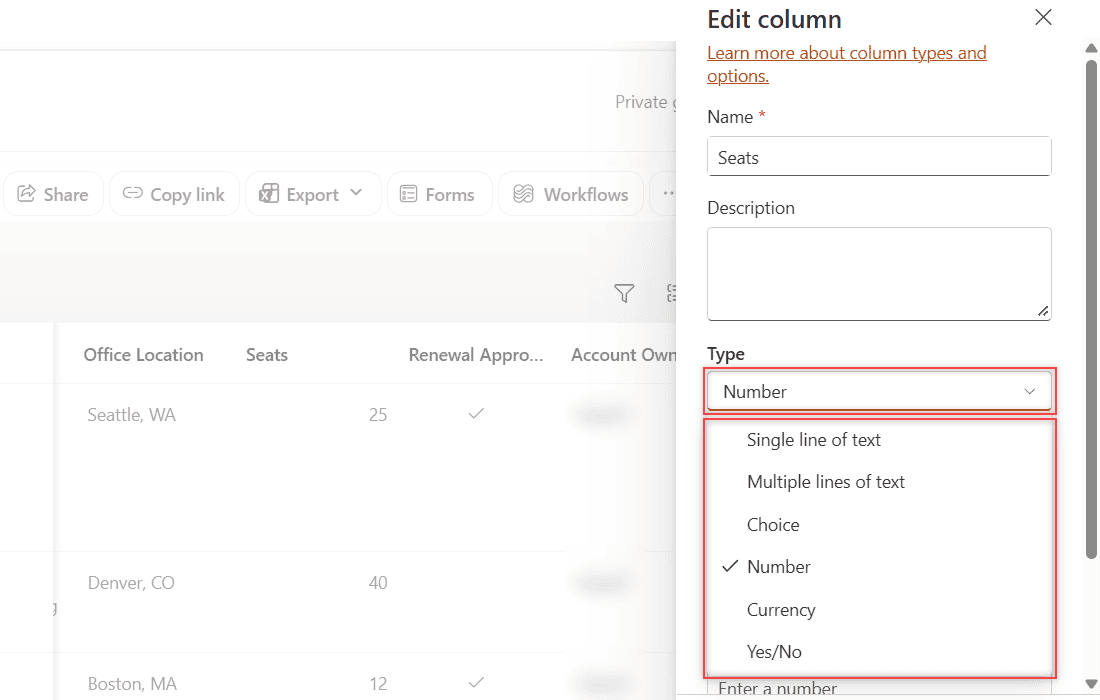
Simple types can switch, but only to related ones. My Number column offers Single line, Multiple lines, Choice, Currency and Yes/No:
You can also create the same columns with PnP PowerShell, which keeps internal names clean. This is part of the script I used:
$L = "ESP Column Types Demo"
Add-PnPFieldFromXml -List $L -FieldXml '<Field Type="Choice" DisplayName="Plan" Name="Plan" Format="Dropdown"><Default>Standard</Default><CHOICES><CHOICE>Basic</CHOICE><CHOICE>Standard</CHOICE><CHOICE>Premium</CHOICE></CHOICES></Field>'
Add-PnPFieldFromXml -List $L -FieldXml '<Field Type="Currency" DisplayName="Annual Value" Name="AnnualValue" LCID="1033" Decimals="2" />'
Add-PnPFieldFromXml -List $L -FieldXml '<Field Type="Calculated" DisplayName="Value per Seat" Name="ValuePerSeat" ResultType="Currency" LCID="1033"><Formula>=[Annual Value]/[Seats]</Formula></Field>'
SharePoint Column Types Cheat Sheet
| Column type | Use it for | Key limit or setting | Watch out for |
|---|---|---|---|
| Single line of text | Names, codes, phone numbers | 255 characters | Safe to change to multiple lines |
| Multiple lines of text | Notes, descriptions | 63,999 characters | Can’t sort or filter on it |
| Number | Counts, scores, percentages | 0-5 decimals, min/max | Not for money |
| Currency | Prices, contract values | 15 + 4 digits, USD format | One format per column |
| Date and time | Due dates, start dates | Date only or date and time | Uses site time zone |
| Yes/No | Flags, approvals | Default on or off | Only two states |
| Choice | Status, category, plan | Drop-down or radio buttons | Edit choices, not old items |
| Person | Owners, assignees | People only or people and groups | Counts toward lookup limit |
| Hyperlink | Websites, documents | URL plus display text | No link checking |
| Location | Offices, job sites | Bing Maps address fields | Not in US Government plans |
| Image | Logos, photos | One image per item | Files go to Site Assets |
| Lookup | Values from another list | Same site only | Counts toward lookup limit |
| Managed metadata | Company-wide tags | Needs a term set | Multi-value can’t sort |
| Calculated | Totals, dates, labels | Same-list columns only | No Person or Lookup in formulas |
Common Mistakes to Avoid
- Storing money in a Number column. You lose the currency symbol, and reports show bare numbers.
- Too many Lookup and Person columns in one view. SharePoint allows 12 per view by default (the List View Lookup Threshold); Created By and Modified By count too.
- Free text where a Choice belongs. “NY”, “New York” and “N.Y.” break filters. If you need a pattern, add column validation for phone numbers instead.
Can You Change a Column Type After Creating It?
Yes, for text, number, currency, choice, date and yes/no columns, from Column settings > Edit. Choice can become Date, but Date can only become text or Choice. Test on a copy first, because values that don’t fit the new type are lost. For a reusable set of columns across lists, use content types in SharePoint lists.
Next Steps
Once your columns are in place, build views around them. My SharePoint list view guide shows how to group by Choice, filter by Person and sort by date.
If you’re building out your list, these tutorials help next:
Frequently Asked Questions
How many column types are there in SharePoint?
The modern Create a column panel lists 15, and See all column types adds Calculated, Task Outcome and External Data. Microsoft lists each one with its options in List and library column types and options.
What’s the difference between Choice and Lookup columns?
A Choice column keeps its values inside the column settings. A Lookup column reads them from another list, so you update one list and every lookup sees the change.
Which SharePoint column type should I use for money?
Use Currency. It stores up to 15 digits before the decimal point, shows the currency symbol you pick, and sums correctly in views and totals.
Can a calculated column use a Person or Lookup column?
No. Calculated formulas can’t reference Person, Lookup or Managed metadata columns. Use Power Automate or JSON formatting instead.

I have worked with Microsoft technologies for more than 18 years, including SharePoint, Microsoft 365 and the Power Platform (Power Apps, Power Automate and Power BI), at companies like HP, TCS and KPIT. I started EnjoySharePoint in 2011 to share the solutions I build in real projects with readers in the United States, Canada, the United Kingdom, Australia, New Zealand and beyond. Microsoft has recognized this work with the Microsoft MVP award 13 times since 2014.