
For the past few years, I have built many Power Apps apps for clients. We also built some full products. In most of these apps, we used deep linking for different purposes.
For example, we showed screens based on user roles. We also used deeplinks in emails. When a user submitted a ticket, leave request, or travel request, we sent an email to the user and their manager. The email had a link to open the request.
We passed the item ID in the link. When the user clicked it, the app opened and showed the correct record.
But there was a problem. When we moved the app to another environment or tenant, the link had to be updated manually. This was not a good approach.
So, we found a better way. We can now get the Power Apps App ID, Tenant ID, and Environment ID dynamically. Using this, we can automatically build the deeplink URL. We only need to set it up once.
Get Power Apps App ID, Tenant ID, and Environment ID Using Power Automate
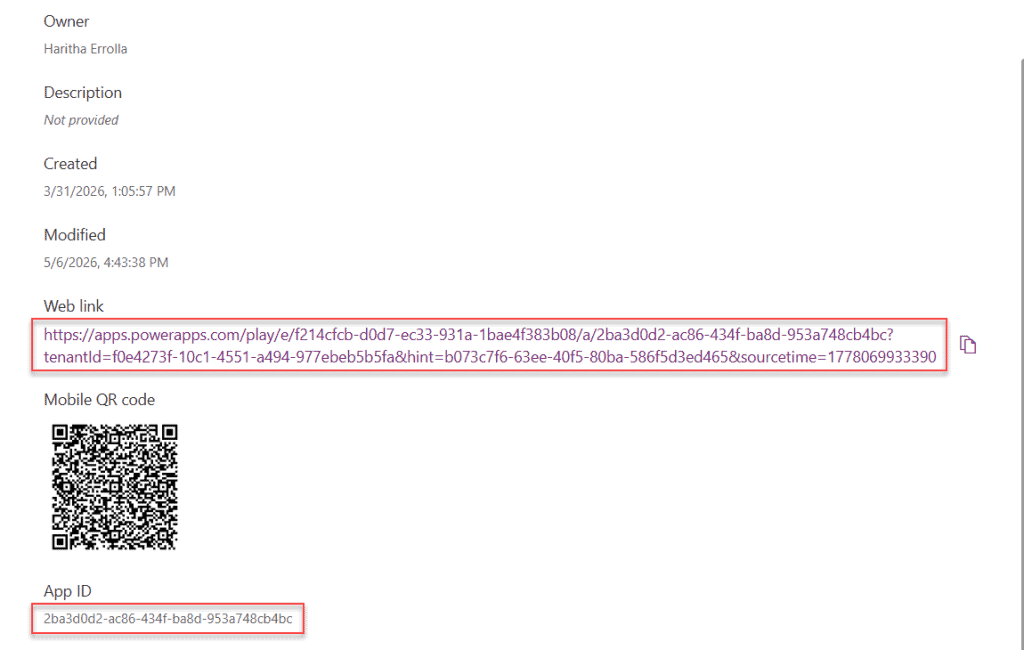
Normally, you can get the Power Apps App ID from the app details pane. You can also find the Environment ID, Tenant ID, and App ID in the web link.
The web link will look like this:
https://apps.powerapps.com/play/e/f214cfcb-d0d7-ec33-931a-1bae4f383b08/a/2ba3d0d2-ac86-434f-ba8d-953a748cb4bc?tenantId=f0e4273f-10c1-4551-a494-977ebeb5b5fa&hint=b073c7f6-63ee-40f5-80ba-586f5d3ed465&sourcetime=1778069933390Here:
- e/ = Indicates Environment ID [f214cfcb-d0d7-ec33-931a-1bae4f383b08]
- a/ = Indiactes App ID [2ba3d0d2-ac86-434f-ba8d-953a748cb4bc]
- tenantId = f0e4273f-10c1-4551-a494-977ebeb5b5fa
- hint: It is a session ID, we won’t require this for building deeplinking. [b073c7f6-63ee-40f5-80ba-586f5d3ed465]
Now, to get these IDs within the app, we are going to use the Power Automate flow. Follow the steps below to create a flow to retrieve the IDs and send them to the Power Apps app.
- In the Power Apps app, from the left navigation, under the Power Automate section, create a blank flow. Or open the Power Automate directly and create an Instant cloud flow with a When Power Apps calls a flow (V2) trigger.
NOTE:
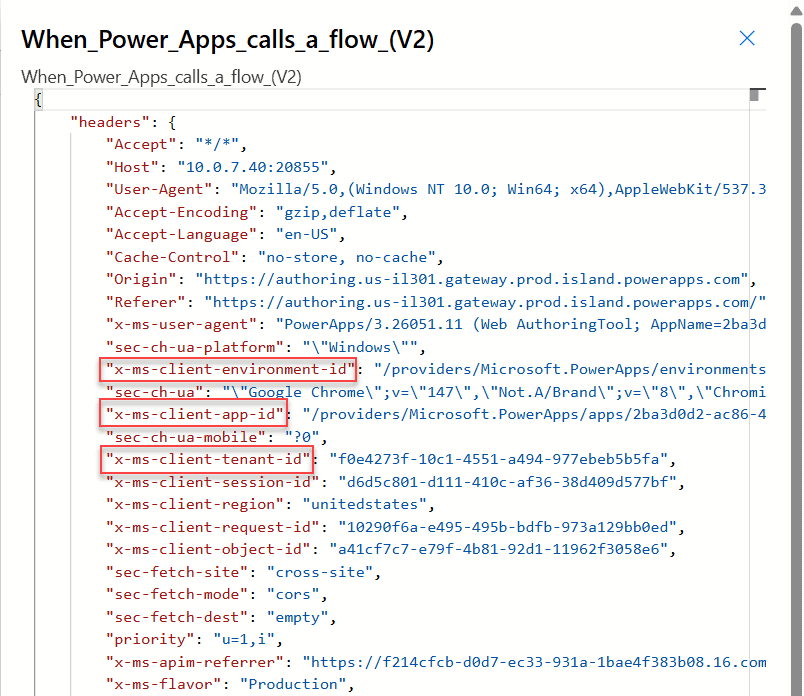
When the Power Apps trigger runs, it retrieves all the information about the Power Apps app that triggered the flow. I marked it; you can check it in the image below.
- Then add a Compose action, and provide the expression below.
last(split(trigger()?['Outputs/headers/x-ms-client-app-id'], '/'))Here:
- split() = This function will split the text into an array of strings based on ‘/.’
- last() = This will retrieve the last string. [The last string is the app ID – You can copy the code and check it.]
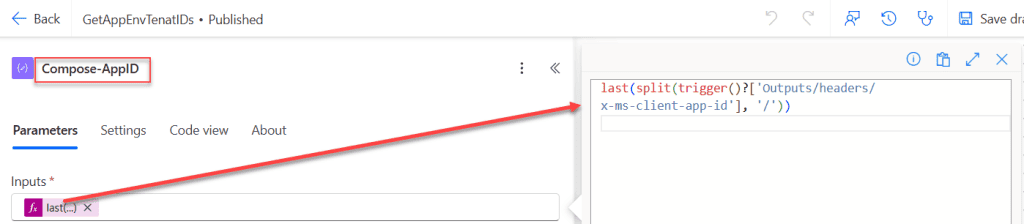
- Add one more compose action and rename it with enironment id at the end for easy identification, then add the following expression.
last(split(trigger()?['Outputs/headers/x-ms-client-environment-id'], '/'))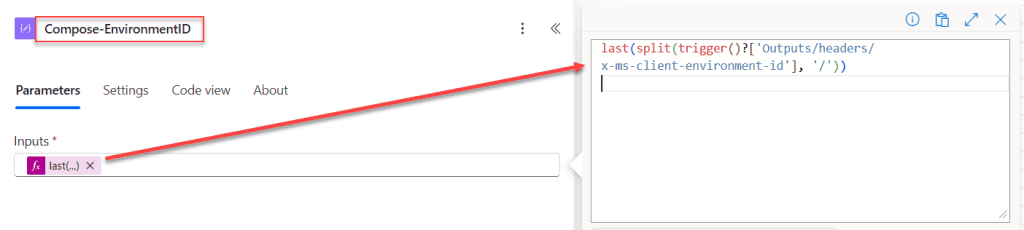
- For the tenant ID, add another compose action and set the following expression in the inputs parameter.
trigger()?['Outputs/headers/x-ms-client-tenant-id']
- Now, to send these IDs to the Power Apps app, add the “Respond to a Power App or flow” action. Under the Parameters, add three text inputs and assign the compose outs for the following:
- AppID = @{outputs(‘Compose-AppID’)}
- TenantID = @{outputs(‘Compose-TenantID’)}
- EnvironmentID = @{outputs(‘Compose-EnvironmentID’)}
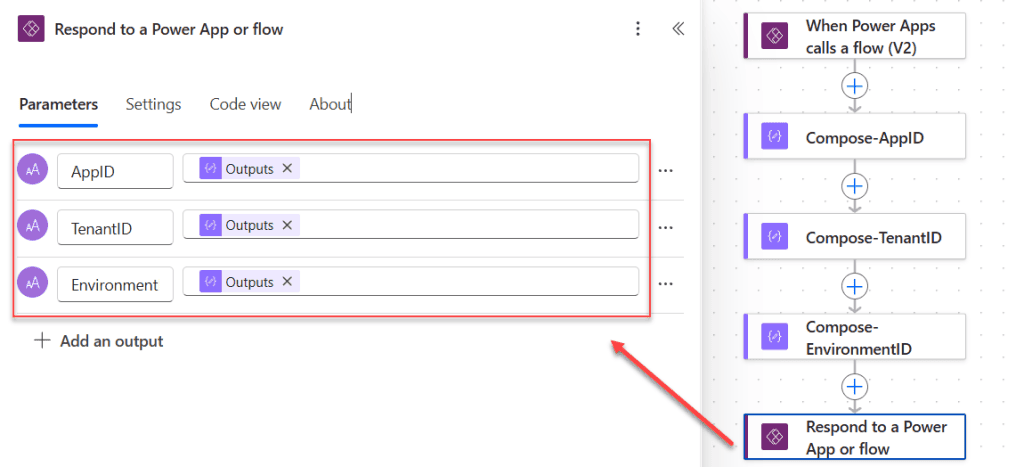
Show the App ID, Tenant ID, and Environment ID within the Power Apps App
Now, in the Power Apps app, add the flow above if it hasn’t been added yet. Then, either in the App OnStart property or in the screen’s OnVisible property, add the following code.
Set(App_Details, GetAppEnvTenatIDs.Run());
Set(
    _deepLink,
    $"https://apps.powerapps.com/play/e/{App_Details.environmentid}/a/{App_Details.appid}?tenantId={App_Details.tenantid}"
);
Then add a text label and set the _deepLink variable as its Text property. Then it will display the url, as shown in the image below.
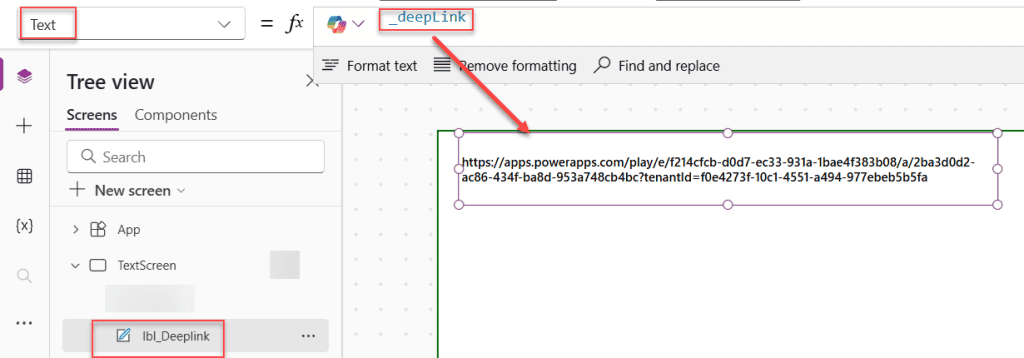
If you want to test whether it is working fine, add this variable to Launch() and test it.
Conclusion
I hope you found this article helpful. In this guide, I explained how to get the App ID, Tenant ID, and Environment ID in Power Apps. I also shared simple steps that you can follow inside your app. These details are useful when working with integrations and advanced scenarios.
If you need these IDs for your app, try the method shown in this article. It is simple and easy to use. Once you know how to get them, you will be able to work more effectively with Power Apps and other services.
Also, you may like:
- Power Apps ForAll Function
- Power Automate: How to Create a Table in Excel and HTML
- 5 Best Methods to Get the Last Item in a SharePoint List Using Power Apps
- Power Apps Nested IF Examples
- Get the Last Item in a SharePoint List Using Power Apps

Preeti Sahu is a Microsoft MVP for Power Apps with over six years of experience working with SharePoint Online and the Power Platform. She is the co-author of the book Microsoft Power Platform: A Deep Dive. As a Power Platform developer, she has built various tools with Power Apps and Power Automate, and she makes Microsoft 365 videos for YouTube.