
If you are a beginner in Power Automate and want to learn how to create flows that let you automate tasks and processes with a single click, you should explore Instant Cloud Flow. Unlike automated flows that run based on specific triggers, Instant Cloud Flows are triggered manually by the user.
This Power Automate tutorial will teach us how to create an instant cloud flow in Power Automate using a real-time scenario.
Create an Instant Cloud Flow in Power Automate
Imagine you have a Microsoft Teams group and want to email all team members about a new survey: “Please participate in the survey”.
To do this, follow the below steps:
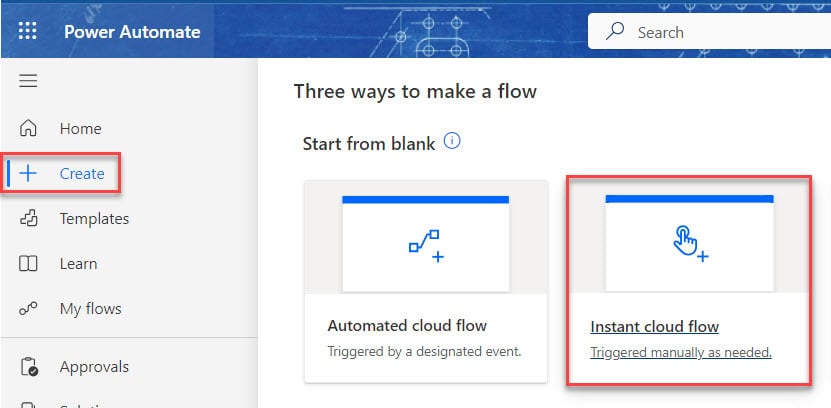
1. Sign in to Power Automate with valid credentials. Then click on + Create and Select Instant cloud flow.
2. Enter the Flow name and Choose the trigger flow (i.e., Manually trigger a flow), then click Create like the screenshot below.

3. Then, add inputs in the Manually trigger a flow by clicking + Add an input like:
- Name – Please enter your Name
- Survey Title – Please enter your Survey Title
- Description – Please enter your Survey Description
- Link to Survey – Please enter your Survey Link

4. Next, add an action List members where we find all the information about the member.
To do this, click the + icon. In the search box, type the action name (in our case, ‘ List members’) and select List members flow action from the Microsoft Teams connector.

5. Here, I select Thread Type as the Group chart and Group Chat as your temes group name, in my case, Survey Participants.

6. Next, click the + icon to add an action. In the search box, type the action name (in our case, ‘ send an email’) and select the ‘Send an email (V2)‘ flow action from the Outlook connector.

7. Here you will see three options:
- To – Insert the Email address using the Dynamic content (In my case, I use List of members E-mail)
- Subject – Add the Title of your email.
- Body – In the body part, Enter the message that you have added a new survey using dynamic content and an Expression.
I am using the expression below to get the date.
formatDateTime(utcNow(),'dd-MMM-yyyy')
8. Then save the flow by clicking the Save button.

Test Instant Cloud Flow in Power Automate
Now, we test our flow to do this. Click on Test Select Manually -> Click on Test inside the Test Flow tab.

Then, provide your Survey Title, Description, Link to Survey, and Name. Then click on Run flow.

Then you can see who the members of that group they get an email like the one below:

This way, you can create an Instant cloud flow in Power Automate.
In this tutorial, we covered what an Instant cloud flow in Power Automate is and how to create one.
Also, you may like some more Power Automate articles:
- How to Use Microsoft Copilot in Power Automate
- Remove Top Few Lines of an Excel File Using Power Automate
- Power Automate Remove Item from Array
- Power Automate Wait for Timer
- Create an Automated Cloud Flow in Power Automate

After working for more than 18 years in Microsoft technologies like SharePoint, Microsoft 365, and Power Platform (Power Apps, Power Automate, and Power BI), I thought will share my SharePoint expertise knowledge with the world. Our audiences are from the United States, Canada, the United Kingdom, Australia, New Zealand, etc. For my expertise knowledge and SharePoint tutorials, Microsoft has been awarded a Microsoft SharePoint MVP (12 times). I have also worked in companies like HP, TCS, KPIT, etc.

