
A sales manager asked me for a chart showing how revenue splits across our four US regions. I added a pie chart, and a colleague said a donut chart would “look more modern.” That turned into a real donut chart vs pie chart question: in Power BI, is a donut just a pie with a hole?
Not quite. Both show parts of a whole and share almost every setting, but the donut adds two things the pie can’t do: a value in the center and an adjustable ring width. In this tutorial, I’ll build both from the same data and show you where they differ and which one to pick.
Quick answer: A pie chart is a filled circle split into slices. A donut chart is the same chart with a hollow center. In Power BI, the donut chart can show a Center value (the total, or any measure) and lets you change the ring thickness with Inner radius. Use a pie for a simple 2-5 slice split, a donut when you want a headline number in the middle, and a bar chart when you need to compare values precisely.
Pie chart vs donut chart at a glance
I built both charts from the same sample data: revenue by region for a US company, about $2.11M in total. Same fields, same colors, same labels. The only thing I changed was the visual type.
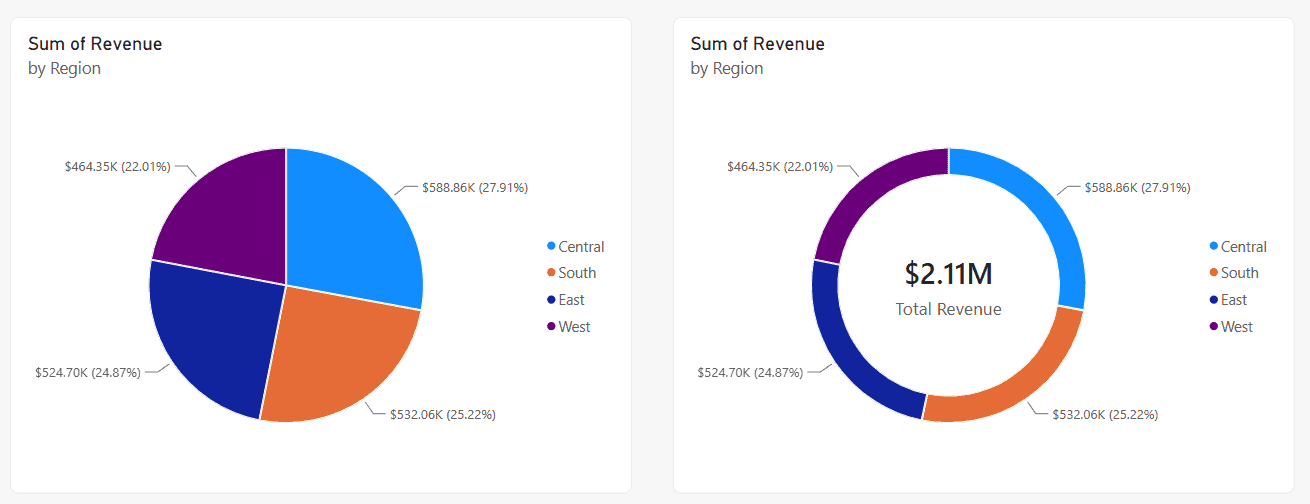
Both charts show that Central brings in 27.91% of revenue and West 22.01%. Notice how close the four slices are, which already hints at a weakness of both charts. If you’re not sure how to swap one visual for another, see how to change a visual type in Power BI.
| Feature | Pie chart | Donut chart |
|---|---|---|
| Shape | Full circle split into slices | Ring with a hollow center |
| Center value (total or a measure) | Not available | Yes, on by default |
| Ring thickness | Not applicable | Slices > Spacing > Inner radius |
| Field wells | Legend, Values, Details, Tooltips | Same |
| Detail labels, legend, rotation | Yes | Same options |
| Drill down, cross-filter, cross-highlight | Yes | Same |
| Several data series as rings | No | No (one ring only in Power BI) |
| Best for | 2-5 categories, simple split | 2-5 categories plus a headline total |
What is a pie chart in Power BI?
A pie chart is a circle divided into slices. Each slice is one category, and its angle shows that category’s share of the total. In my example, each slice is a region and the size is its share of revenue.
To build one, select the Pie chart icon in the Visualizations pane, add a category field to Legend and a number to Values. That’s it. For a full walkthrough with formatting, see how to create a pie chart in Power BI.
Pie charts read well when one slice is clearly bigger than the rest, or when you’re showing a simple split like 70/30. Detail labels can show the value, the percent of total, or both. If you need that percentage on every slice, here’s showing percent of total in a pie chart.
What is a donut chart in Power BI?
A donut chart (Power BI spells it “donut,” Excel spells it “doughnut”) is a pie chart with the middle cut out. The data is read the same way, slice by slice, except you judge the length of each arc rather than the angle at the center.
You build it exactly like a pie chart: select the Donut chart icon, then add Legend and Values. For more examples, including colors and labels, read creating a donut chart in Power BI.
The hole isn’t just decoration. Power BI now uses it for a built-in total, which is the biggest practical reason to choose a donut. More on that next.
The key differences between pie and donut charts in Power BI
When I compared the Format pane of both visuals in Power BI Desktop, the pie chart had four sections under the Visual tab: Legend, Slices, Detail labels and Rotation. The donut chart had all of those plus Center value, and its Slices section had an extra Spacing option. Those two settings are the real difference.
1. The donut chart can show a value in the center
Turn on Format visual > Visual > Center value and the donut shows the total of the charted values in the middle. In my report, it was already on and displayed $2.11M as soon as I created the donut.
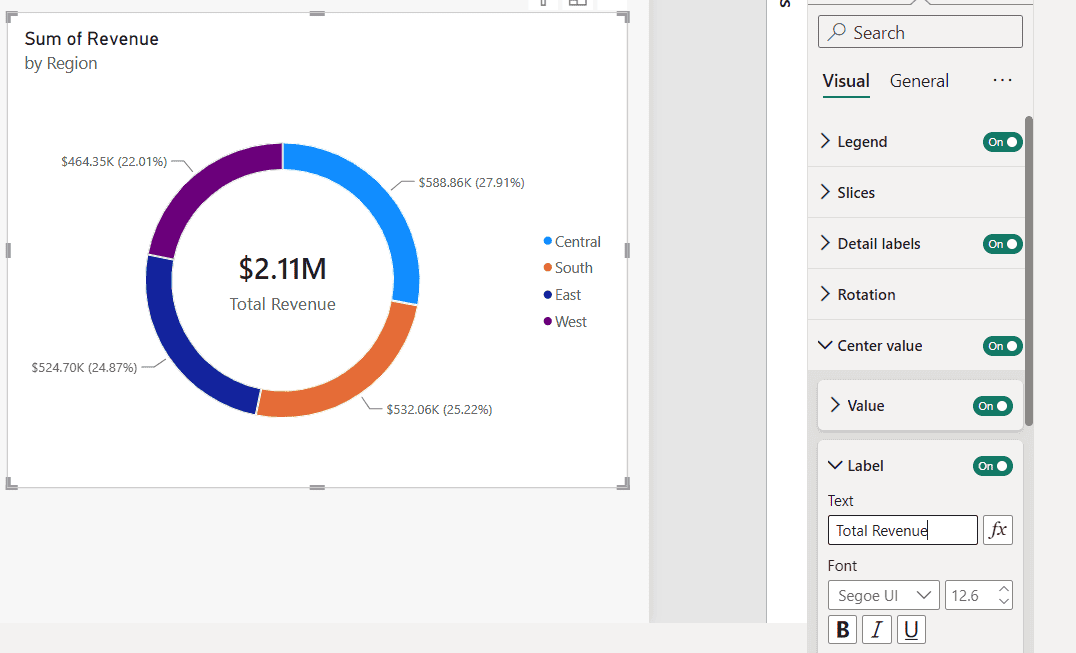
Under Center value you’ll find four groups:
- Value: the number itself, with font, color and display units. Select +Add data under Field to show a different measure instead of the total, such as profit or a target.
- Label: a caption above or below the number. I turned it on and typed Total Revenue in the Text box.
- Image: a small icon or logo with the value.
- Background: a fill color or image inside the ring.
The center value follows filters and cross-highlighting, so if someone clicks a slicer for 2026, the total updates. Before this setting existed, people placed a card visual on top of the donut to fake a center label. You don’t need that workaround anymore, and it was fragile because the card drifted whenever the chart was resized.
A pie chart has no center value. If you need a total next to a pie, add a separate card.
2. You can change the donut’s ring thickness
Go to Slices > Spacing > Inner radius. The default is 80%, which gives a thin ring. I lowered it to 60% for a thicker ring that’s easier to read and still leaves room for the center value.
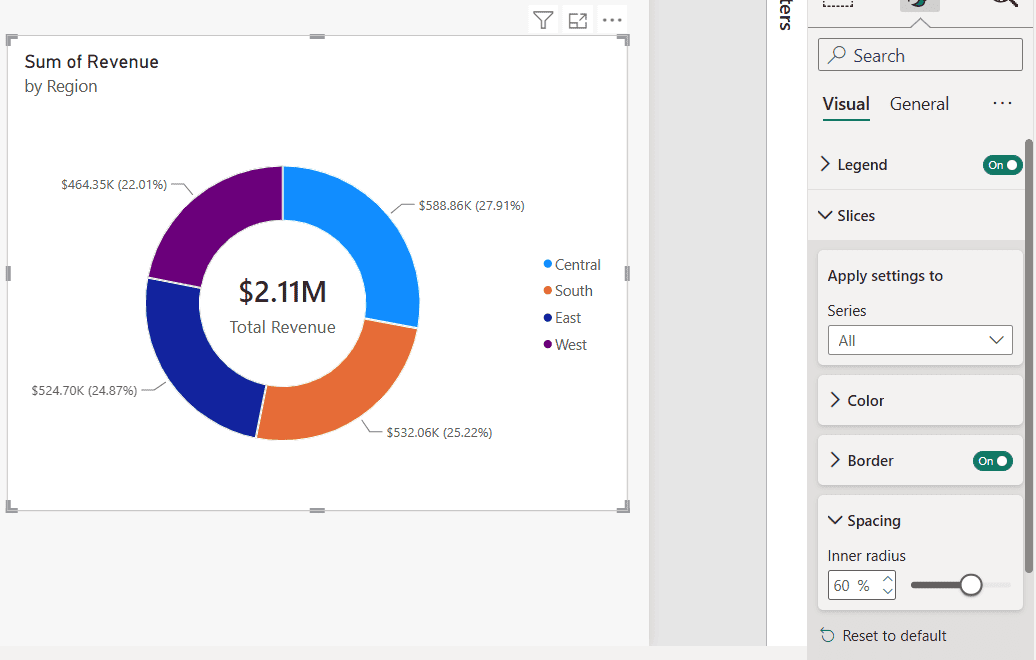
Thin rings look elegant but make small slices hard to see and hard to click. On a dashboard tile, I usually stay between 50% and 70%.
3. Labels and the space they need
Both charts place detail labels outside the slices with leader lines, as in my screenshots.
The donut keeps its center free, so you can move the headline number there and keep only the percent on each slice. With a pie, the total has nowhere to go inside the chart. For other ways to show shares, see how to show values as a percentage in Power BI.
4. One ring only
In Excel, a doughnut chart can stack several data series as rings, for example 2025 inside 2026. Power BI’s donut chart doesn’t do that. It draws one ring for one measure. If you add a field to Details, Power BI splits each slice into smaller slices on the same ring, not into a second ring.
What’s the same in both charts
Everything else works identically, which makes switching between them painless. Both charts support a category hierarchy with drill down, drill up and expand, as shown in how to drill down in a Power BI pie chart.
Both charts also filter and highlight other visuals when you click a slice. You can control that behavior per visual with Edit interactions in Power BI.
Slice colors work the same way too: Slices > Color, with the fx button for rule-based colors. The steps in Power BI pie chart conditional formatting apply to a donut as well. Microsoft notes that conditional formatting isn’t officially supported on these two visuals, so test it before you rely on it in a shared report.
When to use a pie chart
- You have 2 to 5 categories and they add up to a meaningful whole, like revenue by region or tickets by status.
- One slice is clearly larger or smaller than the others, and that’s the point you want to make.
- The chart is small, for example in a narrow column, where a ring would get too thin to read.
- You don’t need a total inside the chart, or there’s already a card with the total on the page.
If only a few slices matter, you can also hide the rest. See showing only selected values in a pie chart.
When to use a donut chart
- You want one headline number, such as total revenue or total headcount, together with its breakdown.
- You’re building a dashboard with several KPI-style tiles and want them to look consistent.
- Space is tight and you’d otherwise need a separate card for the total.
- You want to show a measure other than the total in the center, for example “72% of target” with the ring showing the split.
For layout ideas that use donuts this way, browse these Power BI dashboard examples.
When to use neither (use a bar chart instead)
Look at my two charts again. East is 24.87% and South is 25.22%. Can you tell which slice is bigger without reading the labels? I can’t, and neither can most readers. People compare lengths far more accurately than angles or arcs.
- Slices are close in size: use a bar chart so the ranking is obvious.
- More than 5 or 6 categories: Microsoft recommends keeping these charts to about 3-6 slices. Group the small ones into “Other” or switch to bars.
- Comparing over time: two pies for 2025 and 2026 side by side are hard to compare. Use a stacked or clustered column chart.
- Values don’t form a whole: averages, rates or overlapping categories don’t belong in a pie or donut.
For the bar alternative, here’s how to create a bar chart in Power BI. With many categories in a hierarchy, a treemap in Power BI also uses space better than a crowded pie.
How to switch a pie chart to a donut chart
You don’t have to rebuild anything. Your fields and most formatting carry over.
- Select the pie chart on the report canvas.
- In the Visualizations pane, select the Donut chart icon (next to the Pie chart icon).
- Power BI converts the visual and turns on Center value, showing the total in the middle.
- Open Format visual to adjust Center value and Slices > Spacing > Inner radius.
Going the other way, from donut to pie, works the same. The center value disappears because pie charts don’t support it. That’s exactly how I made the side-by-side comparison above: I copied the pie chart, pasted it and switched the copy to a donut.
Best practices for pie and donut charts
- Keep slices sorted by size. That’s the default (largest first, from 12 o’clock); if someone changed it, use More options (…) > Sort by.
- Label directly: show the category and percent on the slices and consider turning off the legend.
- Use distinct colors with good contrast. Avoid two shades of the same color for neighboring slices.
- Write a clear title that states the takeaway, such as “Central leads revenue at 28%”.
- Keep the center short: one number and a two- or three-word label.
For theme colors, fonts and spacing across the whole report, see this guide to Power BI visual formatting.
Common problems and fixes
- No Center value option: it only exists on the donut chart, and only in recent Power BI Desktop versions. Update Power BI Desktop and check you selected a donut, not a pie.
- The center value is missing on the canvas: the chart may be too small or the inner radius too low to fit the number. Make the visual bigger or raise Inner radius.
- Some detail labels don’t show: Power BI hides labels that would overlap. Make the chart larger, show only the percent, or group small categories.
- Total looks wrong: the center shows the sum of the visible slices. A filter, a slicer or a selected slice changes it.
- Too many tiny slices: use a Top N filter on the Legend field or switch to a bar chart.
If you’re picking visuals for a report, these tutorials compare well with pie and donut charts:
Frequently Asked Questions
What is the main difference between a pie chart and a donut chart in Power BI?
The donut chart has a hollow center that can show a Center value, such as the total, and an adjustable Inner radius. Otherwise both charts use the same fields and options, as described in Microsoft’s pie and donut chart documentation.
Is a donut chart better than a pie chart?
Not for accuracy. Both are about equally easy to read. A donut is better when you want a headline number in the middle; a pie is better for small visuals and very simple splits.
Can I show the total in the middle of a Power BI pie chart?
No. The center value is available only on the donut chart. Switch the pie to a donut, or place a card visual next to the pie.
How do I make the donut ring thicker in Power BI?
Select the donut, open Format visual > Visual > Slices > Spacing and lower Inner radius, for example from 80% to 60%.
How many slices should a pie or donut chart have?
Keep it to about 3-6 slices. With more categories or slices of similar size, a bar chart is easier to read.

I have worked with Microsoft technologies for more than 18 years, including SharePoint, Microsoft 365 and the Power Platform (Power Apps, Power Automate and Power BI), at companies like HP, TCS and KPIT. I started EnjoySharePoint in 2011 to share the solutions I build in real projects with readers in the United States, Canada, the United Kingdom, Australia, New Zealand and beyond. Microsoft has recognized this work with the Microsoft MVP award 13 times since 2014.