
Most of the Power BI reports I build for sales teams have one pie chart, usually showing how revenue splits across products or regions. It’s often the first visual a manager looks at, so it needs to be readable at a glance, and the defaults rarely get it there.
In this tutorial, I’ll show you how to create a Power BI pie chart, show values and percentages on the slices, group tiny slices into “Other”, add subcategories and fix the common problems. Every step is shown in Power BI Desktop with a real sales report.
Quick answer: Select the Pie chart icon in the Visualizations pane, then add a category field (such as Product) to Legend and a number (such as Revenue) to Values. To show values and percentages, open Format visual > Detail labels > Label contents. Keep it to about 3-6 slices; group the rest into “Other” with New group on the field.
When a pie chart is the right choice
A pie chart shows how parts make up a whole. It works when you have a few categories, they add up to a meaningful total, and one or two of them clearly stand out. Revenue by product line, tickets by status or budget by department are good fits.
It’s the wrong choice for many categories, values that are close in size, or comparisons over time. A bar chart is easier to read in those cases. If you’re deciding between a pie and a donut, see the difference between pie and donut charts in Power BI.
How to create a pie chart in Power BI
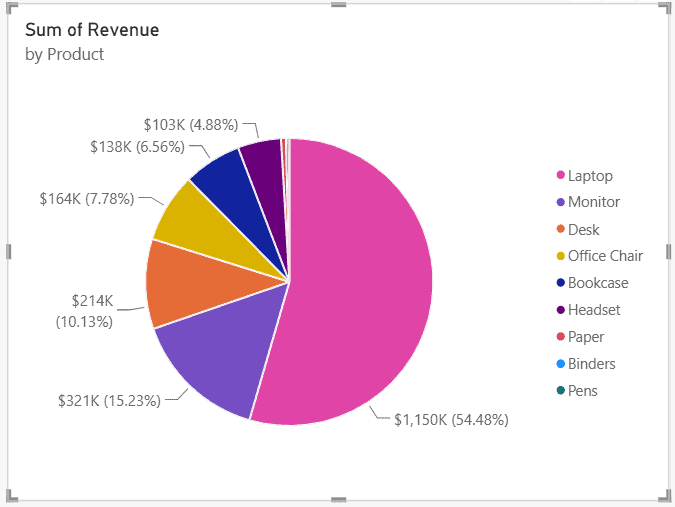
I’m using a sales table with 600 orders from 2025 and 2026 and a Revenue column. Here’s how I built the chart:
- In Power BI Desktop, open the report page and make sure nothing on the canvas is selected.
- In the Visualizations pane, select the Pie chart icon. An empty pie appears on the canvas.
- In the Data pane, select the Product field. It goes to Legend.
- Select Revenue. Power BI adds it to Values as Sum of Revenue.
- Resize the chart from its corners, or set an exact size under Format visual > General > Properties.
The pie chart has four field wells:
- Legend: the category that defines the slices.
- Values: the number that sizes each slice. Use one measure or numeric field.
- Details: an optional second category that splits each slice (more on that below).
- Tooltips: extra fields shown when you hover over a slice.
Already have a bar or column chart with the right fields? Select it and click the pie icon to convert it. See how to change the visual type in Power BI.
Show values and percentages on the slices
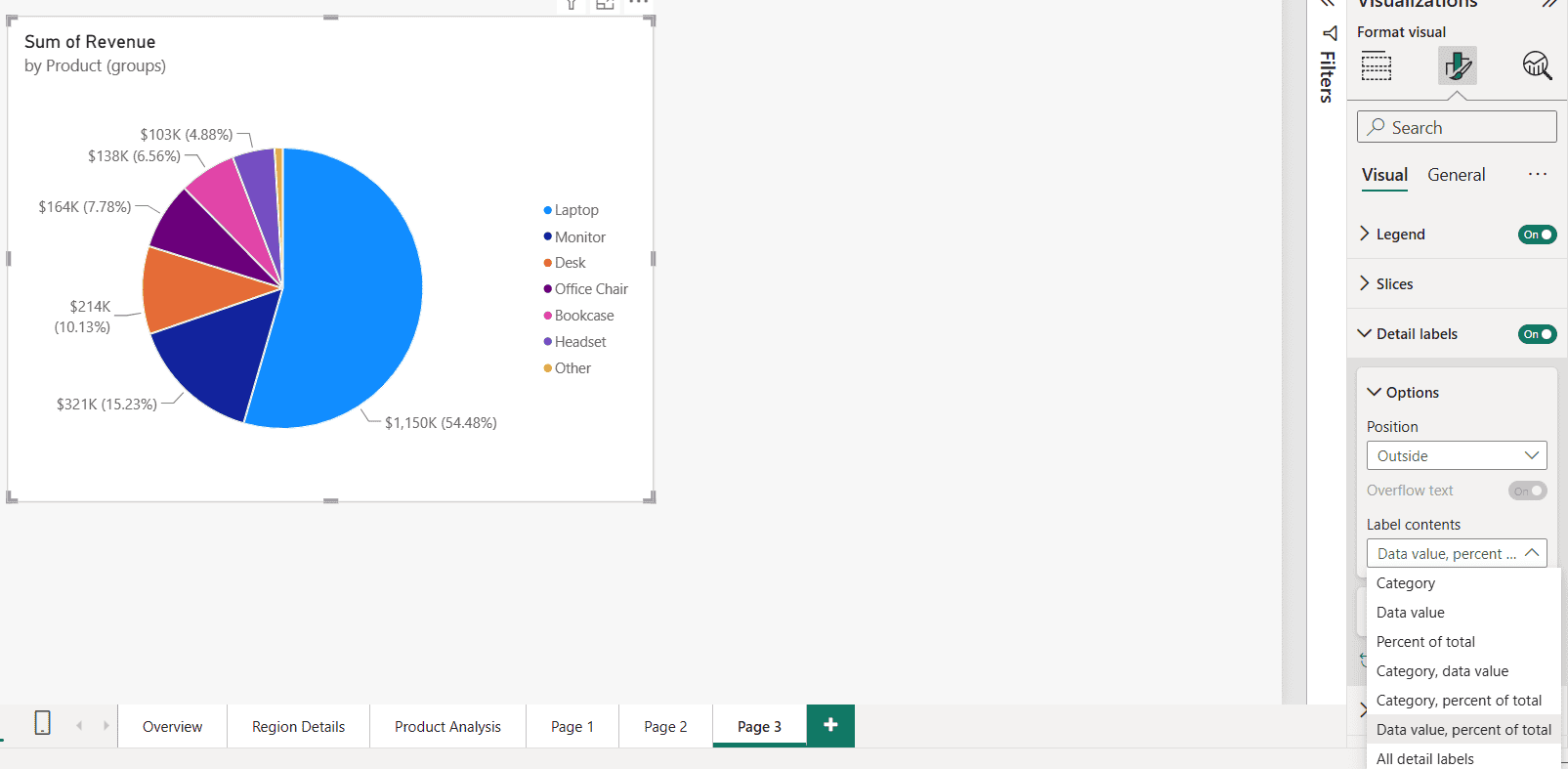
Power BI turns on detail labels by default, but you control what they show. Select the chart, open Format visual > Visual > Detail labels and pick an option under Label contents:
| Label contents | Shows | Good for |
|---|---|---|
| Data value | $1,150K | When the amount matters most |
| Percent of total | 54.48% | Part-to-whole stories |
| Data value, percent of total | $1,150K (54.48%) | The default; most complete |
| Category, percent of total | Laptop 54.48% | Charts without a legend |
| All detail labels | Category, value and percent | Large charts only |
A few other settings I change on almost every pie chart:
- Position: Outside (with leader lines) is the most readable. Inside works when slices are large.
- Values > Display units: the default Auto showed “$0M” for my smaller products. Switching to Thousands fixed it.
- Values > Font: I bump the size to 11 so labels are readable on a dashboard.
For more percentage options, such as share of a category or a group, see showing percent of total in a pie chart.
Format the legend, slices and rotation
The rest of the pie formatting is under Format visual > Visual:
- Legend: position (top, right, bottom, left), title and font. If the labels already include the category, turn the legend off to save space.
- Slices > Color: pick a color for each slice, or use the fx button for rule-based colors.
- Slices > Border: a thin white border makes slices easier to tell apart.
- Rotation: turns the whole pie, so you can put the largest slice at 12 o’clock.
For rule-based slice colors, follow Power BI pie chart conditional formatting. For report-wide styling, such as themes and fonts, see Power BI visual formatting.
Group small slices into “Other”
Look at the first chart again. Paper, Binders and Pens are so small that Power BI hides their labels, and they’re nearly impossible to click. The fix doesn’t need any DAX:
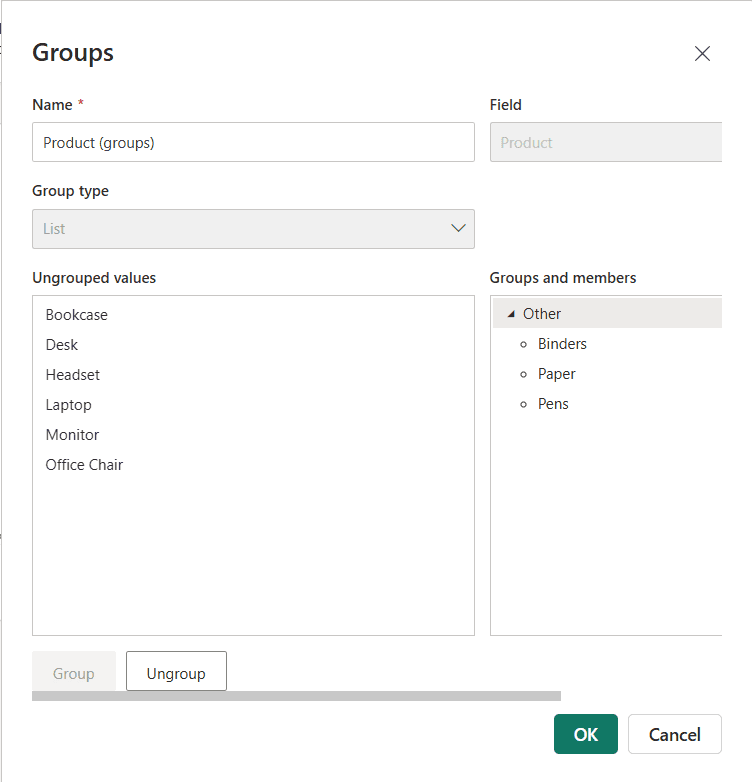
- In the Data pane, right-click the field in Legend (Product) and select New group.
- In Ungrouped values, select the small items: click the first, then hold Ctrl and click the others.
- Select Group, then double-click the new group’s name and rename it to Other.
- Select OK. Power BI adds a new field called Product (groups).
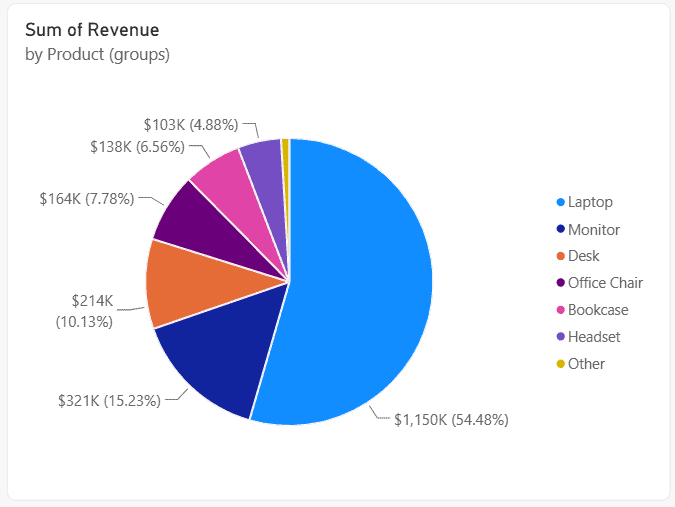
- Select the pie chart, remove Product from Legend and add Product (groups) instead.
Products you didn’t group keep their own slice. The chart now has seven slices instead of nine:
If the dialog has an Include Other group checkbox, it does the opposite: you group the products you want to keep, and everything else goes into Other automatically. That’s handy when new small products keep appearing.
Groups are static. If you want the “Other” bucket to follow the data, for example anything under 3% of revenue, use a calculated column instead and put it in Legend:
Product Group =
VAR ProductRevenue =
    CALCULATE ( SUM ( Sales[Revenue] ), ALLEXCEPT ( Sales, Sales[Product] ) )
VAR TotalRevenue =
    CALCULATE ( SUM ( Sales[Revenue] ), ALL ( Sales ) )
RETURN
    IF ( DIVIDE ( ProductRevenue, TotalRevenue ) < 0.03, "Other", Sales[Product] )
For a quick Top N without an Other slice, use the visual’s filter: in the Filters pane, set Product to Top N, show items Top 5 by Sum of Revenue. Or let users choose which slices to see, as shown in how to show only selected values in a pie chart.
Add subcategories with the Details field
To split each slice by a second field, put the main category in Legend and the subcategory in Details. For example, Category in Legend and Product in Details gives you one color per category, with each category’s slice divided into its products.
Details works best with only a handful of subcategories. With more, use a category hierarchy in Legend instead and let users drill down, as explained in how to drill down in a Power BI pie chart.
Sort the slices
Power BI orders slices by value, largest first, starting at 12 o’clock and going clockwise. To change it, select the chart, open More options (…) > Sort by and choose the field, then open More options again and pick Sort ascending or Sort descending. Sorting by the category name gives you alphabetical slices, which is useful when the legend must match another visual.
Make the pie chart interactive
Clicking a slice filters or highlights the other visuals on the page. You can change that per visual with Edit interactions in Power BI, for example so the pie highlights a bar chart instead of filtering it.
Tooltips add detail without clutter: drag fields such as Units or Profit into the Tooltips well and they appear when you hover. If you want a total in the middle of the chart, switch to a donut: how to create a donut chart in Power BI.
Pie chart not showing? Common problems and fixes
- The chart is empty: the Values well needs a number. If you dropped a text field there, Power BI counts it instead of summing, or shows nothing. Check that Values says Sum of (or Count of) your field.
- One slice is 100%: the field in Legend has only one value in the current filter. Check slicers and the Filters pane.
- Some labels are missing: Power BI hides labels that don’t fit. Make the chart bigger, set Position to Outside, show percent only, or group small slices.
- The numbers show $0M: set Detail labels > Values > Display units to Thousands or None.
- Too many slices: group them as shown above, or use a bar chart. See how to create a bar chart in Power BI.
- Slices are almost the same size: readers can’t compare them. A bar chart or a treemap shows the ranking much better.
These Power BI chart tutorials go well with the pie chart:
Frequently Asked Questions
How do I create a pie chart in Power BI?
Select the Pie chart icon in the Visualizations pane, add a category to Legend and a number to Values. Microsoft’s pie and donut chart guide covers the same steps for the Power BI service.
How do I show percentages on a Power BI pie chart?
Select the chart, go to Format visual > Detail labels > Label contents and choose Percent of total, or Data value, percent of total.
How many slices should a pie chart have?
About 3 to 6. Microsoft recommends limiting slices for clarity. Group the smallest categories into Other or use a bar chart.
Can I group small values into Other in a Power BI pie chart?
Yes. Right-click the Legend field in the Data pane, select New group, group the small items and name the group Other, then use the new grouped field in Legend.
Why is my Power BI pie chart not showing?
Usually the Values well is empty or contains a text field. Add a numeric field or measure to Values and a category to Legend.

I have worked with Microsoft technologies for more than 18 years, including SharePoint, Microsoft 365 and the Power Platform (Power Apps, Power Automate and Power BI), at companies like HP, TCS and KPIT. I started EnjoySharePoint in 2011 to share the solutions I build in real projects with readers in the United States, Canada, the United Kingdom, Australia, New Zealand and beyond. Microsoft has recognized this work with the Microsoft MVP award 13 times since 2014.