
On almost every intranet I build, someone asks for a “meet the team” section: who runs the project, who to call in HR, who the leadership team is. A list of names in a text box goes out of date fast. The SharePoint People web part doesn’t, because it reads names, photos and job titles from your Microsoft 365 profiles.
In this tutorial, I’ll show you how to add the People web part, choose between its Small, Medium and Large layouts, add taglines and profile links, and fix the common problems, like a missing photo or the wrong job title.
Quick answer: Edit the page, select the +, search for People and add the web part. Type a name or email, select the person and repeat for everyone you want to show. Then select Edit properties to pick the Small, Medium or Large layout, and Republish the page.
When to use the People web part
- Project sites: the project manager, leads and key stakeholders, so people know who to ask.
- Department sites: the contacts for HR, IT or Finance, with a short line about what each person handles.
- Home pages: the leadership team, or a monthly “employee spotlight” for recognition.
If you need the reporting structure rather than a hand-picked list, use the SharePoint organization chart web part instead. For a whole page layout, see how to customize a SharePoint site home page.
Add the People web part
Open the page and select Edit. Hover where you want the web part, select the circled +, search for People and select it:

The web part appears with the default title People profiles and a box for a name or email address:
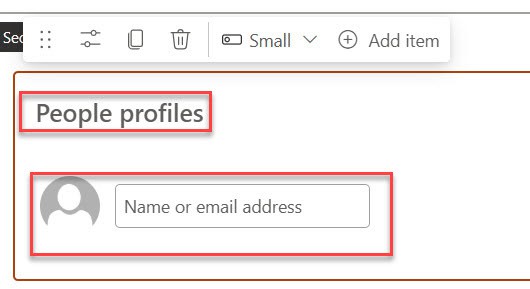
Type over the title. I changed it to Our Team. Then type a name or email, select the person from the matches, and they’re added:

Keep adding people the same way. Here’s the web part with three team members:

To change the order, drag a person by the Move button, or select them and press Ctrl+Left or Ctrl+Right. To remove someone, select the X on their card.
Where the names and photos come from
You don’t type job titles or upload photos in the web part. It shows what’s in each person’s profile, which comes from Microsoft Entra ID through the SharePoint user profile service.
That’s why the cards stay current when someone changes jobs. The catch is timing: Microsoft says synchronization times vary based on workloads, so a new title or photo can take a while to appear. Accounts that are blocked from signing in, or unlicensed, aren’t synced at all.
To check who has access to the site, you can get SharePoint site members with PowerShell.
The three layouts
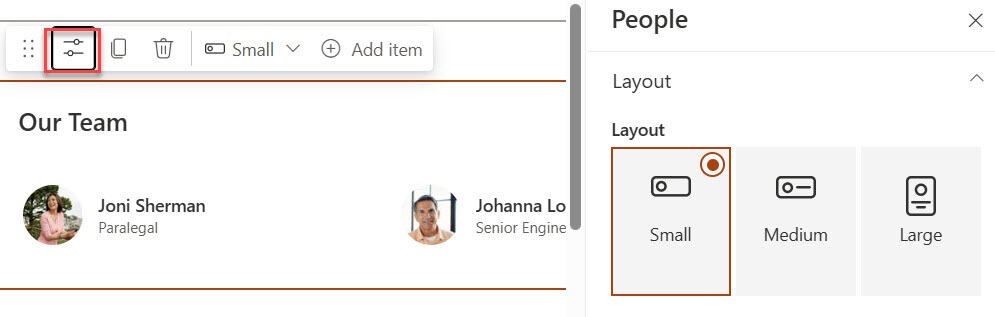
Select the Edit properties (pencil) icon on the web part to choose a layout:
Small
Small shows each person’s photo and name in a compact list. It’s the best fit for a narrow column. I placed it in a one-third right column with a colored section background:

Medium
Medium shows the photo, name and job title, and lets you add a short tagline and a profile link for each person:

Select + Add a profile link to link to a page about the person, and type the tagline. The counter in the box allows up to 50 characters, so keep it to a short line like “Driving innovation through smart engineering”:

Large
Large gives each person a bigger card with room for a longer description, up to 255 characters according to the counter, which is great for a leadership team or a spotlight:


| Layout | Shows | Extra text | Works best in |
|---|---|---|---|
| Small | Photo and name | None | A narrow column or sidebar |
| Medium | Photo, name, title | Tagline, up to 50 characters | Half or two-thirds width |
| Large | Photo, name, title | Description, up to 255 characters | Full width |
Ideas for employee recognition
For a monthly spotlight, use the Large layout with a description of what the person achieved, in a full-width section near the top of the home page. Pair it with a SharePoint News web part post that tells the full story.
If you want links to people’s projects next to their cards, add a Quick Links web part in the column beside it.
What the People web part can’t do
- It has no audience targeting. Everyone who can see the page sees every person. To show different teams to different groups, use separate pages.
- It doesn’t update itself when people join or leave a group. You add and remove people by hand.
- It isn’t available on classic pages. It works on modern pages in SharePoint in Microsoft 365, and also in SharePoint Server 2019.
- Your admin can’t switch it off. It isn’t one of the web parts that tenant admins can disable, so if you can’t find it, search for “People” in the full web part list.
If you build the same team page on several sites, save it as a template. See how to create page templates in SharePoint.
Troubleshooting
- No photo: the person hasn’t added a profile photo in Microsoft 365, or it hasn’t synced yet. Ask them to add one and give it time.
- Wrong or missing job title: titles come from Microsoft Entra ID, so an admin needs to update them there.
- A person can’t be found: their account may be blocked, unlicensed or not synced yet. Guests only show up if they’ve been added to your organization as guest users.
- Changes don’t show: select Republish after you edit the page.
These SharePoint web part tutorials go well with this one:
Frequently Asked Questions
How do I add people to a SharePoint page?
Add the People web part, type each person’s name or email, select them, and republish the page. Microsoft explains it in show people profiles with the People web part.
What’s the difference between the Small, Medium and Large layouts?
Small shows a photo and name. Medium adds the job title, a short tagline and a profile link. Large adds a longer description for each person.
Why is a photo missing in the People web part?
The person has no profile photo yet, or the change hasn’t synced from Microsoft Entra ID to SharePoint. Sync times vary.
Can I use audience targeting with the People web part?
No. Audience targeting is available on web parts like News, Quick links, Highlighted content and Events, but not on People.

I have worked with Microsoft technologies for more than 18 years, including SharePoint, Microsoft 365 and the Power Platform (Power Apps, Power Automate and Power BI), at companies like HP, TCS and KPIT. I started EnjoySharePoint in 2011 to share the solutions I build in real projects with readers in the United States, Canada, the United Kingdom, Australia, New Zealand and beyond. Microsoft has recognized this work with the Microsoft MVP award 13 times since 2014.
Hi Bjay,
I was wondering if you know a way to use People Web Part with Power Automate. What I mean by this some teams have a large number of default profiles under the manager so when we use Organization it populates those as well.
So instead I’m thinking of using Power Automate to pull only actual people (based on their email addresses assigned to them) that would be updated in real time so when someone joins the team or leaves the team the flow would be checking for this maybe once a week or every other week?
Do you know if this can be done?
Thanks!
Can you add distribution list/O365 group into People Web Part?