
The SharePoint Online Document Library web part lets you surface important files directly on a modern page so users can quickly find and open documents without navigating through libraries. When configured well, this web part can significantly improve document discoverability and reduce time spent searching for files in your intranet.
In this tutorial, you will learn how to add and configure the SharePoint Document Library web part, work with views and folders, enable dynamic filtering, and apply practical best practices for real‑world scenarios.
What Is the Document Library Web Part?
The Document Library web part displays the contents of a single document library from your SharePoint Online site on a modern page. Page authors can choose which library and view to show and control how many items appear, making it easy to build document hubs and dashboards.
Unlike a simple link to a library, this web part brings the library right onto the page, including features like sorting, views, and quick commands (if enabled).
Common Use Cases of Using Document Library Web Part
Let me show you some everyday use cases of using the SharePoint document library web part.
- Project or client workspaces showing the latest deliverables and templates on the home page.
- Department home pages surfacing policies, SOPs, and frequently used forms in a single section.
- Knowledge hubs that display training materials, user guides, or product documentation by category.
Combining this web part with List and File Viewer web parts allows you to build connected, filterable dashboards for documents.
How to Add the Document Library Web Part
Follow these steps to add a Document Library web part to a modern SharePoint page:
- Edit the page
- Open the page where you want to display documents and select Edit in the top‑right corner.
- Insert the web part
- Hover where you want the library to appear and select the + icon.
- Search for Document Library and select the Document Library web part.
- Choose the library
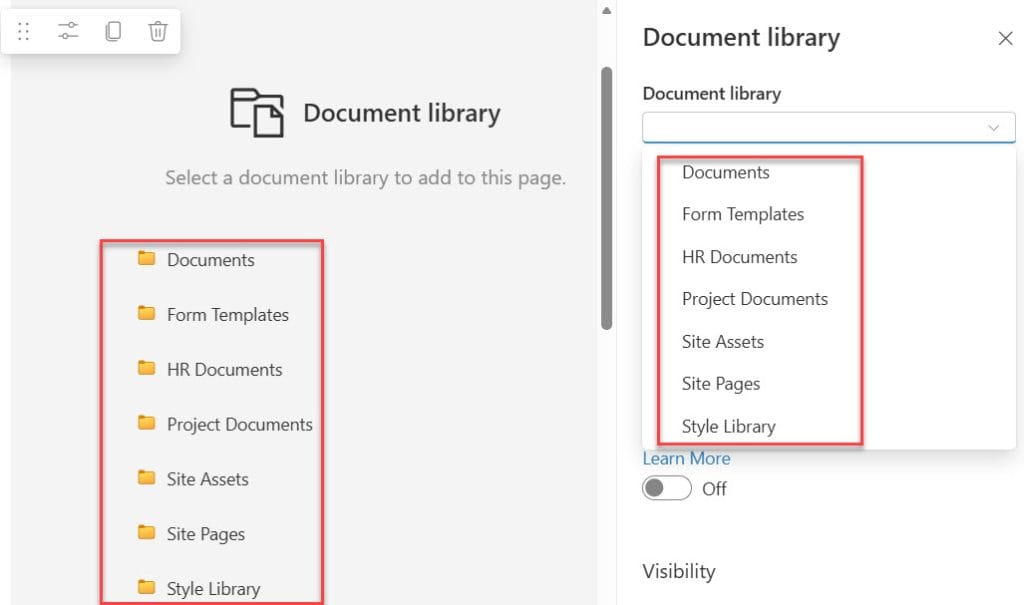
- After insertion, the web part shows available libraries from the current site.
- Select the library you want to display, such as Project Documents, directly in the web part or from the right‑hand property pane.
Once selected, the SharePoint document library items and default view will appear on the page for preview while you are editing.
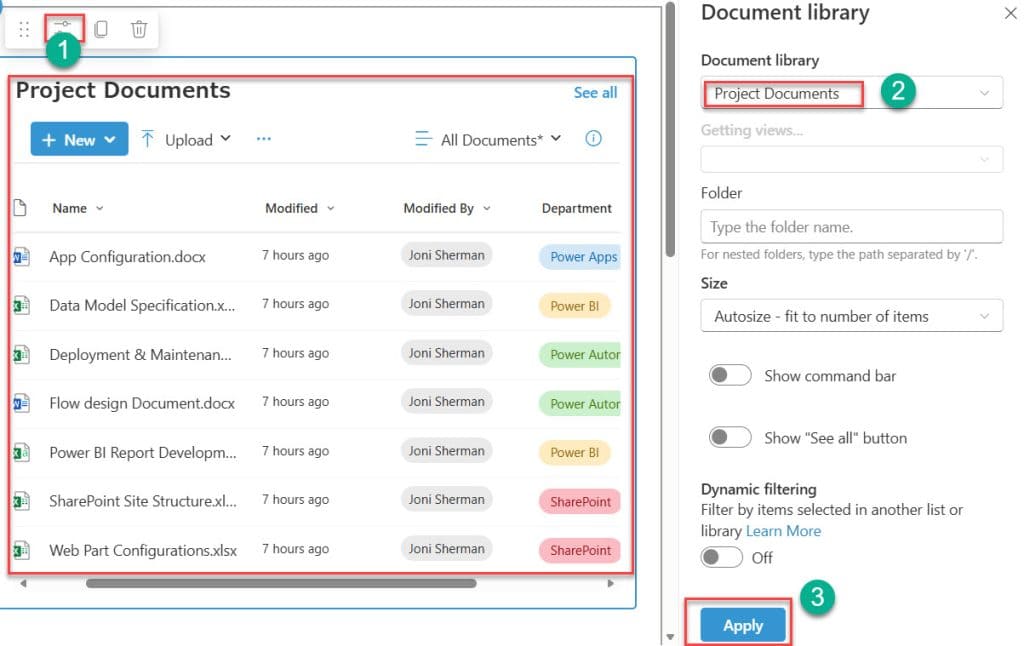
Configure Views, Folders, and Display Size in Document Library Web Part
After adding the web part, you can refine how the content appears in the document library web part in SharePoint.
Choose a specific view
- Use the View dropdown in the web part to pick any existing view from the library, such as All Documents, My submissions, or a custom filtered view.
- This is useful when you only want to show approved documents, latest items, or files filtered by metadata.
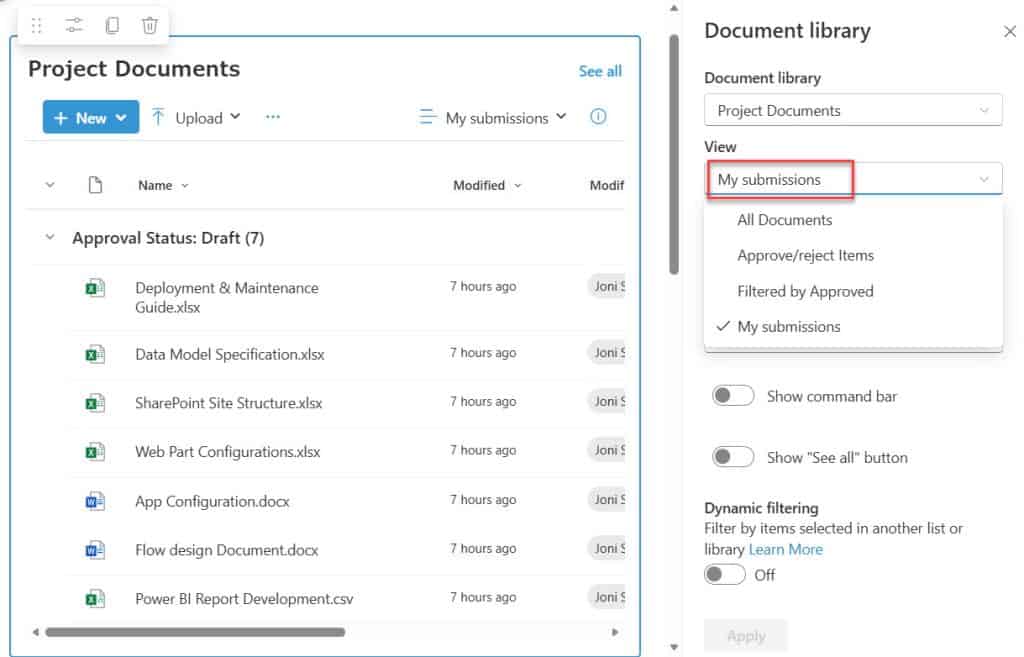
Creating good library views before using the web part will give you more control over what users see.
Show only a specific folder
- In the web part properties, you can specify a Folder path so that only items from that folder (and optionally its subfolders) are displayed.
- Use a path like
Project/Developmentfor nested folders, which is handy when a library stores documents for many projects, but you only want one project’s documents on the page. Here is a screenshot for your reference.
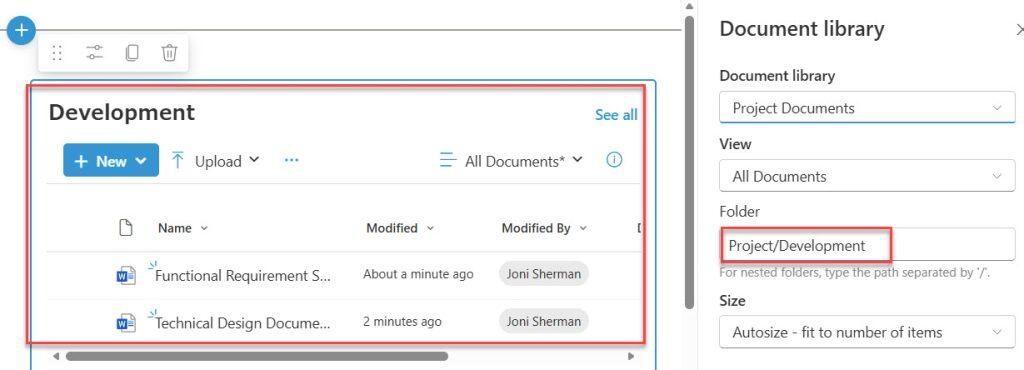
This helps you reuse a single large library and show just the relevant slice of content on different pages.
Control how many items are visible
The Size or layout setting determines how many items show in the web part:
- Autosize: Adjusts automatically based on items and layout.
- Small: Shows approximately five items, good for compact sidebars.
- Medium: Around 15 items, suitable for most team pages.
- Large: Around 30 items, useful for document‑heavy dashboards.
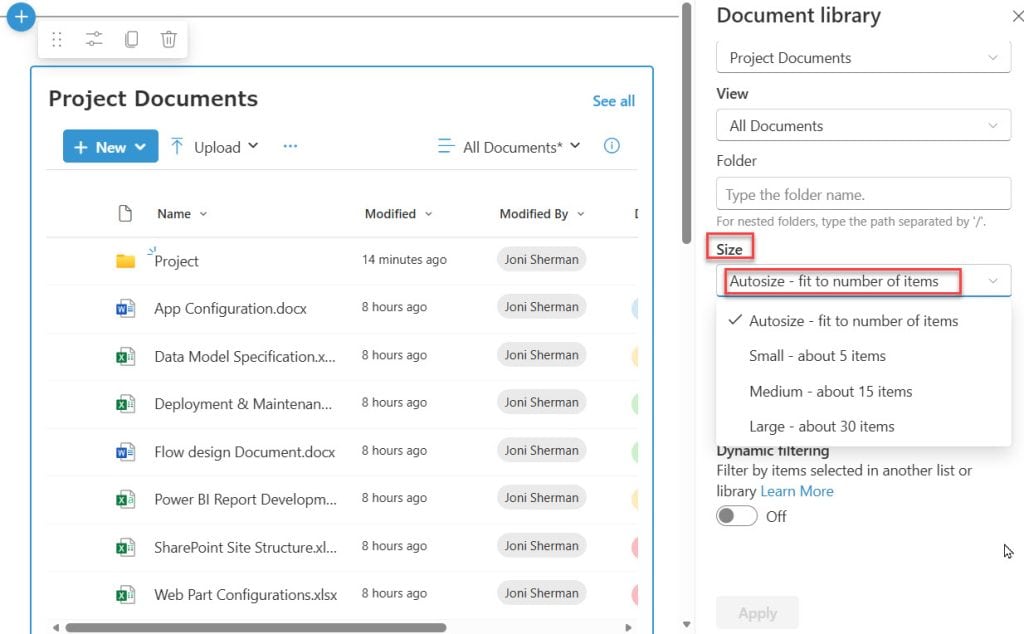
You can also keep the default behavior where users click See all to open the full library if they need to browse more documents.
Show or Hide Command Bar and “See all”
Depending on your audience, you may want to simplify the interface.
- Hide command bar: Turn on the Hide command bar toggle in the web part properties to remove actions like New, Upload, and Sync from the web part.
- Hide “See all” button: Use the Hide See all button toggle if you want users to stay on the page instead of opening the full library.
Here is a screenshot for your refernece.

Hiding these elements is helpful on communication sites where you want read‑only access and a cleaner, more focused layout.
Dynamic Filtering with Lists or Other Libraries
Dynamic filtering lets you connect the Document Library web part to a List or another library on the same page, so the documents automatically filter based on what the user selects.
Typical dynamic filtering scenario
- A Projects list displays high‑level project records (Project name, Department, Status).
- A Project Documents library stores all files tagged with a Project or Department column.
- When a user selects a project in the list, the Document Library web part filters to show only documents related to that project.
Steps to configure dynamic filtering
- Ensure the document library has a column (for example, Project or Department) that matches a column in the parent list.
- Place the List web part and Document Library web part on the same page, often in a two‑column layout.

- Edit the Document Library web part and enable Dynamic filtering in the properties pane.
- Select:
- The column in the library to filter on.
- The source web part (List or library) that provides the filter value.
- The matching column from that source web part.
- Here, I selected the Department column in the Project Documents, Project Tracker in the List, and the Department type that contains the filter value’s properties.
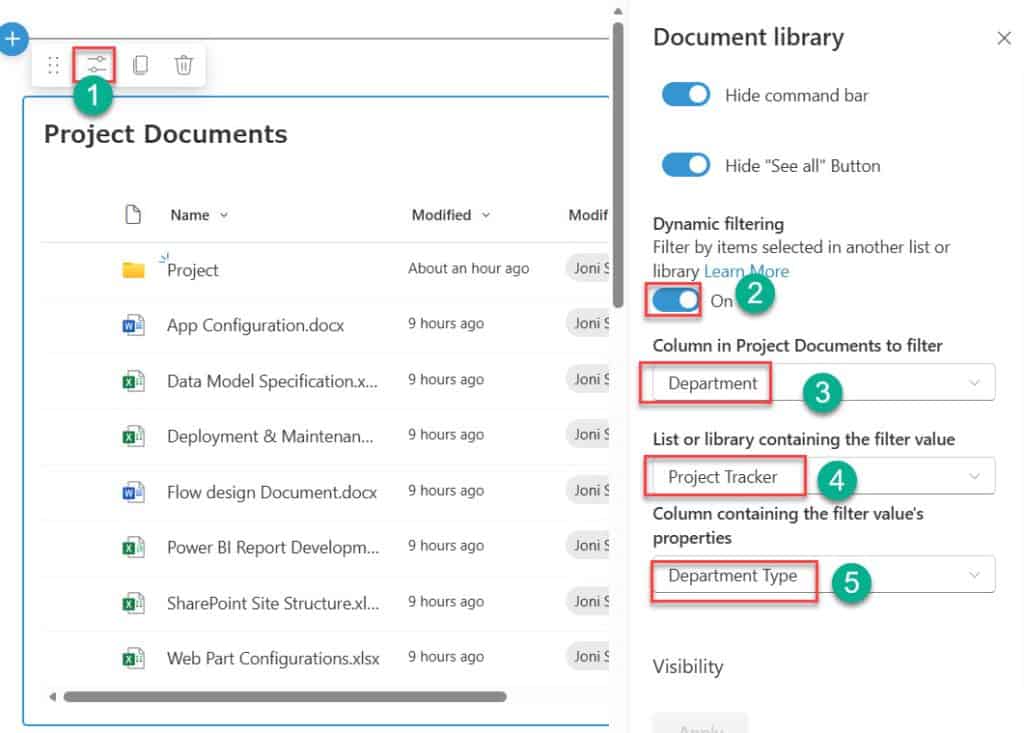
Apply the changes and republish the page, then test by selecting different items in the source web part. Here, you can see I have selected PA103, and its department type is Power BI. The document library web part displays documents from the Power BI department, as shown in the screenshot below.

This feature is powerful for creating dashboards where users pick a project, client, or store and immediately see the related documents without manually applying filters.
Conclusion
The SharePoint Online Document Library web part is a powerful way to display important files directly on modern pages where your users already work. It helps teams quickly find and open the right documents without browsing through full libraries.
By carefully choosing the document library, configuring views and folders, adjusting how many items are shown, and using dynamic filtering, you can build focused document sections that match real business scenarios like projects, departments, or knowledge hubs.
You may also like the following tutorials:

After working for more than 18 years in Microsoft technologies like SharePoint, Microsoft 365, and Power Platform (Power Apps, Power Automate, and Power BI), I thought will share my SharePoint expertise knowledge with the world. Our audiences are from the United States, Canada, the United Kingdom, Australia, New Zealand, etc. For my expertise knowledge and SharePoint tutorials, Microsoft has been awarded a Microsoft SharePoint MVP (12 times). I have also worked in companies like HP, TCS, KPIT, etc.

