
Recently, we were working on a SharePoint intranet portal for a client. They wanted their homepage to look more visually appealing and draw focus to the page by adding highlights. So, we used the SharePoint Online Hero web part.
In this tutorial, I will explain how to work with the hero web part in SharePoint Online, including customizing it, configuring layouts, and more.
SharePoint Hero Web Part
The Hero web part is one of the most visually powerful web parts in SharePoint Online. It lets you display important content—like pages, documents, links, or announcements—in a large, modern, and eye-catching banner style.
It’s commonly used on Communication Sites and intranet homepages to highlight what matters most.
The Hero web part provides modern, image-rich tiles with overlay text. You can choose between:
- Tiles layout (up to 5 tiles)
- Layers layout (stacked banner-style sections)
Each tile can have:
- Background image
- Title
- Description
- A clickable link (page, document, or external URL)
Check out 3 Quick Ways to Get SharePoint Site Owner
Add Hero Web Part to SharePoint Online
Now, let us add the Hero web part to SharePoint Online. Please follow the instructions below to add the Hero web part.
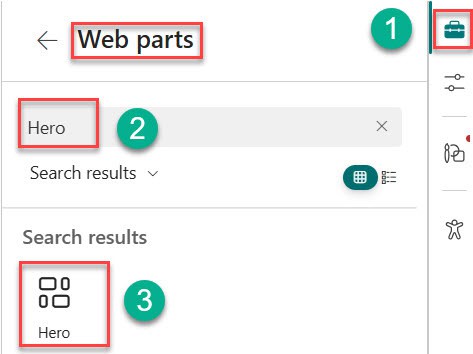
- Open the SharePoint online site where you want to add the Hero web part. Click on Edit at the top left of the SharePoint Online site. Then, click on +Section and select Flexible. Then, on the right side, click Toolbox and then click See All Web Parts. Then we will have a search option to find the Hero. Click on the Hero.
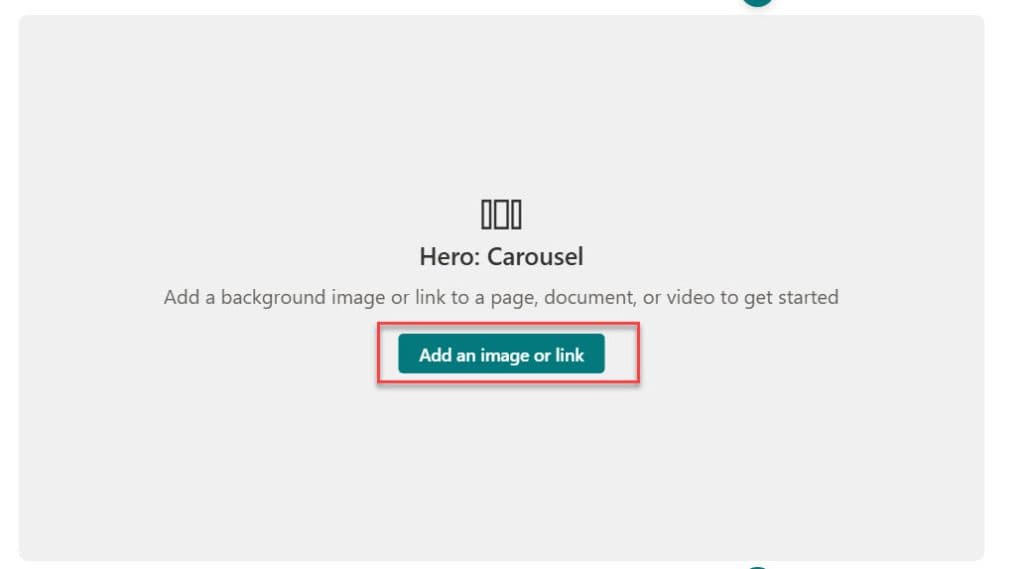
- Once you click Hero, you will see the SharePoint Online hero web part as shown in the screenshot below. By default, you will get the Carousel layout. We can add links and images by clicking on the Add an image or link.
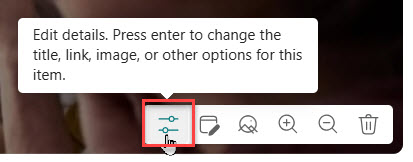
- Once we click Add an image or link, the Recent items dialog box opens, where we can browse images and click Insert. Then click Edit details below the picture.
- Then it will open the properties pane, where we can enter the Topic, Header, Description, and add a link. Then click on Republish.
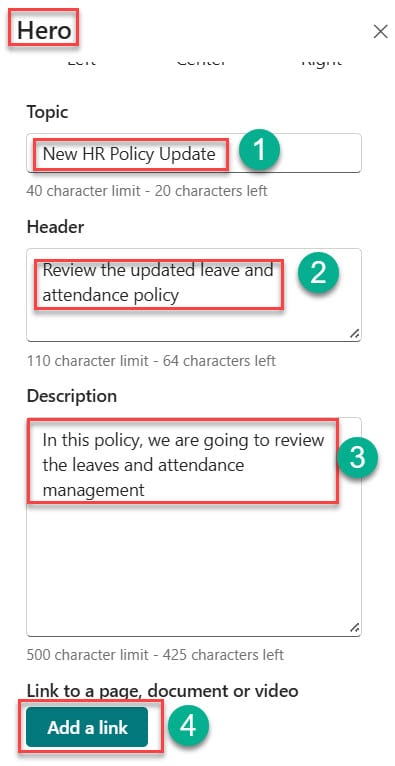
- Then you can see the topic, header, description, and link on the image you inserted.
- In the same way, we have to click Edit, then add more slides by clicking the + circled “Add slide” at the top of the SharePoint Online hero web part.
Note: You can add up to 5 slides only.
- Then I added four more slides. After adding, we can move the slides up or down as we like, and delete them if we want. We can do this as shown in the screenshot below.
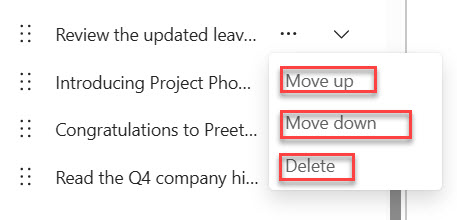
- Once you are done, click on Republish. Then you can see the hero web part on the SharePoint Online site page as shown in the screenshot below. By default, it is in Carousel layout.

Check out Change a SharePoint Site From Private to Public
Change the Layout of the SharePoint Hero Web Part
We can also change the layout for the Hero web part in SharePoint Online. Hero web part has three layouts, namely:
- Carousel
- Tiles
- Layers
So, to change the layout of the SharePoint Online Hero web part, please follow the instructions below:
- Open the SharePoint Online Hero Web part you added, then click on Edit. Then click on the Edit properties at the top of the SharePoint Online Hero web part. Then it opens a properties pane. There, you can see the Layout options. By default, it is Carousel. Select the layout of your choice, then click Republish.
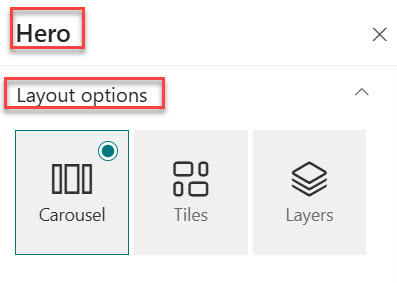
- Since it is a Carousel, I have already shown you how it will look on the SharePoint Online site. And for Carousel, we also have an autoplay option. If we enable it, then the slides will move one by one. If you select Tiles, then it looks as shown in the screenshot below.

- If you select layers, they are displayed as layers, one below the other, as shown in the screenshot below.

In this way, we can change the layout as we like to make the SharePoint online site page more attractive and draw focus.
Read Share SharePoint Site With External Users and Anonymous Users
Change Image text and Links in Hero Web Part
We can also change the images, text, and links in the Hero web part. For that, please follow the instructions below.
- Open the SharePoint Online site page where you have added the Hero web part. Click on Edit at the top of the Page. Then click Edit details below the tile to change the image, link, and text. It will open the Properties pane as shown in the screenshot below.
- To change the image, click on Change under the picture. To change the text, you can directly enter what you want to change in the topic, header, and description. To change the link, click Change under the link and update it. Once you have edited, click on Republish.
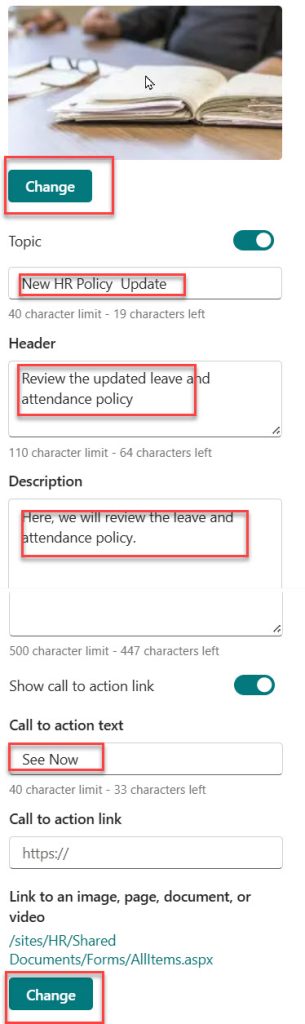
- Here, I updated the image and description, changed the link, and revised the call-to-action text. After changing, you can see the changes in the screenshot below.

Check out Change SharePoint Site Logo and Thumbnail
Open Hero Web Part Links in a New Tab
We can open the links of a Hero web part in a new tab. Please follow the instructions below.
- Edit the SharePoint Online Hero Web part and then click Edit details on the tile that you want to open the link in a new tab. Then, in the right-side Properties pane, you can see the toggle labeled “Open link in a new tab.” Enable that toggle, then click Republish.
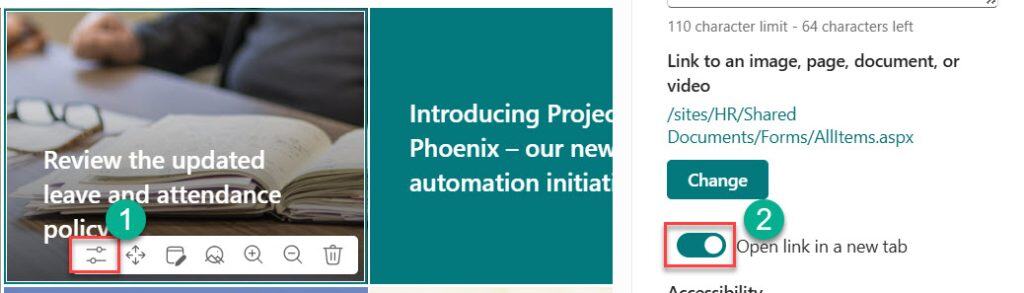
Once you click Republish, click on the tile you enabled the toggle, and then the link will open in a new tab.
Color Block in SharePoint Online Hero Web Part
If we don’t want the image and need a background color that matches the theme, we use this color block in the SharePoint Online Hero web part. And this color block is available only for the Tiles layout.
Note: The Color block is not available in the Carousel and Layers layout.
Here are the instructions for applying the color block to the Hero web part.
- Open the SharePoint site page where you added the Hero web part. Click on Edit. Then click on Edit properties at the top of the SharePoint Online Hero web part. In the right-side properties pane, first change the layout option to Tiles.
- Then click Edit details below the tile you want to apply the color block to. Then it will open a properties pane; under Background Image, select Color block. Click on Republish.
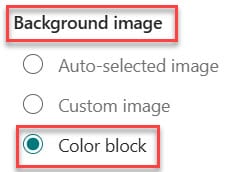
- Once you click Republish, you can see that the tile’s background color matches its theme. Here I changed only for one tile, as shown in the screenshot below.

Check out Embed PowerPoint Slides in SharePoint Site
Image Scaling in the Hero Web Part
We can also scale the image as we see fit. Here are the steps to scale the image.
- Edit the SharePoint Online Hero Web part, then click on Advanced editing on the tile you want to change. You will get a dialog box as shown in the screenshot. Here you can crop, adjust, and set filters. And once it is done, click on Save. Then click on Republish.
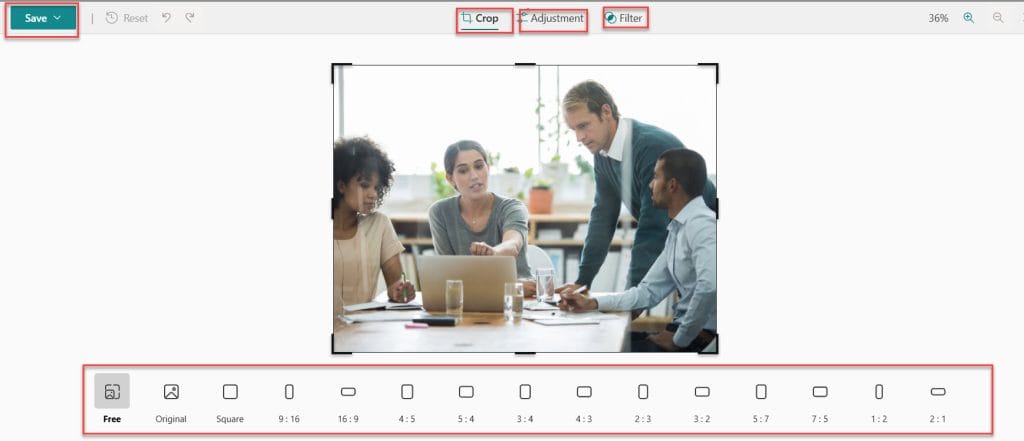
- Here I selected the image to 9:16 so you can see the change in the screenshot below.

Important Points
- We cannot implement audience targeting in the SharePoint Online Hero web part.
- We cannot add items or documents from lists and libraries to the SharePoint Online Hero web part.
Conclusion
The SharePoint Online Hero web part helps display important information clearly on a SharePoint page. It also highlights essential information at the top of the SharePoint online page so that people can find it quickly. Hero web part in SharePoint Online makes the page look neat and easy to use. I hope you get to know how to use the SharePoint hero web part.
You may also like the following tutorials:
- People Web Part in SharePoint Online
- SharePoint Online Microsoft Forms Web part
- SharePoint Online Planner Web Part
- SharePoint Online Organization Chart Web Part

After working for more than 18 years in Microsoft technologies like SharePoint, Microsoft 365, and Power Platform (Power Apps, Power Automate, and Power BI), I thought will share my SharePoint expertise knowledge with the world. Our audiences are from the United States, Canada, the United Kingdom, Australia, New Zealand, etc. For my expertise knowledge and SharePoint tutorials, Microsoft has been awarded a Microsoft SharePoint MVP (12 times). I have also worked in companies like HP, TCS, KPIT, etc.

