
The SharePoint People Web Part is one of the most used web part for building collaborative and transparent team environments. I have implemented People Web Parts across various SharePoint sites—departmental portals, project sites, and organizational hubs—and consistently seen how effectively it drives team engagement and organizational visibility.
In this tutorial, I will show you how to use the People web part in SharePoint Online and how to customize it with different layouts.
Why Use the People Web Part in SharePoint?
For Project Sites: I’ve leveraged the People Web Part to create prominent team showcases that highlight core team members, project stakeholders, and team leads. This provides immediate visibility into who’s involved in the project, their roles and responsibilities, and their areas of expertise—proving invaluable for cross-functional collaboration and knowledge sharing across the organization.
For Departmental Sites: On departmental and team sites, the People Web Part serves as a living employee directory. It enables team members to quickly identify colleagues, understand reporting structures, and directly access contact information without navigating through multiple pages or making unnecessary inquiries. This is particularly useful during onboarding when new employees need to familiarize themselves with their team structure.
For Organizational Sites: At the organizational level, the People Web Part can showcase leadership teams, highlight subject matter experts by department, or feature key resources—building organizational transparency and fostering better cross-team communication.
SharePoint People Web Part Features & Capabilities
Before you start implementing the People Web Part, it’s important to understand its key features and limitations. Here, I will explain what the People Web Part can and cannot do, helping you determine if it’s the right solution for your needs.
Data Source: Azure Active Directory & User Profiles
The People Web Part pulls information directly from your organization’s identity management system. Specifically:
- Primary Data Source: Microsoft Entra ID (formerly Azure Active Directory)
- Extended Information: User profile properties stored in SharePoint
- Real-Time Updates: Profile information is synchronized automatically, so any changes in your directory are reflected in the web part within a few minutes
- Profile Information Displayed: The web part shows photos, names, job titles, department, email addresses, phone numbers, and other profile card details depending on your configuration
This means the People Web Part is always current with your organizational data, eliminating the need for manual updates or maintenance.
Character Limits & Text Restrictions
One of the most important limitations to understand is the character restrictions for customizing each person’s profile information:
| Field | Character Limit | Purpose |
|---|---|---|
| Tagline (Medium Layout) | 0-50 characters | Brief description, specialty, or role (e.g., “Lead Designer”, “Project Manager”) |
| Description (Large Layout) | 0-255 characters | Detailed information about the person, their expertise, or responsibilities |
| Names & Titles | Automatic from Azure AD | Pulled directly from the directory; cannot be customized in the web part |
Pro Tip: When adding taglines or descriptions, keep them concise and focused. For example, instead of “Johanna is our Senior Engineer who specializes in SharePoint Framework development and has 10 years of experience,” use “Senior SharePoint Developer” for the Medium layout or provide the longer description for the Large layout.
Supported SharePoint Versions
The People Web Part is exclusively available for modern SharePoint experiences:
- ✅ SharePoint Online (Modern Experience) – Fully supported
- ✅ Microsoft Teams Sites – Fully supported
- ✅ Communication Sites – Fully supported
- ✅ Team Sites (Modern) – Fully supported
- ❌ SharePoint Server 2019 (On-Premises) – Not available
- ❌ Classic SharePoint Pages – Not available
If you’re still using classic SharePoint pages, you’ll need to migrate to the modern experience to use the People Web Part. This is one of the reasons many organizations are transitioning to modern SharePoint sites.
Permission Requirements
To add and configure the People Web Part on a SharePoint page, you need appropriate permissions:
Required Permissions:
- Edit permissions on the SharePoint site page where you want to add the web part
- Web Part management rights (typically granted to site owners, designers, or members with edit access)
To Add the Web Part:
- You must have permission to edit the page
- Site owners and members with edit access can add the web part
To Customize Profile Information:
- The same edit permissions apply
- You do not need directory admin rights to configure the web part
- Any authorized user with page edit access can manage the display
Important: If you cannot find the People Web Part when trying to add it, your organization’s administrator may have disabled it for your tenant. Contact your SharePoint administrator to ensure the web part is enabled.
External Users & Guest Support
One of the most common questions about the People Web Part is whether it displays external or guest users:
External Users (B2B):
- External users with Entra ID accounts can be displayed in the People Web Part
- They appear alongside internal users if they’re part of your directory
Guest Users (B2C):
- Guest users added to SharePoint through B2B collaboration are supported
- However, if a guest user hasn’t been fully provisioned in your Entra ID, they may not appear in search results when you’re trying to add them to the web part
Best Practices for External Users:
- Ensure external users are properly synced with your Entra ID
- Test visibility after adding external users
- Some organizations restrict the People Web Part from displaying external users due to security policies—check with your administrator
Check out SharePoint Planner Web Part
Add SharePoint People Web Part
Now, let me show you how to add a SharePoint people web part to a site page and configure it to display users.
Here are the steps below:
- Edit the SharePoint page where you want to add the web part. Click on the + icon to add the web part. Here, search for “People” and click on the People web part to add to the page as shown in the screenshot below:

- Then you can see the SharePoint Online People web part as shown in the screenshot below.
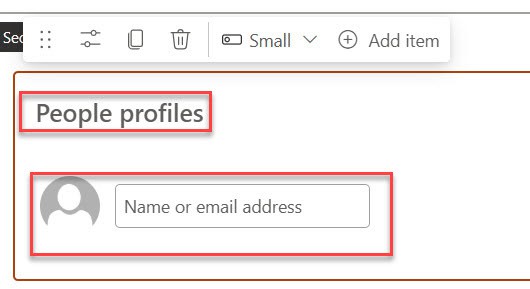
- Here, you can see that I changed the web part title to Our Team. Then you can enter the person’s name you want to display. Here I have added multiple people.


Read SharePoint Online News Web Part
SharePoint People Web Part Layouts
The People Web Part offers three distinct layout options, each designed for different scenarios and page configurations. Choosing the right layout depends on your available space, the amount of information you want to display, and your site’s overall design. Let’s explore each layout in detail.
Small Layout
Best For: Displaying team members in narrow spaces, sidebars, or when you want a compact, minimal design. It Shows profile photos with name and job title only and it is perfect for sidebar sections or narrow columns.
- For this, we have to edit the SharePoint Online People web part. On the properties pane, you can see the Layouts as shown in the screenshot below.
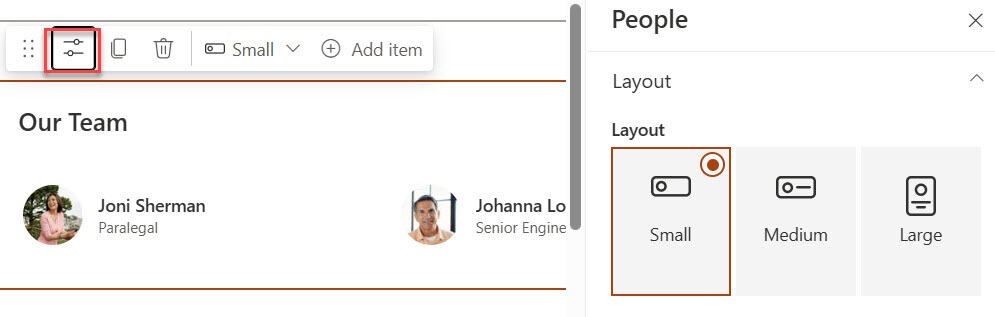
- By default, we have a Small layout, and I selected the One-third right section so your web part displays as shown in the screenshot below. Here, I set the section’s background color, and this is how it looks.

Medium Layout
Best For: Balanced team showcases where you want to add personality and additional context without overwhelming the design. It shows profile photos, names, job titles, and custom taglines. The tagline field (0-50 characters) lets you highlight each person’s specialty or role
- If you choose the Medium layout, then your web part displays as shown in the screenshot.

- Here, click on the ” + Add a Profile link to add the link, then enter the person’s tagline (limit 0 to 50 characters). Once we add the link and tagline, click on Republish. The People web part is then displayed as shown in the screenshot below.

Large Layout
Best For: Premium displays where you want to showcase team members comprehensively, with detailed information about their roles and expertise. This shows profile photos, names, job titles, and extended descriptions. The description field (0-255 characters) allows you to provide comprehensive information about each person.
- If you choose Large layout, then the People web part displays as shown in the screenshot below.
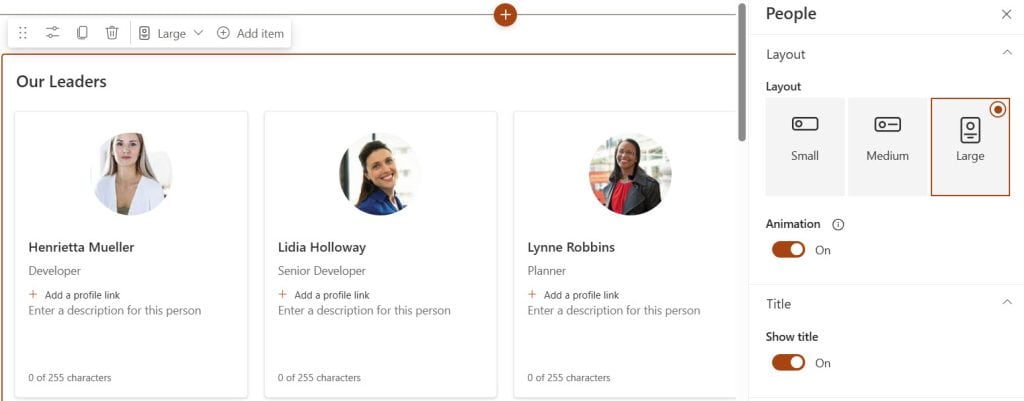
- Then click on +Add a profile link to add a link and enter a description of the person (limit 255 characters). Once you have added the link and description, the People web part is displayed as shown in the screenshot below.

Here is a summary:
| Layout | Best For | Text Limit | Recommended Page Width | Ideal Use Cases |
|---|---|---|---|---|
| Small | Sidebars & tight spaces | No custom text | One-third width columns | Team directories, sidebars, compact displays |
| Medium | Balanced displays | 0-50 characters (tagline) | Half or two-thirds width | Department showcases, project teams (5-8 people) |
| Large | Feature displays | 0-255 characters (description) | Full width | Leadership teams, homepage showcases, detailed team bios |
Conclusion
The People Web Part in SharePoint Online is used for improving team collaboration, and creating engaging employee experiences within your organization. Whether you’re building a team directory, showcasing leadership, or creating a project team hub, this web part is a must to meet your needs.
If you found this tutorial helpful, I’d love to hear your experience with the People Web Part in the comments below.
You may also like the following tutorials:
- Convert SharePoint Site to Microsoft Teams
- Configure Mega Menu in SharePoint Online
- Microsoft Forms Web Part in SharePoint Online

After working for more than 18 years in Microsoft technologies like SharePoint, Microsoft 365, and Power Platform (Power Apps, Power Automate, and Power BI), I thought will share my SharePoint expertise knowledge with the world. Our audiences are from the United States, Canada, the United Kingdom, Australia, New Zealand, etc. For my expertise knowledge and SharePoint tutorials, Microsoft has been awarded a Microsoft SharePoint MVP (12 times). I have also worked in companies like HP, TCS, KPIT, etc.


Hi Bjay,
I was wondering if you know a way to use People Web Part with Power Automate. What I mean by this some teams have a large number of default profiles under the manager so when we use Organization it populates those as well.
So instead I’m thinking of using Power Automate to pull only actual people (based on their email addresses assigned to them) that would be updated in real time so when someone joins the team or leaves the team the flow would be checking for this maybe once a week or every other week?
Do you know if this can be done?
Thanks!
Can you add distribution list/O365 group into People Web Part?