
Recently, while building a flow in Power Automate, I ran into a situation that perfectly explains why trigger conditions are so powerful.
I was working on a SharePoint requirement in which a document library contained multiple folders and subfolders. Each folder had a metadata column called Region, and the business requirement was simple on paper:
- Whenever a folder is assigned a Region value,
- The flow should automatically grant the correct permissions based on that Region.
- This should work for both existing folders and newly created ones.
So I created a flow using the “When a file is created or modified (properties only)” SharePoint trigger. At first glance, it seemed perfect; it would react whenever something changed in the library.
But then the problem started.
Every time:
- A file was uploaded → the flow triggered.
- A folder was created → the flow triggered.
- Any small update happened anywhere in the library → the flow triggered.
The flow was running far more often than needed. I didn’t want it to run when:
- A file was uploaded
- A folder was just created
- Any unrelated change happened
I only wanted the flow to run when:
- The item is a folder, and
- The Region metadata field is updated with a value
That’s when trigger conditions became a game-changer.
In this tutorial, I’ll walk you through what Power Automate trigger conditions are, where to configure them, real-world examples like this one, and a simple way to understand the syntax so you can confidently build your own without unnecessary flow runs.
What Are Trigger Conditions in Power Automate?
In Power Automate, a trigger condition is a Boolean expression (true/false) attached directly to the trigger of your flow. If the expression evaluates to true, the flow runs; if it’s false, the flow is skipped.
So instead of:
- Flow runs every time
- You add a Condition action inside the flow
- The condition fails most of the time
- You burn through run history for no reason
You can push that logic up to the trigger so the flow doesn’t even start until your rule is met. This saves runs, reduces noise in run history, and makes flows easier to maintain.
At a high level, a trigger condition:
- Uses the same expression syntax as other Power Automate functions (equals, and, or, greater, contains, etc.).
- Reads data from the trigger using
triggerBody()ortriggerOutputs(). - Must return true for the trigger to fire.
- If the trigger conditions are not met, the flow will not trigger in Power Automate. Whenever we use the trigger condition expression, we have to use ‘@’ in the beginning.
- It is also possible to include multiple trigger conditions within a single flow.
How To Add a Trigger Condition in Power Automate
Let us see how to add a trigger condition in Power Automate.
Before creating a flow, we have to create a SharePoint list consisting of the following columns:
| Column Name | Column Type |
| PatientName | default title column |
| Gender | Choice data type |
| EmailID | Single line of text |
| ContactNumber | Number type |
| EverAppliedBefore | Yes/No type |
| PrefferedAppointmentDate | Date type |

In this complete post, I am going to use the same SharePoint List and flow with different trigger conditions.
- Create an Automated Cloud flow, and choose the trigger action as ‘When an item is created or modified‘. Then provide the information below:
- Site address: select the SharePoint site address.
- List name: From the dropdown, select the Sharepoint list name.

- To add the trigger condition, select the More button(…) and choose the settings option as shown below:

- Scroll down, select the Trigger condition, choose the +Add button, and add the trigger condition below.
@equals(triggerOutputs()?['body/PrefferedAppointmentDate'],formatDateTime(utcNow(),'yyyy-MM-dd')))If the appointment date is today (where today’s date is 11/14/2023), then the flow will trigger. Otherwise, the flow will not trigger; once the expression is added, choose Done.

- Add a Power Automate compose data operation and use the below expression as the input value:
PatientName: @{triggerOutputs()?['body/Title']}
Gender: @{triggerOutputs()?['body/Gender/Value']}
ContactNumber: @{triggerOutputs()?['body/ContactNumber']}
EverAppliedBefore: @{triggerOutputs()?['body/EverAppliedBefore']}
PrefferedDate: @{triggerOutputs()?['body/PrefferedAppointmentDate']}
- Now save the flow and run the flow. Here, I have modified the below-highlighted list item with today’s date value. Otherwise, the flow will not trigger.

In the screenshot below, you can see our flow runs successfully because the preferred date is equal to today, and displays the result in the compose data operation:
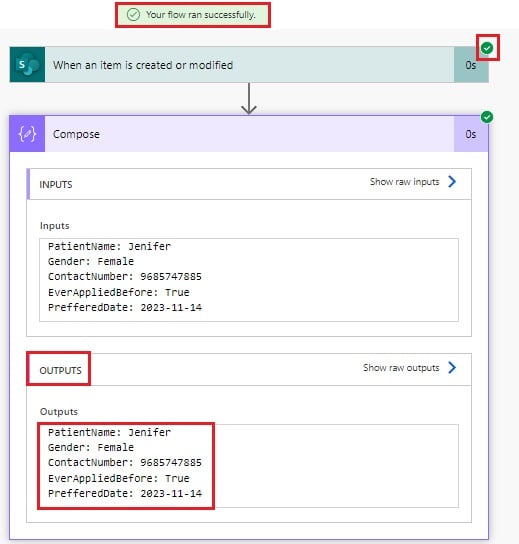
This is how to add a trigger condition in the Power Automate flow.
Multiple Trigger Conditions in Power Automate
Let us see how to add multiple trigger conditions in the Power Automate flow. Yes, it is possible to add multiple trigger conditions in the Power Automate flow.
In this example, I will check whether the EverAppliedBefore field has the Value yes and whether the PreferredAppointmentDate is today or yesterday.
Open the trigger condition and add the following expression:
@equals(triggerOutputs()?['body/EverAppliedBefore'],true)Similarly, choose the +Add option to add multiple triggers and use the expression below:
@or(equals(triggerOutputs()?['body/PrefferedAppointmentDate'],formatDateTime(addDays(utcNow(),-1),'yyyy-MM-dd')),equals(triggerOutputs()?['body/PrefferedAppointmentDate'],formatDateTime(utcNow(),'yyyy-MM-dd')))The flow will trigger only if the EverAppliedBefore field has the Value yes and the appointment date is today (11/20/2023) or Yesterday (11/19/2023). Once the expression is added, choose Done.

Now save the flow and run the flow. Here, I have modified the below highlighted SharePoint list item, where the EverAppliedBefore field has a yes value, and the PreferredAppointmentDate field has today’s value (11/20/2023).
I have created a new SharePoint list item (highlighted in red) here.

In the screenshot below, you can see our flow runs successfully because the EverAppliedBefore field is equal to true, and PrefferedAppointmentDate has today’s date value and displays the result in the compose data operation:

This is how to add multiple trigger conditions in the Power Automate flow.
Power Automate Trigger Condition [not equal]
Here, we will see how to apply a Trigger Condition not equal in the Power Automate flow.
- By default, the Yes/No type field in SharePoint returns the values as true or false. It will not directly return Yes/No.
- So here, we are using the true/false value in the expressions in trigger conditions for the Yes/No data type.
As we discussed above, open the trigger condition and add the following expression:
@not(equals(triggerOutputs()?['body/EverAppliedBefore'],true))The above expression checks if the EverAppliedBefore field has the Value No, not equal to Yes.

Now save the flow and run the flow. Here, I have created a new SharePoint list item as highlighted below:

In the screenshot below, you can see our flow runs successfully because the EverAppliedBefore field does not equal true and displays the result in the compose data operation:

This is how to apply a Trigger Condition not equal in the Power Automate flow.
OR Operator in Power Automate Trigger Conditions
Let us see how to use or trigger conditions in the Power Automate flow.
- Here, I am checking that both the EmailID and ContactNumber fields should not be null.
- If any field has a null value, the flow will trigger; if both fields have null values, the flow will not trigger.
Open the trigger condition section + Add button, enter the expression below, then click Done.
@or(not(equals(triggerOutputs()?['body/EmailID'],null)),not(equals(triggerOutputs()?['body/ContactNumber'],null)))
Now save the flow and run the flow. I have modified the highlighted SharePoint list item below, where the EmailID field has a null value.

- The screenshot below shows that our flow runs successfully and displays the result in the compose data operation.
- Because the ContactNumber does not have a null value; even though the EmailID has a null value, because or condition checks whether any of the fields has value or not.

This is how to use Or trigger conditions in the Power Automate flow.
Trigger Conditions Power Automate Choice Column
Now we will see how to add trigger conditions for the choice column in the Power Automate flow.
Here I am checking whether the Gender field value is equal to Female; if so, the flow triggers; otherwise, it does not.
Open the trigger condition section + Add button, enter the expression below, then click Done.
@equals(triggerOutputs()?['body/Gender/Value'],'Female')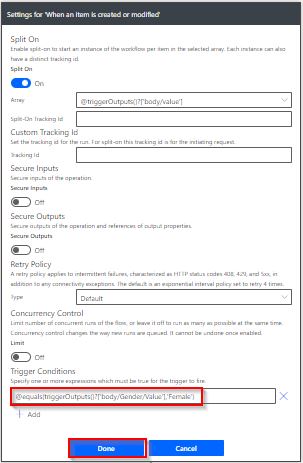
Now save the flow and run the flow. Here, I have created the highlighted SharePoint list item below, where the Gender choice field has a value of Female.

The screenshot below shows that our flow runs successfully and displays the result in the compose data operation, because the Gender choice field has a value of Female. The flow triggers and runs successfully.

This is how to add trigger conditions for the choice column in the Power Automate flow.
Power Automate Trigger Conditions On Yes/No Column
Let us see how to use trigger conditions for the yes/no column in the Power Automate flow.
- By default, the Yes/No type field in SharePoint returns the values as true or false. It will not directly return Yes/No.
- So here, we are using the true/false value in the expressions in trigger conditions for the Yes/No data type.
Here, I am checking if the EverAppliedBefore field is equal to Yes, then the flow triggers. Else, the flow will not trigger.
Open the trigger condition section + Add button, enter the expression below, then click Done.
@equals(triggerOutputs()?['body/EverAppliedBefore'],true)
Now save the flow and run the flow. Here, I have modified the below highlighted SharePoint list item, where the EverAppliedBefore field has a value of Yes.

- In the screenshot below, you can see our flow runs successfully and displays the result in the compose data operation.
- Because the EverAppliedBefore field has a value of Yes, and it returns true, the flow triggers and runs successfully.

This is how to use trigger conditions for the yes/no column in the Power Automate flow.
Practical Tips and Best Practices
A few things I always keep in mind when working with trigger conditions:
- Start simple
- Begin with a single
equals()orgreater()condition. - Test it, then layer in and()/or() once you’re confident.
- Begin with a single
- Use a temporary Compose or Condition to build expressions
- It’s often easier to build and test an expression inside the designer (with dynamic content) and then copy‑paste it into the trigger condition.
- Watch out for nulls
- Many trigger failures are because a field is null. Wrap comparisons with
not(equals(...,null))when needed. - Mind data types
- Numbers vs text: use
int()for safety. - Dates: normalize with
formatDateTime()and compare strings
- Numbers vs text: use
- Use trigger conditions instead of in‑flow Conditions when possible
- You’ll reduce wasted runs and stay within tenant limits more easily
- Test with both matching and non‑matching data
- Confirm that the flow runs when it should and stays quiet when it shouldn’t.
Conclusion
I hope you understand what a trigger condition is and how to add and work with trigger conditions in Power Automate.
Trigger conditions are one of those small settings in Power Automate that can make a big difference. Once you push the “should this even run?” logic up to the trigger, your flows become cleaner, faster, and a lot easier to troubleshoot.
If you’re building a new flow today, try starting with the trigger condition first. Decide exactly when you want the flow to fire, turn that into an expression, and only then build the remaining steps.
You may also like:
- Power Automate startsWith() Function
- Power Automate Update SharePoint list item
- How to Check If a row exists in Excel using Power Automate?
- How to Check Condition Contains String in Power Automate?
- Save Office 365 Email Attachments to OneDrive for business using Power Automate

Preeti Sahu is an expert in Power Apps and has over six years of experience working with SharePoint Online and the Power Platform. She is the co-author of Microsoft Power Platform: A Deep Dive book. As a Power Platform developer, she has worked on developing various tools using Power Apps and Power Automate. She also makes Microsoft 365 videos and shares them on YouTube.


Hello, on a regular basis I receive emails that contain an attached file. Is there a way to trigger the flow only if the name of the attachment fulfills some specification ? (ie the attachment name startswith the letters ABC) ?
equals(triggerOutputs()?[‘body/WORKFLOWSTATUS’],4), works in a way that when workflow status is not equal 4 flow does not trigger , but when workflow status become 4 and there is any changes in SQL row flow again triggers. As per the expression flow checks the field status and trigger.
I want to trigger flow only when WORKFLOWSTATUS field modified as value 4