
Do you want to check if a row exists in Excel or not in Power Automate? I will show you an example of how to check if a row exists in Excel using Power Automate.
Scenario:
Recently, I got a requirement where I need to check if the row already exists in the Excel table or not in Power Automate. If it does not exist, have to add a new row with the requested details. Otherwise, the compose data operation will display the value with the same details that already exist in the Excel row.
I am going to use the below Excel table (Car InformationDetails). I uploaded it to my SharePoint document library. Once the Excel table is ready, upload it to the SharePoint library or OneDrive Folder so that we can access it easily through Power Automate.

The flow triggers manually and requests the user for the Car Details. Then, using List rows in a table action, it retrieves all the rows presented in the Excel table.
Later, we will use the filter array action to check if the row exists in the Excel table or not, and if it does not exist, we will add a new row to Excel with the same details. Otherwise, the message occurs that the value with the same details already exists in the Excel row.
Let us start to create the flow to check if the row exists in Excel using Power Automate flow
Check if a row exists in Excel using Power Automate
Let us see how to check if a row exists in Excel using Power Automate flow
Follow the below steps to achieve this:
Step-1:
Create an instant cloud flow, and Expand the trigger action and inputs for the below fields:
- CarName – Text data type
- CarModel – Text data type
- CarPrice – Number data type
- Color – Text data type
- Release date – Date data type

Step-2:
Add a new step and choose the List rows present in a table from the action triggers: Provide the required details:
- Location– Select the SharePoint site address
- Document Library – From the dropdown, choose the document library.
- File – choose the Excel file; I have selected the Vehicles.xlsx file
- Table – From the dropdown, select the Excel table.

Step-3:
Add a new step, and select filter array action from action triggers. In the form, the action passes the values from the dynamic content.
Click on Edit in advanced mode and use the below expression, which checks if the car details information already exists in the Excel row data or not.
@and(equals(item()?['CarNames'],triggerBody()['text']),equals(item()?['CarModel'], triggerBody()['text_1']),equals(int(item()?['CarPrice']), triggerBody()['number']),equals(item()?['Color'], triggerBody()['text_2']))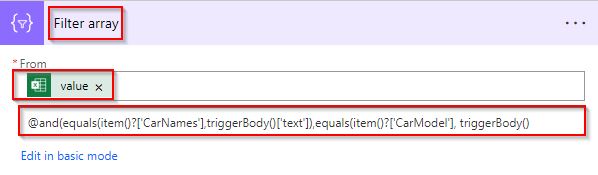
Step-4:
Add a compose action and check the length of the filter array. Pass the below expression as an input value.
length(body('Filter_array'))
Step-6:
- Select + new step and Add a condition control to check if the output value is less than or equal to 0. If yes, we will add the details to the Excel table; Otherwise, the compose data operation will display the value with the same details that already exist in the Excel row.
- If yes, add and Add a row into a table action, and pass the below parameters:
- Location– Select the SharePoint site address
- Document Library – From the dropdown, choose the document library.
- File – choose the Excel file; I have selected the Vehicles.xlsx file
- Table – From the dropdown, select the Excel table.
- CarName, CarModel, CarPrice, Color, Release date – Pass the values from dynamic content values.
- If No, add a compose data operation; pass the input as The details that you are trying to add already exist in the Excel table Row. Please check the values that you have entered.

Step-7:
Save and Run the flow by selecting the Run flow option.
Case 1:
Here, we will pass the existing Row data(1st row from the Excel table). Once the below details have been entered select the run flow option.

You can see our flow ran successfully like below and displays the output value that the row data already exists in the Excel table.

Case 2:
Here, I have entered the new car details and chosen the run flow option.

You can see our flow ran successfully like below:

In the Excel table, we can see that the requested car details have been added, as shown below:

This is how to check if the row exists in Excel using Power Automate flow.
Conclusion
So, I hope you got an idea to check if the row exists in the Excel table or not using Power Automate.
I have shown you how to check if the row exists in Power Automate with an example. If it does not exist, have to add a new row with the requested details. Otherwise, the compose data operation will display the value with the same details that already exist in the Excel row.
You may also like:
- How to count rows in an Excel table using Power Automate?
- How to delete all rows in Excel using Power Automate?
- How to Convert CSV to Excel using Power Automate?
- How to Create an Excel file from SharePoint list items using Power Automate?

After working for more than 18 years in Microsoft technologies like SharePoint, Microsoft 365, and Power Platform (Power Apps, Power Automate, and Power BI), I thought will share my SharePoint expertise knowledge with the world. Our audiences are from the United States, Canada, the United Kingdom, Australia, New Zealand, etc. For my expertise knowledge and SharePoint tutorials, Microsoft has been awarded a Microsoft SharePoint MVP (12 times). I have also worked in companies like HP, TCS, KPIT, etc.

