
A few days ago, I worked with a client to design a Modern SharePoint site page for their Human Resources Department. One of their requirements is to display the different types of list views based on the budget allocated for the specific policies on the site page.
To enhance the SharePoint site page‘s attractiveness, I have created and formatted various list view types.
In this tutorial, I will explain how to format the modern SharePoint list view by using JSON code.
You can add formatting to your views in both SharePoint lists and document libraries.
Here, I will show you different SharePoint list view customizations:
- SharePoint List Layout Customization with Alternate Row Formatting
- Format SharePoint List in a Card View
- Customization of SharePoint List in Tiles View
- Format Modern SharePoint List to Birthday View
- Customize Modern SharePoint List in Button View
- Customize SharePoint List in Bordered Gallery View
- Customize SharePoint List in Modern Contact Card View
How to Apply Formatting to SharePoint View
You can apply formatting to SharePoint lists/libraries to configure how the views should display.
Note:
View Formatting is currently supported in Modern SharePoint list/library.
Steps to apply formatting to your view:
- Open your SharePoint list or library, click on the drop-down menu of All Items, and then choose Format Current View to open the view formatting pane.

- In the Format view pane, click the Advanced mode link to add JSON and apply custom formatting.

This is where you can apply JSON to format the list or library view in SharePoint Online.
Apply Alternate Row Formatting to SharePoint List Layout
This example shows how to format the alternate rows of a SharePoint Online list present in the List layout.
This is the SharePoint list where I want to add alternate row formatting to the particular list view.

You can open the Format view pane, click on the Advanced mode, and paste the code below.
{
  "$schema": "https://developer.microsoft.com/json-schemas/sp/view-formatting.schema.json",
  "additionalRowClass": "=if(@rowIndex%2==0,'ms-bgColor-themeLight','')"
}
Output:
You can see below that the SharePoint list view has been formatted with alternate row colors.

SharePoint List View Customization [Card View]
In this example, I will demonstrate how to format your SharePoint list with a card view for each row, displaying all the necessary details.
Below, you can see the [Products – Laptop List], which includes various types of columns without any customization.
| Column Name | Data Type |
| Title Model Processor RAM Hard Disk Screen Size Battery | Single Line Text |
| Rating Price | Number |
| Photo | Hyperlink |

I wanted to format this view to a card view by applying json code to the SharePoint view.
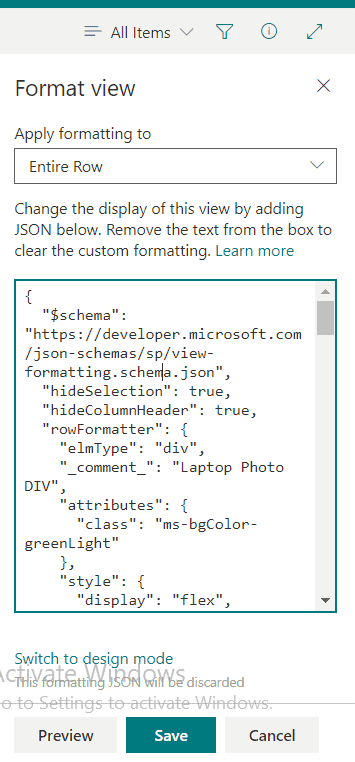
Open the Format View to implement our customization code and apply the code below. Then, click Save to view the applied changes.
{
  "$schema": "https://developer.microsoft.com/json-schemas/sp/view-formatting.schema.json",
  "hideSelection": true,
  "hideColumnHeader": true,
  "rowFormatter": {
    "elmType": "div",
    "_comment_": "Laptop Photo DIV",
    "attributes": {
      "class": "ms-bgColor-greenLight"
    },
	"style": {
      "display": "flex",
      "flex-wrap": "wrap",
      "align-items": "stretch",
      "flex-direction": "row",
      "padding": "20px",
      "margin-bottom": "16px",
      "max-width": "850px",
      "border-radius": "8px"
    },
	"children": [
  {
        "elmType": "div",
        "__comment": "DIV L1",
        "style": {
          "flex-grow": "1",
          "display": "flex",
          "flex-direction": "column",
          "flex-wrap": "nowrap",
          "align-items": "stretch",
          "max-width": "260px"
        },
		"children": [
          {
            "elmType": "img",
            "style": {
              "width": "260px",
              "height": "160px"
            },
            "attributes": {
              "src": "[$Photo]"
            }
          }
        ]
		},
		{
        "elmType": "div",
        "__comment": "DIV L2",
        "style": {
          "flex-grow": "1",
          "display": "flex",
          "flex-direction": "column",
          "flex-wrap": "nowrap",
          "align-items": "center",
          "max-width": "360px",
          "min-width": "205px"
        },
		"children": [
          {
            "elmType": "span",
            "txtContent":"='Brand : ' + [$Title]",
            "style": {
              "display": "block"
            },
            "attributes": {
              "class": "ms-fontSize-l ms-fontWeight-semibold ms-fontColor-neutralPrimary"
            }

          },
		  {
            "elmType": "span",
            "txtContent": "Model",
            "style": {
              "display": "block",
              "padding-top": "20px"
            },
            "attributes": {
              "class": "ms-fontSize-l ms-fontWeight-semibold ms-fontColor-neutralPrimary"
            }
		  },
		  {
            "elmType": "span",
            "txtContent": "[$Model]"
          },
		  {
            "elmType": "span",
            "txtContent": "='Processor : ' + [$Processor]",
            "style": {
              "display": "block",
              "padding-top": "20px"
            },
			"attributes": {
              "class": "ms-fontSize-l ms-fontWeight-semibold ms-fontColor-neutralPrimary"
            }
          }
		  ]
		},

		{
        "elmType": "div",
        "__comment": "DIV L3",
        "style": {
          "flex-grow": "1",
          "display": "flex",
          "flex-direction": "column",
          "align-items": "center",
          "margin-top": "10px",
          "max-width": "310px",
          "min-width": "155px"
        },
        "children": [
          {
            "elmType": "div",
            "__comment": "HardWwareDIV",
            "style": {
              "display": "block",
              "font-size": "15px",
              "font-weight": "bold"
            },
			"children": [
              {
                "elmType": "span",
                "txtContent": "[$RAM]",
                "style": {
                  "padding-right": "5px"
                }
              }
		]


		},
		{
            "elmType": "span",
            "txtContent": "Price",
            "style": {
              "display": "block",
              "padding-top": "20px"
            },
            "attributes": {
              "class": "ms-fontSize-l ms-fontWeight-semibold ms-fontColor-neutralPrimary"
            }
          },
		  {
            "elmType": "span",
            "txtContent": "=[$Price]",
            "style": {
              "display": "block"
            }
          },

		  {
            "elmType": "span",
            "txtContent": "Rating",
            "style": {
              "display": "block",
              "padding-top": "20px"
            },
            "attributes": {
              "class": "ms-fontSize-l ms-fontWeight-semibold ms-fontColor-neutralPrimary"
            }
          },
		  {
            "elmType": "span",
            "txtContent": "=[$Rating]",
            "style": {
                  "padding-right": "5px"
                }
          },
		  {
                "elmType": "span",
                "attributes": {
                  "iconName": "FavoriteStarFill",
                  "class": "ms-fontColor-themePrimary"
                }
              }
		]
		}
		]
	}
	}
If you have different SharePoint column names, replace them in the above code.

Output:
You can then see that each row in the SharePoint list is displayed in a card view with all the details.

SharePoint Modern List View Customization as Tiles View
Let me show you how to format the modern SharePoint list layout in a tiles view, where each row of items is displayed. This is achieved using JSON code.
Here, I will take the same SharePoint list as used in the previous example [Products – Laptop List].

Now, I will show you how to customize the list view differently, using tiles for each item.
As you might already know, the JSON code should be inserted here. Go to Format view pane, click on the Advanced mode link, and paste the code below.
{
  "$schema": "https://developer.microsoft.com/json-schemas/sp/view-formatting.schema.json",
  "hideSelection": true,
  "hideColumnHeader": true,
  "rowFormatter": {
    "elmType": "div",
    "style": {
      "display": "inline-block",
      "vertical-align": "top",
      "width": "260px",
      "margin": "10px",
      "background-color": "#ffe0cc",
      "border": "1px solid #ffd4aa",
      "border-radius": "10px",
      "padding": "16px",
      "box-shadow": "2px 2px 6px rgba(0,0,0,0.1)",
      "font-size": "15px"
    },
    "children": [
      {
        "elmType": "span",
        "txtContent": "='Brand: ' + [$Title]",
        "style": {
          "font-size": "17px",
          "font-weight": "bold",
          "margin-bottom": "8px",
          "display": "block"
        }
      },
      {
        "elmType": "span",
        "txtContent": "='Model: ' + [$Model]",
        "style": {
          "margin-bottom": "6px",
          "display": "block",
          "font-size": "15px"
        }
      },
      {
        "elmType": "span",
        "txtContent": "='Processor: ' + [$Processor]",
        "style": {
          "margin-bottom": "6px",
          "display": "block",
          "font-size": "15px"
        }
      },
      {
        "elmType": "span",
        "txtContent": "='RAM: ' + [$RAM]",
        "style": {
          "margin-bottom": "6px",
          "display": "block",
          "font-size": "15px"
        }
      },
      {
        "elmType": "span",
        "txtContent": "='Price: ₹' + [$Price]",
        "style": {
          "margin-bottom": "6px",
          "display": "block",
          "font-size": "15px"
        }
      },
      {
        "elmType": "div",
        "style": {
          "margin-top": "8px",
          "font-size": "15px"
        },
        "children": [
          {
            "elmType": "span",
            "txtContent": "='Rating: ' + [$Rating]"
          },
          {
            "elmType": "span",
            "attributes": {
              "iconName": "FavoriteStarFill",
              "class": "ms-fontColor-themePrimary"
            },
            "style": {
              "padding-left": "6px"
            }
          }
        ]
      }
    ]
  }
}
Output: SharePoint list in Tile view

Format Modern SharePoint List to Birthday View
Let’s see how to create a birthday view using SharePoint Online list view customization with JSON.
Suppose you have a SharePoint list called a ‘Birthday List‘ that contains the birth dates of employees.
| Column Name | Data Type |
| Title Company Department Designation DOM | Single Line Text |
| Photo | Image |
| Birthday | Date and Time column |

See the steps to format the list view:
- Click on All Items and click on Format View
- Select the Advanced mode link
- Copy and paste the JSON code
- Then click on the Save button
{
  "$schema": "https://developer.microsoft.com/json-schemas/sp/view-formatting.schema.json",
  "hideSelection": true,
  "hideListHeader": true,
  "rowFormatter": {
    "elmType": "div",
    "style": {
      "display": "flex",
      "flex-wrap": "wrap",
      "align-items": "stretch",
      "padding": "8px",
      "margin-bottom": "25px",
      "max-width": "420px",
      "border-radius": "8px",
      "box-shadow": "4px 4px 8px lightblue"
    },
    "attributes": {
      "class": "ms-bgColor-themePrimary ms-fontColor-white"
    },
    "children": [
      {
        "elmType": "div",
        "style": {
          "flex-grow": "1",
          "display": "flex",
          "flex-wrap": "wrap",
          "align-items": "stretch",
          "max-width": "310px"
        },
        "children": [
          {
            "elmType": "div",
            "style": {
              "flex": "none"
            },
            "children": [
              {
                "elmType": "div",
                "style": {
                  "height": "100px",
                  "overflow": "hidden",
                  "border-radius": "5%",
                  "margin-right": "8px"
                },
                "children": [
                  {
                    "elmType": "span",
                    "txtContent": "[$Title]",
                    "style": {
                      "display": "block"
                    },
                    "attributes": {
                      "class": "ms-fontSize-l ms-fontWeight-semibold ms-fontColor-white"
                    }
                  },
                  {
                    "elmType": "span",
                    "txtContent": "[$Company]",
                    "style": {
                      "display": "=if([$Company] == '', 'none', 'block')"
                    },
                    "attributes": {
                      "class": "ms-fontSize-m ms-fontWeight-regular ms-fontColor-white"
                    }
                  },
                  {
                    "elmType": "span",
                    "txtContent": "[$Department]",
                    "style": {
                      "display": "=if([$Department] == '', 'none', 'block')"
                    },
                    "attributes": {
                      "class": "ms-fontSize-m ms-fontWeight-regular ms-fontColor-white"
                    }
                  },
                  {
                    "elmType": "span",
                    "txtContent": "[$Designation]",
                    "style": {
                      "display": "=if([$Designation] == '', 'none', 'block')"
                    },
                    "attributes": {
                      "class": "ms-fontSize-m ms-fontWeight-regular ms-fontColor-white"
                    }
                  }
                ]
              }
            ]
          }
        ]
      },
      {
        "elmType": "div",
        "style": {
          "display": "flex",
          "flex-direction": "column",
          "max-width": "310px",
          "min-width": "95px"
        },
        "children": [
          {
            "elmType": "div",
            "style": {
              "flex-grow": "1"
            },
            "children": [
              {
                "elmType": "span",
                "style": {
                  "display": "=if([$Birthday] <= @now,'block','none')"
                },
                "attributes": {
                  "iconName": "BirthdayCake"
                }
              },
              {
                "elmType": "span",
                "style": {
                  "display": "block"
                },
                "attributes": {
                  "class": "ms-fontWeight-semibold ms-fontSize-m"
                },
                "txtContent": "=if([$Birthday] <= @now,'Happy Birthday!', 'Next Birthday')"
              },
              {
                "elmType": "span",
                "style": {
                  "display": "=if([$Birthday] == '', 'none', 'block')",
                  "padding-left": "0px",
                  "font-size": "14px"
                },
                "txtContent": "[$DOM]",
                "attributes": {
                  "class": "ms-fontSize-s ms-fontWeight-regular ms-fontColor-white"
                }
              },
              {
                "elmType": "span",
                "style": {
                  "display": "=if([$Birthday] == '', 'block', 'none')",
                  "padding-left": "8px"
                },
                "txtContent": "No Birthday Entered",
                "attributes": {
                  "class": "ms-fontSize-s ms-fontWeight-semilight ms-fontColor-white"
                }
              }
            ]
          },
          {
            "elmType": "div",
            "style": {
              "flex": "none",
              "display": "flex",
              "flex-direction": "row-reverse",
              "flex-wrap": "nowrap"
            },
            "children": [
              {
                "elmType": "a",
                "style": {
                  "display": "=if([$EMail] == '', 'none', 'block')"
                },
                "attributes": {
                  "class": "ms-fontSize-xs ms-fontWeight-regular ms-fontColor-white ms-fontColor-white--hover",
                  "href": "='mailto:' + [$EMail] + '?subject=Happy Birthday!\r\n'"
                },
                "children": [
                  {
                    "elmType": "span",
                    "attributes": {
                      "iconName": "Mail"
                    }
                  }
                ]
              }
            ]
          }
        ]
      }
    ]
  }
}
Output:
Below you can see that the SharePoint list is displaying the Birthday view with separate tiles with the birthday wishes and date.

You can add this view to your SharePoint site pages to display the birthdays of employees in an organization.
Customize Modern SharePoint List in Button View
Here, let’s see how to add a custom button in rows for the current user in a SharePoint Online list view using JSON.
In this list view customization, the custom button will be displayed to the current user in rows of logged-in users.
As you can see, I have created a SharePoint Online List called Feedback List, which contains the following column names.
- Title – Single Line Text
- Comments – Single Line Text
- Assigned To – People and Groups

I wanted to apply formatting to this list view, which will display a custom button labeled “Please give your comments” for the current user.
Apply the JSON code given below in the Advanced mode of the Format view pane. Then click on the Save button.
{
  "schema": "https://developer.microsoft.com/json-schemas/sp/view-formatting.schema.json",
  "hideSelection": true,
  "hideColumnHeader": true,
  "rowFormatter": {
    "elmType": "div",
	"style": {
      "display": "flex",
      "flex-wrap": "wrap",
      "align-items": "stretch",
      "padding": "8px",
      "margin-bottom": "25px",
      "max-width": "420px",
      "border-radius": "8px",
      "box-shadow": "4px 4px 8px lightblue"
    },
    "attributes": {
      "class": "sp-row-card ms-bgColor-themePrimary ms-fontColor-white"
    },
    "children": [
      {
        "elmType": "div",
        "style": {
          "text-align": "left"
        },
        "children": [
          {
            "elmType": "div",
            "attributes": {
              "class": "sp-row-title"
            },
            "txtContent": "[$Title]"
          },
          {
            "elmType": "div",
            "attributes": {
              "class": "sp-row-listPadding"
            },
            "txtContent": "[$Comments]"
          },
          {
            "elmType": "button",
            "customRowAction": {
              "action": "defaultClick"
            },
            "txtContent": "Please give your Comments",
            "attributes": {
              "class": "sp-row-button"
            },
            "style": {
              "display": {
                "operator": "?",
                "operands": [
                  {
                    "operator": "==",
                    "operands": [
                      "@me",
                      "[$AssignedTo.email]"
                    ]
                  },
                  "",
                  "none"
                ]
              }
            }
          }
        ]
      }
    ]
  }
}
Result: The list view can be displayed with a custom button.

Once you click on the custom button, it will redirect you to the view page where you can edit your item.

Customize SharePoint Modern List in Bordered Gallery View
Here is another example of customizing a SharePoint modern list view using JSON.
From the screenshot below, you can see that the ‘Product List‘ consists of various types of columns without any customizations. I want to format the list view in a bordered gallery view.
- Title: Single Line Text
- ProdDetails: Multi-Line Text.
- Price: Single Line Text
- Photo: Hyperlink
- Rating: Number

Apply the JSON code below in the Advanced mode of the Format pane window.
{
  "$schema": "https://developer.microsoft.com/json-schemas/sp/view-formatting.schema.json",
  "hideSelection": true,
  "hideColumnHeader": true,
  "rowFormatter": {
    "elmType": "div",
    "_comment_": "ProductPhoto DIV",
    "attributes": {
      "class": "ms-bgColor-greenLight"
    },
    "style": {
      "display": "flex",
      "flex-wrap": "wrap",
      "align-items": "stretch",
      "padding": "16px",
      "margin-bottom": "16px",
      "max-width": "600px",
      "border-radius": "35px"
    },
    "children": [
      {
        "elmType": "div",
        "__comment": "DIV L1",
        "style": {
          "flex-grow": "1",
          "display": "flex",
          "flex-direction": "column",
          "flex-wrap": "nowrap",
          "align-items": "stretch",
          "max-width": "300px"
        },
        "attributes": {
          "class": "ms-bgColor-white"
        },
        "children": [
          {
            "elmType": "span",
            "txtContent": "= [$Title]",
            "style": {
              "display": "block",
              "text-align": "center"
            },
            "attributes": {
              "class": "ms-fontSize-l ms-fontWeight-bold ms-fontColor-neutralPrimary"
            }
          },
          {
            "elmType": "span",
            "txtContent": "[$ProdDetails]",
            "style": {
              "display": "block",
              "text-align": "right",
              "padding": "20px"
            },
            "attributes": {
              "class": "ms-fontSize-l ms-fontWeight-normal ms-fontColor-neutralPrimary"
            }
          },
          {
            "elmType": "span",
            "txtContent": "[$Price]",
            "style": {
              "display": "block",
              "text-align": "left"
            },
            "attributes": {
              "class": "ms-fontSize-m ms-fontWeight-bold ms-fontColor-neutralPrimary"
            }
          }
        ]
      },
      {
        "elmType": "div",
        "__comment": "DIV L2",
        "style": {
          "flex-grow": "1",
          "display": "flex",
          "flex-direction": "column",
          "align-items": "center",
          "max-width": "300px"
        },
        "attributes": {
          "class": "ms-bgColor-white"
        },
        "children": [
          {
            "elmType": "img",
            "style": {
              "width": "260px",
              "height": "160px"
            },
            "attributes": {
              "src": "[$Photo]"
            }
          },
          {
            "elmType": "span",
            "txtContent": "[$Rating]",
            "style": {
              "display": "block",
              "padding-right": "5px",
              "align-items": "right"
            },
            "attributes": {
              "class": "ms-fontSize-m ms-fontWeight-semibold ms-fontColor-themePrimary",
              "iconName": "FavoriteStarFill"
            }
          }
        ]
      }
    ]
  }
}
Output: Once you click on the Save button, the SharePoint list view will change into a bordered gallery view.

Customize Modern SharePoint List in Modern Contact Card View
Letus explore how to create a user profile card by formatting the SharePoint modern list view using JSON.
Suppose you have an ‘Employee Contact List‘ like below, with the details like:
- Title: Single Line Text
- Job Title: Single Line Text
- Company -Single Line Text
- E-Mail-Single Line Text
- Home Phone -Single Line Text
- Address -Single Line Text
- City -Single Line Text
- Pin-Single Line Text

I wanted to format this list view into a contact card view to make it visually appealing.
Copy and paste the below given JSON code to format the view of the SharePoint list.
{
"$schema": "https://developer.microsoft.com/json-schemas/sp/view-formatting.schema.json",
"hideSelection": true,
"hideListHeader": true,
"rowFormatter": {
"elmType": "div",
"style": {
"display": "flex",
"flex-wrap": "wrap",
"align-items": "stretch",
"padding": "8px",
"margin-bottom": "16px",
"max-width": "600px",
"border-radius": "8px",
"box-shadow": "4px 4px 8px lightblue"
},
"attributes": {
"class": "ms-bgColor-themePrimary ms-fontColor-white"
},
"children": [
{
"elmType": "div",
"style": {
"flex-grow": "1",
"display": "flex",
"flex-wrap": "wrap",
"align-items": "stretch",
"max-width": "310px"
},
"children": [
{
"elmType": "div",
"style": {
"flex": "none"
},
"children": [
{
"elmType": "div",
"style": {
"width": "100px",
"height": "100px",
"overflow": "hidden",
"border-radius": "50%",
"margin-right": "8px"
},
"children": [
{
"elmType": "img",
"attributes": {
"src": "/_layouts/15/userphoto.aspx?size=M&[email protected]",
"title": "=if([$Picture] == '', 'No picture available', [$Picture.desc])"
},
"style": {
"position": "relative",
"top": "50%",
"left": "50%",
"width": "100%",
"height": "auto",
"margin-left": "-50%",
"margin-top": "-50%"
}
}
]
}
]
},
{
"elmType": "div",
"style": {
"flex-grow": "1",
"display": "flex",
"flex-direction": "column",
"flex-wrap": "nowrap",
"align-items": "stretch",
"max-width": "200px"
},
"children": [
{
"elmType": "div",
"style": {
"flex-grow": "1"
},
"children": [
{
"elmType": "span",
"txtContent": "[$Title]",
"style": {
"display": "block"
},
"attributes": {
"class": "ms-fontSize-l ms-fontWeight-semibold ms-fontColor-white"
}
},
{
"elmType": "span",
"txtContent": "[$JobTitle]",
"style": {
"display": "=if([$JobTitle] == '', 'none', 'block')"
},
"attributes": {
"class": "ms-fontSize-m ms-fontWeight-regular ms-fontColor-white"
}
},
{
"elmType": "span",
"txtContent": "[$Company]",
"style": {
"display": "=if([$Company] == '', 'none', 'block')"
},
"attributes": {
"class": "ms-fontSize-m ms-fontWeight-regular ms-fontColor-white"
}
}
]
},
{
"elmType": "div",
"style": {
"flex-grow": "1",
"display": "flex",
"flex-direction": "row",
"flex-wrap": "wrap",
"align-items": "flex-end"
},
"children": [
{
"elmType": "a",
"style": {
"display": "=if([$EMail] == '', 'none', 'block')",
"width": "100%"
},
"attributes": {
"class": "ms-fontSize-xs ms-fontWeight-regular ms-fontColor-white ms-fontColor-white--hover",
"href": "='mailto:' + [$EMail] + '?body=Dear ' + [$Title] + ',\r\n'"
},
"children": [
{
"elmType": "span",
"attributes": {
"iconName": "Mail",
"class": "ms-fontColor-white"
},
"style": {
"padding-right": "6px"
}
},
{
"elmType": "span",
"txtContent": "[$EMail]"
}
]
},
{
"elmType": "span",
"style": {
"display": "=if([$HomePhone] == '', 'none', 'block')",
"width": "100%"
},
"attributes": {
"class": "ms-fontSize-xs ms-fontWeight-regular ms-fontColor-white"
},
"children": [
{
"elmType": "span",
"txtContent": "=if([$WorkAddress] == '', '', [$WorkAddress] + ', ') + if([$WorkCity] == '', '', [$WorkCity] + ', ') + if([$WorkState] == '', '', [$WorkState] + ' ') + if([$WorkZip] == '', '', [$WorkZip])",
"style": {
"display": "=if([$WorkCity] == '' && [$WorkState] == '' && [$WorkZip] == '', 'none', 'block')"
},
"attributes": {
"class": "ms-fontSize-sPlus ms-fontWeight-regular ms-fontColor-white"
}
},
{
"elmType": "span",
"txtContent": "No address provided",
"style": {
"display": "=if([$WorkCity] == '' && [$WorkState] == '' && [$WorkZip] == '', 'block', 'none')"
},
"attributes": {
"class": "ms-fontSize-s ms-fontWeight-semilight ms-fontColor-white"
}
}
]
}
]
}
]
}
]
},
{
"elmType": "div",
"style": {
"flex-grow": "1",
"display": "flex",
"flex-direction": "column",
"max-width": "170px",
"min-width": "120px"
},
"children": [
{
"elmType": "div",
"style": {
"flex-grow": "1"
},
"children": [
{
"elmType": "span",
"style": {
"display": "block"
},
"attributes": {
"class": "ms-fontWeight-semibold ms-fontSize-m"
},
"txtContent": "Comments:"
},
{
"elmType": "span",
"style": {
"display": "=if([$_Comments] == '', 'none', 'block')",
"padding-left": "8px"
},
"txtContent": "[$_Comments]",
"attributes": {
"class": "ms-fontSize-s ms-fontWeight-regular ms-fontColor-white"
}
},
{
"elmType": "span",
"style": {
"display": "=if([$_Comments] == '', 'block', 'none')",
"padding-left": "8px"
},
"txtContent": "No Comments entered",
"attributes": {
"class": "ms-fontSize-s ms-fontWeight-semilight ms-fontColor-white"
}
}
]
},
{
"elmType": "div",
"style": {
"flex": "none",
"display": "flex",
"flex-direction": "row-reverse",
"flex-wrap": "nowrap"
},
"children": [
{
"elmType": "button",
"customRowAction": {
"action": "share"
},
"attributes": {
"title": "Share",
"class": "ms-fontColor-white ms-fontColor-red--hover"
},
"style": {
"border": "none",
"background-color": "transparent",
"cursor": "pointer"
},
"children": [
{
"elmType": "span",
"attributes": {
"iconName": "Share"
}
}
]
},
{
"elmType": "button",
"customRowAction": {
"action": "delete"
},
"attributes": {
"title": "Delete",
"class": "ms-fontColor-white ms-fontColor-red--hover"
},
"style": {
"border": "none",
"background-color": "transparent",
"cursor": "pointer"
},
"children": [
{
"elmType": "span",
"attributes": {
"iconName": "Delete"
}
}
]
},
{
"elmType": "button",
"customRowAction": {
"action": "editProps"
},
"attributes": {
"title": "Edit",
"class": "ms-fontColor-white ms-fontColor-red--hover"
},
"style": {
"border": "none",
"background-color": "transparent",
"cursor": "pointer"
},
"children": [
{
"elmType": "span",
"attributes": {
"iconName": "Edit"
}
}
]
},
{
"elmType": "button",
"customRowAction": {
"action": "defaultClick"
},
"attributes": {
"title": "See more details",
"class": "ms-fontColor-white ms-fontColor-red--hover"
},
"style": {
"border": "none",
"background-color": "transparent",
"cursor": "pointer"
},
"children": [
{
"elmType": "span",
"attributes": {
"iconName": "ContactInfo"
}
}
]
},
{
"elmType": "span",
"style": {
"height": "2rem",
"width": "2rem",
"font-size": "2em",
"cursor": "pointer",
"margin": "0px 5px",
"vertical-align": "text-bottom",
"display": "=if([$Twitter]=='','none','')"
},
"children": [
{
"elmType": "a",
"style": {
"cursor": "pointer"
},
"attributes": {
"class": "ms-fontColor-magentaLight",
"iconName": "ContactLink",
"href": "=[$Twitter]",
"title": "Twitter"
}
}
]
},
{
"elmType": "span",
"style": {
"height": "2rem",
"width": "2rem",
"font-size": "2em",
"cursor": "pointer",
"margin": "0px 5px",
"vertical-align": "text-bottom",
"display": "=if([$LinkedIn]=='','none','')"
},
"children": [
{
"elmType": "a",
"style": {
"cursor": "pointer"
},
"attributes": {
"class": "ms-fontColor-magentaLight",
"iconName": "LinkedInLogo",
"href": "=[$LinkedIn]",
"title": "LinkedIn"
}
}
]
},
{
"elmType": "span",
"style": {
"height": "2rem",
"width": "2rem",
"font-size": "2em",
"cursor": "pointer",
"margin": "0px 5px",
"vertical-align": "text-bottom",
"display": "=if([$Facebook]=='','none','')"
},
"children": [
{
"elmType": "a",
"style": {
"cursor": "pointer"
},
"attributes": {
"class": "ms-fontColor-magentaLight",
"iconName": "FacebookLogo",
"href": "=[$Facebook]",
"title": "Facebook"
}
}
]
}
]
}
]
}
]
}
}Replace the column names with your SharePoint column names in the JSON code above.
Output: The Employee Contact list items will appear as a contact card view. Refer to the image below.

In the card view, a few icons are added, which redirect to the respective page when clicked. Here, you can share your contact details.

The image below shows the Delete icon, which you can use to delete items by clicking on it.

The screenshot below displays the Edit icon, which allows you to edit the SharePoint list item.

You can view the item by clicking on the ‘View Item’ icon.

Additionally, I have added links to Facebook, LinkedIn, and Twitter that redirect to the employee profile page.
This is how we can create a User profile contact card using SharePoint Online modern list view customization using JSON.
Through this tutorial, you have learned different types of list view customizations that can be added to your Modern SharePoint lists.
I hope you find this article informative. Drop your suggestions in the comment section mentioned below.
You may like the following SharePoint tutorials:
- Power Apps Bulk Approvals Using Power Automate
- Create a SharePoint list view
- SharePoint Online location column
- SharePoint custom list example
- Customize Modern SharePoint List Form JSON Formatting

Preeti Sahu is an expert in Power Apps and has over six years of experience working with SharePoint Online and the Power Platform. She is the co-author of Microsoft Power Platform: A Deep Dive book. As a Power Platform developer, she has worked on developing various tools using Power Apps and Power Automate. She also makes Microsoft 365 videos and shares them on YouTube.


How do you hide a list webpart when there are no items to be displayed?
Do you know how to use custom row actions to perform a “like” function?
I tried a lot to display second colum under Feedback list and it doesnt show. i have created the exact same list. any suggestions ?