
The page people land on decides whether a SharePoint site gets used. Our field operations team kept skipping the default Home page and asked for the project list to open first.
In this tutorial, I’ll show you how to change SharePoint home page settings so any published page opens first, how to switch back to the original Home.aspx, and how this differs from the organization home site.
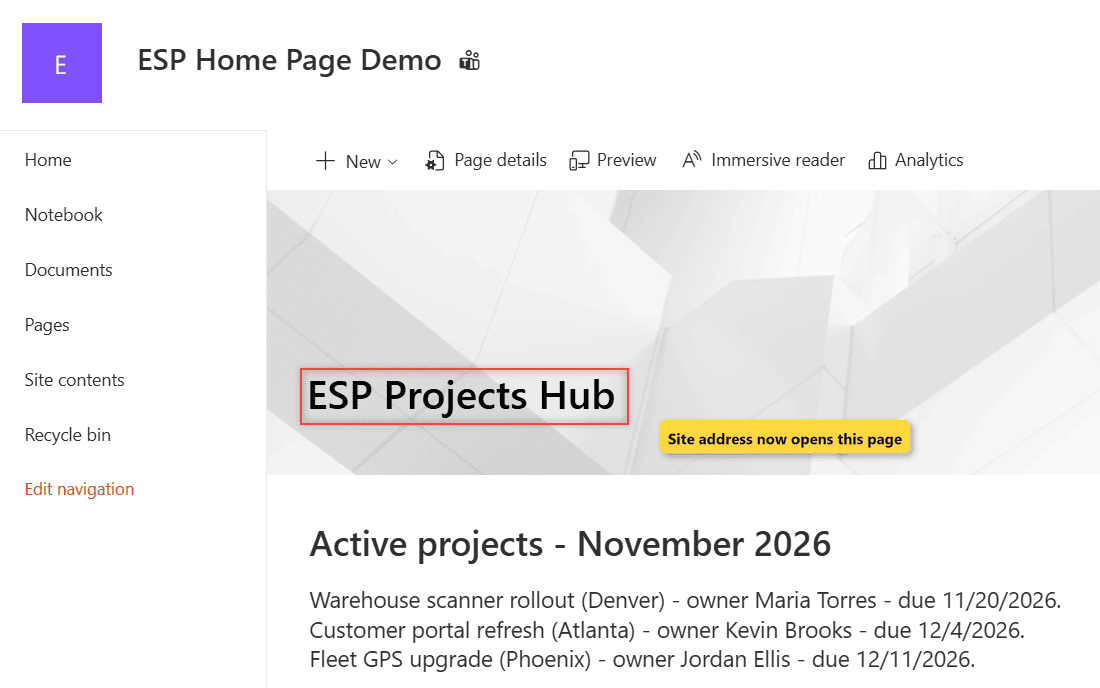
Here’s what we’re building: the ESP Home Page Demo site, where the plain site address now opens the ESP Projects Hub page instead of Home.aspx.
Before You Start
You need to be a site owner. Members can edit pages but can’t swap the home page. Not sure who owns the site? Here are three ways to find the SharePoint site owner.
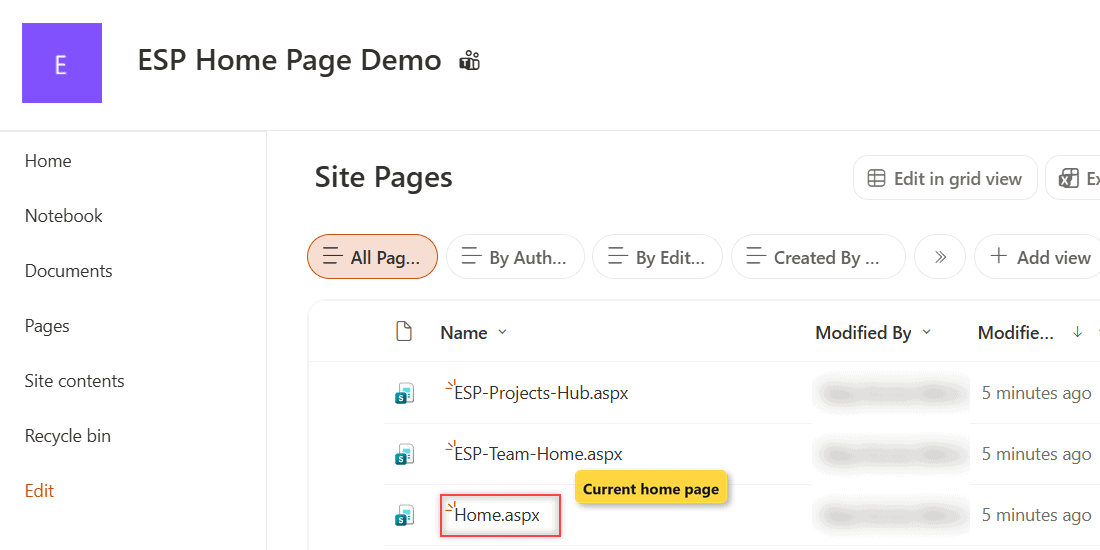
I used a modern team site called ESP Home Page Demo with three pages in its Site Pages library:
| Page | File name | Notes |
|---|---|---|
| Home | Home.aspx | Created with the site, the default home page |
| ESP Team Home | ESP-Team-Home.aspx | Welcome text for the Denver and Atlanta crews |
| ESP Projects Hub | ESP-Projects-Hub.aspx | Three active projects, due 11/20 to 12/11/2026 |
Step 1: Publish the Page You Want as Home
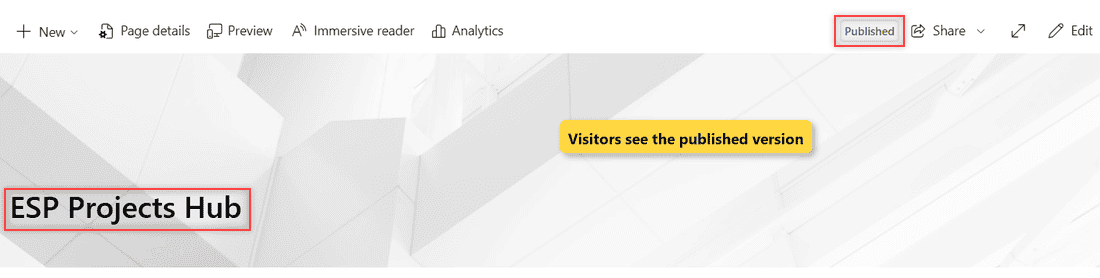
SharePoint only lets a page become the home page when it sits in the Site Pages library, and visitors only see the published version.
- Open the page, here ESP Projects Hub.
- If you see Republish or Publish at the top right, select it.
Starting from scratch? A SharePoint page template gives every new landing page the same layout.
Checkpoint: the page opens without a draft or Republish prompt.
Step 2: Open the Site Pages Library
- Select Settings (the gear) > Site contents.
- Select Site Pages. On a team site, the Pages link in the left navigation opens the same library.
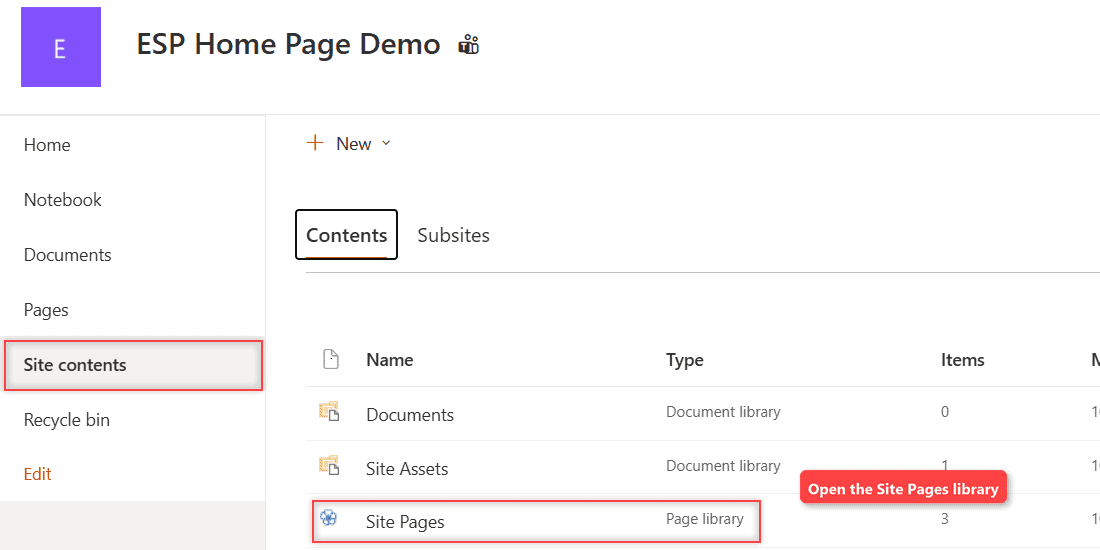
The library lists every page on the site. It doesn’t mark the current home page, so remember that a new team site starts with Home.aspx.
Step 3: Select Make Homepage
- Select the circle to the left of ESP Projects Hub.
- Select the … (More Actions) next to the page name.
- Select Make homepage.
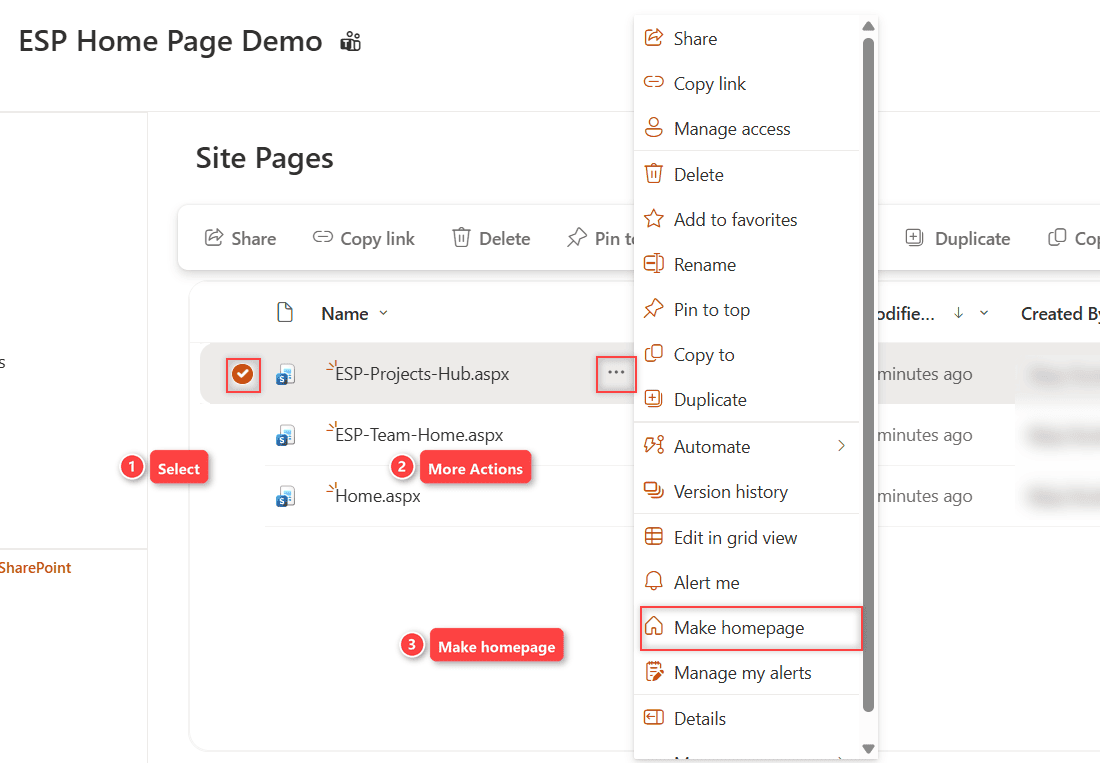
There’s no confirmation dialog. The change happens on the click (Make homepage is also in the … overflow on the command bar).
Checkpoint: a message reads “ESP-Projects-Hub.aspx is now the site homepage.” with a Go to homepage link.
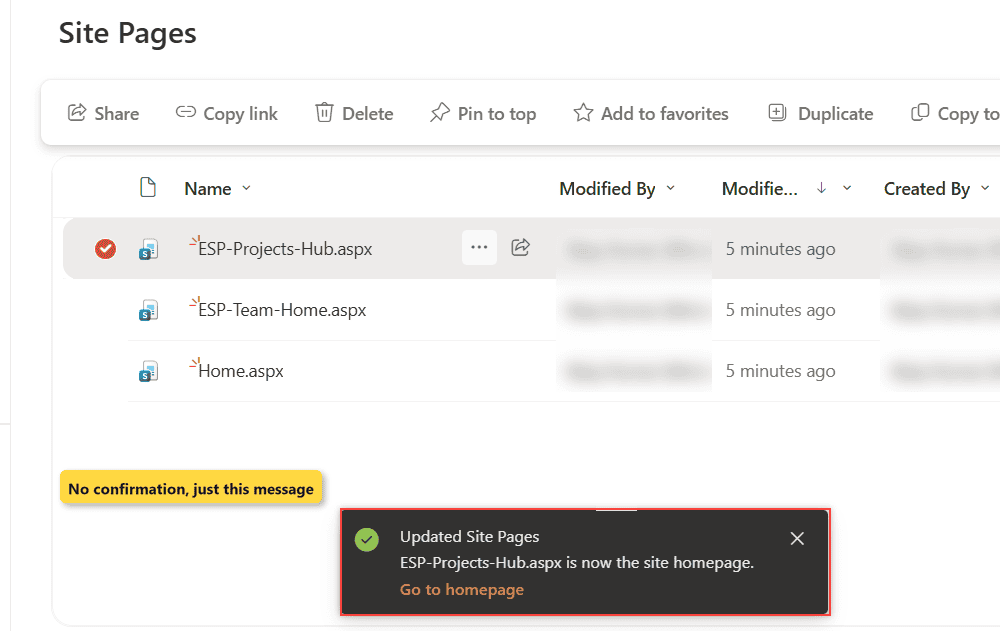
Test the New Home Page
I opened the plain site address, /sites/EnjoySharePoint/ESPHomePageDemo, in a new tab. SharePoint sent me straight to /SitePages/ESP-Projects-Hub.aspx, not Home.aspx. To decide what goes on that page, see how to customize a SharePoint site home page.
Nothing else moves. Home.aspx stays in the library, and links that point straight at it still work.
Variation: Switch Back to the Original Home.aspx
There’s no undo button. You repeat the same steps on the old page:
- Go to Site contents > Site Pages.
- Select the circle next to Home.aspx, then … on the command bar > Make homepage.
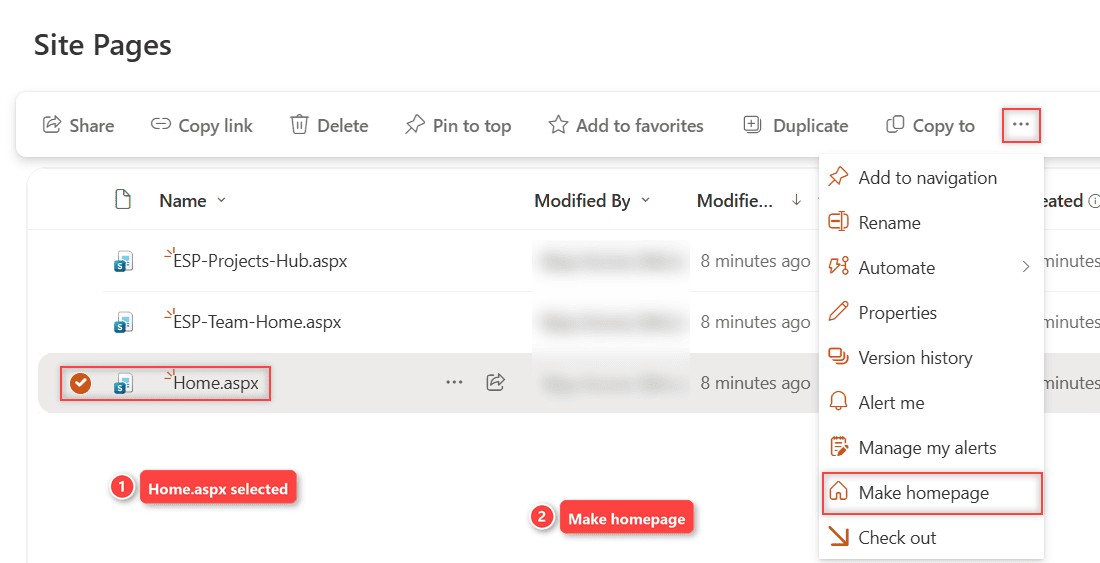
The message now says Home.aspx is the site homepage, and the site address opens it again. Don’t look for the option on the page itself: Page details only offers properties, Version history and Delete page.
Site Home Page vs. Organization Home Site
Make homepage changes one site. The organization home site is a communication site that a SharePoint admin sets in the SharePoint admin center for the whole company, with intranet-wide search and official news. If you’re unsure which kind of site you have, see the types of SharePoint sites explained.
Troubleshooting
- No Make homepage option: you aren’t a site owner, or the library is in classic view. Select Exit classic experience at the bottom left.
- Visitors get an error: the page is still a draft. Publish it.
- The old page still opens: your browser cached it. Reload, or clear the SharePoint cache.
Important: don’t delete the old Home.aspx right away. Keep it until you’re sure you won’t switch back.
Where to Take It Next
Add a News web part for team updates to the new page, and a Quick Links web part with icons for the forms people open every day.
More ways to shape a SharePoint site:
Frequently Asked Questions
Who can change the home page of a SharePoint site?
Only site owners. Microsoft documents the steps in Use a different page for your SharePoint site home page.
Can a document library be the SharePoint home page?
Not in the modern experience. Create a page, add the Document library web part, and make that page the home page.
How do I change the SharePoint home page with PowerShell?
PnP PowerShell has Set-PnPHomePage. Point it at the page’s path inside Site Pages:
Connect-PnPOnline -Url "https://<tenant>.sharepoint.com/sites/EnjoySharePoint/ESPHomePageDemo" -ClientId "<your-app-id>" -Interactive
Set-PnPHomePage -RootFolderRelativeUrl "SitePages/ESP-Projects-Hub.aspx"
Does changing the home page change the site URL?
No. The site address stays the same and simply opens the new page. Links to the old page keep working.

I have worked with Microsoft technologies for more than 18 years, including SharePoint, Microsoft 365 and the Power Platform (Power Apps, Power Automate and Power BI), at companies like HP, TCS and KPIT. I started EnjoySharePoint in 2011 to share the solutions I build in real projects with readers in the United States, Canada, the United Kingdom, Australia, New Zealand and beyond. Microsoft has recognized this work with the Microsoft MVP award 13 times since 2014.