
Your team keeps its schedule in SharePoint, but everyone lives in Outlook. Checking two calendars is how meetings get missed.
In this tutorial, I’ll show you how to add sharepoint calendar to outlook with the built-in connection, which Outlook versions support it, and what to use when yours doesn’t.
Quick answer: Open a classic SharePoint Calendar, select the Calendar tab, then Connect to Outlook, and confirm the prompt in classic Outlook for Windows. New Outlook doesn’t support this connection, so use a Microsoft 365 group calendar there.
What You Need Before You Start
- Classic Outlook for Windows, signed in with your work account.
- A classic SharePoint Calendar, not a list with a calendar view.
- At least read access to that calendar. You need edit permission to change events.
That second point trips up most people. A modern SharePoint list calendar view looks like a calendar, but it’s still a list, so it has no Connect to Outlook command.
My demo is a classic Calendar named ESP Outlook Calendar. It holds five events from November 30 through December 17, 2026, including a Q4 Budget Review in Dallas and a Holiday Team Lunch in Denver.
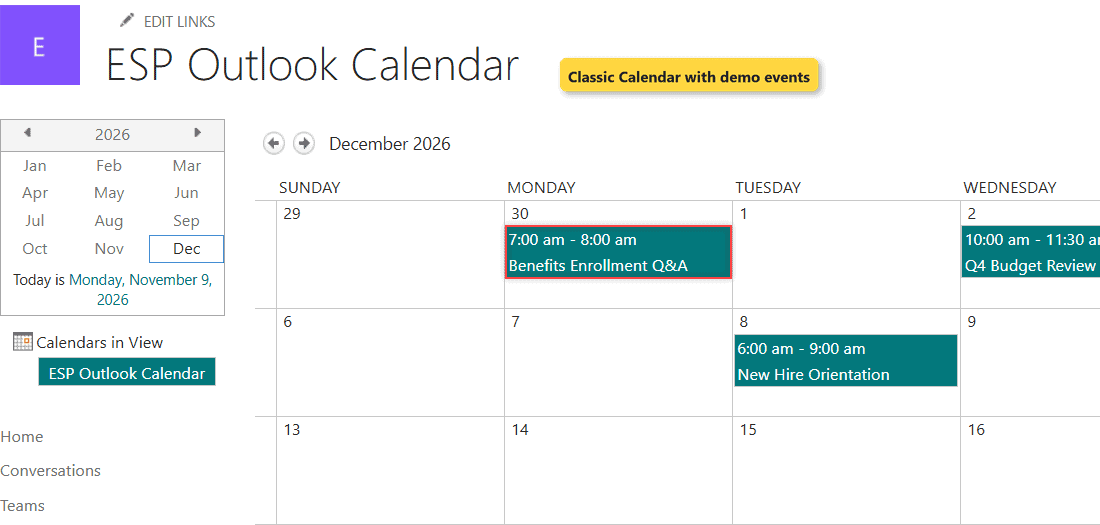
Step 1: Open or Create a Classic Calendar
If your site already has a calendar, open it from Site contents and skip ahead. Otherwise, create one:
- Select the gear icon, then Site contents.
- Select New, then App. SharePoint opens the My apps page.
- Under Apps you can add, select the classic experience link.
- On the Your Apps page, type Calendar in Find an app and press Enter.
- Select the Calendar tile, enter a name, and select Create.
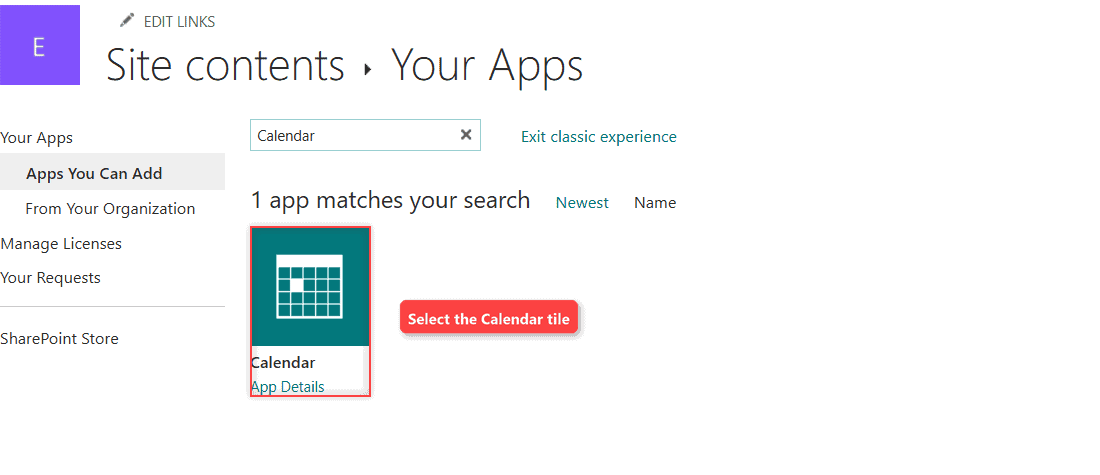
Built-in apps such as Calendar only appear on that classic page, which is why the link matters. If you only want to show dates on a page, the Events web part may be enough, and you won’t need Outlook at all.
Pro Tip: New calendars don’t appear in the site navigation on their own. Open the calendar’s list settings, select List name, description and navigation, and turn on the navigation option so people can find it.
Step 2: Select Connect to Outlook
With the calendar open, follow these steps in the browser:
- Select the Calendar tab at the top of the page to show the ribbon.
- In the Connect & Export group, select Connect to Outlook.
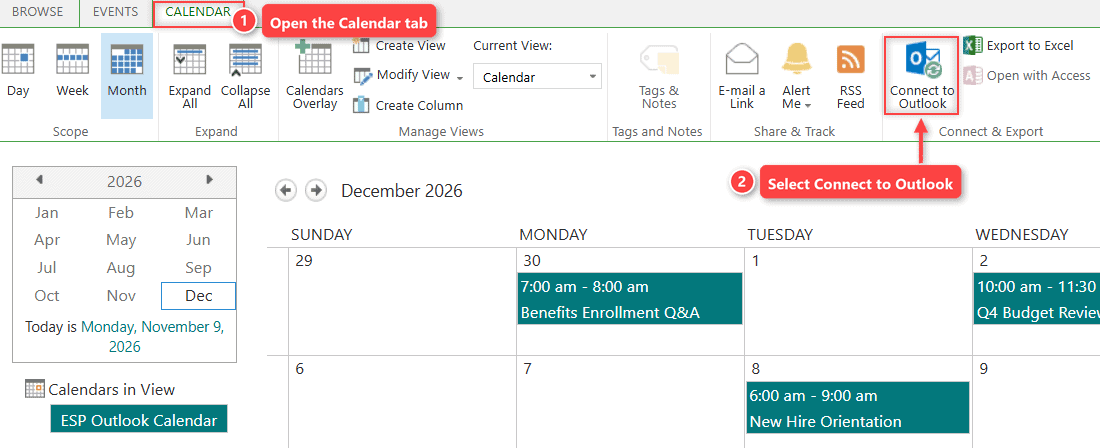
I confirmed that ribbon path on my demo calendar, and the button was active there. It sits next to Export to Excel and Open with Access.
If you don’t see a ribbon at all, check the address bar. A classic Calendar opens on a page ending in calendar.aspx, while a modern SharePoint list view opens on the list’s own view page and shows the newer command bar.
Each person repeats this step on their own computer, because the connection belongs to their Outlook profile and not to the calendar. Connecting it for yourself doesn’t change anything for your teammates.
Step 3: Confirm the Connection in Classic Outlook
I stopped at the ribbon button for this tutorial, so I didn’t capture or test the Outlook side here. This step comes from Microsoft’s published comparison and from answers on Microsoft Q&A, which are community guidance rather than formal documentation.
According to those answers, your browser may ask for permission to open Outlook, so allow it. Outlook then asks you to confirm the connection. Select Yes, or select Advanced first if you want to change its options.
Those same answers say the calendar then appears under Other Calendars in Outlook’s Calendar view. Select its check box to see it beside your own calendar.
Step 4: Check How Changes Sync
Before you tell the team it’s ready, add a test event in SharePoint and look for it in Outlook. Do the same in the other direction if people plan to edit from Outlook.
I’m suggesting that test because I didn’t run it myself and the guidance conflicts. Some Microsoft Q&A answers say Outlook edits go back through Send/Receive, and another says the built-in feature can’t push Outlook changes to SharePoint.
Recurring events have one documented catch. Microsoft says recurring items emailed to a calendar import into SharePoint but won’t sync, and Outlook can report error 0x80004005. Microsoft’s fix is to create them in SharePoint or directly in the connected Outlook calendar.
Step 5: Use a Group Calendar in New Outlook
If you’ve moved to new Outlook, Connect to Outlook isn’t available. Microsoft lists it as not supported there and lists group calendars as available in both classic and new Outlook, so a Microsoft 365 group calendar is the route to use.
Team sites connected to a group already have one. To show it in SharePoint, add the Group calendar web part to a page. It lists up to 10 upcoming events, up to six months ahead.
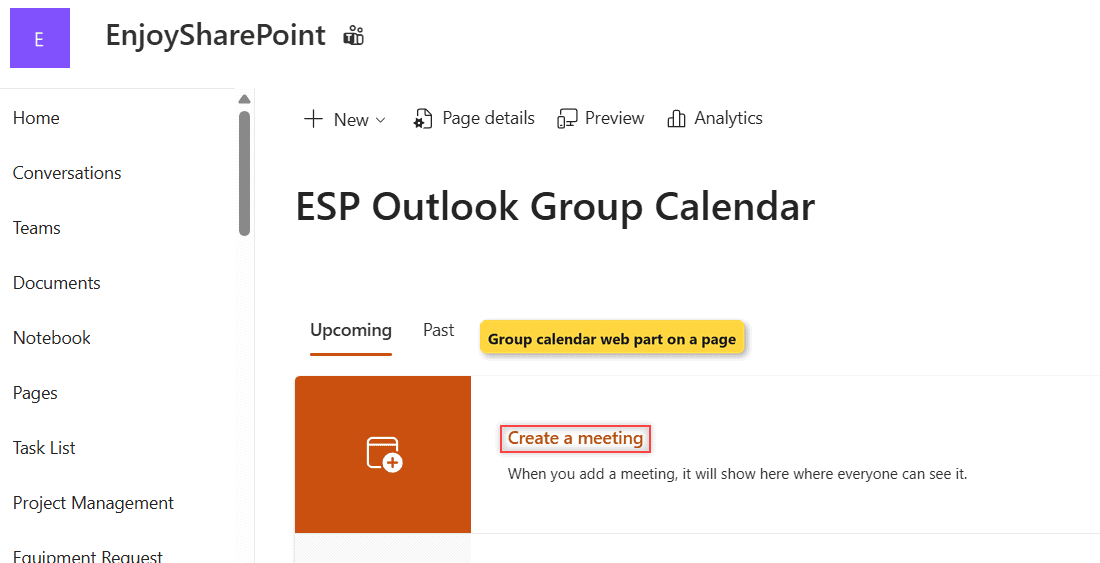
My demo group has no meetings yet, so the web part shows Create a meeting. Microsoft says that link opens the calendar view in Outlook on the web.
This replaces the classic calendar rather than syncing it, so existing events have to be moved. If the data must stay in a SharePoint list, create Outlook calendar events with Power Automate when items are added.
To move events across, recreate the upcoming ones in the group calendar and leave past events in the classic calendar as a record. For the demo’s five events, that’s a few minutes of work, and nobody has to learn a new tool afterward.
Important: Adding people to a group calendar event can send them a meeting invitation. Leave the attendee box empty while you’re moving events, unless you actually want everyone notified.
Which Option Works in Which Outlook?
This table follows Microsoft’s classic and new Outlook comparison, updated in September 2026. The last row doesn’t depend on the comparison, because a flow writes to the Outlook calendar for you.
| Option | Classic Outlook | New Outlook |
|---|---|---|
| Connect to Outlook (classic Calendar) | Supported | Not supported |
| Microsoft 365 group calendar | Supported | Supported |
| Power Automate flow to an Outlook calendar | Writes to the calendar | Writes to the calendar |
My pick is simple. If everyone is on classic Outlook and the calendar already exists, use Connect to Outlook. If people are moving to new Outlook, start with a group calendar. If the dates come from a business list, use a flow, or build a custom calendar in Power Apps on top of it.
Common Mistakes to Avoid
- Looking for the button on a list. A calendar view on a list has no ribbon command. Use a classic Calendar.
- Trying it in new Outlook. Switch to classic Outlook, or use a group calendar.
- Expecting it for everyone at once. Each person connects the calendar on their own Outlook profile.
- Expecting the same for tasks. Microsoft removed the Sync to Outlook button from SharePoint task lists.
Does a SharePoint Calendar Work in Outlook on the Web?
Microsoft’s comparison page covers classic and new Outlook, not Outlook on the web, and I didn’t test it. Answers on Microsoft Q&A report that connected calendars show only in the desktop app, so check yours before you rely on it.
If people work across several devices, a group calendar is the safer plan. And if a date needs a decision, you can also send approval requests to Outlook and Teams instead of relying on people to spot a calendar change.
Next Steps
If people mainly need to hear about changes, you may not need Outlook sync at all. SharePoint list rules can notify them when something changes, and Power Automate can create list items from other sources.
If your team’s schedule lives in SharePoint, I’d read these next:
Frequently Asked Questions
Why is Connect to Outlook missing in SharePoint?
You’re most likely on a list with a calendar view. The command is only on the ribbon of a classic Calendar app.
Can I connect a SharePoint calendar to new Outlook?
No. Microsoft lists it as not supported in its classic and new Outlook feature comparison, and points to group calendars instead.
Can I edit SharePoint events from Outlook?
Microsoft doesn’t spell this out in its feature comparison, and Microsoft Q&A answers disagree. Test it with one event first. You’ll also need edit permission on the SharePoint calendar.
Does a list with a calendar view work with Connect to Outlook?
No. A calendar view is still a list, so it doesn’t have the Calendar ribbon. You need the classic Calendar app.

I have worked with Microsoft technologies for more than 18 years, including SharePoint, Microsoft 365 and the Power Platform (Power Apps, Power Automate and Power BI), at companies like HP, TCS and KPIT. I started EnjoySharePoint in 2011 to share the solutions I build in real projects with readers in the United States, Canada, the United Kingdom, Australia, New Zealand and beyond. Microsoft has recognized this work with the Microsoft MVP award 13 times since 2014.