
If you need to open a SharePoint site or file and keep getting Access Denied or You need permission to access this site, you’re usually signed in with the wrong account, or the owner hasn’t given you access to that exact item.
The message looks the same whatever the cause, which is why people get stuck.
In this tutorial, I’ll walk you through the common sharepoint access denied causes, the quick fixes you can try as a visitor, and the owner-side checks that solve the rest.
The messages you’ll see (and the library I tested with)
Microsoft lists several versions of this error. They all mean SharePoint sees no permission for your account:
- Access Denied
- You need permission to access this site
- You can’t access this item / You don’t have access to this file
- This link is not available to you (on shared links)
- Due to organizational policies, you can’t access this resource
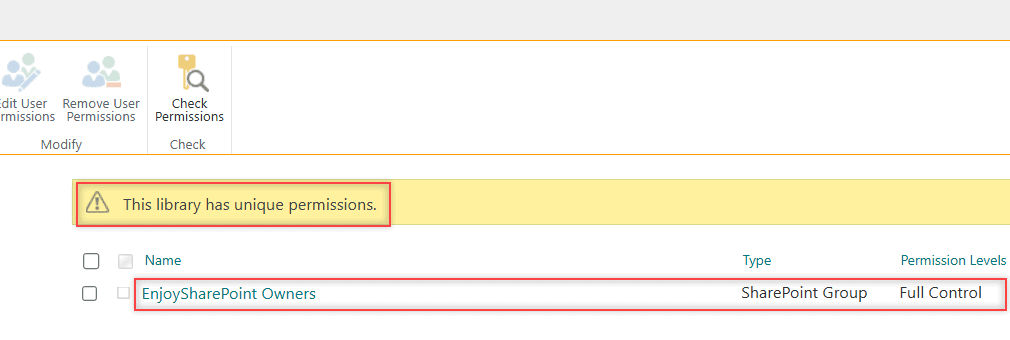
For the owner-side fixes, I made a library called ESP Restricted Docs on my EnjoySharePoint site, then gave it unique permissions for one library. Only the site owners can open it now.
Method 1: Check which account you’re signed in with
This is the most common cause on shared links: the file was shared with one email, but your browser is signed in with another account.
- Select your profile picture at the top right and check the email.
- If it’s the wrong one, sign out, then open the link again and sign in with the address the invitation went to.
- Still stuck? Try an InPrivate (Edge) or Incognito (Chrome) window.
If InPrivate works, clear the SharePoint cache and cookies in your normal browser and sign in again.
Method 2: Request access from the site owner
When the page shows a message box and a Request access button, type a short reason, such as “I need the Q4 bonus plan for the Seattle budget review,” and send it. The request goes to the site owner, who picks a permission level and approves or declines it.
No button at all? Then access requests are turned off for that site, so you’ll need to find the SharePoint site owner and ask them directly.
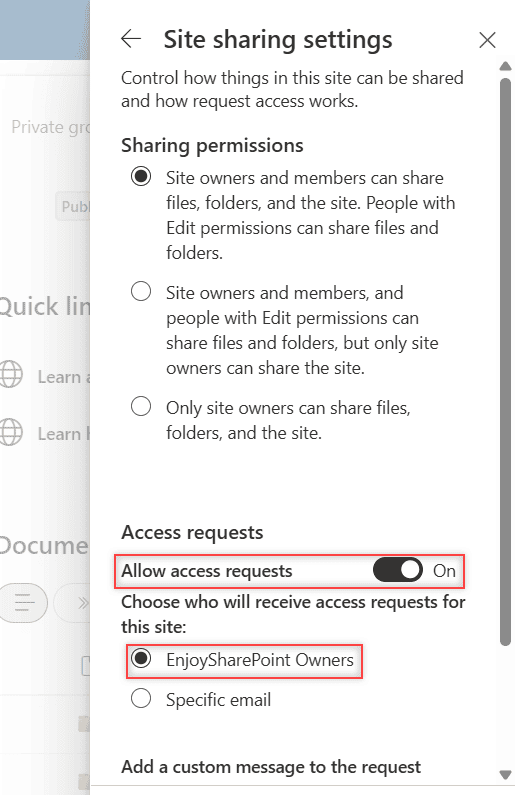
Owners turn requests on in Settings > Site permissions > Change how members can share, which opens Site sharing settings:
How does this work?
On my site, Allow access requests is on and requests go to the EnjoySharePoint Owners group. You can pick Specific email instead. Pending requests show up under Site contents > Access requests; my guide to access requests in SharePoint Online covers approving them.
Method 3: Use Check Permissions as the owner (Recommended)
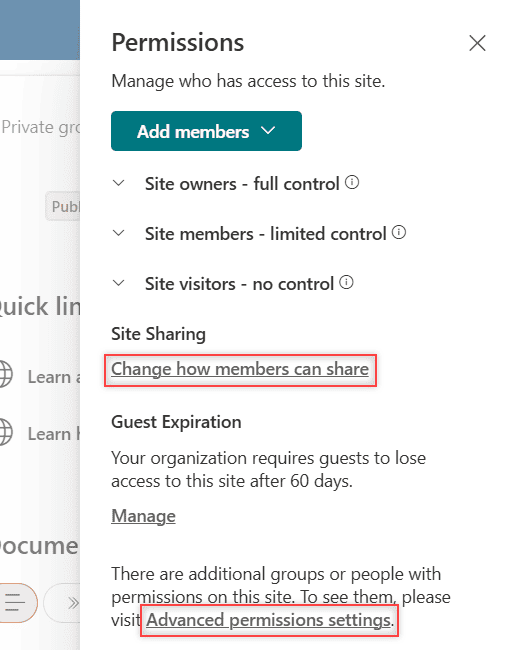
If you own the site, SharePoint can tell you exactly what someone can reach. Go to Settings > Site permissions > Advanced permissions settings:
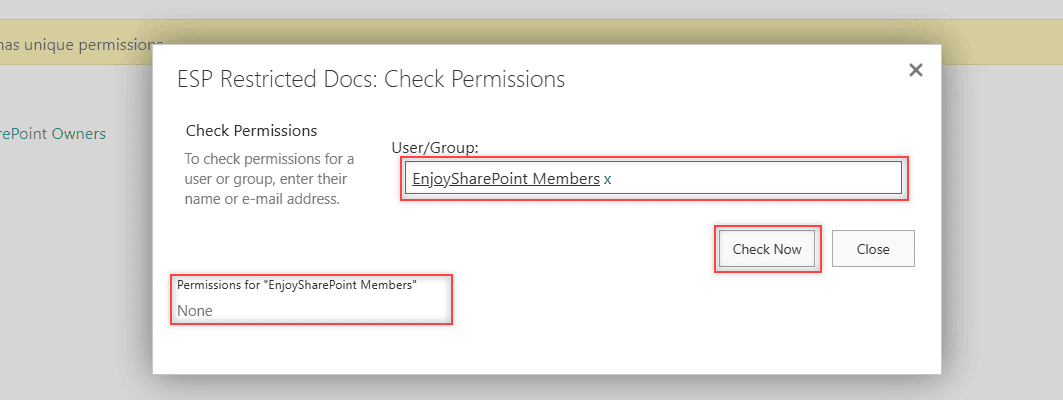
Then select Check Permissions in the ribbon, enter the user or group name and select Check Now. I ran it on ESP Restricted Docs for the members group:
How does this work?
It shows the permission level and whether it comes through a group. “None” means no access on that object. For lists, the same idea is covered in SharePoint list permissions and item-level access.
Method 4: Fix broken inheritance on the library, folder or file
Here’s the catch: a site member can still be denied on one library, folder or file. That happens when the object stops inheriting from the site. Item-level permissions on lists and libraries cause the same result.
On the locked object, open Manage access (or Library settings > Permissions for this document library) and add the person or group back. Here’s the PnP PowerShell I use for ESP Restricted Docs:
Connect-PnPOnline -Url "https://<tenant>.sharepoint.com/sites/EnjoySharePoint" -Interactive

# Give the Members group Read access to the restricted library again
Set-PnPListPermission -Identity "ESP Restricted Docs" -Group "EnjoySharePoint Members" -AddRole "Read"

# Or give one person Read access only
Set-PnPListPermission -Identity "ESP Restricted Docs" -User "alexw@<tenant>.onmicrosoft.com" -AddRole "Read"
To undo the special permissions completely, select Delete unique permissions so the library inherits from the site again.
Method 5: Look for drafts, check-out and approval
Some “missing” files aren’t about permissions. A file that’s checked out to someone else stays hidden from others until it’s checked in for the first time.
With content approval in a document library, readers may only see the last approved version. Check Library settings > Versioning settings for who can see draft items.
Method 6: Organization policy, guest and account errors
When the message starts with Due to organizational policies, your permissions aren’t the problem. An admin policy is blocking you:
| The message ends with | What it usually means |
|---|---|
| from this network location | A location-based access policy |
| from this untrusted device | An unmanaged device policy |
| you can’t access this resource | Information barriers |
Only your Microsoft 365 admin can change these. Guests who keep failing need the owner to remove them from the site and share the site with external users again. The same fix works when an account was deleted and recreated with the same email.
Which fix should you try first?
| Your situation | Try |
|---|---|
| Shared link says This link is not available to you | Method 1 |
| You see a Request access box | Method 2 |
| You’re the owner and one person can’t get in | Method 3, then Method 4 |
| The site opens but one file or library doesn’t | Method 4 or Method 5 |
| Message says Due to organizational policies | Method 6 (admin) |
Things to Keep in Mind
- Use groups: add people to the Members or Visitors group instead of sharing file by file.
- Sharing button grayed out: that’s a different issue; see sharing is limited on this item.
- Admins aren’t automatic owners: a SharePoint admin role doesn’t give access to every site’s content.
If you’re tidying up who can see what on your sites, these are worth a look next:
If the message says the user can’t be found rather than access denied, follow my fix for “User cannot be found in the directory”, which usually comes down to an old user entry on the site.
Frequently Asked Questions
Why do I get Access Denied in SharePoint when I’m a member of the site?
That library, folder or file probably has unique permissions without the members group. The owner can run Check Permissions and add you back.
Who approves SharePoint access requests?
The site owners by default, or the group owners on a group-connected site, unless a specific email is set under Change how members can share.
What does This link is not available to you mean?
The link was shared with a different account than the one you’re signed in with. Sign out and open it again with the invited email. Microsoft lists more causes in its Access Denied troubleshooting article.

I have worked with Microsoft technologies for more than 18 years, including SharePoint, Microsoft 365 and the Power Platform (Power Apps, Power Automate and Power BI), at companies like HP, TCS and KPIT. I started EnjoySharePoint in 2011 to share the solutions I build in real projects with readers in the United States, Canada, the United Kingdom, Australia, New Zealand and beyond. Microsoft has recognized this work with the Microsoft MVP award 13 times since 2014.