
Alex Wilber from our sales team stopped me in the hallway last week. He already had OneDrive on his laptop full of family photos, so he didn’t see why IT wanted him to save client proposals in “OneDrive for Business” instead.
It’s a fair question. Both use the same app and nearly the same website. But they belong to different owners and follow different rules, which matters a lot when someone leaves the company.
In this tutorial, I’ll compare onedrive vs onedrive for business side by side: who owns each one, storage, sharing, security and recovery, the features they share, and how to tell which one you’re signed in to.
Quick answer: OneDrive (personal, or “OneDrive for home”) is cloud storage tied to your own Microsoft account, like Outlook.com. OneDrive for Business, now called OneDrive for work or school, is storage your organization gives you with a Microsoft 365 work account. Your company owns, manages and secures it. Use the work one for work files and the personal one for personal files.
What is OneDrive for Business?
OneDrive for Business is the online storage space that comes with your Microsoft 365 work or school account. Microsoft renamed it to OneDrive for work or school, so you’ll see both names, and they mean the same thing.
On the web, it opens at My files, with Create or upload, Home, Shared, Favorites, Libraries and Recycle bin in the left pane.
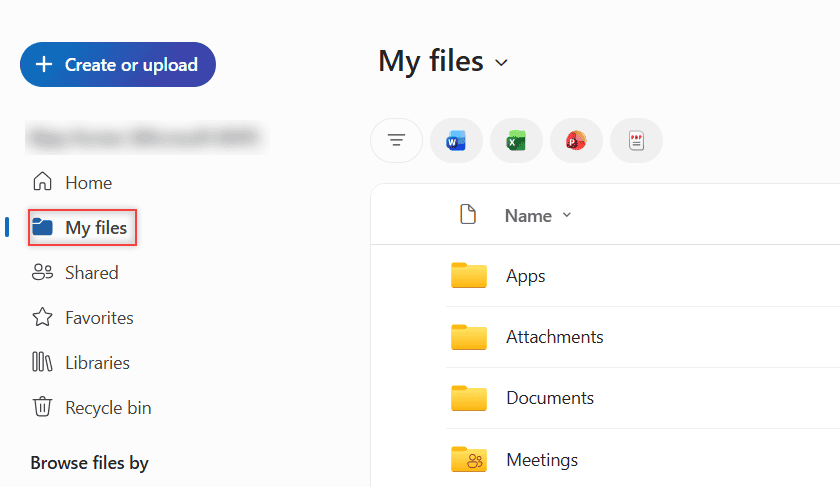
Under the hood, your work OneDrive is a private SharePoint site. When I read mine with PnP PowerShell, its template came back as SPSPERS#10, SharePoint’s personal site template, with files in a library called Documents.
That’s why it behaves like a SharePoint document library: version history, permissions and retention all work the same way. Everything in it is private until you share it, and your organization’s admins set the rules.
Personal OneDrive is a separate consumer service. You sign in with a Microsoft account you created yourself, such as an Outlook.com address, and nobody else controls it.
If you’re also weighing team sites, the difference between OneDrive and SharePoint covers where shared files belong.
OneDrive vs OneDrive for Business at a glance
Here’s the short version, based on what Microsoft documents today.
| OneDrive (personal) | OneDrive for Business (work or school) | |
|---|---|---|
| Sign-in | Personal Microsoft account (Outlook.com, Hotmail, Xbox) | Work or school account from your organization |
| Who owns it | You | Your organization |
| Storage | 5 GB free, 100 GB with Basic, 1 TB with Personal | 1 TB per user on most business plans, up to 5 TB on E3/E5, 2 GB on F3 |
| Built on | Consumer OneDrive service | A personal SharePoint site in your tenant |
| Recycle bin | 30 days | 93 days unless your admin changed it |
| Personal Vault | Yes | No |
| Sharing controls | Anyone links, specific people; expiration and passwords need a subscription | Org-only links, Block download, policies set by admins |
| Compliance | None for an employer | Retention, DLP, sensitivity labels, eDiscovery, audit logs |
| When you leave | Stays with you | Stays with the company |
Both use the same sync app and allow files up to 250 GB. I compare all three Microsoft storage places in OneDrive vs SharePoint vs Teams if you need the bigger picture.
Who owns the account and the files
This is the difference Alex hadn’t thought about. A personal OneDrive belongs to you. Your work OneDrive belongs to your employer, even though only you see it day to day.
Admins can set storage limits, block outside sharing, apply retention policies and search your files during a legal hold.
When someone leaves, the company keeps the data. A deleted user’s OneDrive is kept for 30 to 3,650 days, as an admin sets. Our tenant uses the 30-day default.
If an admin only removes the license, Microsoft’s timeline applies: the OneDrive turns read-only after 60 unlicensed days and is archived after 93. Since July 1, 2026, an unpaid unlicensed account also faces deletion after 365 cumulative days.
So before a license is removed, move files the team needs into SharePoint. A tool like the one in my Altaro Office 365 backup review adds another safety net.
How much storage does each one give you?
Personal OneDrive starts with 5 GB of free storage. Microsoft 365 Basic raises that to 100 GB, and Microsoft 365 Personal gives you 1 TB. Microsoft 365 Family gives 1 TB per person for up to six people on plans started before October 8, 2026.
New Family subscriptions from October 8, 2026, get 2 TB of shared storage instead.
OneDrive for Business starts at 1 TB per user on Business Basic, Standard and Premium. On Microsoft 365 E3 and E5, an admin can raise it to 5 TB. Frontline F3 users get just 2 GB.
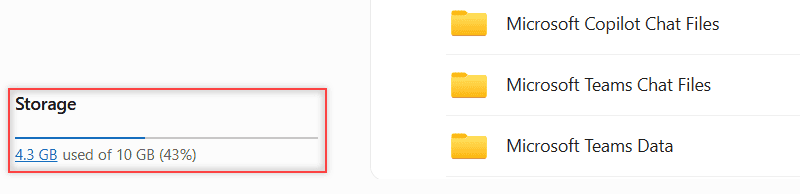
Here’s admin control in action. The Storage section at the bottom of my left pane says 4.3 GB used of 10 GB (43%), not 1 TB, because our admin set the tenant default to 10 GB.
You can check your own work OneDrive with this read-only PnP PowerShell script. Replace the URL with your OneDrive address.
# Reads your work OneDrive's site type, storage and versioning (read-only)
$oneDriveUrl = "https://<tenant>-my.sharepoint.com/personal/megan_<tenant>_onmicrosoft_com"
Connect-PnPOnline -Url $oneDriveUrl -ClientId "<your-app-id>" -Tenant "<tenant>.onmicrosoft.com" -Interactive

$web  = Get-PnPWeb -Includes WebTemplate, Configuration
$site = Get-PnPSite -Includes Usage
$docs = Get-PnPList -Identity "Documents" -Includes EnableVersioning, MajorVersionLimit

[pscustomobject]@{
    SiteTemplate   = "$($web.WebTemplate)#$($web.Configuration)"
    StorageUsedGB  = [math]::Round($site.Usage.Storage / 1GB, 2)
    StorageLimitGB = [math]::Round($site.Usage.Storage / $site.Usage.StoragePercentageUsed / 1GB, 2)
    Versioning     = $docs.EnableVersioning
    VersionLimit   = $docs.MajorVersionLimit
} | Format-List
This is what it returned for my account:
SiteTemplate   : SPSPERS#10
StorageUsedGB  : 4.35
StorageLimitGB : 10
Versioning     : True
VersionLimit   : 500
Two gotchas: StoragePercentageUsed is a fraction (0.435 means 43.5%), and PnP needs -Tenant for the -my address or the sign-in fails.
Admins change the default under Settings > OneDrive Storage limit in the SharePoint admin center, or with PowerShell. If you lower the limit below what someone already uses, their OneDrive turns read-only, much like the SharePoint storage quota exceeded error on a full site.
# SharePoint Online Management Shell, as a SharePoint Administrator. Value is in MB.
Connect-SPOService -Url "https://<tenant>-admin.sharepoint.com"
Set-SPOTenant -OneDriveStorageQuota 1048576    # 1 TB default for every user without a specific limit
Sharing and collaboration differences
Both versions let you share with a link and co-edit Office files. The difference is the control behind that link. In my work OneDrive, Share opens a dialog with File link settings and a Change button.
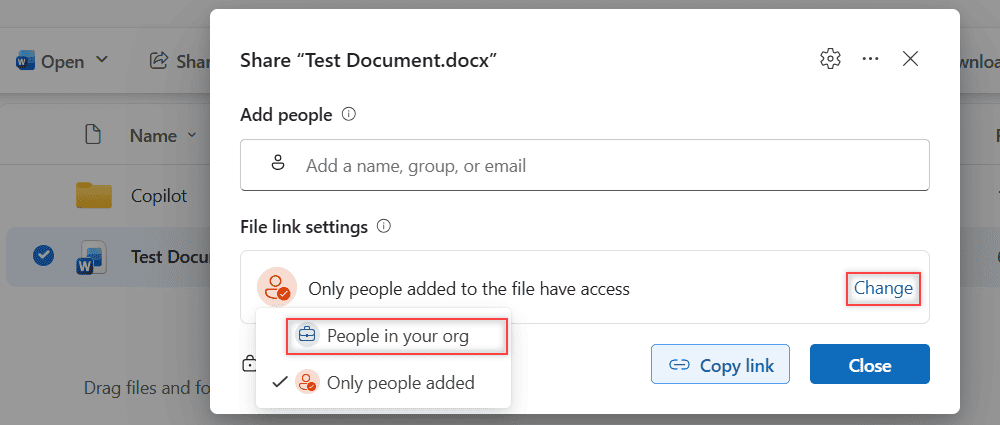
- Work or school: my tenant offers People in your org and Only people added. An Anyone option appears only if your admin allows it, and Microsoft documents Block download for view-only links in work accounts.
- Personal: you share with Anyone links or specific people. Link expiration dates and passwords are only available to Microsoft 365 subscribers.
- External people: in a work OneDrive, a guest gets a Microsoft Entra B2B guest account in your tenant, so admins can see and remove them later.
Our admin turned off Anyone links, which is why that option is missing above. People then often see the sharing is limited on this item message, which is a policy, not a bug.
Your work OneDrive is also where files you share in a Teams chat get stored. The same sharing rules apply to SharePoint sites, so here’s how to share a SharePoint site with external users when a whole team needs access.
Security, compliance and file recovery
Personal OneDrive has encryption, ransomware detection for subscribers and a Personal Vault, a folder that needs a second sign-in step and locks after 20 idle minutes on the web.
Without a Personal or Family subscription, the vault holds only three files. OneDrive for Business has no Personal Vault at all.
Work OneDrive adds retention policies, data loss prevention, audit logs, eDiscovery and labels. A sensitivity label on a document library can encrypt files and limit who opens them, wherever they travel.
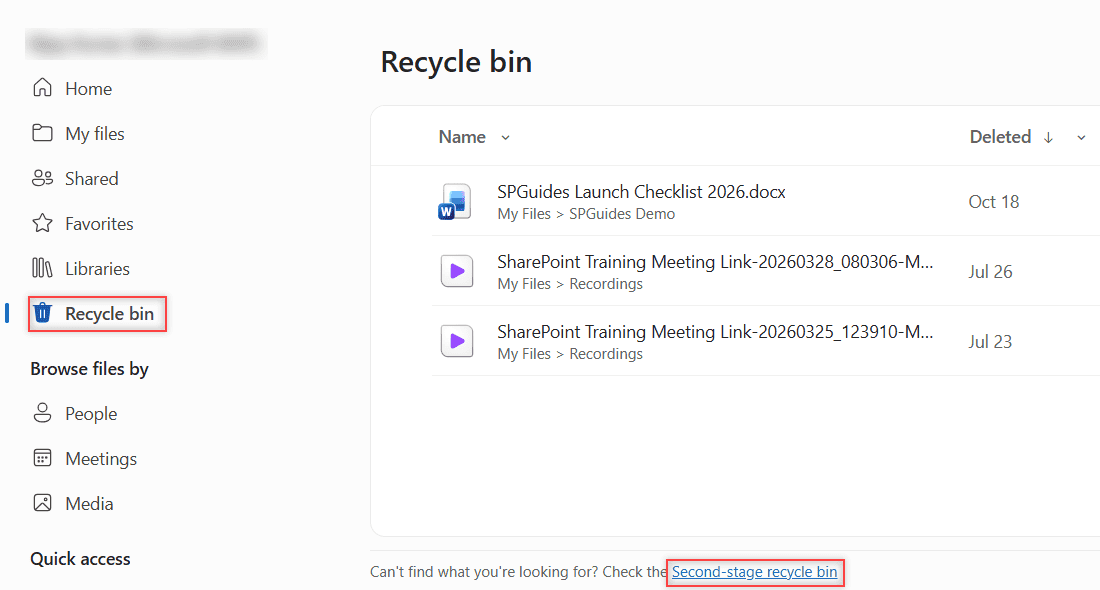
Recovery differs too. A personal account keeps deleted files in the recycle bin for 30 days. A work account keeps them for 93 days, unless your admin changed it, and the page links to a Second-stage recycle bin for files you emptied.
Microsoft 365 subscribers on either side can use Restore your OneDrive to roll everything back up to 30 days.
Version history works in both: right-click a file and select Version history. My work OneDrive keeps up to 500 versions per file, though an admin can turn versioning off. Need to stop edits for a while? You can lock a file in a SharePoint library the same way.
Features both versions share
A lot is identical, which is why people mix them up:
- The same apps on Windows, Mac, Android and iOS, including document scanning to PDF.
- Files On-Demand, which shows every file in File Explorer but downloads it only when you open it. Right-click a folder and select Free up space to make it online-only again.
- PC folder backup, which backs up your Desktop, Documents and Pictures folders to the cloud.
- Co-authoring in Word, Excel and PowerPoint, and offline access for files marked Always keep on this device.
- Limits: files up to 250 GB, up to 2,500 files copied at once on the website, and Microsoft recommends syncing no more than 300,000 items.
The work version adds shortcuts to SharePoint libraries, a Microsoft Teams Chat Files folder for files you share in chats, and Microsoft 365 Copilot when your company assigns a Copilot license. I explain shortcuts in SharePoint Sync vs Add shortcut to OneDrive.
Stale files after switching accounts? Here’s how to clear the SharePoint and OneDrive cache step by step.
Using personal and work OneDrive on the same PC
You don’t have to choose. Each device can have one OneDrive for home account and up to nine work or school accounts, each with its own folder and taskbar cloud icon.
A blue cloud is a work or school account, and a white cloud is personal. The work folder is named after your organization, like OneDrive – EnjoySharePoint.
To add the second account, select the cloud icon, then Settings > Account > Add an account, and sign in.
You can’t link a personal OneDrive to a work account. To move files across, sync both, then copy them between the two folders in File Explorer.
Moving work files to a team site instead? You can move files from OneDrive to SharePoint with Power Automate.
OneDrive for Business vs SharePoint
Since your work OneDrive is a SharePoint site, why both? Microsoft’s rule: OneDrive is for an individual’s work files, and SharePoint is for content that belongs to a team or the company.
The service description says departmental data, system backups and licenses for bots aren’t supported uses of OneDrive. A team site outlives any one employee.
My rule of thumb: drafts and personal notes go in OneDrive, and finished files the team relies on go in a library with the right unique permissions for a SharePoint library.
Automations like saving email attachments can target either one; see save email attachments to OneDrive for Business.
Which one should you use?
- Use personal OneDrive for family photos, tax papers and anything you want to keep after you change jobs.
- Use OneDrive for Business for every file you create for your job, even drafts. It’s backed by your company’s security, retention and support.
- Use SharePoint or Teams when a file belongs to a group or must outlive any one person.
- Never mix them. Work files in a personal OneDrive break company policy in most organizations, and IT can’t recover them for you.
Alex moved his client proposals into his work OneDrive that afternoon and kept his photos where they were.
Common errors and how to fix them
- Files saved to the wrong OneDrive. Check the cloud color and folder name, then move the files to the right folder in File Explorer.
- Your work OneDrive suddenly went read-only. Your license was removed, or you’re over a lowered storage limit. Ask your admin to check the license and quota.
- No Anyone option when you share. Your admin turned off anonymous links. Use People in your org, or ask IT about guest access.
If you’re setting up how your team stores and finds files, these are worth a look next:
Frequently Asked Questions
Is OneDrive for Business the same as OneDrive for work or school?
Yes. Microsoft renamed OneDrive for Business to OneDrive for work or school. It’s the storage that comes with a Microsoft 365 work or school account, and your organization manages it.
Can I use personal OneDrive and OneDrive for Business on the same computer?
Yes. The sync app supports one personal account and up to nine work or school accounts per device. Each gets its own folder and its own cloud icon, blue for work and white for personal.
How much storage does OneDrive for Business include?
Most business plans include 1 TB per user, and E3 or E5 can go up to 5 TB. F3 gets 2 GB, and your admin can set a lower default. Microsoft lists every plan in the OneDrive service description.
What happens to my work OneDrive when I leave the company?
Your organization keeps it. Admins keep a deleted user’s OneDrive for 30 to 3,650 days and can give a manager access. Copy anything personal out before your last day, never company files.
Can I move files from personal OneDrive to OneDrive for Business?
You can’t link the two accounts, but you can sync both and copy files between the folders in File Explorer. Check your company policy before moving personal files into a work account.

I have worked with Microsoft technologies for more than 18 years, including SharePoint, Microsoft 365 and the Power Platform (Power Apps, Power Automate and Power BI), at companies like HP, TCS and KPIT. I started EnjoySharePoint in 2011 to share the solutions I build in real projects with readers in the United States, Canada, the United Kingdom, Australia, New Zealand and beyond. Microsoft has recognized this work with the Microsoft MVP award 13 times since 2014.