
Adele Vance runs marketing out of our Chicago office, and she asked me a simple question last week. Her team used to open the old S: drive in File Explorer, and they wanted the new SharePoint library to show up the same way.
You can add a SharePoint library to File Explorer in about two minutes. The library then sits in the left pane next to Desktop and Documents, and your files open in the desktop apps like any local folder.
In this tutorial, I’ll show you how to add sharepoint to file explorer with the two methods Microsoft supports today, Add shortcut to OneDrive and Sync. Then we’ll pin the library to Quick access and look at View in File Explorer and mapped drives.
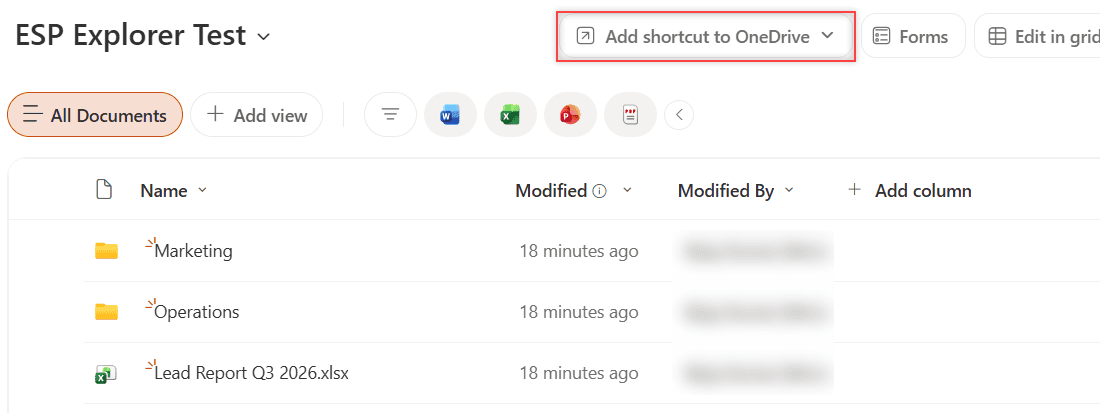
Here’s the library we’re connecting, ESP Explorer Test, with the button that does most of the work:
Before You Start
You need a Microsoft 365 work or school account and the OneDrive sync app, which comes with Windows 10, Windows 11 and Microsoft 365 Apps. You also need at least read access to the SharePoint document library you want to add.
Here’s how the four methods compare. We’ll build the first two:
| Method | Where it shows in File Explorer | Uses disk space? | Recommended? |
|---|---|---|---|
| Add shortcut to OneDrive | Inside your OneDrive – | Only for files you open or keep | Yes, Microsoft’s first choice |
| Sync | A separate folder named after your organization | Only for files you open or keep | Yes, for offline work on one PC |
| View in File Explorer | A temporary WebDAV window | No | No, hidden by default |
| Map a network drive | A drive letter such as Z: | No | No, legacy WebDAV |
For this demo I created a library called ESP Explorer Test on our EnjoySharePoint site, with two folders and five sample files. If you want to follow along in a test site, this PnP PowerShell creates the same layout:
Connect-PnPOnline -Url "https://<tenant>.sharepoint.com/sites/EnjoySharePoint" -ClientId "<your-app-id>" -Interactive
New-PnPList -Title "ESP Explorer Test" -Url "ESPExplorerTest" -Template DocumentLibrary
Add-PnPFolder -Name "Marketing" -Folder "ESPExplorerTest"
Add-PnPFolder -Name "Operations" -Folder "ESPExplorerTest"
Add-PnPFile -Path "C:\SPGuidesDemo\ExplorerTest\Fall Campaign Plan 2026.docx" -Folder "ESPExplorerTest/Marketing"| Item | Folder | Type |
|---|---|---|
| Lead Report Q3 2026.xlsx | (library root) | Excel workbook |
| Fall Campaign Plan 2026.docx | Marketing | Word document |
| Vendor Price List Q4 2026.csv | Marketing | CSV file |
| Denver Store Opening Checklist.txt | Operations | Text file |
| Team Meeting Notes 2026-11-02.txt | Operations | Text file |
Step 1: Check That the Library Allows Syncing
Both methods use the OneDrive sync app, so the library has to allow it. If the owner turned syncing off, the Sync button disappears and shortcuts won’t sync either.
- In the library, select Settings (the gear icon) > Library settings > More library settings.
- Select Advanced settings.
- In the Offline and sync section, confirm that Allow people to sync this document library to their computers with Microsoft OneDrive and access it offline? is set to Yes.
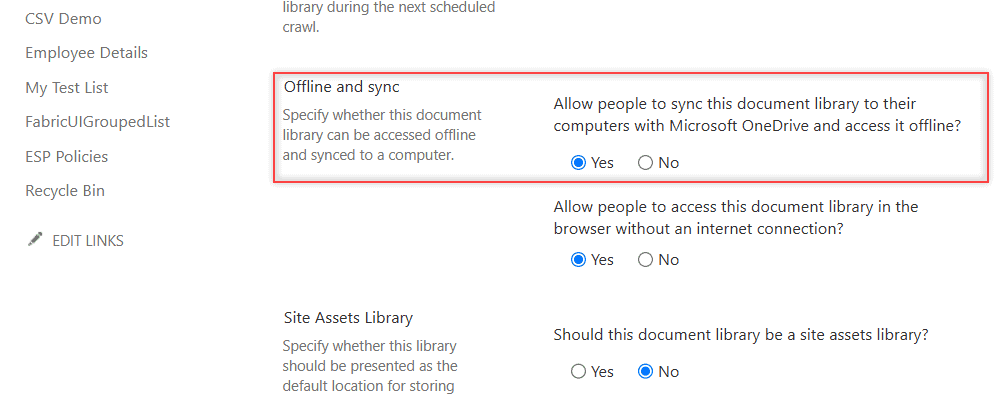
Site owners can also block syncing for the whole site under Site settings > Search and offline availability. I checked both values with PnP PowerShell:
$list = Get-PnPList -Identity "ESP Explorer Test" -Includes ExcludeFromOfflineClient
$web  = Get-PnPWeb -Includes ExcludeFromOfflineClient
"Library blocks sync: $($list.ExcludeFromOfflineClient)"
"Site blocks sync:    $($web.ExcludeFromOfflineClient)"
Library blocks sync: False
Site blocks sync: FalseCheckpoint: both values are False, so nothing blocks syncing. If you can’t open the library in the browser at all, fix the unique permissions on the SharePoint library first.
Step 2: Add a Shortcut to OneDrive
This is the method I recommend to most people. Microsoft calls it the most versatile option, because the shortcut follows you to every PC you sign in to, and it performs better than Sync.
- Open the library in your browser. To add only part of it, open the folder you want first.
- Select Add shortcut to OneDrive in the toolbar. On a narrow window, it’s under … (More).
- If you’re asked where to put it, choose My files.
OneDrive on the web now lists ESP Explorer Test under My files. On a Windows PC that’s signed in to the OneDrive app, it appears inside the OneDrive – <your organization> folder in File Explorer, marked with a small link icon.
On a Mac, the shortcut shows up in the OneDrive folder in Finder. It also appears in Teams and the OneDrive mobile app, which Sync can’t do.
- You can add folders and libraries, not single files.
- You can add up to 100 shortcuts from the same document library and 1,000 shortcuts in total.
- Shortcuts don’t use your own OneDrive storage. The files still count against the SharePoint site.
- Only people inside your organization can add shortcuts. Guests can’t.
Checkpoint: the library shows up under My files. I compare the two methods in more depth in SharePoint Sync vs Add shortcut to OneDrive.
Step 3: Or Sync the Library to One PC
Use Sync when someone needs the library offline on one specific computer, such as a shared front-desk PC.
- Open the library, or the folder inside it that you want.
- Select Sync. In my library it sits under the … (More) menu.
- If the browser asks to open Microsoft OneDrive, allow it.
- Sign in to OneDrive if it asks, and wait for the first sync to finish.
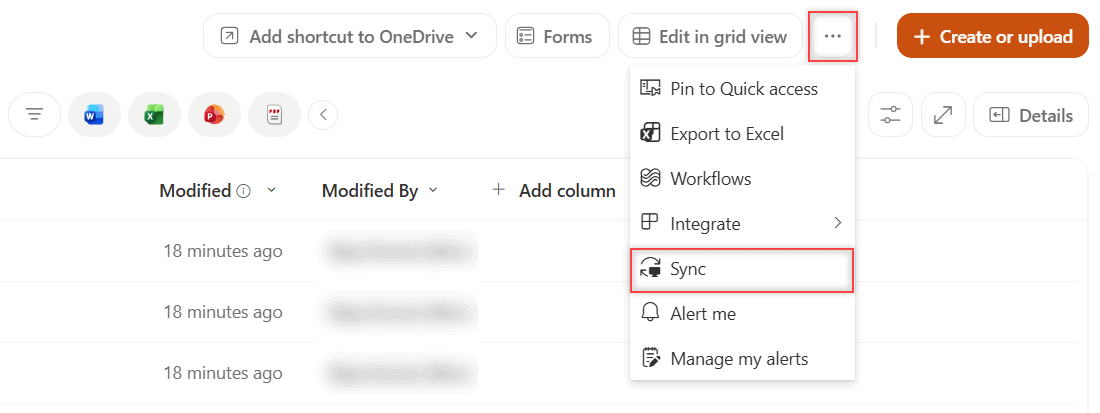
Synced libraries land in a folder named after your organization, under %userprofile%. It shows up in the left pane of File Explorer, and you can’t choose a different location for it.
You can sync a single folder too. Open the folder first, and Sync connects only that folder instead of the whole library.
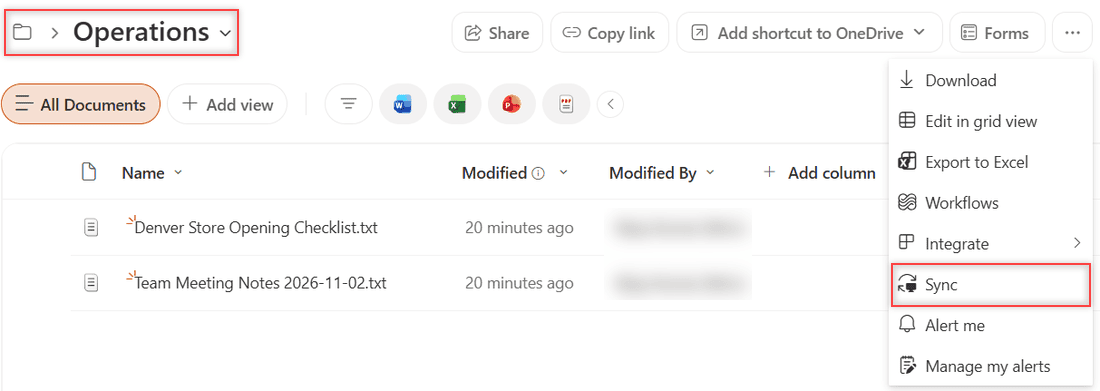
Files On-Demand keeps disk use low. Files show a cloud icon until you open them, and you can right-click any folder and select Always keep on this device or Free up space.
Pick one method per library. If you already added a shortcut and then select Sync, OneDrive says “Sorry, we can’t sync this folder.” The differences between OneDrive and SharePoint help you explain this to your team.
Checkpoint: the organization folder appears in File Explorer, and its files show a green check or a cloud icon.
Step 4: Pin the Library to Quick Access
Adele’s team wanted the library one click away, like their old drive letter. Pinning does that.
- In File Explorer, open the OneDrive or organization folder and find ESP Explorer Test.
- Right-click the folder and select Pin to Quick access.
This pin only changes your File Explorer. SharePoint has its own pin for the library home page, which I cover in pin to Quick access in a SharePoint library.
What About View in File Explorer or a Mapped Drive?
Older guides tell you to select View in File Explorer or map the library as a network drive. Both use WebDAV, an older web protocol for file access, and both depended on Internet Explorer 11, which Microsoft 365 stopped supporting in 2022.
In the modern library, View in File Explorer is hidden by default. When it’s turned on, it sits in the view menu on the right side of the toolbar. In our tenant, the menu shows only the normal view choices:
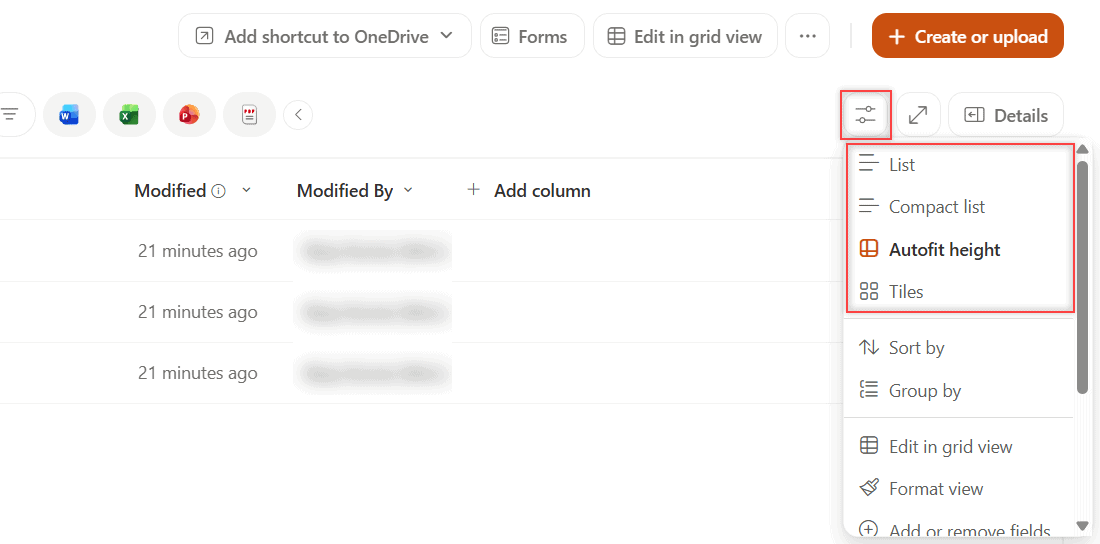
An admin can bring it back for Microsoft Edge 93 or later, but it takes two changes. The first is the Edge policy ConfigureViewInFileExplorer, which only applies to domain-joined or managed Windows PCs. This is Microsoft’s example value:
[{"cookies": ["rtFa", "FedAuth"], "domain": "sharepoint.com"}]The second is a tenant setting in the SharePoint Online Management Shell. It can take up to 15 minutes for the button to appear, and users must select Yes at the Stay signed in? prompt:
Connect-SPOService -Url "https://<tenant>-admin.sharepoint.com"
Set-SPOTenant -ViewInFileExplorerEnabled $True
With the tenant setting on but no Edge policy, the button opens a blank screen. A mapped drive has the same weakness, because it relies on browser sign-in cookies that expire. This is the path format people use:
\\<tenant>.sharepoint.com@SSL\DavWWWRoot\sites\EnjoySharePoint\ESPExplorerTestMy advice is to skip both. If the library feels slow afterward, try to clear the SharePoint cache before blaming the method.
Test the Setup
I run this quick test on every new laptop. It proves that changes flow both ways.
- In File Explorer, open Operations and double-click Team Meeting Notes 2026-11-02.txt. It should open, and its icon should change from a cloud to a green check.
- Add a line, save and close the file.
- Refresh the library in the browser. The Modified column should show your name and the current time.
- Create a folder in the browser, and confirm it appears in File Explorer a few seconds later.
If a file shows a lock icon, it’s read-only for you. That usually means someone has it checked out, so read how SharePoint check in and check out works.
Make It Production-Ready
- Tell people to use Add shortcut to OneDrive by default, and Sync only for shared or offline PCs.
- Keep big libraries under about 300,000 synced items in total. Past that, Microsoft says performance suffers.
- Don’t rename a synced folder on the PC. Renaming it breaks the sync relationship.
- Libraries that require check-out or column validation sync as read-only. Turn those settings off where people need to edit from File Explorer.
- Watch storage. Large synced libraries fill sites quickly, and the SharePoint quota exceeded error stops everyone’s saves.
Troubleshooting
- No Sync or Add shortcut button: widen the browser window or open the … menu. If Sync is still missing, the library or site blocks syncing (Step 1).
- “Which library do you want to sync?”: the site isn’t set up for the OneDrive sync app. Ask your IT team.
- Add shortcut is grayed out: you already added that folder, or you’re a guest user.
- View in File Explorer opens a blank page: the tenant setting is on, but the Edge policy isn’t applied to your PC.
To remove a shortcut later, right-click it in File Explorer and select OneDrive > Remove shortcut. Don’t delete the folder itself, because that deletes the files for everyone. If access errors appear instead, see the sharing is limited on this item error.
Where to Take It Next
Once your team works from File Explorer, add shortcuts inside a SharePoint document library so related folders from other sites are one click away. If partners need the same files, share the site with external users, but remember that guests can’t add shortcuts.
A few more posts that help you organize team files:
Mapped drives come up in almost every migration, so I wrote a separate guide on how to map SharePoint as a network drive, including why Microsoft recommends sync instead.
Frequently Asked Questions
How do I add a SharePoint library to File Explorer?
Open the library in your browser and select Add shortcut to OneDrive, or select Sync. The library then appears in File Explorer. Microsoft explains both options in View SharePoint files in File Explorer.
Should I use Sync or Add shortcut to OneDrive?
Use Add shortcut to OneDrive in most cases. It follows you to every device and performs better. Use Sync when you need the library offline on one specific computer.
Why don’t I see View in File Explorer in SharePoint?
It’s hidden by default in modern libraries. An admin has to enable the Edge ConfigureViewInFileExplorer policy and the ViewInFileExplorerEnabled tenant setting, and Microsoft no longer recommends it.
Does adding SharePoint to File Explorer use my disk space?
Only for files you open or mark Always keep on this device. Other files stay online-only with a cloud icon, and shortcuts don’t count against your OneDrive storage.
Can I map SharePoint as a network drive?
You can with a WebDAV path, but it’s a legacy method. The sign-in expires, it’s slow with large libraries and it doesn’t carry version history, so use a shortcut or Sync instead.

I have worked with Microsoft technologies for more than 18 years, including SharePoint, Microsoft 365 and the Power Platform (Power Apps, Power Automate and Power BI), at companies like HP, TCS and KPIT. I started EnjoySharePoint in 2011 to share the solutions I build in real projects with readers in the United States, Canada, the United Kingdom, Australia, New Zealand and beyond. Microsoft has recognized this work with the Microsoft MVP award 13 times since 2014.