
If you’ve ever needed to grab the most recent entry from a SharePoint list, pull the last item a user submitted, or show the bottom few records in a gallery, the Last function in Power Apps is exactly what you need.
In this tutorial, I’m going to walk you through everything: what the function does, how the syntax works, when to use it vs. LastN, real-world examples, delegation warnings you absolutely need to know, and a few clever use cases you might not have thought of. Let’s get into it.
What Is the Last Function in Power Apps?
The Last function returns the last record from a Power Apps table or data source. That’s it. Simple concept, but incredibly useful once you start applying it in real apps.
Think of it like going to the end of a queue and picking up whatever’s at the back. You don’t scroll through everything; you just go straight to the last item.
It works with:
- SharePoint lists
- Collections you’ve built in the app
- Excel tables connected as a data source
- Dataverse tables
- Any tabular data source in Power Apps
Syntax
Last( Table )
Table — Required. This is the table or data source you want to pull the last record from.
That’s the whole syntax. No extra parameters. The function returns a single record (not a table), which means you need to handle it a bit differently depending on what you’re doing with the result. I’ll cover that shortly.
LastN Function — When You Need More Than One
Alongside Last Power Apps gives you LastN, which lets you pull the last N records — not just one.
LastN( Table, NumberOfRecords )
- Table — Required. The table to pull from.
- NumberOfRecords — Optional. How many records do you want from the end? If you skip this, it returns just one record (same as
Last).
So if you want the last 5 entries from a list, you’d use LastN(YourList, 5) instead of Last(YourList).
Power Apps Last Function Examples
Let’s discuss 7 real-world use cases for the Power Apps Last() function.
Example 1: Get the Last Record from a SharePoint List
Let’s say you have a SharePoint list called LeaveRequests with columns like Employee Name, Leave Type, Start Date, and Status. You want to show the most recently added leave request on a label in your app.
Set the Text property of a Label control to:
Last(LeaveRequests).Title
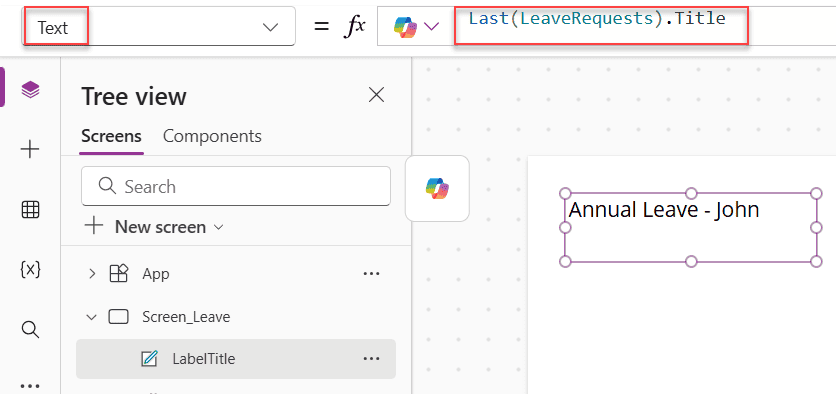
This grabs the last record in the list and pulls the Title column value from it. Replace Title with whatever column name you actually want to display — like 'Leave Type' or 'Employee Name'.
Want to show the last record’s start date?
Last(LeaveRequests).'Start Date'
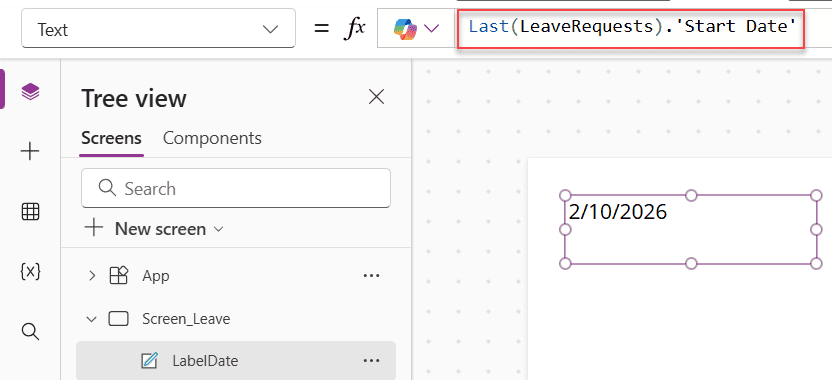
Simple as that.
Example 2: Display the Last Record in a Power Apps Gallery
To display the last record from the SharePoint list or a collection in the Power Apps gallery, follow the formula below.
Items = Last(LeaveRequests)
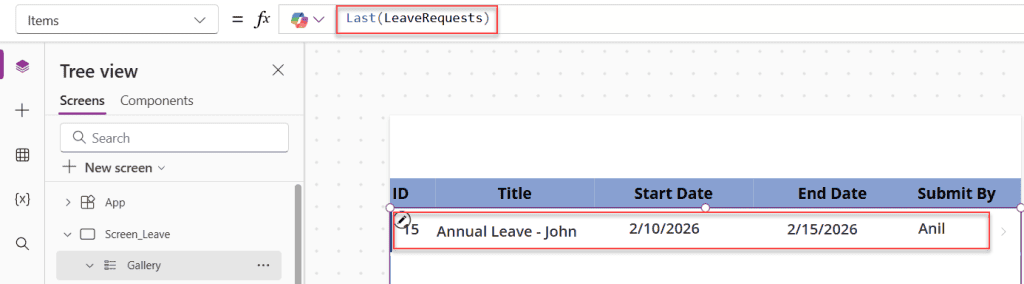
This retrieves the last record from the data source and displays it in the gallery, as shown in the above image.
Example 3: Show the Last 5 Records in a Power Apps Data Table
Say you have a Product Details SharePoint list and you want a data table control in your app to always show the last 5 entries — maybe the 5 most recently added products.
Set the Items property of the Data Table to:
LastN('Product Details', 5)
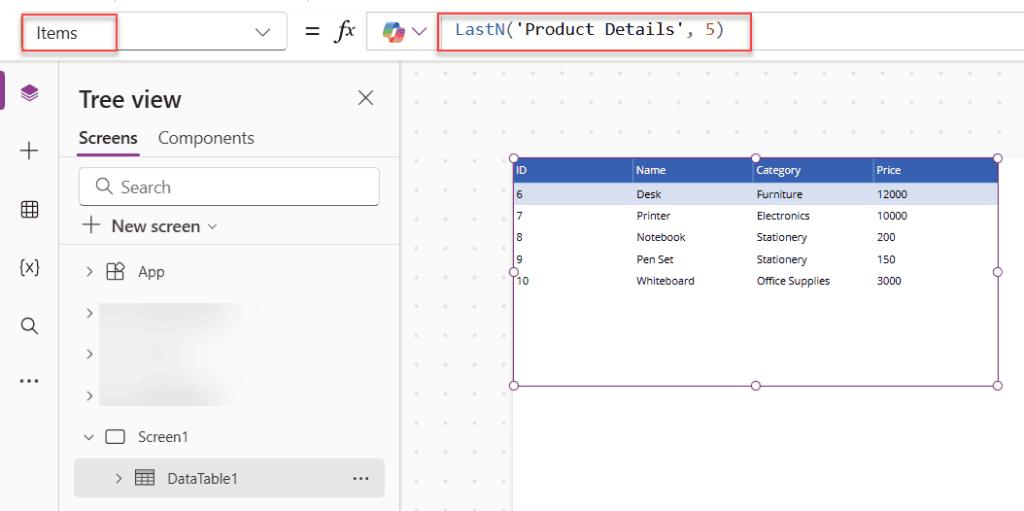
Done. The data table will pull the last 5 records from the list and display them. No filtering, no complex formulas needed.
Example 4: Get the Last Record from a Power Apps Collection
Collections are local, in-memory tables you build inside Power Apps. The Last The function works perfectly well with them, too.
Let’s say you’ve built a Power Apps Collection called colFormHistory that tracks every time a user fills out a form. To get the most recent entry:
Last(colFormHistory).SubmittedBy
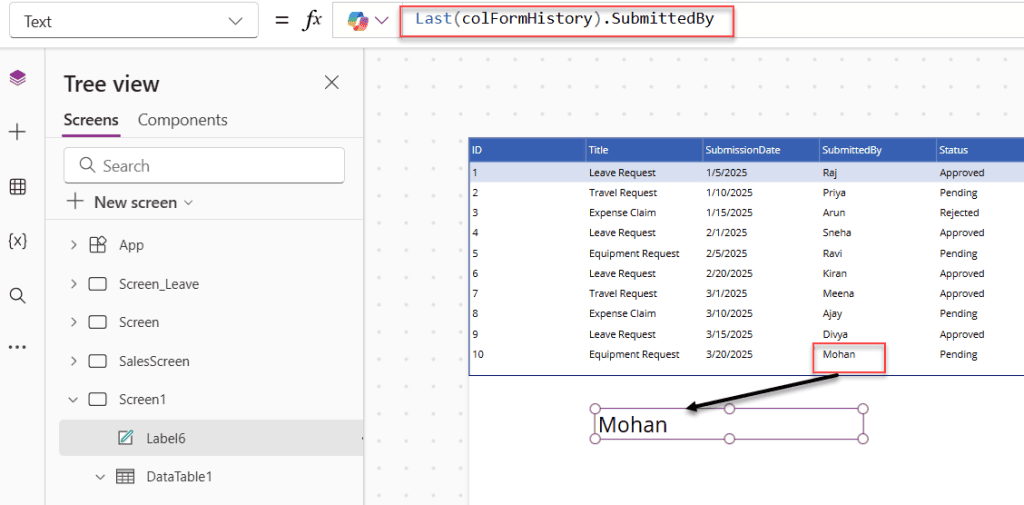
Or if you want to store that last record into a variable:
Set(varLastEntry, Last(colFormHistory))
Then you can reference individual fields from varLastEntry like:
varLastEntry.SubmittedBy
varLastEntry.SubmissionDate
This pattern is really useful when you want to pre-fill a form with data from the user’s last submission.
Example 5: Combine Last with Sort to Get the “True” Last Record
Here’s something important to understand: the Last function returns the last record based on the order in which records exist in the data source — not necessarily sorted by date or ID. SharePoint, for example, doesn’t always guarantee order unless you sort explicitly.
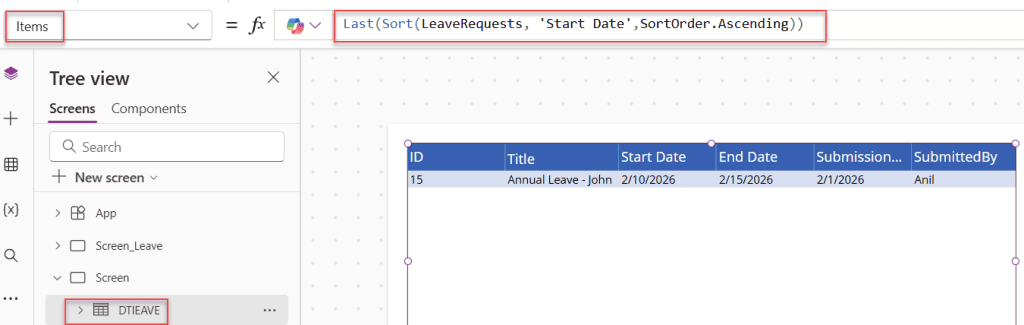
If you want the genuinely most recent record by date, combine Last with Sort:
Last(Sort(LeaveRequests, 'Start Date', Ascending))
This sorts the list by Start Date in ascending order, so the most recent date ends up at the bottom — and then Last picks it up.
Want the record with the highest ID (most recently created by ID)?
Last(Sort(LeaveRequests, ID, Ascending))
I use this pattern all the time in real projects. It guarantees you’re always getting the record you actually intend to get, not just whatever happens to be physically last in storage.
Example 6: Using Power Apps LastN as a “Skip” Workaround
Power Apps doesn’t have a built-in Skip function. But you can simulate it using LastN combined with CountRows.
Say you want to skip the first 6 records in a collection called colProducts and show everything after that:
LastN(colProducts, CountRows(colProducts) - 6)
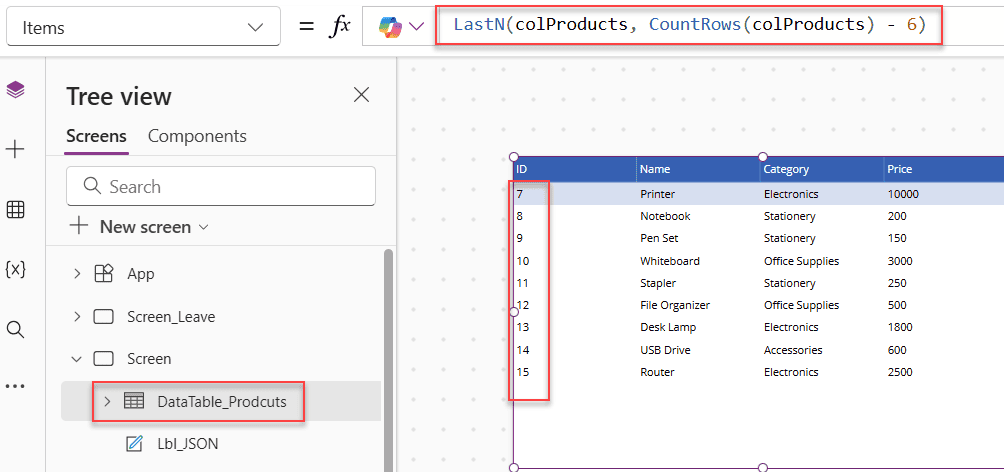
What this does: it counts the total number of rows, subtracts 6, and then returns that many rows from the end. So if you have 20 rows, it returns the last 14 — effectively skipping the first 6.
It’s a neat trick when you need pagination-style behavior in a canvas app without a proper skip mechanism.
Example 7: Using Last in a Power Apps Button’s OnSelect
Sometimes you want to capture the last record when a user taps a button — maybe to load it into a form for editing.
Set the OnSelect property of a button to:
Set(varCurrentRecord, Last(Sort('Project Tasks', ID, Ascending)));
Navigate(EditScreen)
Then, on EditScreen, your input fields can use varCurrentRecord as their default value:
Default = varCurrentRecord.TaskName
This is a clean way to automatically load the most recently created item into an edit form.
The Big Power Apps Delegation Warning You Can’t Ignore
This is the part most tutorials gloss over, but it’s critical.
The Last function is NOT delegable.
Here’s what that means in plain language: Power Apps has a delegation limit (by default, 500 records — you can raise it to 2,000). When you use functions that aren’t delegable, Power Apps only fetches the first chunk of records from your data source, and then applies the function on that local subset.
So if your SharePoint list has 5,000 rows and you use:
Last(Sort(LeaveRequests, ID, Ascending))
Power Apps won’t sort 5,000 records and pick the last one. It fetches the first 500 (or 2,000 if you’ve adjusted the setting) and then runs Last on those. The result might not be the true last record in the full list.
How to handle this:
- If your list is small (under 500 rows), you’re fine.
- If your list is large, consider using Filter first to narrow results down (Filter is delegable with SharePoint), then apply
Laston the filtered set. - Another approach: use a Lookup or query Dataverse with a server-side sort, which handles large datasets properly.
Power Apps will show you a yellow triangle warning in the formula bar when delegation becomes an issue. Don’t ignore it.
Power Apps Last vs. LastN — Quick Comparison
Here’s a side-by-side to help you pick the right one:
| Controls | Last | LastN |
|---|---|---|
| Returns | Single record | Table of records |
| Use in Gallery | Wrap in Table() | Use directly |
| Use in Label | Last(Table).ColumnName | Not ideal for labels |
| Parameters | 1 (Table only) | 2 (Table + count) |
| Best for | Getting the most recent entry | Showing a “last N” list |
Common Mistakes to Avoid
- Using
Lastdirectly in a Gallery’s Items property without wrapping inTable()— this will either error out or show nothing. - Assuming
Lastgives you the record with the highest date — it doesn’t unless you sort first. - Ignoring delegation warnings on large lists — you could end up showing stale or incomplete data.
- Confusing
Last(single record) withLastN(table) — they behave differently in controls. - Not specifying a sort when order matters to your use case — always be explicit.
Wrapping Up
The Last and LastN functions are genuinely useful — and once you pair them with Sort, they become really powerful. The key things to keep in mind: Last returns a single record (not a table), delegation limits apply on large data sources, and always sort explicitly when the order of records actually matters to your result.
Once you get comfortable with these, you’ll find yourself reaching for them constantly — especially when building apps that need to surface recent data fast.
Also, you may like:
- Send Table Reports From Power Apps to Email Using Power Automate
- Power Apps IsBlank
- Concurrent Function in Power Apps – Load Data Faster with Parallel Execution
- Power Apps Display Mode: A Complete Guide
- Auto Format Phone Number in Power Apps Form [###-###-####]
- Patch a Collection in Power Apps

I have worked with Microsoft technologies for more than 18 years, including SharePoint, Microsoft 365 and the Power Platform (Power Apps, Power Automate and Power BI), at companies like HP, TCS and KPIT. I started EnjoySharePoint in 2011 to share the solutions I build in real projects with readers in the United States, Canada, the United Kingdom, Australia, New Zealand and beyond. Microsoft has recognized this work with the Microsoft MVP award 13 times since 2014.