
If you’ve spent any time building apps in Power Apps, you’ve almost certainly run into this situation: a user submits a form without filling in a required field, and your app breaks or saves garbage data. That’s exactly the problem IsBlank is designed to solve.
In this tutorial, I’ll walk you through everything you need to know about the IsBlank function in Power Apps — what it does, how to use it, where it gets tricky, and how to combine it with other functions to build apps that actually behave the way you want.
Let’s get into it.
What Is IsBlank in Power Apps?
Quick answer: IsBlank(value) returns true when a value is blank or an empty string (""), and false when it has content. Blank() creates a blank value. Use IsBlank for single values such as text inputs, variables and fields, and IsEmpty to check whether a table or collection has no records.
Here’s the basic syntax:
IsBlank(Value)
That’s it. One argument. You pass in a value — a text input, a variable, a field from a SharePoint list, whatever — and the function tells you whether it’s empty or not.
What makes IsBlank a bit unique is that it treats two things as “blank”:
- An actual blank value (like
Blank(), which is Power Apps’ version of null) - An empty string (
"") — a string with zero characters
This is intentional, and it makes IsBlank more useful for form validation than a simple = "" comparison. I’ll show you why in a moment.
Power Apps IsBlank: A Simple Example First
Before we go deeper, let me show you the most basic use case. Say you have a text input control called TextInput1 and you want to display a message if the user leaves it empty.
Add a Label to your screen and set its Text property to:
If(IsBlank(TextInput1.Text), "Please enter a value", "You entered: " & TextInput1.Text)
Run the app. Leave the input empty — you see “Please enter a value.” Type something — it shows what you typed.
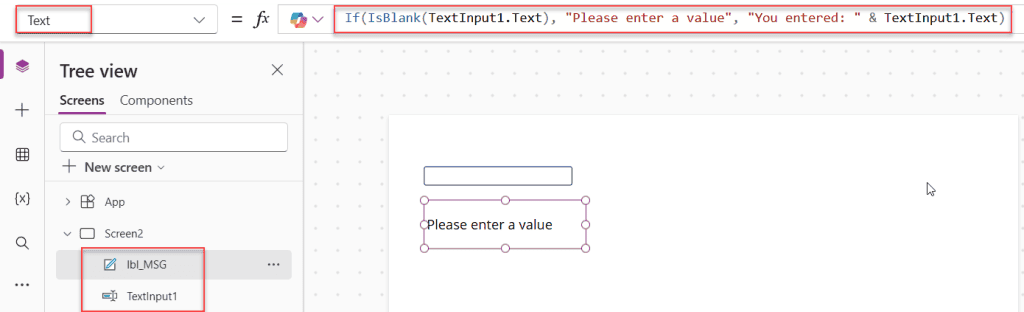
That’s IsBlank in its simplest form. Let’s now look at all the different ways you’ll actually use it.
Method 1: Validating Power Apps Form Fields Before Submission
This is probably the most common use case I come across. You have a form, and you don’t want the user to hit Submit unless they’ve filled in the required fields.
Let’s say you have two text inputs — NameInput and EmailInput — and a Submit button.
Set the DisplayMode Property of the Submit button to:
If(IsBlank(NameInput.Text) || IsBlank(EmailInput.Text), DisplayMode.Disabled, DisplayMode.Edit)
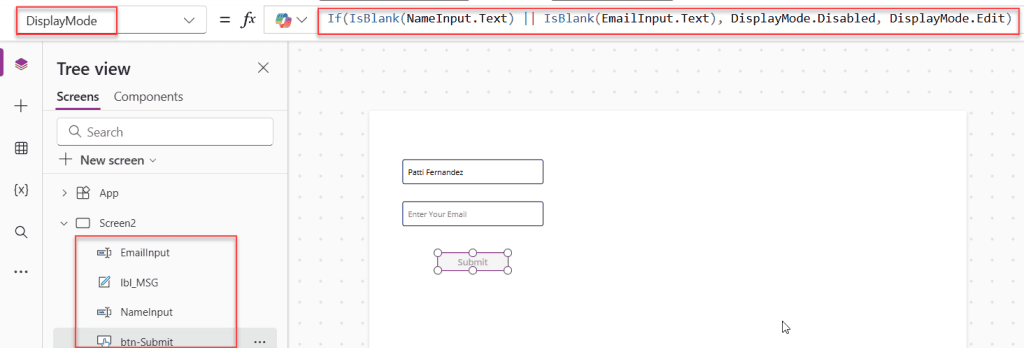
Now the button stays greyed out until both fields have content. Clean, simple, no extra variables needed.
You can also show a warning label below the field. Set the Visible property of an error label to:
IsBlank(NameInput.Text)
When the field is empty, the label shows. When the user types something, it disappears automatically.
Method 2: Checking Variables in Power Apps
Sometimes you set a variable in your app, and later you need to check whether it actually has a value.
Say you have a variable called SelectedEmployee. You might set it when a user clicks on a record in a Power Apps gallery. But what if no record has been clicked yet?
Check it like this:
If(IsBlank(SelectedEmployee), "No employee selected", SelectedEmployee.Name)
Or, to control whether a detail panel is visible:
Visible = !IsBlank(SelectedEmployee)
The ! is the “not” operator, so this reads as: show this panel only if SelectedEmployee is NOT blank.
Method 3: Working with SharePoint and Dataverse Fields
Here’s where things get a bit more interesting. When you pull data from SharePoint or Dataverse, some fields may come back as blank — especially optional fields that no one filled in.
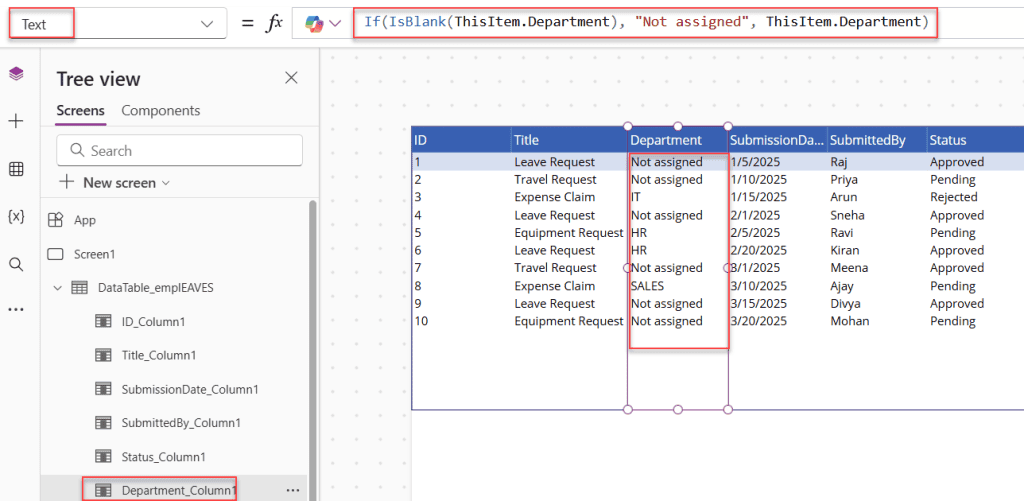
Say you’re pulling employee records from a SharePoint list, and the Department column is optional. You want to display something useful even when it’s empty.
If(IsBlank(ThisItem.Department), "Not assigned", ThisItem.Department)
This shows “Not assigned” instead of a blank label, which looks much more professional in your app.
Another real-world example: validating before a Patch call to SharePoint. Before you write data back, make sure the critical fields are filled:
If(
  IsBlank(TitleInput.Text) || IsBlank(EmailInput.Text),
  Notify("Please fill in all required fields", NotificationType.Error),
  Patch(
    EmployeeList,
    Defaults(EmployeeList),
    {Title: TitleInput.Text, Email: EmailInput.Text}
  )
)
This pattern — IsBlank check → Notify error → Patch on success — is one I use constantly in production apps. It keeps bad data out of your lists.
Method 4: Using IsBlank with Power Apps Dropdowns and Combo Boxes
Power Apps Dropdowns and combo boxes can be tricky. The selected value isn’t just a string — it’s an object. So you need to check the right property.
For a standard Dropdown control called Dropdown1:
IsBlank(Dropdown1.Selected.Value)
For a Combo Box (which allows multi-select), the selected items come back as a table. You’d use IsEmpty instead (more on that below), but you can also check:
IsBlank(ComboBox1.Selected.Value)
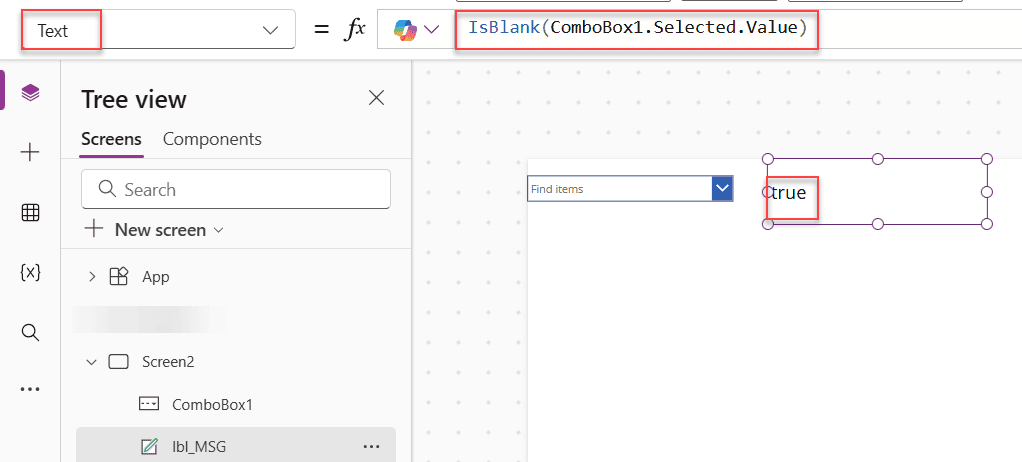
This works when the combo box is in single-select mode. Just make sure you’re referencing .Value or whatever the display field is in your data source.
Method 5: IsBlank with Date Pickers in Power Apps
Power Apps Date pickers are another common spot where you need blank checks. If a user hasn’t picked a date yet, DatePicker1.SelectedDate is blank.
If(IsBlank(DatePicker1.SelectedDate), "No date selected", Text(DatePicker1.SelectedDate, "dd/mm/yyyy"))
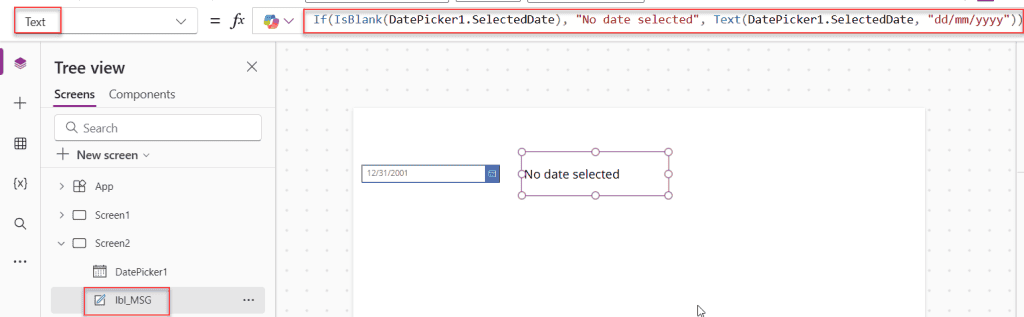
Or to prevent form submission without a date:
If(IsBlank(DatePicker1.SelectedDate), DisplayMode.Disabled, DisplayMode.Edit)
Power Apps IsBlank vs. IsEmpty — What’s the Difference?
This is one of the most common questions people ask, so let me clear it up once and for all.
| Function | What it checks | Returns true when |
|---|---|---|
IsBlank | A single value, field, or string | Value is blank or empty string "" |
IsEmpty | A table or collection | The table has zero records |
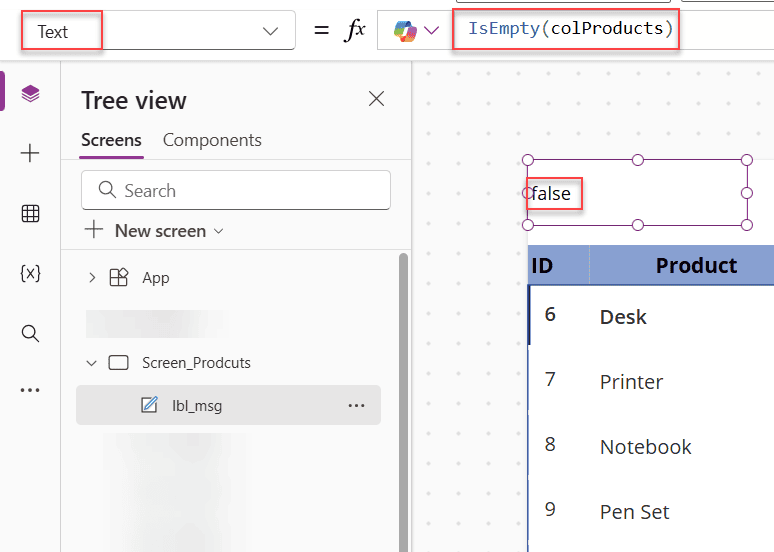
Here’s the key thing: IsBlank does NOT work correctly on collections. Try this:
IsBlank(MyCollection)
Even if MyCollection has zero records, IsBlank returns false — because the Powe Apps Collection exists, it’s just empty. You need IsEmpty this.
IsEmpty(MyCollection) // correct way to check an empty collection
Conversely, IsEmpty("") returns false — because IsEmpty doesn’t understand strings. That’s IsBlank‘s job.
Rule of thumb:
- Use
IsBlankfor text inputs, variables, fields, and single values - Use
IsEmptyfor collections, tables, and gallery data sources
Power Apps Coalesce Function — IsBlank’s Helpful Partner
Once you understand IsBlank, You’ll quickly want to learn Coalesce. It’s like a shortcut for “give me the first non-blank value from this list.”
Say you have a field that might be blank, and you want to fall back to a default:
// Instead of this:
If(IsBlank(ThisItem.Notes), "No notes available", ThisItem.Notes)

// You can write this:
Coalesce(ThisItem.Notes, "No notes available")
Coalesce evaluates each argument in order and returns the first one that isn’t blank. It skips both Blank() values and empty strings — just like IsBlank it does.
This is especially useful when you have multiple fallback values:
Coalesce(ThisItem.PreferredName, ThisItem.FirstName, "Unknown")
This tries PreferredName first, falls back to FirstName, and if both are blank, shows “Unknown.”
Common Mistakes to Avoid
Here are a few things that catch people out when working with IsBlank:
- Using
= ""instead ofIsBlank— The= ""comparison only catches empty strings, notBlank()values.IsBlankcatches both, so it’s more reliable, especially with connected data sources like SharePoint or Dataverse. - Checking a collection with
IsBlank— As I mentioned above, useIsEmptyfor collections.IsBlankalways returnsfalsefor collections, even empty ones. - Forgetting the
.Textproperty on text inputs —IsBlank(TextInput1)checks the control itself, not its value. Always writeIsBlank(TextInput1.Text). - Zero is not blank — A numeric field with the value
0is NOT considered blank byIsBlank. This surprises a lot of people. If you need to catch zeros too, you’d need something likeIsBlank(NumInput.Text) || Value(NumInput.Text) = 0.
A Practical Real-World Example
Let me pull everything together with a scenario you might actually build.
You’re making a simple employee onboarding form in Power Apps, connected to a SharePoint list. The form has:
- A text input for employee name (
NameInput) - A text input for email (
EmailInput) - A date picker for start date (
StartDatePicker) - A dropdown for department (
DeptDropdown) - A Submit button
Here’s what the Submit button’s OnSelect might look like:
If(
  IsBlank(NameInput.Text) || IsBlank(EmailInput.Text) || IsBlank(StartDatePicker.SelectedDate) || IsBlank(DeptDropdown.Selected.Value),
  Notify("Please complete all required fields before submitting.", NotificationType.Warning),
  Patch(
    EmployeeOnboarding,
    Defaults(EmployeeOnboarding),
    {
      Title: NameInput.Text,
      Email: EmailInput.Text,
      StartDate: StartDatePicker.SelectedDate,
      Department: DeptDropdown.Selected.Value
    }
  );
  Notify("Employee record saved successfully!", NotificationType.Success);
  ResetForm(Form1)
)
This one block of code:
- Checks all required fields with
IsBlank - Shows a warning if anything is missing
- Writes the data to SharePoint if everything is filled in
- Confirms success and resets the form
That’s a complete, production-ready pattern — and IsBlank is doing the heavy lifting on validation.
Quick Reference: Power Apps IsBlank Return Values
Here’s a cheat sheet of what Power Apps IsBlank returns for different inputs:
IsBlank("")→true(empty string)IsBlank(Blank())→true(explicit blank)IsBlank("Hello")→falseIsBlank(0)→false(zero is not blank)IsBlank(TextInput1.Text)→trueif the input is emptyIsBlank(MyCollection)→false(always — useIsEmptyinstead)IsBlank(If(false, false))→true(If with no ElseResult returns blank)
Conclusion
IsBlank is one of those functions that looks simple on the surface but does a lot of quiet, important work in your apps. Once you start using it properly for form validation, variable checks, and SharePoint field handling, your apps become much more robust and user-friendly.
The big things to remember:
IsBlankcatches bothBlank()(null) and empty strings""- Use
IsEmptyfor collections and tables, notIsBlank - Always reference
.Text,.Selected.Value, or the right property of your control - Pair it with
Coalescewhen you need fallback values
Start with the basic form validation pattern, and you’ll quickly find yourself reaching for IsBlank all the time. It’s genuinely one of the most useful functions in the Power Fx toolkit.
Also, you may like:
- Last Function in Power Apps
- Power Apps Hover Popup
- Remove Last, LastN, First, and FirstN Characters From a String in Power Apps
- Concurrent Function in Power Apps – Load Data Faster with Parallel Execution
- Populate Distinct Values in Power Apps Combo Box
- Auto Format Phone Number in Power Apps Form [###-###-####]

Preeti Sahu is a Microsoft MVP for Power Apps with over six years of experience working with SharePoint Online and the Power Platform. She is the co-author of the book Microsoft Power Platform: A Deep Dive. As a Power Platform developer, she has built various tools with Power Apps and Power Automate, and she makes Microsoft 365 videos for YouTube.