
If you’re choosing between a new SharePoint site and a new page for your team’s content, the words alone don’t help much. Both have a URL, and both can look like a little website.
Here’s my rule: use a site when a group needs its own workspace with its own files, members and permissions, and use a page when you just need to show information inside a site that already exists. Every page lands in that site’s Site Pages library.
In this tutorial, I’ll compare sharepoint site vs page on my own team site. I’ll show what each one holds, how the Site Pages library ties them together, how news posts fit in, and how permissions and limits differ.
SharePoint Site vs Page vs Site Pages Library at a Glance
Think of a site as the building, the Site Pages library as the filing cabinet in it, and a page as one poster on the wall. Here’s how the three compare, based on my tenant and Microsoft’s documentation:
| Feature | Site | Page | Site Pages library |
|---|---|---|---|
| What it is | A workspace (container) | One .aspx file with web parts | The library that stores a site’s pages |
| Holds | Lists, libraries, pages, apps | Text, images, web parts | Pages, news posts, page templates |
| Created from | Build > Site on the SharePoint start page | + New > Page on a site | Built in on every modern site |
| Permissions | Its own owners, members, visitors | Inherits the site’s by default | Inherits the site’s by default |
| Microsoft 365 group | Team sites get one | No | No |
| Versions | No (its content does) | Yes, drafts and published versions | Versioning settings for all pages |
| Who creates it | Users or admins, if the tenant allows it | Site members with edit permission | Nobody, it already exists |
| Limit | 2 million per organization | No set page limit, 30 million items per library | One per site |
The site type matters too. A team site is built for collaboration, and a communication site is built for broadcasting, which I compare in SharePoint team site vs communication site.
The Sample Site and Pages I’ll Use
Everything below runs on one site: EnjoySharePoint, a team site connected to a Microsoft 365 group. Its home page is Home.aspx in the Site Pages library.
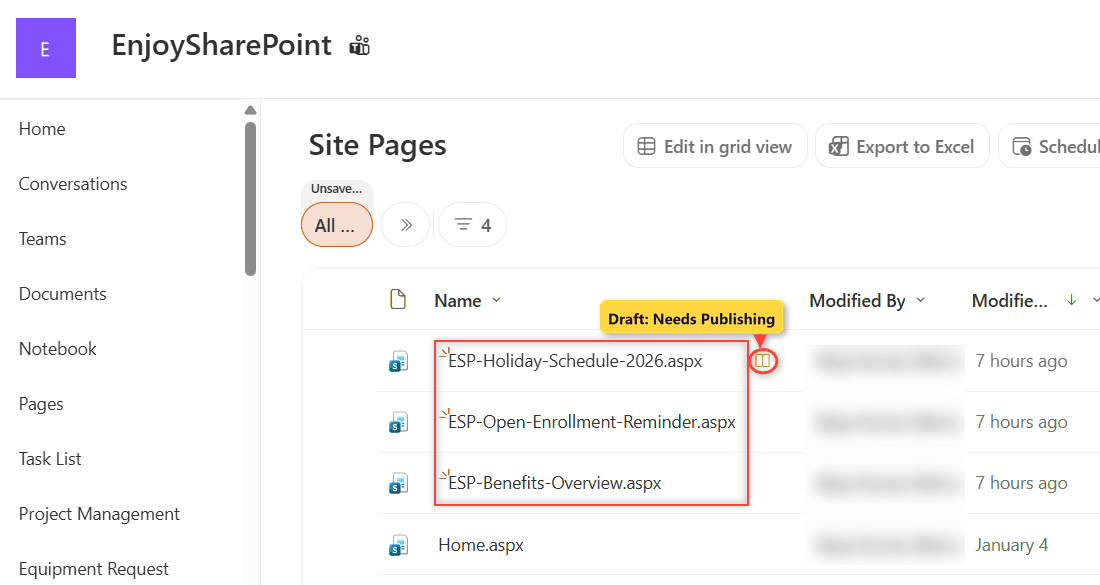
I added three pages to that site so each comparison has something real to point at:
- ESP Benefits Overview – a normal site page, published as version 1.0. It says open enrollment runs from November 16 to December 4, 2026, and the 401(k) match is 4%.
- ESP Open Enrollment Reminder – a news post with a Teams Q&A on November 18 at 1 PM ET.
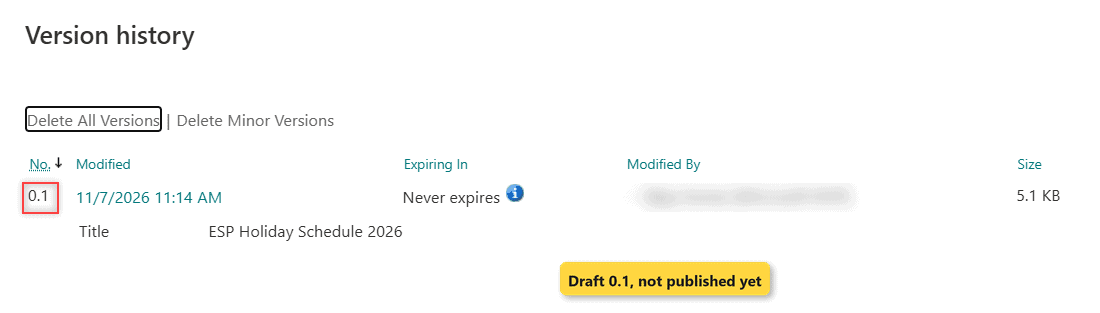
- ESP Holiday Schedule 2026 – a draft at version 0.1 that I never published.
The Site Pages library got three new files, and the site itself didn’t change at all.
What a SharePoint Site Holds
A site is a container. Same EnjoySharePoint site: open Settings (gear) > Site contents, and you see everything it owns: document libraries, lists, the Site Pages library and Site Assets, each with its item count.
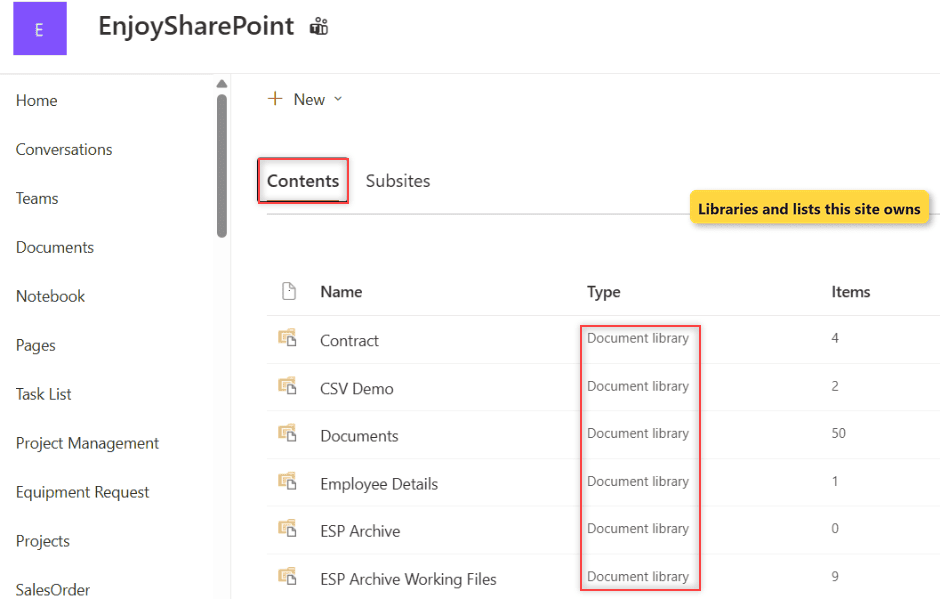
Files belong in a document library in SharePoint, and rows of data belong in lists. If you’re unsure which one to use, my SharePoint list vs library comparison covers it.
A site also carries its own security. EnjoySharePoint has three groups: Owners, Members and Visitors. Because it’s a team site, membership comes from its Microsoft 365 group.
What a SharePoint Page Is
A page is a single file. Same site, but now open ESP Benefits Overview: it’s one .aspx file made of sections and web parts, like the Text web part that holds the open enrollment dates.
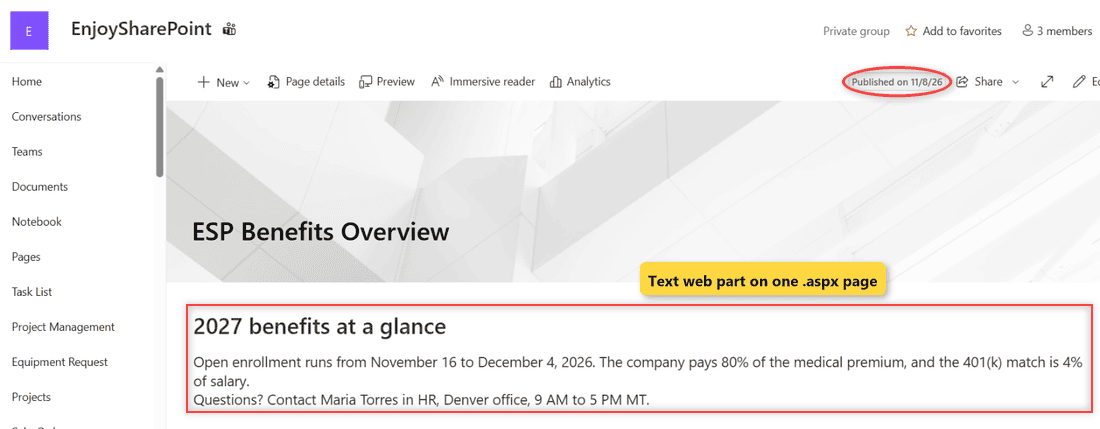
Pages don’t store files or data. They show content that lives elsewhere, such as a Document Library web part that displays a library, or the SharePoint Text web part for plain formatted text.
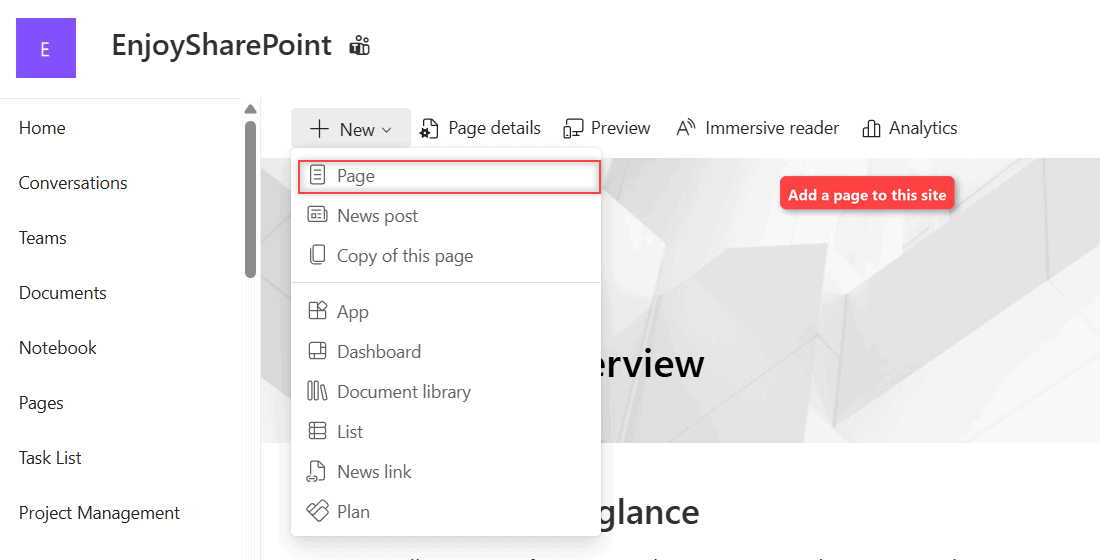
To add a page, open the site and select + New > Page, pick a template, add a title and select Publish. Microsoft caps the title at 255 characters, and a page can’t be saved without one.
The site’s home page is just a page too. I show how to dress one up in customize a SharePoint site home page.
Where Pages Live: the Site Pages Library
Here’s the part most guides skip. Every modern page on a site is stored in one place, the Site Pages library (shown as Pages in some menus), and Microsoft says modern pages can only be created there.
Same three ESP pages: the library shows them side by side with their version numbers. ESP Holiday Schedule 2026 shows a small Needs Publishing icon, and its version history lists only 0.1 because it’s still a draft. ESP Benefits Overview is at 1.0.
On my site, the library has versioning and minor (draft) versions turned on. So every save makes a 0.x draft that readers can’t see, and Publish turns it into the next whole number.
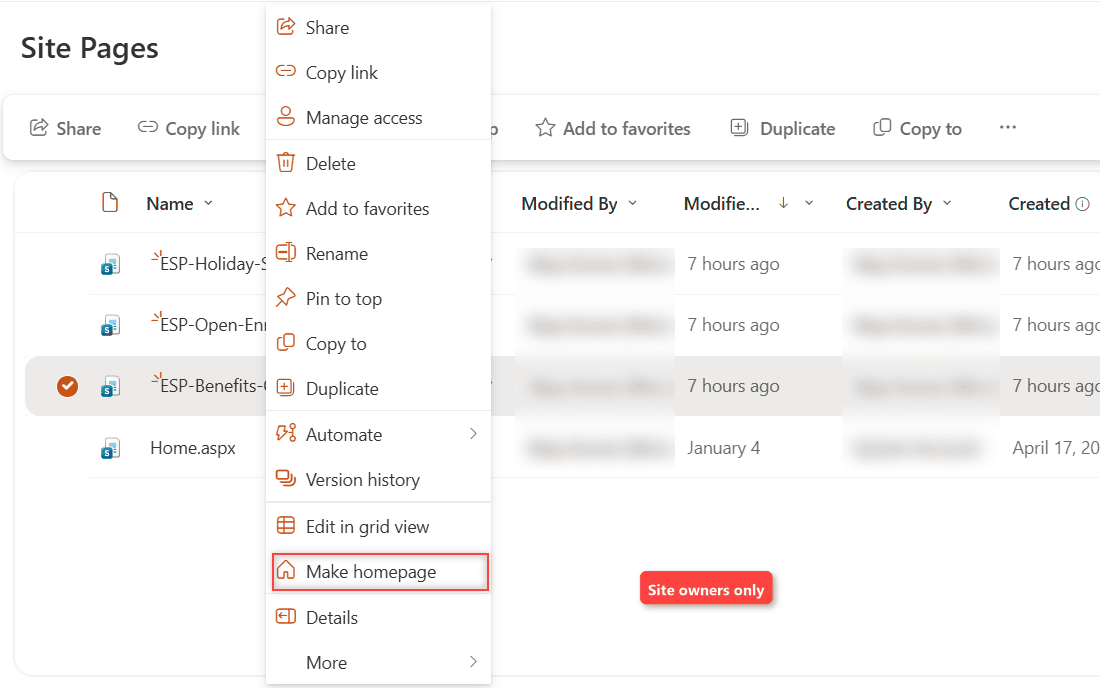
Because it’s a library, you get library features: views, columns, folders and page templates in SharePoint. You can also make any page in it the home page with the … menu > Make homepage, but only site owners can use it. The same menu has Copy to and Duplicate, but no Move to.
Important: A page’s URL can’t be changed after you create it. Renaming the title doesn’t rename the .aspx file, so pick a good name the first time.
Page vs News Post: Same Library, Different Job
A news post is a page with one flag set. Same Site Pages library: ESP Open Enrollment Reminder and ESP Benefits Overview are both .aspx files, but only the reminder shows up in the SharePoint News web part.
Under the hood, SharePoint marks news posts with a promoted state of 2, while normal pages stay at 0. That flag puts it in news web parts.
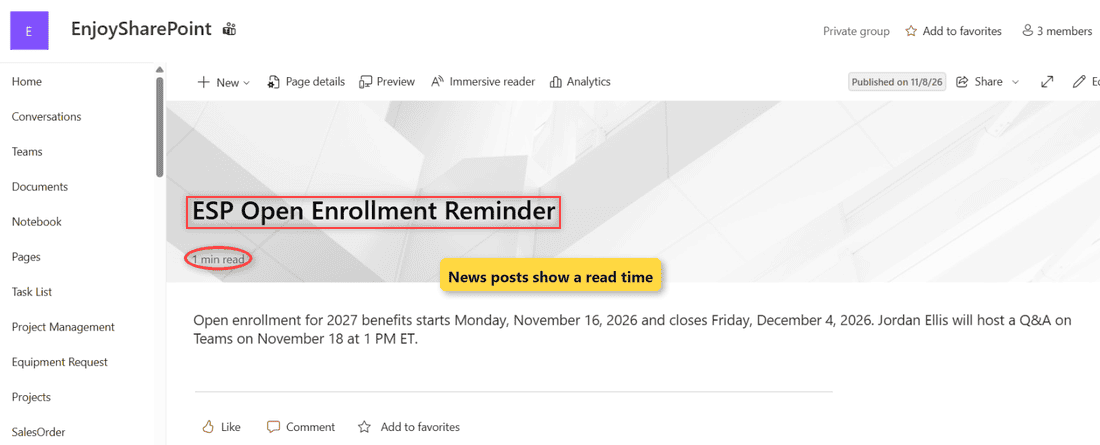
So use a page for content people come back to, and a news post for timely updates.
Permissions: Site vs Page
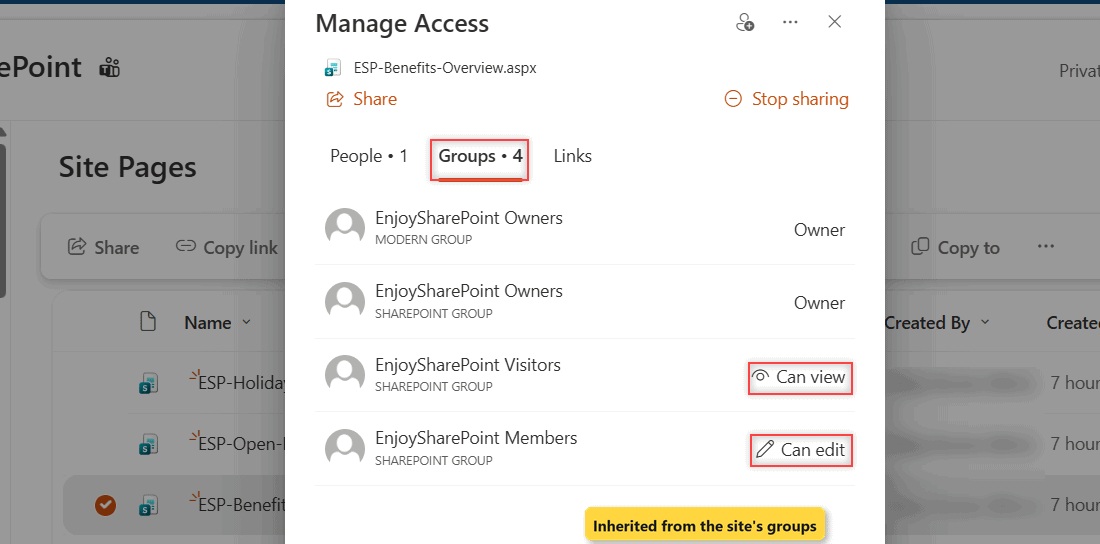
A site sets permissions for everything inside it. Pages simply inherit them, so ESP Benefits Overview is visible to every Visitor, Member and Owner of EnjoySharePoint.
You can break inheritance on a single page, just like on a file. Select the page in Site Pages, choose Manage access, and change who can open it. The same rules apply as for unique and item-level permissions in lists.
Limits Both Share
Neither a site nor a page is unlimited. These are the numbers from Microsoft’s SharePoint limits page that matter for this choice:
| Limit | Value |
|---|---|
| Sites per organization | 2 million |
| Storage per site | 25 TB |
| Lists and libraries per site | 2,000 combined |
| Subsites per site | 2,000 (Microsoft recommends hub sites instead) |
| Items in the Site Pages library | Up to 30 million |
| Unique permissions per library | 50,000 supported, 5,000 recommended |
Notice the subsite note. Instead of nesting sites, Microsoft wants separate sites joined into a hub, which I walk through in create a hub site in SharePoint Online.
When to Use a Site Instead of a Page
- A new team or project with its own files: create a site. It gets its own libraries, members and storage.
- Different people need access: create a site. Breaking permissions page by page gets messy fast.
- Information for the people already on the site: create a page, like a benefits overview or a how-to.
- A timely update: create a news post, so it rolls up into news web parts and the SharePoint start page.
- A section of a big intranet: create a site and join it to a hub, instead of a subsite or dozens of pages.
If you need sites in bulk, you can even create a team site using Power Automate instead of clicking through the wizard.
How to Create a Site or a Page
Both start from a + button, but in different places. For a site:
- Open the SharePoint start page, select Build on the app bar on the left, then select the Site card.
- In Select a site template, choose Team site or Communication site, pick a template and select Use template.
- Enter a site name and description, then select Create site and add members.
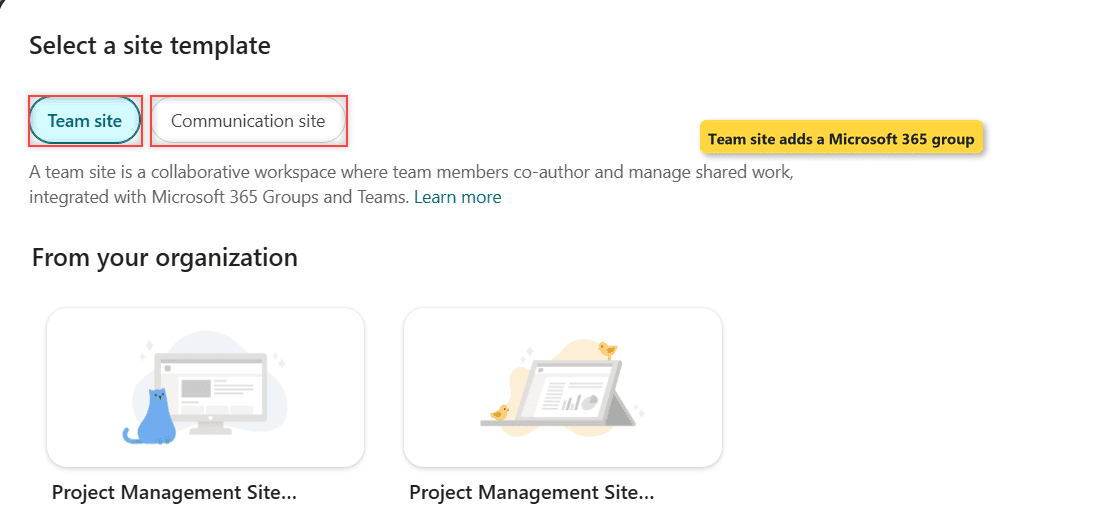
For a page, stay on the site you already have:
- Select + New > Page (or News post).
- Pick a template, add a title and your web parts.
- Select Save as draft to keep working, or Publish when it’s ready.
Older tenants still show a + Create site button instead of Build. If neither appears, your admin has turned off self-service site creation. That’s a tenant setting only a SharePoint admin can change.
So the deciding differences are scope, permissions and storage. A site is a workspace with its own people and files, a page is one file that shows content, and the Site Pages library is where every page of a site is kept.
If you’re planning your site’s pages, these will help next:
Frequently Asked Questions
Can a SharePoint page exist without a site?
No. Every modern page is stored in the Site Pages library of a site, so it always belongs to one site. Even news posts you see on the SharePoint start page live on a site.
Can I move a page to another SharePoint site?
Not with Move to, because that command isn’t available in the Site Pages library. On the same site, + New > Copy of this page (or Duplicate in Site Pages) makes a copy. The Site Pages menu also has Copy to for placing a copy somewhere else.
Is the home page different from other pages?
Only slightly. It’s a normal page in Site Pages that the site uses as its start page, but comments, likes and view counts aren’t available on it. A site owner can make another page the home page.
Who can create pages on a SharePoint site?
Site members with edit permission can add pages, unless an admin turned that off. Site owners and admins can delete them. Microsoft covers the details in its guide to creating and using modern pages.

I have worked with Microsoft technologies for more than 18 years, including SharePoint, Microsoft 365 and the Power Platform (Power Apps, Power Automate and Power BI), at companies like HP, TCS and KPIT. I started EnjoySharePoint in 2011 to share the solutions I build in real projects with readers in the United States, Canada, the United Kingdom, Australia, New Zealand and beyond. Microsoft has recognized this work with the Microsoft MVP award 13 times since 2014.