
Which link do you send when a coworker in Chicago needs the budget and a partner in Denver needs the proposal? Pick the wrong SharePoint link type, and the file either won’t open or opens for far more people than you meant.
In this tutorial, I’ll explain how SharePoint sharing links work: the link types, how to set who the main file link works for, how to add and remove extra links, and which settings your admin controls.
Quick answer: Use People you choose (Specific people) for anything sensitive or external, People in your organization for internal files anyone at work may see, and Anyone only for public content. Select the file, select Share, change the link audience, then copy the link.
What You Need Before You Start
- Edit or Full Control permission on the file or folder. If people can’t see the site at all, add users to the SharePoint site first.
- A document library to practice in. I built one called ESP Sharing Demo with a few Word files, an Excel budget and a Vendor Handoff folder.
- Optional: SharePoint admin access, to read the organization and site sharing settings in Step 5.
The Four SharePoint Sharing Link Types
Every link in SharePoint answers one question: who can open the file with this URL? Microsoft documents three main types, plus a fourth that grants nothing new and only appears in the older dialog.
| Link type | Who can open it | Sign-in needed | Works if forwarded |
|---|---|---|---|
| Anyone | Anyone who has the link, inside or outside your company | No | Yes, for everyone |
| People in your organization | Members of your Microsoft 365 organization (not guests) | Yes | Yes, for other members |
| Specific people (People you choose) | Only the people you name, internal or external | Yes | No |
| People with existing access | Only people who already have permission | Yes | Only for them |
An Anyone link is like a spare key: whoever holds it gets in, and you can’t audit who used it. Deleting the link takes the key back.
A People in your organization link works for coworkers once they click it, but it fails for guests. For partners, use a Specific people link, as covered in sharing a SharePoint site with external users.
Step 1: Open the Share Dialog
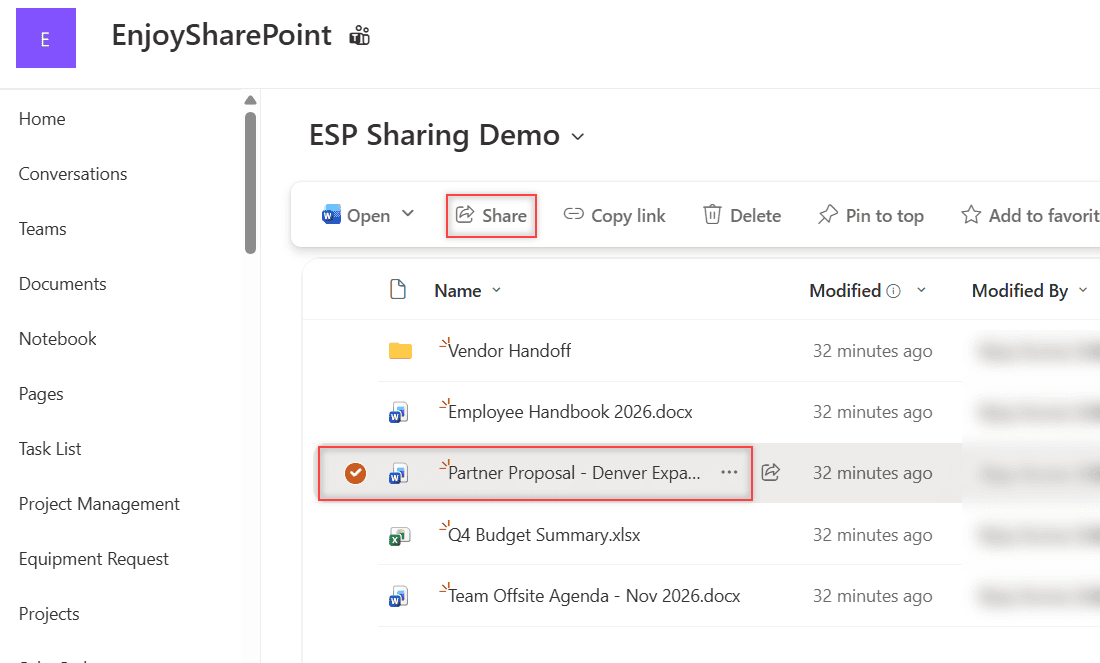
Go to the library, select the circle next to the file, and select Share on the command bar. I used Partner Proposal – Denver Expansion.docx.
My tenant already shows the new share dialog that Microsoft is rolling out from October through November 2026. Each file now has one main link, listed under File link settings, and by default it opens only for people you add to the file.
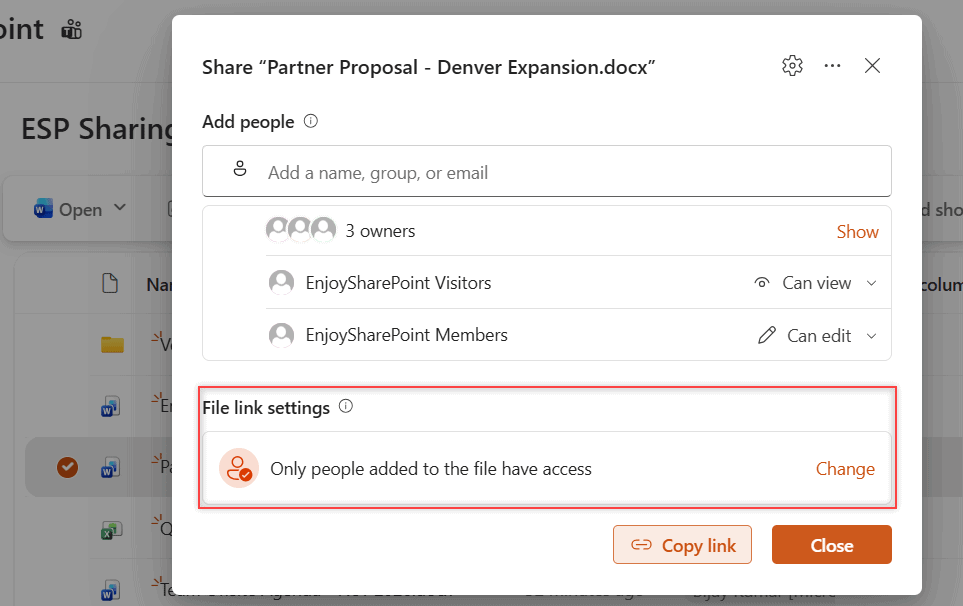
No File link settings section? You still have the older dialog, where the gear next to Copy link lists all four link types. When sharing is blocked outright, read the Sharing Is Limited on This Item fix.
Step 2: Change Who the Main Link Works For
Under File link settings, select Change. Pick People in your org to let any coworker with the URL open the file, or keep Only people added for a private file.
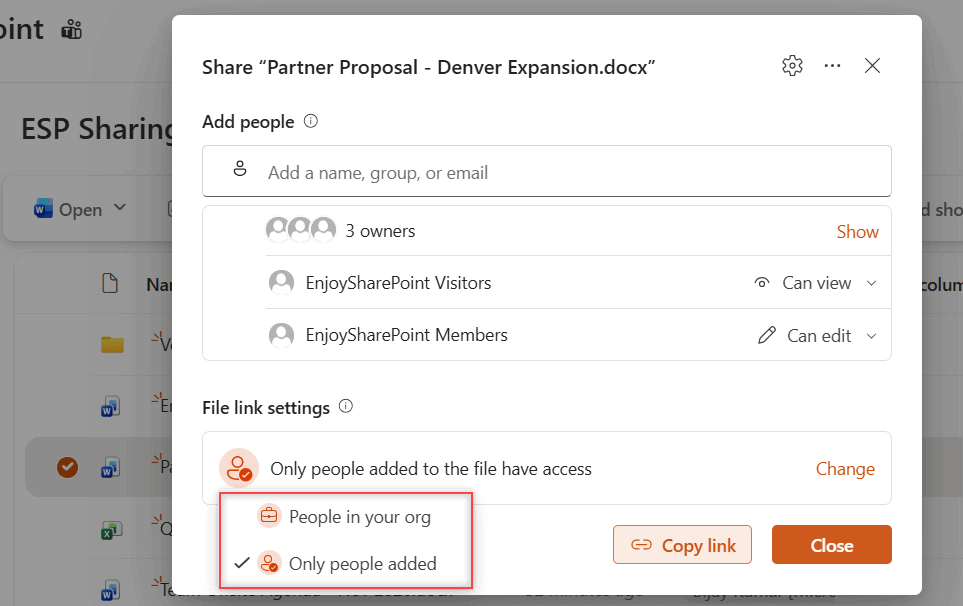
There’s no Apply button: SharePoint saves the change right away and shows Access changed. The link now reads People in your org with the link.
Next, open the access drop-down on the right and pick Can edit, Can review, Can view or Can’t download. I kept Can view, then selected Copy link.
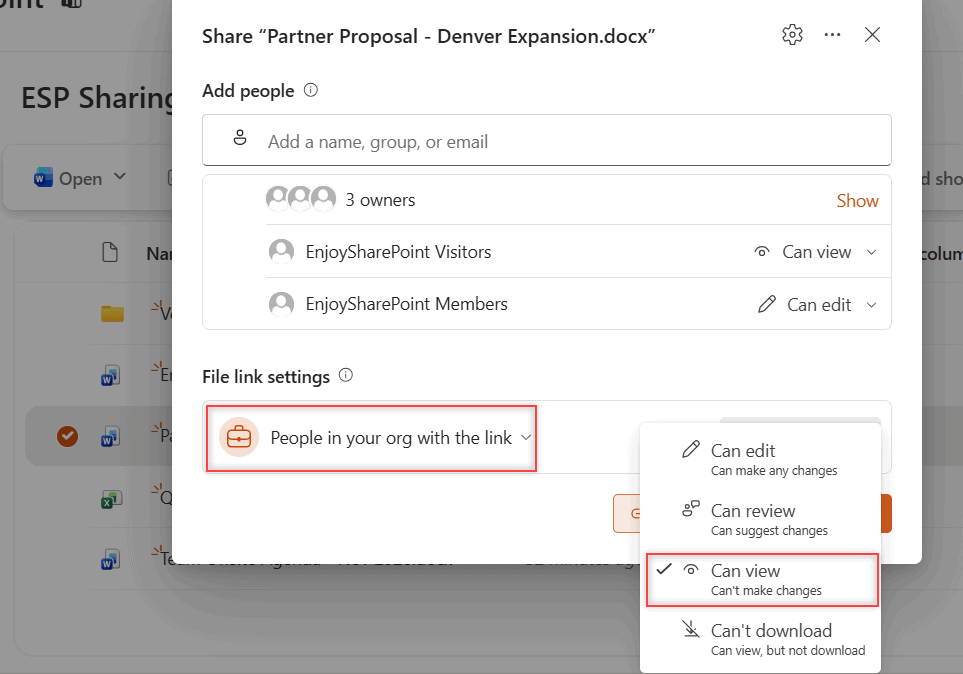
Changing the audience updates the same link, so you don’t send a new URL.
Need to grant access at a broader level instead? A link only covers one file or folder, so for a whole library follow how to give unique permissions for a SharePoint library.
Step 3: Create an Extra Link for a Different Audience
One file sometimes needs a second link, such as an edit link for two reviewers. In the share dialog, open the … menu and select Create new sharing link.
- Give the link a name, such as Denver partner review, so you recognize it later.
- Under Choose who it works for, select People in your org or People you choose.
- Under Select the access it gives, pick an option such as Can view, then select Create. SharePoint copies the link for you.
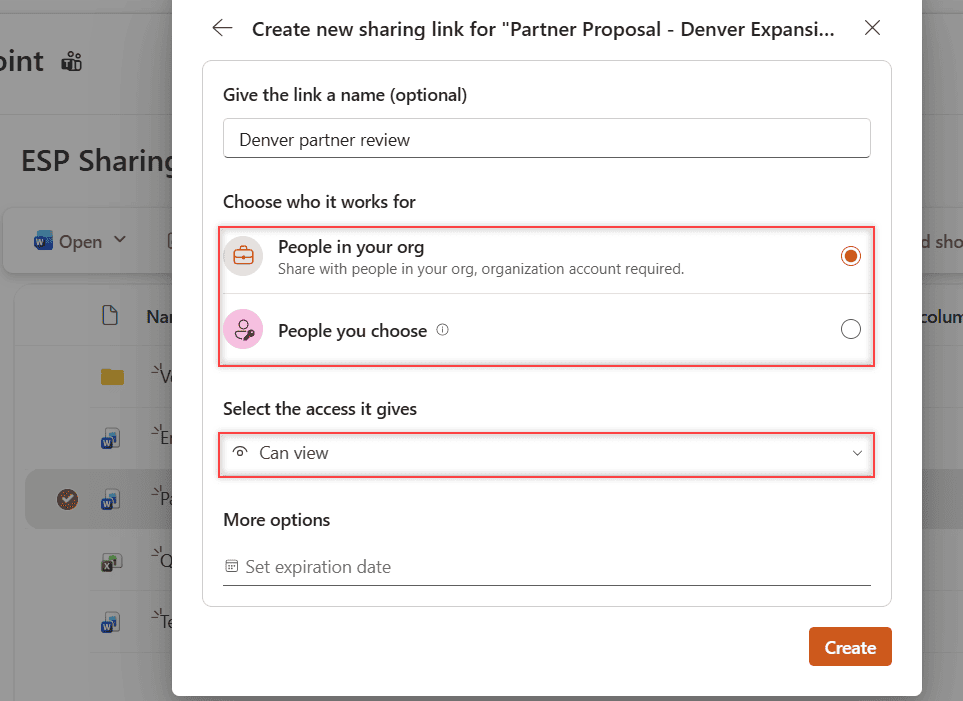
The same panel has More options for a link expiration date. To build these links automatically, see how to create a sharing link with Power Automate.
Step 4: Review and Remove Sharing Links
Open Share again on the file. Extra links appear under Other sharing links; my Denver proposal now lists the Denver partner review link.
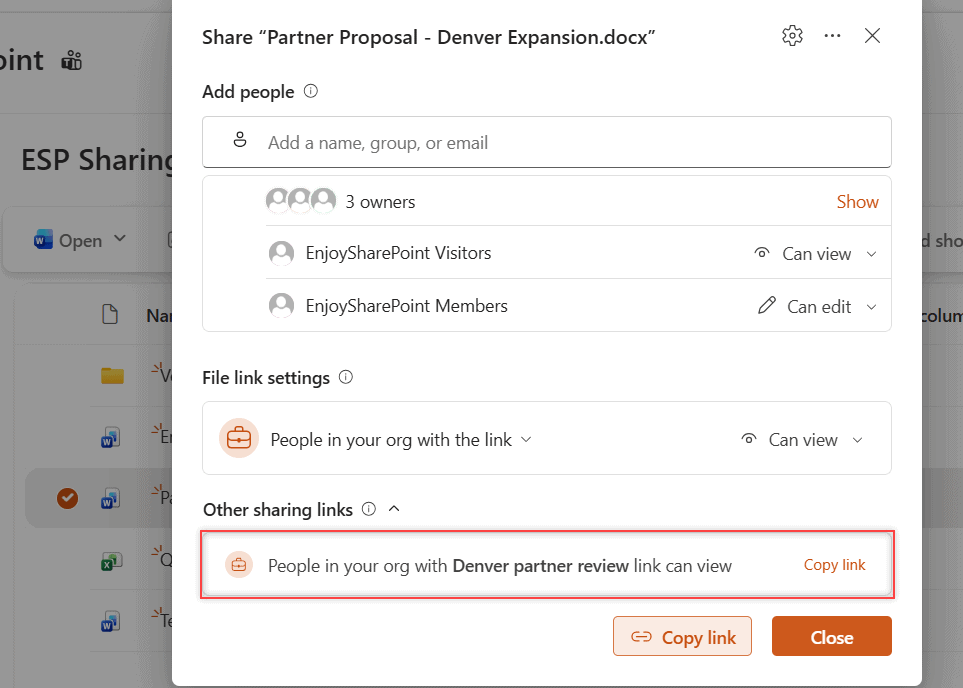
Select a link to open Sharing link settings. You can copy it again or select Delete link. Notice that Access type can’t be changed here.
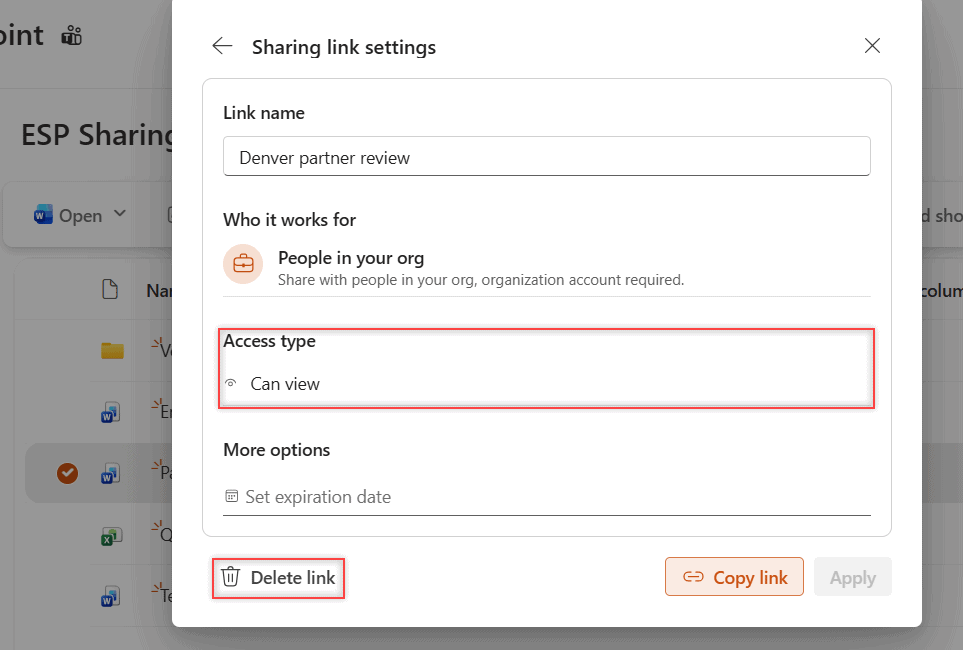
Deleting a link cuts off everyone who relied on it, but people with direct or site permissions keep their access. To see who asked for access in the first place, check access requests in SharePoint Online.
Here’s the PnP PowerShell I used to add and read the organization link on the demo file:
Connect-PnPOnline -Url "https://<tenant>.sharepoint.com/sites/EnjoySharePoint" -Interactive -ClientId "<your-app-id>"
$file = "/sites/EnjoySharePoint/ESPSharingDemo/Q4 Budget Summary.xlsx"
Add-PnPFileOrganizationalSharingLink -FileUrl $file -ShareType View
Get-PnPFileSharingLink -Identity $file | Where-Object { $_.Link.Scope -eq "Organization" } |
    Select-Object Id, @{n="Scope";e={$_.Link.Scope}}, @{n="Type";e={$_.Link.Type}}, Roles
Id : 13365fe5-e4ec-4625-ab53-14bf5a510550
Scope : Organization
Type : View
Roles : {Read}Step 5: Check What Your Admin Allows
In the SharePoint admin center, Policies > Sharing sets the most open level for the organization and the default link type under File and folder links. My tenant’s default is Anyone with the link.
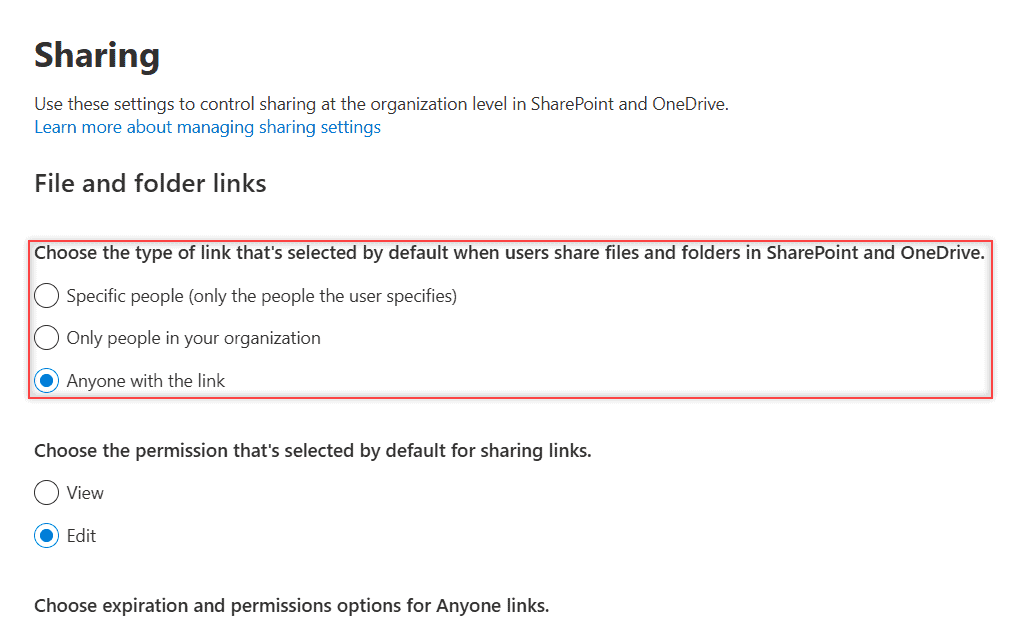
Each site can only be the same or stricter. In Active sites, select a site and then Sharing; my EnjoySharePoint site is set to New and existing guests, so the share dialog never offers Anyone there, even though the tenant default is Anyone.
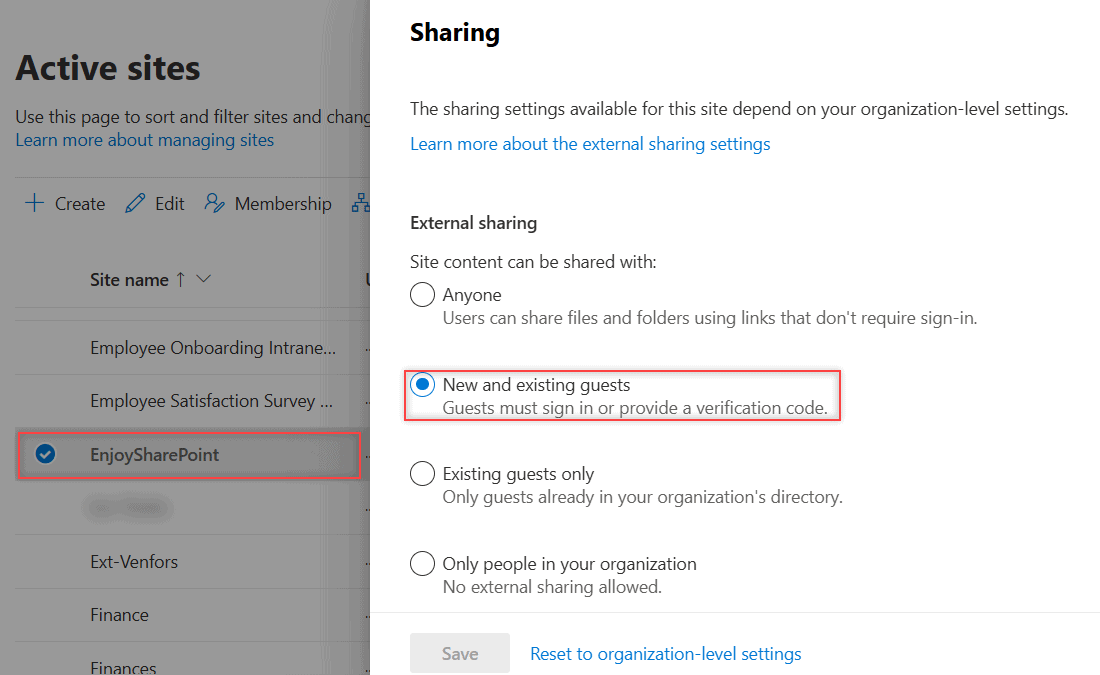
You can read the same values with PnP PowerShell without changing anything:
Connect-PnPOnline -Url "https://<tenant>-admin.sharepoint.com" -Interactive -ClientId "<your-app-id>"
Get-PnPTenantSite -Identity "https://<tenant>.sharepoint.com/sites/EnjoySharePoint" |
    Select-Object SharingCapability, DefaultSharingLinkType, DefaultLinkPermission
SharingCapability : ExternalUserSharingOnly
DefaultSharingLinkType : None
DefaultLinkPermission : NoneExternalUserSharingOnly is the PowerShell name for New and existing guests, and None means the site uses the organization default. If users see a policy error when adding guests, see the organization policies sharing error fix.
Cheat Sheet: Which Link to Send
| Situation | Link to use | Access |
|---|---|---|
| Company handbook for all employees | People in your organization | Can view |
| Proposal for a partner in Denver | Specific people (People you choose) | Can view or Can edit |
| Budget for two finance reviewers | Specific people | Can edit |
| Reminder to a teammate who already has access | People with existing access (older dialog) | No change |
| Public flyer or event map | Anyone (if your admin allows it) | Can view |
Common Mistakes to Avoid
- Sending an organization link to a guest. It asks them to sign in as a member and fails. Use People you choose.
- Expecting Anyone on every site. If the site is set to guests only, Anyone is grayed out or missing, and the default falls back to an organization link.
- Trying to switch edit to view. A link’s access type is fixed. Delete the link and create a new one.
- Deleting a link to remove one person. That breaks the link for everyone. Remove that person’s direct access instead.
Does a Sharing Link Make a File Show Up in Search?
Not by itself. Anyone and People in your organization links don’t add the file to search results or Copilot until someone actually opens the link.
Specific people links work differently: the file shows up in search and Copilot for the people you add. If a file holds sensitive data, also configure a sensitivity label for the library.
Next Steps
Once links make sense, look at permissions one level down. My guide to enabling item-level permissions in SharePoint shows how to limit who sees each item.
If you’re tightening up who can see what in SharePoint, I’d read these next:
Links that should only work for a few weeks are easy to forget about. I cover how to add, change or remove an end date in SharePoint link expiration, including what your admin’s expiration policy allows.
Frequently Asked Questions
What is the difference between Anyone and People in your organization links?
An Anyone link opens for whoever has it, with no sign-in. A People in your organization link opens only for signed-in members of your Microsoft 365 organization, so guests and outside people can’t use it.
Can external users open a SharePoint sharing link?
Yes, with a Specific people (People you choose) link or an Anyone link, if your admin allows external sharing on that site. People in your organization links never work for guests.
Does deleting a sharing link remove access?
It removes access for everyone who used that link. People who have direct permissions, or access through the site or another link, can still open the file.
Why can’t I create an Anyone link in SharePoint?
Your admin limits it at the organization or site level, often to New and existing guests. Microsoft explains each link type in how shareable links work in OneDrive and SharePoint.

I have worked with Microsoft technologies for more than 18 years, including SharePoint, Microsoft 365 and the Power Platform (Power Apps, Power Automate and Power BI), at companies like HP, TCS and KPIT. I started EnjoySharePoint in 2011 to share the solutions I build in real projects with readers in the United States, Canada, the United Kingdom, Australia, New Zealand and beyond. Microsoft has recognized this work with the Microsoft MVP award 13 times since 2014.