
If you’ve ever needed to pull items from a SharePoint list that fall within a specific date range — say, all support tickets opened between January 1 and March 31 — you’ve probably hit a wall trying to figure out the right syntax. Date filtering in SharePoint is one of those things that looks simple but has a few gotchas that’ll quietly ruin your day if you’re not careful.
In this tutorial, I’ll walk you through three solid methods to get data between two dates from a SharePoint list using SPFx:
- Using the SharePoint REST API with OData filter: the most straightforward, no extra packages needed
- Using PnPjs (v3/v4) with OData string filter: cleaner syntax, easier to read
- Using PnPjs Fluent Filter with
isBetween: the newest, most elegant approach (preview as of early 2026)
I’ll cover each with real, working code you can drop into your SharePoint Framework (SPFx) web part. Let’s get into it.
A Quick Note on Date Formats in SharePoint
Before writing a single line of code, you need to understand how SharePoint expects dates.
SharePoint’s REST API wants dates in ISO 8601 UTC format: yyyy-MM-ddTHH:mm:ssZ
So if you’re filtering for March 1, 2026, you’d pass it as 2026-03-01T00:00:00Z. If you pass it as 03/01/2026 or just 2026-03-01, the filter will fail silently or return nothing. This trips up a lot of developers.
Here’s a handy helper function I use in almost every project to convert a JavaScript Date object into the right format:
function toISODateString(date: Date): string {
  return date.toISOString(); // returns "2026-03-01T00:00:00.000Z"
}
Or if you want midnight UTC specifically:
function toUTCMidnight(date: Date): string {
  const d = new Date(date);
  d.setUTCHours(0, 0, 0, 0);
  return d.toISOString(); // "2026-03-01T00:00:00.000Z"
}
Keep this helper handy — you’ll use it across all three methods below.
Method 1: SharePoint REST API with OData Filter in SPFx
This is the no-dependency approach. It works with the built-in SPHttpClient that ships with every SPFx project. No extra packages, no setup — just a REST call.
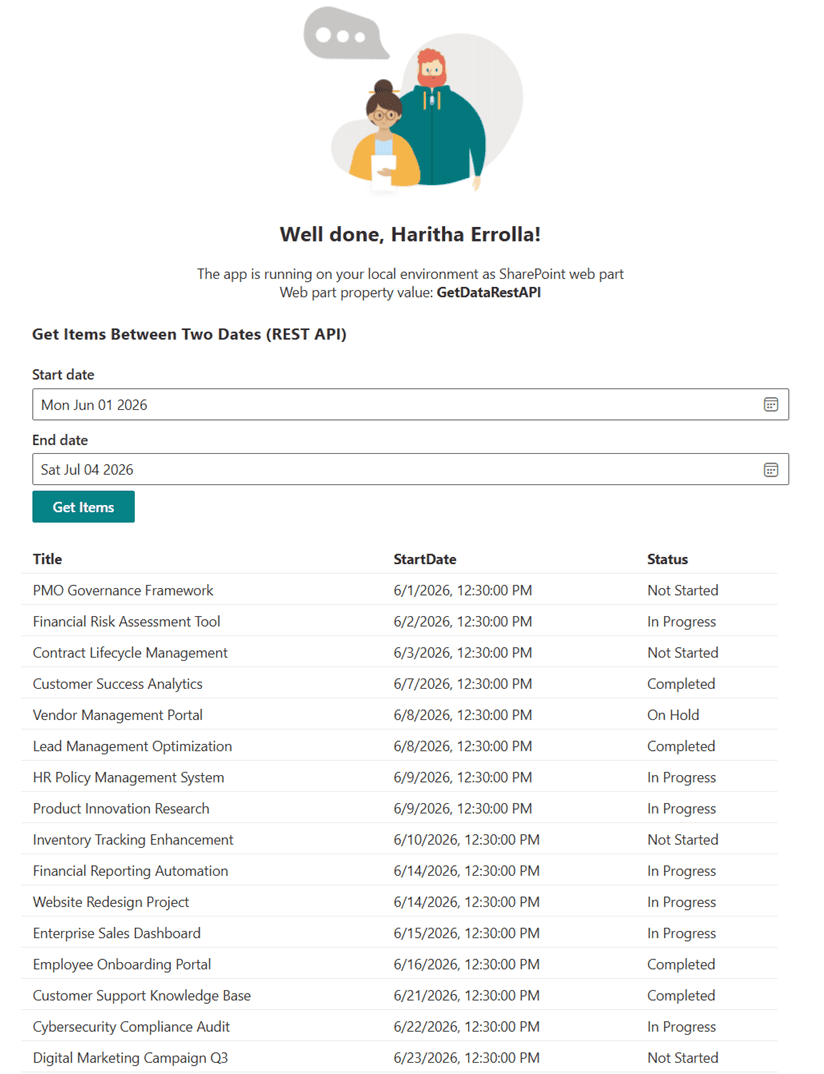
When to use this
- You’re on a project with strict dependency controls
- You want to avoid adding extra packages
- You need a quick proof of concept
The URL pattern
The OData $filter syntax for a date range looks like this:
_api/web/lists/getByTitle('YourListName')/items?$filter=YourDateColumn ge datetime'2026-01-01T00:00:00Z' and YourDateColumn le datetime'2026-03-31T23:59:59Z'
Two things to notice here:
gemeans greater than or equal to (your start date)lemeans less than or equal to (your end date)- You wrap the date in
datetime'...'= This tells the API you’re comparing a date, not a string
Full code example
Here’s how this looks inside an SPFx web part using SPHttpClient:
import * as React from 'react';
import styles from './GetDataRestApi.module.scss';
import type { IGetDataRestApiProps } from './IGetDataRestApiProps';
import { escape } from '@microsoft/sp-lodash-subset';
import welcomeDark from '../assets/welcome-dark.png';
import welcomeLight from '../assets/welcome-light.png';
import { SPHttpClient, SPHttpClientResponse } from '@microsoft/sp-http';
import { DatePicker, PrimaryButton, Spinner, SpinnerSize, MessageBar, MessageBarType } from '@fluentui/react';

export interface IProjectItem {
  Id: number;
  Title: string;
  StartDate: string;
  Status?: string;
}

export interface IGetDataRestApiState {
  startDate?: Date;
  endDate?: Date;
  items: IProjectItem[];
  loading: boolean;
  errorMessage?: string;
}

export default class GetDataRestApi extends React.Component<IGetDataRestApiProps, IGetDataRestApiState> {
  constructor(props: IGetDataRestApiProps) {
    super(props);
    this.state = {
      items: [],
      loading: false
    };
  }

  private async getItemsByDateRange(startDate: Date, endDate: Date): Promise<IProjectItem[]> {

    const start = new Date(Date.UTC(startDate.getFullYear(), startDate.getMonth(), startDate.getDate(), 0, 0, 0)).toISOString();

    const end = new Date(Date.UTC(endDate.getFullYear(), endDate.getMonth(), endDate.getDate(), 23, 59, 59)).toISOString();

    const listName = "Projects";
    const dateColumn = "StartDate"; // internal name of your date column

    const filter = encodeURIComponent(`${dateColumn} ge datetime'${start}' and ${dateColumn} le datetime'${end}'`);

    const select = encodeURIComponent(`Title,${dateColumn},Status`);
    const orderby = encodeURIComponent(`${dateColumn} asc`);

    const apiUrl = `${this.props.context.pageContext.web.absoluteUrl}/_api/web/lists/getByTitle('${listName}')/items?$filter=${filter}&$select=${select}&$orderby=${orderby}&$top=5000`;

    const response: SPHttpClientResponse = await this.props.context.spHttpClient.get(
      apiUrl,
      SPHttpClient.configurations.v1
    );

    if (!response.ok) {
      const errorText = await response.text();
      throw new Error(`Failed to fetch items: ${errorText}`);
    }

    const data = await response.json();
    return data.value;
  }

  private onGetItemsClick = (): void => {
    const { startDate, endDate } = this.state;

    if (!startDate || !endDate) {
      this.setState({ errorMessage: 'Please select both a start date and an end date.' });
      return;
    }

    this.setState({ loading: true, errorMessage: undefined });

    this.getItemsByDateRange(startDate, endDate)
      .then(items => this.setState({ items, loading: false }))
      .catch((error: Error) => this.setState({ errorMessage: error.message, loading: false, items: [] }));
  }

  public render(): React.ReactElement<IGetDataRestApiProps> {
    const {
      description,
      isDarkTheme,
      environmentMessage,
      hasTeamsContext,
      userDisplayName
    } = this.props;
    const { startDate, endDate, items, loading, errorMessage } = this.state;

    return (
      <section className={`${styles.getDataRestApi} ${hasTeamsContext ? styles.teams : ''}`}>
        <div className={styles.welcome}>
          <img alt="" src={isDarkTheme ? welcomeDark : welcomeLight} className={styles.welcomeImage} />
          <h2>Well done, {escape(userDisplayName)}!</h2>
          <div>{environmentMessage}</div>
          <div>Web part property value: <strong>{escape(description)}</strong></div>
        </div>

        <div className={styles.dateRangeDemo}>
          <h3>Get Items Between Two Dates (REST API)</h3>
          <DatePicker
            label="Start date"
            value={startDate}
            onSelectDate={(date) => this.setState({ startDate: date || undefined })}
          />
          <DatePicker
            label="End date"
            value={endDate}
            onSelectDate={(date) => this.setState({ endDate: date || undefined })}
          />
          <PrimaryButton text="Get Items" onClick={this.onGetItemsClick} disabled={loading} />

          {loading && <Spinner size={SpinnerSize.medium} label="Loading items..." />}

          {!loading && errorMessage && (
            <MessageBar messageBarType={MessageBarType.error}>{errorMessage}</MessageBar>
          )}

          {!loading && items.length > 0 && (
            <table className={styles.resultsTable}>
              <thead>
                <tr>
                  <th>Title</th>
                  <th>StartDate</th>
                  <th>Status</th>
                </tr>
              </thead>
              <tbody>
                {items.map(item => (
                  <tr key={item.Id}>
                    <td>{item.Title}</td>
                    <td>{new Date(item.StartDate).toLocaleString()}</td>
                    <td>{item.Status}</td>
                  </tr>
                ))}
              </tbody>
            </table>
          )}
        </div>
      </section>
    );
  }
}
Common Mistakes: List item threshold
By default, SharePoint returns a maximum of 100 items per request. If you expect more, add &$top=5000 to your URL (5,000 is the absolute max per call). For really large lists, you’ll need to implement paging — but for most everyday use cases, 5,000 is fine.
Also, if your date column is not the built-in Created or Modified column, make sure you use the internal name (not the display name).
Go to your list settings → click on the column → check the URL for the Field= parameter. That’s your internal name.
Method 2: PnPjs with OData String Filter in SPFx
PnPjs is a community library that wraps the SharePoint REST API with a clean, chainable syntax. It saves you from building raw URLs and handles things like request headers automatically.
The image below is the output after using PnPjs with an OData string filter in the SPFx web part.
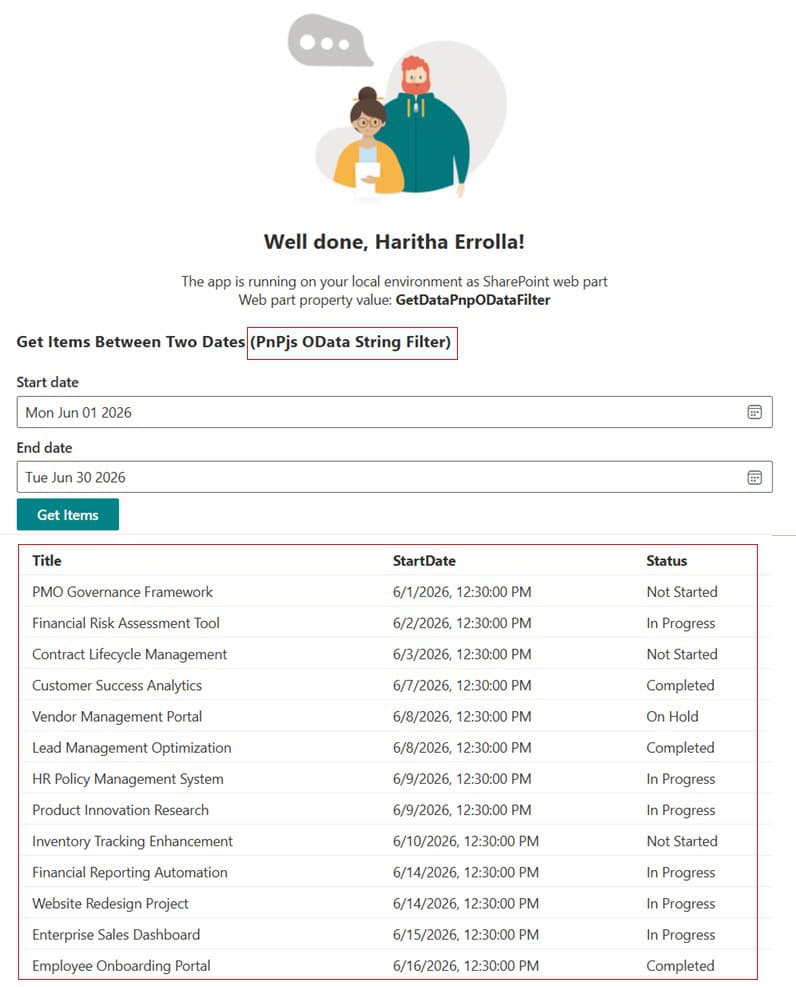
As of early 2026, the current stable version is PnPjs v4, and setting it up in SPFx v1.21/v1.22+ looks like this.
Setup
- First, install the packages if you haven’t already:
npm install @pnp/sp --save
- Then initialize
spfiin your web part. The best place to do this is inonInit():
import { spfi, SPFI, SPFx } from '@pnp/sp';

private _sp: SPFI;

protected onInit(): Promise<void> {
    this._sp = spfi().using(SPFx(this.context));
  }
- Now, let’s filter by date range with PnPjs. You can pass the
$filterstring directly using.filter(). Here’s how to get items between two dates:
import "@pnp/sp/webs";
import "@pnp/sp/lists";
import "@pnp/sp/items";

private async getProjectsByDateRange(startDate: Date, endDate: Date): Promise<IProjectItem[]> {

    const start = new Date(Date.UTC(startDate.getFullYear(), startDate.getMonth(), startDate.getDate(), 0, 0, 0)).toISOString();
    const end = new Date(Date.UTC(endDate.getFullYear(), endDate.getMonth(), endDate.getDate(), 23, 59, 59)).toISOString();

    const items: IProjectItem[] = await this.props.sp.web.lists
      .getByTitle("Projects")
      .items
      .filter(`StartDate ge datetime'${start}' and StartDate le datetime'${end}'`)
      .select("Id", "Title", "StartDate", "Status")
      .orderBy("StartDate", true)
      .top(500)();

    return items;
  }
This is cleaner than building a raw URL, and the chaining makes it easy to add .select(), .orderBy(), and .top() without messy string concatenation.
- Filtering on the
Createddate. This one comes up a lot; people often want items created within a date range rather than filtering on a custom column. TheCreatedcolumn works exactly the same way:
const items = await this._sp.web.lists
  .getByTitle("Support Tickets")
  .items
  .filter(`Created ge datetime'${start}' and Created le datetime'${end}'`)
  .select("Title", "Created", "AssignedTo")
  .top(500)();
Just replace StartDate with Created, and you’re good.
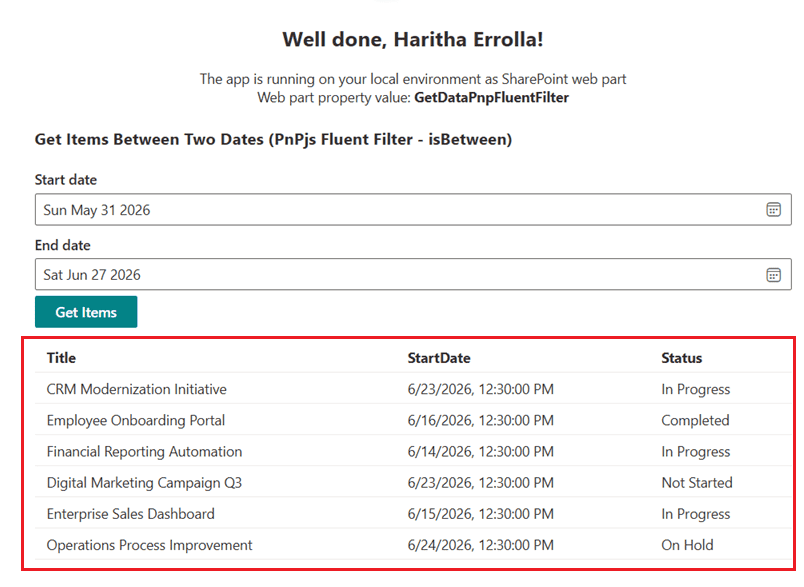
Method 3: PnPjs Fluent Filter with isBetween in SPFx
This is the newest way to filter dates in PnPjs, and honestly, it’s the cleanest option once you know it exists. The fluent filter API lets you write strongly-typed filter conditions without crafting any OData strings by hand.
Note: As of early 2026, this feature is marked as preview in the PnPjs documentation, so test it thoroughly before using in production. That said, it works well in practice.
PnPjs fluent filter supports these date-specific operations:
greaterThangreaterThanOrEqualslessThanlessThanOrEqualsisBetween← the star of this sectionisToday
How to use isBetween in SPFx Web Part
import "@pnp/sp/webs";
import "@pnp/sp/lists";
import "@pnp/sp/items";
import { IListItem } from "@pnp/sp/items";

// Define your item interface so the fluent filter knows the types
interface IProjectItem extends IListItem {
  Title: string;
  StartDate: Date;
  Status: string;
}

private async getProjectsBetweenDates(startDate: Date, endDate: Date): Promise<IProjectItem[]> {
    const start = new Date(Date.UTC(startDate.getFullYear(), startDate.getMonth(), startDate.getDate(), 0, 0, 0) - 1);
    const end = new Date(Date.UTC(endDate.getFullYear(), endDate.getMonth(), endDate.getDate() + 1, 0, 0, 0));

    const items: IProjectItem[] = await this.props.sp.web.lists
      .getByTitle("Projects")
      .items
      .filter<IProjectItem>(f => f.date("StartDate").isBetween(start, end))
      .select("Id", "Title", "StartDate", "Status")
      .top(500)();

    return items;
  }
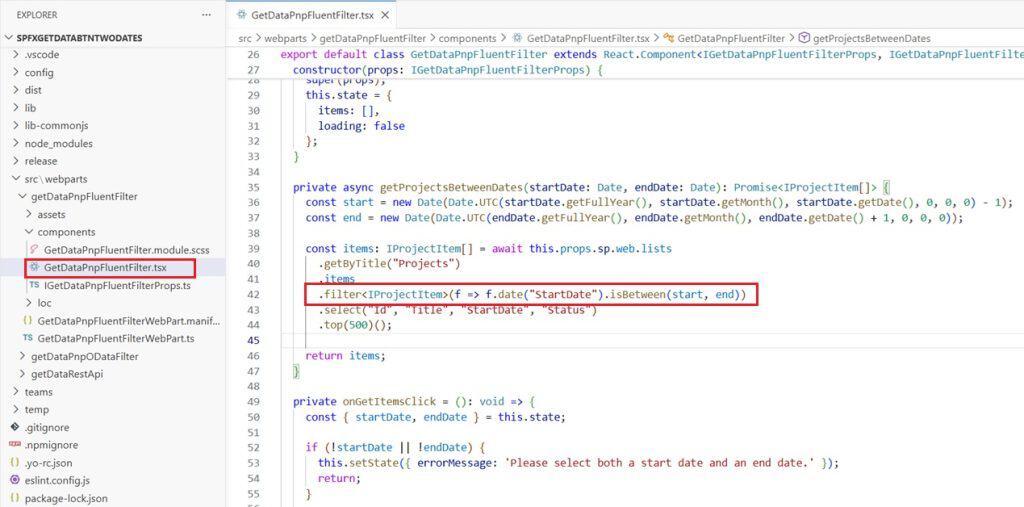
Notice that I’m passing actual Date objects into isBetween() — No manual date formatting needed. PnPjs handles the ISO conversion internally.
Combining with other conditions in SPFx
The fluent filter really shines when you need to chain multiple conditions. Say you want items between two dates and where the status is “Active”:
const items = await this._sp.web.lists
  .getByTitle("Projects")
  .items
  .filter<IProjectItem>(f =>
    f.date("StartDate").isBetween(startDate, endDate)
     .and()
     .text("Status").equals("Active")
  )
  .select("Title", "StartDate", "Status")
  .top(500)();
This is much easier to read and maintain than building a long OData string.
Building a Practical Example: A Date Range Filter SPFx Web Part
Let me put this all together in a realistic scenario. Imagine you’re building a web part that shows a filtered list of projects based on user-selected start and end dates. Here’s a simplified but complete version using PnPjs Method 2:
import * as React from 'react';
import { spfi, SPFI } from "@pnp/sp";
import { SPFx } from "@pnp/sp/presets/all";
import "@pnp/sp/webs";
import "@pnp/sp/lists";
import "@pnp/sp/items";

export interface IDateRangeFilterProps {
  context: any;
}

const DateRangeFilter: React.FC<IDateRangeFilterProps> = ({ context }) => {
  const [startDate, setStartDate] = React.useState<string>('');
  const [endDate, setEndDate] = React.useState<string>('');
  const [items, setItems] = React.useState<any[]>([]);
  const [loading, setLoading] = React.useState<boolean>(false);
  const [error, setError] = React.useState<string>('');

  const sp: SPFI = spfi().using(SPFx(context));

  const fetchItems = async () => {
    if (!startDate || !endDate) {
      setError('Please select both start and end dates.');
      return;
    }

    setLoading(true);
    setError('');

    try {
      const start = new Date(startDate).toISOString();
      const end = new Date(endDate + 'T23:59:59').toISOString();

      const result = await sp.web.lists
        .getByTitle("Projects")
        .items
        .filter(`StartDate ge datetime'${start}' and StartDate le datetime'${end}'`)
        .select("Title", "StartDate", "Status")
        .orderBy("StartDate", true)
        .top(500)();

      setItems(result);
    } catch (err) {
      setError(`Error fetching items: ${err.message}`);
    } finally {
      setLoading(false);
    }
  };

  return (
    <div>
      <h2>Projects by Date Range</h2>
      <div>
        <label>Start Date: <input type="date" value={startDate} onChange={e => setStartDate(e.target.value)} /></label>
        <label>End Date: <input type="date" value={endDate} onChange={e => setEndDate(e.target.value)} /></label>
        <button onClick={fetchItems} disabled={loading}>
          {loading ? 'Loading...' : 'Get Projects'}
        </button>
      </div>
      {error && <p style={{ color: 'red' }}>{error}</p>}
      <ul>
        {items.map((item, index) => (
          <li key={index}>
            <strong>{item.Title}</strong> — {item.StartDate} — {item.Status}
          </li>
        ))}
      </ul>
    </div>
  );
};

export default DateRangeFilter;
A few things worth calling out in the above:
- I append
T23:59:59to the end date so it includes the entire last day, not just midnight - The
orderBy("StartDate", true)sorts results in ascending order (oldest first) - The
top(500)The cap keeps the query from hitting performance limits on large lists
Which Method Should You Use in SPFx?
Here’s a quick breakdown to help you decide:
| Situation | Best Method |
|---|---|
| No external dependencies allowed | REST API (Method 1) |
| Clean code, team already uses PnPjs | PnPjs OData filter (Method 2) |
| Multi-condition filters, TypeScript strict mode | PnPjs Fluent Filter (Method 3) |
| Large lists (5,000+ items) | REST + paging or PnPjs async iterator |
Filtering on Created or Modified | Any method works — same syntax |
Important Things to Keep in Mind
A few things I’ve learned the hard way that are worth keeping in mind:
- Always use the internal field name, not the display name.
StartDatenotStart Date. - Date-only fields (no time): If your column is set to “Date Only” in SharePoint, you may still need to pass a full ISO datetime string — just set the time to
T00:00:00Z. - Time zone issues: SharePoint stores dates in UTC. If your users are entering dates in a local time zone, make sure you convert correctly before filtering. Otherwise, you’ll get missing items near midnight.
- The 5,000-item list view threshold: Even with REST API or PnPjs, if your list has more than 5,000 items and you’re filtering on a non-indexed column, you’ll hit the threshold error. Index your date column under List Settings → Indexed columns to avoid this.
$topdefault is 100: PnPjs and the REST API both default to returning 100 items. Always set.top(500)or whatever number makes sense for your data.- Test with the browser first: You can paste the REST API URL directly into your browser to test it before wiring it up in code. It’s a fast way to confirm the filter syntax is right.
Conclusion
I hope you found this article helpful! Filtering SharePoint list items by date range in SPFx isn’t complicated once you understand the ISO datetime format requirement and the OData filter syntax. Pick the method that fits your project:
- Use the raw REST API for simple, no-dependency scenarios
- Use PnPjs with an OData string filter for clean, readable code
- Use the PnPjs fluent
isBetweenfilter when you want type-safety and multi-condition queries
The SPFx platform is actively evolving — v1.22 was released in December 2025 with a new Webpack-based toolchain, and v1.23 (February/March 2026) brings open-source templates and a new CLI. These changes don’t affect how list queries work, but it’s good to stay current when scaffolding new projects.
Also, you may like:
- Modern Script Editor Web Part using SharePoint Framework (SPFx)
- Add Bootstrap to SharePoint SPFx Webpart
- Retrieve Current User Information in SPFx Web Part using Graph API
- SPFx Accordion Webpart Example

I have worked with Microsoft technologies for more than 18 years, including SharePoint, Microsoft 365 and the Power Platform (Power Apps, Power Automate and Power BI), at companies like HP, TCS and KPIT. I started EnjoySharePoint in 2011 to share the solutions I build in real projects with readers in the United States, Canada, the United Kingdom, Australia, New Zealand and beyond. Microsoft has recognised this work with the Microsoft MVP award 13 times since 2014.