
Megan Bowen joined our marketing team on a Monday, and by 10 AM she’d messaged me: “Where is SharePoint? Everyone says the files are there.” She had a Microsoft 365 account but no idea where to click.
Searching Google doesn’t help, because your company’s sites live at your organization’s own address. Once you know the few doors into it, you’ll never hunt for it again.
In this tutorial, I’ll show you how to access SharePoint from Microsoft 365, a site URL, the start page, Teams, Outlook, File Explorer and your phone.
Quick answer: Go to m365.cloud.microsoft and sign in with your work or school account. Select the App launcher (the nine dots) and choose SharePoint. That opens the SharePoint start page with your recent and favorite sites. If you already have a site link, such as https://yourcompany.sharepoint.com/sites/Marketing, paste it into your browser instead.
Open SharePoint from the Microsoft 365 app launcher
This is the route I teach every new hire, because it works on any computer.
- Go to m365.cloud.microsoft and sign in with your work email.
- Select the App launcher, the nine dots in the top-left corner. You’ll find it on every Microsoft 365 page, including SharePoint itself.
- Choose SharePoint. If it isn’t listed, type it in the Find Microsoft 365 apps box or open More apps.
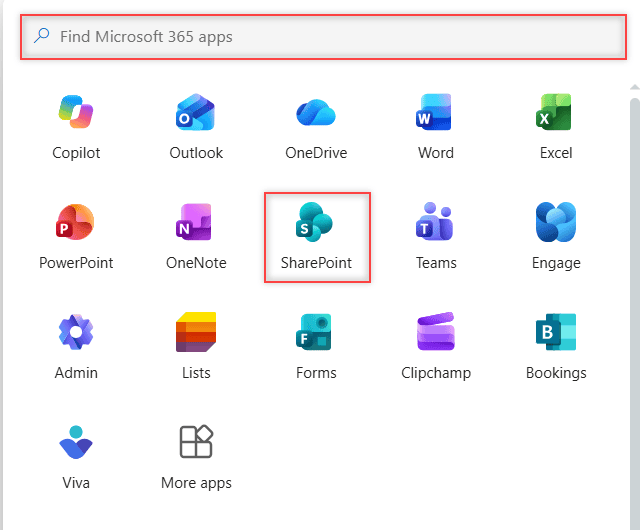
Still missing? Your account may not include a SharePoint license, so ask IT. And use your work account, not a personal Outlook.com one; here’s the difference between OneDrive and SharePoint if that’s confusing.
Find your sites on the SharePoint start page
The app launcher drops you on the SharePoint start page, now labeled Discover. It isn’t a site itself; it’s a list of sites picked for you.
Select Sites in the left pane, then switch between these views:
- Recent: sites you opened lately, with files you viewed in each.
- Favorites: sites you starred.
- Suggested: sites Microsoft thinks you’ll need, based on your work.
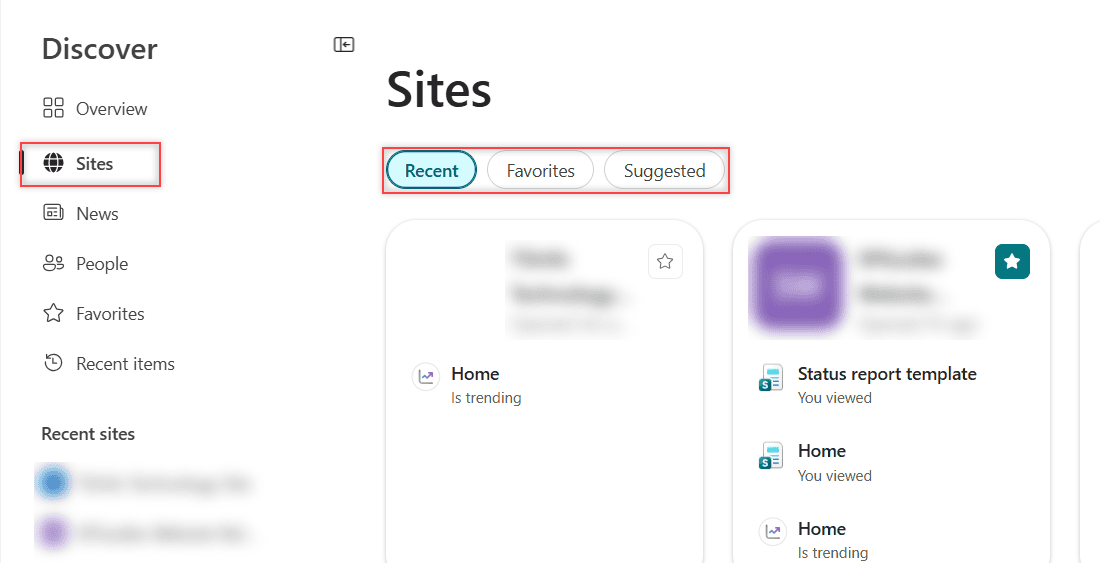
Need something older? Type part of the name in Search by name. Many companies also group sites under a hub site in SharePoint Online, whose navigation gets you to the rest.
Go straight to a site with its URL
Every SharePoint site has a web address. Paste a link from a coworker into the address bar, and you’ll see the Microsoft 365 sign-in page first if you aren’t signed in.
Here’s how the addresses are built, using our demo site:
https://<tenant>.sharepoint.com                                  # your organization's home site
https://<tenant>.sharepoint.com/sites/EnjoySharePoint             # a team or communication site
https://<tenant>.sharepoint.com/_layouts/15/sharepoint.aspx       # the SharePoint start page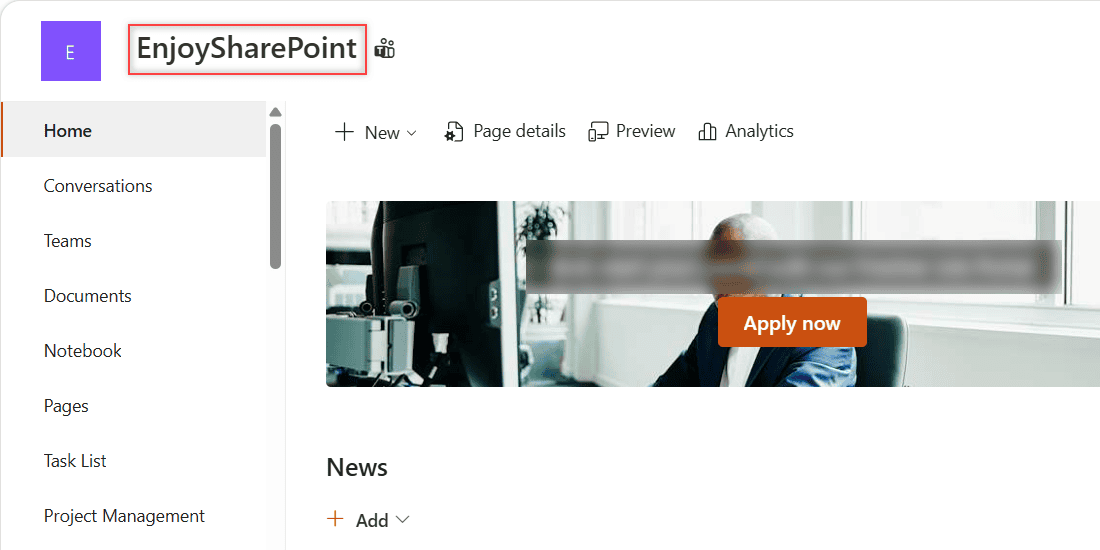
Bookmark the sites you use daily. If an owner later decides to change the SharePoint site URL, the old address redirects to the new one.
Add a site to favorites so it’s one click away
On a site you’ll come back to, select the star labeled Add to favorites on the right side of the site header. The site then appears under Favorites on the start page.

Inside a site, you can also pin files and folders to Quick access in a document library.
Open SharePoint from Microsoft Teams
Every team has a SharePoint site behind it. Our EnjoySharePoint team stores its files in the EnjoySharePoint site, and each standard channel is a folder in that site’s Documents library.
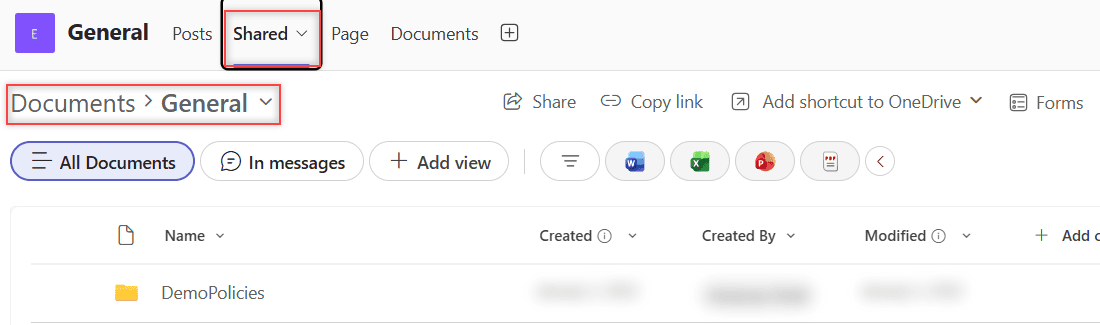
- Open the team and pick a channel, such as General.
- Select the Shared tab (older Teams versions call it Files). The breadcrumb reads Documents > General: that’s the SharePoint library.
- To see the full site, choose Open in SharePoint from the toolbar’s more options (…), or open the site URL, since a team named EnjoySharePoint lives at /sites/EnjoySharePoint.
Private and shared channels get their own sites. If your team started as a plain SharePoint site, you can connect a SharePoint site to Microsoft Teams.
Other ways in: Outlook, OneDrive and File Explorer
- Outlook: open a Microsoft 365 group, go to its Files, and select Browse library to open the group’s SharePoint library.
- OneDrive on the web: libraries you added as shortcuts show up in My files.
- File Explorer: sync a library or add a shortcut, and its files appear in a folder named after your company.
Sync and shortcuts behave differently, so read SharePoint Sync vs Add shortcut to OneDrive before you pick one.
Access SharePoint on your phone
Install the free Microsoft SharePoint app from the App Store or Google Play and sign in with your work account.
The Find tab lists your frequent and followed sites, Me shows recent and saved items, and News collects posts from your sites.
Common errors and how to fix them
- A site link opens a “request access” page. You don’t have permission yet. Send the request to the owner; here’s how SharePoint access requests work.
- You don’t know who owns a site. These ways to find a SharePoint site owner help you ask the right person.
- The wrong account signs in. Select your picture in the top-right corner to switch, or use an InPrivate window.
Megan was set before lunch. Her manager added her to the SharePoint site, and by Tuesday it sat in her Recent list.
Once you’re in, these guides help you find your way around:
Frequently Asked Questions
What is the SharePoint login URL?
There isn’t a single SharePoint login page. Sign in at m365.cloud.microsoft and choose SharePoint, or open your company’s address, such as https://yourcompany.sharepoint.com. Microsoft explains both routes in Sign in to SharePoint.
How do I find all the SharePoint sites I have access to?
Open the SharePoint start page, select Sites, and check Recent, Favorites and Suggested. For anything else, use Search by name. It only returns sites you’re allowed to open.
Can I access SharePoint without Teams?
Yes. You can open any SharePoint site in a browser through Microsoft 365, a direct URL, or the SharePoint mobile app, even if your team never uses Teams.

I have worked with Microsoft technologies for more than 18 years, including SharePoint, Microsoft 365 and the Power Platform (Power Apps, Power Automate and Power BI), at companies like HP, TCS and KPIT. I started EnjoySharePoint in 2011 to share the solutions I build in real projects with readers in the United States, Canada, the United Kingdom, Australia, New Zealand and beyond. Microsoft has recognized this work with the Microsoft MVP award 13 times since 2014.