
If you’ve ever stepped away from your desk for five minutes and come back to find your Teams status flipped to “Away,” you know how annoying that is. Colleagues message you, see a yellow dot, and assume you’ve gone AWOL. Your manager pings you right when you’re deep in a document. It’s a small thing, but it creates real friction in remote and hybrid work.
In this tutorial, I’m going to walk you through every practical method to keep your Microsoft Teams status green, meaning “Available”, so people always see that little green checkmark next to your name.
Let me be clear: I’m not talking about hacks to fake being online while you binge Netflix. I’m talking about real situations where you’re genuinely working, maybe in a spreadsheet, on a call in another app, or reading a long document, and Teams keeps marking you as Away because you haven’t touched it in a few minutes. That’s the problem we’re solving here.
Why Does Microsoft Teams Turn Yellow or Away?
Before we fix it, it helps to understand why it happens.
Microsoft Teams automatically changes your status to Away (yellow dot) when:
- Your computer has been idle or inactive for about 5 minutes (no mouse movement or keyboard input)
- Your computer locks or goes into sleep mode
- The Teams app is minimized or running in the background (especially on mobile)
- You’re in a Do Not Disturb or calendar-blocked period
Teams is essentially watching whether you’re actively using your device. The moment it detects you’ve stepped away, it automatically updates your presence status. That’s the root cause.
Now, here are all the ways to fix it.
Make Microsoft Teams Stay Green
Let’s make Microsoft Teams stay green in 8 different ways. Such as:
Method 1: Manually Set Your Status to “Available” in Microsoft Teams
This is the quickest thing you can do right now. It takes about 10 seconds.
- Open Microsoft Teams on your desktop
- Click on your profile picture in the top-right corner
- Click on your current status (it might say “Away” or “Busy”)
- Select Available from the dropdown
That’s it. You’re green again.
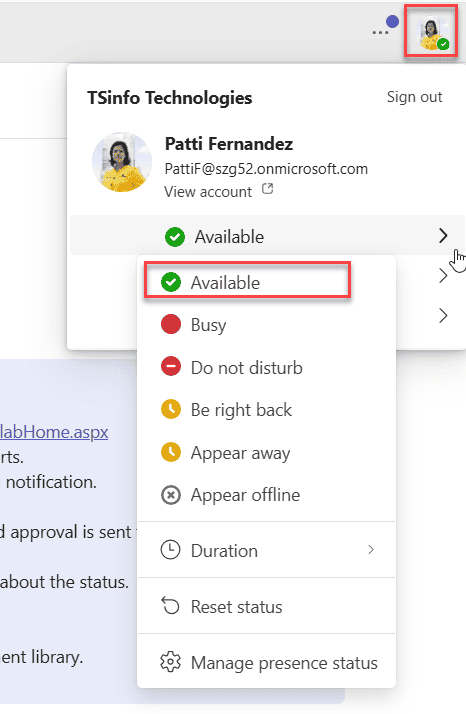
The catch? If your computer goes idle or locks, Teams will override this and flip you back to Away. So this is a short-term fix unless you combine it with the other methods below.
Set a Status Duration in Microsoft Teams
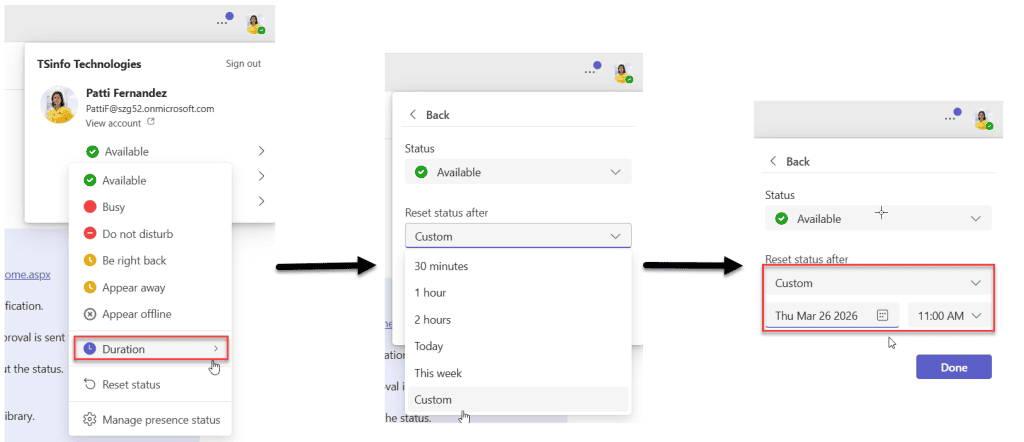
Here’s a feature most people don’t know about. You can tell Microsoft Teams to hold a specific status for a set period of time — like “keep me as Busy for the next 2 hours” — and it won’t auto-reset until that time is up.
Here’s how to set it:
- Click your profile picture in the top-right
- Click on your current status
- Select Duration
- Under Status, choose the status you want
- Under Reset status after, pick a time frame — or choose Custom and set a specific date/time
- Click Done
Method 2: Change Your Windows Power & Sleep Settings in Microsoft Teams
This is the method I always recommend first because it actually solves the root problem. Teams switches you to Away because your PC goes idle. So the fix is simple — stop your PC from going idle.
Here’s how to do it on Windows:
- Press Windows + I to open Settings
- Go to System > Power & battery
- Under Screen, set “Turn off after” to Never (or a longer time like 30–60 minutes)
- Under Sleep, set “PC goes to sleep after” to Never (or extend it significantly)
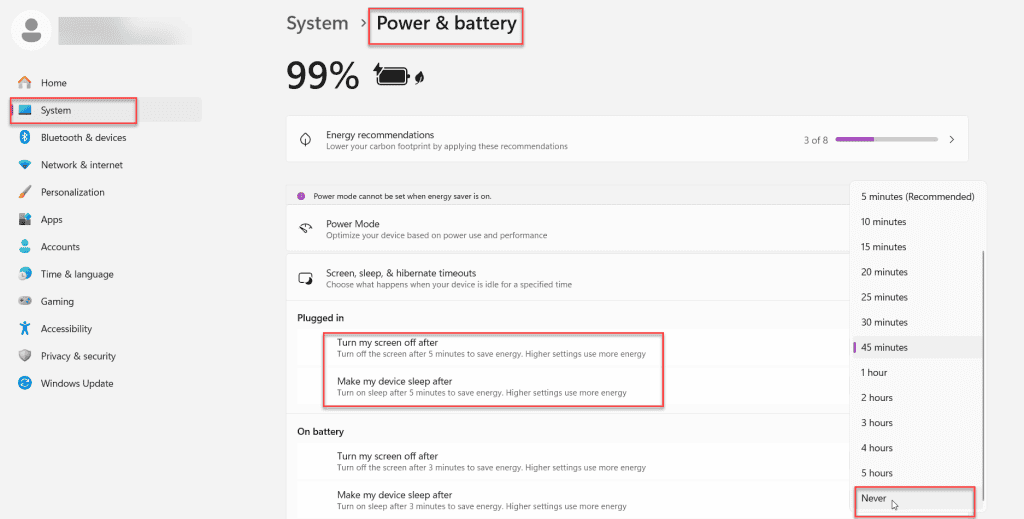
Now your computer stays awake, and Teams stays green.
On a Mac:
- Go to System Settings
- Click on Displays
- Click Advanced
- Turn on “Prevent automatic sleeping on power adapter when the display is off”
Or alternatively:
- Go to System Settings > Battery
- Set “Turn display off after” to Never when plugged in
This one change alone will solve 80% of the “Teams keeps going Away” problem for most people.
Method 3: Use the “Keep Status Active Outside Teams” Setting (Web Version)
If you’re using Teams on a browser (teams.microsoft.com), there’s a native setting that’s specifically built for this problem — and it’s brilliant.
Here’s how to enable it:
- Open Teams in your web browser
- Click Settings (gear icon)
- Go to Notifications and Activity > Presence
- Toggle on “Keep my current status when I’m active outside of Teams on the web.”
- When your browser asks for permission, click Allow
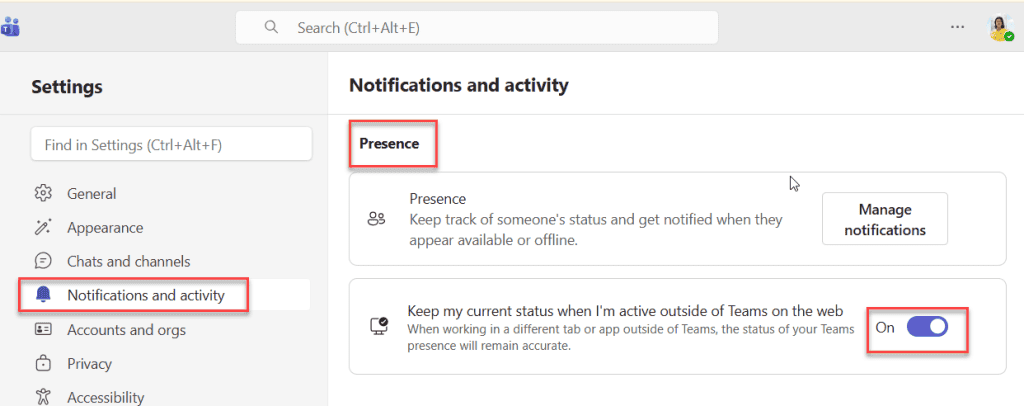
What this does is smart: Teams monitors whether you’re active anywhere in your browser, in other tabs or other apps, and keeps your status green as long as you’re doing something, even if you’re not inside Teams itself.
This is perfect if you work across multiple browser tabs all day. Teams sees you’re busy in Chrome and doesn’t switch you to Away just because you’re not literally clicking inside Teams.
Method 4: Start a Private Meeting With Yourself in Microsoft Teams
This one sounds weird, but it works really well. When you’re on a Teams call or in a meeting, your status shows as “In a call” (a busy/green-adjacent status). More importantly, the idle timer doesn’t apply while a call is active.
Here’s the trick:
- In Teams, go to your Calendar
- Click Meet now (the button in the top-right area of the Calendar page)
- Give it a name like “Focus time” or just leave the default
- Click Start meeting
- Don’t invite anyone — just start it with yourself
- Mute your microphone so there’s no noise
- Minimize or move the meeting window out of the way
Now Teams thinks you’re in an ongoing meeting. Your status stays active. You can work on anything else — a Word doc, a browser, a spreadsheet, and Teams won’t flip you to Away.
This is one of the most reliable methods for keeping your status green all day during deep work sessions.
Method 5: Use a Mouse Jiggler or Activity Simulator in Microsoft Teams
If changing sleep settings isn’t an option (for example, your IT department locks down power settings on work devices), a mouse jiggler is your next best option.
A mouse jiggler is a small tool, either hardware or software, that simulates mouse movement at regular intervals. This tricks your computer into thinking you’re active, which in turn keeps Teams green.
Software options:
- Mouse Jiggler (free app on Microsoft Store) — moves your mouse cursor by a pixel every few seconds
- Caffeine for Windows — keeps your PC awake without moving the mouse, by simulating a key press
- Move Mouse (available on the Microsoft Store) — similar concept, more customizable
Hardware option:
- A USB mouse jiggler dongle, a tiny USB stick that physically simulates mouse input. Plug it in and forget it. No software needed. Great for locked-down work laptops.
I’ve seen a lot of remote workers use these, and honestly, they’re a clean solution when you don’t have control over your machine’s power settings.
Method 6: Keep Microsoft Teams Open and Interact With It Periodically
This is the simplest behavioral fix. Teams measures activity on your device, specifically keyboard and mouse input. So if you’re working in other apps all day but never touching Teams, it assumes you’ve walked away.
A simple habit: every 4–5 minutes, switch to Teams, scroll a channel, or click something. That resets the idle timer and keeps you green.
I know this feels tedious, but if you keep Teams open in a visible window (not minimized), it becomes almost automatic. Just having Teams visible in your taskbar and occasionally glancing at it is usually enough.
Method 7: Set a Custom Status Message in Microsoft Teams
This won’t keep your dot green on its own, but it’s a great complement to other methods, especially when you know you’ll occasionally drift to Away.
Here’s how to set it:
- Click your profile picture in the top-right corner of Teams
- Select Set status message
- Type something like: “Available and working — feel free to message me”
- Under Show when people message me, toggle it on (so they see the message in the chat)
- Set it to expire Never or choose a custom duration
- Click Done
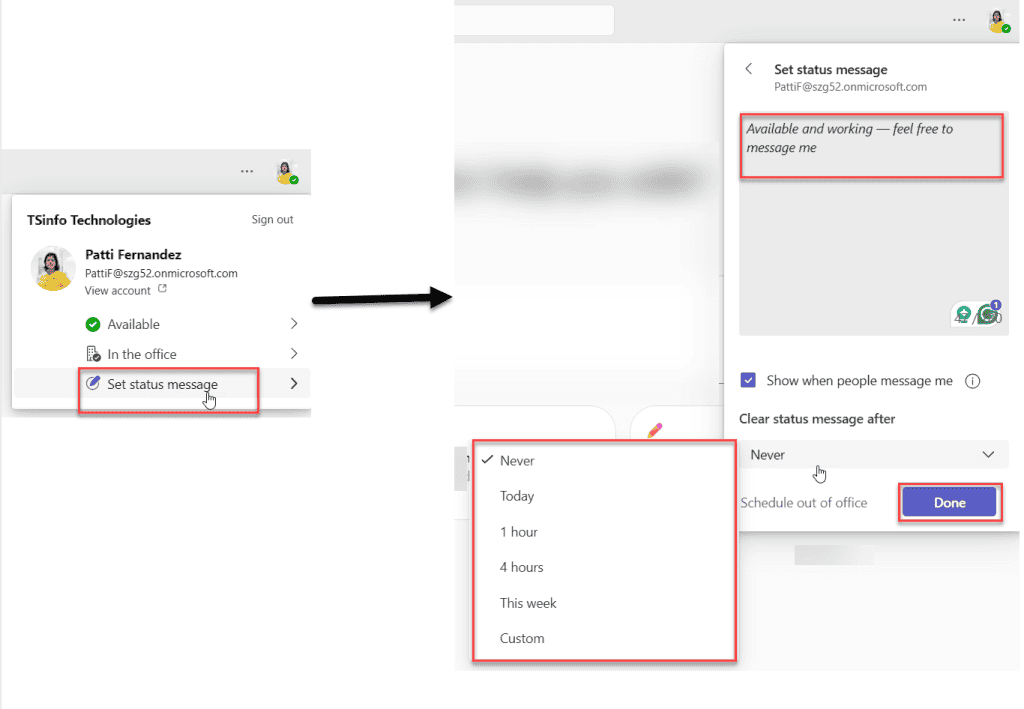
This way, even if your dot turns yellow, anyone who messages you sees a note that you’re actually around. It manages expectations without you having to manually reset your status every hour.
Method 8: Keep Teams Active on Your Mobile App
If you have Microsoft Teams on your phone and your status keeps switching to Away on desktop, your phone might actually be the fix.
On Android or iOS:
- Keep the Teams app open in the foreground on your phone (or at least in recent apps, not fully closed)
- Make sure your phone doesn’t auto-lock too quickly (adjust screen timeout settings)
- On Android, you can run Teams side-by-side with another app using split screen — this keeps it active
The Teams mobile app contributes to your overall presence. If Teams is open and active on your phone, it can keep your status green even when your desktop computer goes idle. This is a neat trick if you’re frequently stepping away from your desk but still want to appear available.
Which Method Should You Use in Microsoft Teams?
Here’s a quick summary to help you pick the right approach:
- You just want a quick fix right now → Method 1 (manually set Available)
- Your PC keeps going to sleep → Method 2 (change Power & Sleep settings)
- You use Teams in a browser → Method 3 (turn on “keep status, active outside Teams”)
- You’re doing deep focus work → Method 4 (start a private meeting)
- Your IT locks power settings → Method 5 (mouse jiggler)
- You just want people to know you’re around → Method 7 (custom status message)
- You’re away from your desk but still available → Method 8 (use mobile app)
Most people will get the best results by combining Method 2 (fix power settings) + Method 1 (manually set Available) + Method 7 (set a status message). That covers almost every scenario.
A Few Things to Keep in Mind While Working With Teams
- Teams cannot permanently lock your status to Available through its own settings alone. The idle detection is by design. You’ll always need a workaround like the ones above.
- If your status keeps reverting to Offline or Away even after you change it, try logging out of the desktop app, setting your status to Available on Teams Web, then logging back in on desktop. That usually clears stuck status issues.
- Your calendar affects your status, too. If you have a meeting block in Outlook, Teams will automatically switch you to Busy or In a meeting — even if the meeting isn’t a Teams call. Keep that in mind if you’re wondering why your status changed at a specific time.
Keeping your Teams status green is less about finding one perfect trick and more about understanding what causes it to change. Once you know the idle timer and sleep mode are the culprits, the fixes become obvious. Pick the method that fits your workflow, and you’ll stop worrying about that yellow dot ever again.
Also, you may like:
- Convert SharePoint Site to Microsoft Teams
- Blur Background in Microsoft Teams
- Unable To Join Microsoft Teams Meeting As Guest
- Mention Multiple Users in a Microsoft Teams Message using Power Automate
- Use Copilot in Microsoft Teams? [Boost Productivity]

After working for more than 18 years in Microsoft technologies like SharePoint, Microsoft 365, and Power Platform (Power Apps, Power Automate, and Power BI), I thought will share my SharePoint expertise knowledge with the world. Our audiences are from the United States, Canada, the United Kingdom, Australia, New Zealand, etc. For my expertise knowledge and SharePoint tutorials, Microsoft has been awarded a Microsoft SharePoint MVP (12 times). I have also worked in companies like HP, TCS, KPIT, etc.

