
In this tutorial, you will learn what content types are in SharePoint Online, why they matter, and how to use them effectively with modern lists and libraries. The article covers creation, configuration, ordering, publishing, troubleshooting, and removal scenarios tailored for SharePoint Online.
What is a Content Type in SharePoint Online?
A SharePoint content type is a reusable definition of the metadata, behavior, and settings for a specific kind of item or document in SharePoint.
Each content type bundles site columns, workflows, document templates, information management policies, and other settings into a single definition that can be reused across lists and libraries.
Content types are defined at the site (or tenant) level and then attached to lists and libraries where they are needed.
When you update a site content type, those changes can propagate to all lists and libraries that use that content type (if you choose to update them), which helps enforce consistent metadata across your environment.
Examples:
- A “Training Course” content type with columns like Course Name, Course Location, Course Price, and Course Category
- An “Employee” content type with columns like Employee ID, Department, Role, and Joining Date
SharePoint supports storing multiple content types in the same list or library, but each item or document can be based on only one content type at a time.
Why Use Content Types in SharePoint?
Using content types provides several benefits for document management and list data in SharePoint Online.
Key benefits:
- Consistent metadata: Standardize columns like “Department”, “Category”, or “Region” across many lists and libraries.
- Reusability: Design once (at site or tenant level) and reuse across multiple sites, lists, and libraries.
- Easier search and filtering: Rich, consistent metadata makes search refiners, filters, and views more powerful.
- Governance and compliance: Attach policies, retention, or workflows at content-type level instead of configuring each list individually.
- Better user experience: Users select a content type (e.g., “Invoice”, “Contract”, “Policy”) and see only the relevant fields and default templates.
Typical Use Cases
- Multiple document types in one library (e.g., Policies, Procedures, Templates)
- Task and request tracking lists (e.g., IT Requests, HR Requests)
- Structured business records that must follow standardized metadata and retention
Check out SharePoint Online List Lookup Column
Types of Content Types in SharePoint
SharePoint provides several base (parent) content types that you can inherit from when creating custom content types.
Common parent types:
- System types (internal)
- List content types (e.g., Item, Task, Event, Announcement, Contact)
- Document content types (e.g., Document, Picture, Form, Wiki Page)
- Folder content types (e.g., Folder, Discussion)
Each content type has a unique content type ID that reflects its inheritance path; custom types inherit from these base types and extend them with additional site columns and settings.
Read SharePoint Online list view
Classic vs Modern Content Type Experience in SharePoint
In modern SharePoint Online, the content type experience has been updated and surfaced through the content type gallery in the SharePoint admin center and in modern site settings.
Important points:
- Content type gallery: The modern content type gallery is the modern interface over the legacy content type hub; it is the recommended place to create and publish tenant-wide content types centrally.
- Faster publishing: Microsoft has improved content type publishing so that newly published or updated content types become available to sites faster than in the classic hub implementation.
- Modern lists and libraries: Modern lists and libraries fully support content types, but some configuration (like enabling content type management) is still accessed through classic list settings.
Plan your Content Types (Best Practices)
Before creating content types, invest time in planning; this will save significant refactoring later. Let me give you a few best practices for this.
Planning tips:
- Start with business scenarios, not technology: identify real content categories such as “Customer Contract”, “Vendor Invoice”, “Project Document”, and “Policy Document”.
- Model metadata centrally: Define a set of site columns (e.g., Department, Document Category, Sensitivity) that can be reused in multiple content types.
- Keep the model as simple as possible: Avoid creating dozens of very similar content types; over‑engineering complicates governance and adoption.
- Use naming conventions: Use clear, business-friendly names (e.g., “HR – Employee Record”, “Finance – Invoice”) instead of purely technical names.
- Use content types and metadata instead of deep folder trees: Rely on metadata and views for classification and navigation rather than complex folder structures.
Check out Format a SharePoint Online List Column using JSON
Default SharePoint Content Type IDs
Each SharePoint content type has a unique ID. Below, you can see the content type ID for the default SharePoint content types.
| ID | Name | Parent |
| 0x01 | Item | System |
| 0x0101 | Document | Item |
| 0x0102 | Event | Item |
| 0x0104 | Announcement | Item |
| 0x0105 | Link | Item |
| 0x0106 | Contact | Item |
| 0x0108 | Task | Item |
| 0x0120 | Folder | Item |
| 0x010101 | Form | Document |
| 0x010102 | Picture | Document |
| 0x010105 | Master Page | Document |
| 0x010108 | Wiki Page | Document |
| 0x010109 | Basic Page | Document |
| 0x012002 | Discussion | Folder |
| 0x012004 | Summary Task | Folder |
Check out Lock a File in SharePoint Document Library
Create a SharePoint Online List Content Type (Modern Site)
You can create a custom content type from the SharePoint site settings page and then attach it to your lists and libraries.
Step 1: Open the site content type gallery
- Navigate to your SharePoint site.
- Select the Settings (gear) icon and choose “Site information”.
- At the bottom of the panel, click “View all site settings”.
- Under “Web Designer Galleries”, select “Site content types”.
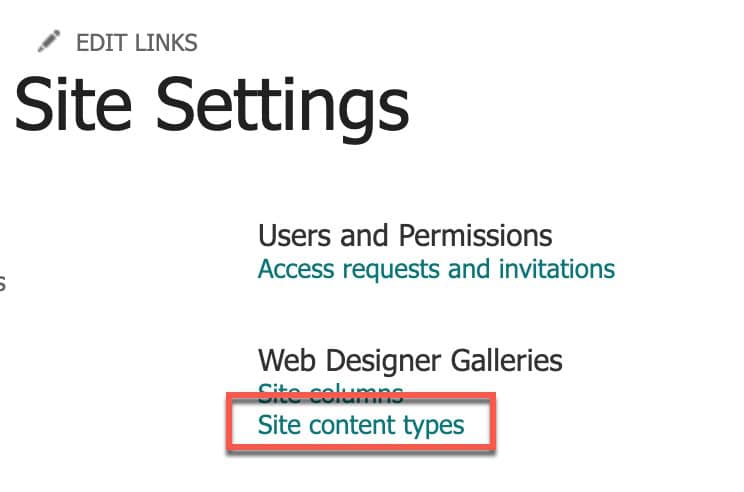
You will now see the site content type gallery, listing all existing content types on this site (and any you have inherited).
Step 2: Create a new site content type
- In the content type gallery, select “+ Create content type”.
- Provide a Name (for example, “Developer Training” or “Training Course”).
- Optionally add a Description to help other admins understand usage.
- Under Category:
- Choose an existing category (e.g., “Custom Content Types”) or
- Create a new category (e.g., “HR Content Types”, “Training Content Types”).
- Under Parent Content Type:
- Select a parent category such as “List Content Types” or “Document Content Types”.
- Select a specific parent content type such as “Item” (for list items) or “Document” (for files).
- Click “Create” to add the new content type to the site.
Here is a screenshot for your reference.
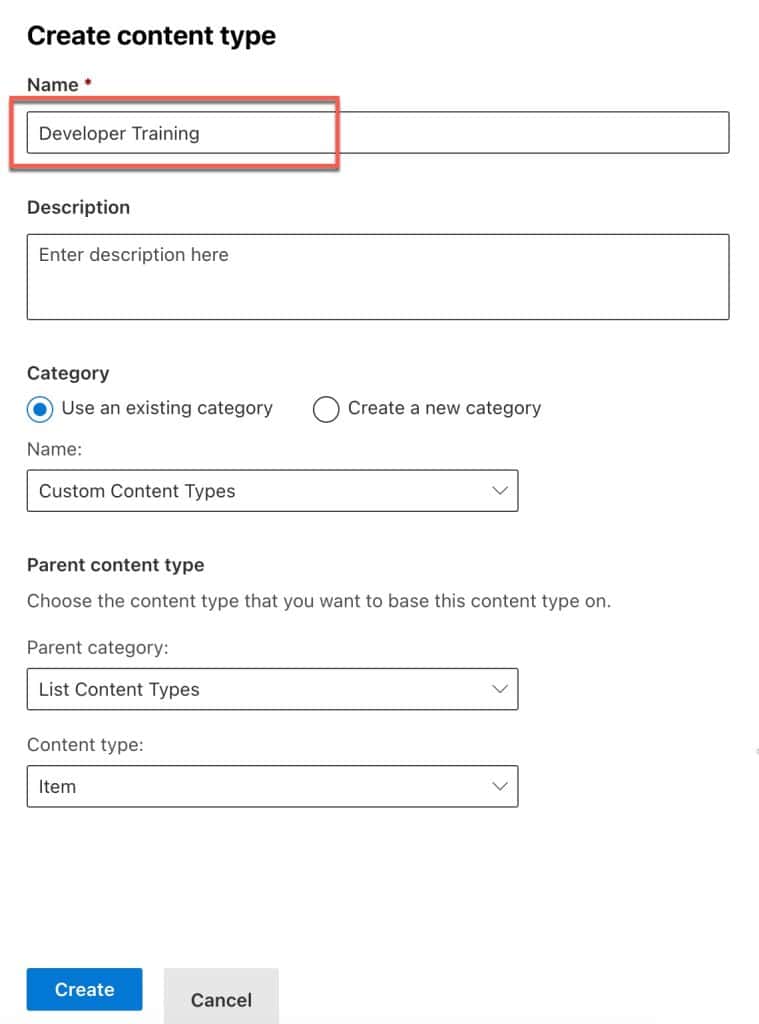
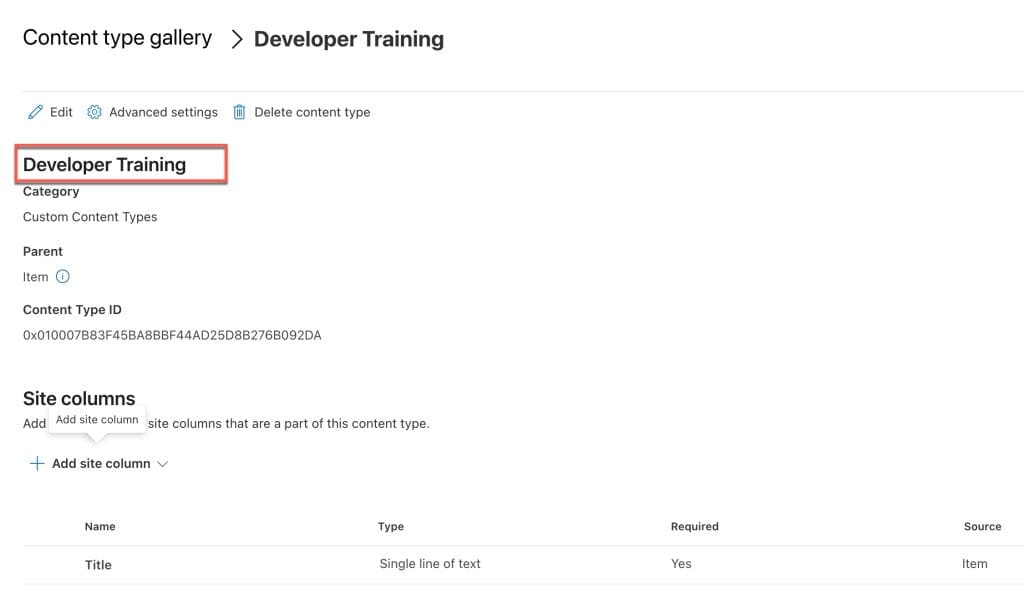
Your new content type now appears in the content type gallery and can be reused across lists and libraries on this site (and in subsites).
Here is how the content type looks:
Check out SharePoint Online Site Date Format
Add Site Columns to a SharePoint List Content Type
Once the content type is created, you can add existing site columns or create new site columns directly from the content type.
Steps:
- Go to Settings → Site information → View all site settings → Site content types.
- Select the content type you created (for example, “Developer Training”).
- In the content type page, expand “+ Add site column”.
- Choose one of:
- Create a new site column
- Add from existing site columns
- When creating a new site column:
- Enter the column Name (for example, “Training Courses Available”).
- Select a Category (reuse an existing category, such as “Custom Columns,” or create a new one).
- Choose the column type (for example, Choice, Single line of text, Number, Date and Time, Person, etc.).
- Configure options such as required/optional, default values, and how choices are displayed (dropdown, radio buttons, etc.).
- Click “Save” to add the column.
- Repeat for all columns required by your content type.
Here is what it looks like below:

After saving, all added site columns are part of the content type; they will appear as columns in any list or library that uses this content type.
Check out Validate Phone Number Column in SharePoint
Enable Content Type Management on a SharePoint List
By default, many modern SharePoint lists and libraries do not expose the content type selector until content type management is enabled.
Steps to enable:
- Open the target SharePoint Online list.
- Select Settings (gear) and click “List settings” (or “Library settings” for libraries).
- Under “General Settings”, select “Advanced settings”.
- In the Content Types section, set “Allow management of content types?” to “Yes”.
- Scroll down and click “OK” to save your changes.
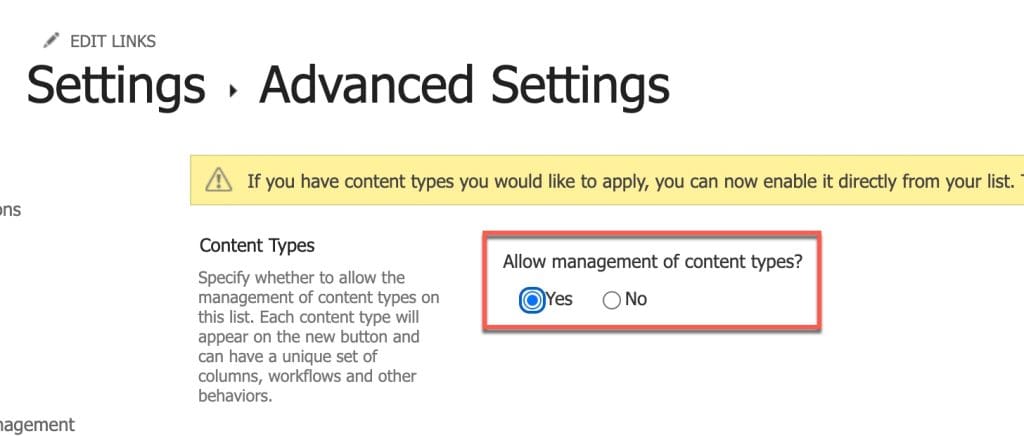
After enabling, a “Content Types” section appears on the list settings page, and the list can host multiple content types.
Add the Content Type to a SharePoint Online list
You can now add your site content type to the SharePoint Online list.
Steps:
- Go to the list’s “List settings” page.
- In the “Content Types” section, select “Add from existing site content types”.
- In the “Select Content Types From” dropdown, choose the category where your custom content type is defined.
- Select your content type (for example, “Developer Training” or “Training Course”), click “Add”, and then click “OK”.
- Your content type now appears in the list’s “Content Types” section and becomes available as a choice when users create new items.
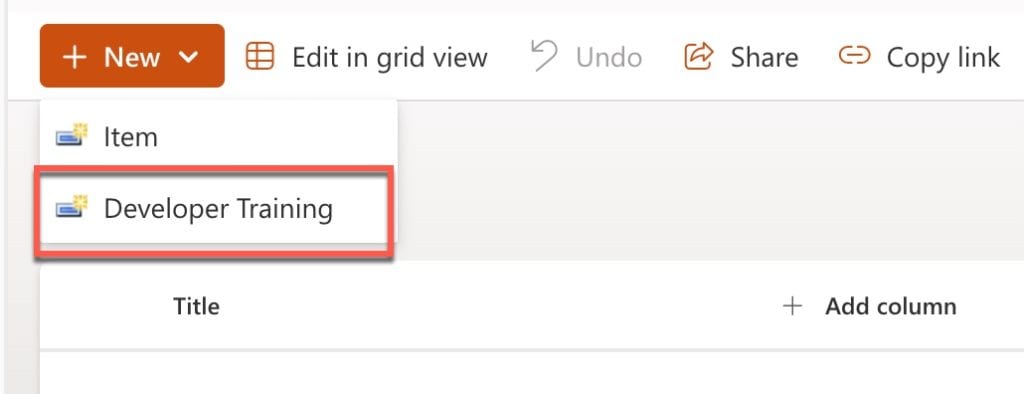
In the modern list view:
- Select “+ New” and choose your custom content type from the dropdown (if multiple types exist).
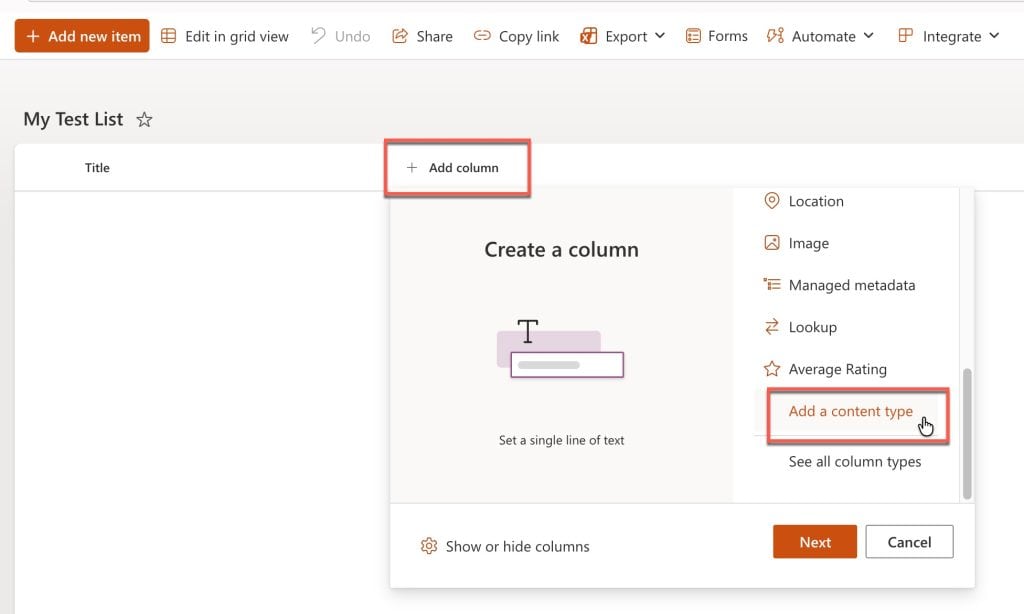
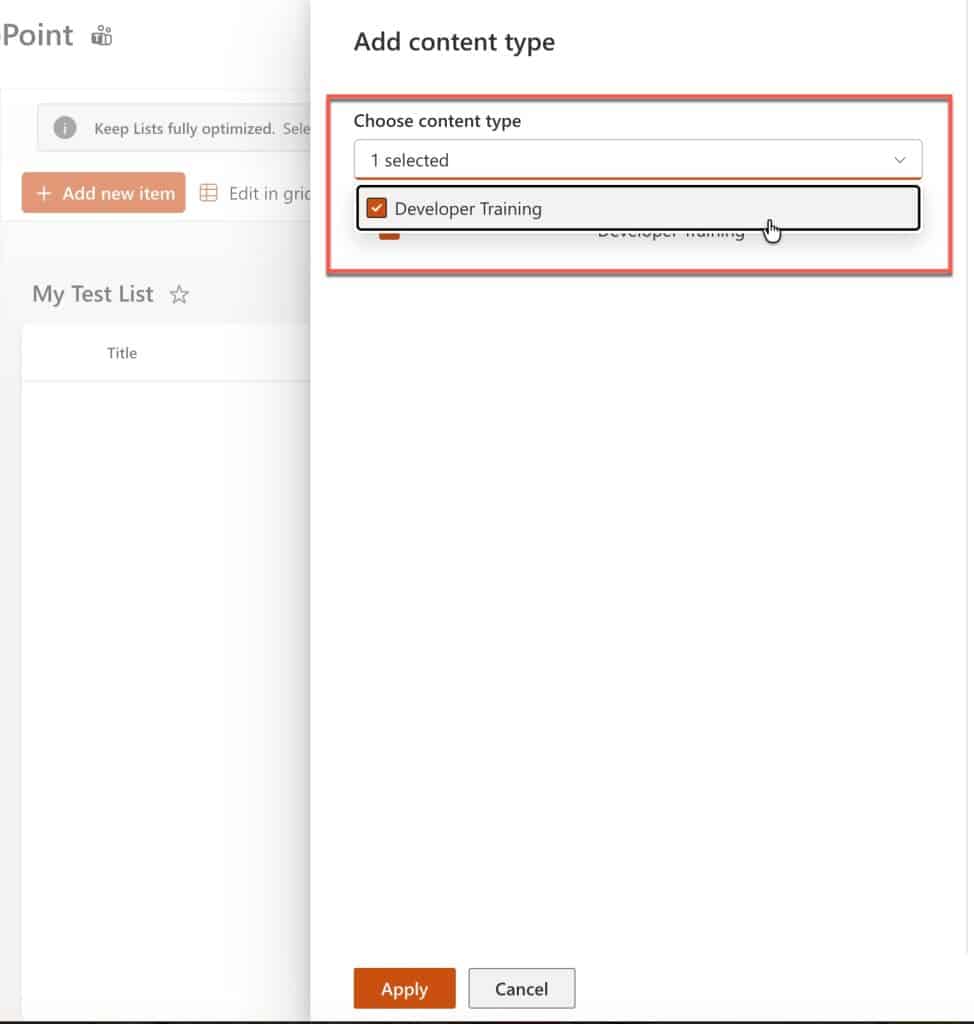
- In the next Add content type screen, choose the content type that we have created, below you can see the screenshot for your reference.
- The form will show the specific columns defined for that content type, plus any default columns such as Title. You can see in the screenshot below:
Check out Gantt Chart View in SharePoint Online Modern List Using JSON
Show the Content Type Column in SharePoint List Views
By default, the “Content Type” column may not be visible in the list view. You can show it to make it easier to see which content type each item uses.
Steps:
- In the modern list view, open any column dropdown and select “Column settings” → “Show/hide columns”.
- In the “Edit view columns” pane, check the box for the columns that you have added while creating the “Content Type”.
- Optionally reorder the columns to bring closer to the left.
- Click “Apply” to save the view.
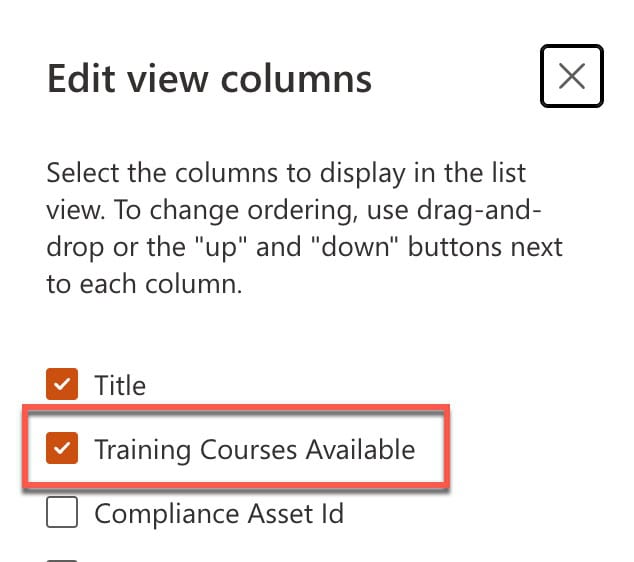
You can now filter or group by Content Type to manage items by type.
Change the Order and Default Content Type in a SharePoint List/Library
If a list has multiple content types, you can control which one appears first and which is the default when users click “New”.
Steps:
- Open the list and go to “List settings”.
- In the “Content Types” section, click “Change new button order and default content type”.
- On the “Change New Button order” page:
- Use the position dropdowns to rearrange content types.
- Check or uncheck the “Visible” checkbox to show/hide content types on the New menu.
- Select the content type to set as the default by setting it to position 1 and marking it as visible.
- Click “OK” to save your changes.
When users click “+ New” in the SharePoint list:
- The default content type appears as the main option.
- Additional content types appear in the expanded menu, based on the order you configured.
Read Microsoft Lists vs SharePoint Lists
Make Content Types Available Across Sites (Content Type Gallery)
For enterprise scenarios, you often want to define content types centrally and reuse them across multiple SharePoint sites. This is done via the content type gallery (a modern replacement for the legacy content type hub).
Here are the steps:
- A SharePoint admin opens the SharePoint admin center and goes to “Content type gallery”.
- Create or edit content types in the gallery, defining site columns and templates.
- Publish the content types from the gallery so they become available to other sites in the tenant.
- On the target sites, use “Add from existing site content types” to attach the published content types to lists and libraries.
Microsoft has optimized content type publishing so that new or updated content types are propagated faster than in the older hub approach, improving reliability for multi‑site scenarios.
View all SharePoint Site Content Types
You can list all available content types in a SharePoint site from the Site Settings page or directly via URL.
Options:
- Go to Settings → Site information → View all site settings → Site content types.
- Or navigate directly to the content type management URL for the site: https://.sharepoint.com/sites//_layouts/15/mngctype.aspx

From this page, you can:
- Filter content types by group.
- Drill into a specific content type to view its columns, settings, and inheritance.

Check out SharePoint Check In Check Out
Get the Content Type ID from a SharePoint List or Library
You can quickly retrieve the content type ID by navigating to the content type settings in the browser.
Steps:
- Open the SharePoint list or library.
- Go to “List settings” or “Library settings”.
- Under the “Content Types” section, click the content type you are interested in (for example, “Item” or “Developer Training”).
- In the browser’s address bar, check the URL; the content type ID appears in the ctype= query string parameter (for example, &ctype=0x0100…).

You can use this ID in customizations, PowerShell scripts, or Power Automate flows that reference a specific content type.
Conclusion
In this tutorial, you learned what SharePoint Online content types are, why they are important, and how they help you design a consistent, scalable information architecture for your lists and libraries.
By creating custom content types, adding site columns, enabling content type management, and controlling their order and availability across sites, you can standardize metadata, improve search and filtering, and make user data entry more intuitive.
You may also like:

I have worked with Microsoft technologies for more than 18 years, including SharePoint, Microsoft 365 and the Power Platform (Power Apps, Power Automate and Power BI), at companies like HP, TCS and KPIT. I started EnjoySharePoint in 2011 to share the solutions I build in real projects with readers in the United States, Canada, the United Kingdom, Australia, New Zealand and beyond. Microsoft has recognised this work with the Microsoft MVP award 13 times since 2014.