
When I build an intranet home page, the first thing people ask for is a set of links they use every day: the employee handbook, payroll, training and the help desk. If those aren’t visible the moment someone lands on the page, they assume the site doesn’t have them.
The SharePoint Quick Links web part solves that. In this tutorial, I’ll show you how to add it, add and edit links, choose between its six layouts, reorder links, and show some links only to certain groups with audience targeting.
Quick answer: Edit the page, select the + where you want the web part, search for Quick links and add it. Select + Add links to add pages, files or web addresses, pick a layout (Compact, Filmstrip, Grid, Button, List or Tiles) above the web part, and select Republish.
Step 1: Add the Quick Links web part
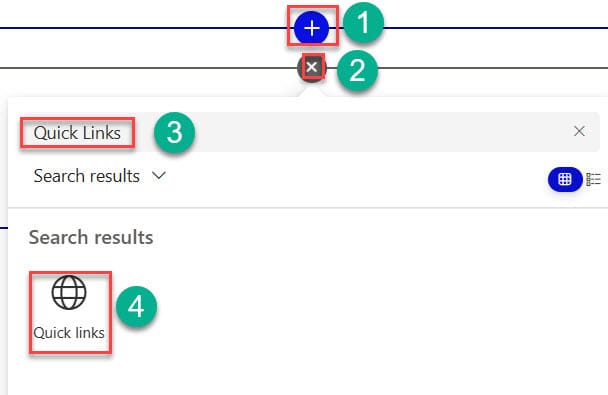
Open the page and select Edit in the top right. Hover over the area where you want the links, select the circled +, type Quick links in the search box and select it. You can also open the Toolbox on the right side of the page and find it there.
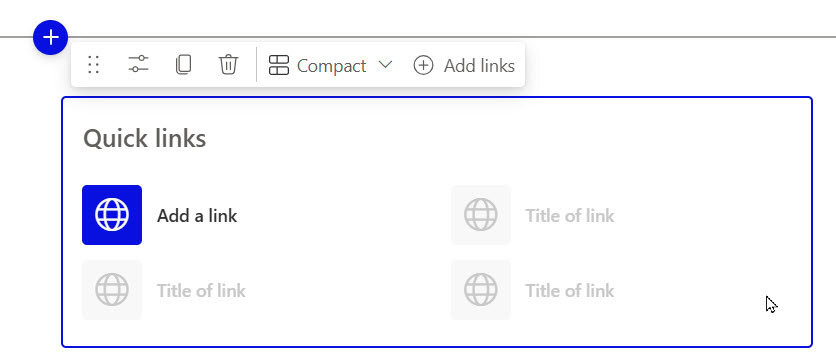
The empty web part appears with a title placeholder and an Add a link option:
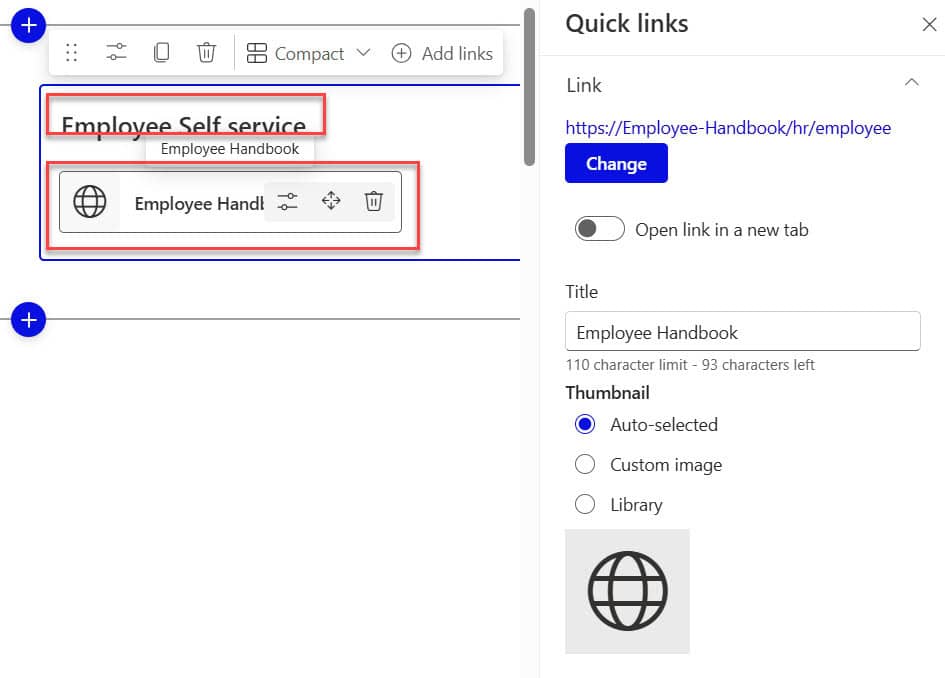
Type over the title to name it. I called mine Employee Self Service. If you’re building a whole home page, see how to customize a SharePoint site home page for where Quick Links fits.
Step 2: Add your links
Select + Add links. SharePoint lets you pick the link from several places:
- Recent files and pages you’ve worked with.
- Stock images, when you only want a picture for the tile.
- A site, to link to another SharePoint site.
- OneDrive, Your computer (to upload a file) or Your organization, if your company has an organization assets library.
- From a link, to paste any web address.
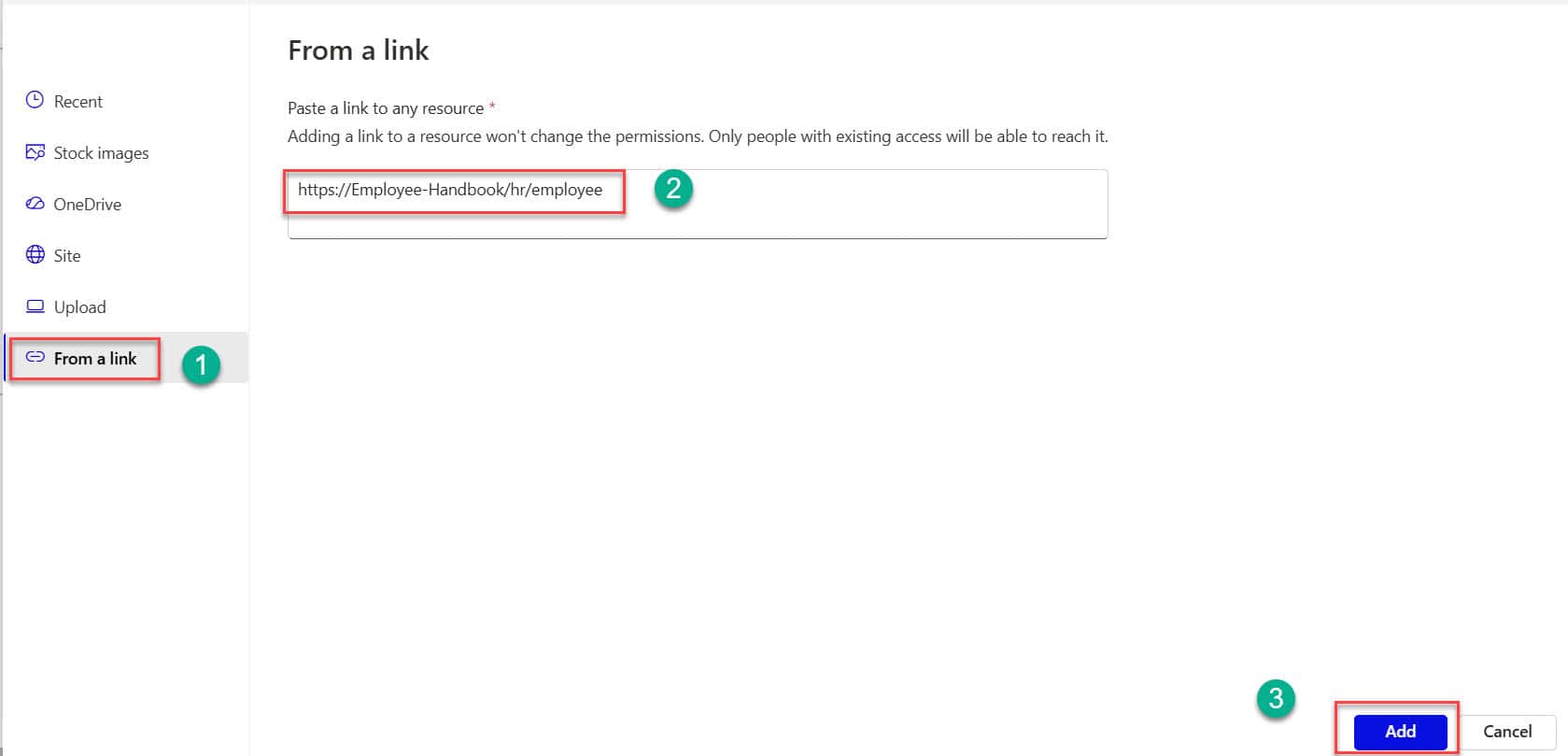
For the handbook, I selected From a link, pasted the address and selected Add:
SharePoint fills in a title and picks an icon or thumbnail for you. The first link now appears in the web part:
If you use web search for an image, the results are Creative Commons images from Bing, so check the license before you use one on your intranet.
Step 3: Edit a link
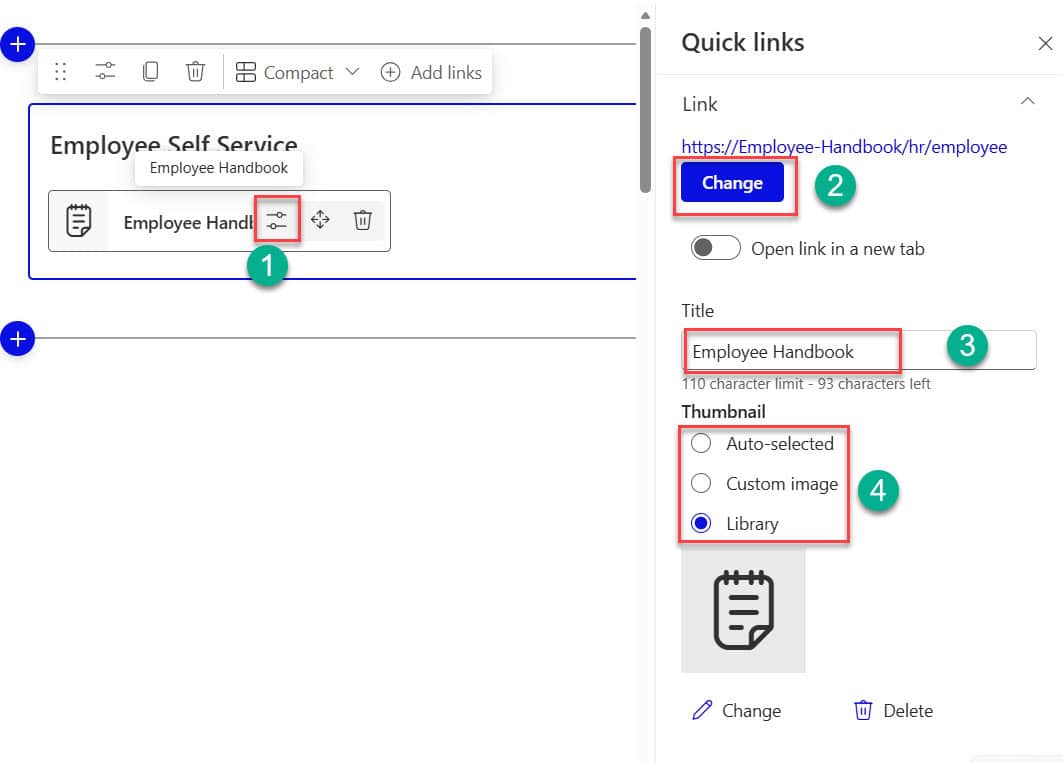
To change a link, hover over it in edit mode and select the Edit (pencil) icon. In the properties pane you can:
- Select Change under Link to point it to a new address.
- Edit the Title, which is the text people see.
- Choose the thumbnail: let SharePoint pick it, upload a custom image, or choose an icon.
- Add alternative text for screen readers.
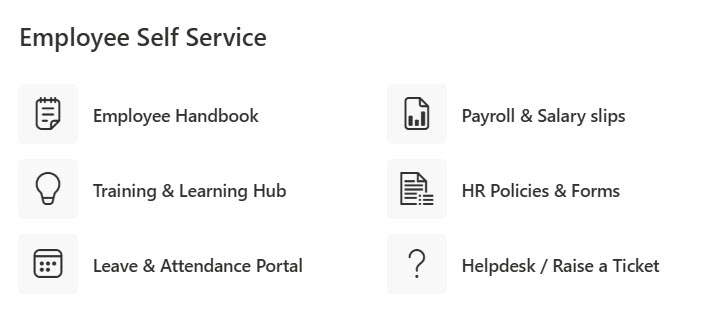
I added five more links the same way: Payroll & Salary Slips, Training & Learning Hub, HR Policies & Forms, Leave & Attendance Portal and Helpdesk / Raise a Ticket:
Reorder and remove links
Drag a link by its Move icon, or select it and press Ctrl+Left or Ctrl+Right. To remove a link, select its trash can icon. You can’t reorder links in the Filmstrip layout, so put them in order before you switch to it.
Step 4: Choose a layout
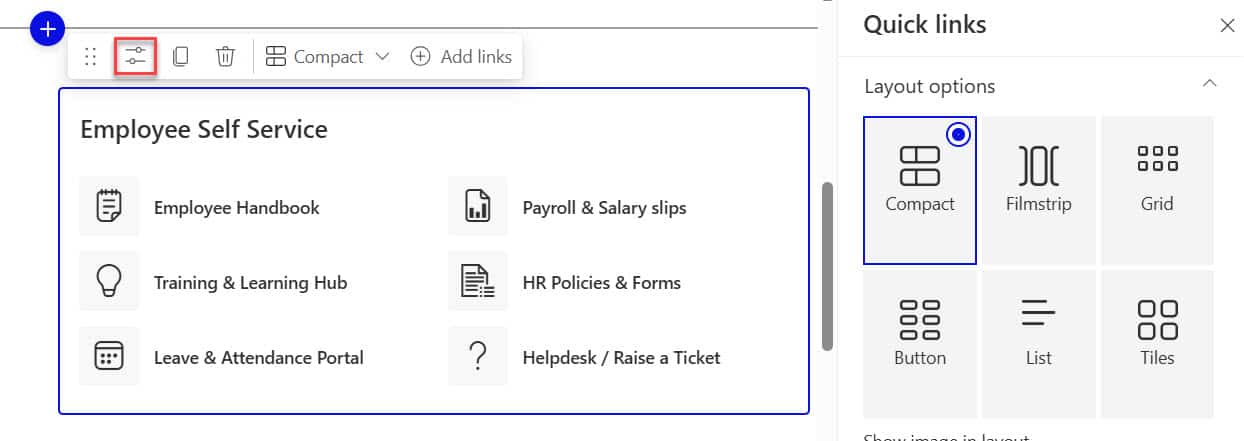
The layouts change how the links look, not the links themselves, so you can switch any time. In edit mode, pick a layout from the options above the web part, and use Edit properties for the settings of that layout:
| Layout | What it looks like | Good for |
|---|---|---|
| Compact | A small icon or image (48 x 48 pixels) next to each title | Many links in a narrow column |
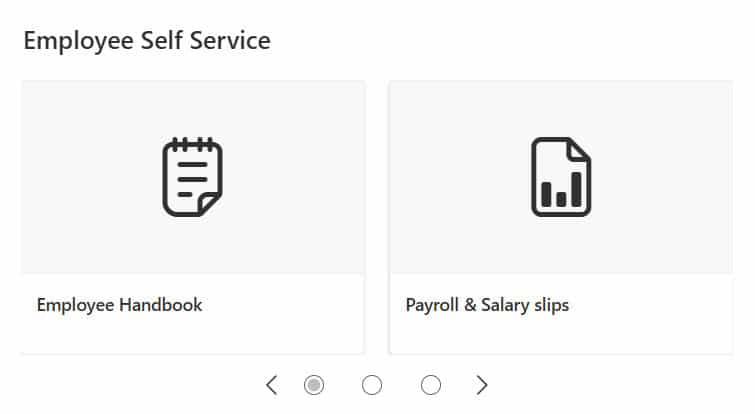
| Filmstrip | Large 16:9 images you scroll through | Visual links, like training videos |
| Grid | Large square tiles with an image and title | A handful of important resources |
| Button | Buttons with an icon and text | Actions like “Submit a request” |
| List | A simple list with icons | Long lists of documents |
| Tiles | Square tiles with an icon and title | A short set of main destinations |
Some options only exist in certain layouts: Show image in layout for Compact, and Show descriptions for List and Button. Here’s the same set of links in Filmstrip, Grid and List:
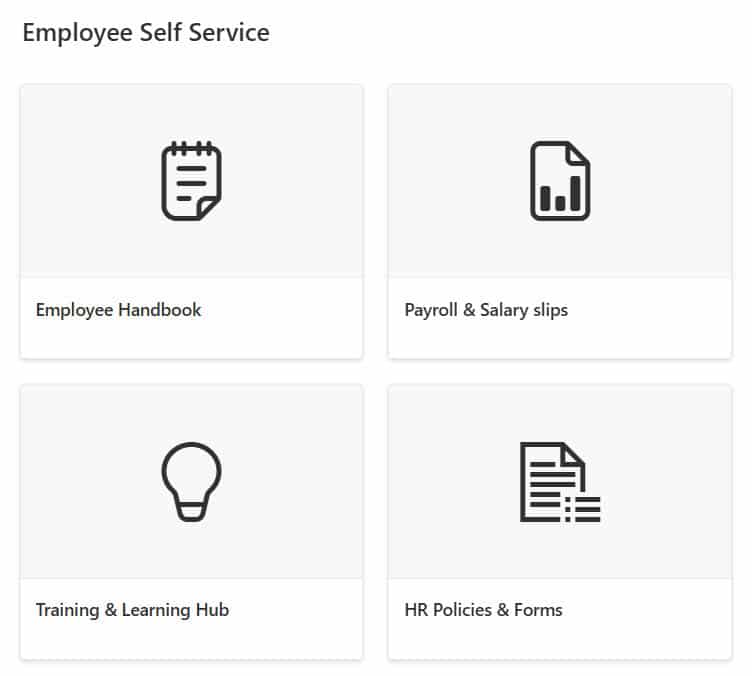
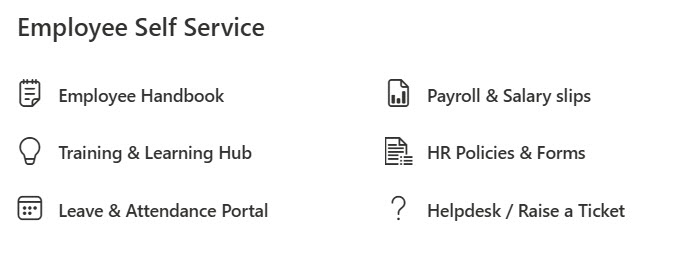
And here they are as Tiles, plus the Button layout with its appearance settings:
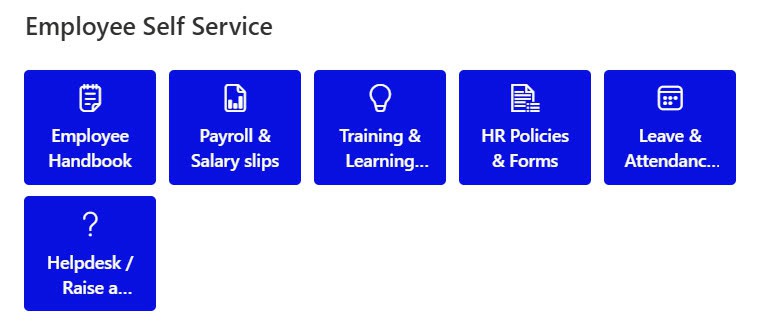

On most home pages, I use Button or Compact for everyday links and keep big images for the hero area. If you only need one big button, the SharePoint Button web part or the Call to action web part is simpler.
Step 5: Show links only to certain groups
Audience targeting lets you show a link only to the people it’s for. For example, a “Manager Toolkit” link only managers see. Everyone else sees the rest of the links as usual.
- Select Edit properties on the web part, and in the Filter section turn on Enable audience targeting.
- Edit the link you want to target and add one or more groups under Audiences to target.
- Select Republish. Targeting only takes effect on the published page.
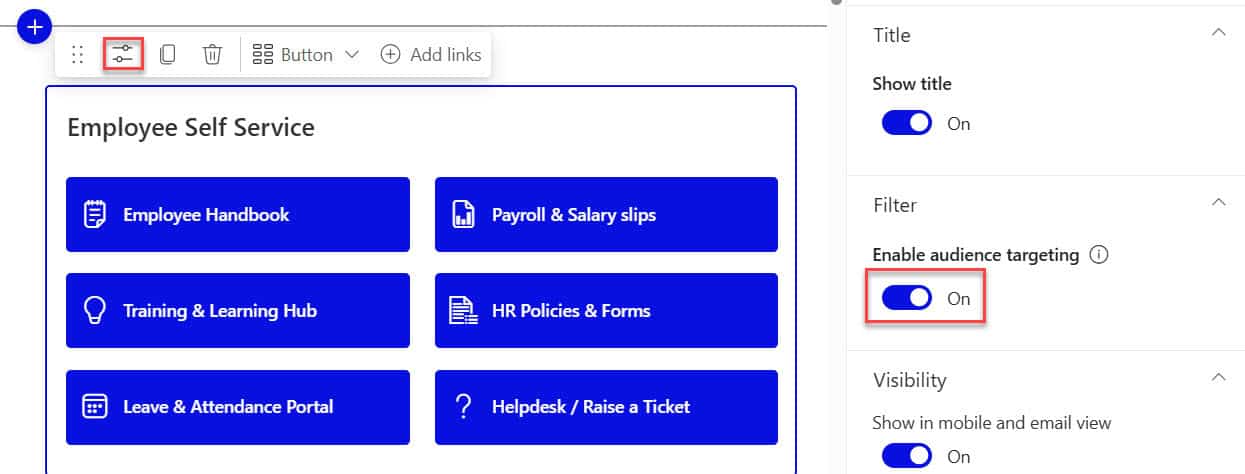
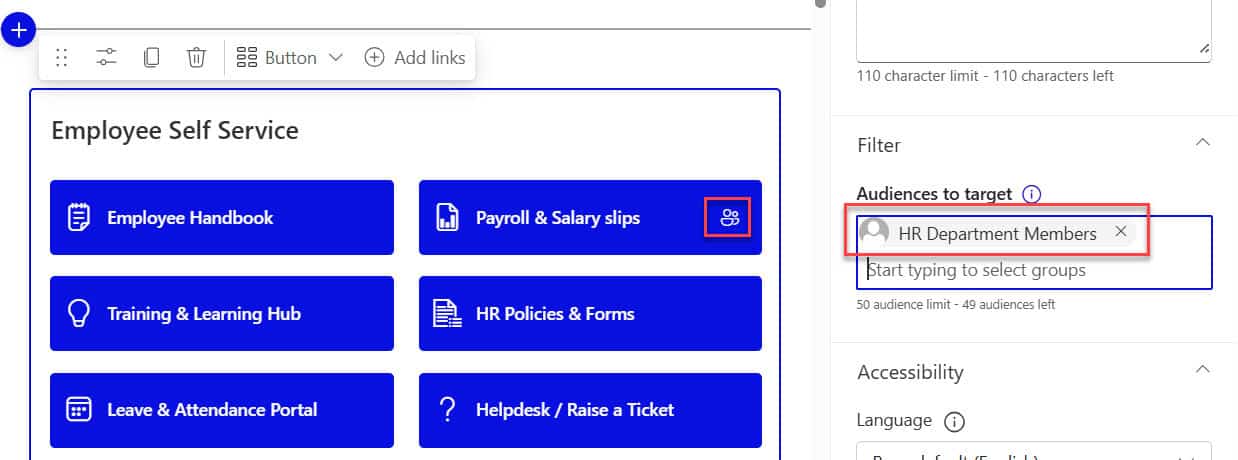
You can target Microsoft 365 groups, security groups and dynamic groups from Microsoft Entra ID. New groups or membership changes can take a while to show up. The same feature works in menus; see how to enable audience targeting in SharePoint navigation.
Tips and troubleshooting
- Someone can’t see a link: check that they have permission to the target page or file, and that the link isn’t targeted to a group they’re not in.
- Targeting doesn’t work: republish the page and give new groups some time.
- The image is cut off: Filmstrip uses a 16:9 shape, so use wide images for it.
- The same links on every site: put them in a hub’s navigation instead. See how to create a hub site in SharePoint Online.
- Reuse the layout: save the page as a template. See how to create page templates in SharePoint.
These SharePoint web part tutorials go well with Quick Links:
Frequently Asked Questions
How do I add Quick Links in SharePoint?
Edit the page, add the Quick links web part, then select + Add links and choose a page, file or web address. Microsoft covers every option in use the Quick Links web part.
How many layouts does the Quick Links web part have?
Six: Compact, Filmstrip, Grid, Button, List and Tiles. You pick the layout above the web part in edit mode.
Can I show Quick Links only to certain people?
Yes. Turn on Enable audience targeting in the Filter section of the properties, then set Audiences to target on each link and republish.
Why can’t I reorder links in the Quick Links web part?
Reordering isn’t available in the Filmstrip layout. Switch to another layout, move the links with Ctrl+Left or Ctrl+Right, then switch back.

I have worked with Microsoft technologies for more than 18 years, including SharePoint, Microsoft 365 and the Power Platform (Power Apps, Power Automate and Power BI), at companies like HP, TCS and KPIT. I started EnjoySharePoint in 2011 to share the solutions I build in real projects with readers in the United States, Canada, the United Kingdom, Australia, New Zealand and beyond. Microsoft has recognized this work with the Microsoft MVP award 13 times since 2014.
Sometimes we want to force users to have the quick links open in a new tab so they don’t lose the page they are working on. One workaround is to create a short link with Bitly or similar and use that instead. Microsoft will treat the short link as external and open the SharePoint page in a new tab.
Can you advise if the Quick Links webpart should appear in the SharePoint modern search results? Mine are not.