
Last week, we were designing a modern SharePoint home page for one of my enterprise clients. Our client wanted us to create a centralized hub where employees could instantly access the most important company news and updates. SharePoint News Web Part was the perfect solution to meet this requirement.
In this tutorial, I will explain how to use the news web part in SharePoint Online to display engaging content on the home page.
What is the SharePoint News Web Part?
The SharePoint News Web Part is an out-of-box web part that enables organizations to create, publish, and display news articles, announcements, and important updates across SharePoint sites. It’s one of the fundamental building blocks for internal communications in SharePoint Online, allowing you to keep everyone informed and engaged with visually appealing content.
Check out Customize SharePoint Site Home Page
Working with the SharePoint News Web Part
Now, let me show you how to work with the SharePoint Online news web part. First, let us see how to add a news web part to a SharePoint Online site page. You can add it to the home page or any custom site page of a SharePoint team or communication site.
Here are the steps below:
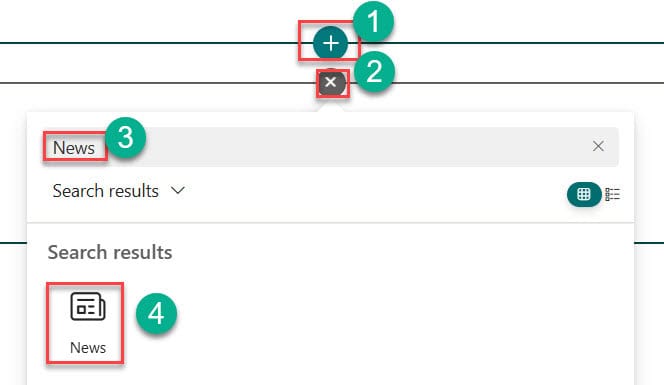
- Open the SharePoint Online site where you want to add the News web part. Then click Edit at the top of the page. Then click on the + circled icon and choose a column.
- Then click on the +circled icon. Then the search box will appear, and you can search for News. You will find the News web part as shown in the screenshot below. Then click on the News web part. Then click on Republish.
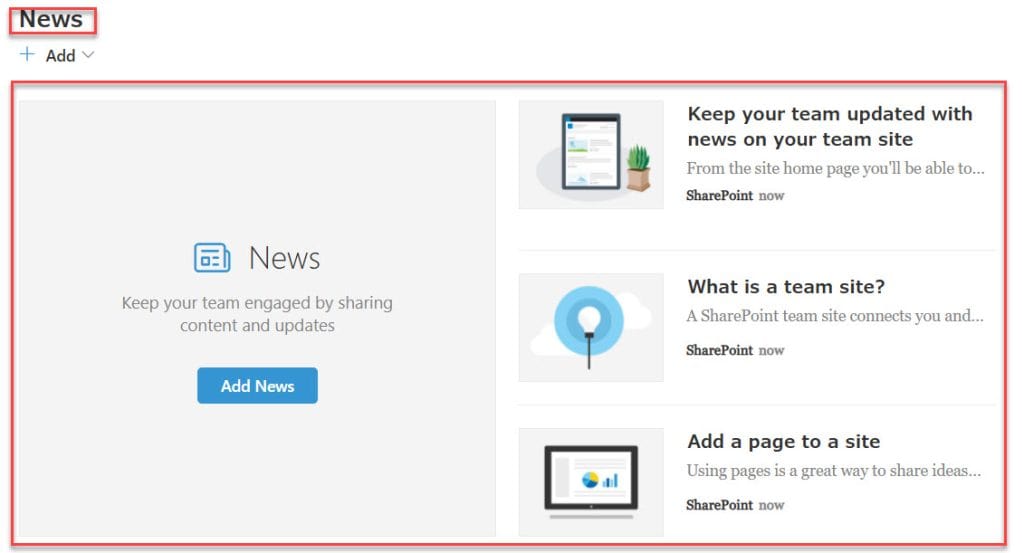
- Once you click Republish, you can see the SharePoint Online News web part as shown in the screenshot below.
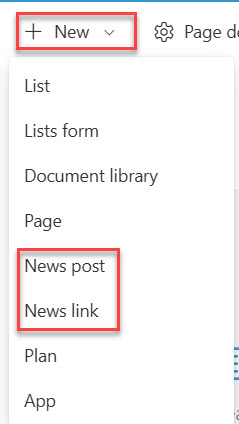
Once the SharePoint Online News web part is added, we have to add news to it. There are two ways to add news to SharePoint Online.
- From the SharePoint Online Home page.
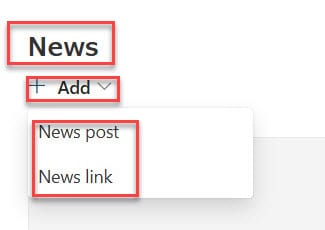
- From SharePoint Online News Web Part.
Read Microsoft Forms Web Part in SharePoint Online
Add News Posts From SharePoint News Web Part
We can add new posts directly from the news web part after adding it to the page. Here is how you can create news posts from the news web part.
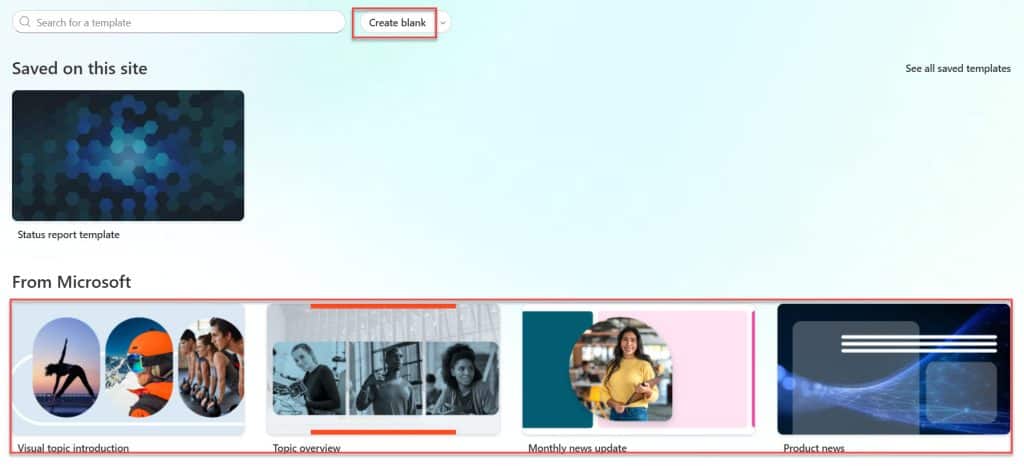
- Open the SharePoint Online News web part. Then click on +Add under News. Then click on News post. Then it will navigate to the templates gallery as shown in the screenshot below. From there, you can choose any template, or you can create from a blank. Here I am creating a news post from scratch by clicking Create blank.
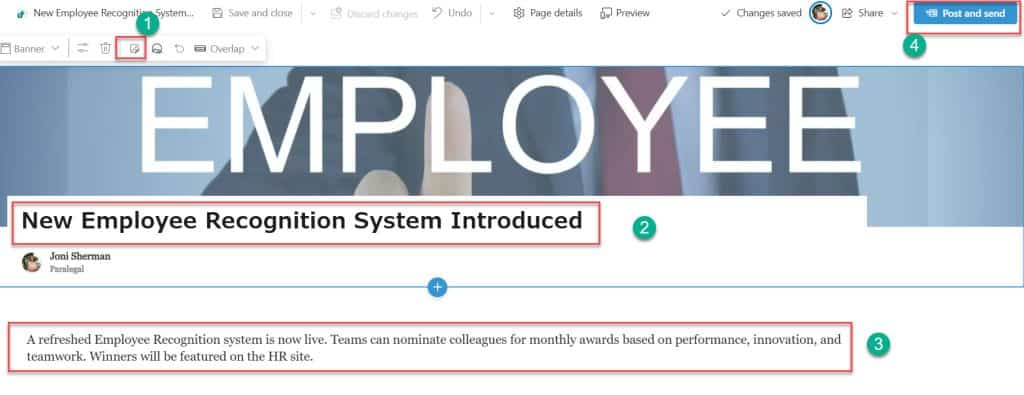
- Then it will navigate to the news post page. Here you can browse the image, add a title and description, then click Post and send.
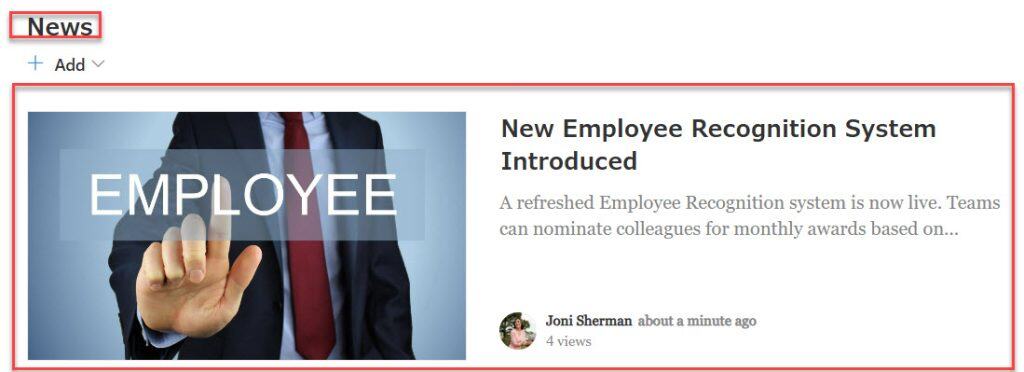
- Then you can see the news post in the News Web part as shown in the screenshot below.
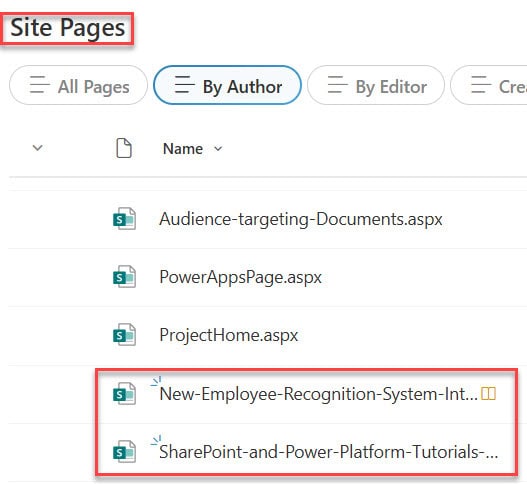
Note: All these news posts were saved in the Site Pages gallery in the SharePoint site.
Check out SharePoint Quick Links Web Part – How to Use
Add News Links From News Web Part
We can also add news links from the News web part in SharePoint Online. This will be helpful if you want to display news from external sites.
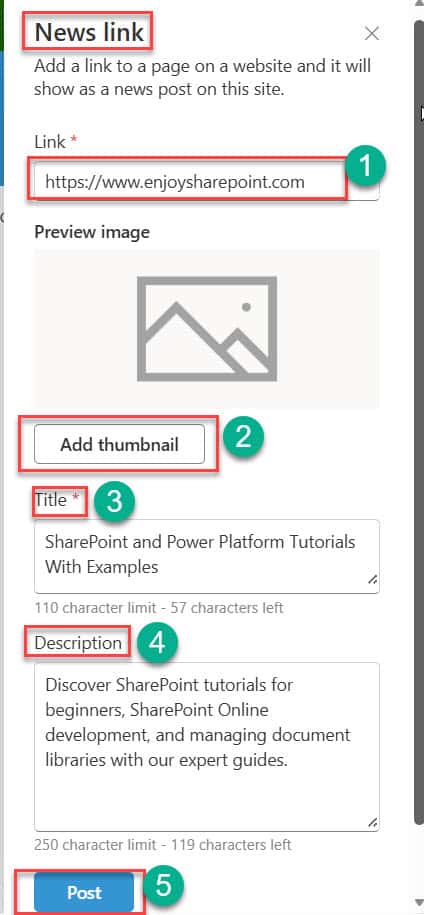
- Open the SharePoint Online News web part. Then click on +Add under News. Then click on News Link. Then the News link Properties pane will appear on the right.
- Here, we have to paste the link of the existing news in the Link field. Once we add the Link, then the title and description are auto-filled. If we want to edit, we can.
- Then we can add an image by clicking on Add thumbnail. Then click on Post.
- Once you click on Post, you can see the news in the SharePoint Online news web part as shown in the screenshot below.
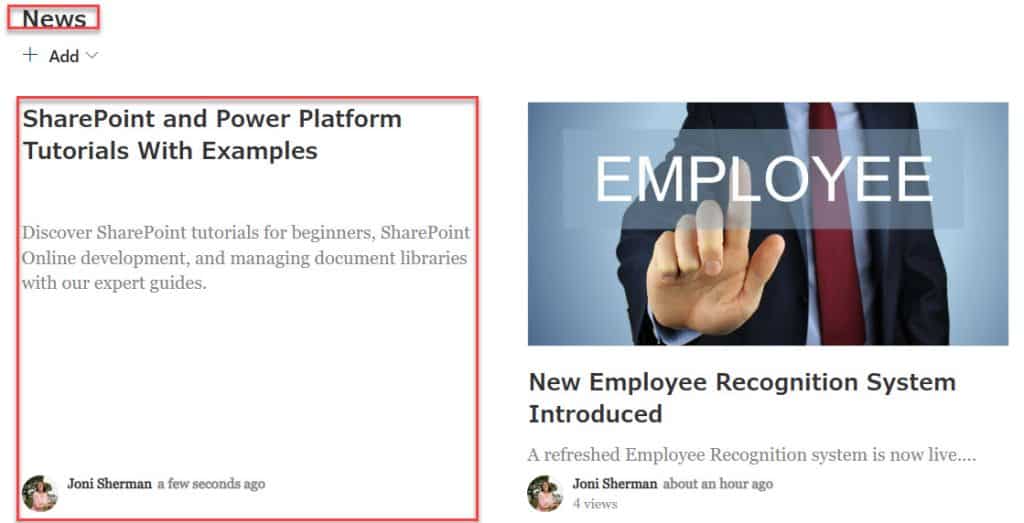
All these news posts and links will be saved in the SharePoint site’s pages library, as shown in the screenshot below.
In this way, I also added a few more News posts to the SharePoint News web part.
Check out SharePoint Highlighted Content Web Part
SharePoint Online News Web Part Layouts
There are different layouts available in a news web part in SharePoint, such as:
- Top Story
- List
- Side by side
- Hub News
- Carousel
- Tiles
Based on your requirement or how you want to display news, you can change the layout.
Here are the steps to change the layout in the SharePoint Online News web part.
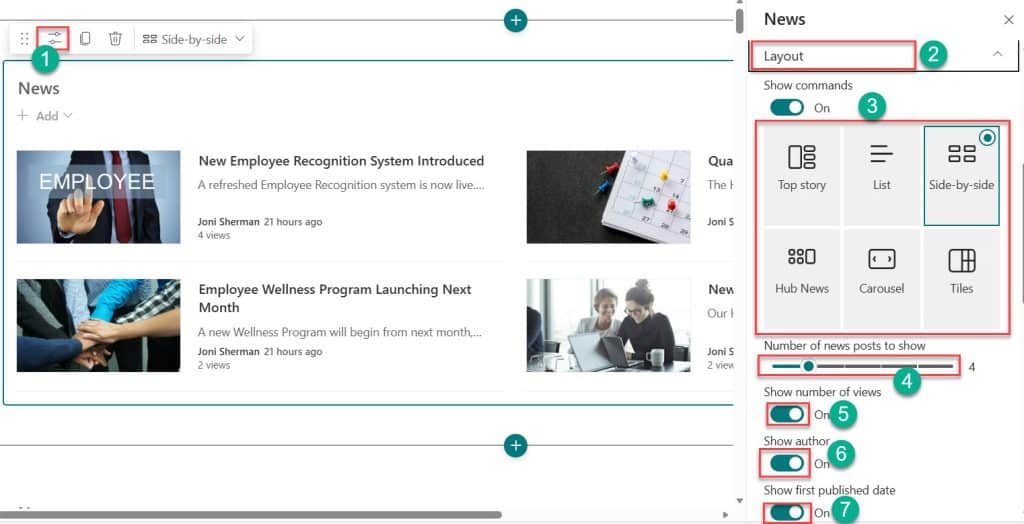
- Edit the SharePoint Online News web part. Then, in the Properties pane, below the layout, you can choose the layout you prefer.
- Below the layouts, you can select the number of new posts you want to display in the News web part. Here, I selected four, and you can choose as you like.
- By default, Show number of views, Show author, and Show first published date are displayed, and the toggle is on.
- If you don’t want to display it in the News web part, then you can slide the toggle to OFF.
- Here, by default, a side-by-side layout is displayed.
- If you choose Top story, then the layout is displayed as shown in the screenshot below.
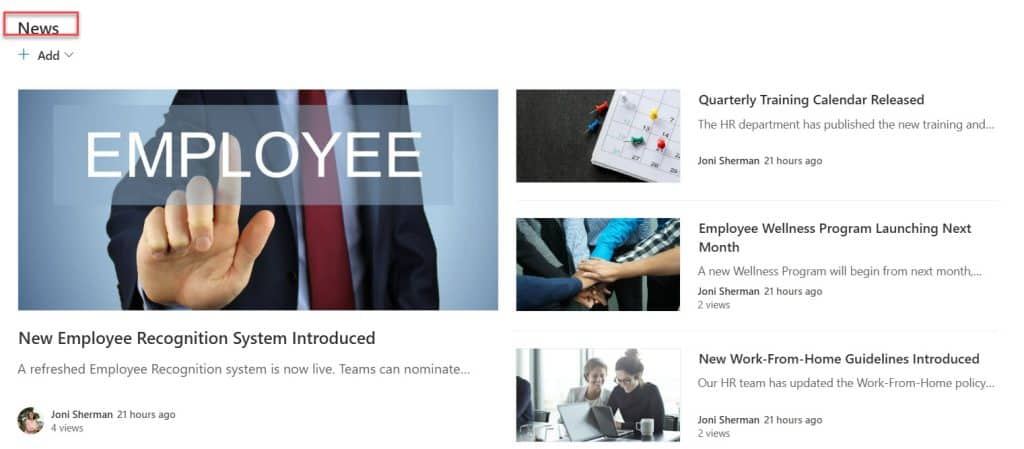
- If you choose Hub News, your layout appears as shown in the screenshot below.
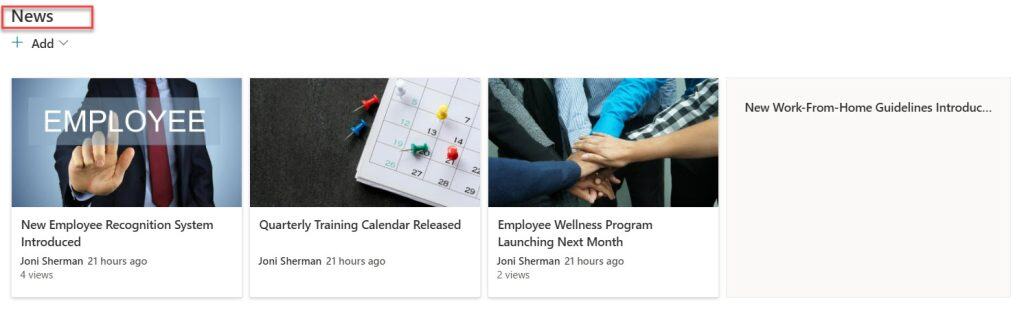
In this way, we can change the layout of the SharePoint Online News web part.
Check out Events Web Part in SharePoint Online
Display News in a News Web Part Based on Source
You can also display the news posts in the web part based on the Source. Here are the steps to select the news based on the source.
- Edit the SharePoint Online News web part. On the properties pane, click on the News Source dropdown. Then under Select a news source, you can select any one from This site, Select sites, or Recommended for current user. By default, you will have the news posts from this site, where the news from the current site is displayed in the SharePoint Online News web part.
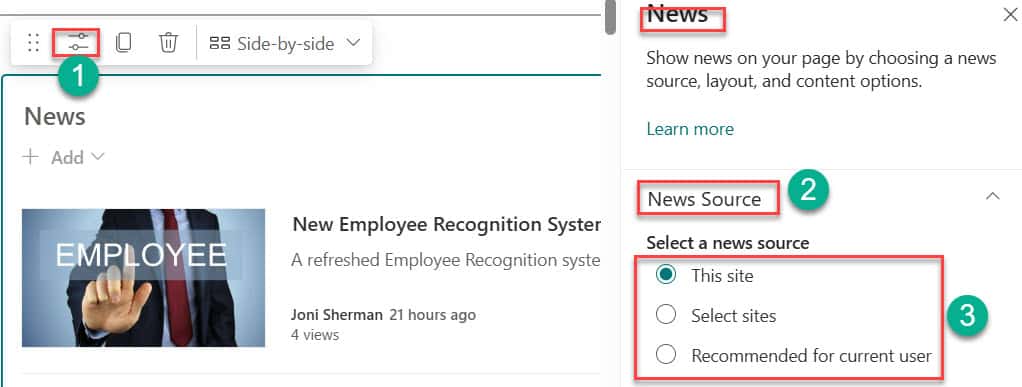
- If you select the “Select sites” option, then you can choose the sites from which you need news to display in the SharePoint Online News web part.
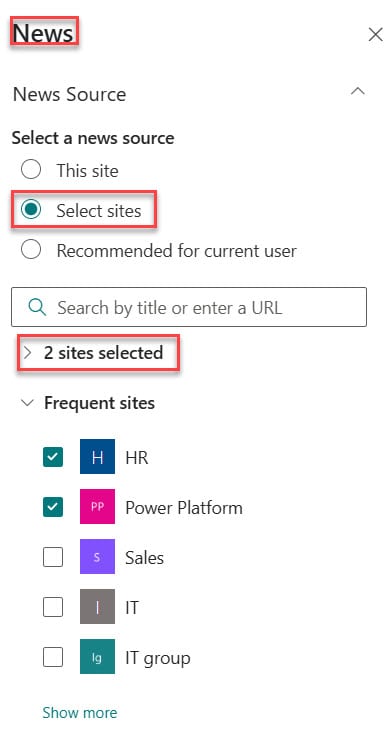
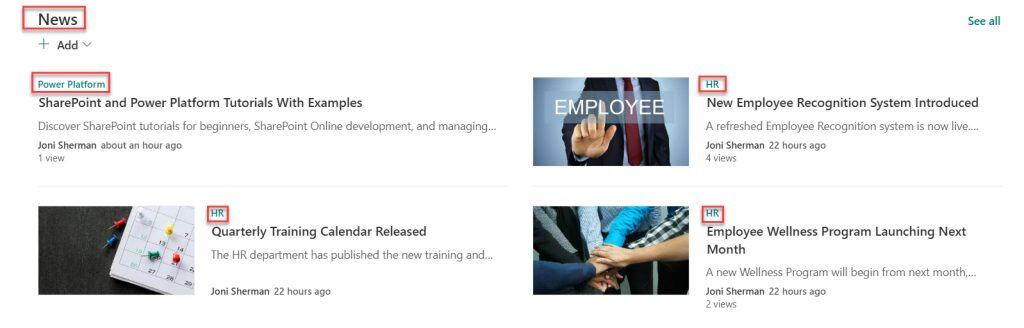
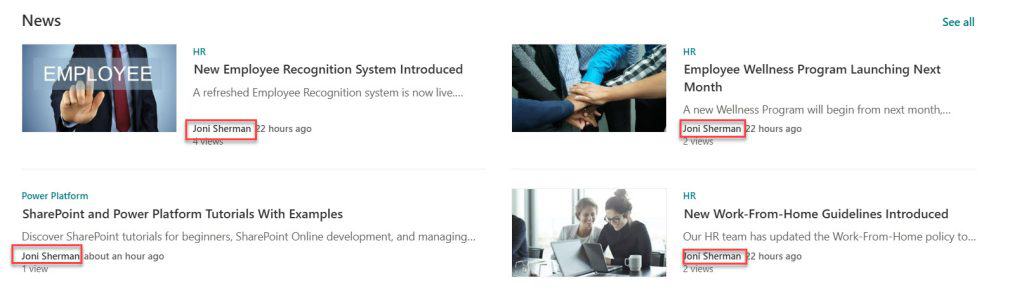
- Here, I have selected HR and Power Platform, so the News web part displays the News from these two sites, as shown in the screenshot below.
- If you select Recommended for current user, then it will display the news posts for the current user.
Read SharePoint Online Hero Web Part
Filter News in SharePoint Online News Web Part
Instead of displaying all news in the News web part, we can filter the news by specific criteria. So that only filtered news is displayed in the SharePoint Online News web part.
Here are the steps to filter the news in the SharePoint Online news web part.
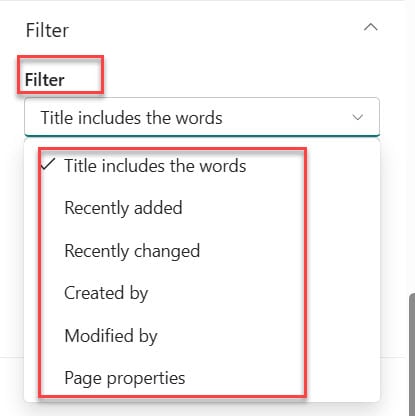
- Edit the SharePoint Online News web part. On the Properties pane, under the Filter dropdown, you can see the Filter. Here you can filter the news based on the
- Title includes the words
- Recently added
- Recently changed
- Created by
- Modified by
- Page properties
- We can also select multiple filters to display data in the Highlighted Content web part by clicking +Add filters.
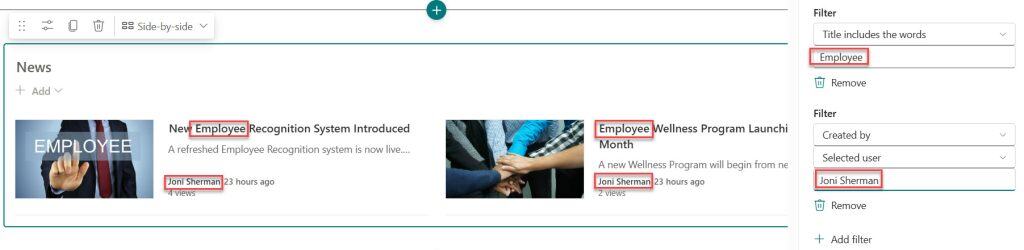
- Here, I applied a filter where the title includes the words Employee and Created by Joni Sherman. So the SharePoint Online News web part is displaying content created by Joni Sherman, and the title includes ‘Employee‘.
Audience Targeting in SharePoint Online News Web Part
Audience targeting helps us share information relevant only to a particular group of members. For this,
- First, we have to enable audience targeting on the SharePoint site pages library that contains News posts.
- We then need to enable audience targeting in the SharePoint Online News web part.
Here are the steps to enable audience targeting in the SharePoint Online News web part.
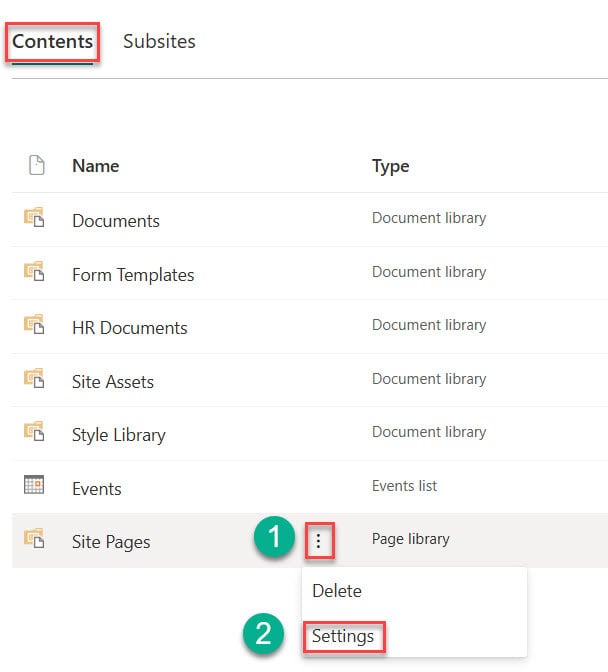
- Open the SharePoint Site. Click on the Gear Icon, then select Site Contents. Then, beside the Page library, click the three dots, then select Settings.
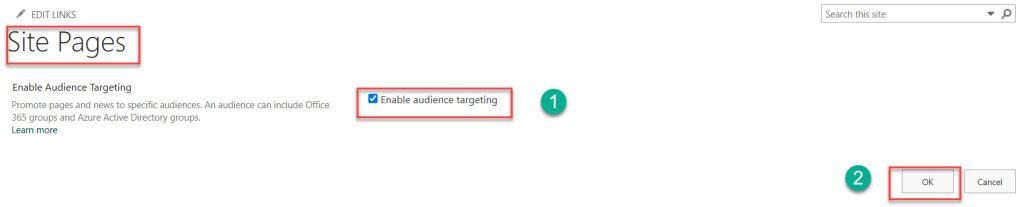
- It will navigate to Site pages settings, then select Audience targeting settings below General settings. Then it will navigate to the Audience targeting page and choose the checkbox to enable audience targeting. Then click on OK.
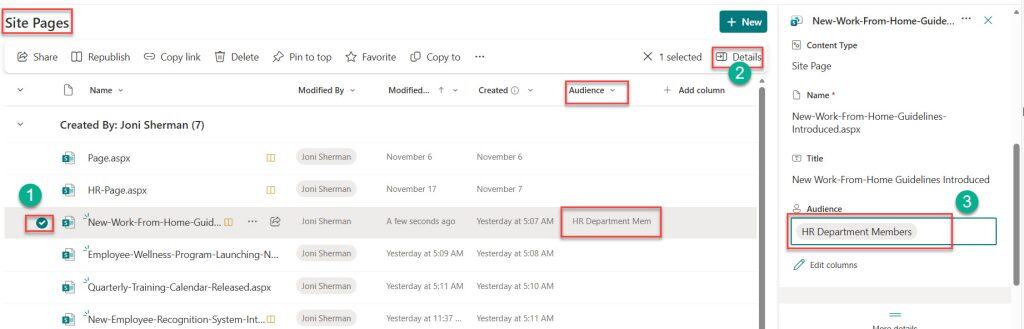
- Then go to the Site pages library, and now you can see the audience column is added. Then select the news post you want to set audience targeting for. Then click Details, and in the properties select the group under audience. Then you can see the group in the audience column.
Note: We can enter up to 50 groups in Audience targeting
- Then edit the SharePoint Online News web part. On the properties panel, select the Filter dropdown. Then slide the toggle on under Enable audience targeting.
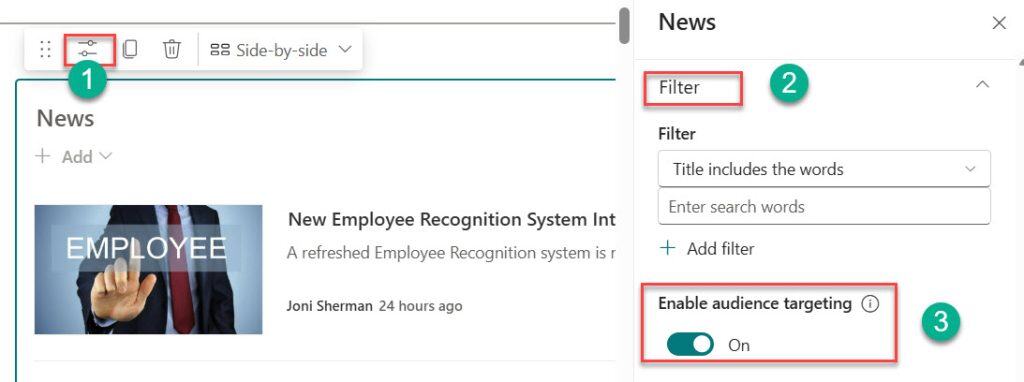
Now, only the specific group members can see the News, for which we have enabled audience targeting. In this way, we can enable audience targeting for the SharePoint Online News web part.
Conclusion
SharePoint Online News web part helps to display the updates and announcements in one place. It also keeps employees informed by showing the latest announcements. In this tutorial, I explained how to use the news web part in SharePoint Online.
You may also like the following tutorials:
- Pin to Quick Access in a SharePoint Document Library
- Content Approval in SharePoint Document Library
- Add Comments to SharePoint List Item

After working for more than 18 years in Microsoft technologies like SharePoint, Microsoft 365, and Power Platform (Power Apps, Power Automate, and Power BI), I thought will share my SharePoint expertise knowledge with the world. Our audiences are from the United States, Canada, the United Kingdom, Australia, New Zealand, etc. For my expertise knowledge and SharePoint tutorials, Microsoft has been awarded a Microsoft SharePoint MVP (12 times). I have also worked in companies like HP, TCS, KPIT, etc.

