
Power BI doesn’t have a “default value” box for slicers. That surprises almost everyone, because the first thing a report owner asks for is “open the report on this month” or “always start on the West region”.
There are reliable ways to get the same result, though. In this tutorial, I’ll show you six of them, from simply saving a selection to slicers that move to the current month on their own, and help you pick the right one for your report.
Quick answer: Select the value in the slicer and save the report: that selection is what everyone sees when they open it. For a default that moves on its own, use a relative date slicer (for example, This month), or add a label column that returns “Current Month” for this month’s rows, select “Current Month” in the slicer and save. Add a bookmark and a reset button so users can get back to it.
Which method should you use?
| Method | Default moves with the data? | Best for |
|---|---|---|
| 1. Save the selection | No | A fixed value, like one region |
| 2. Relative date slicer | Yes | This month, last 7 days, latest dates |
| 3. Current Month label column | Yes | Current month or year in a list slicer |
| 4. Latest value label column | Yes | The most recent year or period in your data |
| 5. Bookmark and reset button | No | Letting users go back to the default |
| 6. Force selection | No | Making sure something is always selected |
If slicers are new to you, start with slicers in a Power BI report and come back here.
Method 1: Save the selection
This is the simplest default. Power BI saves the slicer’s current selection with the report, and everyone sees it when they open the report.
- Add a slicer and drag in the field, for example City.
- In the Format pane, go to Visual > Slicer settings > Options and pick the Style. Dropdown is the default for new slicers.
- Under Selection, turn on Single select if users should pick one value at a time.
- Select the value you want as the default, then save the report and publish it.
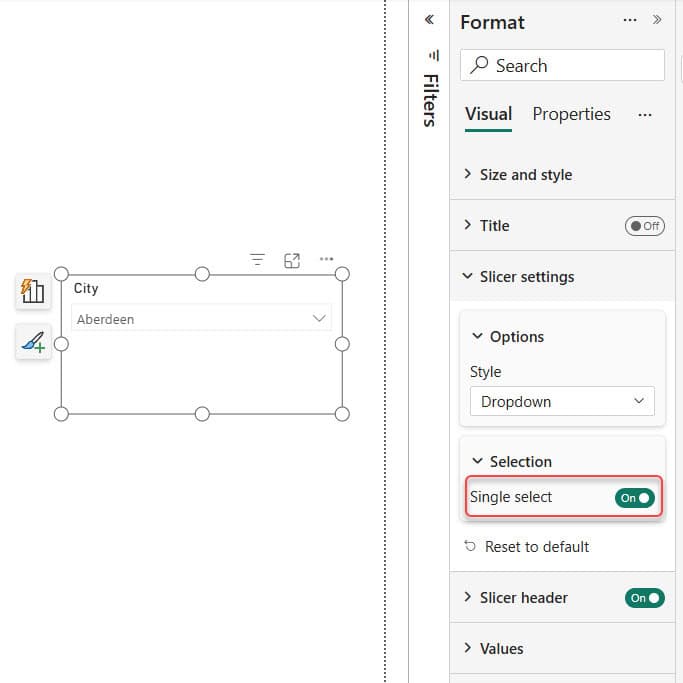
The catch: the default never changes by itself, and if the saved value disappears from the data after a refresh, the selection clears. For dropdown styling and search, see the Power BI slicer dropdown guide.
Method 2: A relative date slicer for the latest dates
For dates, Power BI has a built-in dynamic default. Add a slicer with a date field, set its Style to Date picker (or Relative date), and choose a relative selection such as This month, Last 7 days or Last 1 year.
You can anchor the selection on Today, or on the Last date in your data, which is the answer to “default the slicer to the latest date”. Save and publish, and the slicer recalculates the range every time the report loads, so it always shows the current period.
For a classic From and To range, see how to create a date range slicer in Power BI.
Method 3: A Current Month label column
Many guides suggest adding a column that always holds the current month or year and putting it in a slicer. That doesn’t work: if every row holds the same value, selecting it filters nothing, and the report still shows all months.
What does work is a label column that’s different for this month’s rows. Rows from the current month get the label “Current Month”, and older rows get their month name. You select “Current Month” once and save; after each refresh, the label moves to the new month, so the saved selection follows it.
In Power Query, select Transform data, then Add Column > Custom Column:

Name the column Month Label and enter:
if Date.IsInCurrentMonth([Order Date]) then "Current Month" else Date.ToText([Order Date], "MMM yyyy")Or, as a DAX calculated column, select New column and enter:
Month Label =
IF(
    FORMAT('Sales'[Order Date], "yyyy-mm") = FORMAT(TODAY(), "yyyy-mm"),
    "Current Month",
    FORMAT('Sales'[Order Date], "mmm yyyy")
)
Put Month Label in a slicer, select Current Month, and save. In October 2026, the slicer shows October; after the first refresh in November, it shows November without anyone touching it.
One thing to know: in the Power BI service, refreshes run in UTC, so TODAY() and DateTime.LocalNow() use UTC time. In the US, the label can switch a few hours early or late at the end of a month. If you use a date table, add the column there; see how to create a date table in Power BI.
Method 4: Default to the latest year or value
The same idea works for “the most recent year in the data”, even when that isn’t the calendar year. Add a calculated column that labels the highest year:
Year Label =
IF(
    'Sales'[Year] = MAX('Sales'[Year]),
    "Latest Year",
    FORMAT('Sales'[Year], "0")
)
Use Year Label in the slicer, select Latest Year and save. When next year’s data arrives, the label moves to it. In a calculated column, MAX('Sales'[Year]) looks at the whole table, so every row compares itself with the latest year.
To use the selected year inside your measures, see how to get the selected value from a slicer.
Method 5: A bookmark and a reset button
Once users start clicking, they need a way back to your default. A bookmark saves the slicer state, and a button applies it.
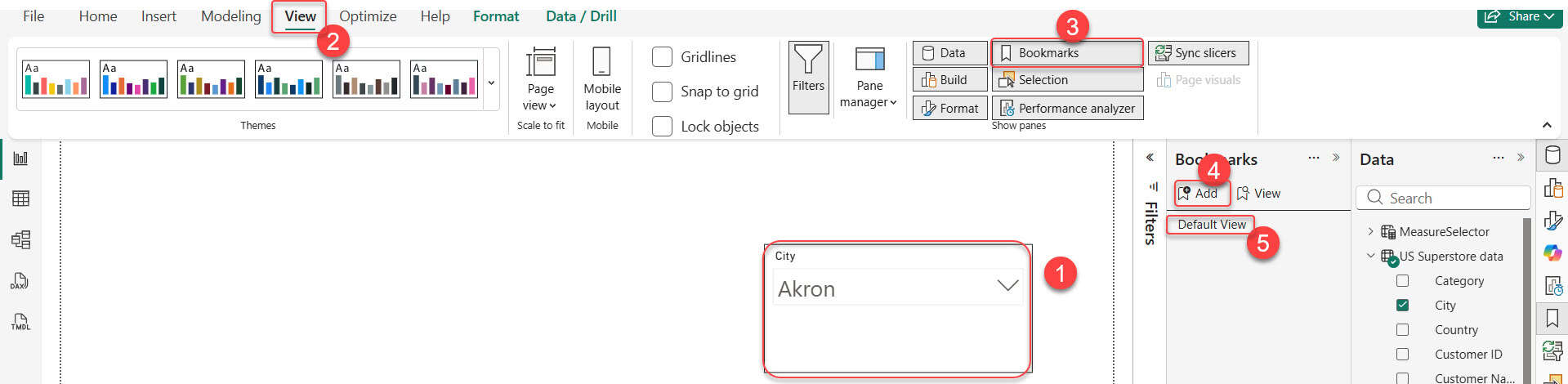
- Set the slicers to their default values.
- Select View > Bookmarks, then Add, and name it Default View. Keep Data checked in the bookmark’s More options (…).
- To include only some slicers, select those visuals first, and in the bookmark’s More options choose Selected visuals, then Update.
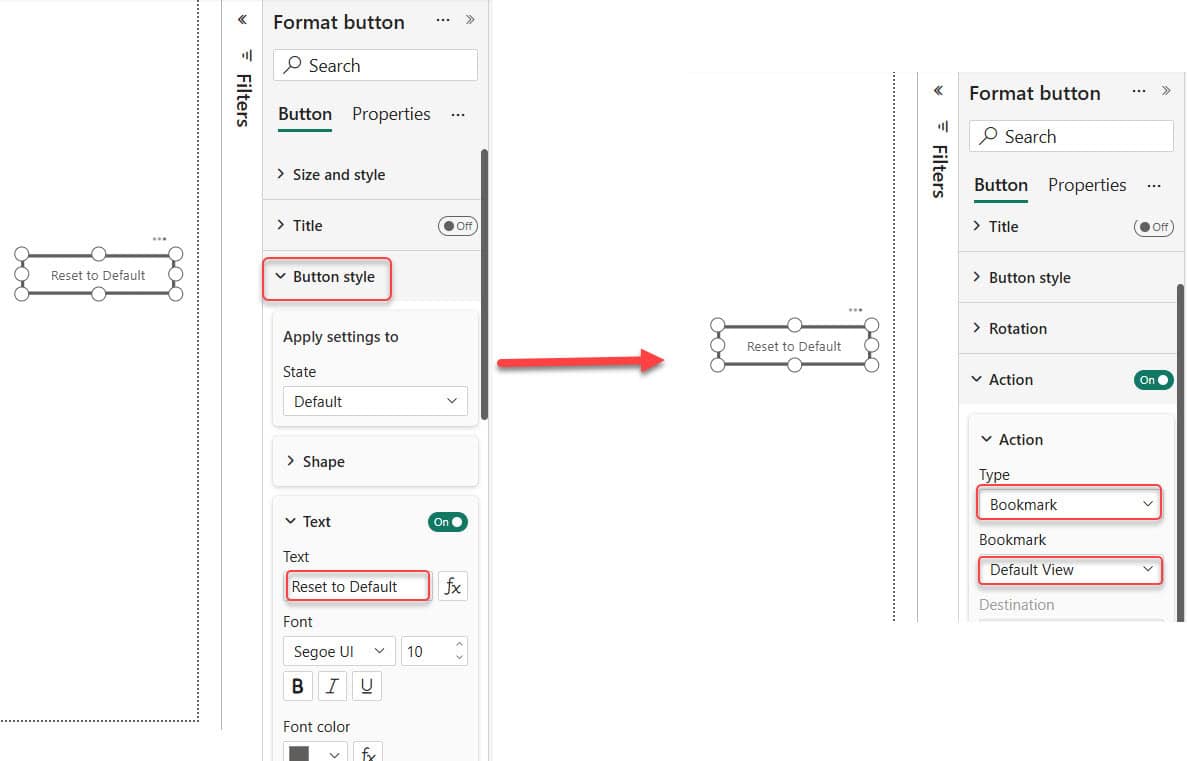
Then select Insert > Buttons > Blank, label it Reset to Default, turn on Action, set the type to Bookmark and pick Default View:
If you add a new slicer to a page that already has bookmarks, update the bookmarks too, or that slicer gets cleared when a bookmark is applied. For a tidy layout, put the slicers and the button in a Power BI slicer panel.
Method 6: Force selection on button and list slicers
The newer Button slicer and List slicer have a Force selection option. With Single select on, it makes sure one item is always selected, so the report never shows “everything” by accident. Combine it with Method 1 to choose which item that is. See how to use the Power BI button slicer.
What users see: persistent filters
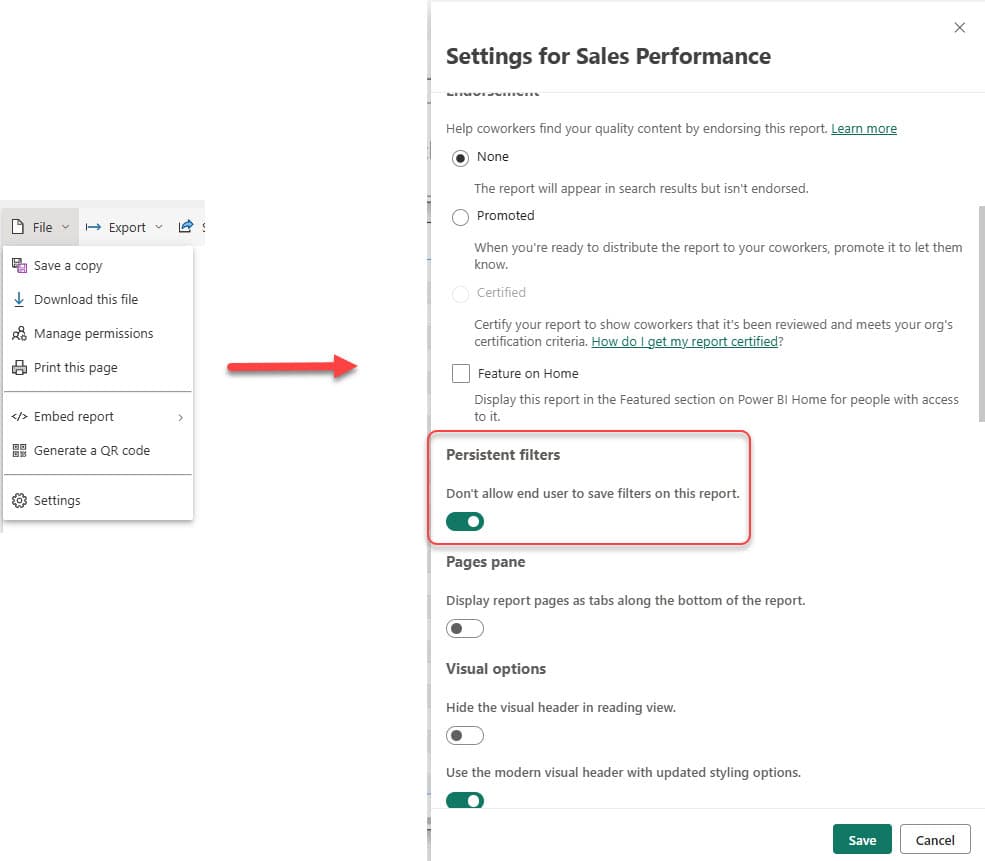
In the Power BI service, persistent filters are on by default: each user’s last slicer selections are remembered when they come back. That means your saved default is only what they see the first time, or after they select Reset to default in the top menu bar.
If everyone should always start on your default, turn persistent filters off. In Power BI Desktop, go to File > Options and settings > Options > Report settings (under Current file). In the service, open the report’s File > Settings:
Other options
- URL filters: add
?filter=Sales/Region eq 'West'to a report link to open it filtered. It filters the report rather than selecting a slicer value. - Preselected Slicer: a custom visual on AppSource that selects values from a DAX measure. Check your organization’s policy on custom visuals first.
- Several pages: to keep the same default across pages, sync slicers in Power BI.
Common mistakes
- Selecting the default and closing without saving. The selection is only kept when you save and publish.
- Putting a column with one repeated value in a slicer. It can’t filter anything; use a label column instead.
- Testing only in Desktop. Persistent filters exist only in the service, so check the published report.
- Blank values in the slicer list. See how to remove blank values from a Power BI slicer.
These Power BI slicer tutorials go well with this one:
Frequently Asked Questions
Can I set a default value for a Power BI slicer?
Not with a setting, but saving a selection, relative date slicers, label columns and bookmarks give the same result. Microsoft describes the slicer options in its slicer visual documentation.
How do I make a Power BI slicer default to the current month?
Use a relative date slicer set to This month, or add a label column that returns “Current Month” for this month’s rows, select it in the slicer and save.
How do I default a slicer to the latest date in my data?
Use a Date picker or Relative date slicer and anchor the relative selection on the last date in your data.
Why does my report open with a different selection than I saved?
Persistent filters remember each user’s last selections. Users can select Reset to default, or you can turn persistent filters off in the report settings.

I have worked with Microsoft technologies for more than 18 years, including SharePoint, Microsoft 365 and the Power Platform (Power Apps, Power Automate and Power BI), at companies like HP, TCS and KPIT. I started EnjoySharePoint in 2011 to share the solutions I build in real projects with readers in the United States, Canada, the United Kingdom, Australia, New Zealand and beyond. Microsoft has recognized this work with the Microsoft MVP award 13 times since 2014.
Soo, that’s all great. But what happens when the underlying data changes on next refresh, and the selected default value is no longer a valid option? It stills shows that as the default, with visuals making no sense.
great article, but is it also possible to set a default value were the user is also able to choose other dates
This still doesn’t answer my question. What good does a slicer do that is set to one value? I want to have a date slicer with YEARS of data, default to just today as the default max date, then x months ago as the default min date. I still can’t do this.