
Many guides still tell you to download a file and upload it again wherever it should live. It works, but the new copy starts at version 1.0, the old history is gone, and every link people saved now points at a file that isn’t there.
The better way is the Move to command that’s built into every modern SharePoint library. It moves the file with its version history, and it works for folders, other libraries and even other sites.
In this tutorial, I’ll show you how to move files in sharepoint with Move to, how to move whole folders, when drag and drop is faster, when Copy to is the right choice, and what does and doesn’t come along with the file.
The sample libraries we’ll use
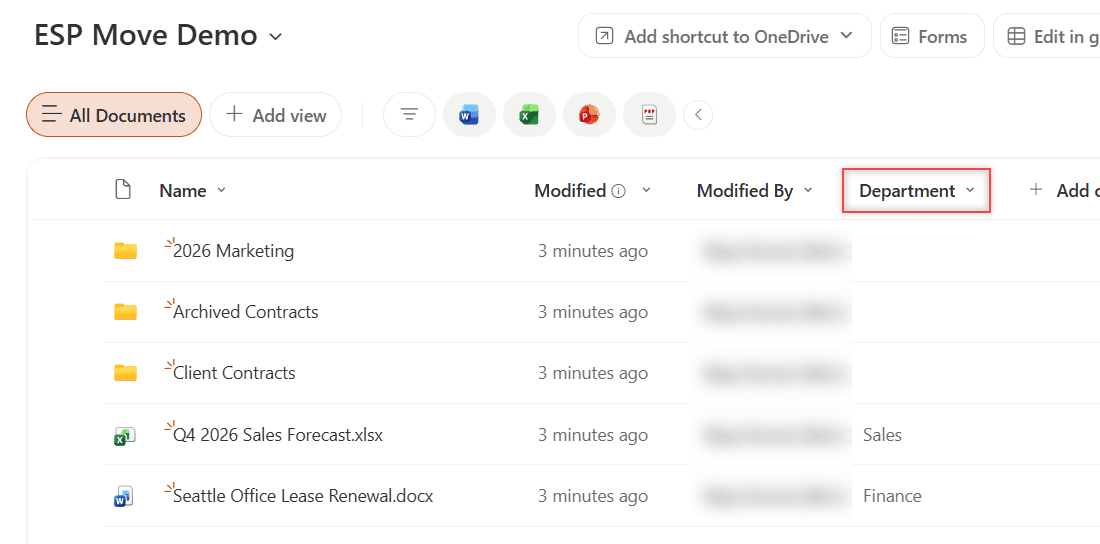
I set up two SharePoint document libraries on my EnjoySharePoint site so you can see every result on real files. ESP Move Demo is the source, and ESP Move Archive is the destination.
- Seattle Office Lease Renewal.docx – edited three times, so it has versions 1.0, 2.0 and 3.0.
- Q4 2026 Sales Forecast.xlsx – a normal file tagged Sales.
- Client Contracts and 2026 Marketing – folders with two files each.
- Archived Contracts – an empty folder to drop things into.
Both libraries have the same Department choice column (Finance, Sales, Marketing, Legal). That matters later, when we check what happens to metadata.
Method 1: Move a file with Move to (Recommended)
Use Move to whenever the file should exist in one place only, whether that’s another folder, another library or another site. Here’s how:
- Open the library and select the file. Select the circle next to its name, not the name itself.
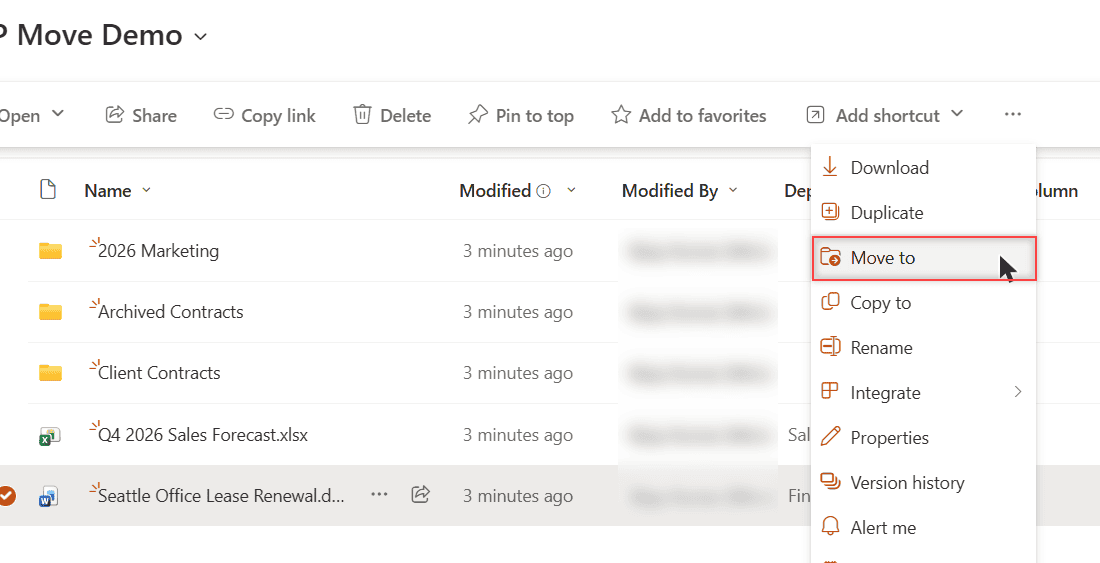
- On the command bar, select … (More), then Move to. On a wide screen it may sit right on the bar.
- In the panel, pick a location: the current library, your OneDrive, or another site.
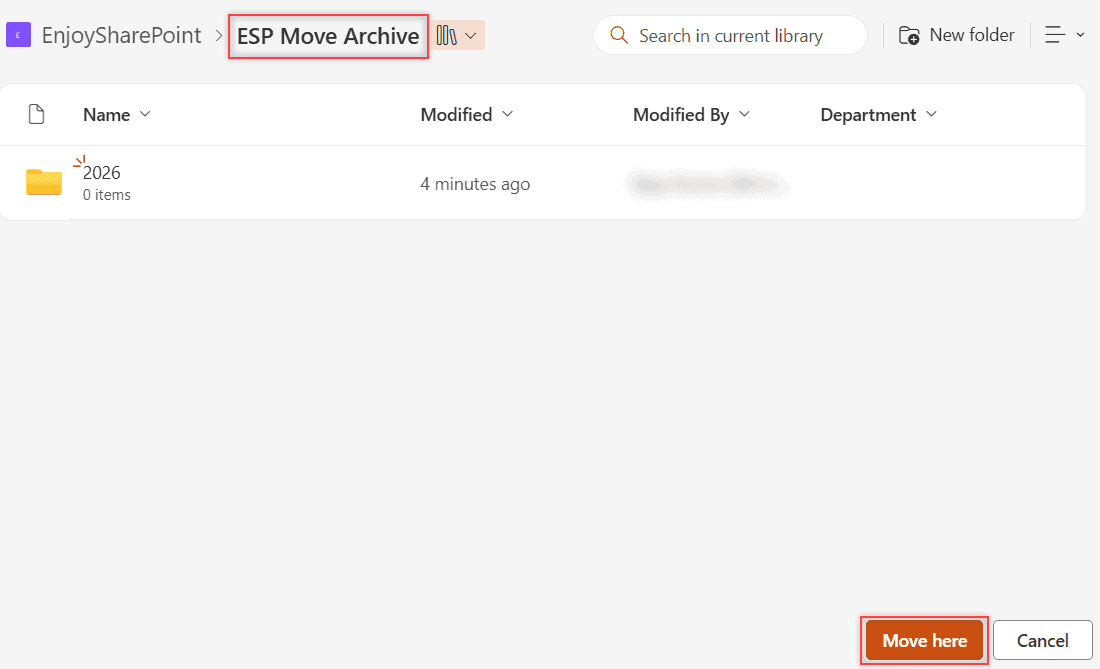
- Open the library and folder you want, then select Move here.
I moved Seattle Office Lease Renewal.docx from ESP Move Demo into the 2026 folder of ESP Move Archive.
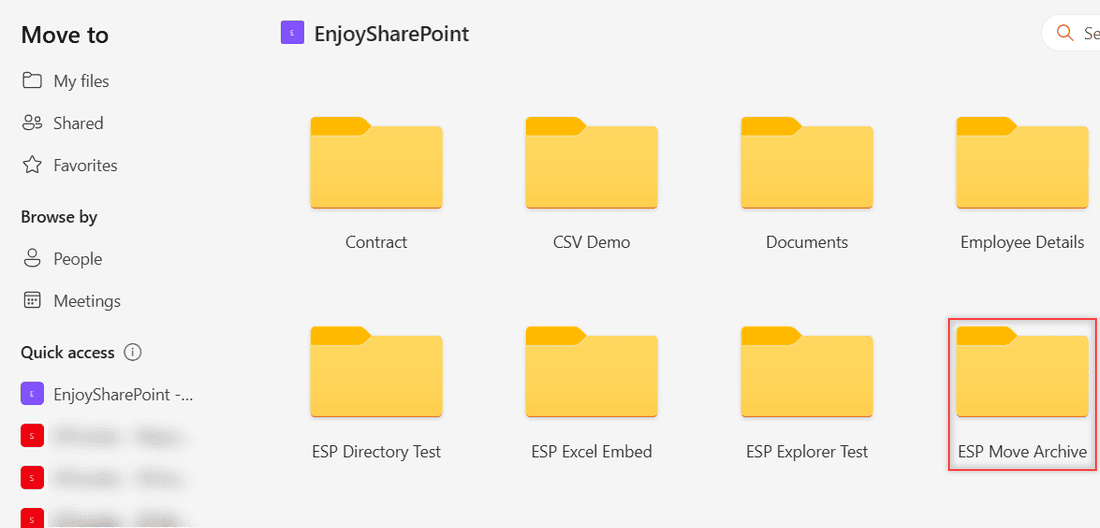
The Move to dialog opens on the current library. Select the site name in the breadcrumb to see every library on the site:
Then open the destination library and folder. The Move here button moves the file into whatever location is open:
How does this work?
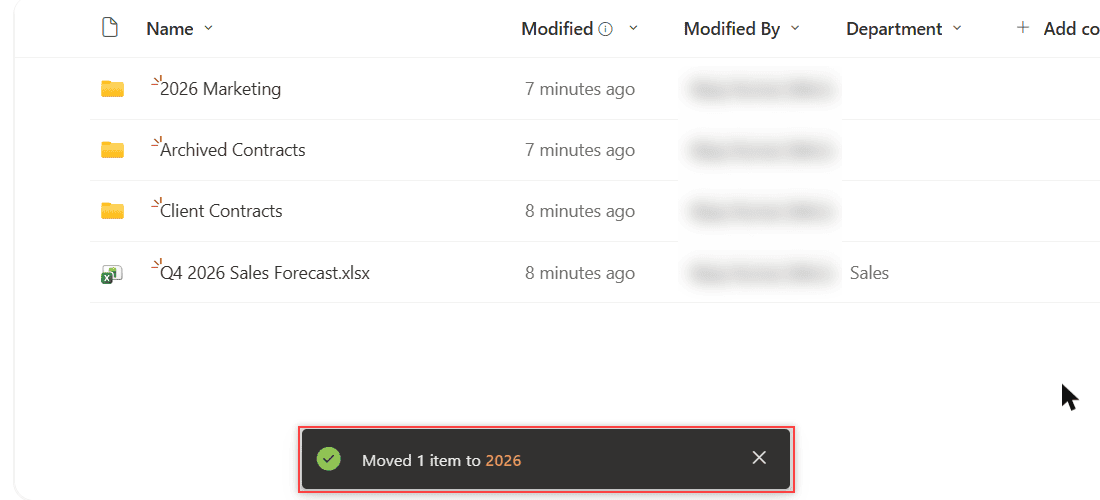
SharePoint runs the move in the background. A Moving 1 item message appears at the bottom of the library, then it changes to Moved 1 item to 2026 with a link to the new folder.
The file stays in the source until the move finishes, so a large file can sit there for a few seconds.
Picked the wrong place? Just move it back the same way. If you only want a quick way to reach a file from another spot, create a shortcut in the document library instead of moving it.
Method 2: Move folders in SharePoint
Moving a folder works exactly the same way, and everything inside it comes along. This is the fastest way to reorganize a library, because you move one item instead of dozens.
- Select the folder (for example, Client Contracts).
- Select Move to on the command bar.
- Pick the destination library and folder, or select the new folder icon at the top right to create one, then select Move here.
The Client Contracts folder landed in ESP Move Archive with both contracts inside and their Department values intact.
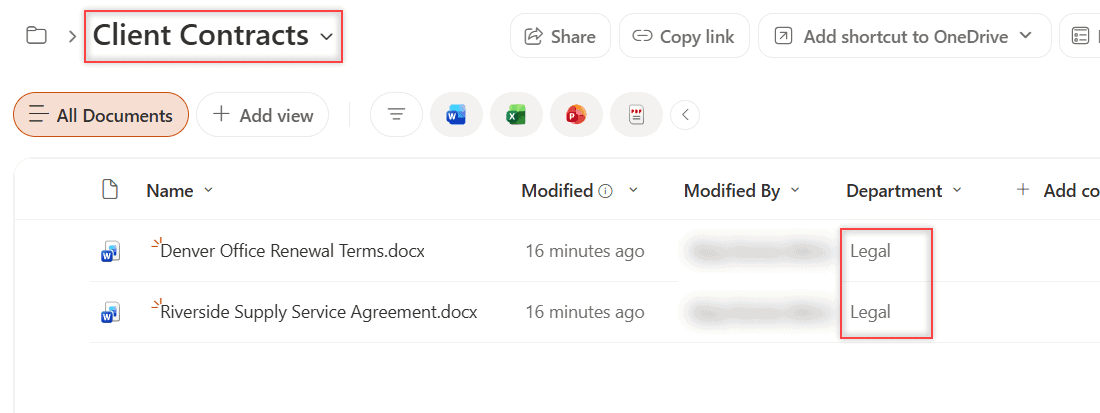
Even the Modified dates stayed the same, so nobody looking at the archive thinks the contracts were just edited.
So here’s the catch: if the folder or its files had unique permissions on the library, open Manage access in the new location and confirm who can still open them.
Pro Tip: Select several files and folders at once (select each circle) and move them in one go. Every selected item lands in the same destination.
Method 3: Drag and drop files between folders
For quick tidying inside one library, drag and drop is faster than any menu. Select the file, drag it onto a folder in the same view, and let go when the folder is highlighted.
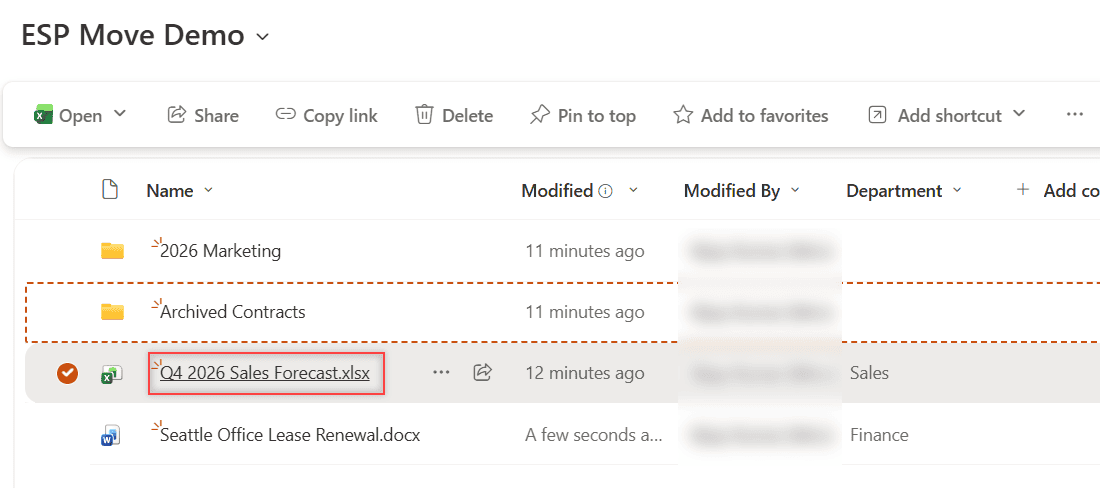
I dragged Q4 2026 Sales Forecast.xlsx onto the Archived Contracts folder. SharePoint drew a dashed orange outline around the folder while I held the file over it:
How does this work?
When I let go, the same Moving 1 item message appeared and the file landed inside the folder with its Sales tag.
Drag and drop is a move, not a copy, so the history travels with the file. It only works for folders you can see in the current view, though, so use Move to for another library or site.
If you sync the library or add a shortcut to OneDrive, dragging in File Explorer also moves files. Still, the browser is the safer place for big reorganizations.
Method 4: Copy files with Copy to
Use Copy to when the original must stay where it is. Think of a contract template you reuse, or a forecast you want to share with another team while you keep editing yours.
- Select the file or folder.
- Select Copy to on the command bar (or under …).
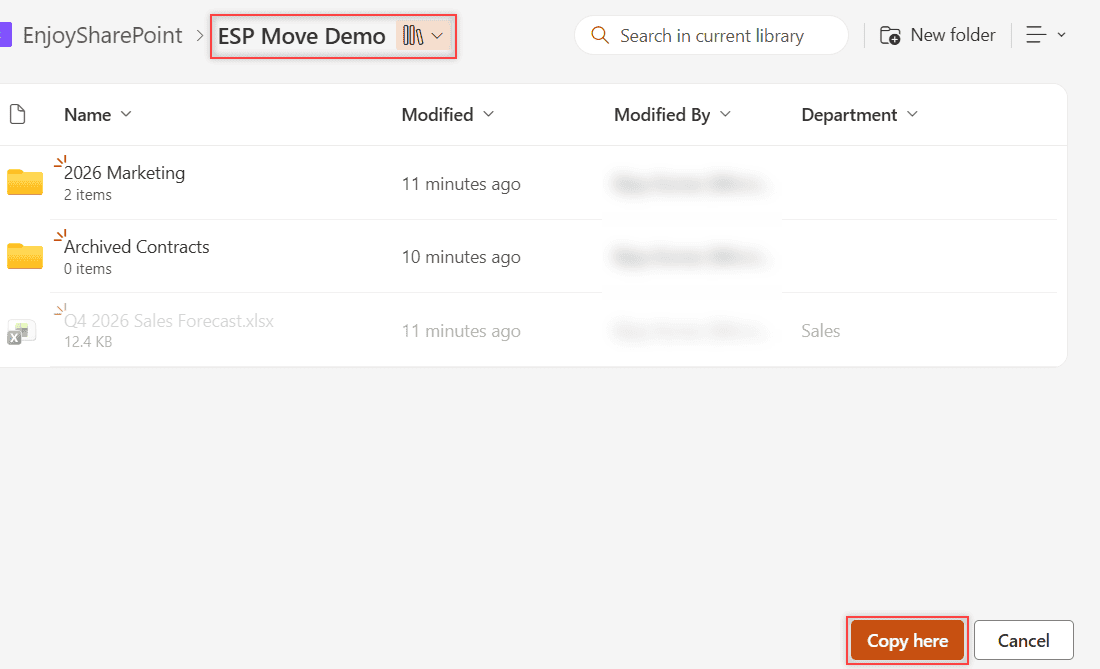
- Choose the destination and select Copy here.
How does this work?
Copy to creates a brand-new file. Microsoft says only the latest version is copied, and my test confirmed it.
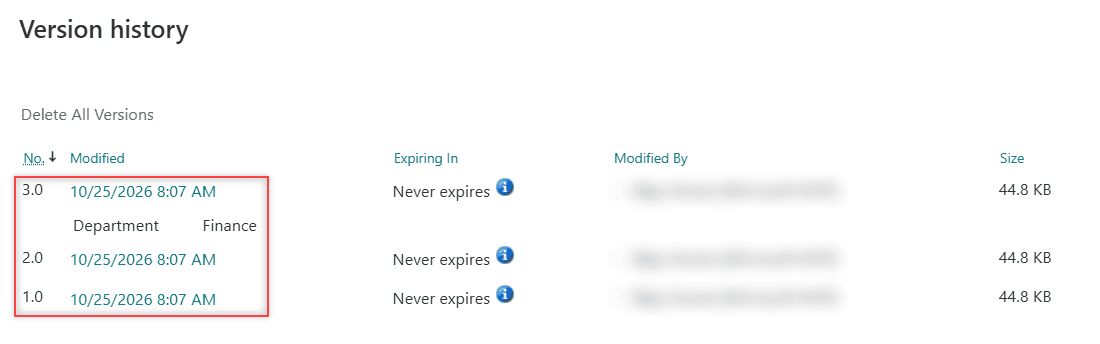
I copied the lease document back to ESP Move Demo, and the copy started at version 1.0 with no older versions, while the moved original kept 1.0, 2.0 and 3.0.
For copies that should happen on a schedule, a flow is a better fit. My guide on the ways to copy files in Power Automate walks through that.
Method 5: Move files between SharePoint sites
Move to and Copy to can also send files to a completely different site, like moving finished projects from a team site to an archive site.
- Select the files and select Move to.
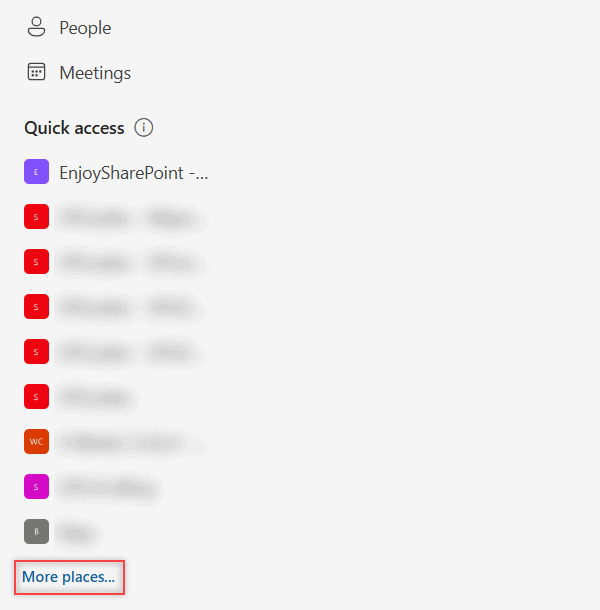
- In the panel’s site list on the left, pick the site. If it isn’t listed, select More places at the bottom and browse to it.
- Open the library and folder, then select Move here.
If no other sites appear at all, your organization doesn’t allow moving or copying across sites. Only a SharePoint admin can change that.
Microsoft also caps each cross-site move or copy at 100 GB and 30,000 files. Split anything bigger into several moves, folder by folder.
For repeat moves, such as filing approved invoices every night, build a flow instead. I cover that in moving files between folders with Power Automate, and there’s a separate guide to move files from OneDrive to SharePoint. Admins can also script very large moves, which is outside this browser how-to.
What moves with the file (and what doesn’t)
This is the part most people never check. Here’s what I found when I opened the moved lease document:
| Item | Move to | Copy to | Download + re-upload |
|---|---|---|---|
| Version history | Kept | Latest version only | Lost |
| Column values (metadata) | Kept if the destination has the same columns | Kept if the destination has the same columns | Lost |
| Managed metadata values | Not kept | Not kept | Lost |
| Modified date | Kept | New file | New file |
| Original file | Removed from the source | Stays | Stays until you delete it |
Because both of my libraries have a Department column, Finance stayed on the lease file. If your destination is missing a column, add it before you move, or use the same content types in SharePoint libraries on both sides.
Which method should you use?
| You want to | Use |
|---|---|
| Move one file or folder to another library or site | Method 1 or 2: Move to |
| Tidy files into folders in the same library | Method 3: drag and drop |
| Keep the original and put a copy somewhere else | Method 4: Copy to |
| Move a project to another site | Method 5: Move to with More places |
| Move files on a schedule or by a rule | A Power Automate flow |
Things to Keep in Mind
- Check files in first: if a file is checked out in SharePoint, check it in so your latest edits travel with it.
- Unique-value columns: a move to another library fails when the destination enforces unique values on a column and the value already exists there.
- Site Pages: Move to isn’t available in the Site Pages library, so you can’t move pages this way.
- OneNote notebooks: Microsoft recommends moving them from inside OneNote, not with Move to.
- Long paths: the full path, including the file name, can’t go over 400 characters, so deep folder trees can block a move.
If you’re reorganizing a library, these will help with the next steps:
Haven’t got the files into SharePoint yet? Start with how to upload files to SharePoint, which covers the Create or upload button, whole folders, drag and drop, and Add-PnPFile.
Frequently Asked Questions
Does moving a file in SharePoint keep its version history?
Yes. Move to and drag and drop keep the full version history. Copy to only copies the latest version, and downloading and re-uploading starts the file over at version 1.0.
Why don’t I see Move to in my SharePoint library?
Select a file first, then look under the … (More) menu. If it’s still missing, you may be in the classic experience or the Site Pages library, where Move to isn’t available.
Can I move files to another SharePoint site?
Yes, if your organization allows it. In the Move to panel, pick the site or select More places. If no other sites show up, ask your SharePoint admin.
Do sharing links still work after I move a file?
Links that point at the old location can break, so share the file again from its new location. Microsoft covers the rest of the rules in its Move or copy files in SharePoint article.

I have worked with Microsoft technologies for more than 18 years, including SharePoint, Microsoft 365 and the Power Platform (Power Apps, Power Automate and Power BI), at companies like HP, TCS and KPIT. I started EnjoySharePoint in 2011 to share the solutions I build in real projects with readers in the United States, Canada, the United Kingdom, Australia, New Zealand and beyond. Microsoft has recognized this work with the Microsoft MVP award 13 times since 2014.