
Megan Bowen from our operations team messaged me on a Monday morning: the Denver store folder on her laptop hadn’t changed since Friday. The OneDrive icon showed little blue arrows that never stopped turning, while her Chicago teammates saw newer files.
Her plan was to reset OneDrive. That does work, but it disconnects every library she syncs and downloads everything again. In most cases the real cause is one file, one setting or one expired sign-in, and you can fix it in a few minutes.
In this tutorial, I’ll walk you through the onedrive sync issues I run into most with SharePoint libraries, in the order I check them: the status icon, stuck syncs, the shortcut error, bad names and long paths, library settings, storage and sign-in.
Quick answer: Select the OneDrive cloud icon in the taskbar and read the error in the activity center first. Close open files, rename anything with characters like : * ? | " < >, shorten paths over 400 characters, and remove any OneDrive shortcut to a library you also sync. Reset OneDrive only when nothing else works.
How does OneDrive sync a SharePoint library?
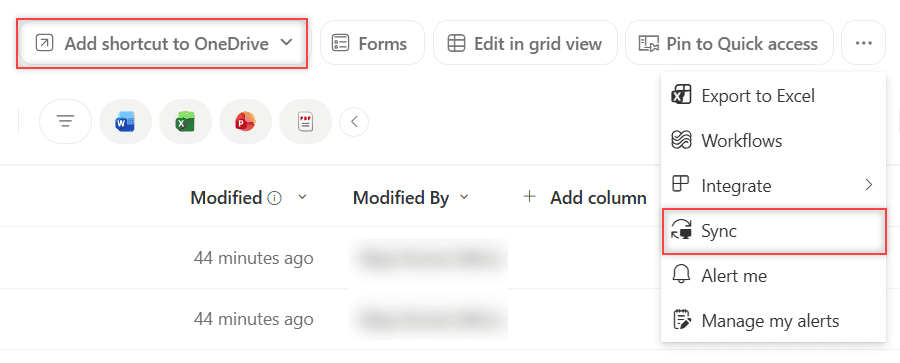
When you select Sync in a SharePoint document library, the OneDrive sync app creates a sync relationship between that library and a folder on your PC. The browser asks to open Microsoft OneDrive, and you approve it once per computer.
The synced files land in a folder named after your organization, under %userprofile%, and that folder shows up in the left pane of File Explorer. You can’t pick a different location for it.
In my library, Sync sits under the … (More) menu, and the toolbar shows Add shortcut to OneDrive (Microsoft’s docs call it Add shortcut to My files).
A shortcut puts the library inside your own OneDrive folder and follows you to every device you sign in on. Microsoft now recommends shortcuts over Sync because they perform better.
You can use one or the other for a library, not both. I compare them side by side in SharePoint Sync vs Add shortcut to OneDrive, and that choice causes one of the errors below.
If your team is still deciding where files should live, the differences between OneDrive and SharePoint make that choice clearer.
Read the OneDrive status icon first
| Icon | What it means | Where to look |
|---|---|---|
| Blue circular arrows | Sync is in progress. It’s only a problem when it never finishes. | Sync pending section below |
| Gray cloud with a line through it | You’re not signed in, or OneDrive setup hasn’t finished. | Sign-in section |
| Yellow warning triangle | The account needs attention. Select the icon to read the warning. | The message in the activity center |
| Red circle with a white X on a file | That file or folder can’t sync. | Names and paths section |
| Pause symbol | Syncing is paused. | Resume syncing from the Help and Settings menu |
| Lock on a file | The file is read-only for you, so your changes won’t upload. | Library settings section |
| Blue cloud on a file | Online-only file. It needs internet to open. | Files On-Demand |
A lock icon often surprises people. If a file is checked out to someone else, or you only have read access, OneDrive won’t upload your edits. My post on how to lock a file in a SharePoint library explains where those locks come from.
Fix sync pending or a sync that never finishes
A file stuck on Sync pending, or the OneDrive app stuck on Processing changes, is the complaint I hear most. Microsoft lists a handful of causes, and Megan’s laptop had two of them.
- Open files. A workbook open in Excel can hold up the queue. Close the files you’ve finished editing.
- Very large files. Big zip files, long videos and Outlook PST or OST data files take a long time. Move Outlook data files out of the synced folder.
- Lots of new files. If you just copied thousands of files in, wait for the upload to finish before you troubleshoot.
- Hidden or temporary files. Turn on hidden items in File Explorer. Temporary .TMP files don’t sync, so move them out or delete them once you’re sure they aren’t in use.
- Empty folders. An empty folder can stay on Sync pending. Create a new folder, move the contents across and delete the old one.
If one file stays stuck, Microsoft’s workaround is simple. Pause syncing, move that file to a folder outside OneDrive, resume syncing, and move the file back after the rest of the library has caught up.
When the taskbar icon itself stays stuck, deleting the Office Document Cache often helps. I cover where that cache lives in how to clear the SharePoint cache.
Fix “Sorry, we can’t sync this folder”
This error has a very specific cause. You see this full message when you try to sync a library that you’ve already added as a shortcut in OneDrive:
Sorry, we can't sync this folder. You're already syncing a shortcut to a folder from this shared library.Microsoft calls this by design. It also works the other way: you can’t add a shortcut to a library you already sync. Remove the shortcut, and then select Sync again.
- In File Explorer, open your OneDrive folder, find the folder with the small link icon, right-click it and select Delete.
- Or open OneDrive on the web, select My files, select the three dots next to the shortcut folder and select Remove.
Removing a shortcut doesn’t delete anything in the SharePoint library. It only takes the link out of your OneDrive. If OneDrive won’t let you delete it, pause syncing first and try again.
Fix invalid characters and paths that are too long
A red X on a single file usually means its name or path breaks a rule. These are the limits that apply to OneDrive and SharePoint in Microsoft 365:
- These characters aren’t allowed in file or folder names:
" * : < > ? / \ |. Leading and trailing spaces aren’t allowed either. - These names are reserved: .lock, CON, PRN, AUX, NUL, COM0 to COM9, LPT0 to LPT9 and desktop.ini.
_vti_can’t appear anywhere in a name, and names can’t start with~$. A folder called “forms” isn’t allowed at the root of a library.- The entire decoded path, including the file name, can’t be longer than 400 characters. It’s counted from the site part of the URL, for example
sites/EnjoySharePoint/ESPSyncTest/Operations/.... - A single file can be up to 250 GB, and Microsoft recommends syncing no more than 300,000 items in total.
Mac users and old file shares cause most of these, because those systems allow names that Windows and SharePoint don’t. So before Adele Vance copied an old archive into our ESP Sync Test library, I ran a quick check on her folder.
# Lists file and folder names that OneDrive won't sync to a SharePoint library, before you copy them in.
param(
    [string]$Folder = "C:\SPGuidesDemo\SyncCheck",
    [string]$LibraryPath = "sites/EnjoySharePoint/ESPSyncTest",   # site + library part of the URL
    [int]$MaxPath = 400
)
$reserved = '^(\.lock|CON|PRN|AUX|NUL|COM[0-9]|LPT[0-9]|desktop\.ini)(\..*)?$'
Get-ChildItem -LiteralPath $Folder -Recurse -Force | ForEach-Object {
    $relative  = $_.FullName.Substring($Folder.Length + 1).Replace([char]92, [char]47)
    $cloudPath = "$LibraryPath/$relative"
    $issues = @()
    if ($_.Name -match '["*:<>?|]')     { $issues += 'invalid character' }
    if ($_.Name -ne $_.Name.Trim())      { $issues += 'leading or trailing space' }
    if ($_.Name -match $reserved)        { $issues += 'reserved name' }
    if ($_.Name.StartsWith('~$'))        { $issues += 'starts with ~$' }
    if ($_.Name -like '*_vti_*')         { $issues += 'contains _vti_' }
    if ($cloudPath.Length -gt $MaxPath)  { $issues += "path is $($cloudPath.Length) characters" }
    if ($issues) {
        [pscustomobject]@{ Name = $_.Name; Problem = $issues -join ', ' }
    }
} | Format-Table -AutoSize -Wrap
Here’s what it found in her test folder. The PDF on the last line sits four folders deep, and the full path came to 417 characters:
Name                                                                                          Problem
----                                                                                          -------
desktop.ini                                                                                   reserved name
~$Q4 2026 Budget.xlsx                                                                         starts with ~$
vendor_vti_export.csv                                                                         contains _vti_
Denver Store Final Inspection Report Signed by the City Building Department November 2026.pdf path is 417 characters
Run it in PowerShell 7. In Windows PowerShell 5.1, the same script found the first three names and then failed on the deep folder with “Could not find a part of the path”, because 5.1 stops at the old 260-character Windows path limit.
For a file that’s already in the synced folder, OneDrive helps you fix the path. Select the cloud icon, then Shorten path next to the item, or Fix paths for several at once.
In the Shorten this path window, type shorter names for the folders or the file until the message says “Path is short enough to sync,” and then select Save changes. You can also select Move file to put it higher in the library.
Shortening a parent folder fixes all the files under it at once. If the site URL itself is long, it eats into every path; here’s how to change a SharePoint site URL when a rename makes sense.
Fix a library that syncs read-only or has no Sync button
Some sync problems come from the library, not your PC. If Sync is missing from the toolbar and the More menu, or you get this message, syncing has been turned off:
Options set for this library by your administrator prohibit users from syncing it to a local computer.If you own the library, open Library settings, then More library settings and Advanced settings. In the Offline and sync section, Allow people to sync this document library to their computers with Microsoft OneDrive and access it offline? must be Yes.
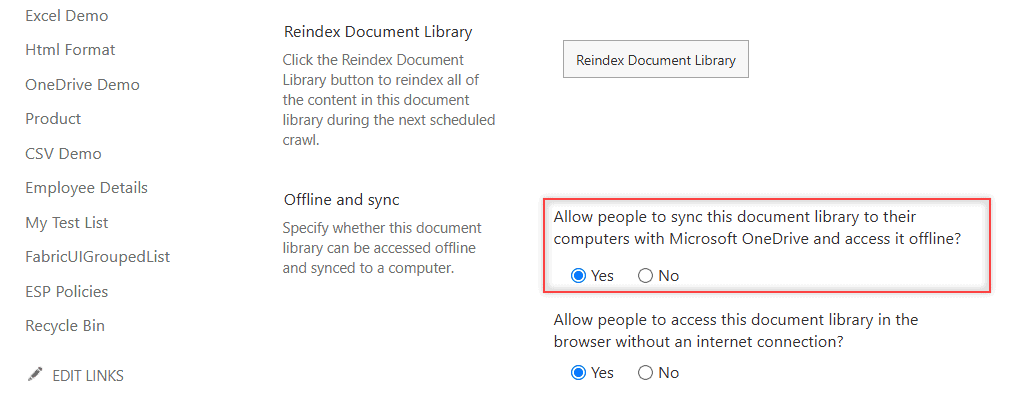
A library can also sync but stay read-only. That happens when it requires check-out, uses column validation or has certain draft item security settings. See how SharePoint check in and check out works if your library requires it.
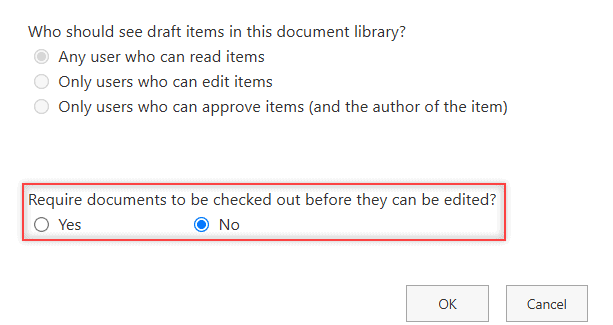
Draft item security comes from content approval in a SharePoint library. Permissions matter as well: if you can’t open the library in a browser, OneDrive can’t sync it, so check your document library permissions first.
Fix sync errors when storage is full
There are two kinds of full, and they need different fixes. When your OneDrive storage is full, you can’t upload, edit or sync new files. When a SharePoint site reaches its storage limit, nobody can save changes to that site.
For a site, open Site settings and then Storage Metrics to see which libraries take the most space. Old versions and large videos are the usual suspects.
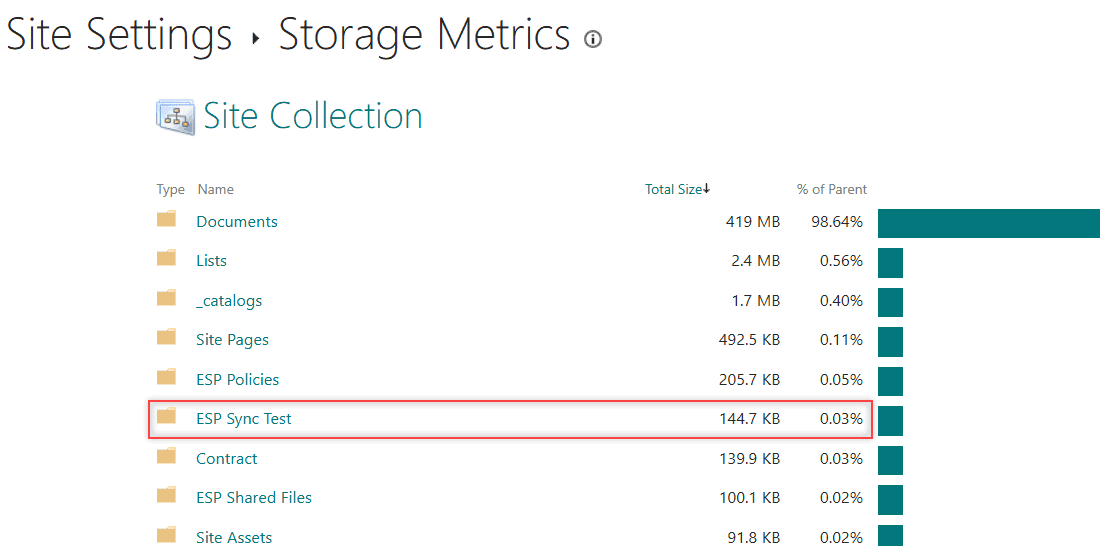
The browser shows its own error when a site runs out of room, and I explain that one in the SharePoint storage quota exceeded error. Your SharePoint admin can raise the site’s limit.
When your PC’s disk is full instead, Files On-Demand helps. Right-click a big folder in File Explorer and select Free up space. The files stay in SharePoint, but they no longer take room on your drive.
Fix OneDrive sign-in and credential problems
A gray cloud with a line through it means OneDrive isn’t signed in. This happens a lot right after a password change, and nothing syncs until you sign in again.
If OneDrive keeps signing in with the wrong account, Microsoft’s fix for work accounts is to clear the saved sign-in. Unlink the PC first, then open this folder from the Run dialog and delete PreSignInSettingsConfig.json:
%localappdata%\Microsoft\OneDrive\settingsThen sign in to OneDrive again and select Use this folder. Access problems that look like sign-in issues are sometimes sharing limits instead; see the sharing is limited on this item error.
Stop syncing a library or reset OneDrive
To start fresh, stop syncing just that library. Select the cloud icon, then Help and Settings > Settings > Account, and select Stop sync next to the site. Your local copies stay, so rename the old folder and then select Sync in the library again.
One warning from Microsoft I always repeat: don’t rename a synced folder after the sync is set up. Renaming it on your PC breaks the sync relationship.
A reset is the last step. It resets all OneDrive settings, disconnects every sync connection, including personal accounts, and runs a full sync afterward. It doesn’t delete files. Press Windows + R and run the first command; try the next if Windows can’t find it:
%localappdata%\Microsoft\OneDrive\onedrive.exe /reset
C:\Program Files\Microsoft OneDrive\onedrive.exe /reset
C:\Program Files (x86)\Microsoft OneDrive\onedrive.exe /reset
Common errors and how to fix them
- “Which library do you want to sync?” The site isn’t set up for the OneDrive sync app. Contact your IT team.
- A copy of a file with your PC’s name added. Two people changed a non-Office file at the same time, so OneDrive kept both. Compare them, keep one and delete the other.
- The synced folder has a 1 added to its name. You synced the library again while the old folder still existed. Stop sync, rename the old folder, then sync again.
If you’re sorting out how your team stores files, these posts help too:
Frequently Asked Questions
Why is my SharePoint library not syncing with OneDrive?
The most common causes are an open or very large file, a name with blocked characters, a path over 400 characters, a full storage quota or an expired sign-in. Select the OneDrive cloud icon and read the error first.
What does “Sorry, we can’t sync this folder” mean?
You already added a shortcut to that library in OneDrive. You can’t use Sync and Add shortcut to OneDrive for the same library, so remove the shortcut and sync again, or keep the shortcut instead.
Does resetting OneDrive delete my files?
No. A reset disconnects all your sync connections and syncs everything again, but your files stay on your PC and in SharePoint. You’ll have to choose the folders to sync again.
What is the path length limit for OneDrive and SharePoint?
The full decoded path, including the file name, can be up to 400 characters, counted from the site part of the URL. Microsoft lists every limit in Restrictions and limitations in OneDrive and SharePoint.
Why does a synced file have a lock icon?
The file is read-only for you. You might only have read access, someone has it checked out, or the library requires check-out or required columns. Your changes won’t upload until that’s fixed.

I have worked with Microsoft technologies for more than 18 years, including SharePoint, Microsoft 365 and the Power Platform (Power Apps, Power Automate and Power BI), at companies like HP, TCS and KPIT. I started EnjoySharePoint in 2011 to share the solutions I build in real projects with readers in the United States, Canada, the United Kingdom, Australia, New Zealand and beyond. Microsoft has recognized this work with the Microsoft MVP award 13 times since 2014.