
Your sales data is split across three tables: online orders, in-store orders, and wholesale orders. You want one table so you can build a single report. In Power BI, that’s called appending: stacking the rows of one table under another.
In this guide, you’ll learn how to append tables in Power BI using Power Query’s Append Queries feature, how to combine tables when the columns are the same, in a different order, or named differently, and when to use the DAX UNION function instead. Every step uses the latest Power BI Desktop and the current Power Query Editor ribbon.
Quick answer: Open the Power Query Editor with Home > Transform data, select your first table, and choose Home > Append Queries > Append Queries as New. Pick two tables, or three or more, and select OK. Power Query stacks the rows and matches columns by name, so rename any columns that differ before you append.
Download the Sample File
Download the sample file: Power-BI-Append-Tables-Sample-Data.xlsx
The workbook has three Excel tables, built to show every scenario in this article:
| Table | Rows | What Makes It Different |
|---|---|---|
| Online_Sales | 120 | Base table: OrderID, OrderDate, CustomerID, State, Product, Units, Sales |
| Store_Sales | 100 | Same column names in a different order, plus an extra StoreName column |
| Wholesale_Sales | 80 | Different column names: Order ID, Order Date, Customer, Qty, Amount |
What Does Append Mean in Power BI?
Append combines two or more tables vertically. The rows of the second table are added below the rows of the first table, so the result has more rows, not more columns.
- Append = stack rows (like SQL
UNION ALL). - Merge = join columns side by side using a matching key (like SQL
JOINor ExcelXLOOKUP).
Use append when your tables hold the same kind of data split by month, year, region, channel, or file, for example Sales_January and Sales_February. Still unsure which one you need? Read merge vs append in Power BI.
How Power Query Matches Columns When Appending
This is the most important rule to understand:
- Power Query matches columns by column name, not by position.
- Column names are case-sensitive:
CustomerIDandCustomerIdare treated as two different columns. - The result includes every column from every table.
- If a table doesn’t have a column, its rows show null in that column.
- Rows are stacked in the order you select the tables, starting with the primary table.
Because of rule 1, column order doesn’t matter. Column names do.
Append Queries vs. Append Queries as New
In the Power Query Editor, the Append Queries command is on the Home tab in the Combine group. Its dropdown has two options (the Merge Queries button next to it works the same way, as covered in how to merge tables in Power BI):
| Option | What It Does | When to Use It |
|---|---|---|
| Append Queries | Adds the other tables to the current query as a new step. The current query changes. | Quick one-time combine where you don’t need the original table on its own |
| Append Queries as New | Creates a new query (named Append1) and leaves all source queries unchanged. | Recommended for most reports. Easier to manage and troubleshoot |
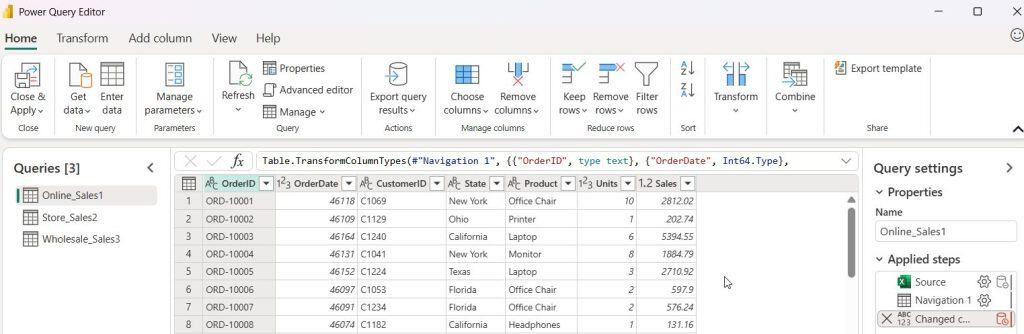
Step 1: Load the Sample Tables into Power BI
- Open Power BI Desktop.
- On the Home tab, select Excel workbook.
- Browse to Power-BI-Append-Tables-Sample-Data.xlsx and select Open.
- In the Navigator, check Online_Sales, Store_Sales, and Wholesale_Sales. (Pick the table names with the blue table icon, not the sheet names.)
- Select Transform Data to open the Power Query Editor.
Tip: New to Power BI Desktop? Start with this Power BI Desktop step-by-step guide.
Method 1: Append Two Tables with the Same Columns
Online_Sales and Store_Sales share the same column names, even though Store_Sales has them in a different order. I cover more scenarios in combine two tables with the same columns.
- In the Queries pane, select Online_Sales.
- On the Home tab, in the Combine group, select the Append Queries dropdown arrow > Append Queries as New.
- In the Append dialog, keep Two tables selected.
- Primary table: Online_Sales.
- Table to append to the primary table: Store_Sales.
- Select OK.
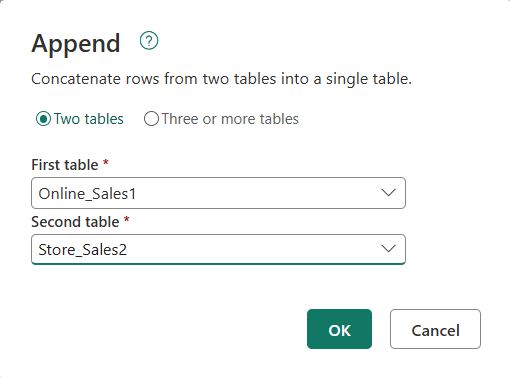
A new query named Append1 appears. Scroll through it and you’ll see:
- All 220 rows (120 + 100).
- Columns lined up correctly, even though Store_Sales listed them in a different order.
- A StoreName column showing null for every online order, because Online_Sales doesn’t have that column.
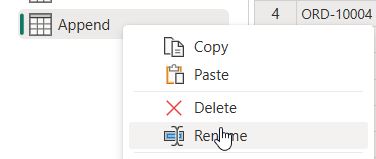
Right-click Append1, select Rename, and call it All_Sales.
Replace the Null Values (Optional)
To show something friendlier than null:
- Select the StoreName column.
- On the Transform tab, select Replace Values.
- Leave Value To Find as
null, enterOnlinein Replace With, and select OK.
Method 2: Append Three or More Tables
- Select Online_Sales in the Queries pane.
- Select Home > Append Queries dropdown > Append Queries as New.
- Select Three or more tables.
- In Available tables, select each table and select Add >> to move it to Tables to append.
- Use the up and down arrows to change the order, or the X to remove a table.
- Select OK.
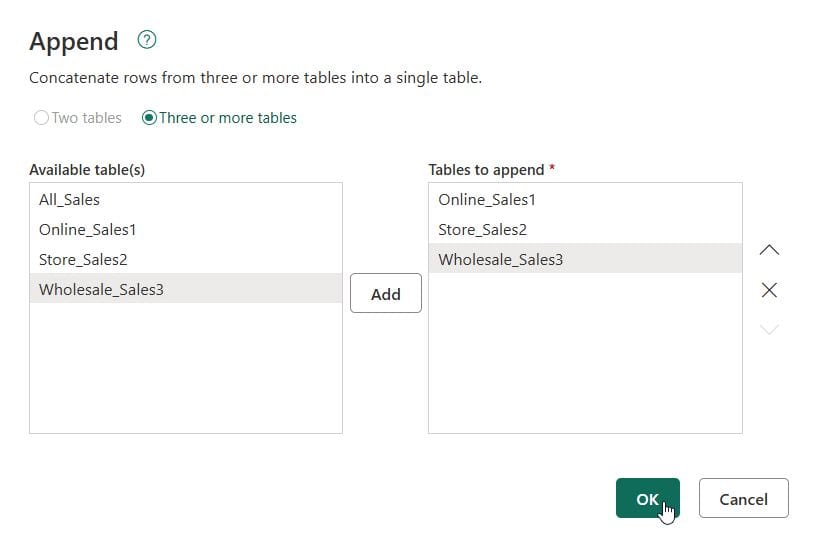
Important: Add only the original source tables (Online_Sales, Store_Sales, and Wholesale_Sales). Don’t add the All_Sales query you created in Method 1. It already contains the Online and Store rows, so those rows would be duplicated. Better yet, select All_Sales, open the gear icon next to the Source step in Applied Steps, switch to Three or more tables, and add Wholesale_Sales to your existing appended query.
If you append Wholesale_Sales right now, you’ll get a messy result: separate Order ID, Order Date, Customer, Qty, and Amount columns filled with nulls for the other two tables. The next section fixes that.
Method 3: Append Tables with Different Column Names
When column names don’t match, rename the columns before you append. Power Query can’t guess that Qty means Units.
Step 1: Rename the Columns in the Source Table
- Select the Wholesale_Sales query.
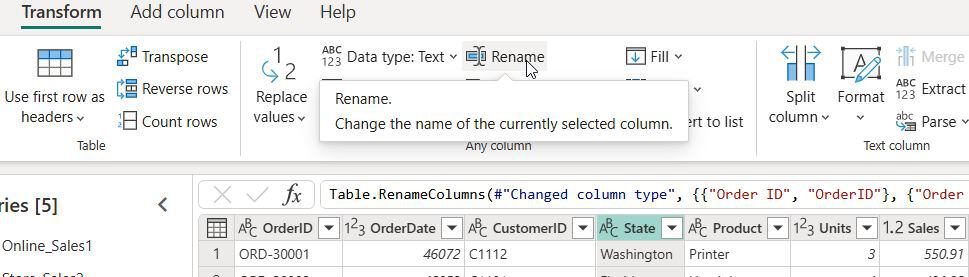
- Double-click each column header and rename it to match Online_Sales:
| Old Name (Wholesale_Sales) | New Name |
|---|---|
| Order ID | OrderID |
| Order Date | OrderDate |
| Customer | CustomerID |
| Qty | Units |
| Amount | Sales |
You can also select a column and choose Transform > Rename.
Step 2: Append All Three Tables
Repeat Method 2 and add Online_Sales, Store_Sales, and Wholesale_Sales. Now every column lines up, and the result has 300 rows.
Step 3: Add a Source Column (Highly Recommended)
After appending, you can’t tell which channel each row came from. Add a column to each source query before the append:
- Select Online_Sales in the Queries pane.
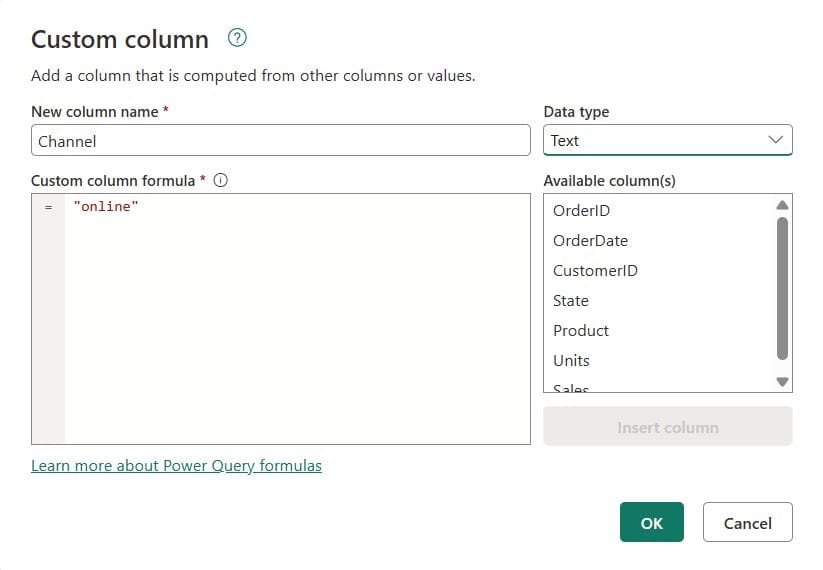
- On the Add Column tab, select Custom Column.
- In New column name, type
Channel. - In Data type, select Text.
- In Custom column formula, keep the equal sign and type
"Online"with the double quotes, so the box shows= "Online". Without quotes, Power Query treats Online as a column or query name and shows an error. - Select OK.
- Repeat for the other two queries. Keep the column name Channel in all three tables so they append into one column; only the formula value changes:
= "Store"for Store_Sales and= "Wholesale"for Wholesale_Sales.
Your appended table now has a Channel column you can use in Power BI slicers and charts.
Fix Data Types After Appending
If the same column has different data types in different tables (for example, OrderDate is a Date in one table and Text in another), the appended column changes to Any type (the ABC/123 icon). That can break sorting, DAX, and date relationships. If dates are the problem, here’s how to change the date format in Power BI.
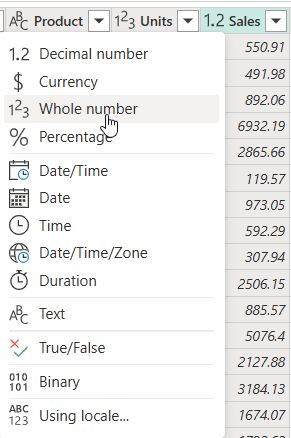
- In the appended query, select the column header icon (ABC/123).
- Choose the correct type: Date, Whole Number, Fixed Decimal Number, or Text.
Best practice: Set data types in each source query before appending, then confirm them again in the final table.
Disable Load for the Source Tables
You usually only need the combined table in your report. Loading the three source tables too doubles your data and clutters the Data pane.
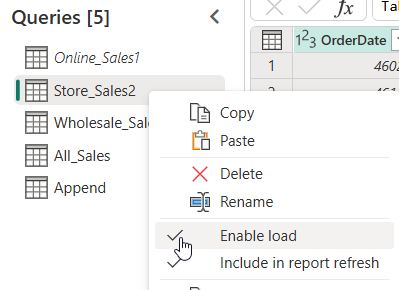
- In the Queries pane, right-click Online_Sales.
- Clear the check mark next to Enable load. (The query name turns italic.)
- Repeat for Store_Sales and Wholesale_Sales.
- Select Home > Close & Apply.
Only All_Sales loads into the model. The source queries still refresh, because All_Sales depends on them.
View the M Code Behind Append (Table.Combine)
Every append creates a Table.Combine step. Select Home > Advanced Editor on All_Sales to see it:
let
    Source = Table.Combine({Online_Sales, Store_Sales, Wholesale_Sales})
in
    Source
You can type extra queries into the curly braces to append more tables, which is handy when you have 12 monthly tables.
Remove Duplicate Rows After Appending
Append keeps every row, including duplicates (like SQL UNION ALL). If the same order can appear in two tables:
- Select the column that should be unique, such as OrderID (or press Ctrl and select several columns).
- On the Home tab, select Remove Rows > Remove Duplicates.
Alternative: Append Tables with DAX UNION
If your tables are already loaded into the model, or you can’t edit the queries, use a DAX calculated table. New to DAX? Start with how to create a measure in Power BI.
Before you start: DAX can only use tables that are loaded into the model. If you turned off Enable load earlier (the query names look italic in the Queries pane), DAX shows the error “Failed to resolve name ‘Wholesale_Sales’. It is not a valid table, variable, or function name.” To fix it, open Transform data, right-click each source query, select Enable load, and then select Close & Apply.
- Switch to Report view or Table view.
- On the Modeling tab, select New table (in Table view, it’s on the Table tools tab).
- Enter:
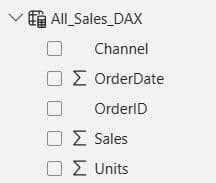
All_Sales_DAX =
UNION (
    SELECTCOLUMNS ( Online_Sales, "OrderID", Online_Sales[OrderID], "OrderDate", Online_Sales[OrderDate], "Units", Online_Sales[Units], "Sales", Online_Sales[Sales], "Channel", "Online" ),
    SELECTCOLUMNS ( Store_Sales, "OrderID", Store_Sales[OrderID], "OrderDate", Store_Sales[OrderDate], "Units", Store_Sales[Units], "Sales", Store_Sales[Sales], "Channel", "Store" ),
    SELECTCOLUMNS ( Wholesale_Sales, "OrderID", Wholesale_Sales[OrderID], "OrderDate", Wholesale_Sales[OrderDate], "Units", Wholesale_Sales[Units], "Sales", Wholesale_Sales[Sales], "Channel", "Wholesale" )
)
This formula uses the renamed Wholesale_Sales columns from Method 3. If you skipped renaming, use the original names instead: [Order ID], [Order Date], [Qty], and [Amount].
Important differences from Power Query:
- DAX UNION matches columns by position, not by name. All tables must have the same number of columns, which is why
SELECTCOLUMNSis used to line them up. - The result uses the column names from the first table.
- Like append, UNION keeps duplicates. Wrap it in
DISTINCT()to remove them. - The source tables must stay loaded in the model, so this uses more memory.
Power Query Append vs. DAX UNION: Which Should You Use?
| Feature | Power Query Append | DAX UNION |
|---|---|---|
| Column matching | By name | By position |
| Different number of columns | ✅ Allowed (fills null) | ❌ Error |
| Source tables must be loaded | No (disable load) | Yes |
| Model size | Smaller | Larger |
| Runs at | Data refresh | Data refresh (calculated table) |
| Best for | Most scenarios | Quick combos of loaded tables |
Recommendation: Use Power Query Append Queries as New for nearly every report. Use DAX UNION only when you can’t change the queries.
Want to understand why? Read Power Query vs. Power BI: what’s the difference.
Bonus: Append Many Files Automatically with the Folder Connector
If you get a new Excel or CSV file every month with the same layout, don’t append them one by one:
- Save all files in one folder (or SharePoint folder).
- Select Home > Get data > More > Folder (or SharePoint folder) > Connect.
- Browse to the folder and select OK.
- Select Combine & Transform Data.
- Pick the sample file and table, then select OK.
Power BI appends every file, adds a Source.Name column with the file name, and picks up new files on each refresh. Learn more about creating a Power BI report from SharePoint and Excel.
Troubleshooting Common Append Problems
| Problem | Cause | Fix |
|---|---|---|
| Extra columns full of null | Column names don’t match exactly | Rename columns so they match, including spaces and capitalization |
| Two columns with almost the same name | Case difference, like CustomerID vs CustomerId | Rename one to match exactly |
| Column type changed to Any (ABC/123) | Different data types across tables | Set the same type in each source query, then in the result |
| Append Queries is grayed out | No query selected, or only one query exists | Select a query; load at least two tables |
| Duplicate rows | Same records exist in more than one table | Home > Remove Rows > Remove Duplicates |
| DAX UNION error: “Each table argument must have the same number of columns” | UNION matches by position | Use SELECTCOLUMNS to line up columns |
| Slow refresh | Many source steps after the append | Filter and remove columns before appending |
| Source tables still appear in the Data pane | Enable load is on | Right-click each source query and clear Enable load |
| DAX error: “Failed to resolve name ‘Wholesale_Sales'” | The source query has Enable load turned off (italic name), so it isn’t in the model | Right-click the query in Power Query, select Enable load, then Close & Apply |
Best Practices for Appending Tables in Power BI
- Use Append Queries as New so your source queries stay clean.
- Standardize column names and data types first. Fix them in the source queries, not after the append.
- Add a Channel or Source column so you always know where each row came from.
- Remove unneeded columns and rows before appending to keep the model small.
- Disable load for staging queries.
- Use the Folder connector for recurring monthly or weekly files, then schedule a refresh in Power BI so new files load automatically.
- Name queries clearly (for example,
stg_Online_Sales,All_Sales).
For more Power BI and Microsoft 365 tutorials, browse the Power BI tutorials on EnjoySharePoint.
Conclusion
Now you know how to append tables in Power BI for every situation: tables with the same columns, columns in a different order, and columns with different names. Use Append Queries as New, line up names and data types first, add a source column, and disable load for the staging tables. Use DAX UNION only when Power Query isn’t an option.
Download the sample Excel file and try all three methods yourself.
With your tables combined, these tutorials help you turn the result into a working report:
Frequently Asked Questions
1. Where is Append Queries in Power BI?
Select Home > Transform data to open the Power Query Editor. Append Queries is on the Home tab, in the Combine group. Append queries on Microsoft Learn.
2. What is the difference between Append Queries and Append Queries as New?
Append Queries adds tables to the selected query and changes it. Append Queries as New creates a new query and leaves the original tables unchanged.
3. Can I append tables with different columns in Power BI?
Yes. Power Query keeps every column from every table and fills missing values with null. Rename columns first if they hold the same data under different names.
4. Does the column order matter when appending in Power Query?
No. Power Query matches columns by name. DAX UNION matches by position, so order matters there.
5. Are column names case-sensitive when appending?
Yes. Sales and sales become two separate columns. Make the names match exactly.
6. What is the difference between append and merge in Power BI?
Append stacks rows from tables with similar columns. Merge joins tables side by side using a matching key column, like a lookup.
7. How do I append more than two tables?
In the Append dialog, select Three or more tables, add each table to Tables to append, and select OK.
8. Does appending remove duplicates?
No. Append keeps all rows. Use Home > Remove Rows > Remove Duplicates afterward.
9. Why does my appended column show the Any (ABC/123) data type?
The column has different data types in the source tables. Set the same type in each source query, then set it again in the appended table.
10. Will the appended table update when I refresh?
Yes. The append is a query step, so it reruns on every refresh. New rows in any source table appear automatically.
11. Should I use Power Query Append or DAX UNION?
Use Power Query in most cases. It matches by name, handles different columns, and keeps the model smaller. Use UNION only when you can’t edit the queries.

I have worked with Microsoft technologies for more than 18 years, including SharePoint, Microsoft 365 and the Power Platform (Power Apps, Power Automate and Power BI), at companies like HP, TCS and KPIT. I started EnjoySharePoint in 2011 to share the solutions I build in real projects with readers in the United States, Canada, the United Kingdom, Australia, New Zealand and beyond. Microsoft has recognized this work with the Microsoft MVP award 13 times since 2014.