
If you have ever built flows in Power Automate and thought, “How can other people run this flow without giving them edit access?”, then this article is for you.
Recently, we built a Travel Management application using a Power Apps canvas app. For automation, we used Power Automate, and for storing data, we used SharePoint lists and libraries. Both internal employees and external users were using this application. When someone wanted to submit a new travel request, they needed edit or contribute permission on the SharePoint list.
But giving edit permissions to everyone is not a good idea. It can lead to accidental changes, data deletion, or even misuse. The situation becomes even more sensitive when external users are involved. So, giving direct permissions to all users was not the right approach for us.
That’s where we faced a challenge: how can users submit travel requests without having direct access to modify the SharePoint list?
This is exactly where the Run-Only Users feature in Power Automate helps.
Instead of giving users edit permissions, we created Power Automate flows to save the travel requests in SharePoint. As part of company standards, we already had a Service Account with full permissions to the SharePoint site. So we configured the flow to use the Service Account connection. Then we added all internal and external users as Run-Only users.
Now, even though users do not have direct permission to edit the SharePoint list, they can still submit travel requests successfully, because the flow runs using the Service Account.
Interesting, right?
In this tutorial, I will show you step by step how to set this up, how it works behind the scenes, and what limitations you should know before using it.
What Are Power Automate Run-Only Users?
When you share a Power Automate flow, you typically add owners who can edit it.
But sometimes users just need to run it, without seeing or editing anything.
Power Automate lets you add Run-Only Users so these people can execute the flow, but not change it.
Good so far, but there’s more.
When you add run-only users, Power Automate also lets you choose which connection the flow uses for each connector, allowing you to “elevate” the context the flow runs in.
So even if the person doesn’t have permission to update a SharePoint list, the flow can update it anyway because the flow is using a privileged connection.
Why You Need Elevated Privileges
Let’s go with a practical example before we dive into the steps.
I built a feedback form in Power Apps and stored responses in a SharePoint list called “Employee Feedback Responses“.
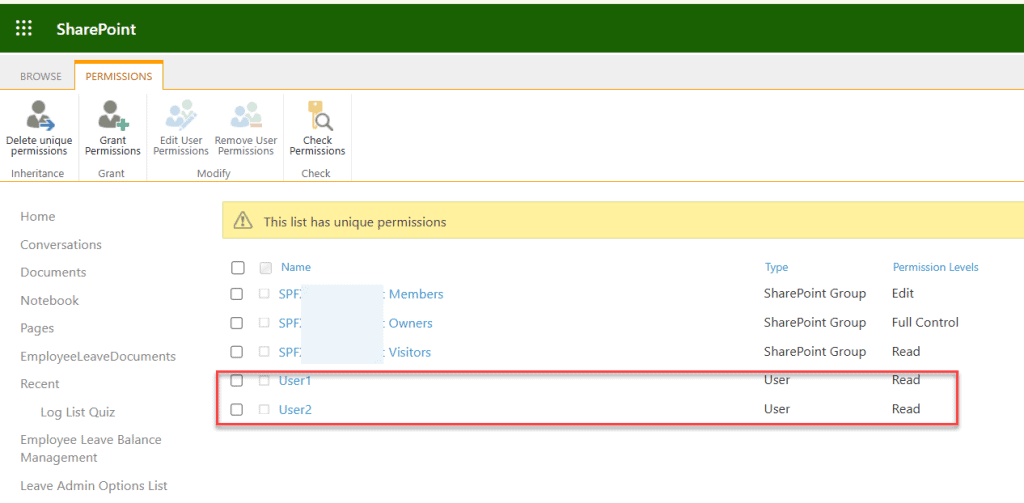
I gave Read permissions to “User 1” and “User 2” on my SharePoint list, as shown below.
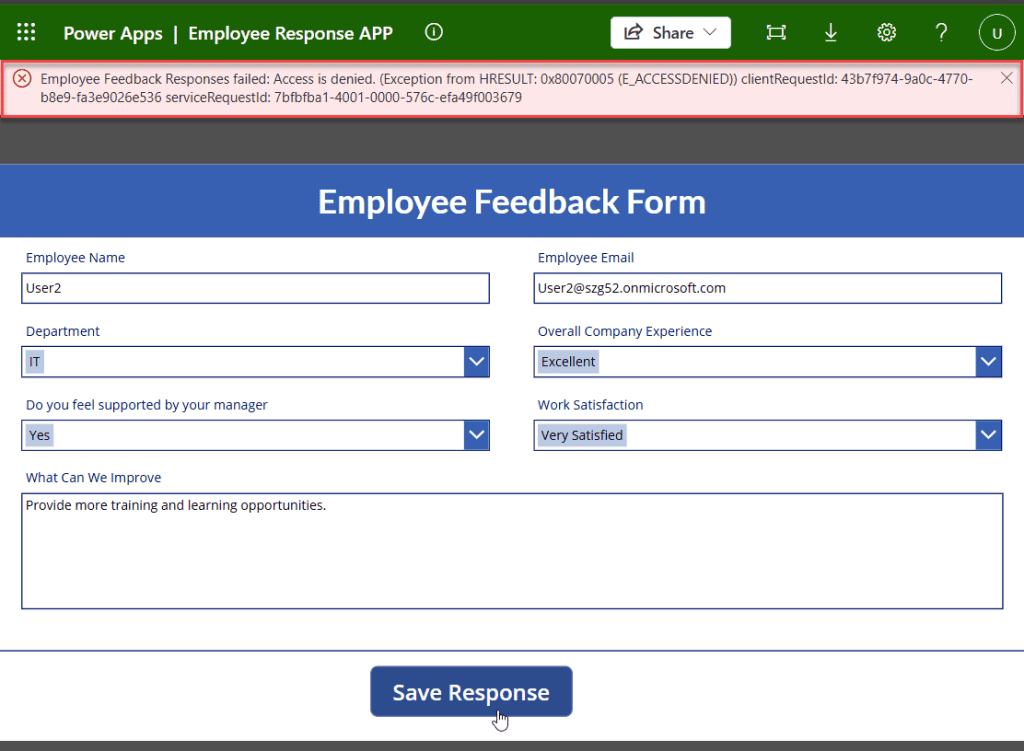
To save Power Apps form data to a SharePoint list, I used the SubmitForm() function. It uses the “User context” to check whether the user has edit permissions on the SharePoint list.
Now, “User 2” tried to fill out the form in Power Apps and press Submit button. Power Apps tries to create a new item directly → Access denied.
Reason: Power Apps operates under the current user’s identity.
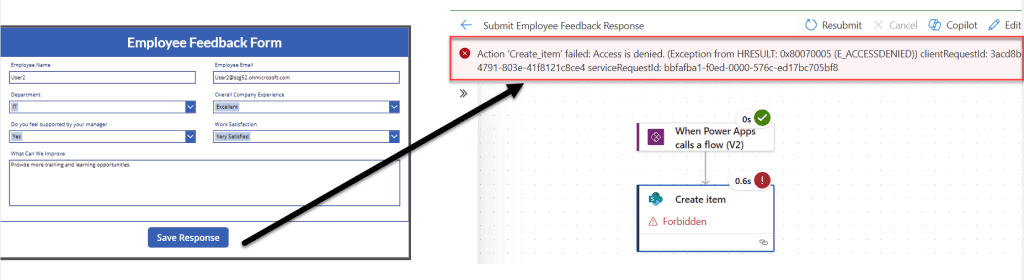
Then I created a Power Automate Instant cloud flow with a Power Apps (v2) trigger to submit the response to the SharePoint list, and even here, it is also using the user context, so again, we faced → Access denied
So how do we fix it? Let’s see that in the section below.
Configure Power Automate Run-Only Users for a Flow [Step-by-Step]
Follow the steps below to add users with read-only access to the Run-only users role to run the Power Automate flow without permissions.
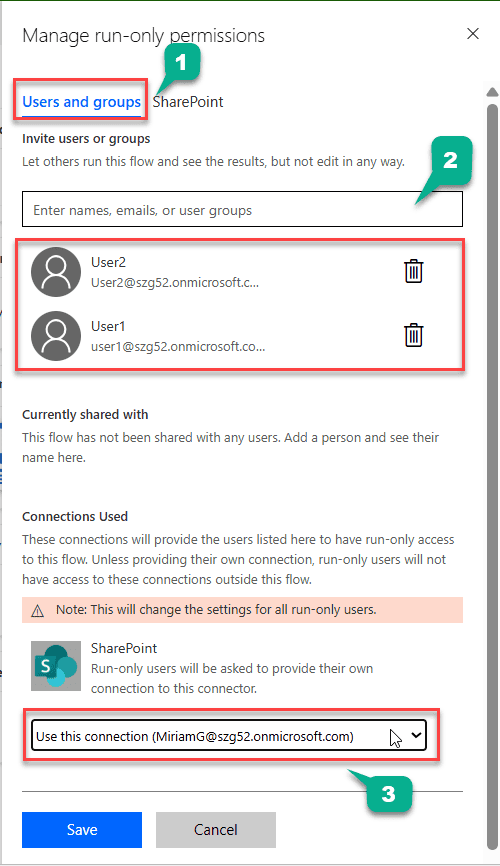
- Open the Power Automate with the account that has full permissions on the SharePoint. Then Open your flow details → Run-only user → Edit.
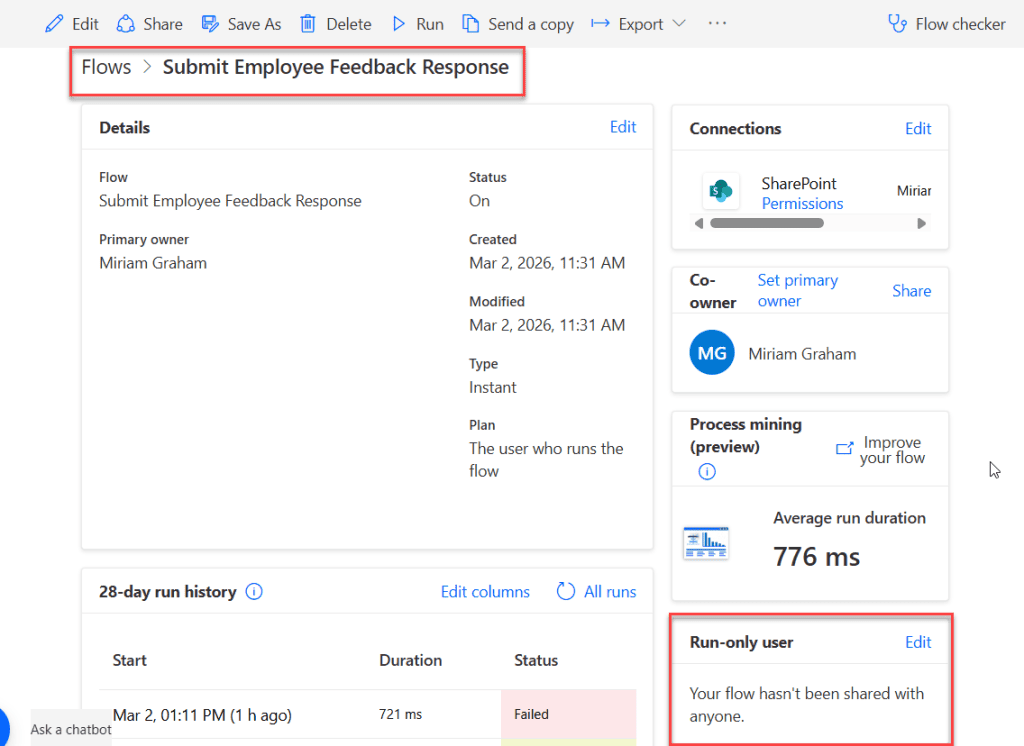
- On the right side, under Users and Groups, search for the users who should be allowed to run the flow. Select their names and add them.
- These users will be able to run the flow but not edit or modify it.
- Below the users section, you will see Connections Used. Here, Power Automate shows all the connectors used in your flow, such as:
- SharePoint
- Outlook
- Teams
- Dataverse
- For each connector, you must decide how the flow should run. You will see two options:
- Provided by run-only user: This means:
- The person running the flow must provide their own credentials for this connector.
- The flow will run actions using their access.
- This is not elevated privileges.
- Use this connection: This is the key:
- You select a specific connection to use, such as a service account or another account you want users to use for running flows.
- Every time anyone runs the flow, it uses this connection for that connector.
- That’s how you ensure the flow runs with higher privileges than the user who triggered it.
- Provided by run-only user: This means:
- On the same pane, open the SharePoint section, select the required SharePoint site and list/library, and click Add. Then, under Connections Used, choose the account that has edit (or contribute) permissions to the SharePoint list. Then, click on the Save button.
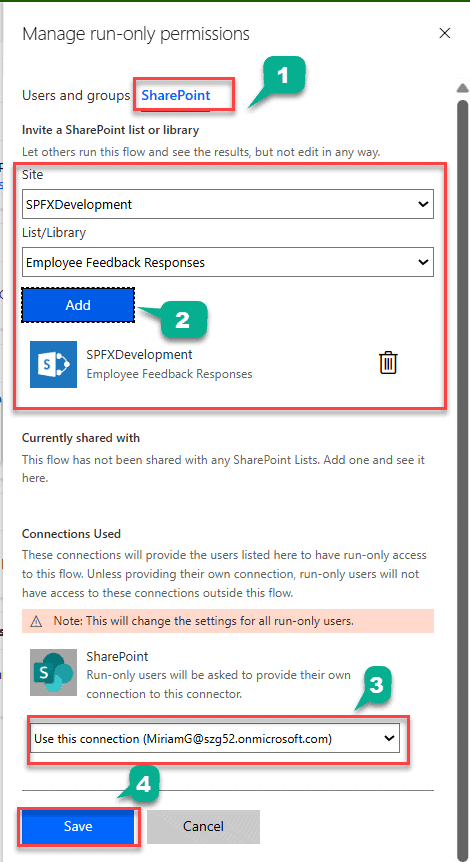
Then save the changes, open Power Apps, refresh the Power Automate flow, and publish the changes from the app as well.
What Happens When the Power Automate Flow Runs
Once it’s set up:
- Employee opens Power Apps form
- They hit Submit
- Power Apps calls Power Automate flow
- Flow runs SharePoint “Create item” using the account we assigned in the connection
- The item is created in the list
- List permissions remain tight
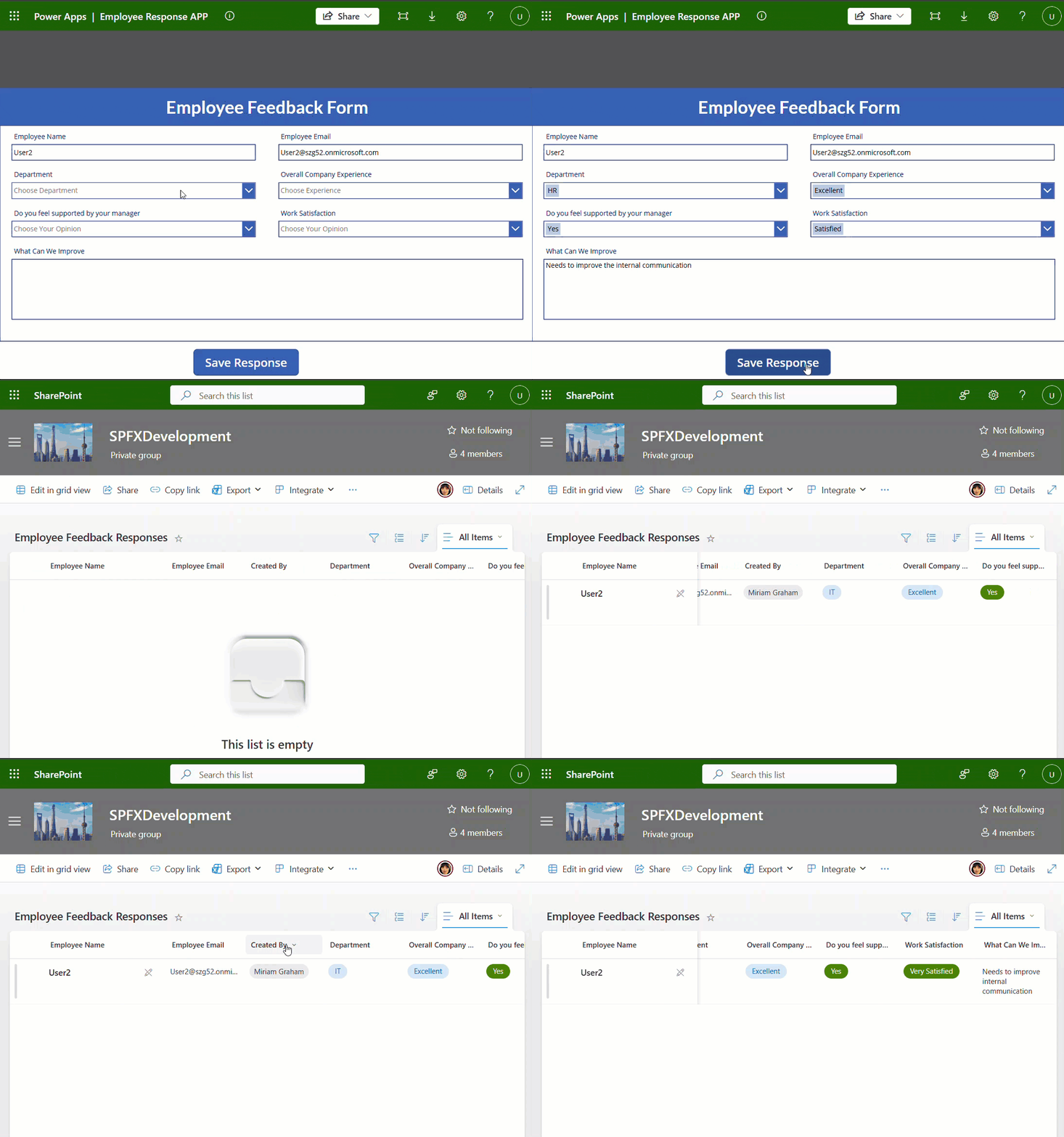
Notice this part: SharePoint shows “Created By” = the account we used in the connection.
This is because the action was executed under that connection. You aren’t giving employees edit access, but they can still submit data.
In the example below, the run-only user is “User 2,” and for the connection, I used “Miriam Graham,” who has Contribute permissions.
Supported Triggers for Run-Only Users in Power Automate
Here’s an important part that many beginners miss: Not all flows support Run-Only Users.
- Power Apps (V2): The most common scenario is where a button in a canvas app triggers a flow.
- Manually trigger a flow: Instant button flows created in the Power Automate mobile app or web portal.
- HTTP Request: Triggers initiated by external HTTP calls.
- Desktop flows (via Power Automate Desktop)
These are triggers that support run-only users in Power Automate flows.
Final Tips
- Always test permission boundaries before publishing flows
- Document who has run-only access
- Use service accounts consistently for connectors
- Keep sensitive connectors locked down
Conclusion
I hope this article helped you clearly understand how Run-Only Users work in Power Automate and how you can use them to run flows with elevated privileges.
If you are building forms using Power Apps and want to avoid giving contribute or edit permissions to all users, this approach can really help. By configuring Run-Only Users correctly and using a service account connection, you can keep your SharePoint data secure while still allowing employees to submit their responses without any permission issues.
Also, you may like:
- Embed GIFs into Outlook Email & Teams Messages Using Power Automate
- Power Automate Send Reminder Emails
- Upload File in SharePoint Using Power Automate Desktop
- Retrieve Excel Column Values Into List Using Power Automate Desktop
- Power Automate Trigger Conditions Examples

After working for more than 18 years in Microsoft technologies like SharePoint, Microsoft 365, and Power Platform (Power Apps, Power Automate, and Power BI), I thought will share my SharePoint expertise knowledge with the world. Our audiences are from the United States, Canada, the United Kingdom, Australia, New Zealand, etc. For my expertise knowledge and SharePoint tutorials, Microsoft has been awarded a Microsoft SharePoint MVP (12 times). I have also worked in companies like HP, TCS, KPIT, etc.

