
If you’ve spent any time building apps in Power Apps, you’ve probably run into a situation where you needed a button to be clickable only after a form is filled out — or a text field that shows data but doesn’t let users edit it. That’s exactly where the DisplayMode property comes in.
In this tutorial, I’m going to walk you through everything you need to know about Display Mode in Power Apps — what it is, the three modes available, how to use them, and some practical examples you can apply right away.
What Is DisplayMode in Power Apps?
Every control in Power Apps — buttons, text inputs, dropdowns, galleries, you name it — has a DisplayMode property. This property controls how a user can interact with that control at any given moment.
Think of it like a traffic light:
- Green (Edit) — the user can interact with the control fully
- Red (Disabled) — the control is grayed out and cannot be used
- Yellow (View) — the control is visible but not interactive
That’s the short version. Now let’s dig into each mode properly.
The Three Display Modes in Power Apps
1. DisplayMode.Edit
This is the default mode for every control you add to a canvas app. When a control is in Edit mode, users can interact with it — they can type into a text input, click a button, select from a dropdown, and so on.
You don’t usually need to set this manually because it’s already the default. But there are cases where you’ll want to switch a control back to Edit mode after it’s been disabled — and that’s when you’d write it explicitly in a formula.
Example:
DisplayMode.Edit
Simple as that. No conditions, just the plain value.
2. DisplayMode.Disabled
When a Power Apps control is Disabled, it appears grayed out. Users can see it, but they can’t interact with it at all. This is the mode you want to use when a button or input should only be available under certain conditions.
For example, say you have a Power Apps “Submit” button on a form. You don’t want users to submit until they’ve filled in the required fields. You can set the DisplayMode of the button like this:
If(
    IsBlank(txt_Title.Value) || IsBlank(txt_Description.Value),
    DisplayMode.Disabled,
    DisplayMode.Edit
)
- txt_Title = Title Datacard value name
- txt_Description = Issue Description Datacard value name
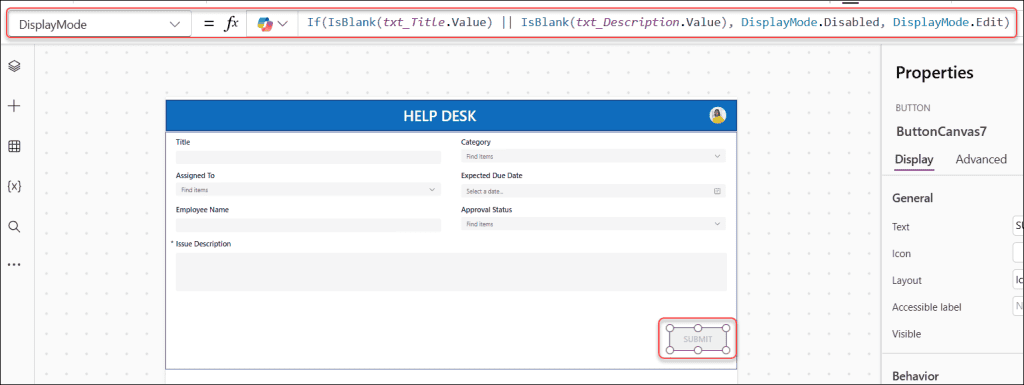
What this does:
- If either of the two text fields is empty, the button is disabled
- Once both fields have values, the button becomes clickable
Refer to the image below:
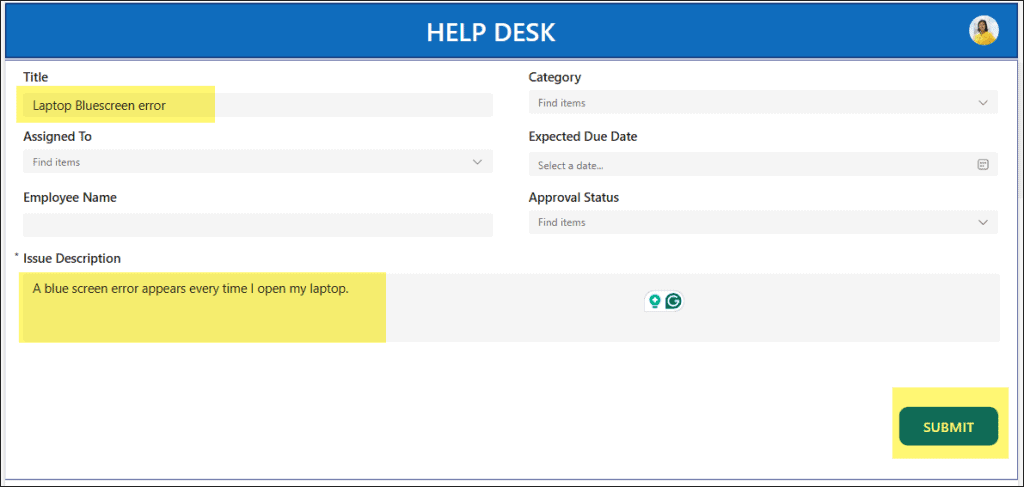
This is one of the most common uses of DisplayMode in real apps, and it immediately improves your form’s usability without any extra screen or pop-up.
You can also style how a disabled control looks using these properties:
- DisabledColor — changes the text color
- DisabledFill — changes the background color
- DisabledBorderColor — changes the border color
3. DisplayMode.View
View mode is a bit of an odd one. In this mode, the control is visible and looks just like it does in Edit mode — but users can’t interact with it. There’s no grayed-out appearance like Disabled.
This mode is more commonly used with form controls (Edit Form / Display Form) rather than individual controls like buttons. When a form is in View mode, all the data cards inside it become read-only. The user can see the data, but can’t change anything.
For buttons specifically, I’d recommend using Disabled over View if you want to signal to users that they can’t click something. View mode gives no visual cue, which can be confusing.
DisplayMode in Power Apps Forms: Edit, New, and View
When you’re working with forms in Power Apps — especially forms connected to SharePoint lists — the form itself has three modes that tie directly into DisplayMode:
| Form Mode | What It Does |
|---|---|
FormMode.New | Opens the form to create a new record |
FormMode.Edit | Opens the form to edit an existing record |
FormMode.View | Opens the form to view a record (read-only) |
You switch between these using functions:
NewForm(MyForm)
EditForm(MyForm)
ViewForm(MyForm)
And here’s where it connects to DisplayMode. Let’s say you have both an Edit button and a New button on your screen. When the form is in New mode, you probably want the Edit button to be disabled (since there’s nothing to edit yet). Here’s how you’d handle that:
If(MyForm.Mode = FormMode.New, DisplayMode.Disabled, DisplayMode.Edit)
Set this on the DisplayMode property of your Edit button. Now, when a user clicks “New”, the Edit button automatically grays out. Clean and logical.
Power Apps Display Mode Examples
Let’s look at some practical examples to see how to work with the Power Apps Display mode property.
Locking a Power Apps Gallery Row After Selection
Here’s a real scenario that comes up a lot in the Power Apps community. You have a Power Apps gallery with checkboxes, and once a user checks an item, you want to prevent them from accidentally unchecking it.
Set the DisplayMode of the checkbox inside the gallery like this:
If(
  ThisItem.ID in SelectedItems.ID,
  DisplayMode.Disabled,
  DisplayMode.Edit
)
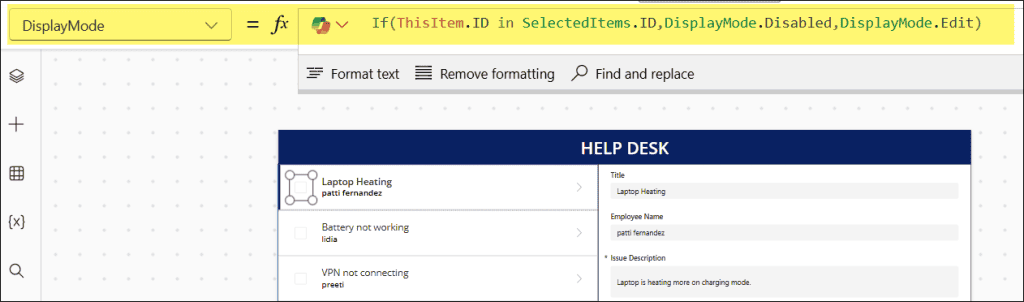
What this does:
SelectedItemsis a collection you populate when the checkbox is checked- If the current gallery row’s ID is already in that collection, the checkbox is disabled
- Otherwise, it stays in Edit mode, and the user can still check it
This kind of pattern is incredibly useful for approval workflows, task trackers, or any app where you want users to make one-time selections.
Power Apps Make Fields Read-Only Based on User Role
Another common scenario — you want certain users to only view data, not edit it. Maybe managers can edit, but regular staff can only read.
You can handle this cleanly with DisplayMode at the Power Apps form level or control level.
For a specific text input:
If(
    User().Email = "[email protected]",
    DisplayMode.Edit,
    DisplayMode.View
)
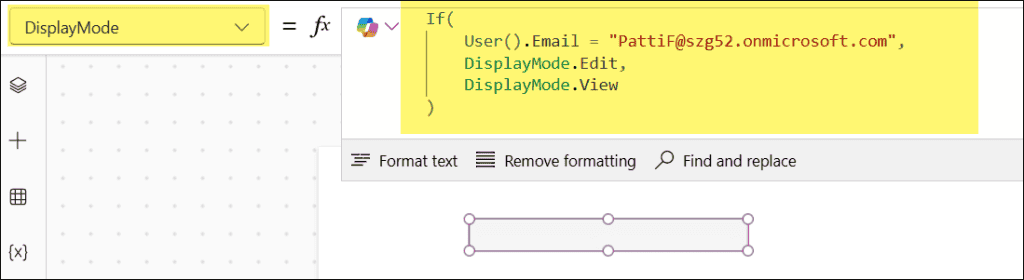
Or, if you’re checking against a SharePoint list of roles, something like:
If(
  !IsEmpty(Filter(RolesTable, Email = User().Email && Role = "Manager")),
  DisplayMode.Edit,
  DisplayMode.Disabled
)
This approach means you don’t need to build separate screens for different roles — one screen, one form, different behavior based on who’s logged in.
Common Mistakes to Avoid
A few things that trip people up when working with DisplayMode:
- Using View instead of Disabled on buttons — As I mentioned earlier, View mode doesn’t give users any visual indication that the button is inactive. Always use Disabled for buttons.
- Forgetting that form DisplayMode is derived, not set directly — Inside an Edit Form or Display Form, the DisplayMode of data cards is inherited from the form’s Mode. You can’t manually override it on individual data cards without unlocking them.
- Not accounting for all conditions in an If() formula — If your condition isn’t properly structured, the control might stay in Edit mode by accident. Always test with actual data, not just in the formula bar.
- Hardcoding DisplayMode.Edit without conditions — If you’re hardcoding Edit mode to “fix” a locked control, you’re probably masking a deeper issue. Take a step back and think through the logic.
Power Apps DisplayMode Values
You can quickly refer to the table below to learn about DisplayMode values in Power Apps.
| Value | User Can Interact? | Visual Change? |
|---|---|---|
DisplayMode.Edit | Yes | No (default look) |
DisplayMode.View | No | No (looks the same) |
DisplayMode.Disabled | No | Yes (grayed out) |
Wrapping Up
DisplayMode is one of those properties that feels simple on the surface but has a lot of depth once you start applying it to real-world apps. Whether you’re controlling form submissions, locking gallery rows, or managing role-based access, getting comfortable with DisplayMode.Edit, DisplayMode.Disabled, and DisplayMode.View will make your apps feel much more polished and intentional.
Also, you may like some more Power Apps tutorials:
- Distinct Values in Power Apps Combo Box
- Power Apps Collection Contains
- Filter Gallery By Radio Button in Power Apps
- Patch Power Apps Date Picker
- Submit Data From Power Apps to Excel

Preeti Sahu is an expert in Power Apps and has over six years of experience working with SharePoint Online and the Power Platform. She is the co-author of Microsoft Power Platform: A Deep Dive book. As a Power Platform developer, she has worked on developing various tools using Power Apps and Power Automate. She also makes Microsoft 365 videos and shares them on YouTube.

