
Someone changes a request to Approved, and nobody notices for three days. A small rule on the list would have emailed the right person the moment it happened.
In this tutorial, I’ll show you how to create SharePoint list rules that send emails, remind people before a due date and fill in a column for you, all without Power Automate.
Quick answer: Open the list, select … (More) > Integrate > Rules, pick a trigger such as An item is modified, fill in the underlined parts and select Create. The rule is on right away.
What You Need Before You Start
- A modern SharePoint list or library (rules also work in Microsoft Lists and Teams).
- At least Contribute permission on that list.
My sample is a list called ESP Rules Equipment Requests with five requests, a Status column, an Amount in USD and two date columns. If you’re new to lists, start with what a SharePoint list is and how it works.
Step 1: Open the Rules Page
- Open the list in the browser.
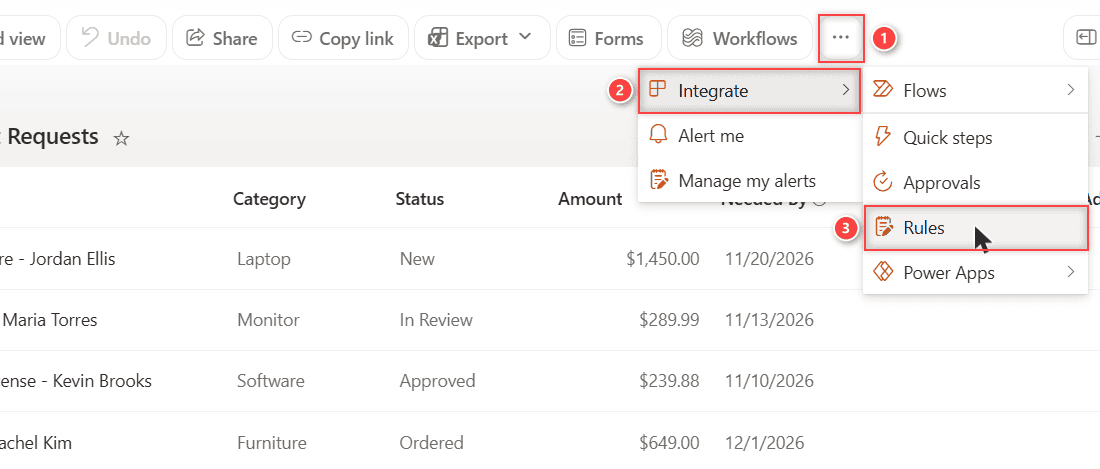
- Select … (More) at the end of the command bar.
- Point to Integrate, then select Rules.
On a list with no rules yet, SharePoint opens Create a rule with four triggers:
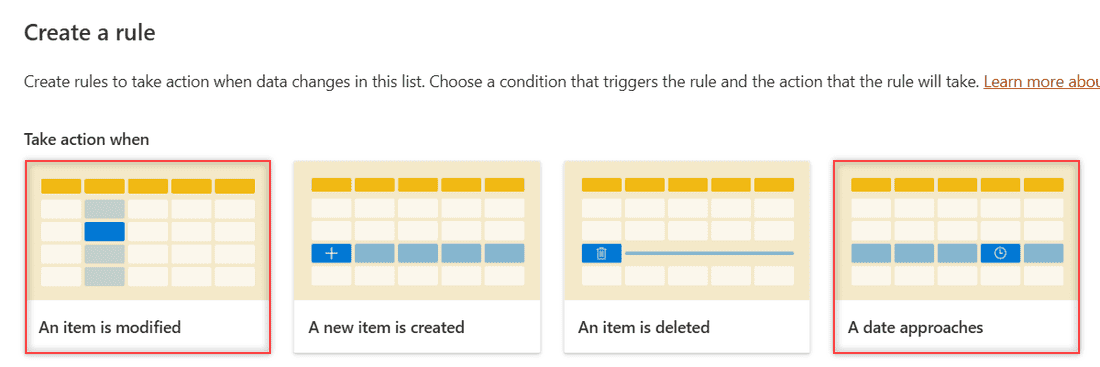
Step 2: Email Someone When a Status Changes
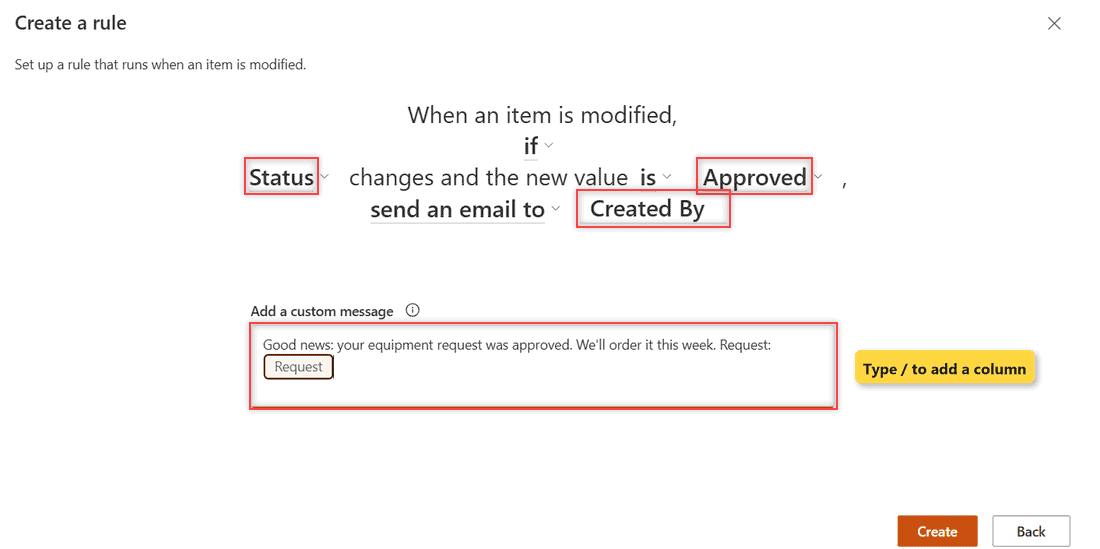
This is the rule I use most. Select An item is modified, then build the sentence:
- Select Choose a column and pick Status.
- Set the condition to is (enter a value) and pick Approved.
- Next to send an email to, pick Created By so the requester gets the email.
- Optionally add a custom message (type / to insert a column).
- Select Create.
The email comes from no-reply@sharepointonline.com. To make Approved stand out in the list too, add conditional formatting to the Status column.
Step 3: Remind People Before a Due Date
Create another rule and select A date approaches. Mine reads “2 days before Needed By, send email to Created By.”
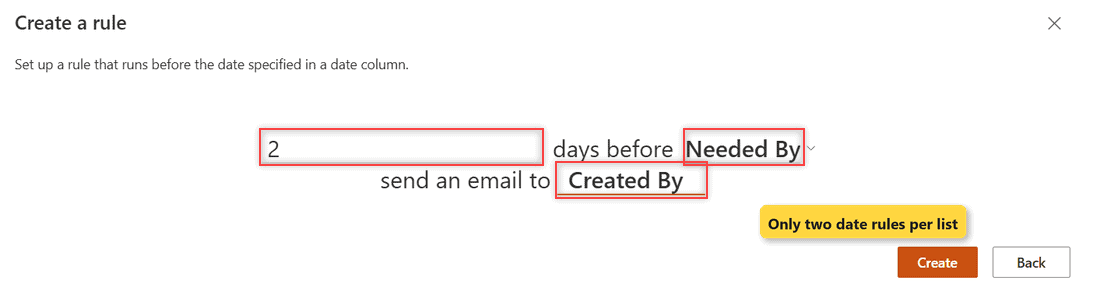
This trigger has no custom message, and Microsoft allows only two date rules per list. For more reminders, send due-date emails with Power Automate instead.
Step 4: Set a Column Value Automatically
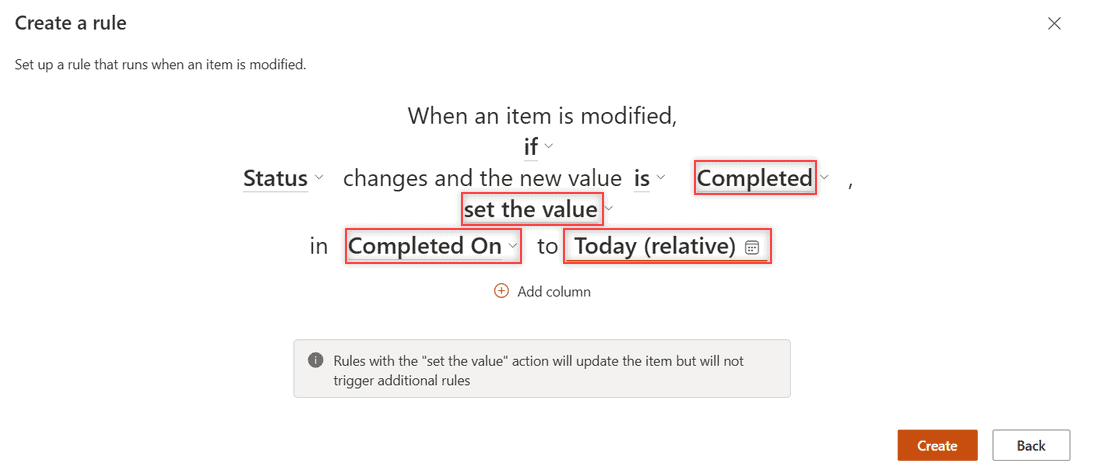
In an An item is modified rule, switch send an email to to set the value.
My rule says: if Status is Completed, set Completed On to Today (relative). Use Add column to set a second column in the same rule.
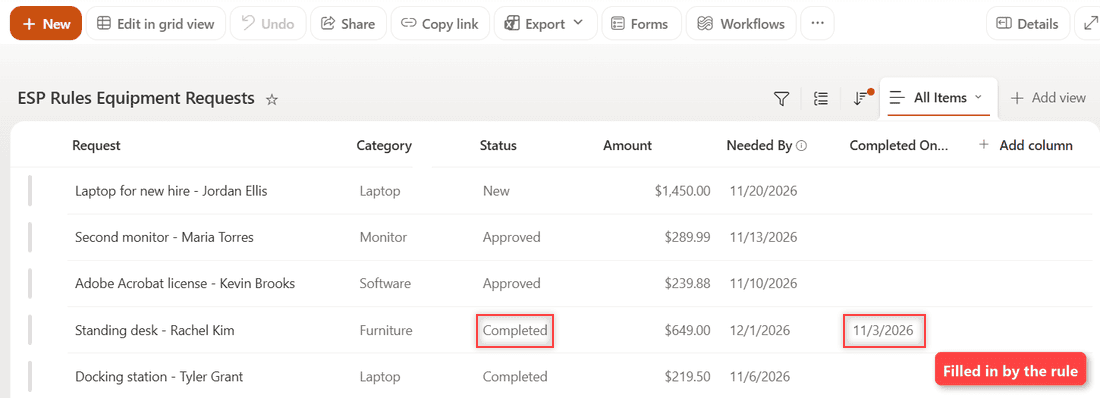
I set the Standing desk request to Completed in the edit form, and Completed On showed 11/3/2026 a minute later:
Step 5: Turn Off, Edit or Delete a Rule
Go back to … > Integrate > Rules. Now it opens Manage rules (up to 15 rules per list).
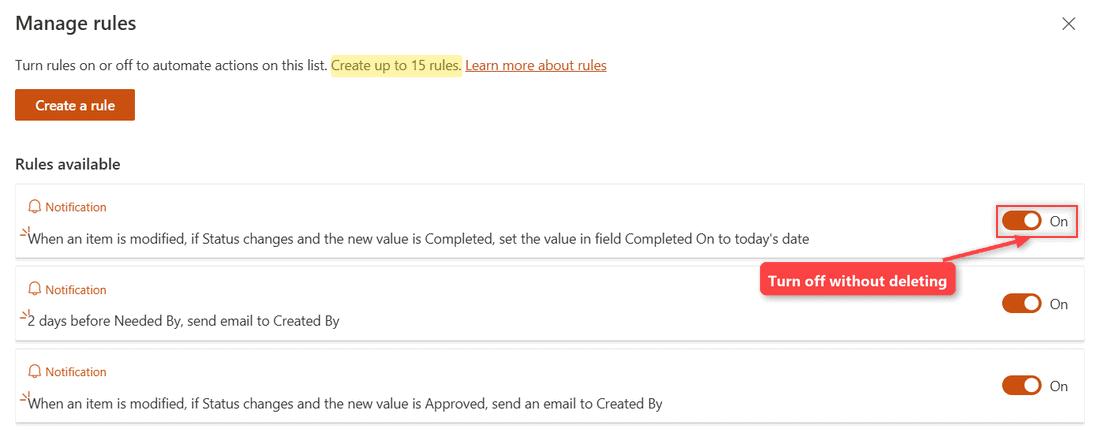
- Turn off: select the On toggle. The rule stays saved but stops running.
- Edit: select the rule, change the underlined parts and select Save.
- Delete: open the rule and select Delete rule at the bottom.
Cheat Sheet: SharePoint List Rule Triggers
| Trigger | Example on my list | Actions |
|---|---|---|
| An item is modified | Status is Approved | Send an email or set the value |
| A new item is created | New equipment request | Send an email |
| An item is deleted | A request is removed | Send an email |
| A date approaches | 2 days before Needed By | Send an email (max 2 per list) |
Common Mistakes to Avoid
- Looking for Rules on the command bar. It’s under the … (More) menu > Integrate.
- Watching the wrong column type. My currency (Amount) and multi-line (Notes) columns never appeared in the column picker.
- Updating items by script. My PowerShell edit didn’t fire the rule, but the same edit in the form did. When it must always run, use a Power Automate flow that sends the email.
- Missing permission. An error on Create usually means you lack Contribute; check the list permissions.
Do Rules Replace SharePoint Alerts?
Yes, for most people. Microsoft stopped new alerts for all tenants in January 2026 and turned existing alerts off from July 2026, pointing users to rules or Power Automate.
Anything with branching or approvals belongs in a flow, such as an email when a list item is deleted
Next Steps
Rules work the same way in the Lists app. If you’re unsure which one your team uses, read Microsoft Lists vs SharePoint lists.
A few more ways I keep SharePoint lists tidy and useful:
Frequently Asked Questions
How many rules can a SharePoint list have?
Up to 15 rules per list or library, as the Manage rules page says. Only two of them can use the A date approaches trigger.
Who receives emails from list rules?
The people or person column you pick, such as Created By. Group email addresses aren’t accepted, and mail comes from no-reply@sharepointonline.com.
Can I use rules in a document library?
Yes, from the same Integrate > Rules page. Microsoft covers both in its guide to creating a rule for a list or library.
Why can’t I create a rule on my list?
You need at least Contribute permission, and the list must use the modern experience. Multi-line text columns can’t be watched by a rule.

I have worked with Microsoft technologies for more than 18 years, including SharePoint, Microsoft 365 and the Power Platform (Power Apps, Power Automate and Power BI), at companies like HP, TCS and KPIT. I started EnjoySharePoint in 2011 to share the solutions I build in real projects with readers in the United States, Canada, the United Kingdom, Australia, New Zealand and beyond. Microsoft has recognized this work with the Microsoft MVP award 13 times since 2014.