
Our HR director had five announcements for November and only one spot at the top of the intranet page. Her ask was simple: make them rotate like the banner on a store website.
In this tutorial, I’ll build a sharepoint slideshow with the Image gallery web part’s Carousel layout, make it rotate on its own, and show when the News carousel is the better pick. No code or add-ins needed.
Here’s what we’re building, a published page with the November 2026 announcements in a carousel:

Before You Start
You need edit rights to upload images and edit the page (new to sites? see the types of SharePoint sites). Two built-in web parts have a carousel that rotates:
| Web part | Where the slides come from | Best for |
|---|---|---|
| Image gallery (Carousel) | Images you pick, or a library | Photo or banner slideshows |
| News (Carousel) | News posts on one or more sites | Rotating company headlines |
My five slides are all 1600 x 900 pixels (16:9):
| Slide | Title | Date |
|---|---|---|
| 1 | Open Enrollment Is Open | Nov 2-20, 2026 |
| 2 | Q4 Sales Kickoff in Boston | Nov 5, 2026 |
| 3 | Happy Thanksgiving | Nov 26-27, 2026 |
| 4 | Holiday Food Drive | Through Dec 18, 2026 |
| 5 | Our New Denver Office | Dec 7, 2026 |
Step 1: Upload the Slide Images to a Library
- On your site, select New > Document library, name it ESP Slideshow Slides, and select Create.
- Drag the five images into the library (a separate library makes monthly swaps easy).
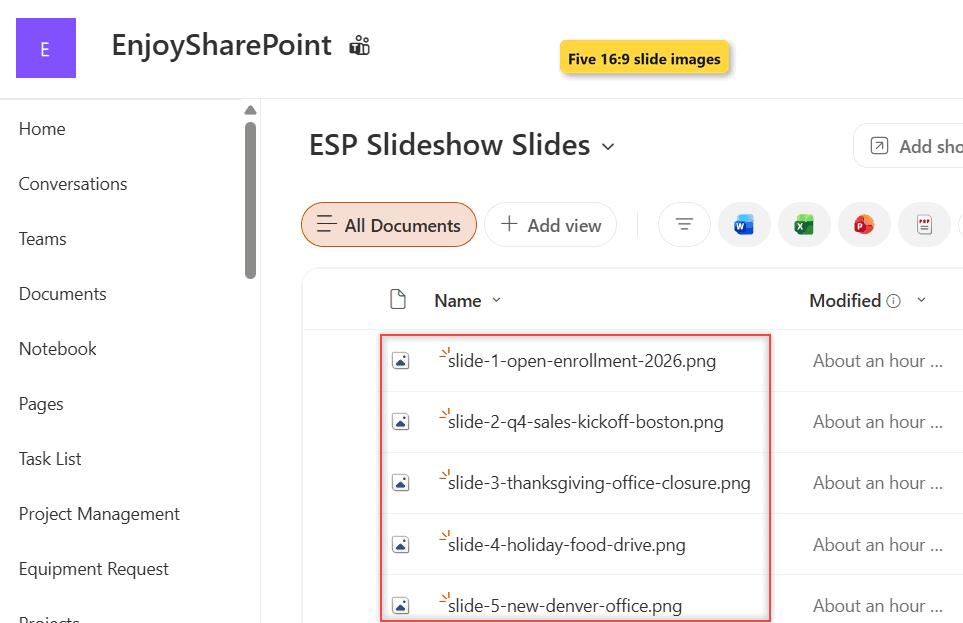
Checkpoint: the library shows 5 items. Keep every image the same shape, because the carousel keeps each image’s own aspect ratio. The SharePoint image editor can crop one in the browser.
Step 2: Add the Image Gallery and Turn On Auto-Cycle
- Open the page and select Edit.
- Select the + sign, search for Image gallery, and add it.
- In the property pane, under Layout, pick Carousel.
- Turn on Automatically cycle through images and set Seconds between each change of images (5 is the default).
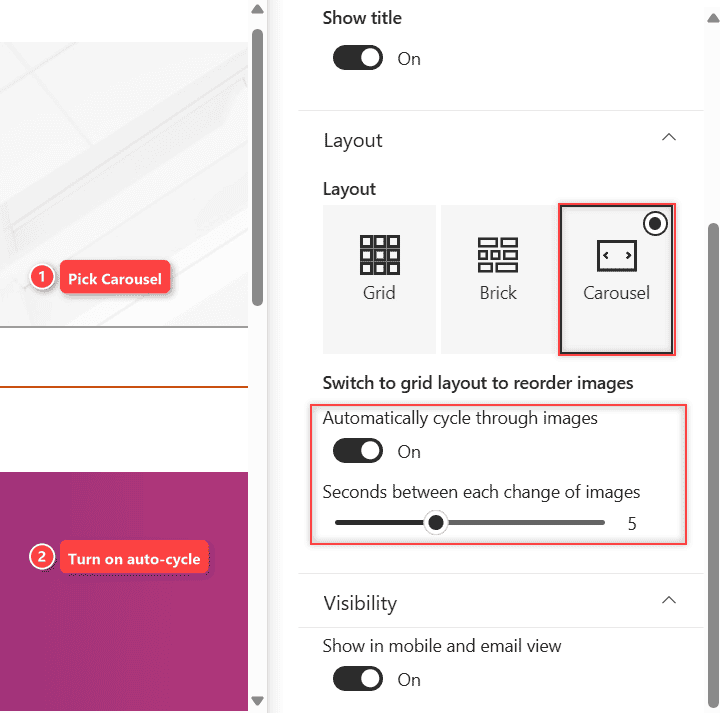
Microsoft’s article still lists auto-cycle as a Targeted Release feature, but my tenant showed it on a standard site. If yours doesn’t, viewers move through slides with the arrows.
Step 3: Add the Slides
- Select Add images in the web part.
- In Pick files, choose Site and open the ESP Slideshow Slides library.
- Check all five images and select Select.

SharePoint then asks Copy images to this page? I picked Don’t copy, so the page shows the files in the library and an updated image appears without editing the page. Choose Copy when readers can’t open that library.

Images in a carousel can’t be dragged around; switch to Grid to reorder them. Prefer a slideshow that picks up new files on its own? Choose Dynamically display images from a document library under Image options. My Image gallery web part guide covers the other layouts.
Checkpoint: the web part shows a slide with a pause button, arrows and an “n of 5” counter.
Step 4: Publish the Page
Type a title such as November 2026 Announcements above the gallery and select Publish page. I put the gallery in a One-third right section, so the slides aren’t too tall. To reach everyone, add it to your site home page.
Test the Slideshow
I opened the published page and waited. The slides changed every 5 seconds without a click. Then I selected pause and stepped through with Next: after slide 5 it wrapped back to slide 1.

Option 2: Auto-Rotating News Carousel
If your slides are really news stories, use the News web part. Each news post becomes a slide.
- Add the News web part and open its properties.
- Under Layout, pick Carousel.
- Set Number of news posts to show (4 by default), then turn on Automatically cycle news.
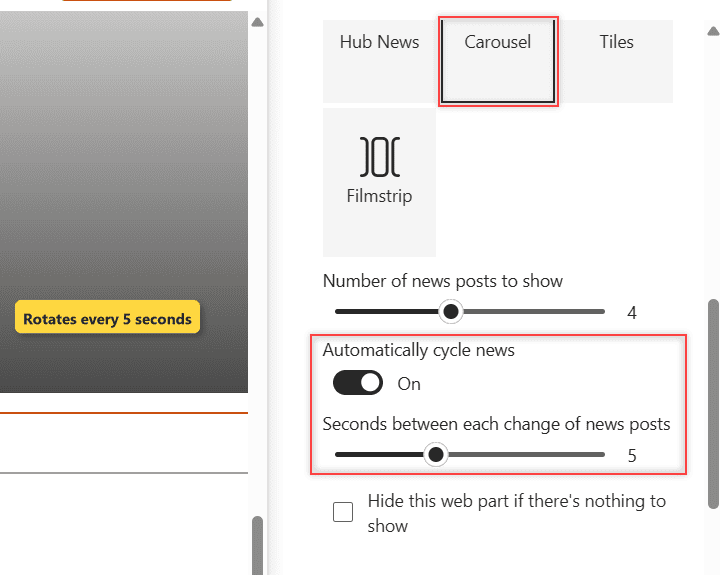
The slide image is each post’s thumbnail, so give every post a strong picture. See how the News web part works for sources and filters.
Troubleshooting
- Slides jump in height: the images have different shapes. Resize them all to 16:9.
- Coworkers see a broken image: you picked Don’t copy and they can’t open the library. Give them read access or re-add with Copy.
- Slides look huge: the gallery sits in a full-width column. Use a two-thirds column.
Note: people rarely reach slide six, so keep it to five slides or fewer.
Where to Take It Next
Need fixed tiles instead of rotation? Try the Hero web part. If your slides already live in PowerPoint, you can embed a PowerPoint presentation in a SharePoint page.
More ways to build better SharePoint pages:
Frequently Asked Questions
Can a SharePoint Image gallery carousel rotate automatically?
Yes, where the Automatically cycle through images setting appears. Microsoft describes the layouts in Use the Image Gallery web part.
How do I make a slideshow of news on a SharePoint page?
Add the News web part, set Layout to Carousel and turn on Automatically cycle news.
What image size works best for a SharePoint carousel?
Use one 16:9 shape for every slide, such as 1600 x 900 pixels, with large text that stays readable on phones.
Can I show a PowerPoint as a slideshow in SharePoint?
Yes. The File and media web part embeds the deck, but viewers click through it; it doesn’t advance on its own.

I have worked with Microsoft technologies for more than 18 years, including SharePoint, Microsoft 365 and the Power Platform (Power Apps, Power Automate and Power BI), at companies like HP, TCS and KPIT. I started EnjoySharePoint in 2011 to share the solutions I build in real projects with readers in the United States, Canada, the United Kingdom, Australia, New Zealand and beyond. Microsoft has recognized this work with the Microsoft MVP award 13 times since 2014.