
You know the file exists. You just can’t remember which site or library it landed in, and one word returns a wall of results.
In this tutorial, I’ll show you how to search in SharePoint so you land on the right file fast: where to start, how to filter and which operators work.
Quick answer: Select the search box at the top of any SharePoint page (or press Alt+S) and type a few words. Start from the library or site you think holds the file, press Enter for the full results page, then narrow it with the filters or an operator such as filetype:pdf or title:policy.
What You Need Before You Start
- A modern team or communication site (classic sites use the older Search Center).
- Access to the files. Search is security trimmed, so you only ever see items you can open.
- A test library. Mine is ESP Policies, with seven files such as Remote Work Policy.docx, Travel Expense Policy.pdf and Q4 2026 Budget.xlsx.
If you’re new to libraries, what a SharePoint document library is explains where these files live.
Step 1: Pick Where You Start the Search
SharePoint scopes the search to the place you start from, and the placeholder text tells you which scope you’re in:
| Where you start | What it searches |
|---|---|
| SharePoint start page | Every site, file, page and person you can access |
| A hub site | The hub and its associated sites |
| A site | That site only |
| A list or library | That list or library only |
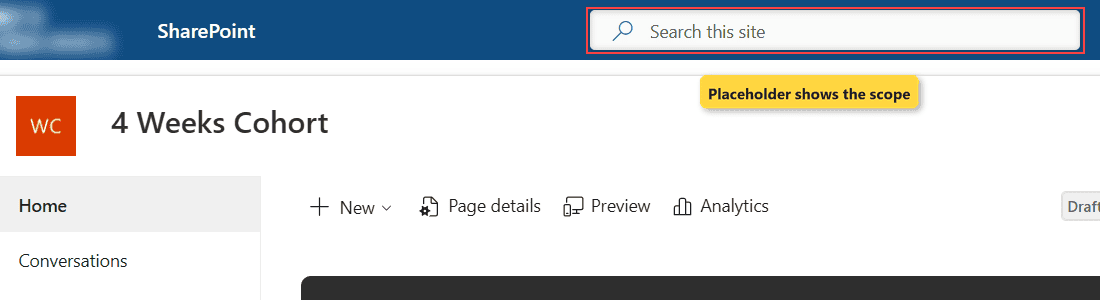
Suggestions appear before you type, based on your recent activity. If you work across many related sites, starting from a SharePoint hub site saves you from hopping site by site.
Step 2: Search Inside One Document Library
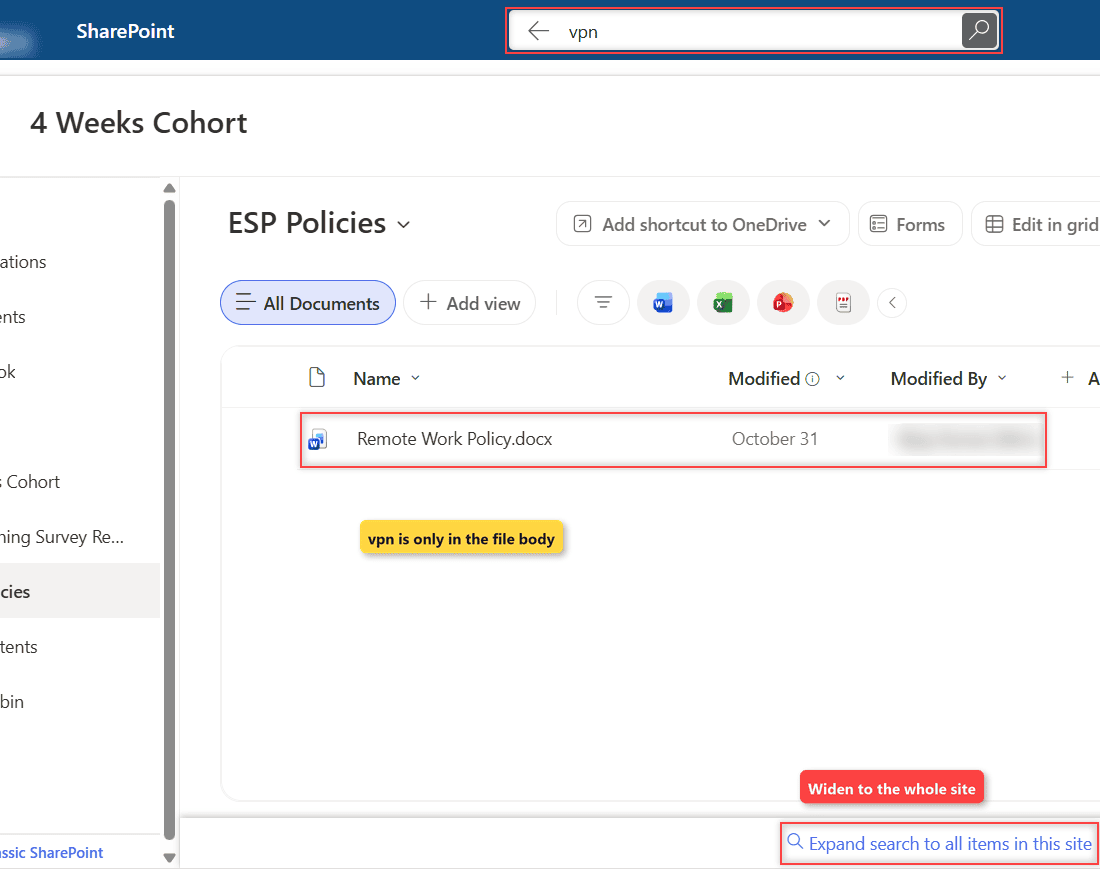
When I know the library, I search there first: open it, type a word from the file name or content in the search box, and press Enter.
In ESP Policies, searching vpn returned one file, Remote Work Policy.docx. The word is only in the document body, not in the name, because SharePoint indexes the content of Word, PDF and text files. Expand search to all items in this site at the bottom widens it.
Search also indexes column values, so tag files with the right SharePoint column types instead of burying them in folders.
Step 3: Narrow the Results Page With Tabs and Filters
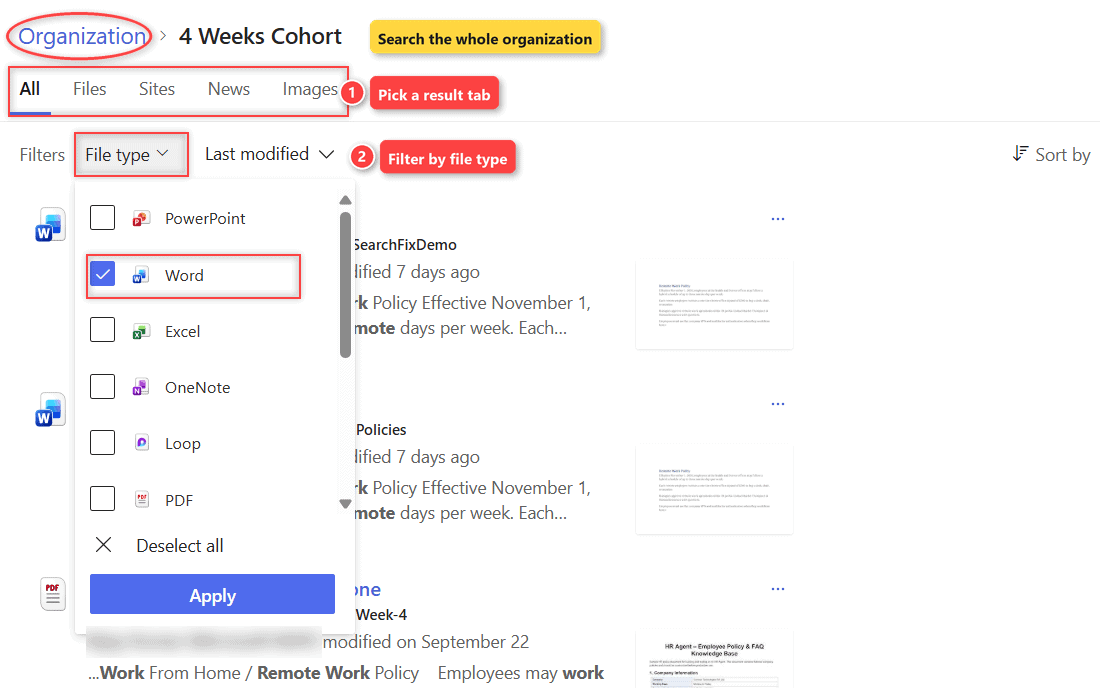
Press Enter from any search box to open the full results page. Then:
- Select a tab: All, Files, Sites, News or Images.
- Open File type (Word, Excel, PDF and more) or Last modified (Past 24 hours to Older than a year, or a From/To range), then select Apply.
- Not there? Select Organization in the breadcrumb above the tabs to search all of SharePoint.
To show fixed results on a page, use the Highlighted content web part.
Step 4: Use Search Operators (KQL) for Exact Matches
SharePoint understands Keyword Query Language (KQL), a short syntax for property filters and Boolean logic. It works in the library search box too. These are the queries I ran against ESP Policies:
title:policy
filetype:pdf
"remote work"
polic*
policy NOT travel
LastModifiedTime>=2026-10-01
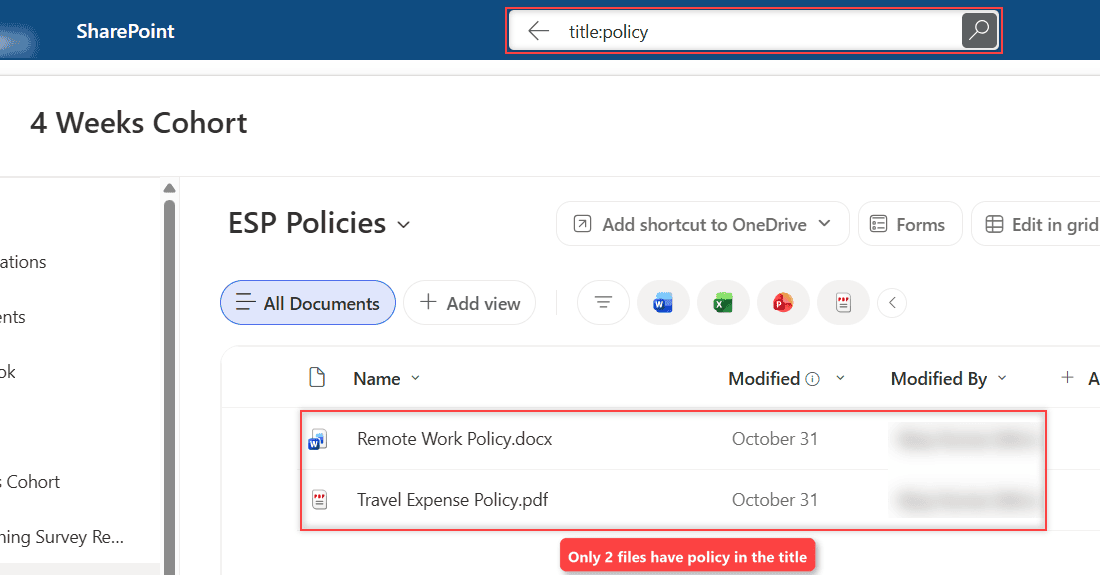
A plain search for policy returned all seven files, because the library name, ESP Policies, matches too. title:policy cut that to two: Remote Work Policy and Travel Expense Policy.
filetype:pdf returned the three PDFs, and policy NOT travel dropped Travel Expense Policy. Type operators in uppercase and leave no space after the colon, or SharePoint treats them as ordinary words.
Cheat Sheet: SharePoint Search Operators We Tested
| Query | What it does | Result in ESP Policies |
|---|---|---|
| “remote work” | Exact phrase | 1 file |
| polic* | Words that start with polic | 7 files |
| *olicy | Leading wildcard (not supported) | 0 files |
| title:policy | Word in the title | 2 files |
| filetype:pdf | One file type | 3 files |
| policy NOT travel | Exclude a word (same as -travel) | 6 files |
| LastModifiedTime=”this month” | Changed this month | 0 files (all edited Oct 31) |
Common Mistakes to Avoid
- Searching from the wrong place. Search on one site never shows files from another site until you widen the scope.
- Lowercase operators.
and,orandnotare treated as words, not logic. - A space after the colon.
title: policysearches for the words title and policy. - Expecting files you can’t open. Search follows permissions, so check the library permissions before blaming search.
Why Can’t I Find a File I Know Exists?
New and edited files reach the search index on a crawl schedule, so a file you uploaded minutes ago may not show up yet. Library browsing and filters work right away.
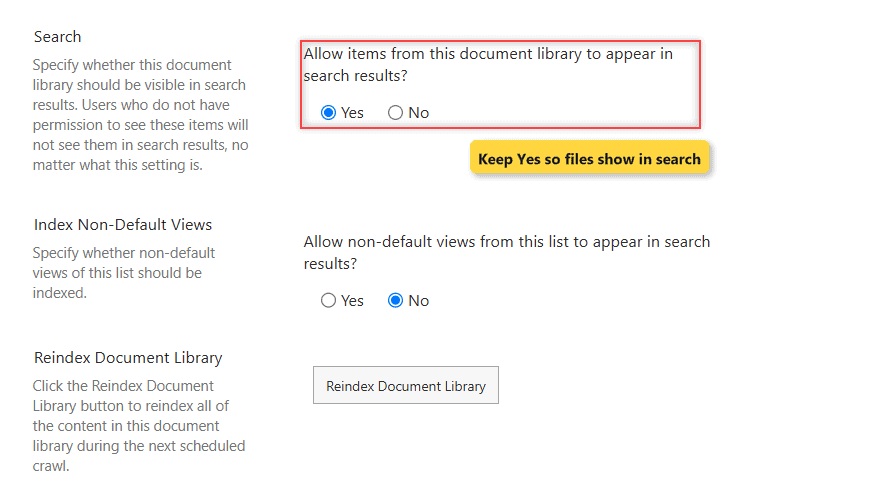
If a file never shows up, a site owner can check two settings: Site settings > Search and offline availability > Allow this site to appear in Search results, and the library’s Advanced settings > Allow items from this document library to appear in search results. Both should be Yes.
Scanned PDFs are the other trap: an image of text has no words to index, so search by file name.
Next Steps
Building your own search? See how to search a SharePoint list in Power Automate or use the Power Apps Search function on a SharePoint list.
If you spend a lot of time hunting for files, I’d read these next:
Frequently Asked Questions
Is there a keyboard shortcut for SharePoint search?
Yes. In Chrome or Edge, press Alt+S to jump to the search box at the top of the page.
Can I search for a file type in SharePoint?
Yes. Add filetype: and the extension, for example filetype:xlsx or filetype:pdf, with no space after the colon.
Does SharePoint search support wildcards?
Only at the end of a word. polic* finds policy and policies, but *olicy returns nothing. Microsoft lists every operator in its KQL syntax reference.

I have worked with Microsoft technologies for more than 18 years, including SharePoint, Microsoft 365 and the Power Platform (Power Apps, Power Automate and Power BI), at companies like HP, TCS and KPIT. I started EnjoySharePoint in 2011 to share the solutions I build in real projects with readers in the United States, Canada, the United Kingdom, Australia, New Zealand and beyond. Microsoft has recognized this work with the Microsoft MVP award 13 times since 2014.