
To reset OneDrive on Windows, press Windows + R, paste this command and select OK:
%localappdata%\Microsoft\OneDrive\onedrive.exe /resetOneDrive closes, clears its sync data and does a full sync when it starts again. Your files stay where they are.
In this tutorial, I’ll show you how to reset onedrive on Windows 11 and Windows 10, which of the three install paths your PC uses, how to reset it on a Mac, and when unlinking is the better fix.
Quick answer: Run %localappdata%\Microsoft\OneDrive\onedrive.exe /reset from the Run box. If Windows can’t find it, use the Program Files or Program Files (x86) path instead. A reset clears sync settings, not your files, and OneDrive syncs everything again afterward.
How to reset OneDrive on Windows 11 and Windows 10
The steps are the same on both versions. Before you start, close any Office files that sit in a synced folder, including a synced SharePoint library.
- Press Windows + R, type
wsreset.exeand select OK. The Microsoft Store opens; you can close it. - If OneDrive still isn’t syncing, press Windows + R again and run the reset command below.
- If you see a “Windows cannot find” message, try the second command, then the third.
- Wait for the OneDrive cloud icon to come back in the notification area. If it doesn’t, open Start, search for OneDrive and open it.
Here are the three commands, one per install location:
%localappdata%\Microsoft\OneDrive\onedrive.exe /reset
"C:\Program Files\Microsoft OneDrive\onedrive.exe" /reset
"C:\Program Files (x86)\Microsoft OneDrive\onedrive.exe" /reset
Only one of them works on a given PC. If none of them does, the OneDrive sync app isn’t installed at all.
Which onedrive.exe path does my PC use?
You don’t have to guess. This read-only PowerShell snippet checks all three folders and changes nothing:
$paths = [ordered]@{
    '%localappdata%\Microsoft\OneDrive'      = "$env:LOCALAPPDATA\Microsoft\OneDrive\OneDrive.exe"
    'C:\Program Files\Microsoft OneDrive'       = 'C:\Program Files\Microsoft OneDrive\OneDrive.exe'
    'C:\Program Files (x86)\Microsoft OneDrive' = 'C:\Program Files (x86)\Microsoft OneDrive\OneDrive.exe'
}
foreach ($p in $paths.GetEnumerator()) {
    [pscustomobject]@{ Folder = $p.Key; 'OneDrive.exe found' = Test-Path $p.Value }
}
On my Windows 11 PC, only the first folder returned True:
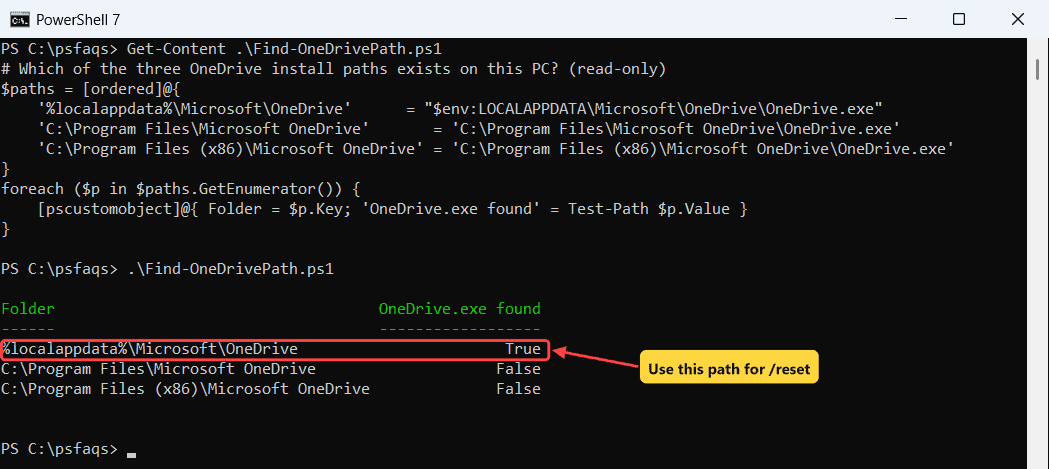
That’s the usual per-user install. A PC where IT installed OneDrive for all users typically shows True under Program Files instead.
How do I know OneDrive restarted after the reset?
Look for the cloud icon in the notification area. If you prefer a quick check, this command shows whether the sync app is running and its version:
Get-Process -Name OneDrive -ErrorAction SilentlyContinue |
    Select-Object Name, Id, @{ Name = 'Version'; Expression = { $_.FileVersion } }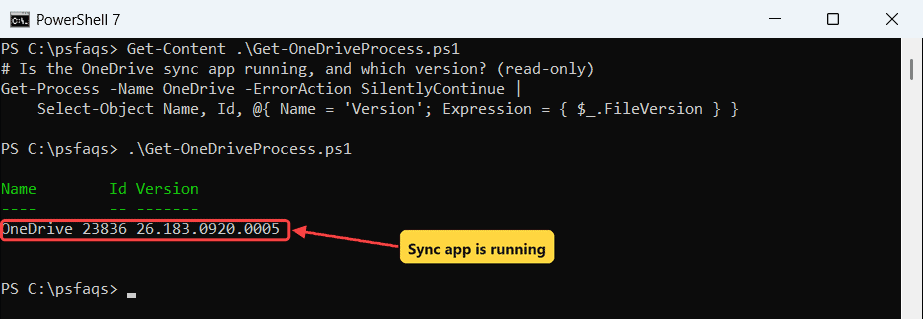
A row like mine (version 26.183.0920.0005) means OneDrive is up. No output means it isn’t running, so start it from the Start menu.
The first sync after a reset can take a while on large SharePoint document libraries. Give it time to finish before you try anything else.
What does resetting OneDrive delete?
A reset deletes OneDrive’s local DAT file, which tracks sync state. It keeps its logs in the registry and its settings on disk. When OneDrive starts again, it reads those settings and rebuilds the DAT file.
Here’s what that means for you:
- Your files stay. Microsoft says you won’t lose files or data by resetting.
- All sync connections drop for a moment, both personal and work or school accounts.
- Selective sync resets. If you synced only some folders, choose them again after the first sync.
- A full sync runs, so expect extra network traffic for a while.
Files you saved in OneDrive or SharePoint are also safe in the cloud. Not sure where a file really lives? See the difference between OneDrive and SharePoint.
Reset the OneDrive app from the Microsoft Store
Some PCs run the OneDrive app from the Microsoft Store instead of the classic sync app. That version has its own reset button:
- Open Start and type
apps:onedrive. - Select App settings.
- Scroll down and select Reset.
How to reset OneDrive on a Mac
The Mac uses a reset script inside the app package:
- Select the OneDrive cloud icon in the menu bar, then Preferences > Pause > Quit OneDrive.
- Open Applications, Control-click OneDrive and select Show Package Contents.
- Go to Contents > Resources and double-click
ResetOneDriveApp.command. For the standalone app, useResetOneDriveAppStandalone.command. - Start OneDrive, finish setup and pick your previous sync location, so unchanged files don’t download again.
If the scripts aren’t there, the app is too old. Move it to the Trash and install the latest version.
Reset vs unlink: which one should you use?
A reset keeps your sign-in and rebuilds the sync database. Unlinking signs the PC out of the account, and you sign in again afterward.
| Situation | Try this |
|---|---|
| Sync is stuck, the icon shows errors, files won’t upload | Reset OneDrive |
| Wrong account, or you’re moving the OneDrive folder | Unlink this PC, then sign in again |
| Reset didn’t help | Unlink and re-link |
To unlink on Windows, select the cloud icon, then Help & Settings > Settings > Account > Unlink this PC. Microsoft says unlinking doesn’t lose data either.
Try a restart and a cache clean first, though. Old cached data in Office and the browser causes many “sync” problems, so clearing the SharePoint cache is a cheap first step.
Common errors when you reset OneDrive
- “Windows cannot find …”: OneDrive isn’t in that folder. Run the next path from the list above.
- OneDrive doesn’t start again: open it from the Start menu. The reset doesn’t always relaunch it.
- Some folders vanished from File Explorer: they were selective-sync folders. Pick them again in OneDrive settings.
- Library shortcuts look missing: give the full sync time to finish before you re-add anything.
For that last case, it helps to know how OneDrive, SharePoint and Teams store files, since shortcuts point to SharePoint libraries.
A few more posts that help when files and sync act up:
After a reset, OneDrive tries to sync every library again. If you’d rather drop a few of them, follow my steps to stop syncing SharePoint libraries in OneDrive.
Frequently Asked Questions
Will resetting OneDrive delete my files?
No. A reset removes OneDrive’s sync database and reconnects your accounts, but your files stay on the PC and in the cloud. OneDrive then runs a full sync.
How long does a OneDrive reset take?
Microsoft doesn’t give a time. The reset command finishes quickly, but the full sync afterward depends on how many files you have, so a large library can take hours.
Is the reset command the same on Windows 11 and Windows 10?
Yes. Both use onedrive.exe /reset from one of the three install paths. Microsoft lists all of them in its Reset OneDrive support article.
Do I need to sign in again after a reset?
Usually OneDrive reconnects with the account you already use. If it shows a sign-in screen, sign in with the same account and keep your existing OneDrive folder.

I have worked with Microsoft technologies for more than 18 years, including SharePoint, Microsoft 365 and the Power Platform (Power Apps, Power Automate and Power BI), at companies like HP, TCS and KPIT. I started EnjoySharePoint in 2011 to share the solutions I build in real projects with readers in the United States, Canada, the United Kingdom, Australia, New Zealand and beyond. Microsoft has recognized this work with the Microsoft MVP award 13 times since 2014.