
Blank fields break flows. A SharePoint column with no value, a Get items action that found nothing, or a form answer someone skipped can all send an email with a missing name or stop a flow with an error.
The empty() function is the guard for that. It looks at a string, an array, or an object and simply answers true (nothing in it) or false (something in it).
In this tutorial, I’ll show you how to use the power automate empty function with blank strings, arrays, objects, null values, SharePoint list columns, a Get items action that returns no rows, default values, and Filter array.
empty() Function Syntax
Here is the syntax of the empty() function:
empty('<collection>')
empty([<collection>])| Parameter | Required | Type | Description |
|---|---|---|---|
collection | Yes | String, Array, or Object | The value you want to check. |
Return value: a Boolean. You get true when the string, array, or object has nothing in it, and false when it has at least one character, item, or property.
A few things to know before you use it:
- It also returns
truefornull, so one check covers both a blank value and a missing one. - Unlike most Power Automate string functions, it also works on arrays and objects.
- It doesn’t trim. A string with only spaces is not empty.
- It doesn’t accept numbers or Booleans. Passing a number fails the action instead of returning true or false.
Pro Tip: empty() already returns a Boolean, so you don’t need to wrap it in equals(). In a Condition, put empty(...) on the left, choose is equal to, and put true on the right.
When to Use the empty() Function
I reach for empty() any time a flow reads a value that might not be there. Common cases:
- A SharePoint list column is optional, and you want to skip the update or email when it’s blank (the same idea as checking a condition if blank).
- A Get items or List rows action may return zero rows, and you only want to continue when it found something.
- A Microsoft Forms question is optional, and you want to write “Not provided” instead of an empty cell in Excel.
- An approval comment can be left blank, and you want a default comment in the reply email.
- You want to remove blank rows from an array before you build an HTML table or join the values.
Example 1: Check If a String Is Empty
Let’s start with the simplest case: two plain strings on Compose actions. The first is a blank string, and the second holds a name.
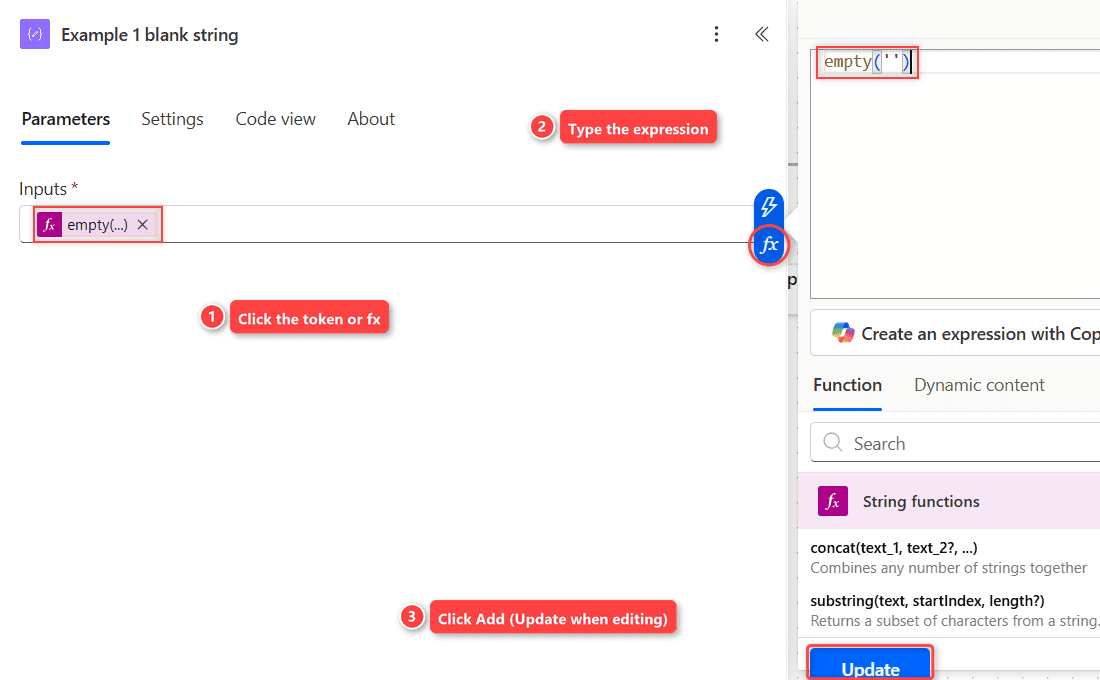
empty('')empty('Jordan Ellis')To add an expression in the new designer, click inside the Compose Inputs box, then click the fx icon (or type / and pick Insert expression). Type the expression and click Add (the button says Update when you edit an existing one).
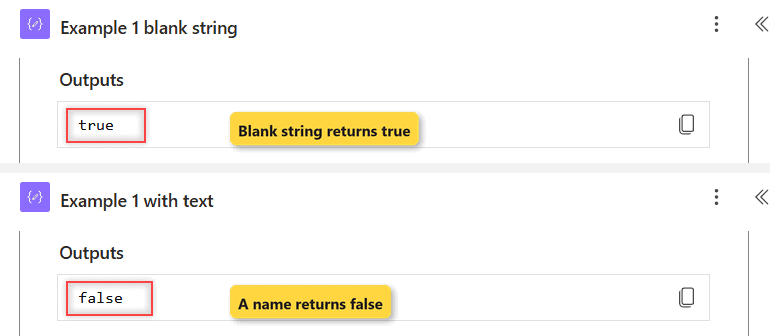
How does this work? The first string has zero characters, so empty() returns true. The second string has 12 characters, so it returns false.
If you only work with text, I have a separate walkthrough on checking if a string is empty in a condition.
Example 2: Check If an Array or Object Is Empty
empty() works the same way on arrays and objects. Here I check an empty array, an array with one name, an empty object, and an object with one property.
empty(json('[]'))
empty(createArray('Maria Torres'))
empty(json('{}'))
empty(json('{"name":"Kevin Brooks"}'))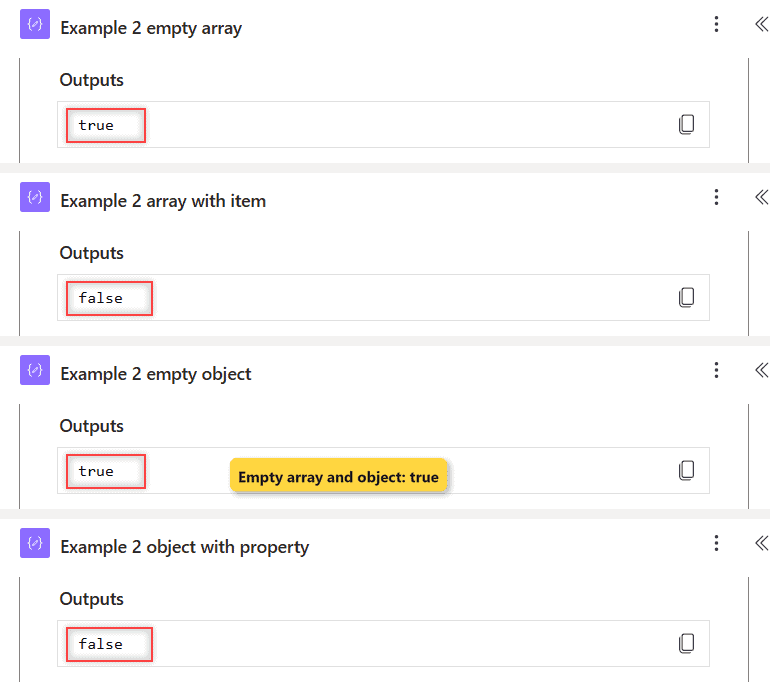
How does this work? json('[]') turns the text into a real array with no items, so empty() returns true. createArray('Maria Torres') has one item, so it returns false.
Objects follow the same rule: json('{}') returns true, and the object with a name property returns false.
Pro Tip: To know how many items an array has, not just whether it has any, use the length() function instead.
Example 3: Check for Null and Spaces-Only Values
Real flow data is messier than clean strings. A trigger field can be missing (null), and a user can type a few spaces into a text box. Here are four checks side by side:
empty(null)
empty(triggerBody()?['comment'])
empty('   ')
empty(trim('   '))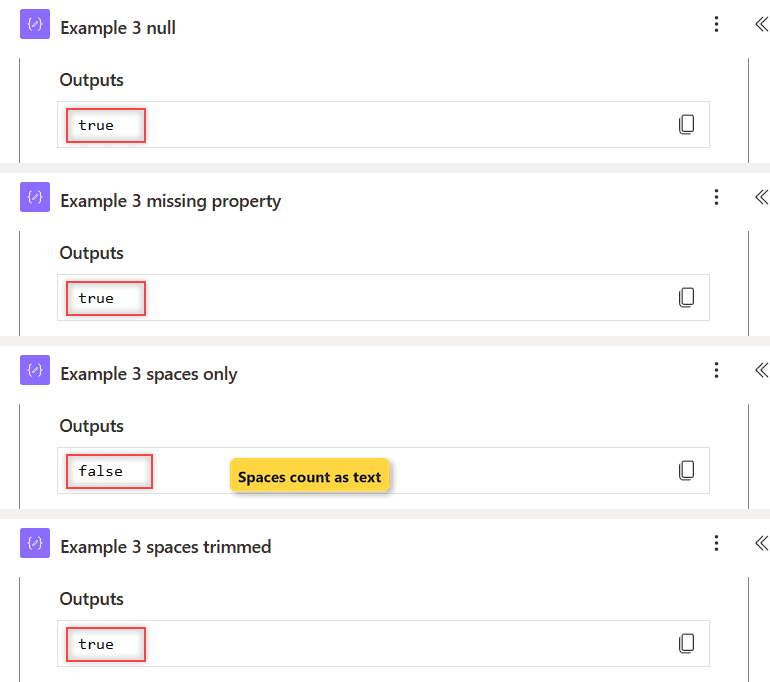
How does this work? empty(null) returns true. The manual trigger has no comment property, so the ?['comment'] lookup returns null and empty() returns true as well.
The string with three spaces returns false, because spaces are characters. Wrap it in the trim() function first, and the trimmed blank string returns true.
Important: Always use ?[...] when you read a field that may not exist. Without the question mark, the flow fails before empty() even runs.
Example 4: Check If a SharePoint List Column Is Blank
Now a real scenario. I have a SharePoint list called ESP Fn Empty Requests where the help desk logs IT requests. Notes, Assigned To, and Tags are optional.
| Request | Notes | Assigned To | Tags | Status |
|---|---|---|---|---|
| Laptop won’t boot | Screen stays black after the logo. | Kevin Brooks | Hardware | Open |
| VPN keeps disconnecting | (blank) | (blank) | Network, Remote Work | Open |
| New hire account setup | Start date is December 1, 2026. | Maria Torres | (blank) | Open |
| Printer jam on 3rd floor | (blank) | (blank) | (blank) | Closed |
After a Get items action, I added a Select action. From is the Get items value, and the map has three keys:
Request:      item()?['Title']
NotesIsEmpty: empty(item()?['Notes'])
TagsIsEmpty:  empty(item()?['Tags'])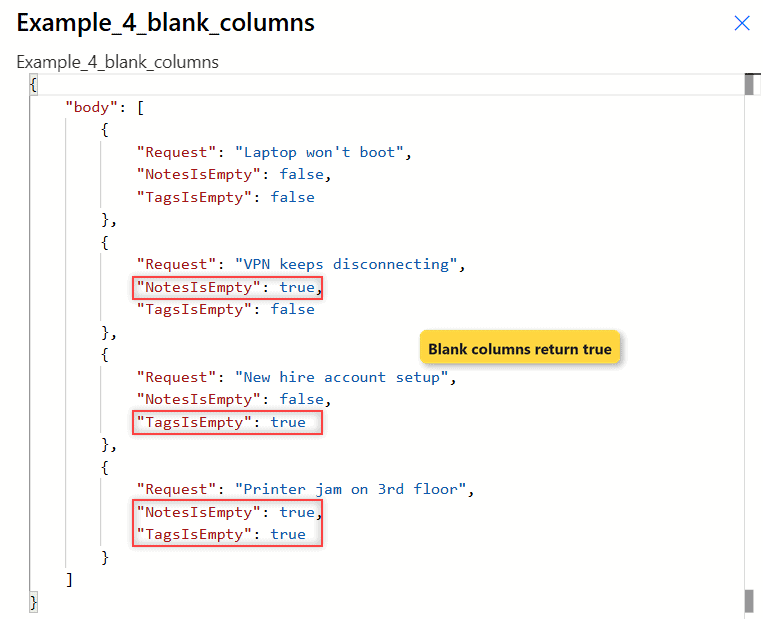
How does this work? item() is the current list item inside the Select. For a blank text column, Get items sends no value, so empty() returns true. For a filled column it returns false.
Notes is empty for the VPN and printer requests. Tags is a multi-select Choice column, so its value is an array. A blank Tags value comes back as an empty array, and empty() returns true for the new hire and printer rows.
Example 5: Check If Get Items Returned No Items
This is the check I use most. Before a flow loops through results or sends a summary, it should know whether anything came back. My second Get items action uses this Filter Query:
Status eq 'Waiting on Vendor'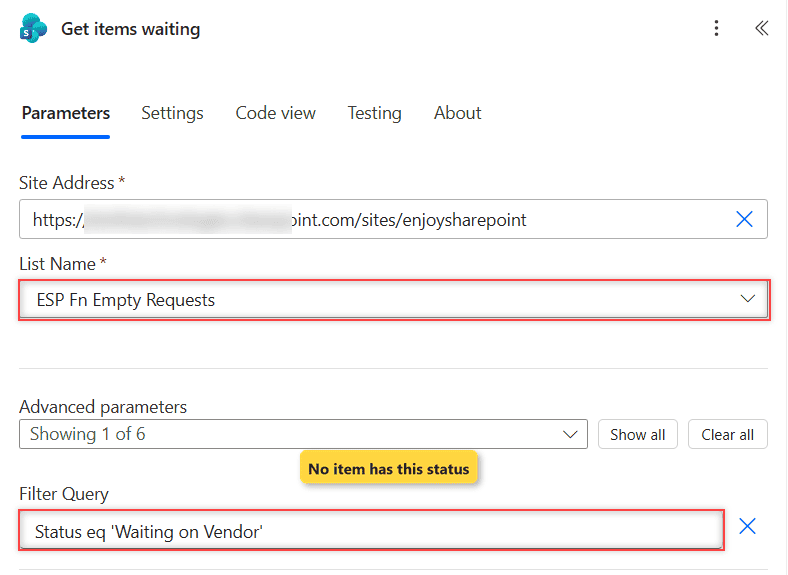
No request in the list has that status, so the action returns an empty value array. A Compose checks it:
empty(body('Get_items_waiting')?['value'])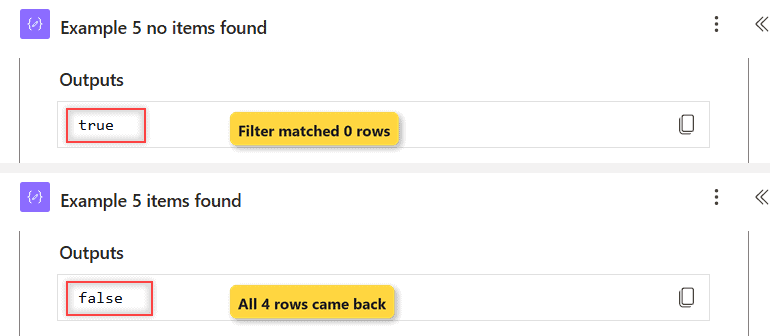
How does this work? body('Get_items_waiting')?['value'] is the array of rows. It has no items, so empty() returns true. The same check on the unfiltered Get items (four rows) returns false.
Put this expression on the left of a Condition, choose is equal to, and type true on the right. The True branch handles “nothing found,” and the False branch does the real work. If filter queries on blank columns give you trouble, see the Get items filter query for null values.
Example 6: Return a Default Value with if() and empty()
Two requests have no one assigned. In a notification email, I’d rather show “Unassigned” than an empty space. So I combine empty() with if() in a Select over the same Get items results:
if(empty(item()?['AssignedTo']), 'Unassigned', item()?['AssignedTo'])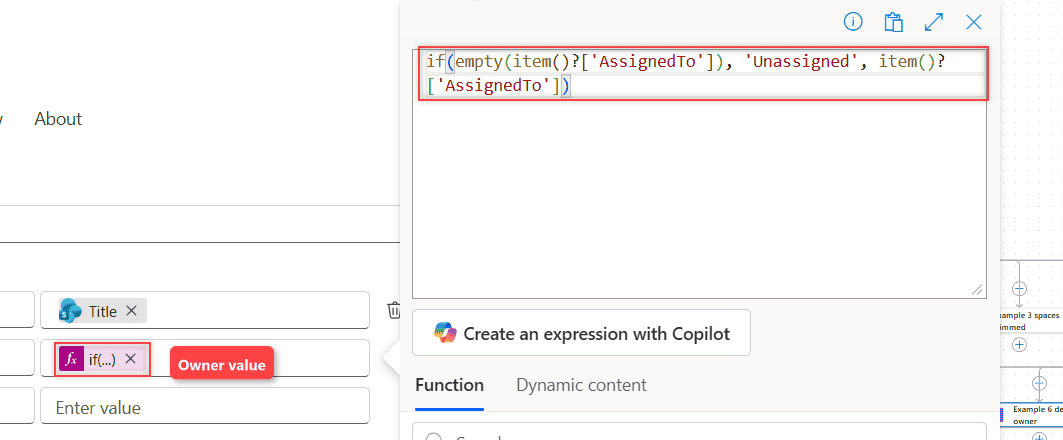
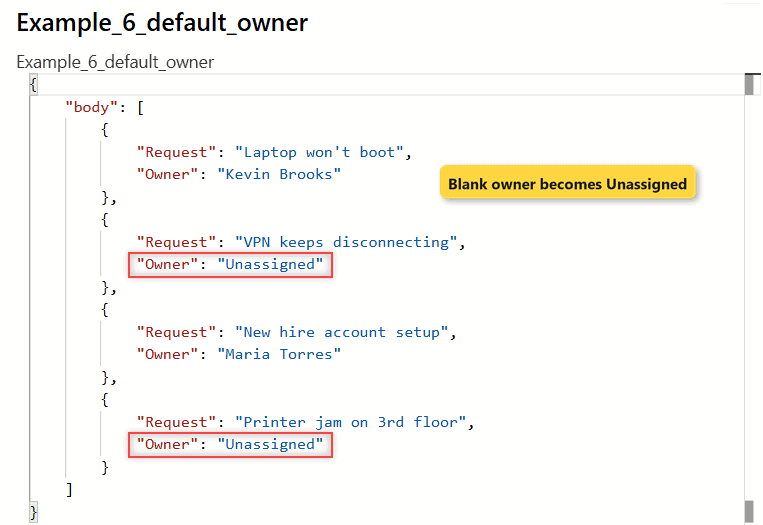
How does this work? empty() checks the Assigned To value first. When it returns true, if() returns the text Unassigned. When it returns false, if() returns the real name, like Kevin Brooks.
The output has Kevin Brooks and Maria Torres for the first and third rows, and Unassigned for the VPN and printer requests. You can learn more patterns in my guide to the Power Automate if expression.
Pro Tip: coalesce() looks like a shortcut here, but it only skips null. A blank string '' is not null, so coalesce() would return the blank string. if() plus empty() catches both.
Example 7: Keep Only Rows That Have a Value with not(empty())
Last one. I want only the requests that have notes, for a short HTML table for the team. A Filter array action does the job. From is the Get items value, and in advanced mode (the Filter Query box) I inserted this expression:
not(empty(item()?['Notes']))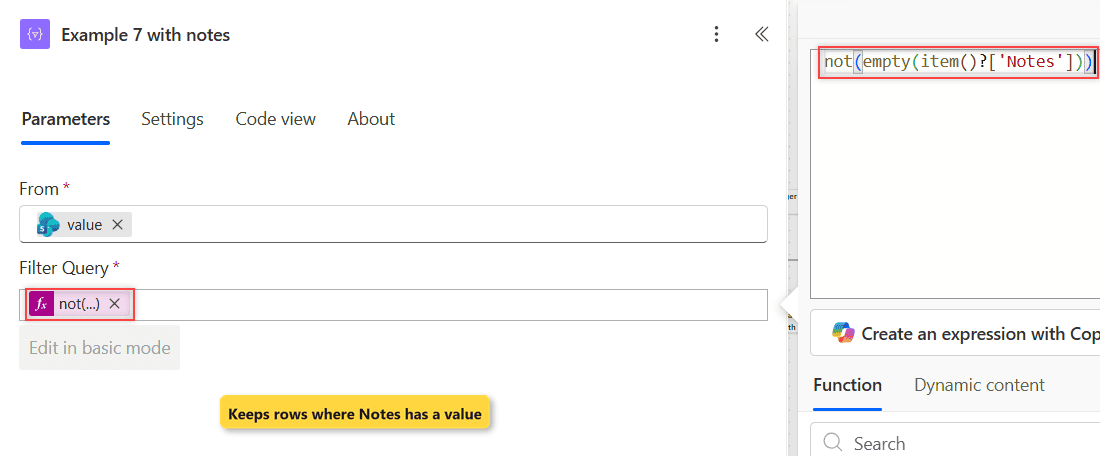
A Select after it keeps just the titles (map in text mode: item()?['Title']).
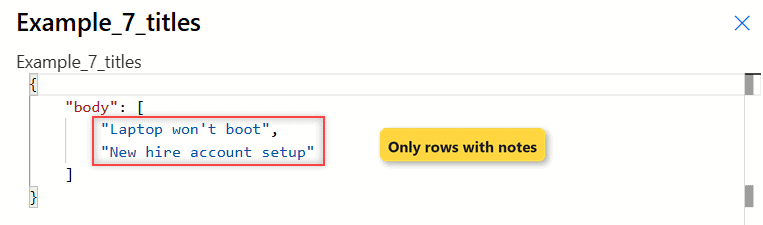
How does this work? For each row, empty() returns true when Notes is blank, and not() flips it. Filter array keeps the rows where the result is true, so only the rows with notes survive.
The output is ["Laptop won't boot", "New hire account setup"]. For more filtering patterns, see how to use Filter array in Power Automate.
Tips & Common Mistakes
- Passing a number. empty() only takes a string, array, or object. In my test,
empty(length(body('Get_items')?['value']))failed with “The template language function ’empty’ expects its parameter to be an object, an array or a string. The provided value is of type ‘Integer’.” Compare numbers withequals()orgreater()instead. - Spaces are not empty.
empty(' ')returns false. Useempty(trim(...))when people type into a text box. - Missing the question mark.
item()['Notes']fails when the property doesn’t exist.item()?['Notes']returns null, and empty(null) is true. - Comparing to the string ‘true’. In a Condition, use the expression
trueon the right side, not the text true, or the check never matches. - Using empty() on a whole action body.
body('Get_items')is an object that always has properties, so it’s never empty. Check?['value'], the array of rows.
If an expression fails with a template error, this guide to fixing “Unable to process template language expressions” walks through the usual causes.
Wrapping Up
The empty() function answers one question: is there anything in this string, array, or object? It returns true for blank text, empty arrays, empty objects, and null, which makes it the go-to guard for optional SharePoint columns, Get items results, and form answers.
Pair it with if() for default values and not() for filters, and trim text first. For more, see all Power Automate functions, and Microsoft’s empty() reference on Microsoft Learn for the official definition.
Other Power Automate functions you may find useful:

I have worked with Microsoft technologies for more than 18 years, including SharePoint, Microsoft 365 and the Power Platform (Power Apps, Power Automate and Power BI), at companies like HP, TCS and KPIT. I started EnjoySharePoint in 2011 to share the solutions I build in real projects with readers in the United States, Canada, the United Kingdom, Australia, New Zealand and beyond. Microsoft has recognized this work with the Microsoft MVP award 13 times since 2014.