
When you work with SharePoint lists, permissions decide who can see, edit, or delete the data. If you get this wrong, either people cannot do their work or they see things they should not see. In this tutorial, let me walk you through SharePoint Online list permissions in a simple, practical way.
We will cover:
- How list permissions work in SharePoint Online
- How to break inheritance and give unique permissions to a list
- How to change and remove permissions for users
- How to set item-level permissions
- How to share lists and list items with external or anonymous users
- How to use audience targeting in a list
How SharePoint List Permissions Work
Every SharePoint site has a set of permissions. These permissions are usually managed through SharePoint groups like Owners, Members, and Visitors. When you create a SharePoint list in a site, that list, by default, inherits permissions from the SharePoint site. This means:
- If a user has edit access to the SharePoint site, they also have edit access to the list.
- If a user has read-only access to the site, they can only read items in the list.
In most cases, this inheritance is good enough. You do not need to do anything special. But sometimes, you want a list to have different permissions than the rest of the site. For example:
- You have a “Finance Requests” list that only the finance team should see.
- You have a “Feedback” list where everyone can submit items but cannot see each other’s entries.
In these cases, you will break permission inheritance on the list and configure unique permissions.
One important limitation: if your list has more than 100,000 items, you cannot break or restore permission inheritance on that list. This is a SharePoint limitation to protect performance.
Read Customize Modern SharePoint List Form Using JSON Formatting
Break Inheritance and Assign Unique Permissions to SharePoint Lists
Let us start with the most common task: breaking inheritance and assigning unique permissions to a SharePoint Online list.
Step 1: Go to List Permissions
- Open the SharePoint Online list.
- Click the Settings (gear) icon in the top-right.
- Select List settings.
- On the List Settings page, find the Permissions and Management section and click Permissions for this list like in the screenshot below:
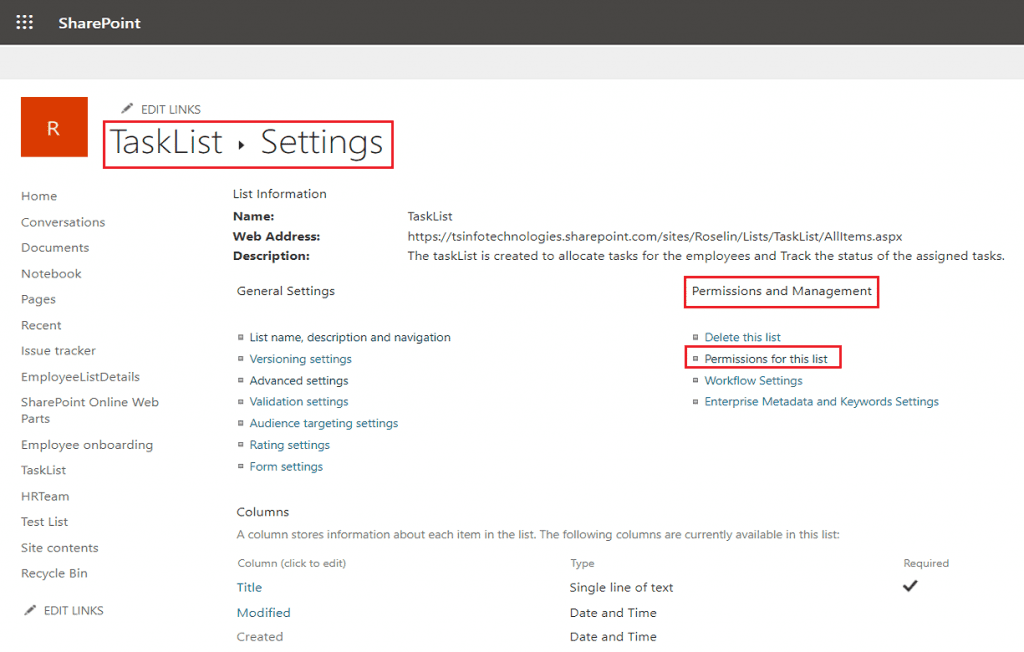
This opens the list permission page. At this point, the list is still inheriting permissions from the parent site.
Step 2: Stop Inheriting Permissions
On the SharePoint list permission page:
- On the toolbar, click Stop inheriting permissions.
- SharePoint will show a confirmation dialog.
- Click OK to confirm.

Once you do this, the list no longer follows the site’s permissions. Any future changes to the site permissions will not automatically apply to this list. The list now maintains its own permission set.
Step 3: Grant Unique Permissions to Users
Now that the SharePoint list has its own permissions, you can grant access to specific users or groups.
- On the same permissions page, click Grant Permissions.
- In the dialog box, type the names or email addresses of users or groups you want to add.
- Click Show Options to see more settings.
- Choose whether you want to send an email invitation. You can uncheck the option if you do not want to send emails.
- Select the permission level for these users.

Common permission levels:
- Full Control – Users can manage permissions, change settings, and do everything on the list.
- Design – Users can create views, columns, and customize the list, but they do not fully control permissions.
- Edit – Users can add, edit, and delete list items.
- Contribute – Users can add, update, and delete items but cannot change list structure.
- Read – Users can view items but cannot edit them.

- Click Share to apply the permissions.

You will now see these users and groups in the SharePoint list permissions page with the chosen permission level.
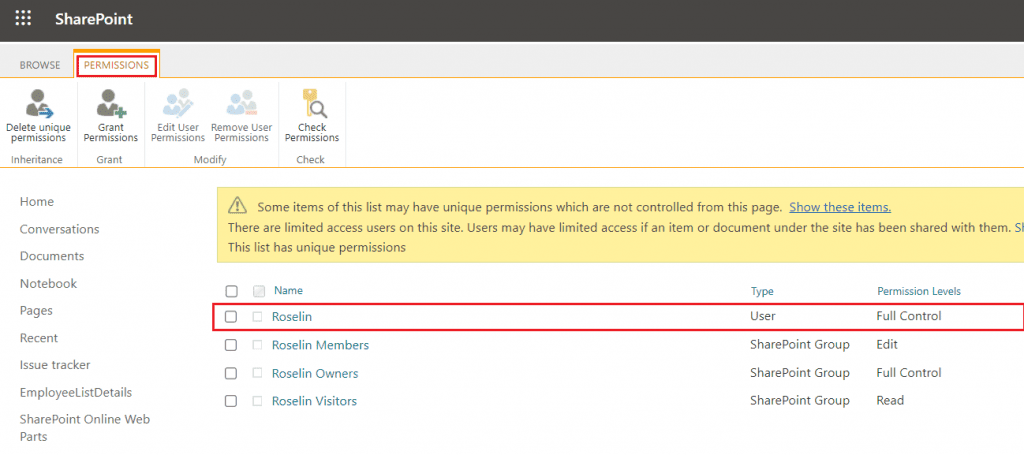
Read Display SharePoint List Items in a SPFX Web Part
Restore Inheritance and Remove Unique Permissions from the SharePoint List
Sometimes, you may decide that separate permissions for a list are no longer needed and you want to go back to using the SharePoint site permissions. In that case, you restore inheritance.
- Open the SharePoint Online list.
- Go to List settings → Permissions for this list.
- On the toolbar, click Delete unique permissions (or a similar option to restore inheritance).
- Confirm the action.

This will:
- Remove all unique permissions on the list.
- Make the list inherit permissions from the parent site again.
Be careful with this action. Once you restore inheritance, all custom list permissions are lost, and only the site-level permissions apply.
Check out Customise SharePoint List Toolbar Buttons With List Formatting
Change Permission Levels for SharePoint List Existing Users
You may not always want to remove a user. Sometimes, you just want to adjust what they can do. For example, change someone from Full Control to Edit.
- Open the SharePoint list.
- Go to List settings → Permissions for this list.
- In the list of users and groups, check the box next to the user or group whose permission you want to change.
- On the toolbar, select Edit User Permissions or Edit Permissions.
- In the dialog that appears, choose the new permission level(s) for that user or group.
- Click OK to save.

Now that user or group has the new permissions on the SharePoint list.
Read SharePoint List Conditional Formatting
Remove User Permissions from a SharePoint List
If a person or group should no longer have access to a SharePoint list, you can remove them completely.
- Open the SharePoint Online list.
- Go to List settings → Permissions for this list.
- Find the user or group you want to remove and select the checkbox next to their name.
- Click Remove User Permissions (or a similar option).
- Confirm the action.

Once removed, that user will not see or access the list (unless they have access through another group or via site-level permissions, if the list still inherits).
Check out Add Comments to SharePoint List Item
Enable Item-Level Permissions in a SharePoint Online List
Item-level permissions let you control which list items a user can read or edit in a SharePoint site. This is useful when:
- You want users to submit requests or feedback but only see their own items.
- You are building simple tracking systems where data privacy matters.
To configure item-level permissions:
- Open the SharePoint Online list.
- Click the Settings gear and choose List settings.
- Under General Settings, click Advanced settings.
- Scroll down to the Item-level Permissions section like the screenshot below:

You will see two main areas: Read access and Create and Edit access.
Read Access Options
- Read all items – Users with read permission can see every item in the list.
- Read items that were created by the user – Users can only see the items they created.
Create and Edit Access Options
- Create and edit all items – Users can create, edit, and delete all items they have permission to.
- Create items and edit items that were created by the user – Users can add new items and only edit items they created.
After choosing the appropriate options:
- Click OK or Save at the bottom.
Example: If you create an employee feedback list, you might set:
- Read access: “Read items that were created by the user”
- Create and edit access: “Create items and edit items that were created by the user”
This way, each user can only see and edit their own feedback. If they try to open someone else’s item (for example by link), they will get an access error.
Check out SharePoint List Conditional Formatting Based on Date
Anonymous and External Access to SharePoint Lists
In SharePoint Online, when people talk about “anonymous access” they usually mean links that work without signing in. In modern SharePoint, this is controlled through sharing settings and “Anyone with the link” links.
There are two levels to think about:
- Tenant and site-level sharing settings.
- List or item-level sharing.
Configure Site Sharing for Anonymous Links
To allow anonymous/anyone links, your SharePoint admin must enable external sharing.
At the admin level (done by a SharePoint or Microsoft 365 admin):
- Open the Microsoft 365 admin center.
- Click Show all, then select SharePoint under Admin centers.
- Go to Active sites.
- Select the site that hosts your list.
- Click the Sharing option in the toolbar.
- Choose Anyone if you want to allow anonymous links (links that work without sign-in).

Other options:
- New and existing guests – Only people invited as guests can access content.
- Existing guests only – Only guests already in your directory can access.
- Only people in your organization – No external access.
Once you select Anyone and save, the site can use anonymous sharing links for files, folders, and list items.
Check out How to Update Only One Field in a SharePoint List Item Using Power Automate?
Share a List Item with an Anonymous or External User
When the site allows “Anyone” links, you can share a specific list item with external users.
- Open the SharePoint Online list.
- Select the list item you want to share.
- Click the Share button in the toolbar.
- In the sharing dialog, click Link settings or the text that indicates what type of link will be created.
- Choose Anyone with the link.
- Decide if the recipient can edit or only view:
- Turn on Allow editing if you want them to edit the item.
- Keep it off if you want read-only access.
- Click Apply.

- Now you can either:
- Enter an email address and click Send, or
- Click Copy link and share the link manually like in the screenshot below:

The person receiving the link can open the list item directly in a browser, even if they do not sign in, as long as your organization allows it.
Note: You cannot select and share multiple list items in one anonymous link. You repeat the process for each item, or share the entire list instead.
Read How to Send Birthday Email Using Power Automate?
Share a Full SharePoint List with an Anonymous or External User
Sometimes you want the external person to see the whole SharePoint list, not just one item.
- Open the SharePoint Online list.
- Click the Share button at the top of the list.
- Open Link settings.
- Choose Anyone with the link.
- Under Other settings, decide if they can edit items:
- If you enable edit, external users can add, edit, and delete items.
- If you leave edit disabled, they can only view the list.
- Click Apply.
- Enter email addresses or use Copy link to share manually.

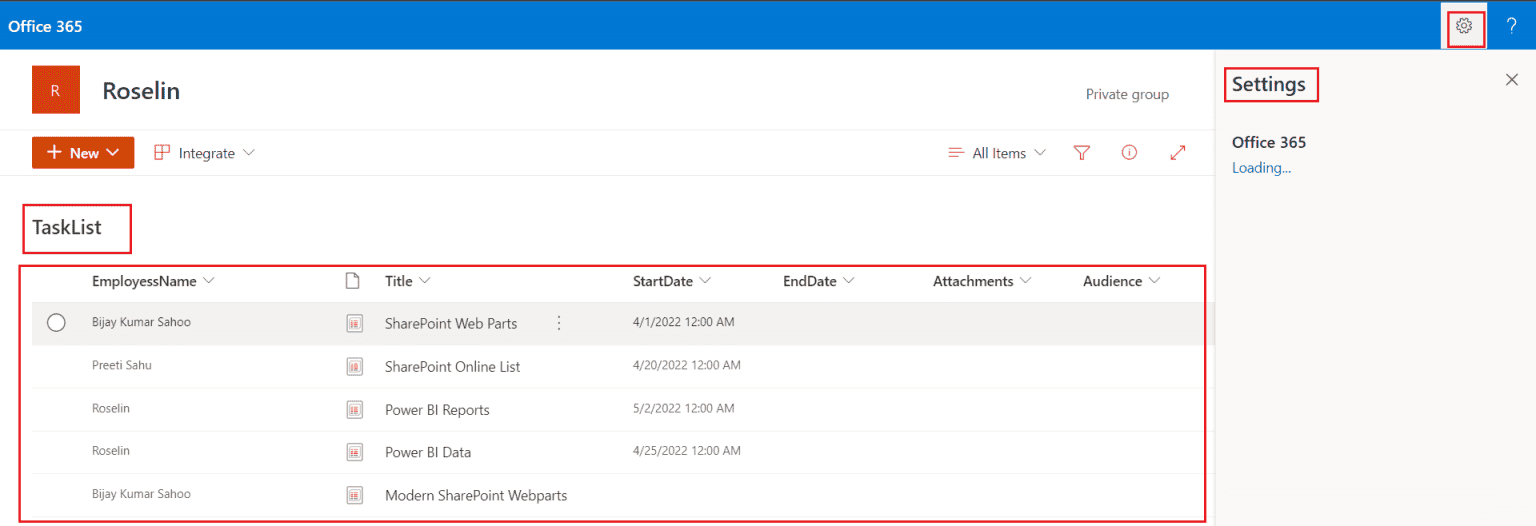
Again, people with the link can open the list directly without signing in (depending on your admin policy). You can see in the screenshot below:
Check out Send an Email When an Item is Deleted from the SharePoint List Using Power Automate
Audience Targeting for SharePoint List Views
Audience targeting is different from permissions. Permissions decide who can access a list or item at all. Audience targeting controls which content is shown to which audience when they already have access.
In SharePoint Online lists, you can enable an Audience column so you can specify which users or groups should see each item. This is useful when:
- You want one list but different audiences see different items.
- You want to keep permissions simple but still tailor content per audience.
Enable Audience Targeting on a SharePoint List
- Open the SharePoint list.
- Click Settings (gear) → List settings.
- Under General Settings, click Audience targeting settings (or similar).
- Check the box Enable audience targeting.
- Click OK. You can see this in the screenshot below:

After you enable it, SharePoint adds an Audience column to the list.
Set Target Audience on SharePoint List Items
- Open the SharePoint Online list.
- Edit the item (click the “i” information icon and then edit, or use the Edit option in the toolbar).
- In the Audience field, add the users, Microsoft 365 groups, or security groups you want to target.
- You can enter multiple audiences, up to a limit (for example, up to 50).
- Save the item. Here is a screenshot for your references.

Users who are in the specified audience and already have permission to the list will see those targeted items in a view or web part that supports audience targeting. Users who are not in the audience may not see those items, even if they technically have access, depending on how the view or web part is configured.
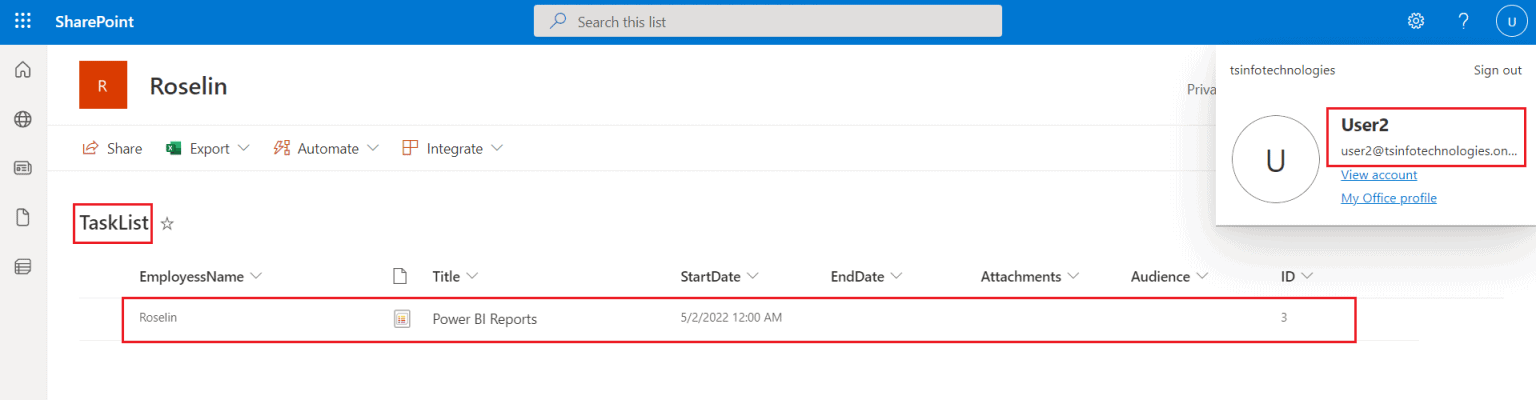
This is great when you want a single SharePoint list but want to show different content to different departments or roles.
Conclusion
When you design a SharePoint Online list, think about permissions early:
- Use inherited permissions if everyone with access to the site can safely see the SharePoint list.
- Break inheritance when the list contains sensitive or restricted data.
- Use item-level permissions when each user should only see or edit their own items.
- Use anonymous or external sharing (Anyone links) only when you truly need to share with people outside your organization, and always follow your company’s policies.
- Use audience targeting when you want to tailor visibility of items for different audiences without over-complicating permissions.
If you combine these features properly, you can keep your lists secure, easy to manage, and still flexible for different business scenarios.
You may also like the following tutorials:
- How To Reset Id In SharePoint List
- Add Leading Zeros to SharePoint List Column using Calculated Column
- Get SharePoint List Name using PowerShell
- Retrieve SharePoint List Items Using Power Automate

After working for more than 18 years in Microsoft technologies like SharePoint, Microsoft 365, and Power Platform (Power Apps, Power Automate, and Power BI), I thought will share my SharePoint expertise knowledge with the world. Our audiences are from the United States, Canada, the United Kingdom, Australia, New Zealand, etc. For my expertise knowledge and SharePoint tutorials, Microsoft has been awarded a Microsoft SharePoint MVP (12 times). I have also worked in companies like HP, TCS, KPIT, etc.

