
Text that people type is rarely clean. A customer name copied from an email arrives as ” Megan Bowen “, and suddenly your Condition says it doesn’t match “Megan Bowen” in the SharePoint list. The Power Automate trim() function fixes that by removing the extra spaces at the start and end of a string.
In this tutorial, I’ll show you the syntax, a working flow, and the results of a real test run that answers the questions people usually ask: does trim() remove tabs and line breaks, what happens to the spaces in the middle, and how do you stop it from failing on empty values.
Quick answer: Use trim('<text>') in an expression, for example trim(triggerBody()?['text']). It removes leading and trailing whitespace, including tabs, line breaks and non-breaking spaces, and keeps the spaces inside the text. For values that can be empty, use trim(coalesce(<value>, '')).
trim() syntax
trim('<text>')| Parameter | Required | Type | Description |
|---|---|---|---|
| <text> | Yes | String | The string to clean up |
It returns the same string without whitespace at the beginning and end. Microsoft’s own example is trim(' Hello World '), which returns “Hello World”. trim() is one of several text functions you’ll use together, and I list the rest in the Power Automate string functions guide.
Watch the quotes. The old version of this post showed trim(['text string']), but square brackets create an array, and trim() only accepts a string.
Use trim() in a flow
Here’s the simplest real use: clean up a value before you compare it or save it.
- Create an Instant cloud flow with Manually trigger a flow and add a Text input named Customer Name.
- Select +, add a Compose action, and rename it to Trim customer name.
- In Inputs, open the expression editor (the fx button) and enter
trim(triggerBody()?['text']), then select Add.
The Code view tab shows what the designer saved: @trim(triggerBody()?['text']). You don’t need an Initialize variable step first. If Compose is new to you, read how to use the Compose action.
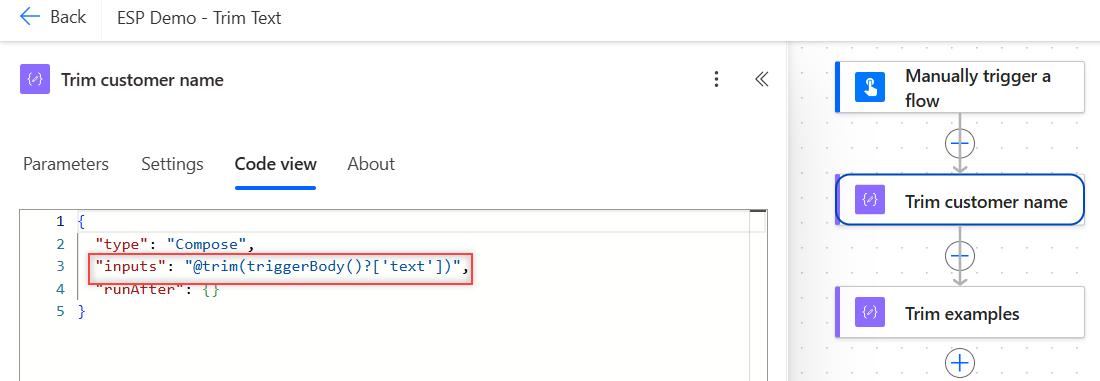
Test the flow and type a name with spaces on both sides. The Compose output shows the name without them. Use the output of this Compose, not the raw trigger value, in the next steps.
What trim() removes (tested)
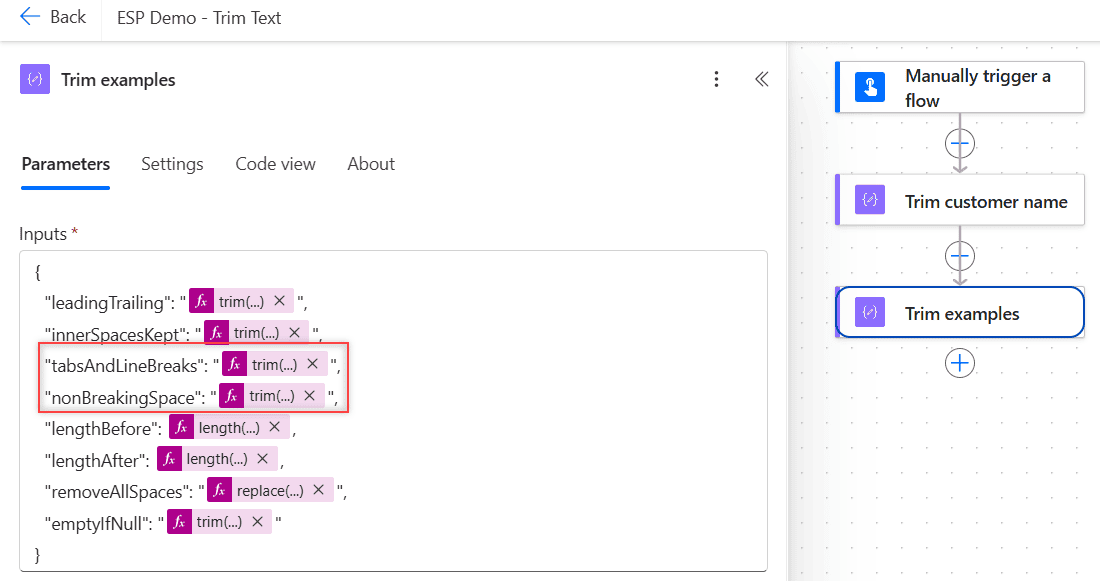
The documentation says trim() removes “whitespace”, which is vaguer than it sounds. So I added a second Compose that runs eight checks in one go and returns the results as JSON:
{
  "leadingTrailing": "@{trim('   Megan Bowen   ')}",
  "innerSpacesKept": "@{trim('  Alex   Wilber  ')}",
  "tabsAndLineBreaks": "@{trim(concat(decodeUriComponent('%09'), 'Contoso', decodeUriComponent('%0A')))}",
  "nonBreakingSpace": "@{trim(concat(decodeUriComponent('%C2%A0'), 'Contoso', decodeUriComponent('%C2%A0')))}",
  "lengthBefore": @{length('  Contoso Ltd  ')},
  "lengthAfter": @{length(trim('  Contoso Ltd  '))},
  "removeAllSpaces": "@{replace('  Contoso Ltd  ', ' ', '')}",
  "emptyIfNull": "@{trim(coalesce(null, ''))}"
}
decodeUriComponent('%09') creates a tab, %0A creates a line break, and %C2%A0 creates a non-breaking space, the invisible character you often get when you paste from a web page or Word. Here are the raw outputs from the run on 11/02/2026:
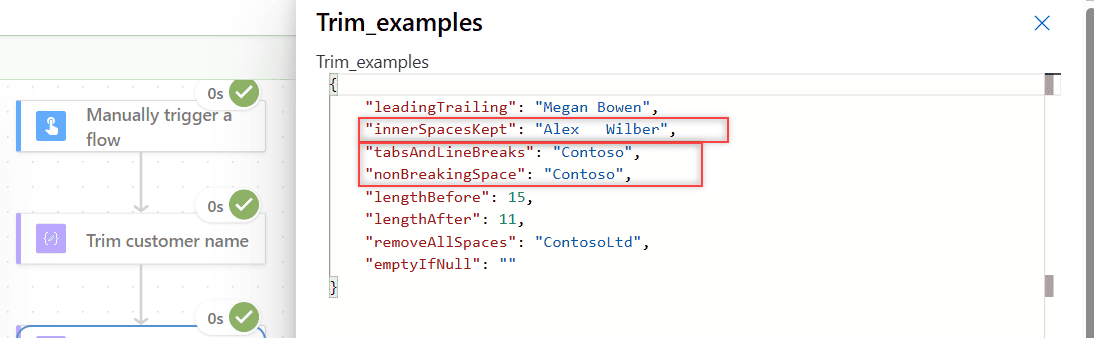
| Check | Result | What it tells you |
|---|---|---|
| leadingTrailing | “Megan Bowen” | Spaces at both ends are removed |
| innerSpacesKept | “Alex Wilber” | Spaces between words stay exactly as they were |
| tabsAndLineBreaks | “Contoso” | Tabs and line breaks at the ends are removed too |
| nonBreakingSpace | “Contoso” | Non-breaking spaces at the ends are removed |
| lengthBefore / lengthAfter | 15 / 11 | Four characters were trimmed |
| removeAllSpaces | “ContosoLtd” | replace() removes every space, not just the ends |
| emptyIfNull | “” | coalesce() turns a null into an empty string |
The length check is a handy way to see trimming that you can’t see on screen. I cover that function in the Power Automate length() function.
Remove spaces in the middle of the text
trim() never touches the inside of a string. If you need that, use replace(). To remove every space, use replace(text, ' ', ''). To swap spaces for another character, change the third argument, as I show in replacing spaces with underscores.
Collapsing double spaces into one is trickier. A single replace(text, ' ', ' ') only fixes one pass. A reliable way is to split the string into an array on a space, remove the empty items with Filter array, and join the rest back together with a single space.
Trim every item in an array
When you split a comma-separated list like “Megan Bowen, Alex Wilber, Adele Vance”, every item after the first starts with a space. Clean them all at once with a Select action:
- From:
split(triggerBody()?['text'], ',') - Map: switch to text mode and enter
trim(item())
For an array of objects, such as SharePoint items, trim a property instead: trim(item()?['Title']).
Handle empty and null values
trim() expects a string. When a field is empty, many connectors return null rather than “”, and the action fails because the parameter isn’t valid. Wrap the value in coalesce(), which returns the first value that isn’t null:
trim(coalesce(triggerBody()?['text'], ''))After trimming, a value that was only spaces becomes an empty string. If you want to skip those items, check for it in a Condition, as I explain in checking if a string is empty in Power Automate.
trim() vs similar functions
- Power Apps Trim() also removes extra spaces between words, and TrimEnds() only removes them at the ends. The cloud flow trim() works like TrimEnds().
- Power Automate Desktop has a separate Trim text action where you choose the start, the end or both.
- trimByteOrderMark() removes the invisible byte order mark at the start of file content, which trim() leaves alone.
Common mistakes
- Trimming after the comparison. Trim both values before a Condition or a filter, or “Contoso ” still won’t equal “Contoso”.
- Expecting trim() to fix case. It only removes whitespace. Combine it with toLower() when you compare text:
toLower(trim(x)). - Using brackets.
trim(['text'])passes an array and fails. Usetrim('text'). - Forgetting null values. Use coalesce() so empty fields don’t stop the run.
These text functions pair well with trim():
Frequently Asked Questions
What does trim() do in Power Automate?
It removes whitespace at the start and end of a string and returns the cleaned text, as described in the Microsoft workflow function reference. Spaces inside the text are kept.
Does trim() remove spaces between words?
No. trim(‘ Alex Wilber ‘) returns ‘Alex Wilber’. Use replace() to remove inner spaces, or split, filter and join to collapse double spaces.
Does Power Automate trim() remove line breaks and tabs?
Yes, at the start and end of the text. In my test, tabs, line breaks and non-breaking spaces at the ends were all removed. Line breaks in the middle stay.
Why does trim() fail when a field is empty?
The field is null, and trim() expects a string. Use trim(coalesce(value, ”)) so a null becomes an empty string.
How do I trim every item in an array?
Use a Select action with the array in From and trim(item()) in the Map box in text mode. For objects, use trim(item()?[‘ColumnName’]).

I have worked with Microsoft technologies for more than 18 years, including SharePoint, Microsoft 365 and the Power Platform (Power Apps, Power Automate and Power BI), at companies like HP, TCS and KPIT. I started EnjoySharePoint in 2011 to share the solutions I build in real projects with readers in the United States, Canada, the United Kingdom, Australia, New Zealand and beyond. Microsoft has recognized this work with the Microsoft MVP award 13 times since 2014.