
If you’ve ever built an SPFx web part and needed users to pick something from a SharePoint list, like a department, a project, or a product category, you already know the challenge. Hard-coding options in a dropdown is a quick hack that breaks the moment the list changes. What you really want is a live connection: the dropdown reads directly from your SharePoint list.
In this tutorial, I’ll walk you through exactly how to bind SharePoint list items to a dropdown in an SPFx web part. I’ll cover three approaches, using the SharePoint REST API via SPHttpClient, using the PnPjs library, and binding to the property pane — all with a real list example.
The SharePoint List We’re Working With
Let’s say you’re building an “Employee Request” web part. You have a SharePoint list called Departments with the following columns:
| Column | Type |
|---|---|
| Title | Single line of text |
| DepartmentCode | Single line of text |
| IsActive | Yes/No |
The list includes items such as IT, HR, Finance, Operations, and Marketing. The goal is to load these items into a dropdown so the user can pick a department when submitting a request.
Prerequisites
Before you start, make sure you have:
- Node.js (v22 LTS recommended for SPFx 1.22.2)
- SharePoint Framework Yeoman generator installed (
npm install -g @microsoft/generator-sharepoint) - A SharePoint Online developer site
- A basic React-based SPFx project already scaffolded
If you’re starting fresh, scaffold your project like this:
yo @microsoft/sharepoint
Choose React as the framework and WebPart as the component type.
Note: From SPFx version 1.22.* We are using the heft package instead of gulp. So if you don’t know how to start with the heft toolchain. Read the following articles.
- Set Up Your SharePoint Framework (SPFx) Development Environment using Heft Toolchain
- Migrate from Gulp based to Heft based Toolchain in SharePoint Framework (SPFx)
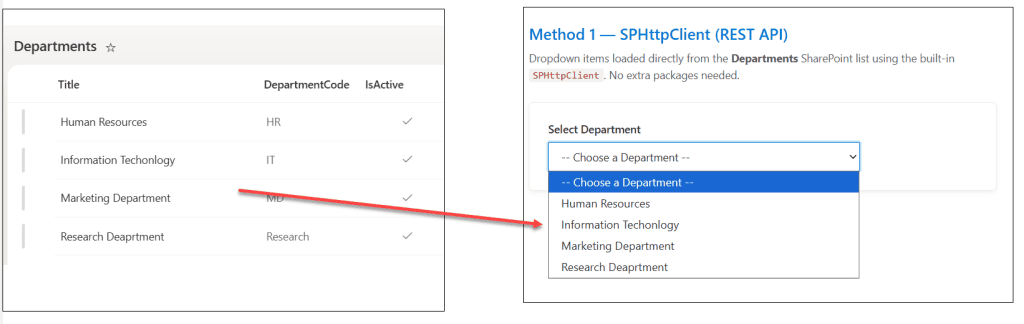
Method 1: SPFx Using SPHttpClient (REST API)
This is the most straightforward approach and needs no additional packages. You use the built-in SPHttpClient that comes with every SharePoint Framework (SPFx) project.
Step 1 — Set Up Your Component State
Open your React component file (e.g., EmployeeRequest.tsx) and define the state to hold the dropdown options and the selected value:
import * as React from 'react';
import { IEmployeeRequestProps } from './IEmployeeRequestProps';

interface IDropdownOption {
  key: string;
  text: string;
}

interface IEmployeeRequestState {
  departments: IDropdownOption[];
  selectedDepartment: string;
  isLoading: boolean;
}

export default class EmployeeRequest extends React.Component<IEmployeeRequestProps, IEmployeeRequestState> {
  constructor(props: IEmployeeRequestProps) {
    super(props);
    this.state = {
      departments: [],
      selectedDepartment: '',
      isLoading: true
    };
  }
Step 2 — Fetch List Items from SharePoint
Now add a method that calls the REST API to pull items from your Departments list. Place this inside your component class:
private _getDepartments = async (): Promise<void> => {
  const { context } = this.props;
  const apiUrl = `${context.pageContext.web.absoluteUrl}/_api/web/lists/getbytitle('Departments')/items?$select=Title,DepartmentCode&$filter=IsActive eq 1&$orderby=Title asc`;

  const response = await context.spHttpClient.get(
    apiUrl,
    SPHttpClient.configurations.v1
  );

  if (response.ok) {
    const data = await response.json();
    const options: IDropdownOption[] = data.value.map((item: any) => ({
      key: item.DepartmentCode,
      text: item.Title
    }));
    this.setState({ departments: options, isLoading: false });
  }
}
Notice I’m using $filter=IsActive eq 1 — so only active departments appear in the dropdown. That’s a detail that makes a real difference in production.
Also import SPHttpClient at the top of your web part file:
import { SPHttpClient, SPHttpClientResponse } from '@microsoft/sp-http';And make sure you pass context through your props interface (IEmployeeRequestProps):
import { WebPartContext } from '@microsoft/sp-webpart-base';

export interface IEmployeeRequestProps {
  context: WebPartContext;
}
Step 3 — Load Data on Mount
Call the fetch method when the component loads:
public componentDidMount(): void {
  this._getDepartments();
}
Step 4 — Render the Dropdown
Now wire up the dropdown in your render() method. I’m using a plain HTML <select> here — no external library needed:
public render(): React.ReactElement<IEmployeeRequestProps> {
  const { departments, selectedDepartment, isLoading } = this.state;

  return (
    <div>
      <label htmlFor="deptDropdown">Select Department</label>
      {isLoading ? (
        <p>Loading departments...</p>
      ) : (
        <select
          id="deptDropdown"
          value={selectedDepartment}
          onChange={(e) => this.setState({ selectedDepartment: e.target.value })}
        >
          <option value="">-- Choose a Department --</option>
          {departments.map((dept) => (
            <option key={dept.key} value={dept.key}>
              {dept.text}
            </option>
          ))}
        </select>
      )}
    </div>
  );
}
That’s it for Method 1. Run Heft Start , and you’ll see the dropdown populated with your list data.
Check out Bind Dropdown from SharePoint List in SPFx (SPHttpClient, PnPJS, Graph)
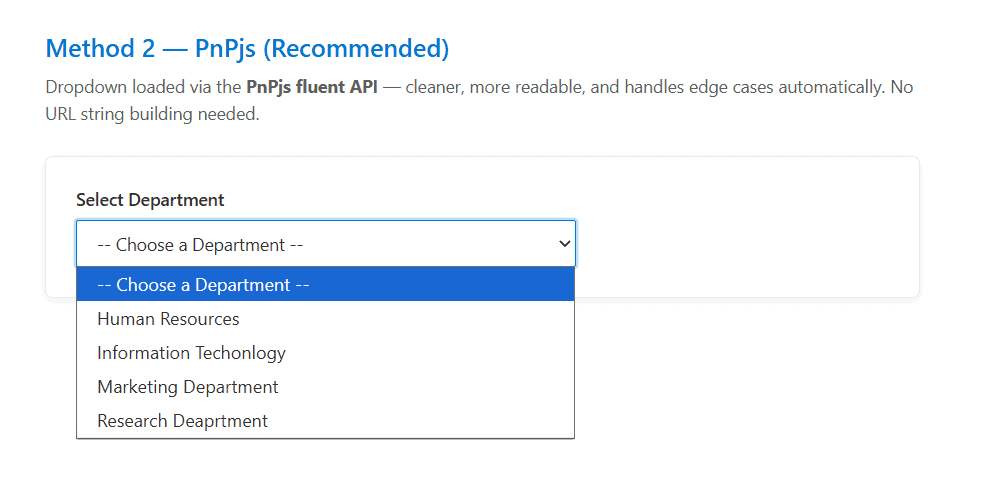
Method 2: SPFx Using PnPjs (Recommended for Real Projects)
PnPjs is the cleaner, more maintainable way to talk to SharePoint. The REST calls are shorter, easier to read, and it handles a lot of edge cases for you. Microsoft’s own documentation recommends it for SPFx solutions.
Step 1 — Install PnPjs
First, run the below command to install PnPJS in your SPFx solution.
npm install @pnp/sp @pnp/logging --save
Step 2 — Create a PnPjs Config File
Create a file called pnpjsConfig.ts in your web part folder:
import { WebPartContext } from "@microsoft/sp-webpart-base";
import { spfi, SPFI, SPFx } from "@pnp/sp";
import { LogLevel, PnPLogging } from "@pnp/logging";
import "@pnp/sp/webs";
import "@pnp/sp/lists";
import "@pnp/sp/items";

var _sp: SPFI | null = null;

export const getSP = (context?: WebPartContext): SPFI => {
  if (context != null) {
    _sp = spfi().using(SPFx(context)).using(PnPLogging(LogLevel.Warning));
  }
  return _sp!;
};
Step 3 — Initialize PnPjs in Your Web Part
In your main web part file (e.g., EmployeeRequestWebPart.ts), initialize PnPjs in onInit():
import { getSP } from './pnpjsConfig';

public async onInit(): Promise<void> {
  await super.onInit();
  getSP(this.context);
}
This needs to run after super.onInit() — The framework has to set itself up before you hook into it.
Step 4 — Fetch List Items Using PnPjs
Now, we can fetch SharePoint list items using PnPJS. In your React component, fetch the departments like this:
import { getSP } from '../pnpjsConfig';
import { SPFI } from "@pnp/sp";
import "@pnp/sp/webs";
import "@pnp/sp/lists";
import "@pnp/sp/items";

private _sp: SPFI;

constructor(props: IEmployeeRequestProps) {
  super(props);
  this._sp = getSP();
  this.state = {
    departments: [],
    selectedDepartment: '',
    isLoading: true
  };
}

private _getDepartments = async (): Promise<void> => {
  const items = await this._sp.web.lists
    .getByTitle("Departments")
    .items
    .select("Title", "DepartmentCode")
    .filter("IsActive eq 1")
    .orderBy("Title", true)();

  const options = items.map((item: any) => ({
    key: item.DepartmentCode,
    text: item.Title
  }));

  this.setState({ departments: options, isLoading: false });
}
That PnPjs query is so much easier to read compared to building the URL string manually. The .select(), .filter(), and .orderBy() chain reads almost like plain English.
Read Retrieve Current User Information in SPFx Web Part using Graph API
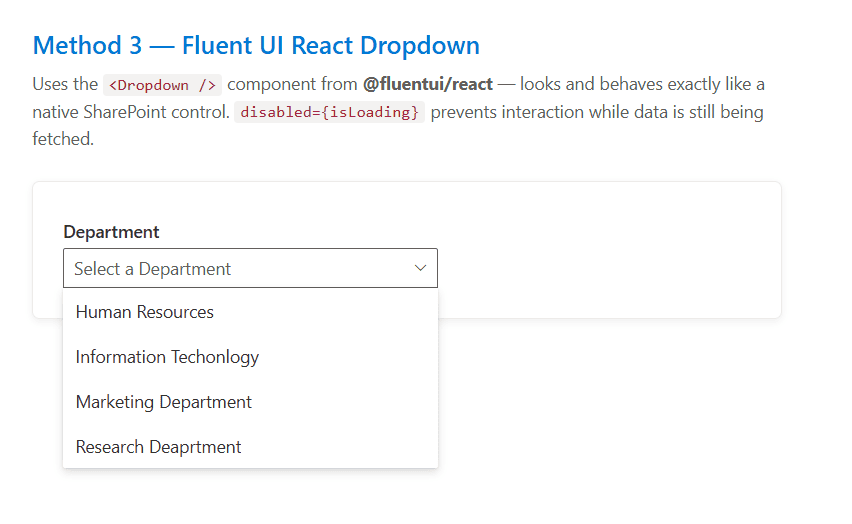
Method 3: Fluent UI React Dropdown in SPFx Web Part
If your project uses Fluent UI (which most modern SPFx projects do), you’ll want to use the Dropdown component from @fluentui/react instead of a plain <select>. It looks and behaves like a native SharePoint control.
Update Your Imports
import { Dropdown, IDropdownOption, IDropdownStyles } from '@fluentui/react';Note that Fluent UI’s IDropdownOption already has key and text — it matches exactly what we’ve been building in our state.
Updated Render Method
const dropdownStyles: Partial<IDropdownStyles> = {
  dropdown: { width: 300 }
};

public render(): React.ReactElement<IEmployeeRequestProps> {
  const { departments, selectedDepartment, isLoading } = this.state;

  return (
    <div>
      <Dropdown
        placeholder="Select a Department"
        label="Department"
        options={departments}
        selectedKey={selectedDepartment}
        onChange={(event, option) => {
          if (option) {
            this.setState({ selectedDepartment: option.key as string });
          }
        }}
        disabled={isLoading}
        styles={dropdownStyles}
      />
    </div>
  );
}
The disabled={isLoading} is a small touch that prevents the user from clicking a blank dropdown while data is still loading.
Check out How to Use Microsoft Graph API in SPFx Web Parts
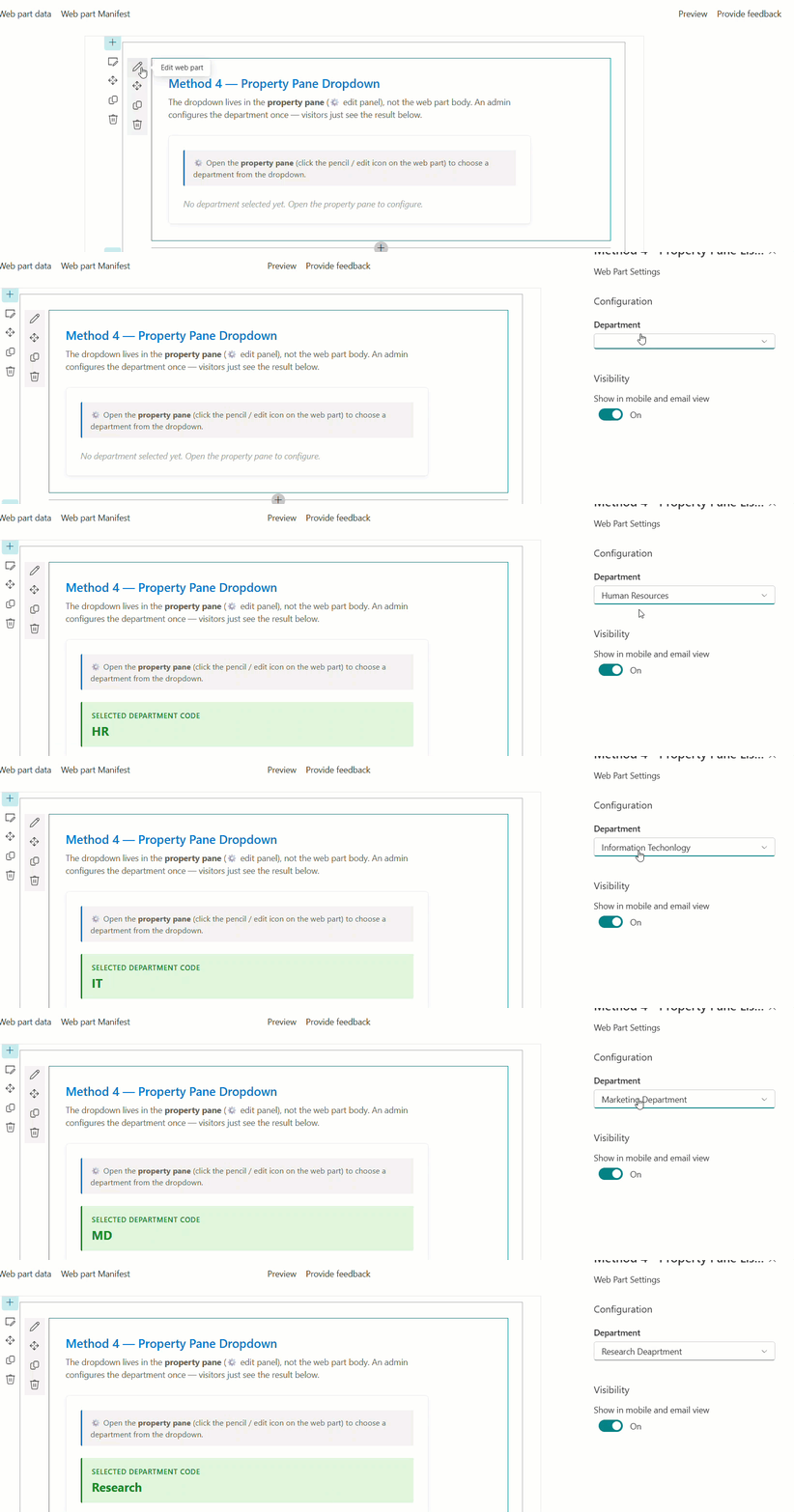
Method 4: SPFx Binding to the Property Pane Dropdown
Sometimes you want the dropdown in the property pane — not the web part body. For example, an admin configures which list the web part uses, and users just see the results.
This one is a little more involved because of how the property pane loading lifecycle works.
The Key Methods You Need
onPropertyPaneConfigurationStart()— fires when the property pane opens; load your list data hereonPropertyPaneFieldChanged()— fires when a dropdown value changes; use this for cascading dropdownsthis.context.propertyPane.refresh()— call this after data loads to re-render the pane
Set Up the Dropdown in the Property Pane
First, add your imports:
import {
  IPropertyPaneConfiguration,
  PropertyPaneDropdown,
  IPropertyPaneDropdownOption
} from '@microsoft/sp-property-pane';
Then add class variables:
private departments: IPropertyPaneDropdownOption[];
private departmentsDropdownDisabled: boolean = true;
private loadingIndicator: boolean = true;
Update getPropertyPaneConfiguration():
protected getPropertyPaneConfiguration(): IPropertyPaneConfiguration {
  return {
    showLoadingIndicator: this.loadingIndicator,
    pages: [
      {
        header: { description: "Web Part Settings" },
        groups: [
          {
            groupName: "Configuration",
            groupFields: [
              PropertyPaneDropdown('selectedDepartment', {
                label: "Department",
                options: this.departments,
                disabled: this.departmentsDropdownDisabled
              })
            ]
          }
        ]
      }
    ]
  };
}
Now override onPropertyPaneConfigurationStart() to load data when the pane opens:
protected async onPropertyPaneConfigurationStart(): Promise<void> {
  this.departmentsDropdownDisabled = !this.departments;

  if (this.departments) {
    return;
  }

  this.loadingIndicator = true;
  this.context.propertyPane.refresh();

  // Fetch from SharePoint using SPHttpClient
  const apiUrl = `${this.context.pageContext.web.absoluteUrl}/_api/web/lists/getbytitle('Departments')/items?$select=Title,DepartmentCode&$filter=IsActive eq 1&$orderby=Title asc`;
  const response = await this.context.spHttpClient.get(apiUrl, SPHttpClient.configurations.v1);
  const data = await response.json();

  this.departments = data.value.map((item: any) => ({
    key: item.DepartmentCode,
    text: item.Title
  }));

  this.departmentsDropdownDisabled = false;
  this.loadingIndicator = false;
  this.context.propertyPane.refresh();
}
The property pane shows a loading spinner while the data loads, then enables the dropdown once items are ready.
SPFx Cascading Dropdowns
A cascading dropdown is where selecting one value in a dropdown determines what appears in the next one. For example: pick a Department, and the second dropdown shows only the Teams in that department.
The pattern is the same — use onPropertyPaneFieldChanged() to detect when the first dropdown changes, then load the second dropdown’s data:
protected async onPropertyPaneFieldChanged(
  propertyPath: string,
  oldValue: any,
  newValue: any
): Promise<void> {
  if (propertyPath === 'selectedDepartment' && newValue) {
    // Disable and clear the team dropdown
    this.teamsDropdownDisabled = true;
    this.properties.selectedTeam = '';
    super.onPropertyPaneFieldChanged(propertyPath, oldValue, newValue);
    this.context.propertyPane.refresh();

    // Load teams for the selected department
    const teams = await this._getTeamsByDepartment(newValue);
    this.teams = teams;
    this.teamsDropdownDisabled = false;
    this.context.propertyPane.refresh();
  } else {
    super.onPropertyPaneFieldChanged(propertyPath, oldValue, newValue);
  }
}
The key here is always calling super.onPropertyPaneFieldChanged() — if you skip that, the property value doesn’t actually save.
Quick Comparison: Which Method Should You Use?
| Method | Best For | Complexity | Requires Extra Package |
|---|---|---|---|
| SPHttpClient (REST) | Simple, no-frills scenarios | Low | No |
| PnPjs | Real-world projects, readable code | Medium | Yes (@pnp/sp) |
| Fluent UI Dropdown | Consistent SharePoint UI look | Low-Medium | No (comes with SPFx) |
| Property Pane Dropdown | Admin-level configuration | Medium-High | No |
My personal recommendation: use PnPjs + Fluent UI Dropdown for most projects. PnPjs keeps your data fetching clean, and Fluent UI makes the dropdown feel like a native SharePoint component.
Important Points to Remember
- Throttling: SharePoint can throttle API requests if you call them too often. PnPjs has a built-in caching behavior (
Caching) you can add to reduce repeated calls. - Large lists: If your list has more than 5,000 items, the default REST call won’t work past that threshold. Use
$topwith pagination, or filter the query to keep result counts manageable. - Missing
context: If you’re getting errors aboutSPHttpClientbeing undefined, make sure you’re passingthis.contextfrom the web part class down to your React component through props. - Property pane timing: The property pane dropdown’s
getPropertyPaneConfiguration()runs synchronously. Any async data loading has to happen before that, inonPropertyPaneConfigurationStart()— not insidegetPropertyPaneConfiguration()itself.
Download Solution
You can download this complete solution, which contains the four methods that we learned in this article. Run npm i and then start testing it.
Wrapping Up
I hope you found this article helpful. In this tutorial, I explained different ways to bind SharePoint list items to a dropdown in an SPFx web part. I covered using SPHttpClient with the SharePoint REST API, working with PnPjs for cleaner, more reusable code, using Fluent UI React Dropdown controls, and binding dropdown values in the SPFx Property Pane.
If you are developing SPFx web parts, dropdown binding is a common requirement across many projects. Start with simple list bindings first, then try advanced scenarios like dynamic filtering, cascading dropdowns, and reusable services. With practice, your SPFx solutions will become cleaner, more interactive, and easier to maintain.
Also, you may like the following tutorials:

After working for more than 18 years in Microsoft technologies like SharePoint, Microsoft 365, and Power Platform (Power Apps, Power Automate, and Power BI), I thought will share my SharePoint expertise knowledge with the world. Our audiences are from the United States, Canada, the United Kingdom, Australia, New Zealand, etc. For my expertise knowledge and SharePoint tutorials, Microsoft has been awarded a Microsoft SharePoint MVP (12 times). I have also worked in companies like HP, TCS, KPIT, etc.

