
To create a stacked funnel chart in Power BI, use a stacked bar chart instead of the funnel visual. Put your stages on the Y-axis, add one measure per segment to the X-axis, and put a transparent “spacer” measure first so every bar is pushed to the center and the chart takes the shape of a funnel.
At Contoso, recruiting lead Megan Bowen wanted one chart that showed the hiring funnel from Applied to Hired, split by the East, Central and West regions. The built-in funnel can only show one color per stage, so I built the stacked version in Power BI Desktop. Here’s every step, the DAX, and the fixes for the usual problems.
Quick answer: The Power BI funnel visual has no Legend, so it can’t stack. Instead, add a Stacked bar chart, put Stage in Y-axis, and add a Spacer measure, (longest bar - this bar) / 2, followed by one measure per segment in X-axis. Then go to Format visual > Bars, pick the Spacer series and set Transparency to 100%.
Why the Power BI funnel chart can’t be stacked
The native funnel visual has only three field wells: Category, Values and Tooltips. There’s no Legend and no Small multiples well, so each stage is one bar in one color. If you just need the standard version, see how to create a funnel chart in Power BI.
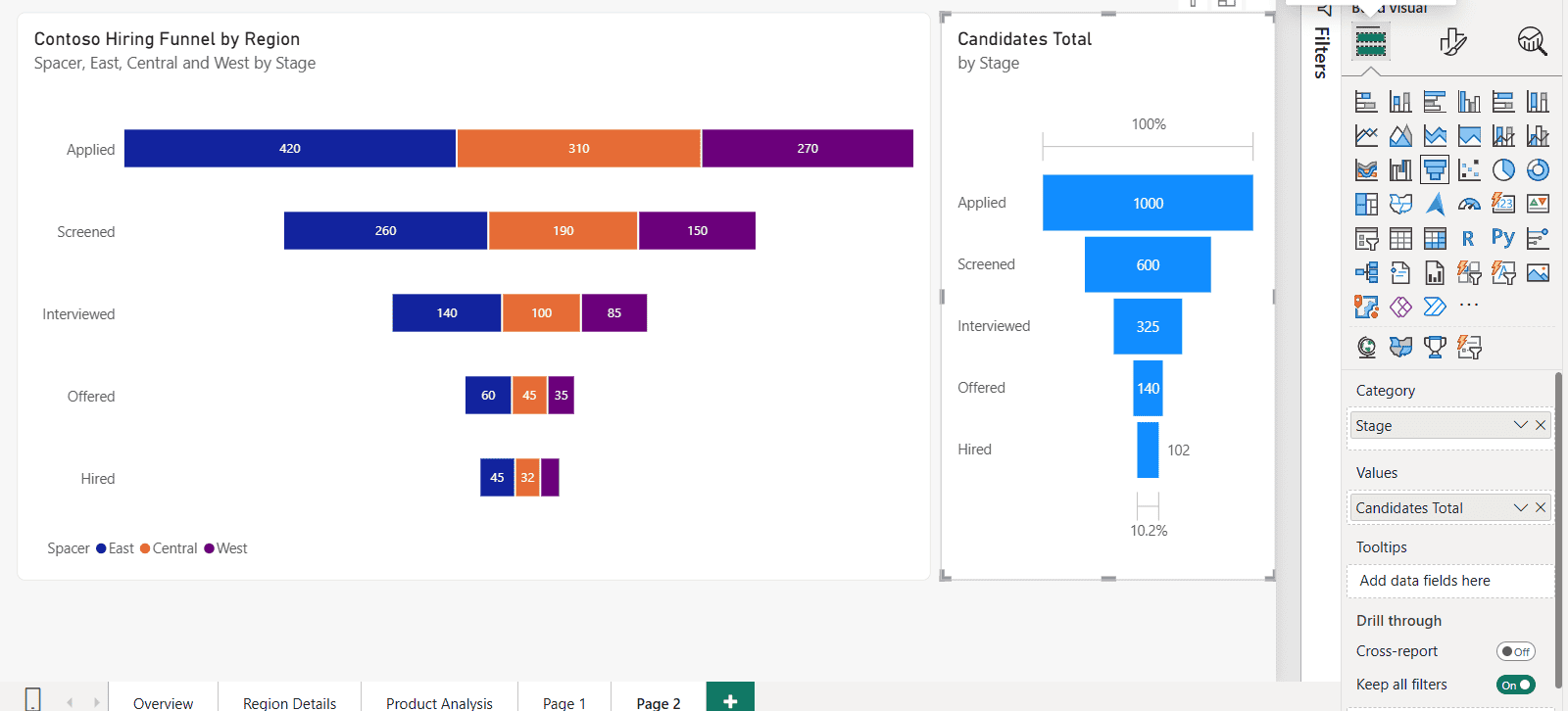
You can see the difference in my report. The native funnel on the right shows 1,000 applicants shrinking to 102 hires, with 100% at the top and 10.2% at the bottom. But it can’t tell you which region the hires came from. The stacked funnel on the left can.
The native funnel still has its uses. It shows the percentage of the first stage when you hover over a bar, and it cross-filters other visuals. For a sideways version, try a horizontal funnel chart in Power BI.
Your options for a stacked funnel
| Option | How it works | Good for |
|---|---|---|
| Stacked bar chart with a spacer (this tutorial) | A transparent first series centers each bar | Any report, no extra visuals, full formatting control |
| Custom visual from AppSource | Import a funnel visual that splits stages by a field | Teams that allow custom visuals in their tenant |
| Several native funnels | One funnel per region, side by side | Two or three segments, quick comparisons |
To look for a custom visual, select More visuals > From AppSource on the Home ribbon and search for funnel. MAQ Software’s Funnel with Source, for example, splits stages by a source field. Check whether a visual is certified, and whether your admin allows it, before you build on it.
I use the stacked bar method because it works everywhere, including Power BI Service, with nothing extra to install or approve.
The sample data
The data needs one row per stage and segment, with a number column and a stage order. I created mine with Modeling > New table and this DAX, so you can paste it and follow along. Your own data can come from Excel or SharePoint in the same long format.
Funnel =
DATATABLE (
    "Stage", STRING, "Stage Order", INTEGER, "Region", STRING, "Candidates", INTEGER,
    {
        { "Applied", 1, "East", 420 }, { "Applied", 1, "Central", 310 }, { "Applied", 1, "West", 270 },
        { "Screened", 2, "East", 260 }, { "Screened", 2, "Central", 190 }, { "Screened", 2, "West", 150 },
        { "Interviewed", 3, "East", 140 }, { "Interviewed", 3, "Central", 100 }, { "Interviewed", 3, "West", 85 },
        { "Offered", 4, "East", 60 }, { "Offered", 4, "Central", 45 }, { "Offered", 4, "West", 35 },
        { "Hired", 5, "East", 45 }, { "Hired", 5, "Central", 32 }, { "Hired", 5, "West", 25 }
    }
)
Stage Order is important. Without it, Power BI sorts the stage names alphabetically, and Applied, Hired, Interviewed is not a funnel.
If your data already has one column per region, you can skip the region measures below and add those columns to the X-axis directly. That’s how the older version of this post did it, using Unpivot and Pivot in Power Query.
Step 1: Create the measures
Select the Funnel table, then Home > New measure. First, a total for each stage:
Candidates Total = SUM ( Funnel[Candidates] )Next, the spacer. It finds the longest bar, which is Applied with 1,000, and returns half of the gap between that bar and the current one. Applied gets 0, Screened gets 200, and Hired gets 449. That empty space on the left is what centers each bar.
Spacer =
VAR LongestBar =
    MAXX ( ALL ( Funnel[Stage], Funnel[Stage Order] ), [Candidates Total] )
RETURN
    ( LongestBar - [Candidates Total] ) / 2
ALL removes the filter on both Stage and Stage Order, because the chart groups by both once you sort by Stage Order. It keeps any region or date slicers, so the funnel stays centered when someone filters. To learn more about this pattern, see how to filter a measure in Power BI.
Then add one measure per segment. Each one returns the stage total for a single region:
East = CALCULATE ( [Candidates Total], Funnel[Region] = "East" )

Central = CALCULATE ( [Candidates Total], Funnel[Region] = "Central" )

West = CALCULATE ( [Candidates Total], Funnel[Region] = "West" )
Step 2: Sort the stages in funnel order
- In the Data pane, select the Stage column.
- On the Column tools tab, select Sort by column > Stage Order.
Now every visual lists the stages from Applied to Hired. This is better than sorting inside the chart, because it sticks even if someone changes the sort later. For other sort options, see how to sort a stacked bar chart in Power BI.
Step 3: Build the stacked bar chart
- Select an empty spot on the page and choose Stacked bar chart in the Visualizations pane.
- Add Stage to Y-axis.
- Add Spacer, East, Central and West to X-axis, in that order. Spacer has to be first so it sits on the left.
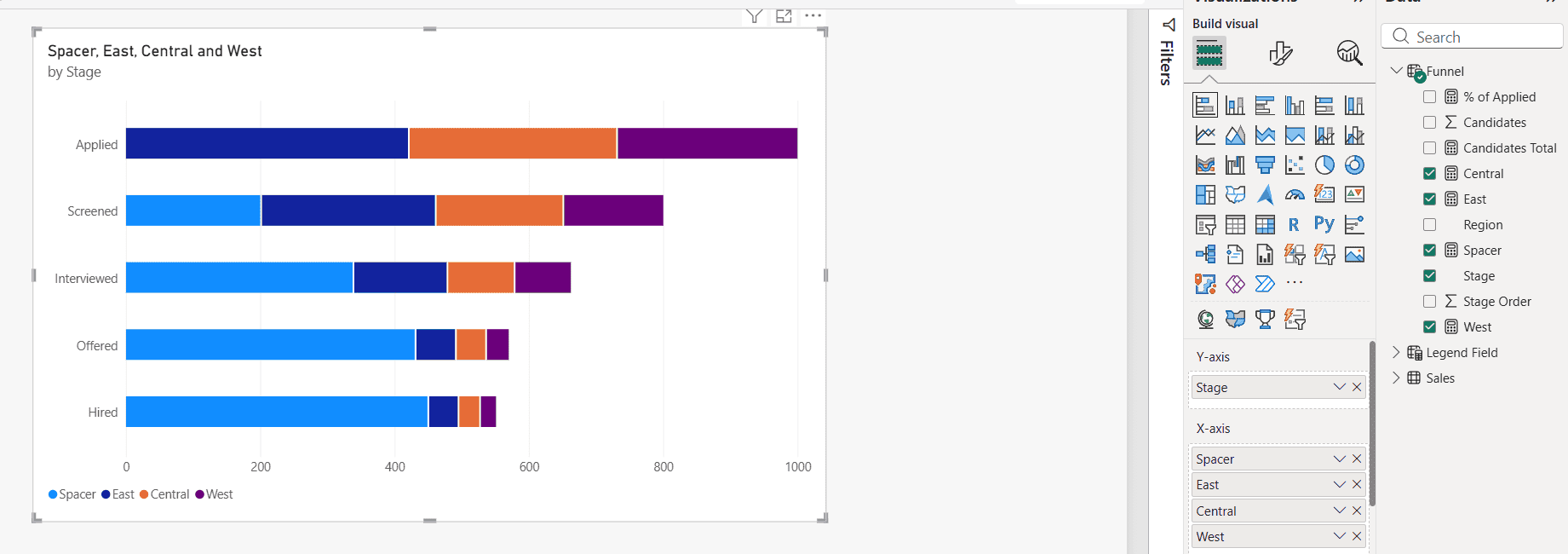
The light blue Spacer bars already push the colored segments toward the middle. If you’re new to this visual, see how to create a bar chart in Power BI for the basic settings.
Step 4: Turn the bar chart into a funnel
- Select the chart, then Format visual > Visual > Bars.
- Under Apply settings to, set Series to Spacer.
- Under Color, set Transparency to 100%.
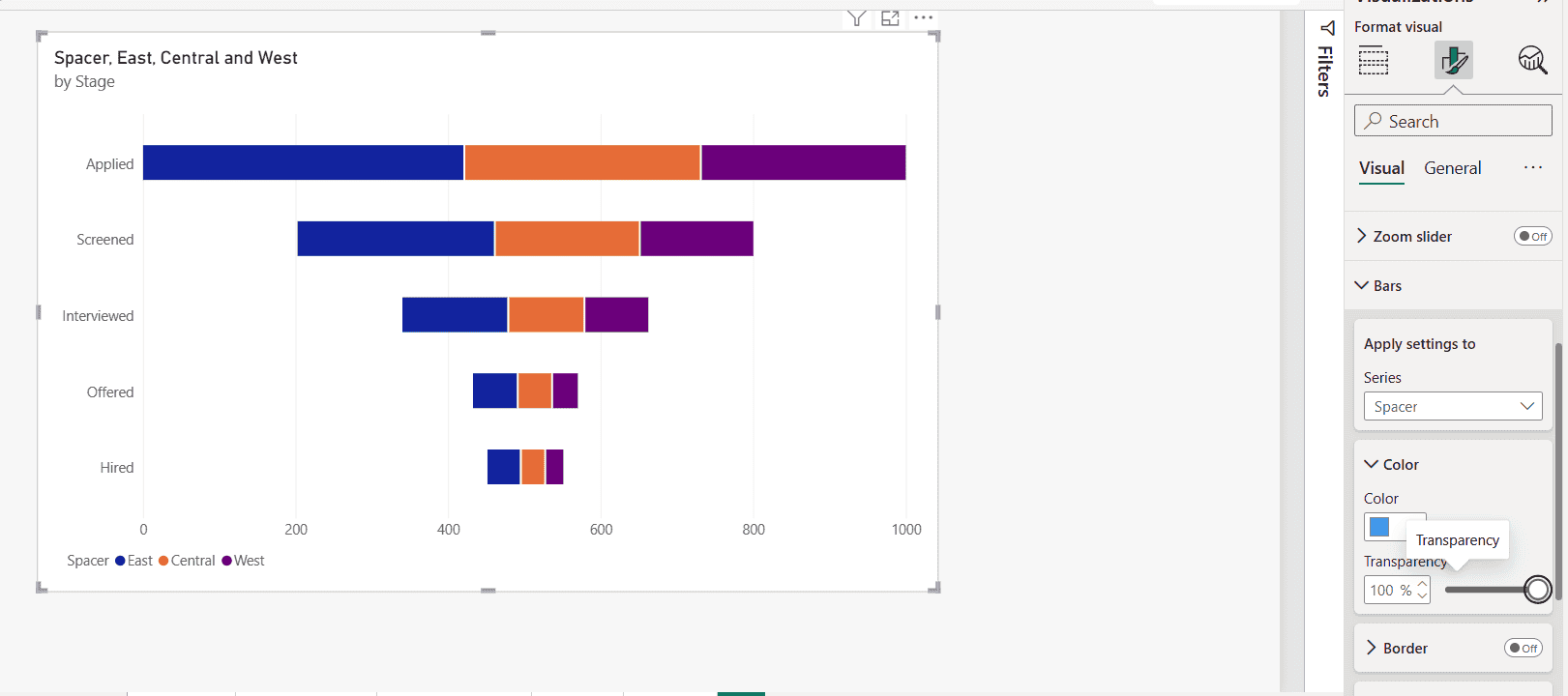
The spacer disappears and the bars are now centered. To finish it:
- Turn on Data labels to show each region’s count.
- Under X-axis, turn off Values. The axis numbers include the spacer, so they’d only confuse readers.
- On the General tab, change Title > Text to something clear. I used Contoso Hiring Funnel by Region.
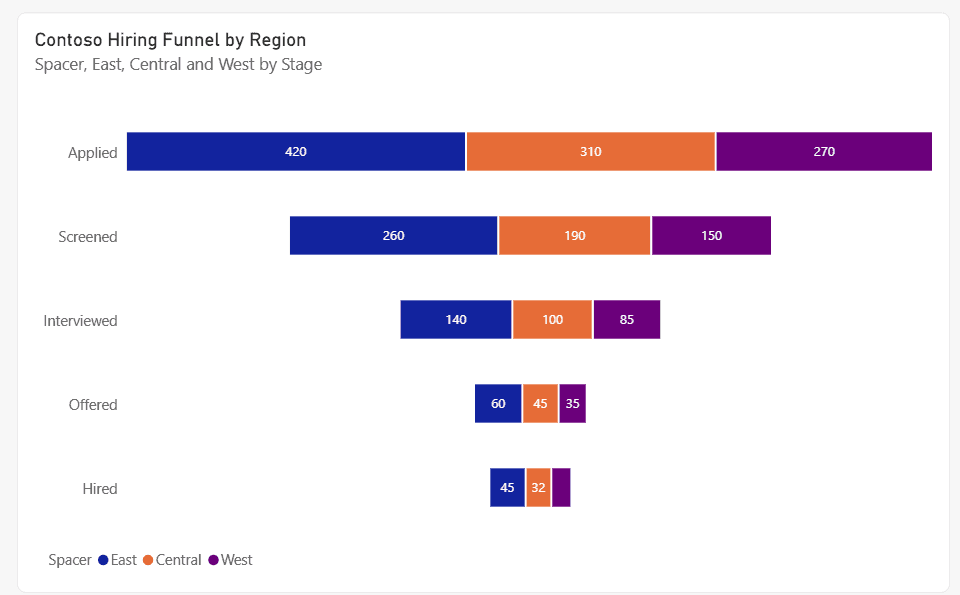
You can now see that East supplies almost half of the hires. The West label at the Hired stage is missing because its bar is too narrow for the number. Make the chart wider, or reduce the label font size, to show it.
Add a conversion rate to the tooltip
The native funnel shows the percentage of the first stage on hover, and you can add the same thing here. Create this measure and format it as a percentage:
% of Applied =
DIVIDE (
    [Candidates Total],
    CALCULATE (
        [Candidates Total],
        ALL ( Funnel[Stage], Funnel[Stage Order] ),
        Funnel[Stage Order] = 1
    )
)
Add % of Applied to the Tooltips well. Hovering over Hired now shows 10.2%, which is 102 of 1,000 applicants. DIVIDE returns blank instead of an error when the first stage is empty. For more on it, see how to divide measures in Power BI.
Create a stacked funnel chart in Excel
The same trick works in Excel. Put the stages in the first column, a Spacer column with the same formula, and one column per segment. Then select the data and choose Insert > Insert Column or Bar Chart > Stacked Bar.
Right-click the spacer series, choose Format Data Series, and set Fill to No fill. Excel draws the first category at the bottom, so open Format Axis on the vertical axis and select Categories in reverse order. You can also build other shapes this way, like a pyramid chart in Power BI.
Common problems and fixes
- The bars aren’t centered: Spacer isn’t the first field in X-axis. Drag it to the top of the list.
- The funnel is off-center after filtering: the spacer uses ALL on the whole table. Use ALL on the stage columns only, as above, so slicers still apply.
- The stages are in alphabetical order: set Sort by column to Stage Order, then sort the chart by Stage, ascending.
- Spacer still shows in the legend: its marker is transparent, but the name stays. Rename it for this visual in the X-axis well, or turn off the legend and name the regions in the title.
- The tooltip shows the Spacer value: that’s expected when you hover over the empty area. Add the measures you want to Tooltips so they appear for every segment.
Want to try another way to show stages and totals? These are a good next step:
Frequently Asked Questions
Can you create a stacked funnel chart in Power BI?
Not with the funnel visual, because it has no Legend. Use a stacked bar chart with a transparent spacer series, as shown above. Microsoft’s funnel chart documentation lists only the Category and Values fields for the native funnel.
What is the Spacer measure in a stacked funnel?
It’s half the difference between the longest bar and the current bar. Placed first and made fully transparent, it pushes each bar to the center.
Does the Power BI funnel chart support a legend or small multiples?
No. In current Power BI Desktop, the funnel visual only has Category, Values and Tooltips wells.
How do I show the conversion rate in a stacked funnel?
Create a measure that divides each stage’s total by the first stage’s total, format it as a percentage and add it to Tooltips.
Can I make a stacked funnel chart in Excel?
Yes. Use a stacked bar chart with a spacer series set to No fill, and turn on Categories in reverse order for the vertical axis.

I have worked with Microsoft technologies for more than 18 years, including SharePoint, Microsoft 365 and the Power Platform (Power Apps, Power Automate and Power BI), at companies like HP, TCS and KPIT. I started EnjoySharePoint in 2011 to share the solutions I build in real projects with readers in the United States, Canada, the United Kingdom, Australia, New Zealand and beyond. Microsoft has recognized this work with the Microsoft MVP award 13 times since 2014.