
When working with files in Power Automate, sometimes the trigger or previous actions only provide metadata like the file’s full path, display name, or unique identifier but not the actual content. However, we need the file content to process or use the file further (such as sending it in an email or saving it to another location). This is where the Get File Content using Path action.
In this tutorial, using an example, I will explain how to use the Get File Content using Path in Power Automate for both the OneDrive and SharePoint connectors.
Get File Content Using Path in Power Automate
In Power Automate, there are two different actions named Get File Content using Path:
- For OneDrive Connector – Used when fetching file content from OneDrive.
- For SharePoint Connector – Used when retrieving file content from a SharePoint document library.
Get File Content using Path For OneDrive Connector
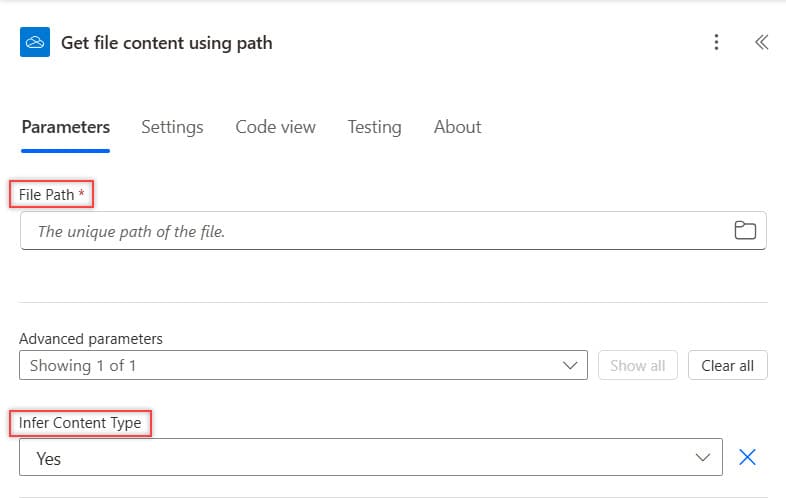
The Power Automate Get File Content using Path action for OneDrive Connector accepts two parameters:
- File Path – The full path of the file in OneDrive, starting from the root folder.
- Infer Content Type (Yes/No) – Determines whether Power Automate should detect the file’s content type automatically.
Get File Content using Path For SharePoint Connector
The Power Automate Get file content using path action for the SharePoint connector accepts three parameters:
- Site Address – The URL of the SharePoint site where the file is stored.
- File Path – The file’s relative path within the SharePoint document library.
- Infer Content Type (Yes/No) – Determines whether Power Automate should automatically detect the file’s content type.

Get File Content Using Path For OneDrive Connector in Power Automate
Imagine you have an Excel file stored in OneDrive, and you need to retrieve its content for another action, such as emailing it. Instead of selecting the file manually, you can use the Get file content using path action in Power Automate.
Now follow the below steps to do this:
1. Create an Instant Cloud Flow by selecting the ‘Manually trigger a flow’ trigger action.

2. Add the Get file content using path (OneDrive for Business) action, and provide the below parameters:
- File Path – Select the File for which you want to read the file content.
- Infer Content Type – By default, it will be yes. The content type will be retrieved from the document.

3. Add the Send an email (V2) action (Outlook) and below parameters:
- To: Set the user where you want to send.
- Subject: Give a subject to the email.
- Body: Specify the body using the dynamic content.
- Attachment Name: Calendar Events List.xlsx
- Attachment Content: Select the File Content output from the previous step.

Now, click Save and run the flow manually. After the flow runs successfully, you will receive an email with an attachment.

This is how to use the Get file content using path flow action in a Power Automate to retrieve file content from OneDrive for Business.
Get File Content Using Path For SharePoint Connector in Power Automate
You have a Monthly Sales Report stored in a SharePoint document library, and you want Power Automate to automatically send this file as an email attachment on the 1st of every month. Instead of selecting the file manually, you can use the “Get file content using path” action in Power Automate.

To do this, follow the below steps:
1. Navigate to the Power Automate Home page, click + Create, and select the Scheduled Cloud Flow. Then provide the following information:
- Starting: Provide the date on which you want to run your flow. Make sure to provide the start date of the month.
- At: Specify the time you want to run the flow. In my case, it’s 10:00 AM.
- Repeat every: We want to run the flow every month.

2. Add the Get file content using path (SharePoint) action and add the following parameters:
- Site Address: Select the SharePoint site address from the dropdown where the file exists.
- File Path: Use the file picker to select the file for which you want to read the content.
- Infer Content Type: Expand “Show advanced options.” By default, “Infer Content Type” is set to “Yes,” which retrieves the content from the document.

3. Add the Send an email (V2) action (Outlook) and provide the following parameters:
- To:[Recipient Emails]
- Subject: Provide below:
Monthly Sales Report - [formatDateTime(utcNow(), 'MMMM yyyy')]- Body: Provide body:
Dear Team,

Please find attached the latest **Monthly Sales Report** for [formatDateTime(utcNow(), 'MMMM yyyy')].

Let us know if you need any additional details.

Best regards,
TSINFO TECHNOLOGIES PVT LTD
- Attachment Name: Monthly Sales Report.xlsx
- Attachment Content: Select File Content from the previous step.

Now, save the flow and run it manually. After the flow runs successfully, you will see that the assigned people receive an email.

Conclusion
This tutorial explained how to use the Get File Content using Path action in Power Automate for OneDrive and SharePoint. We covered why this action is useful, how to retrieve file content, and how to send it via email. The OneDrive example showed sending an Excel file, while the SharePoint example scheduled a Monthly Sales Report email on the 1st of every month.
You may also like:
- Send Birthday Email using Power Automate
- Power Automate If Contains
- Populate a Word Template using Power Automate
- Check if a String Contains Numbers in Power Automate
- SharePoint list item only one field using Power Automate
- Delete SharePoint Folders Using Power Automate

I have worked with Microsoft technologies for more than 18 years, including SharePoint, Microsoft 365 and the Power Platform (Power Apps, Power Automate and Power BI), at companies like HP, TCS and KPIT. I started EnjoySharePoint in 2011 to share the solutions I build in real projects with readers in the United States, Canada, the United Kingdom, Australia, New Zealand and beyond. Microsoft has recognised this work with the Microsoft MVP award 13 times since 2014.