
Apply to Each is one of the most used actions in Power Automate — and honestly, one of the most misunderstood. I’ve seen flows silently break, process thousands of unnecessary API calls, or return null values, all because of a small misstep in this loop.
In this tutorial, I’ll walk you through everything you need to know about the Current Item inside Apply to Each — how to access it, how to pull just the ID or a specific column value, how to track the loop index, and the common mistakes that trip people up.
Here’s what we’ll cover:
- What “Current Item” actually means in Apply to Each
- How to get the Current Item in a flow (with a real SharePoint example)
- How to extract just the Item ID using an expression
- How to get a specific column value from the Current Item
- How to track the loop index (since Apply to Each doesn’t have one built-in)
- When NOT to use Apply to Each
- Troubleshooting: Why is Current Item returning null or the wrong value?
- Apply to Each concurrency and throttling — what you need to know
- Expression cheat sheet
Quick Answer
To access the Current Item inside Apply to Each, add a Compose action inside the loop and select Current item from dynamic content. To access a specific field, use the expression item()?[‘ColumnName’] — for example, item()?[‘ID’] gives you the list item ID.
What Is “Current Item” in Power Automate Apply to Each?
When you set up an Apply to Each loop, Power Automate feeds it an array — a list of things. For each pass through the loop, the Current Item is whatever object the loop is currently processing.
Think of it like a for-each loop in code. If you’re looping through 10 SharePoint list items, on the third pass, the Current Item is the third list item — with all its columns, ID, and metadata.
The confusion usually starts when people expect the Current Item to be a single value. It’s not. It’s the entire object for that iteration. To pull a specific field out of it, you need an expression.
What Is “Current Item” — and Why It’s Often Misunderstood
A lot of people drop in Apply to Each and then look for “Current Item” in dynamic content, only to find something generic or nothing at all. This happens for two reasons:
- The dynamic content label changes depending on what’s feeding the loop. If you’re looping through SharePoint Get Items, you’ll see things like “Title”, “ID”, and “Status” directly in dynamic content. These are all fields from the Current Item — Power Automate just surfaces them automatically.
- Some actions inside the loop don’t show Current Item in dynamic content. This is a known issue in Power Automate. The fix is simple: add a Compose action as the very first step inside the Apply to Each loop, pass Current Item into it, and then reference the Compose output in any later action inside that loop.
Example Setup: SharePoint List
For all the examples in this tutorial, I’m using a SharePoint list called Employees with these columns:
| Column | Type |
|---|---|
| Title | Single line of text (Employee Name) |
| Status | Choice (Active / Inactive) |
| Salary | Number |
| ID | Auto-generated by SharePoint |
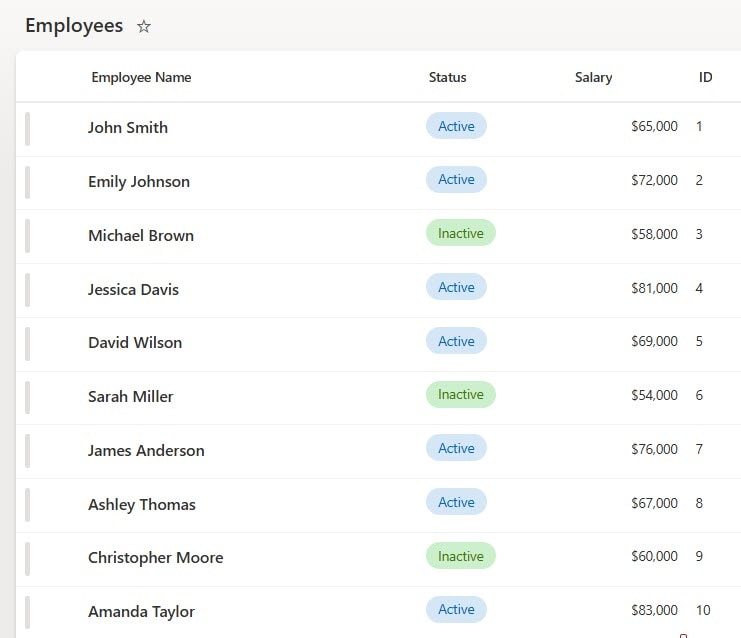
I’ll walk through each scenario using an instant cloud flow with a manual trigger. This keeps it simple to test and run on demand.
How to Get the Current Item in Power Automate Apply to Each
Let’s start with the basics — looping through a SharePoint list and accessing the full Current Item object.
Steps:
- Go to Power Automate → Create → Instant cloud flow → give it a name → select Manually trigger a flow → click Create.
- Click + New step → search for Get items → select it.
- Set the Site Address and List Name to your SharePoint list.
- In Filter Query, add an OData filter to narrow the results. For example, to get only active employees:
Status eq 'Active' 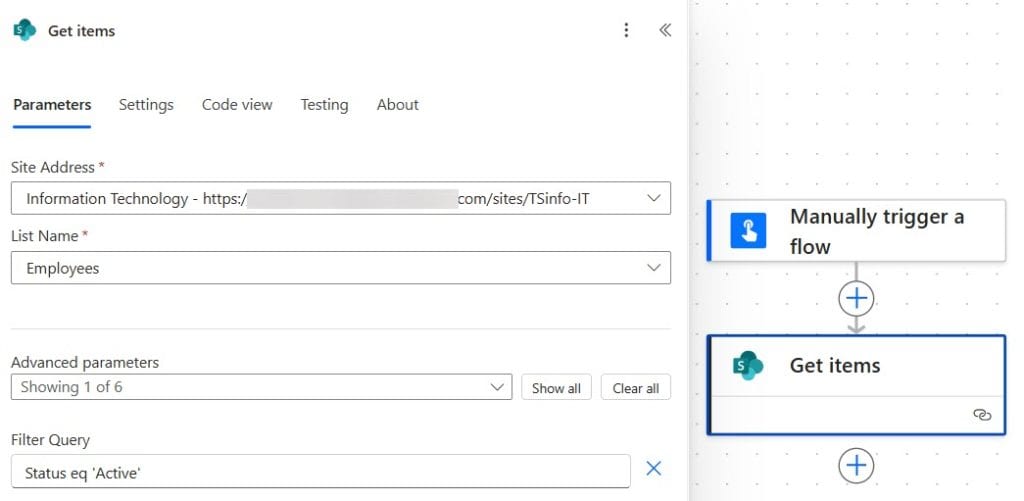
💡 Pro tip: Always filter at the Get Items step using OData queries instead of filtering inside the loop. It reduces the number of items your flow processes and prevents unnecessary API calls.
- Click + New step → search for Apply to each → select it.
- In the Select an output from previous steps field, select value from dynamic content (this is the array of list items returned by Get Items).
- Inside the Apply to Each loop, click Add an action → search for Compose → select it.
- In the Compose Inputs field, select Current item from dynamic content.
- Save the flow → click Test → Manually → Run flow.
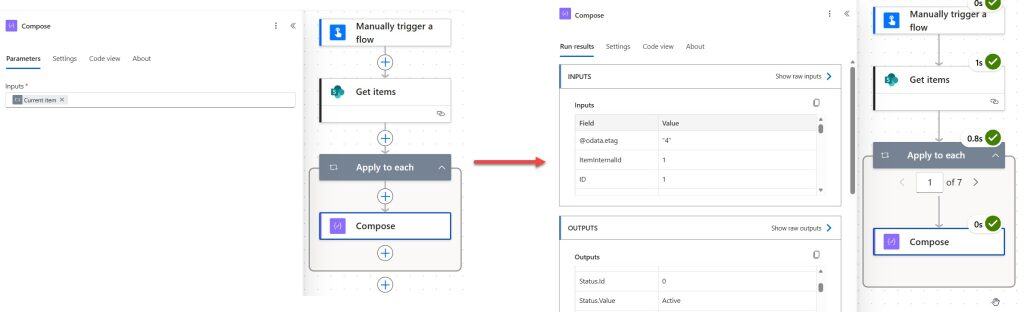
When the flow runs, expand the Apply to Each action to see each iteration. Expand the Compose action inside, and you’ll see the full Current Item object — a JSON object containing every column value for that list item.
That’s the foundation. Now let’s pull specific values out of it.
Power Automate Get Only Item ID Inside Apply to Each
Say you only need the SharePoint list item ID from each record — not the full object. Here’s how to do it with an expression.
Steps:
- Follow the same setup as above, but this time filter for inactive employees:
Status eq 'InActive'- Inside the Apply to Each loop, add a Compose action.
- Switch to the Expression tab in dynamic content, and enter:
item()?['ID']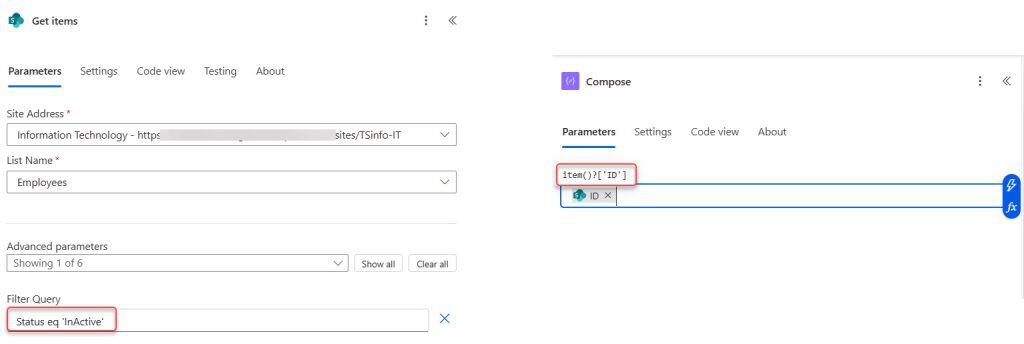
- Click OK, then Save and Test the flow.
When you expand the Compose action for each iteration, you’ll see just the numeric ID value — for example, 3 or 7.
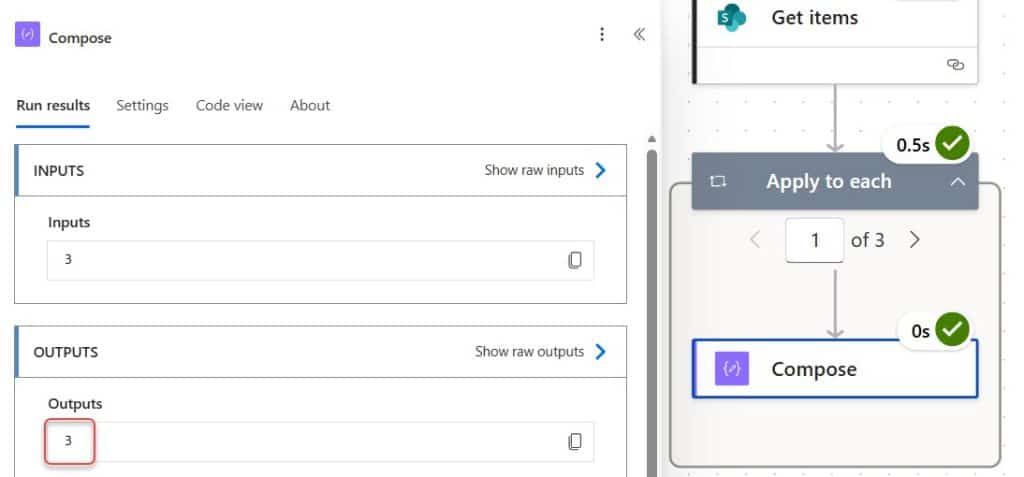
⚠️ Common mistake: If you see a blank output or an error, double-check the column name in your expression. SharePoint’s internal column name for the ID is always
ID(uppercase), but custom columns may have a different internal name than what’s displayed in the list. To find the internal name, go to your SharePoint list → List Settings → click on the column — the internal name is in the URL.
Extract a Specific Column Value from Current Item in Power Automate
Now, let’s say you want to collect values from a specific column — say, a number column called Salary across all loop iterations and store them in an array variable.
Steps:
- Create an instant cloud flow with a manual trigger.
- Add Get items → set your Site Address and List Name → add a Filter Query:
Status eq 'InActive'- Before the Apply to Each loop, add an Initialize variable action:
- Name: VarArray
- Type: Array
- Value: leave blank
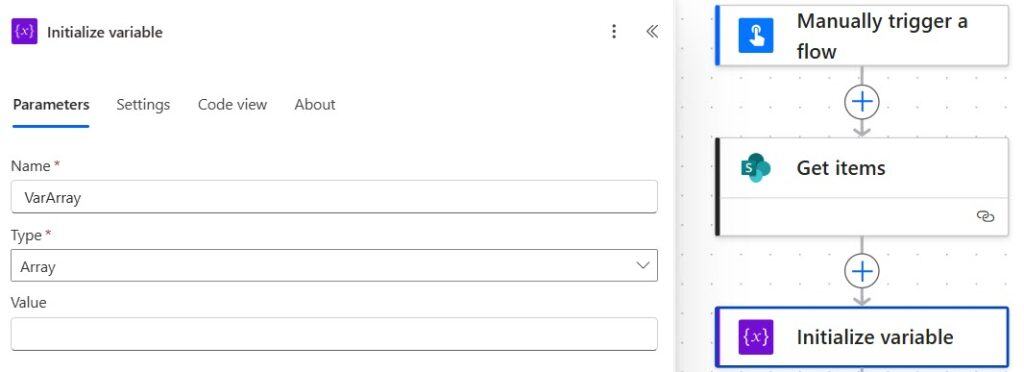
- Add an Apply to each action → pass value from dynamic content into the loop.
- Inside the loop, add an Append to array variable action:
- Name: VarArray
- Value: (switch to Expression tab) item()?[‘Salary’]
- After the loop (outside Apply to Each), add a Compose action → pass VarArray as the input.
- Save and Test the flow.
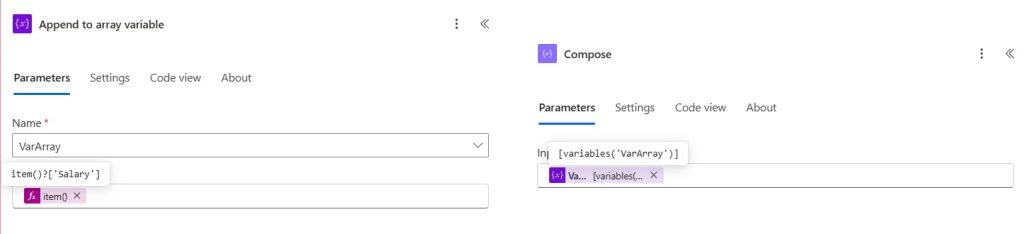
The Compose output will show you an array of all the salary column values from inactive employees.
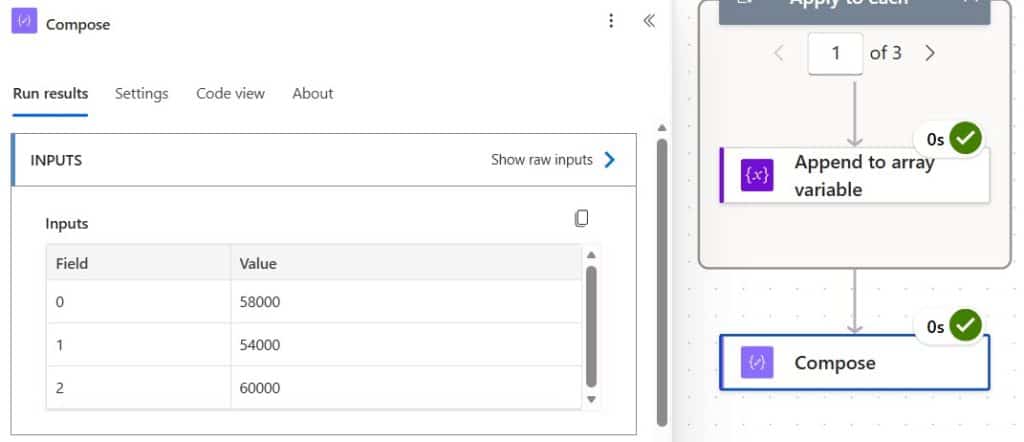
💡 Null-safe access: If there’s a chance the column value might be blank for some items, wrap the expression in
coalesce()to avoid errors:coalesce(item()?['Salary'], 0)This returns
0(or whatever default you choose) if the column is blank, instead of failing the flow.
How to Track the Loop Index in Apply to Each (Since There Isn’t One Built-In) in Power Automate
This is one of the most common questions I see — “How do I know which iteration I’m on?”
Unlike a Do Until loop (which has a built-in iteration index), Apply to Each doesn’t give you a loop counter. But the workaround is straightforward: initialize an integer variable before the loop and increment it by 1 on every pass.
Steps:
- Create the instant cloud flow with a manual trigger.
- Add Get items → set Site Address and List Name.
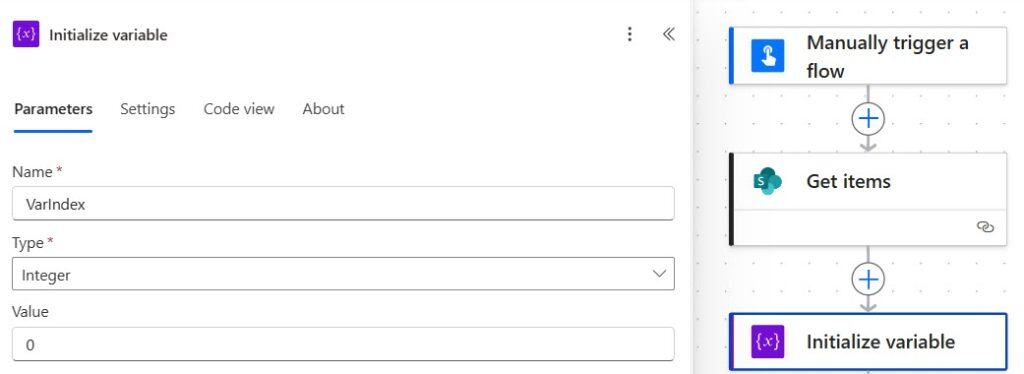
- Before the Apply to Each, add Initialize variable:
- Name: VarIndex
- Type: Integer
- Value: 0
- Add Apply to each → pass value from dynamic content.
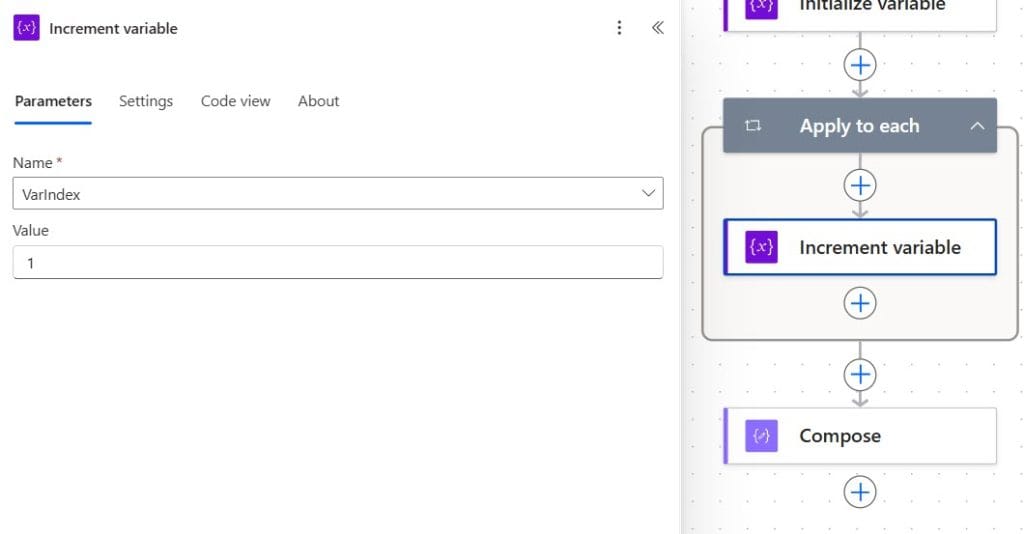
- Inside the loop, add an Increment variable action:
- Name: VarIndex
- Value: 1
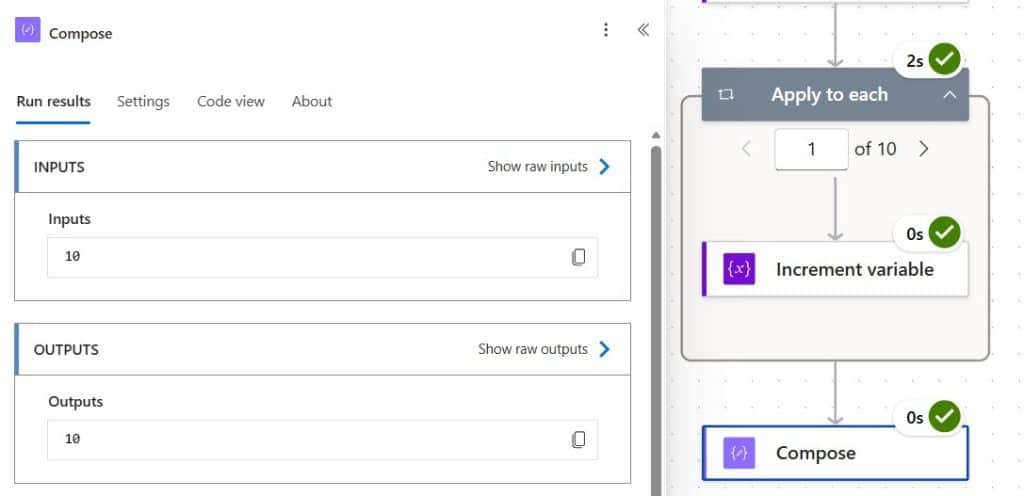
- Add a Compose action → pass VarIndex as the input.
- Save and Test the flow.
On the first iteration, Compose outputs 1. On the third, it outputs 3. And so on.
⚠️ Important warning about concurrency: If you enable concurrency on the Apply to Each loop (see the section below), this variable increment method will give you incorrect and unpredictable index values. Multiple iterations will read and write the variable at the same time, and you’ll get race conditions. If you need accurate indexing, keep concurrency off (set to 1).
When NOT to Use Apply to Each
This is the part most tutorials skip, but it’s probably the most useful thing I can tell you.
Don’t use Apply to Each just to filter items. If you’re looping through 500 SharePoint items and adding a Condition inside the loop to check if Status equals “Active”, that’s 500 action runs. Instead, use an OData $filter on the Get Items step:
Status eq 'Active'
Power Automate will only return the matching items, and you never loop through the ones you don’t need. This can reduce your flow’s action runs by 80–90% on large lists.
Don’t use Apply to Each if you can use a Select action. If you just need to transform each item in an array (e.g., extract one column into a new array), the Select data operation does it in a single action without a loop. Much faster, much cleaner.
Be careful with nested Apply to Each. A loop inside a loop (e.g., looping through items and then looping through sub-items) multiplies your action runs very quickly. For 50 parent items × 20 child items, that’s 1,000 iterations. On large datasets, this can hit Power Automate’s daily action run limits fast.
Power Automate Apply to Each Concurrency and Throttling — What You Need to Know
By default, Apply to Each processes items one at a time, sequentially. If you have 200 items and each iteration takes 2 seconds, your flow takes roughly 400 seconds.
You can speed this up by enabling Concurrency Control:
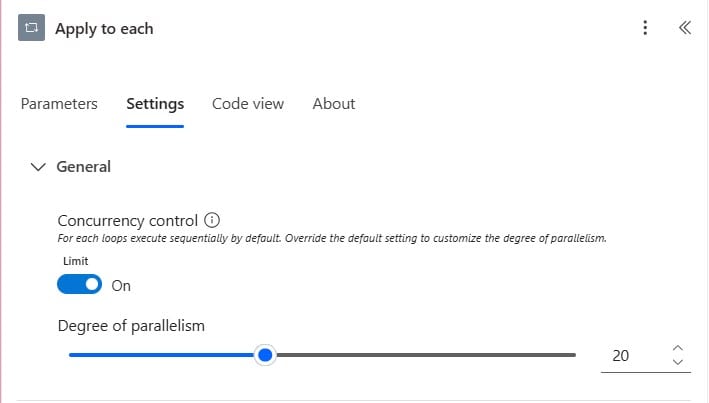
- Click on the Apply to Each action → Settings.
- Toggle on Concurrency Control.
- Set the Degree of Parallelism — this determines how many iterations run simultaneously.
A few things I’ve learned the hard way about concurrency settings:
- Don’t set it to 50 right away. High concurrency creates a flood of API calls to SharePoint or other connectors, which triggers throttling (HTTP 429 errors). Power Automate will retry, but this actually slows things down overall.
- A setting of 10–15 is a good starting point for SharePoint. Test and monitor — you’re looking for the sweet spot between speed and throttling.
- Never use concurrency if iterations depend on each other — for example, if you’re reading and then writing to the same SharePoint item in the loop, or using the variable increment index trick above.
- Concurrency makes run history harder to read. When items process in parallel, the order shown in the run history won’t match the original item order.
Troubleshooting: Why Is Current Item Returning Null or the Wrong Value?
Here are the four most common issues I see, and how to fix each one.
1. “Current Item” doesn’t appear in dynamic content inside the loop
This is a UI quirk in Power Automate. Fix: Add a Compose action as the very first action inside your Apply to Each loop. Set its input to Current item from dynamic content. Compose always accepts Current Item, regardless of type. Then reference the Compose output in any other actions in the loop.
2. item()?['ColumnName'] returns null
You’re either using the display name instead of the internal column name, or the column name has a typo. To get the exact internal name, go to SharePoint List Settings → click the column → copy the Field= value from the URL.
For lookup columns, the internal name often has Id appended (e.g., CategoryId). For People columns, you may need item()?['AssignedTo']?['Email'] to drill into the person object.
3. The flow processes more items than expected
You’re not using an OData filter on Get Items. Go back to your Get Items action, open Show advanced options, and add your filter in the Filter Query field. This filters at the data source level before the array is even built.
4. The loop runs but all Compose outputs are the same value
This usually happens when a variable is set (not incremented) inside the loop, or when dynamic content from outside the loop is being referenced instead of Current Item. Double-check that your expression is using item()?['ColumnName'] and not a static dynamic content token from before the loop.
Expression Cheat Sheet
Quick reference for the most common expressions inside Apply to Each:
| What You Need | Expression |
|---|---|
| Item ID | item()?['ID'] |
| Item Title | item()?['Title'] |
| A custom text column | item()?['ColumnInternalName'] |
| A number column | item()?['NumberColumn'] |
| A lookup column (ID) | item()?['LookupColumnId'] |
| A person column (email) | item()?['PersonColumn']?['Email'] |
| A person column (display name) | item()?['PersonColumn']?['DisplayName'] |
| Null-safe string access | coalesce(item()?['Title'], 'Unknown') |
| Null-safe number access | coalesce(item()?['Score'], 0) |
Also, you may like:
- Power Automate skip() Function
- Parse JSON Object to Array in Power Automate
- Power Automate: Format Dates to ISO 8601
- Create a SharePoint Folder in Power Automate
Frequently Asked Questions
Does Apply to Each have a built-in loop index?
No, it doesn’t. Unlike the Do Until loop, which exposes an iteration count, Apply to Each has no built-in counter. The workaround is to initialize an integer variable before the loop and increment it by 1 inside the loop on each pass. Just remember that this won’t give accurate results if you enable concurrency.
Can I use Apply to Each in parallel mode?
Yes. Open the Apply to Each settings and enable Concurrency Control. You can set up to 50 parallel branches. However, for SharePoint-connected flows, I’d recommend starting at 10–15 to avoid throttling. Never use parallel mode if your iterations share a variable or depend on each other.
Why can’t I find Current Item in dynamic content inside my loop?
This is a known Power Automate UI issue. The fix is to add a Compose action as the first step inside your Apply to Each, set its input to Current Item, and use the Compose output in all subsequent actions inside the loop.
How do I access a lookup column value inside Apply to Each?
Lookup columns return an object, not a plain value. Use item()?['LookupColumnId'] to get the ID of the referenced item, or item()?['LookupColumn']?['Value'] to get the display value. The exact property name depends on the column type.
What’s the difference between item() and items() in expressions?
item() refers to the current item in the current innermost loop you’re working in. items(‘Apply_to_each’) references the current item of a specific named loop — useful when you have nested loops and need to reference an outer loop’s current item from inside an inner loop. The loop name inside items() must match exactly what the loop action is named in your flow.

After working for more than 18 years in Microsoft technologies like SharePoint, Microsoft 365, and Power Platform (Power Apps, Power Automate, and Power BI), I thought will share my SharePoint expertise knowledge with the world. Our audiences are from the United States, Canada, the United Kingdom, Australia, New Zealand, etc. For my expertise knowledge and SharePoint tutorials, Microsoft has been awarded a Microsoft SharePoint MVP (12 times). I have also worked in companies like HP, TCS, KPIT, etc.

